
Search Our Database
How to add a new domain for an existing cPanel Account in cPanel
Introduction
When you manage a server with IP ServerOne and need to host an additional website for an existing customer, you can add the new domain to their cPanel account without creating a separate account. This guide is written for server administrators who log in to WHM as the root user, where the add-on domain is added under an existing cPanel user account so that the new website shares the same hosting resources. The whole process takes only a few minutes, from locating the account in WHM to creating the domain in cPanel. This article walks you through how to add an add-on domain under an existing cPanel account as the root user, including how to check the account’s add-on domain limit beforehand.
Prerequisite
- WHM root access to the server
- An existing cPanel user account on the server
- A registered domain name ready to be added
- DNS of the domain already pointed to the server
Important Note : This guide is intended for WHM root users. Adding a domain in cPanel as a domain user is a different process and is not covered here.
Step-by-Step Guide
Step 1: Locate the existing cPanel account
- Log in to your cPanel account, e.g. https://yourdomain.com.my:2087
- Navigate to Home >> Account Functions >> List Accounts.
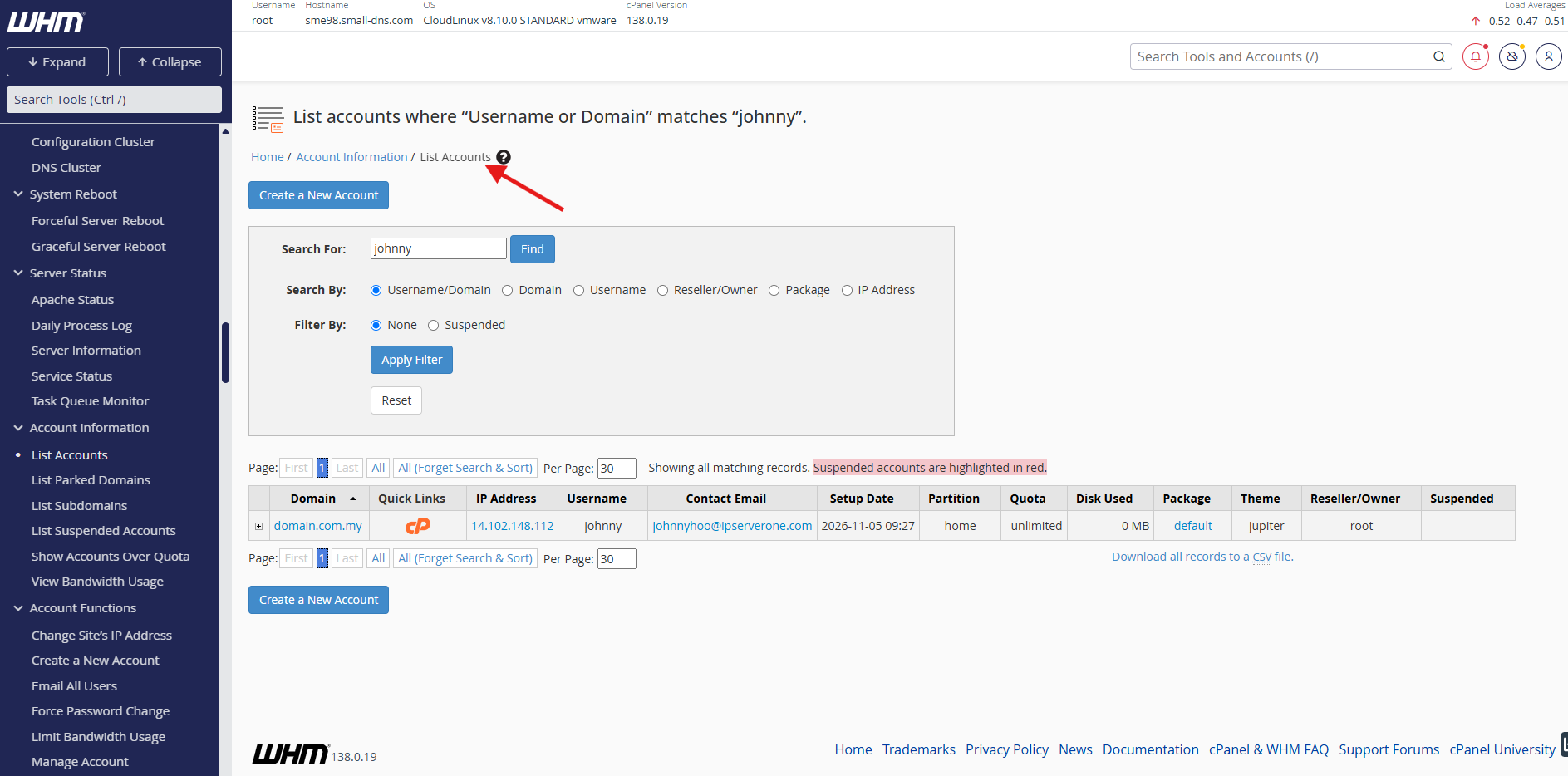
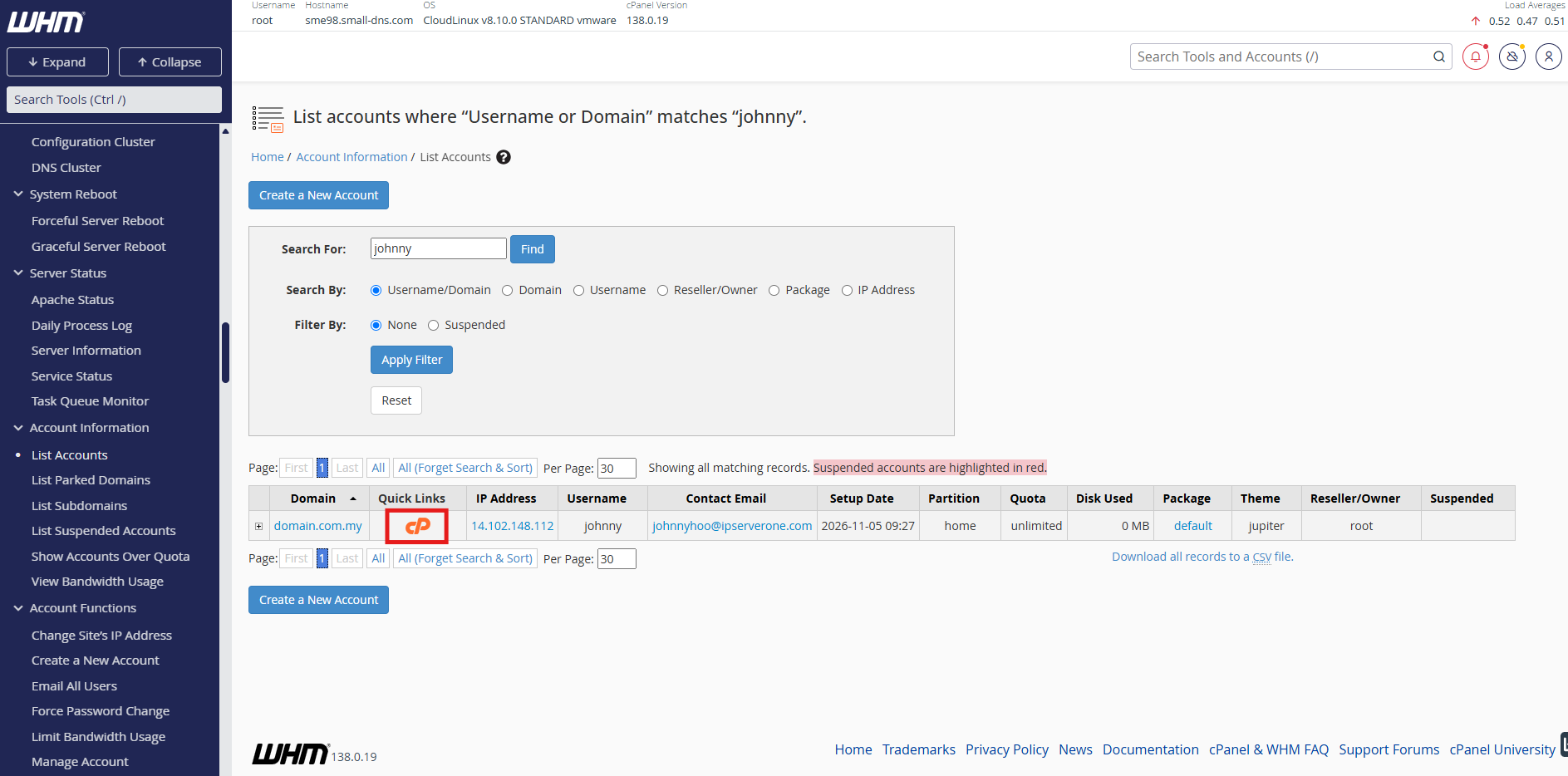
- Search for the existing cPanel user account that you want to add the domain to. Click the Login to cPanel icon to enter the cPanel interface of that user account.
- You are now in the cPanel of the existing user account, where the new domain will be added.
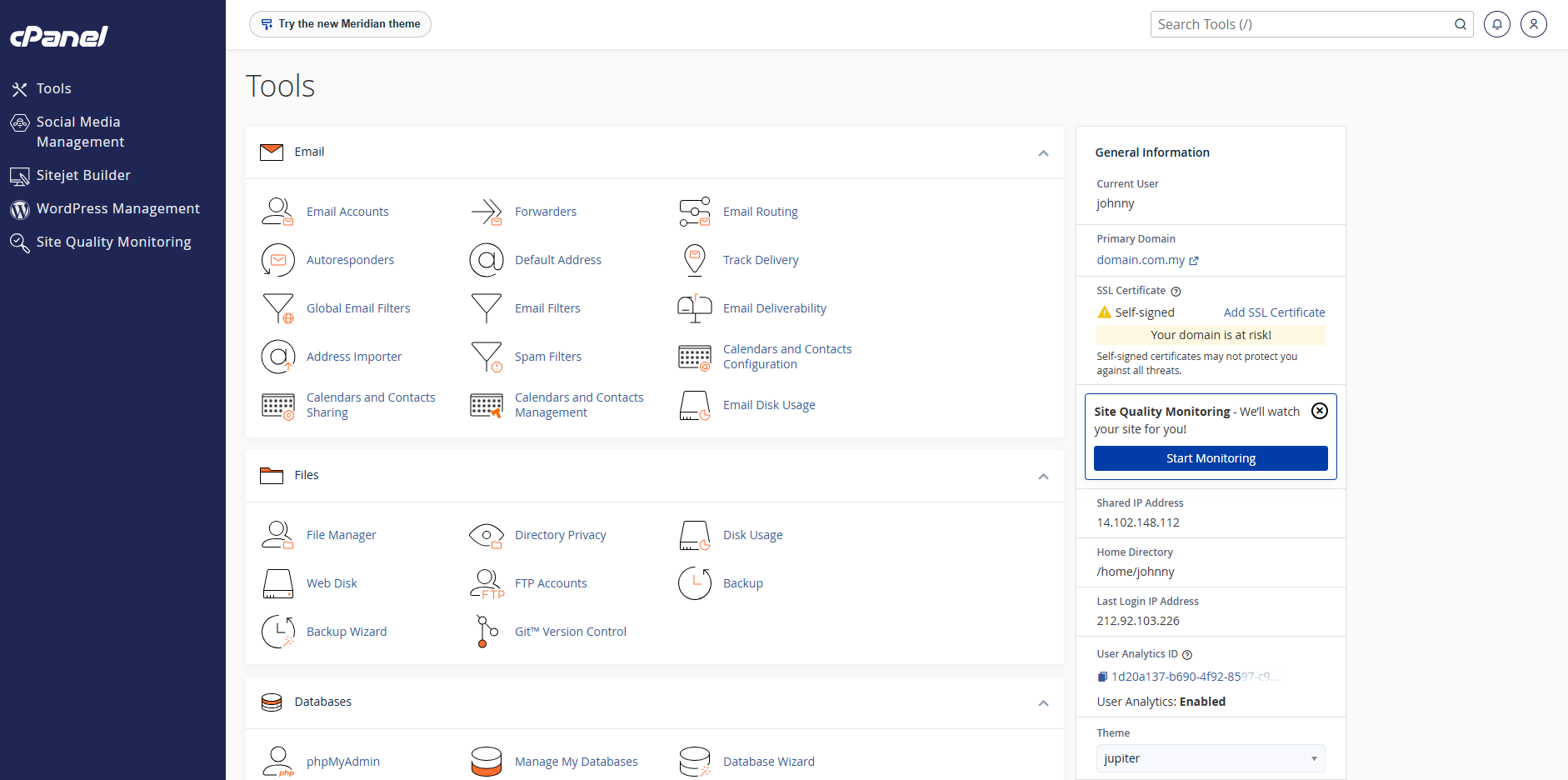
Step 2: Create the Add-on Domain in cPanel
- Scroll down to the Domains section and select Domains.
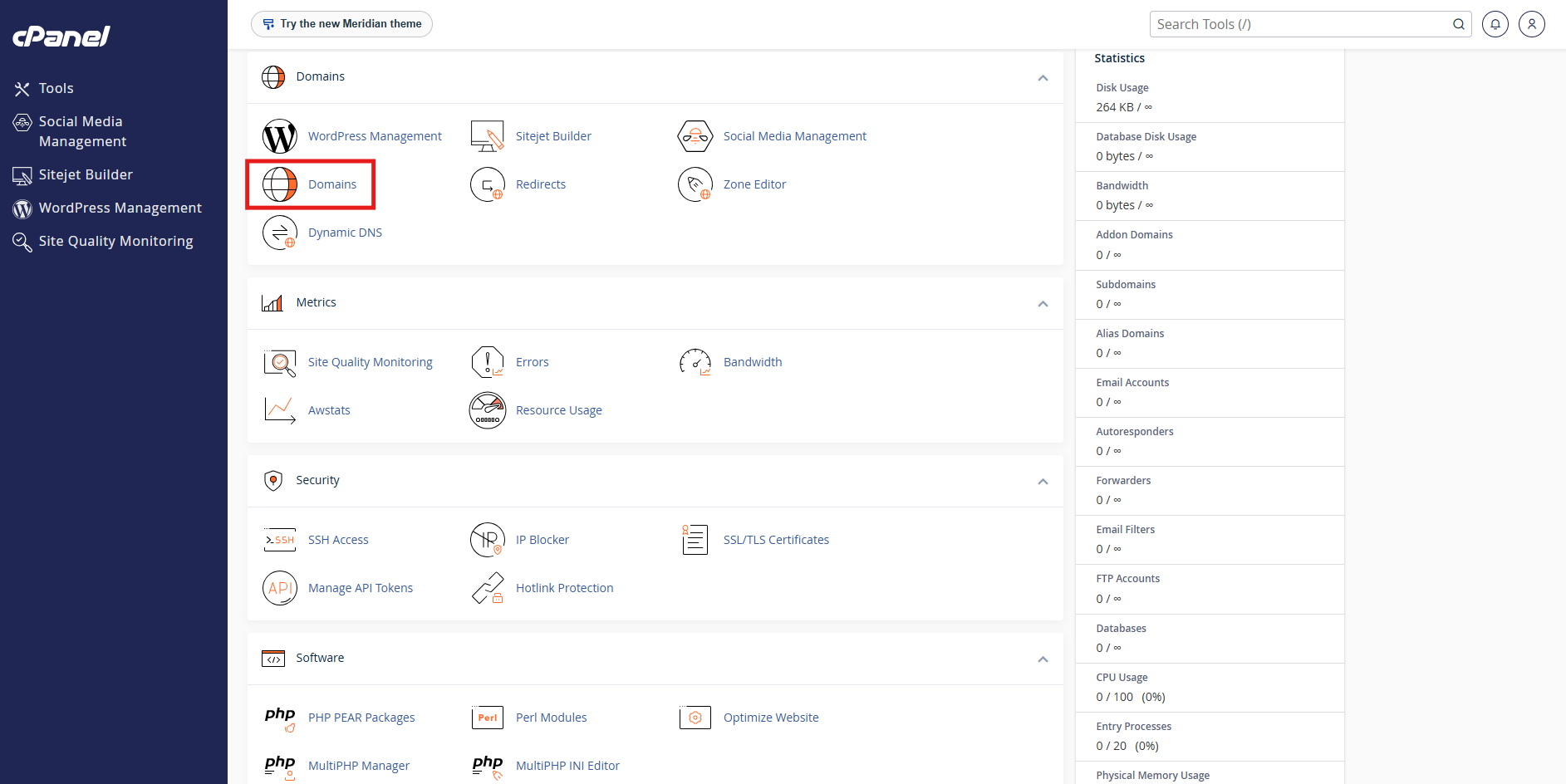
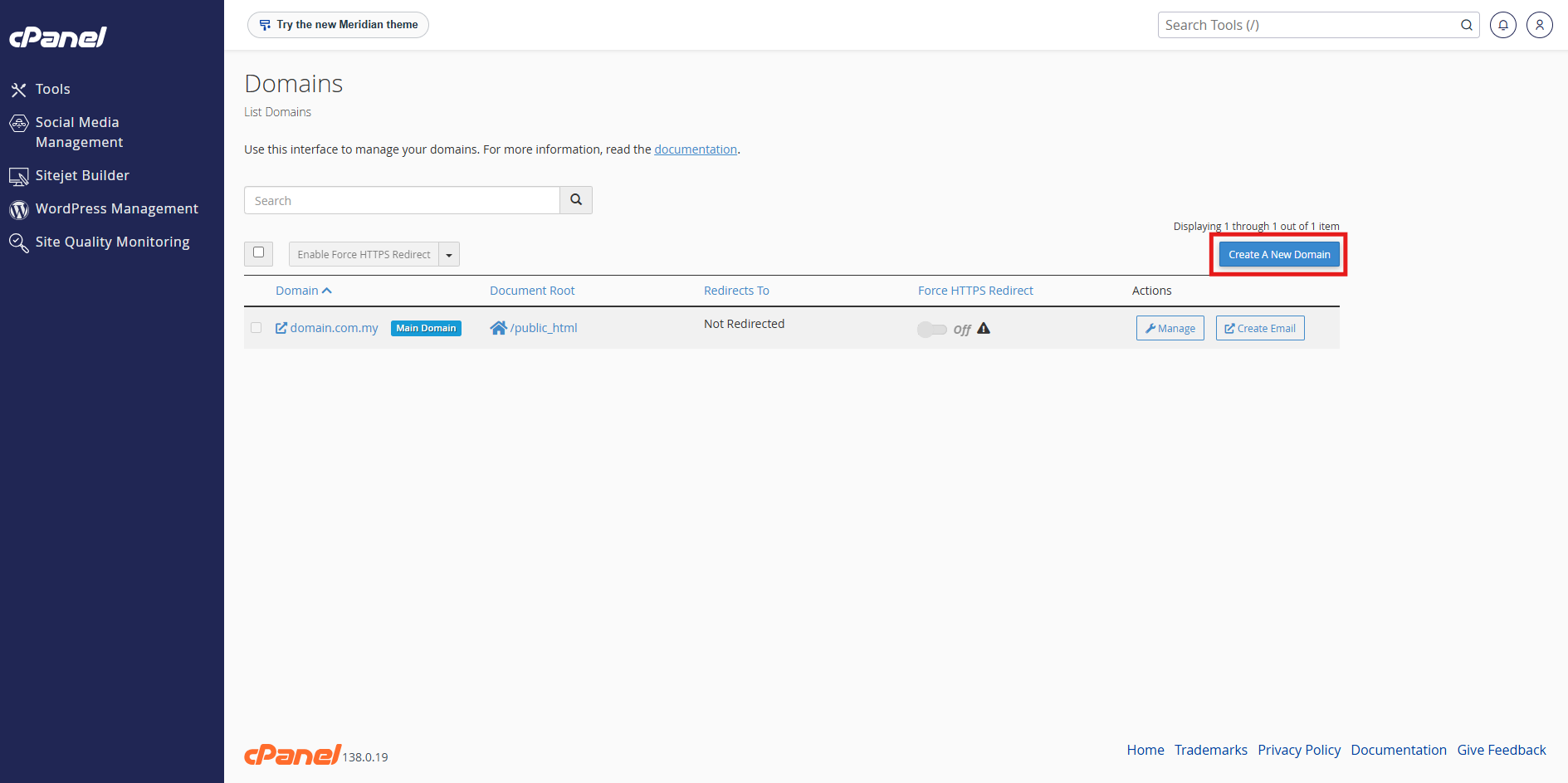
- On the following page, click the Create A New Domain button.
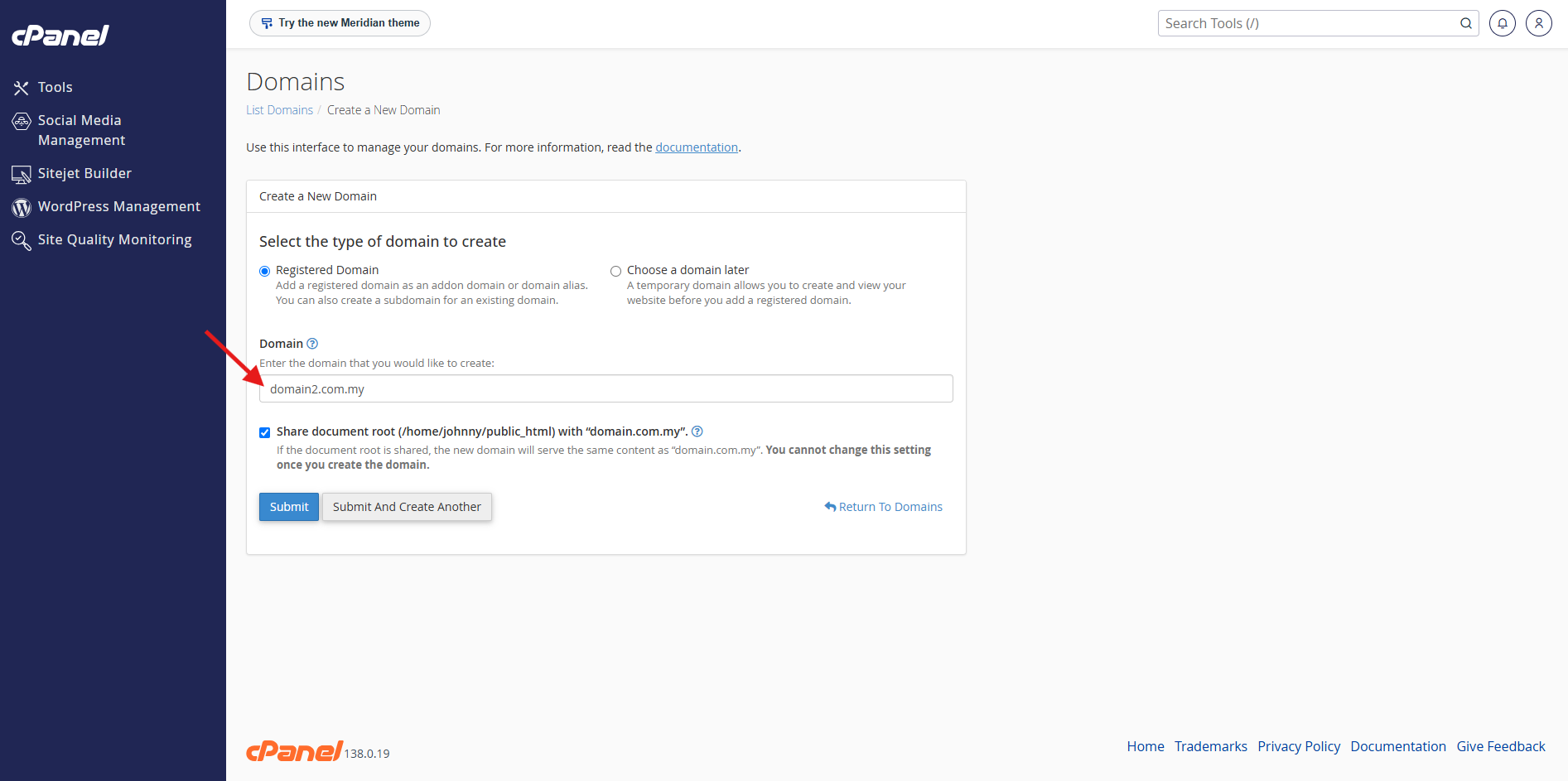
- Enter the domain name you wish to add in the Domain text box.
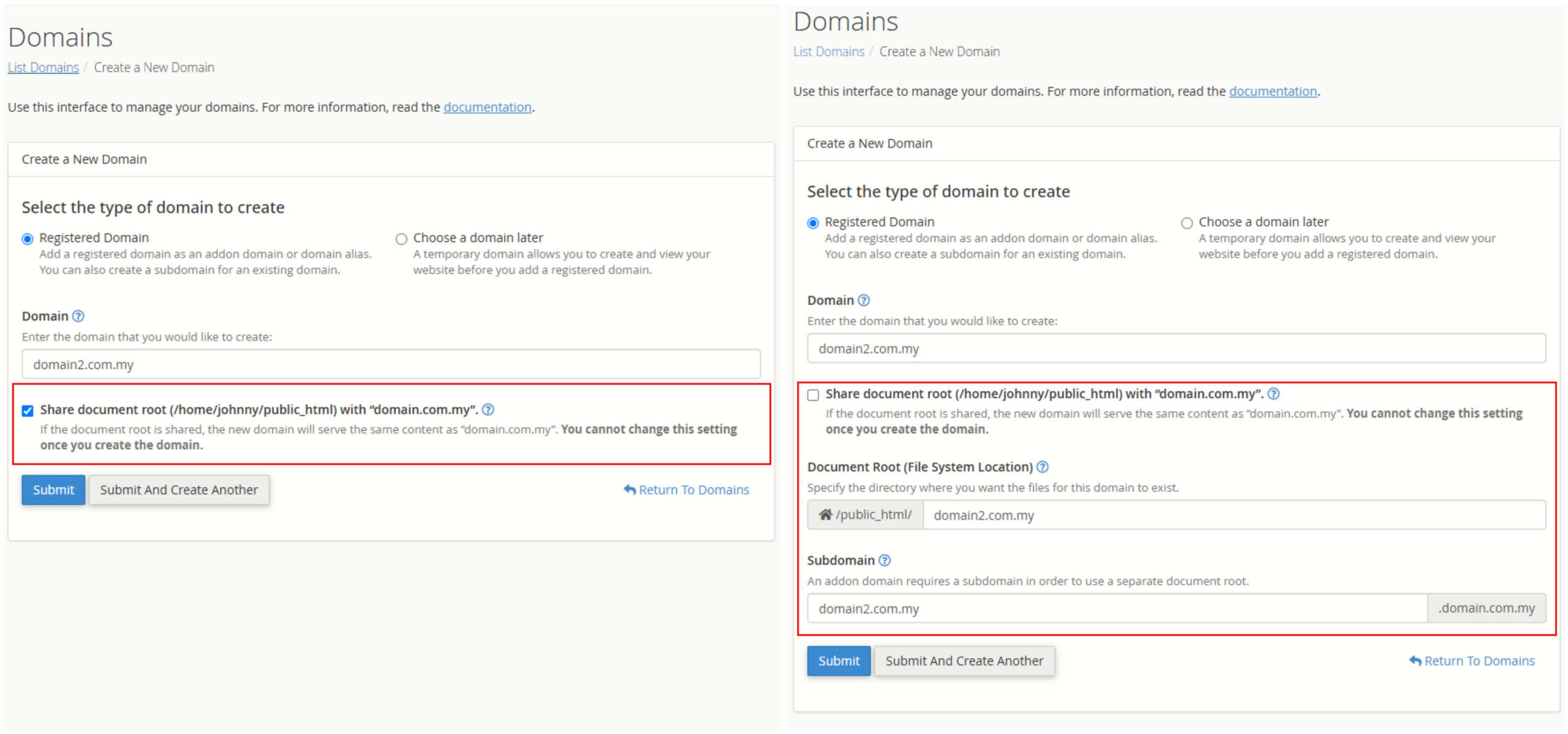
- By default, cPanel assigns a folder in the public_html/yourdomain.com.my directory for the new domain. You can accept this default or specify a different directory if desired.
- If you would like the new domain to share the same document root as your primary domain, tick Share document root.
Else, untick Share document root if you want the new domain to have a different document
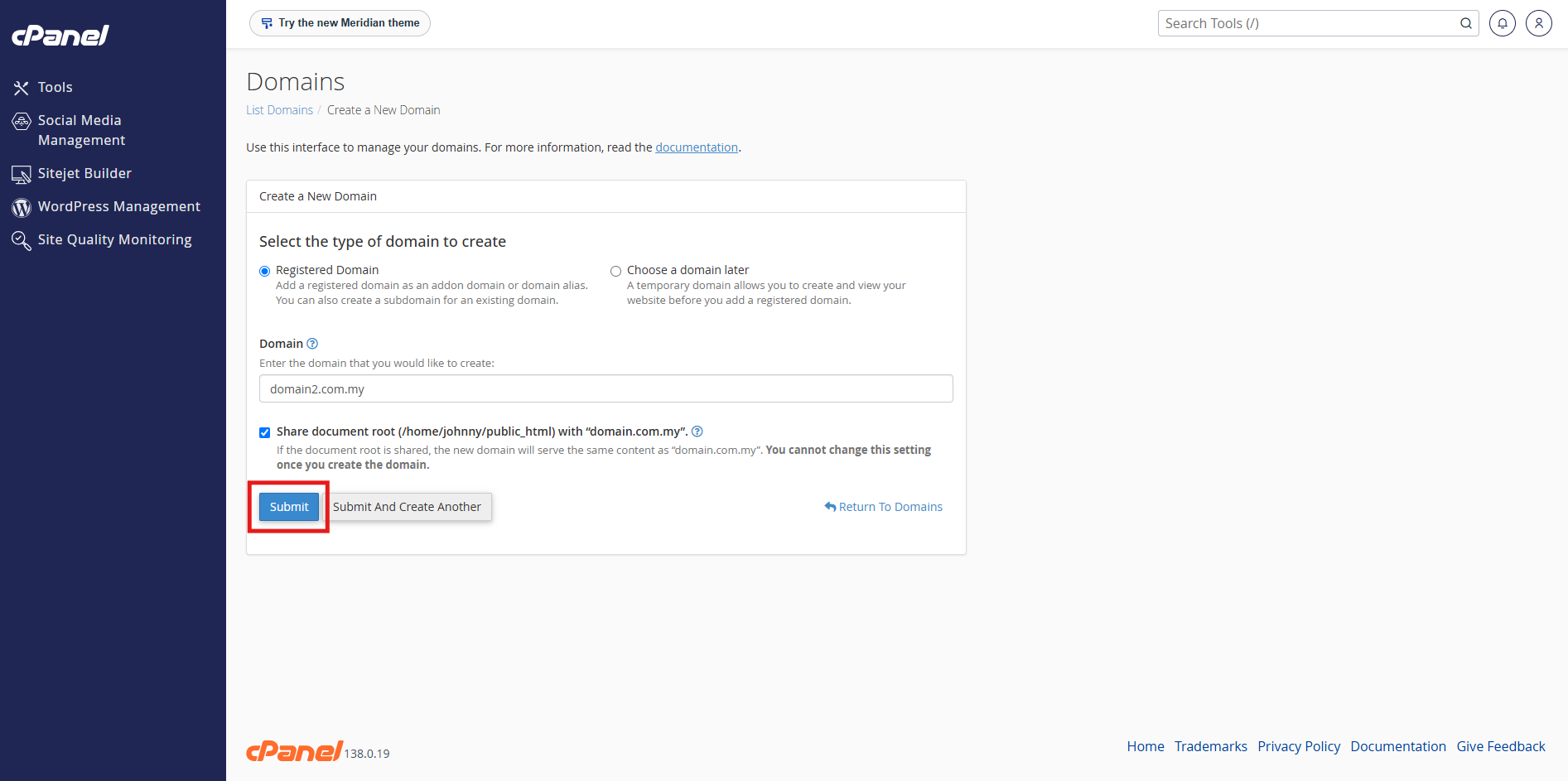
- Click Submit to create the new domain.
Conclusion
By following this guidance, you can add an add-on domain to an existing cPanel user account as the WHM root user, allowing the account to host and manage multiple websites efficiently under a single hosting account.
For additional assistance or if you encounter any issues, please contact our support team at support@ipserverone.com.