
Search Our Database
How to manage MySQL Databases, Users, and Permissions in cPanel
Introduction
Managing your website’s database is essential for ensuring backend data storage, optimal application performance, and proper user access control. This guide demonstrates how web administrators can easily set up, repair, and manage MySQL databases directly within cPanel. Whether you need to build a new database, create user credentials, configure privileges, fix corrupted tables, or whitelist remote IP addresses for external connections, cPanel provides a simple graphical interface. By following these consolidated steps, you can execute essential database operations quickly without needing advanced command-line knowledge.
Prerequisite
- Access to cPanel with valid login credentials
- Basic knowledge of database management concepts
Step-by-step guide
Step 1: Access to cPanel
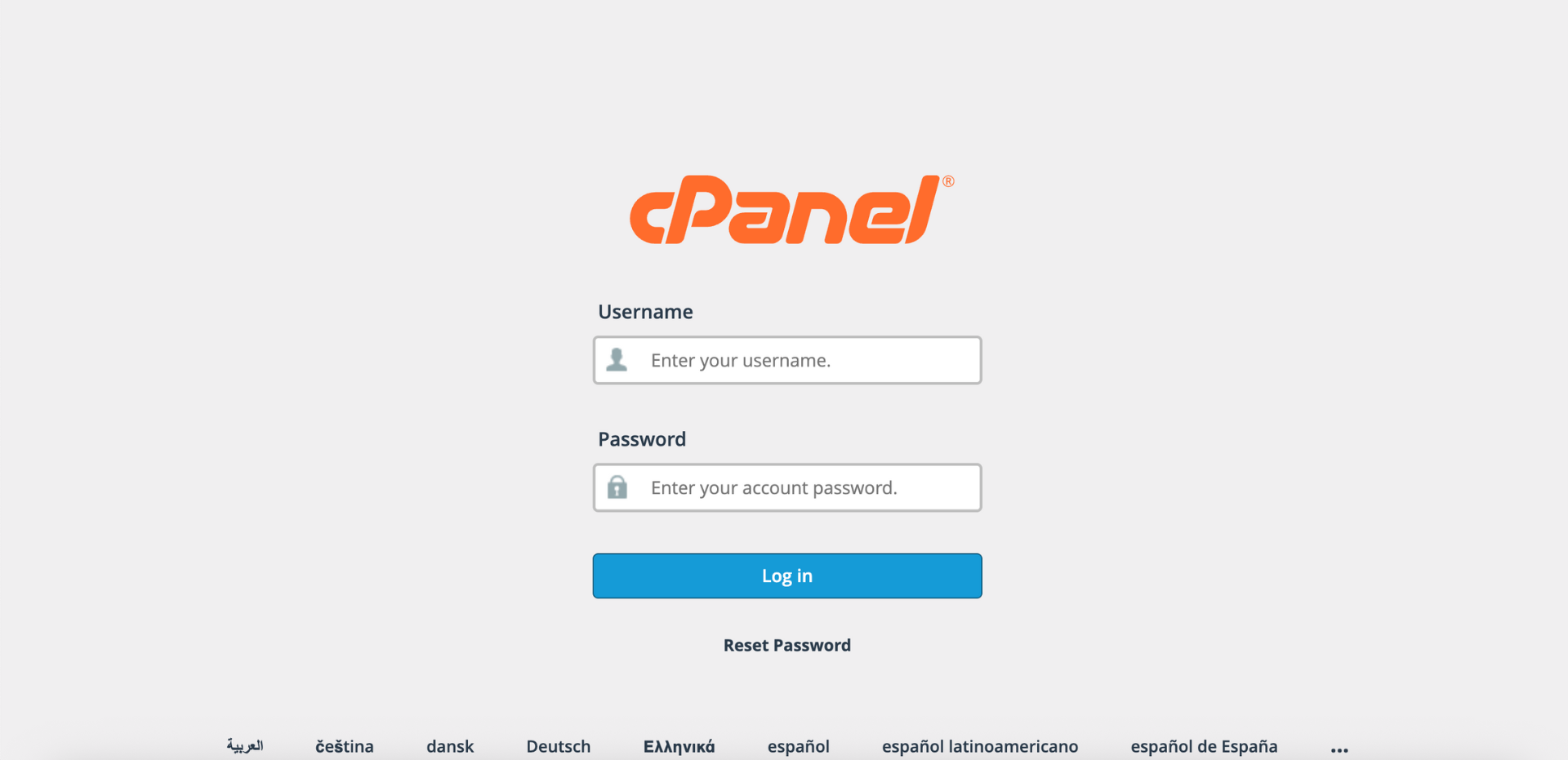
- Access and log in to your cPanel account using your username and password.
Step 2: Manage MySQL Databases, Users, and Permissions
Creating a New Database
Explain how to navigate and create a database in cPanel.
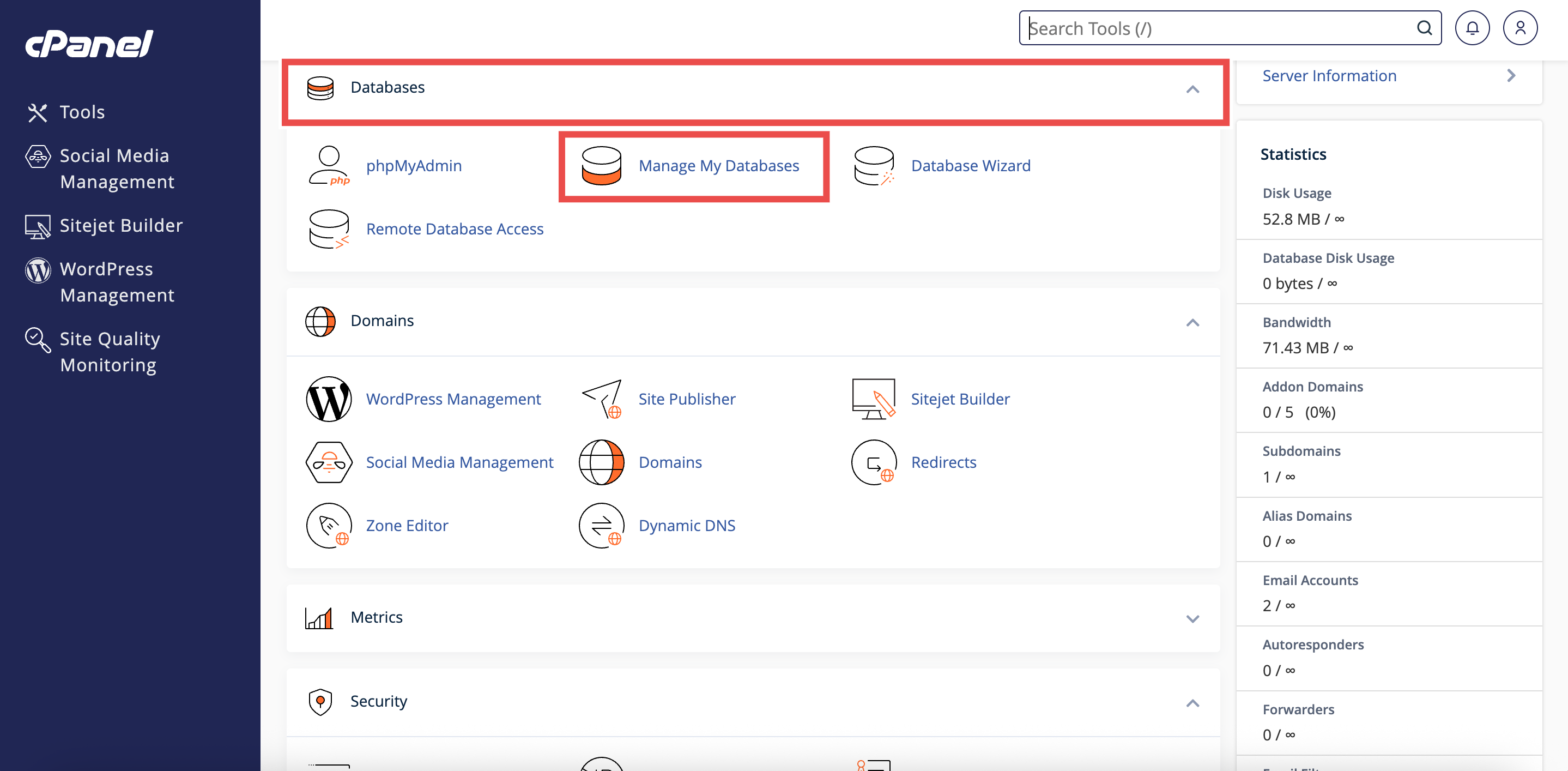
- Navigate to the Databases section and click Manage My Databases.
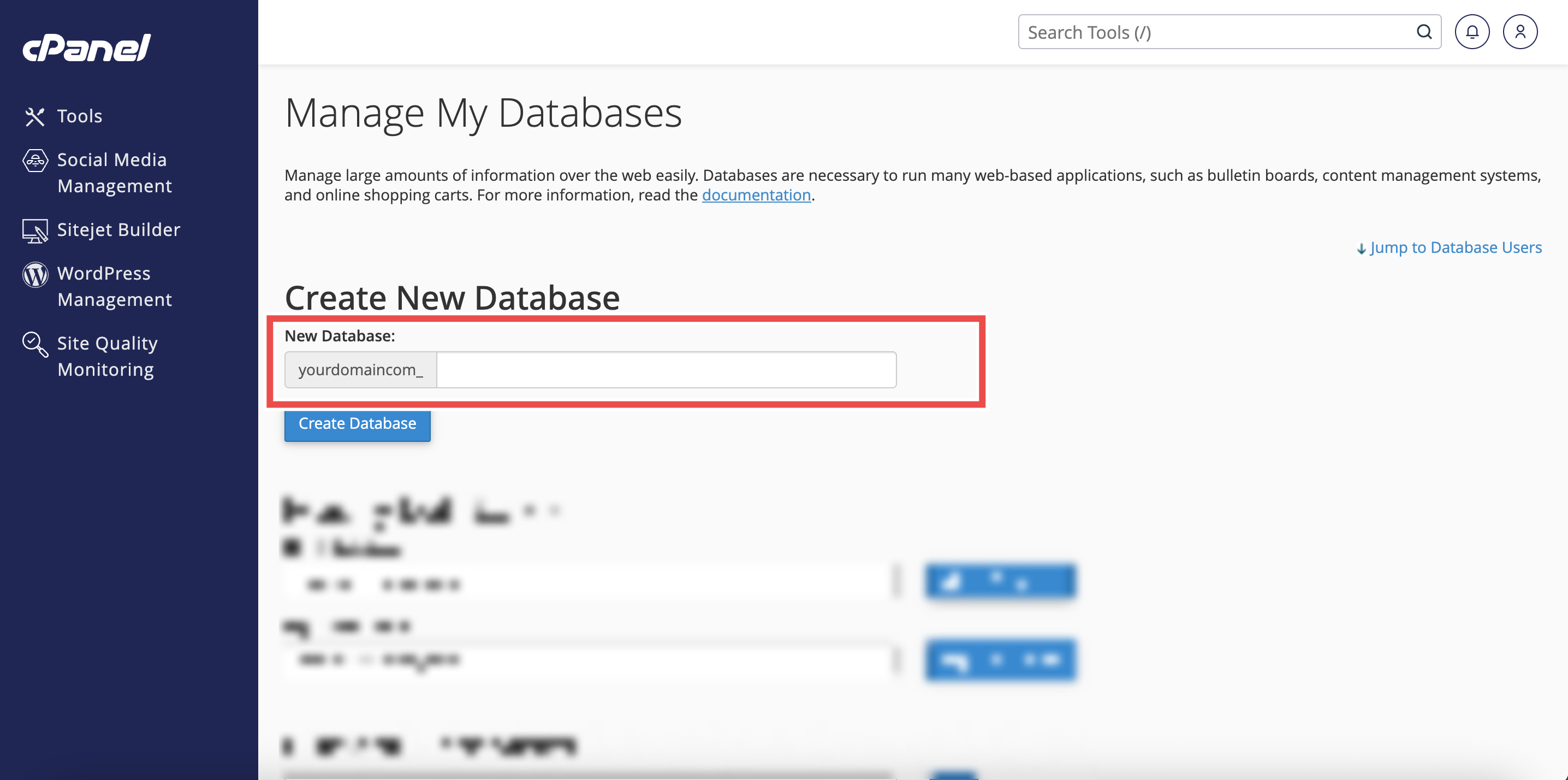
- Under Create New Database, enter your desired database name suffix in the text box.
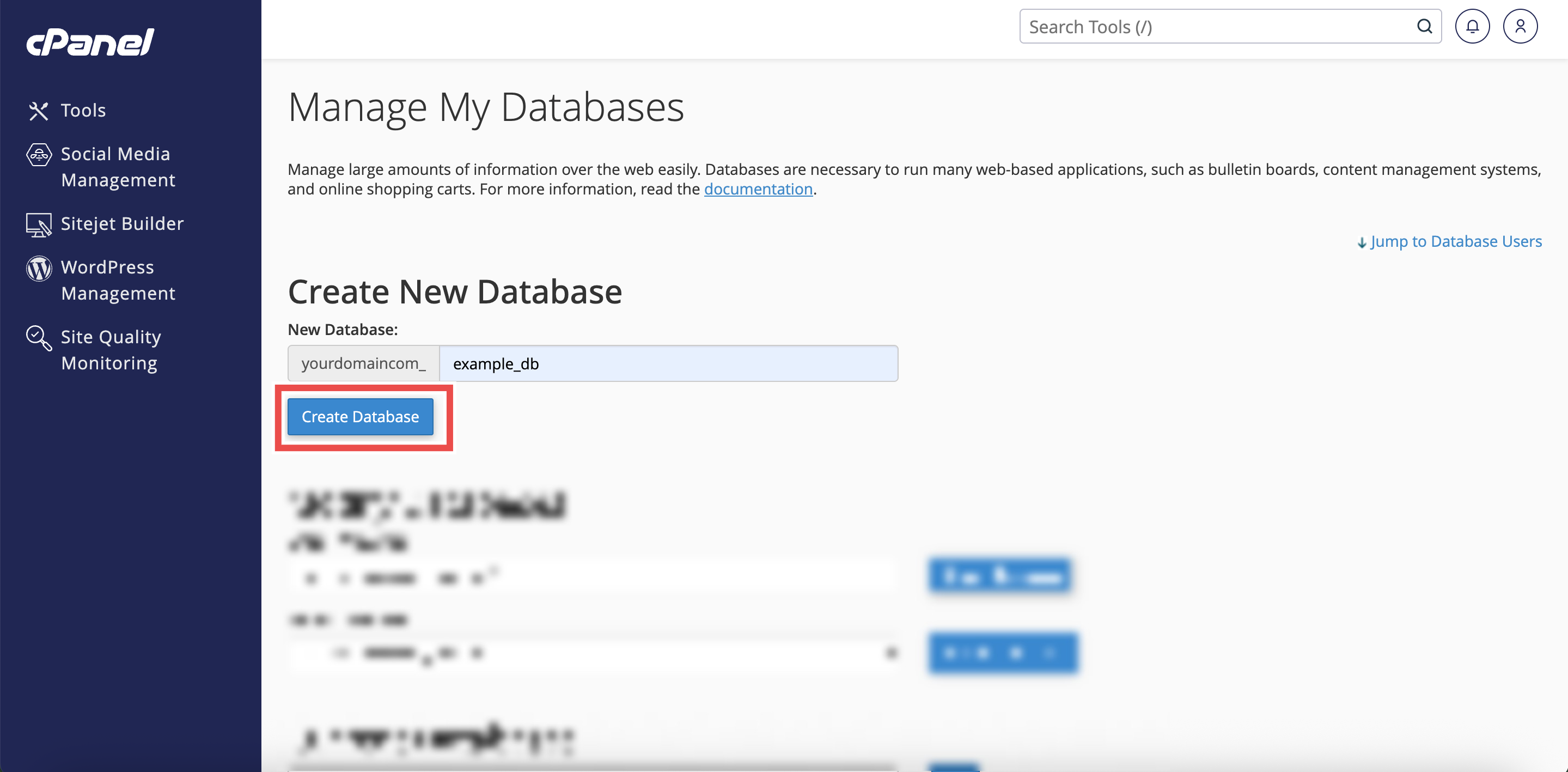
- Click Create Database.
Managing Database Users (Create, Edit Password, Delete)
Explain how to add, update passwords for, or delete cPanel database users.
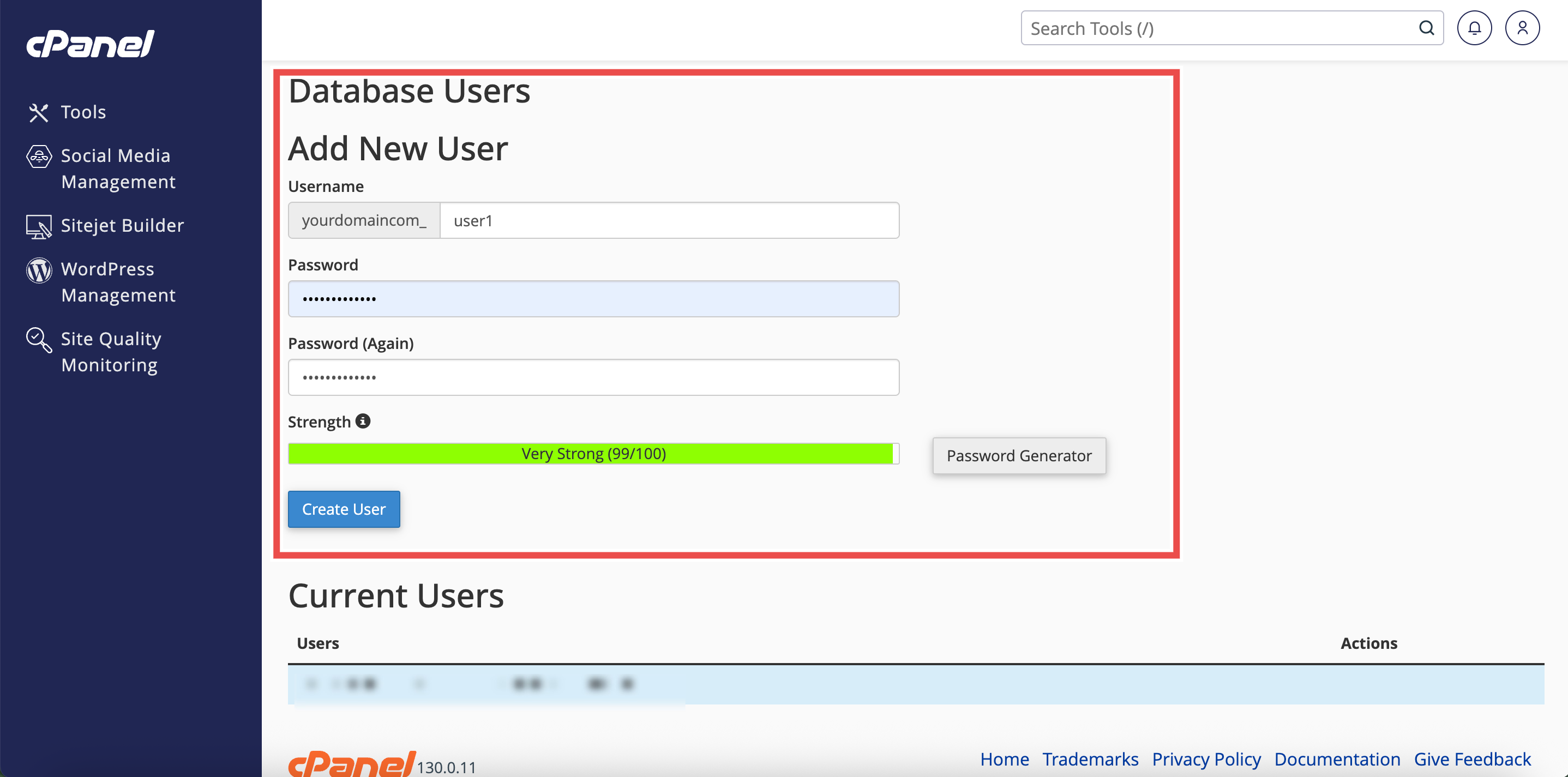
- Create User:
Scroll to MySQL Users > Add New User. Enter the username suffix, set a strong password, and click Create User.
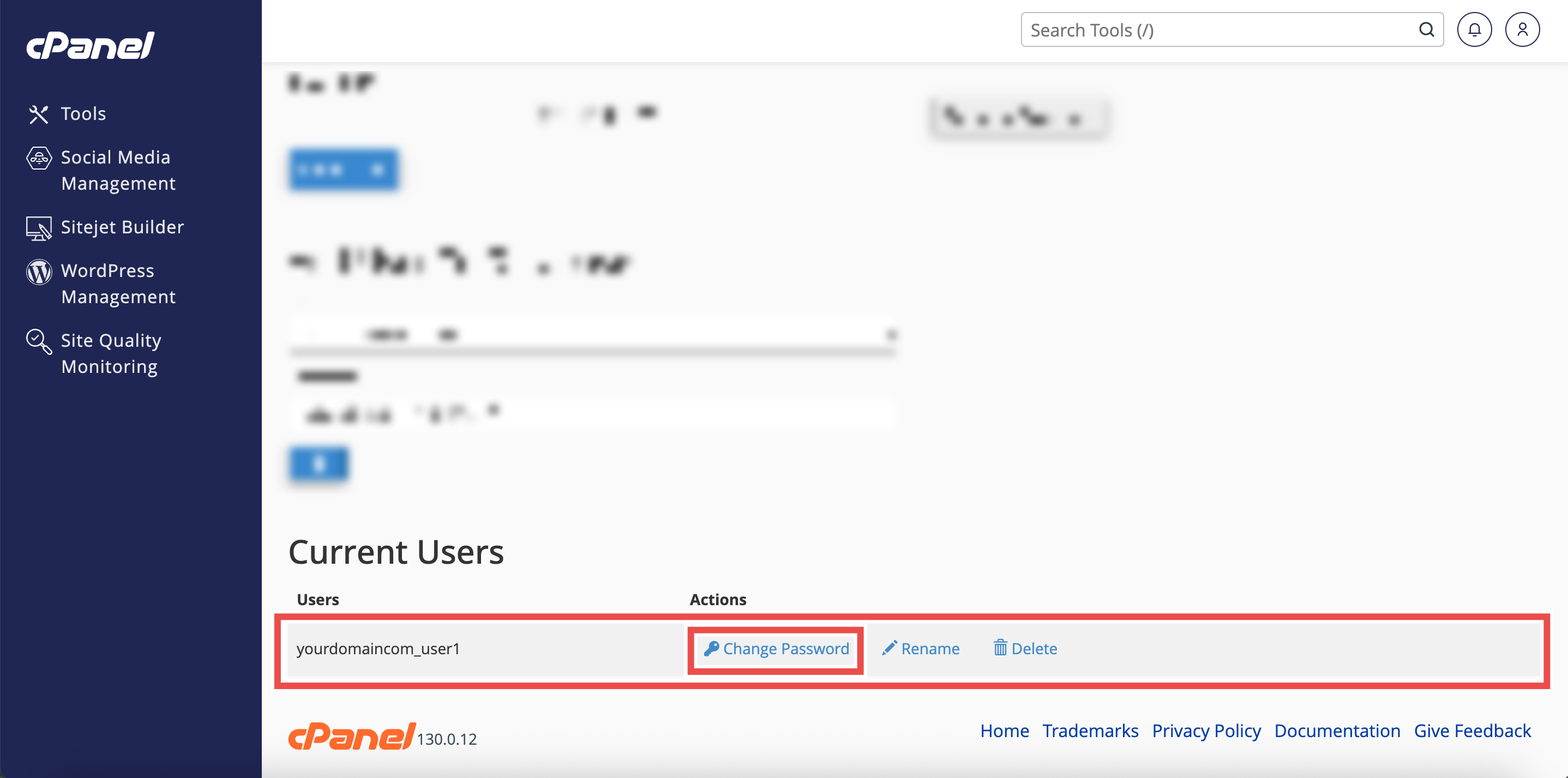
- Change User Password:
Scroll to Current Users, locate the specific user, click Change Password, enter the new password, and click Change Password.
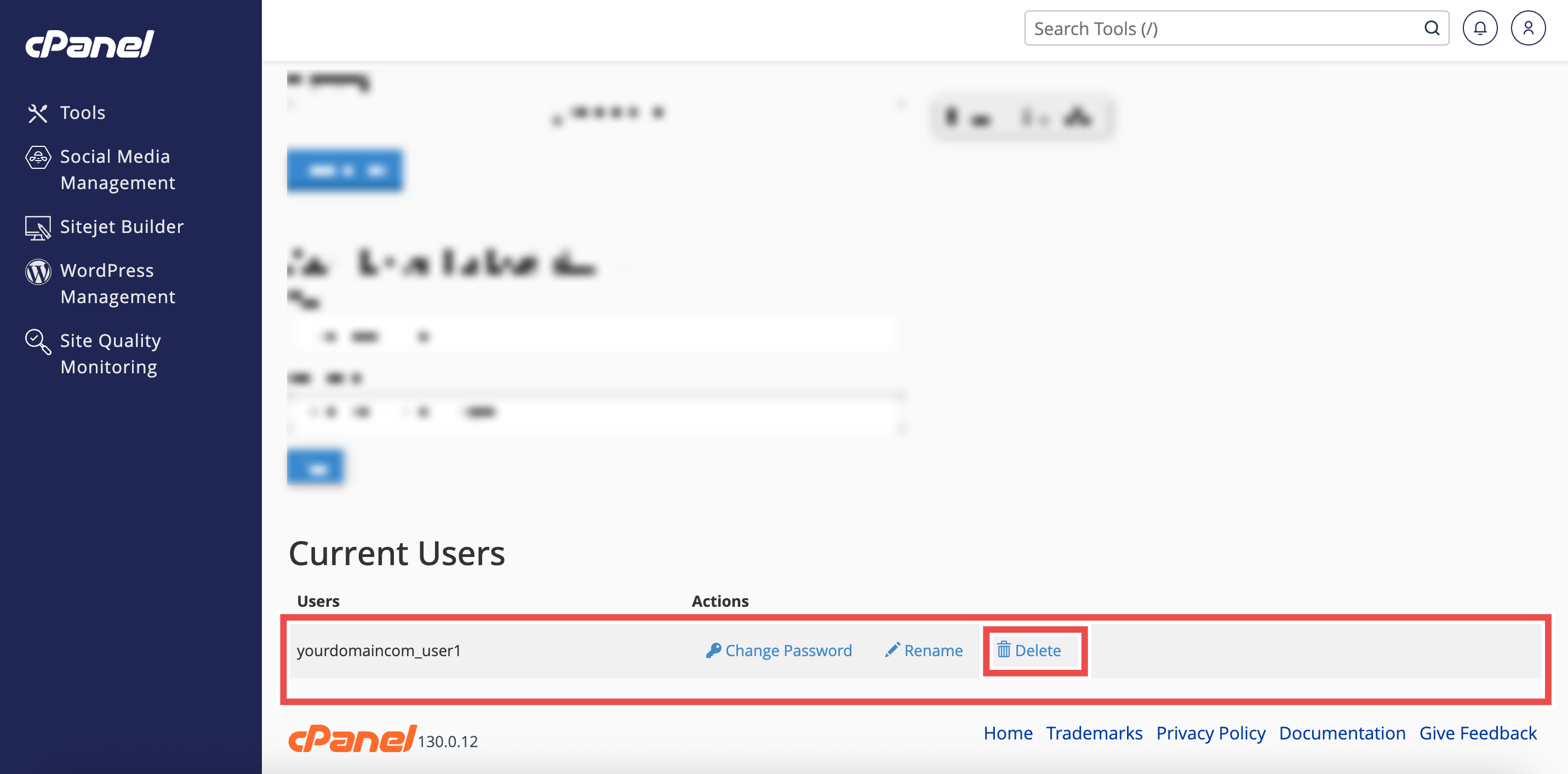
- Delete User:
Scroll to Current Users, locate the user, click Delete, and confirm the deletion.
Assigning and Removing User Access from a Database
Explain how to grant or revoke user privileges for a specific database.
- Add User to Database:
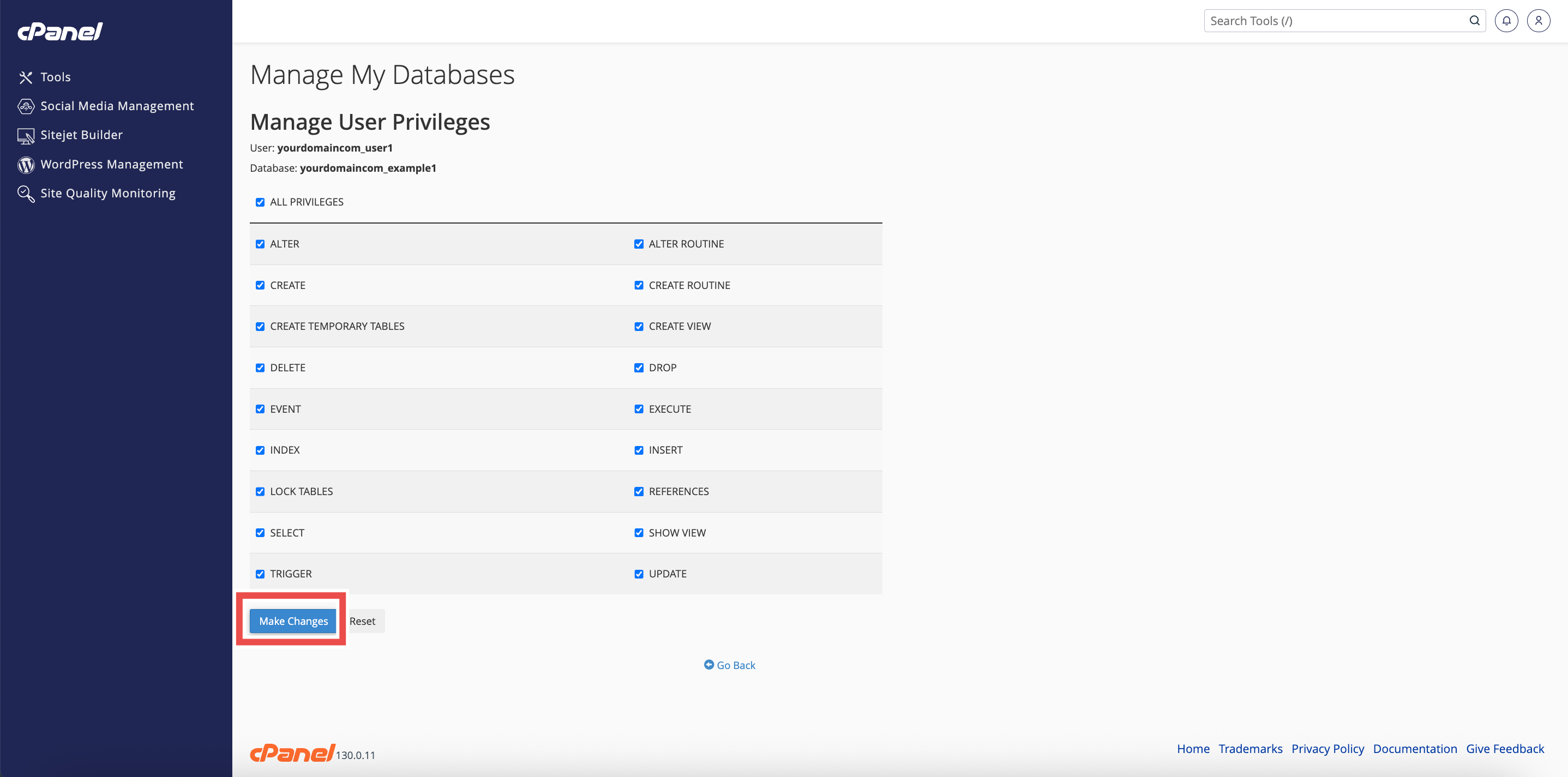
Scroll to Add User To Database. Select the user and database from the dropdown menus, click Add.
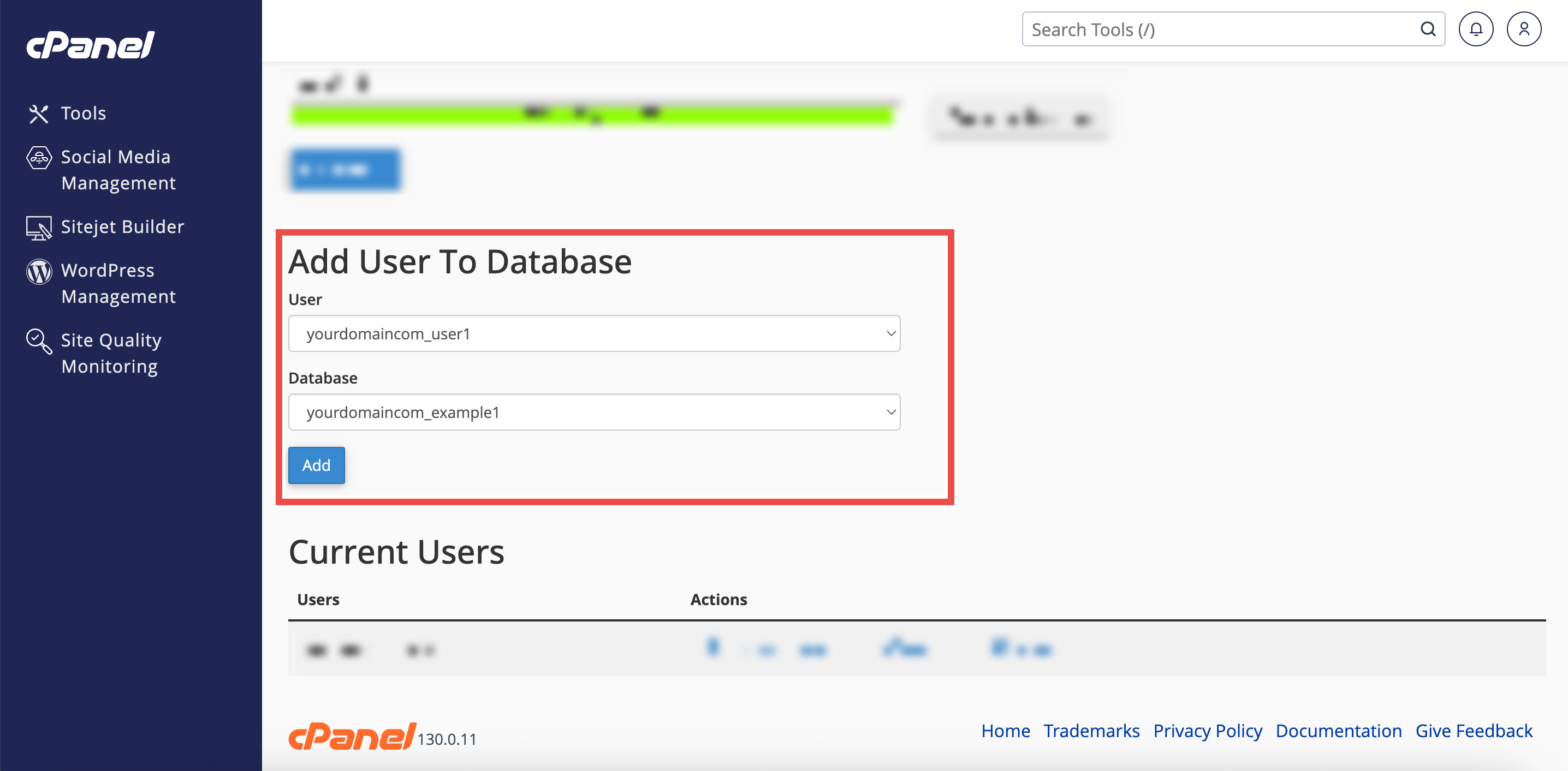 Select the required privileges (or check ALL PRIVILEGES), and click Make Changes.
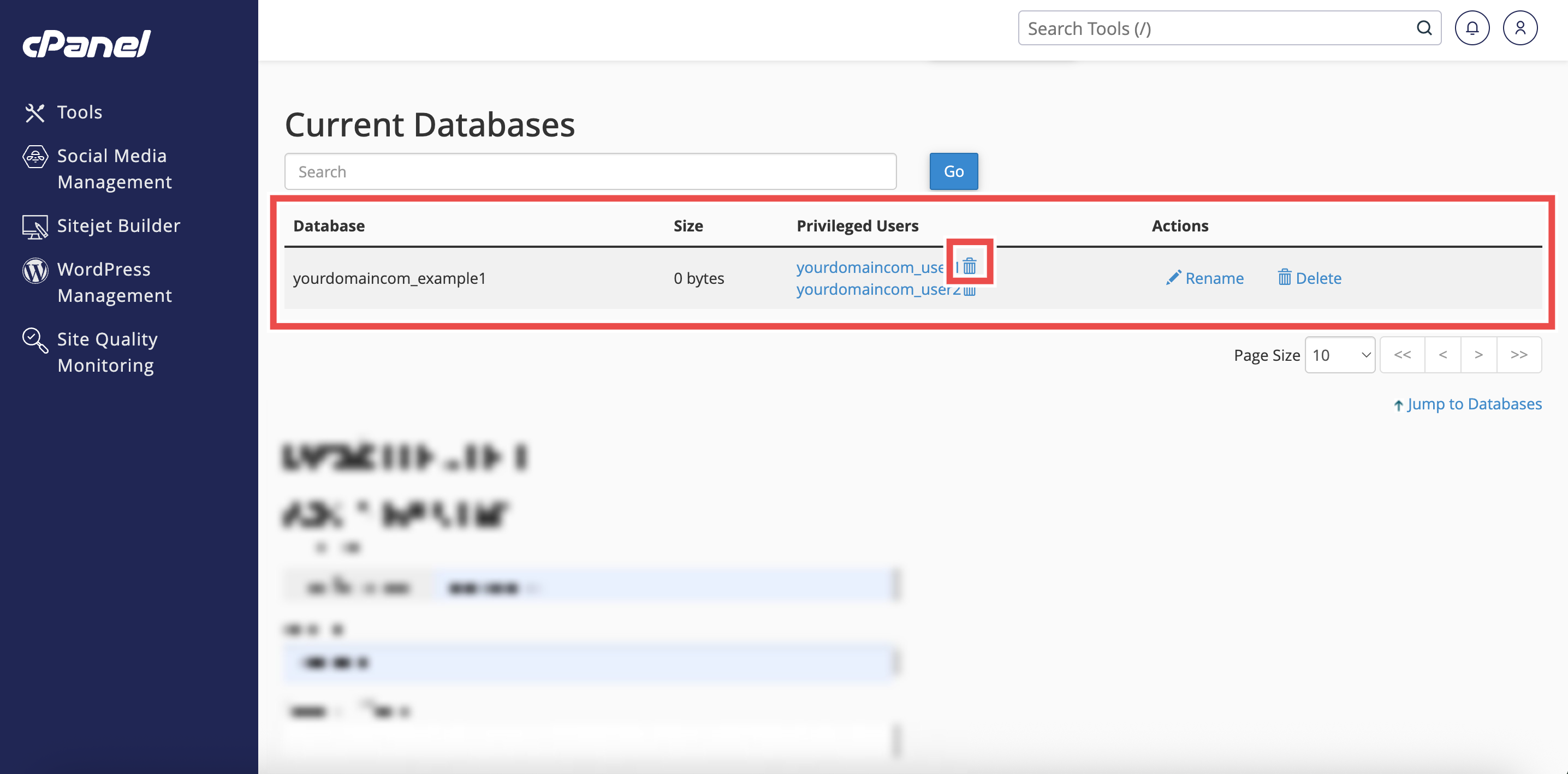
- Remove User Access:
Scroll to Current Databases, locate the target database, and click the trash icon next to the user under Privileged Users to revoke access.
Repairing a Database
Explain how to inspect and repair corrupted database tables.
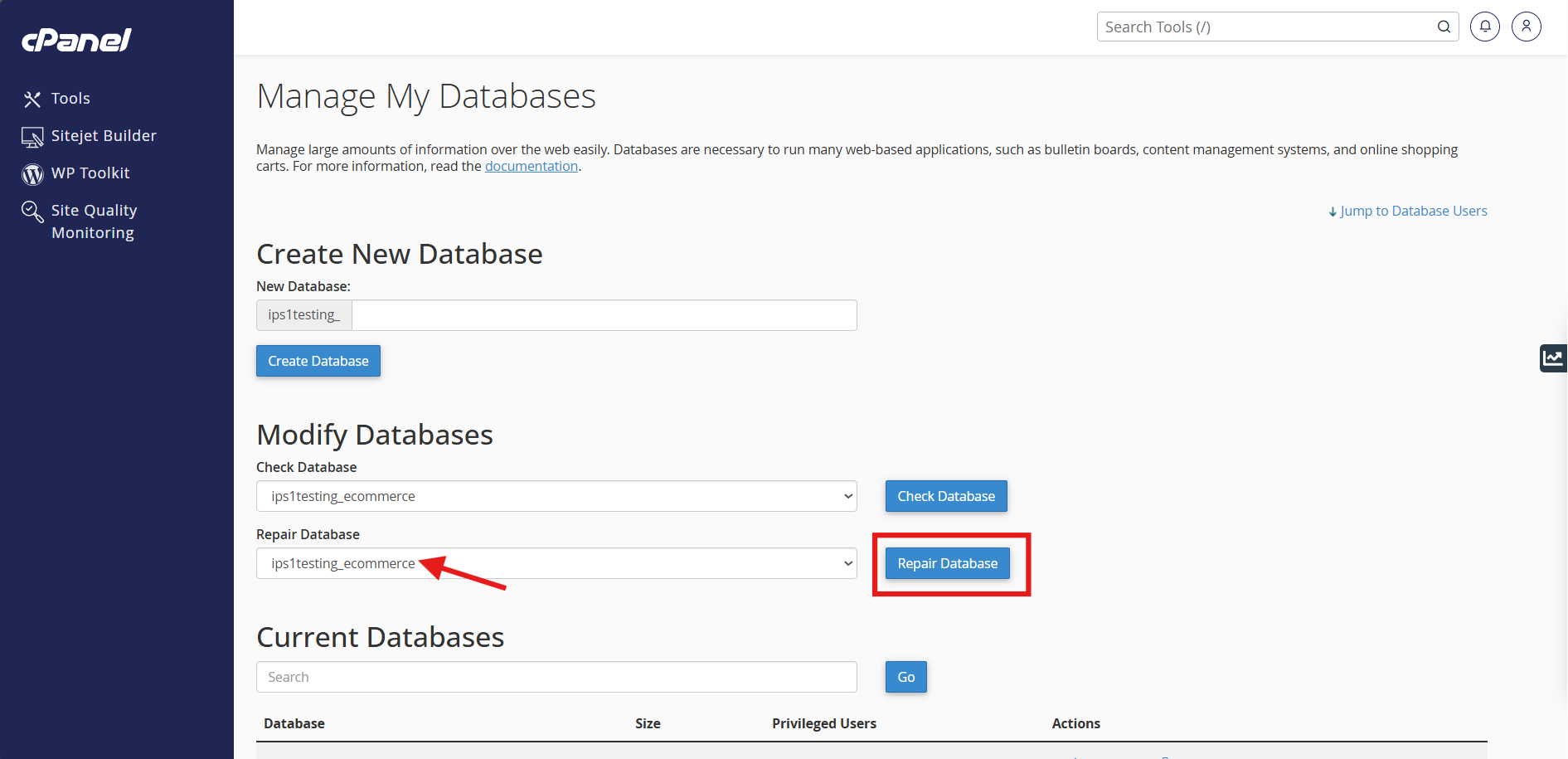
- Under Modify Databases, locate the Repair Database section.
- Select the corrupted database from the dropdown menu. Click Repair Database.
Enabling Remote Access to MySQL Database
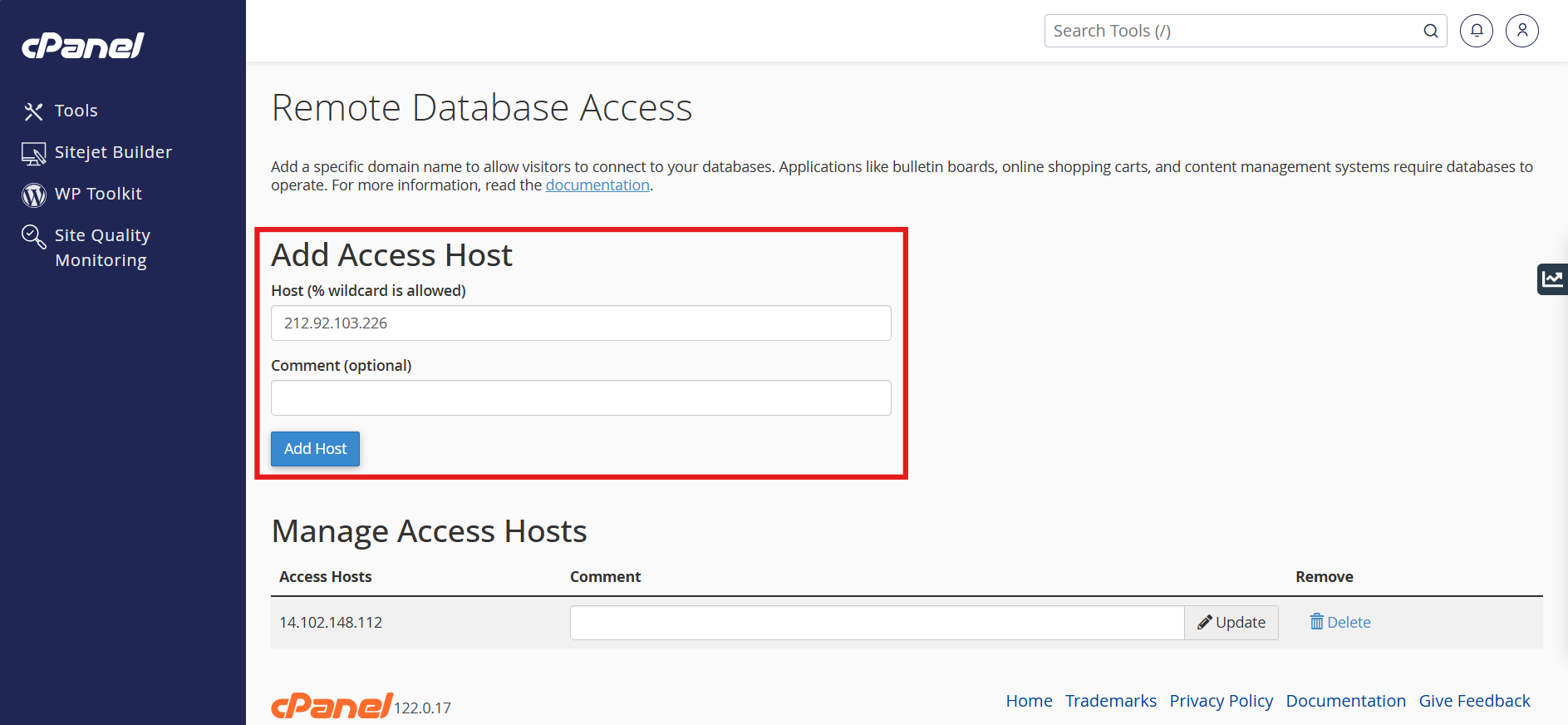
Explain how to allow external IP addresses to access your MySQL database.
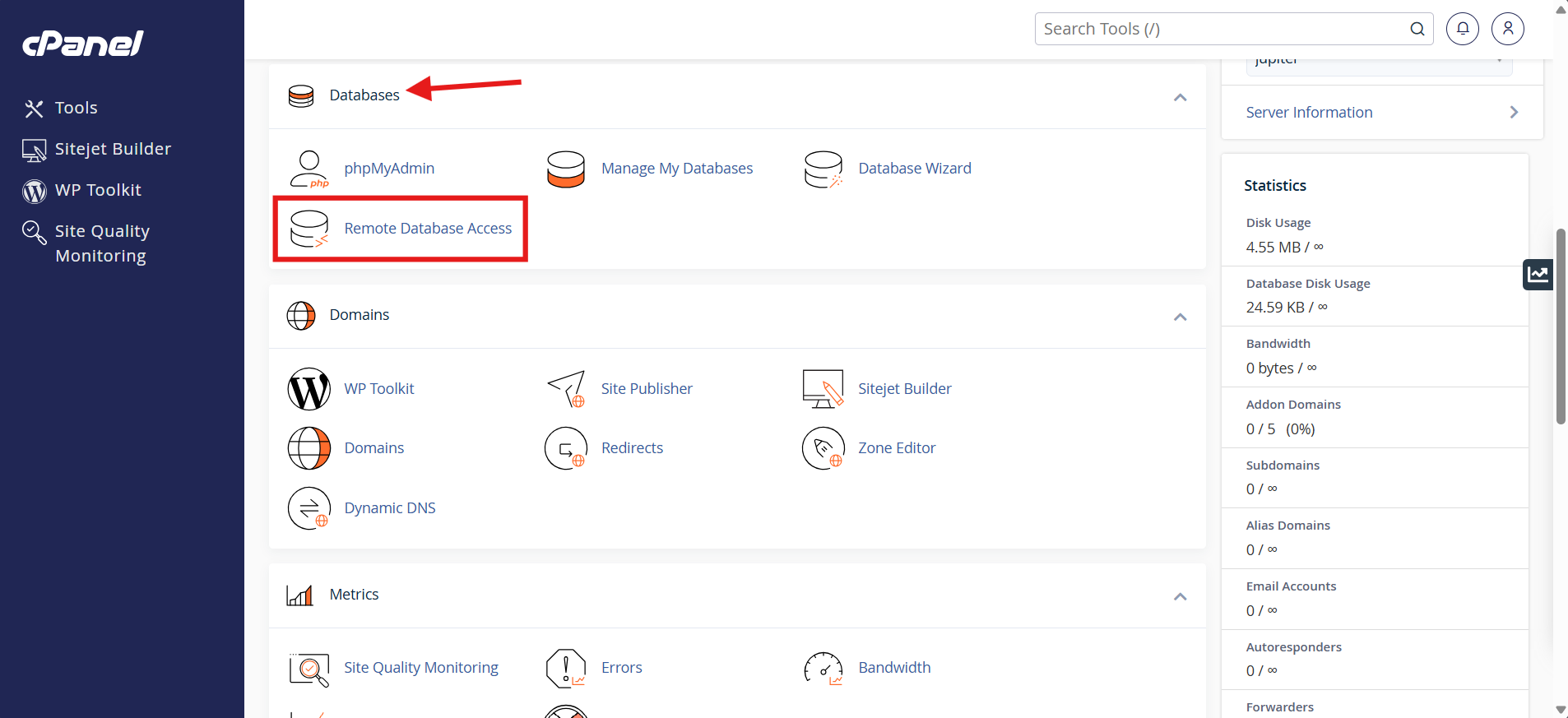
- Navigate to Databases and click Remote MySQL.
- Under Add Access Host, enter the remote IP address or domain name (use
%
as a wildcard). Click Add Host.
(Optional) Add a comment to easily identify the host.
Conclusion
By following this guidance, you can seamlessly manage your MySQL databases, user privileges, repairs, and remote access connections using cPanel.
For additional assistance or if you encounter any issues, please contact our support team at support@ipserverone.com.
Article updated on 18 August 2026 by Johnny