
Search Our Database
How to deploy Redis or Memcached using One-Click Applications in Customer Portal
Introduction:
Deploying high-performance caching systems is now simpler than ever. In just a few minutes, you can launch a Redis or Memcached instance directly through the IPSERVERONE Customer Portal to instantly boost your application’s data retrieval speed and efficiency.
Prerequisites:
-
Access to the IPServerOne Customer Portal
-
Sufficient Cloud Credits in account
Before diving into the launching cloud instance, you may refer to the guidance below, as there are being used across this guidance.
- To register and login into our Customer Portal
-> [How to register and login to Customer Portal] - To configure Security Group for the cloud instance, you may consider as the simple firewall for the cloud instance
-> [Configure Security Group in IPServerOne Customer Portal] - If you wish to unify the Public Key for all cloud instance, you may generate a Public Key before launching the cloud instance
-> [How to Create Public Key for the Cloud Server in Customer Portal] - If you have existing Public Key, you may consider import the Public Key
-> [How to Import Public Key(s) for the Cloud Server in Customer Portal] - To create a Project for your cloud instance for easier managing, and you are having an option to assign the Project later
-> [How to Create Project(s) in Customer Portal]
-> [How to assign instance(s) to a project group in Customer Portal] - To login the cloud instance via SSH
-> [How to login to your Linux Server via SSH] - To retrieve the Windows Administrator password for RDP access
-> [How to Retrieve the Windows Administrator Password]
Step-by-step guide
Step 1: Launching new cloud instance
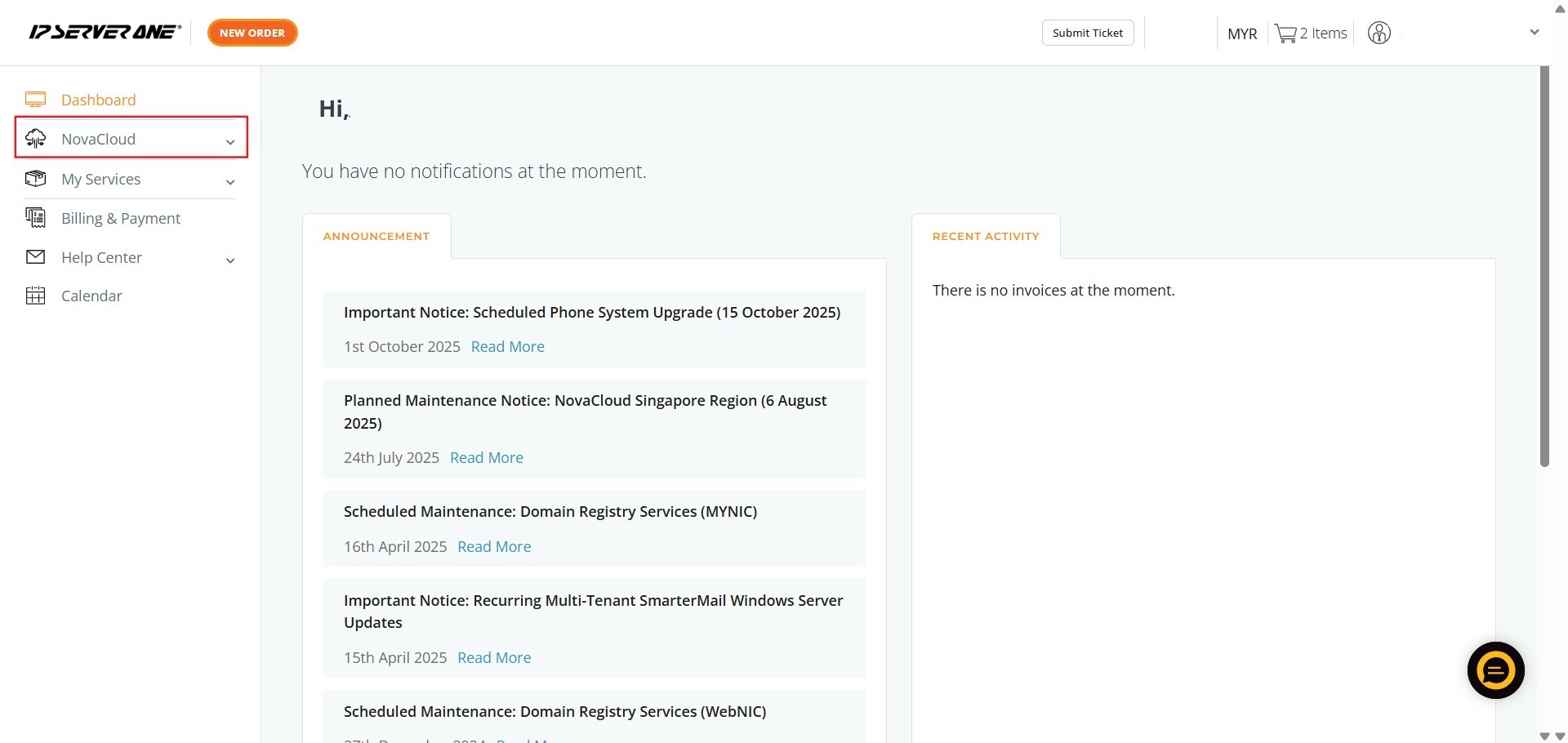
- Locate and click on the NovaCloud in the left-hand navigation menu to access NovaCloud resources page
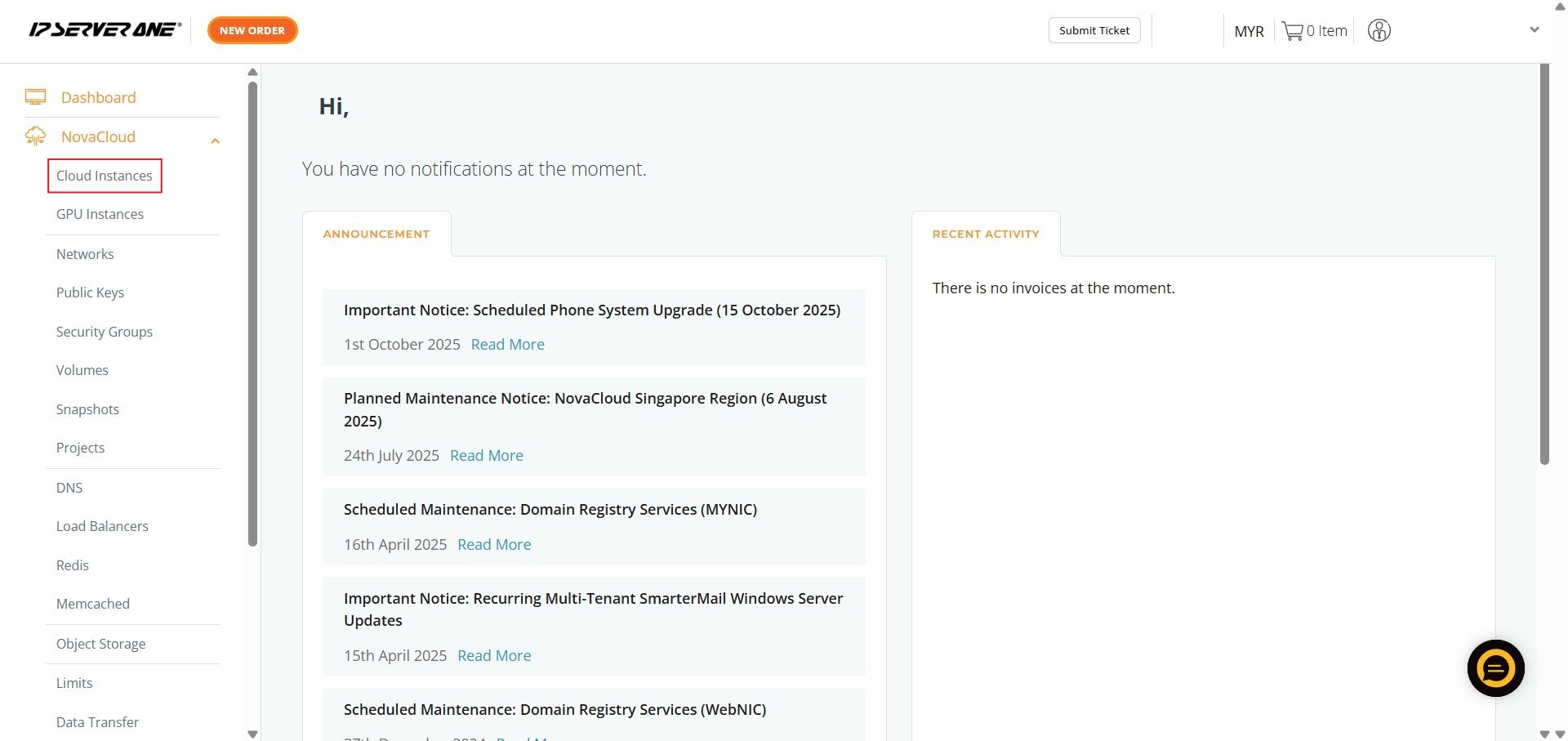
- Click on Cloud Instances to navigate to the cloud instance management page
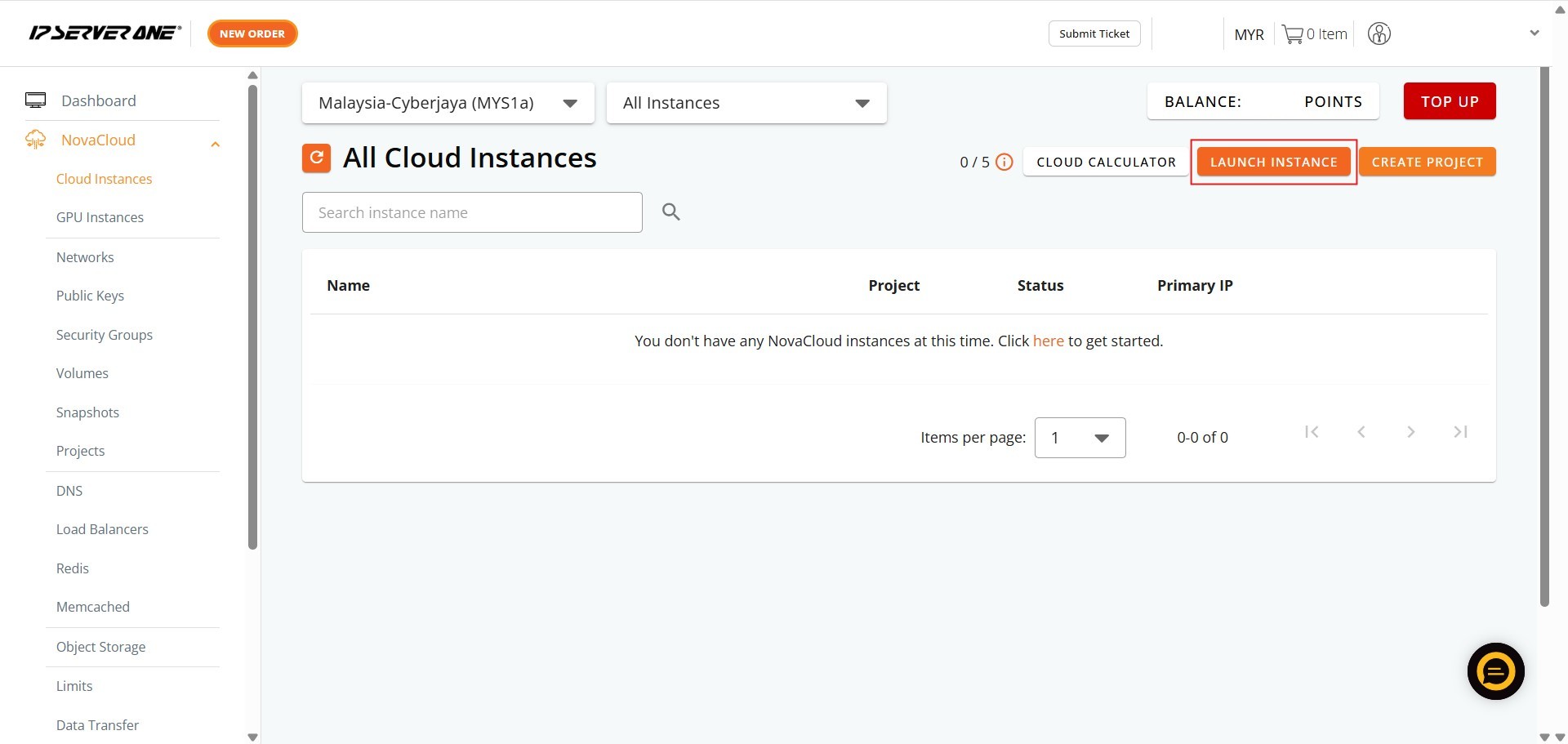
- Initiate the process for deploying a new cloud instance by clicking the Launch Instance
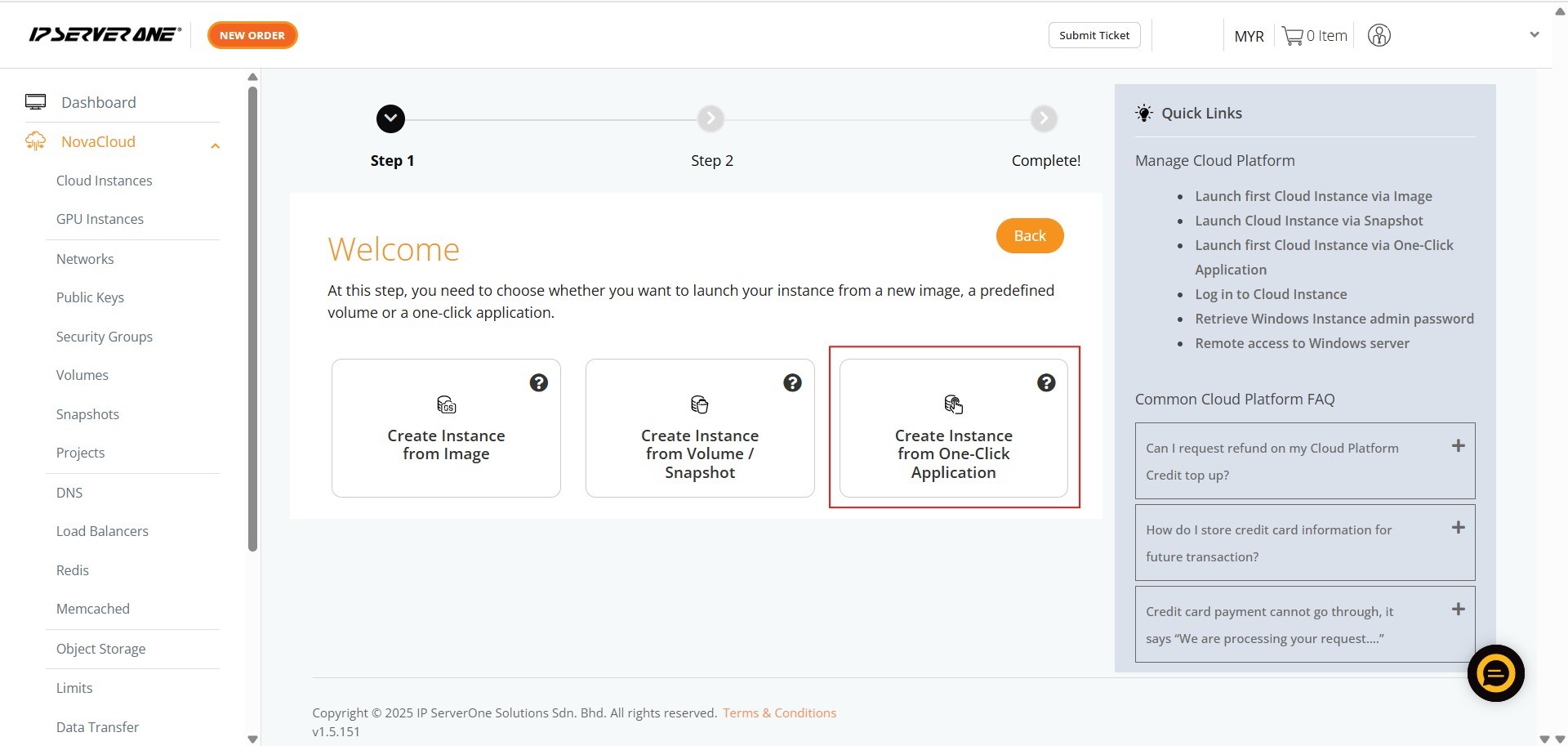
- Select Create Instance from One-Click Application for provisioning instances pre-installed with your chosen application or database
Step 2: Select application for the cloud instance
Redis
Redis (Remote Dictionary Server) is an open-source, in-memory NoSQL key-value database. It is primarily used as an ultra-fast cache, message broker, and streaming engine, delivering sub-millisecond response times by storing and manipulating data entirely in RAM instead of on traditional disks.
- Ensure the Category is selected as Cache
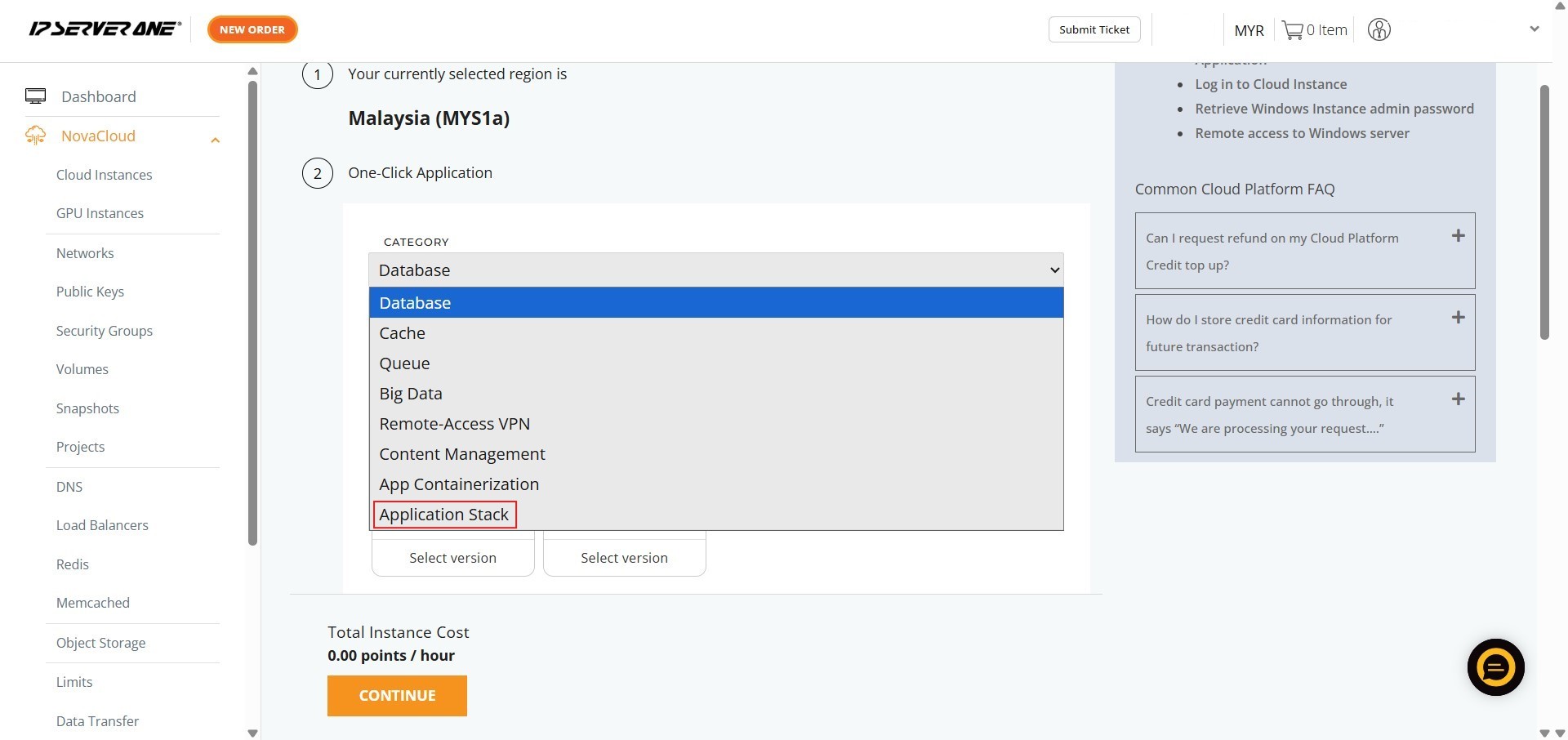
- Select the specific application – Redis
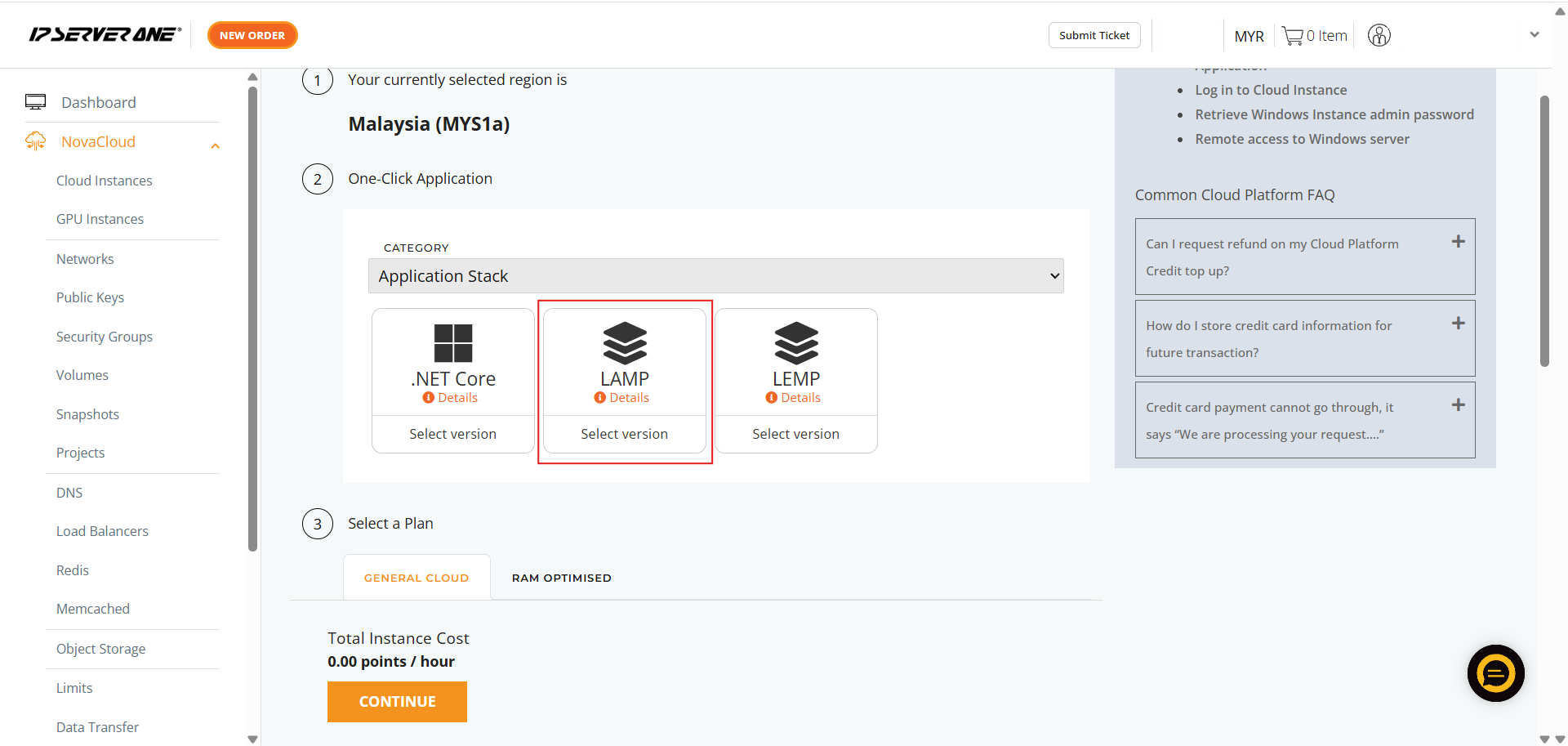
- Choose the required Redis version you wish to deploy
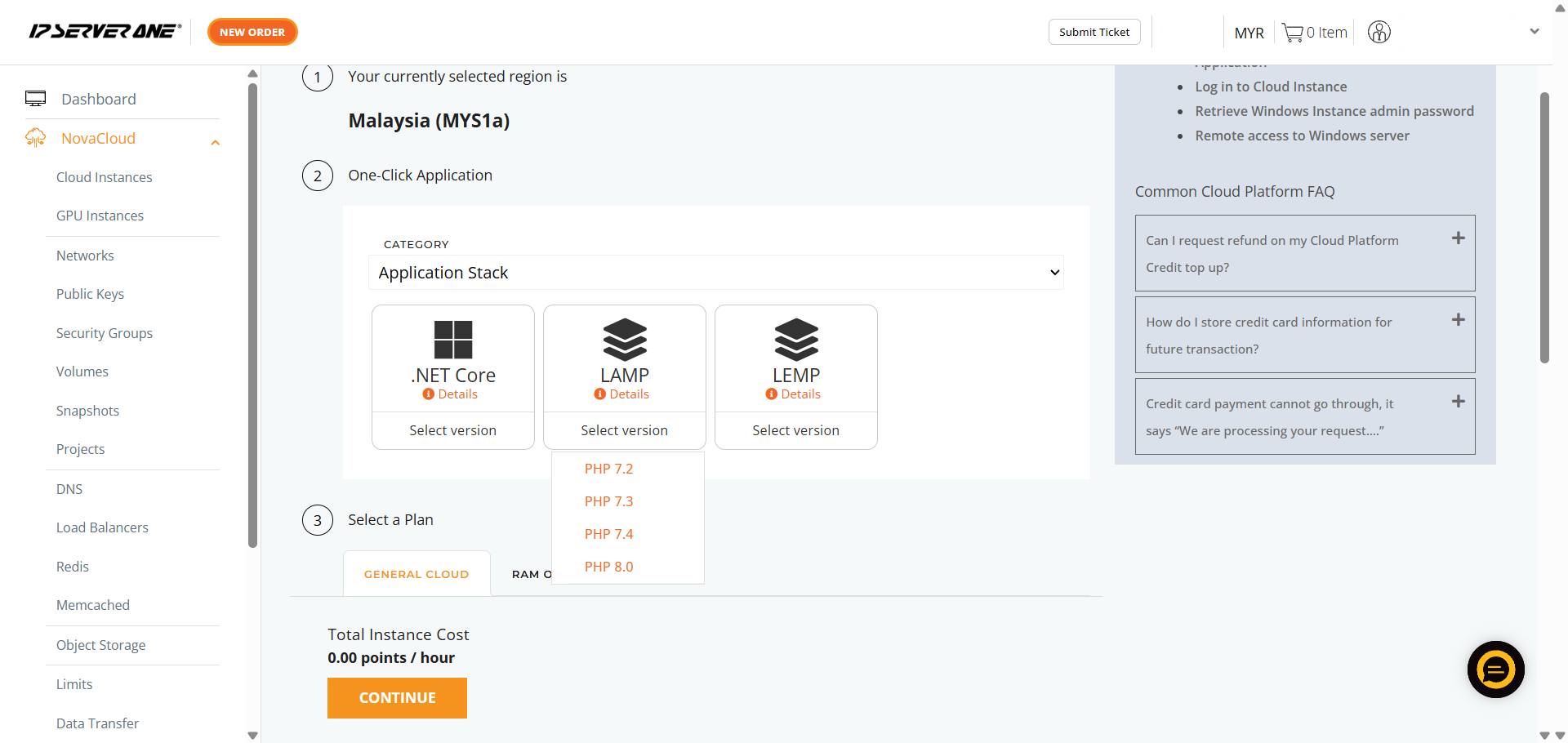
- Choose the appropriate resource plan (CPU, RAM, data transfer limits) for the cloud instance
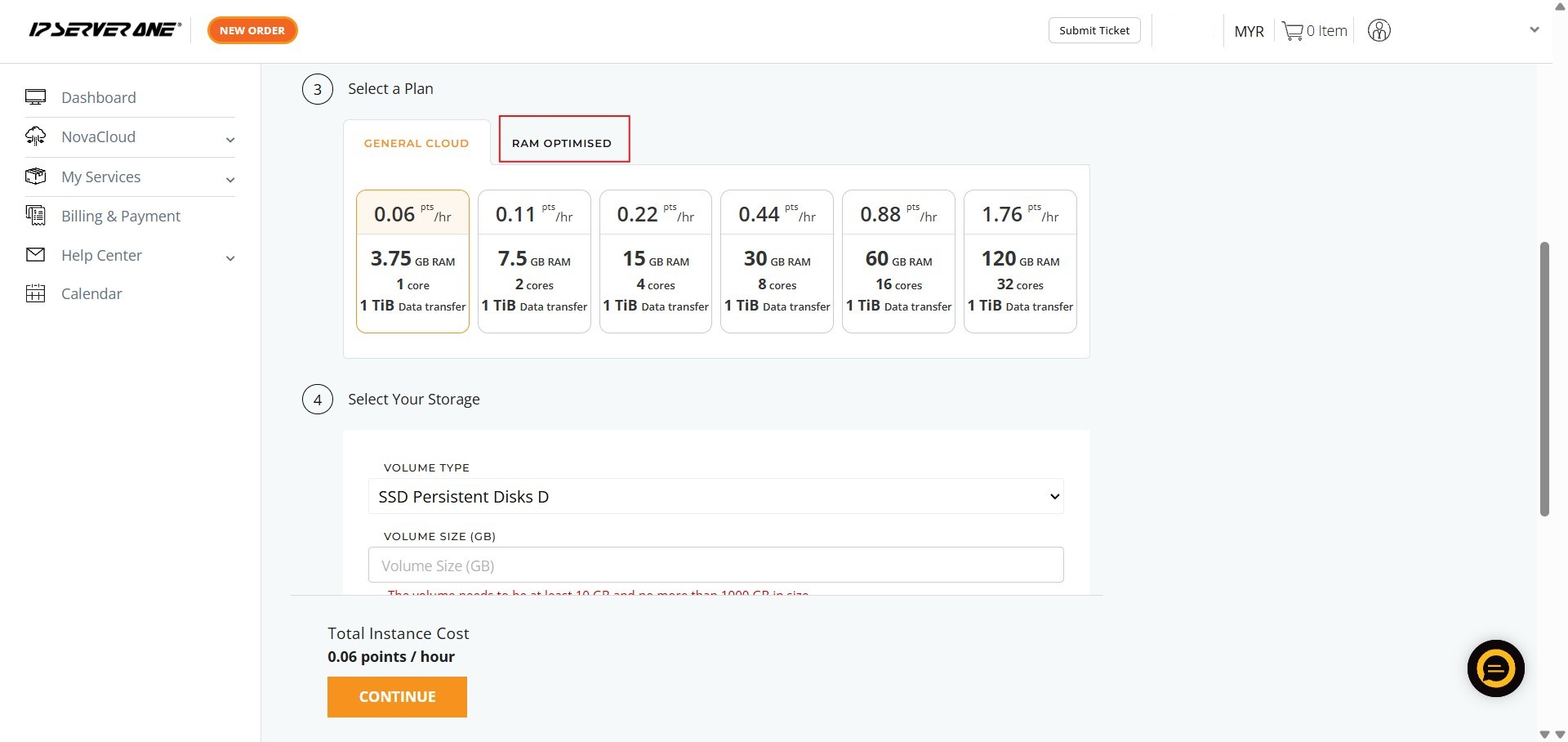
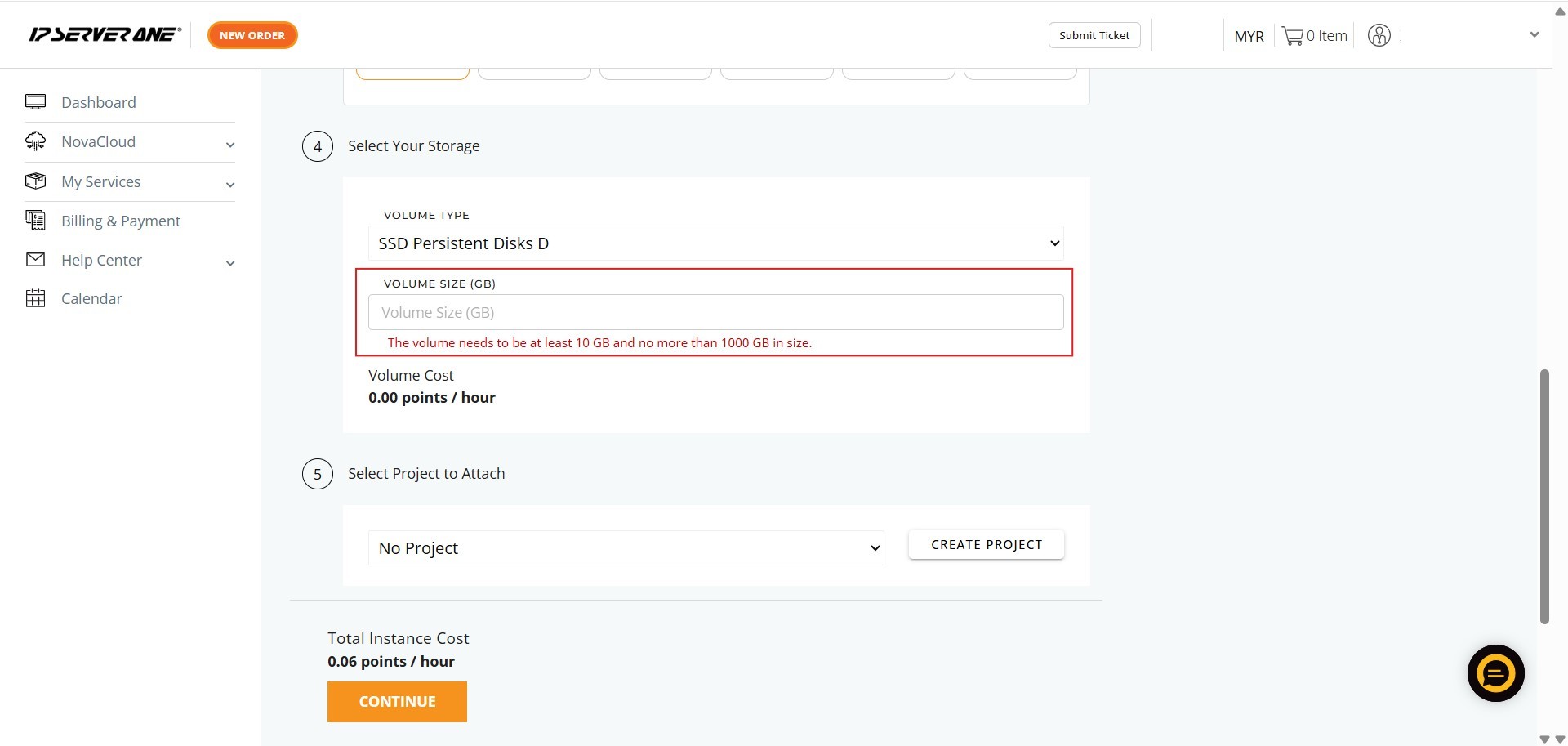
- Define the volume size for the cloud instance
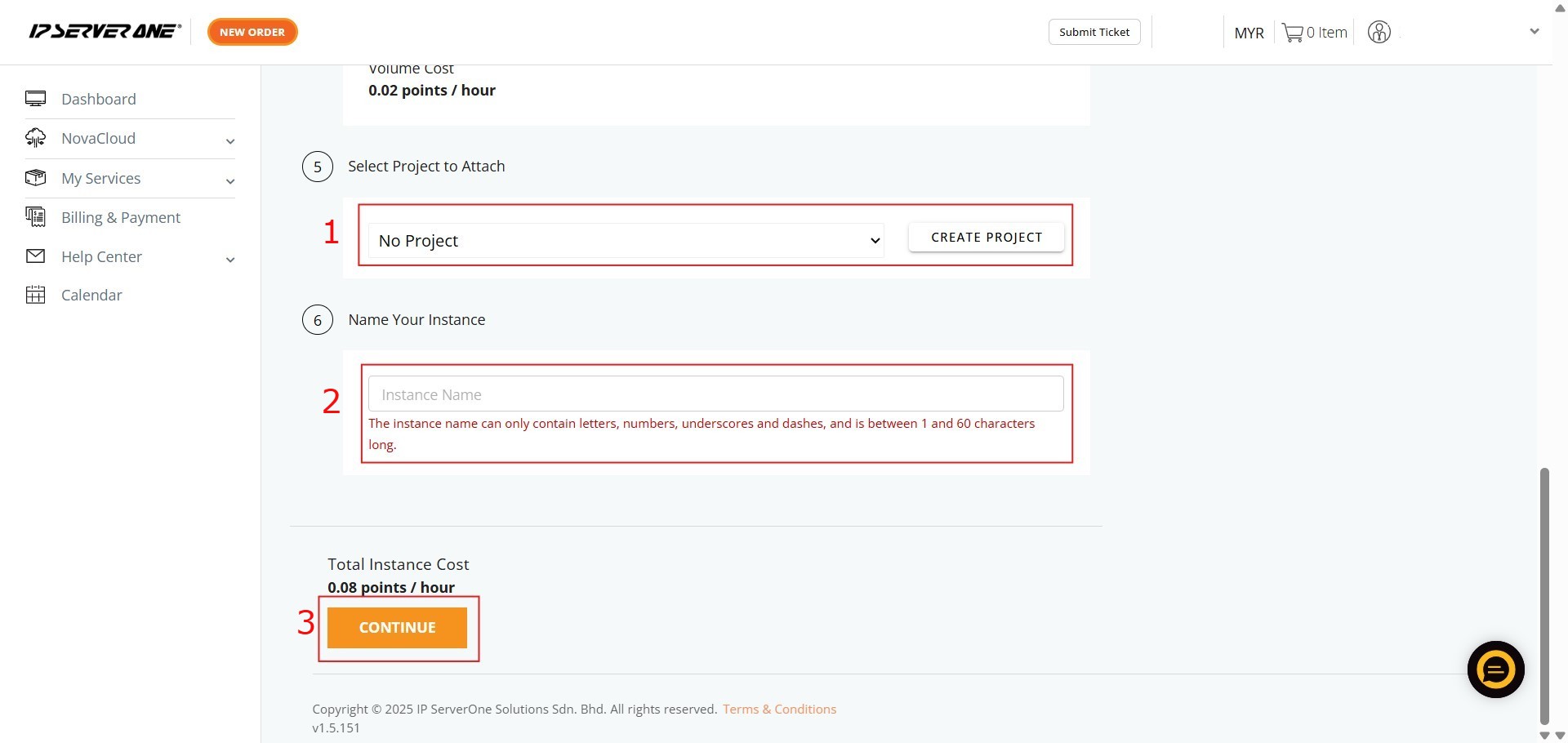
- Associate the instance with an existing project (if desired) and provide a unique name for the cloud instance
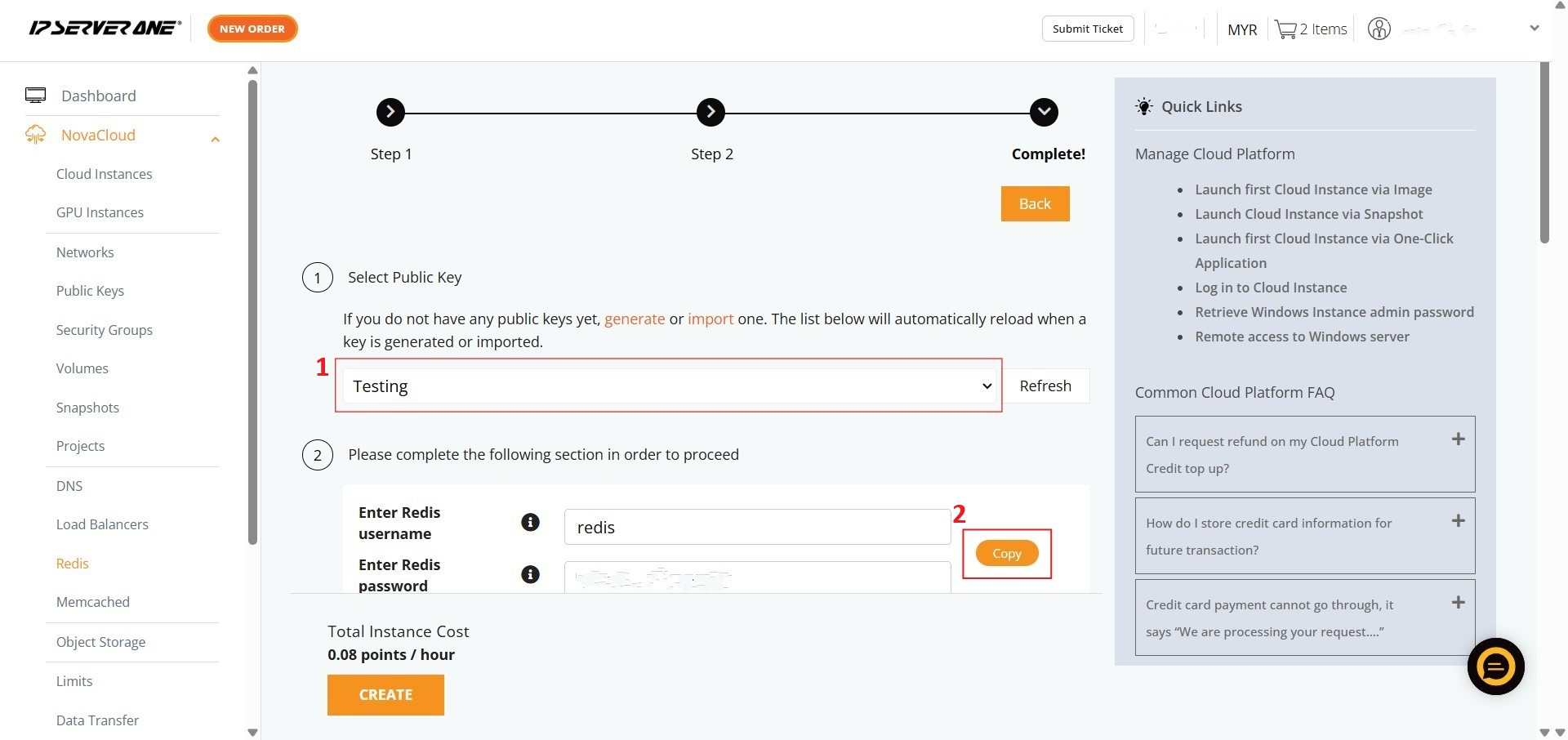
- Select the necessary Public Key and copy the provided Redis login information
Memcached
Memcached is a free, open-source, in-memory key-value data store used to speed up dynamic web applications. By caching frequently accessed data (like database query results or API responses) in RAM, it bypasses slower disk-based storage, allowing for microsecond data retrieval and significantly reducing database load.
- Ensure the Category is selected as Cache
- Select the specific application – Memcached
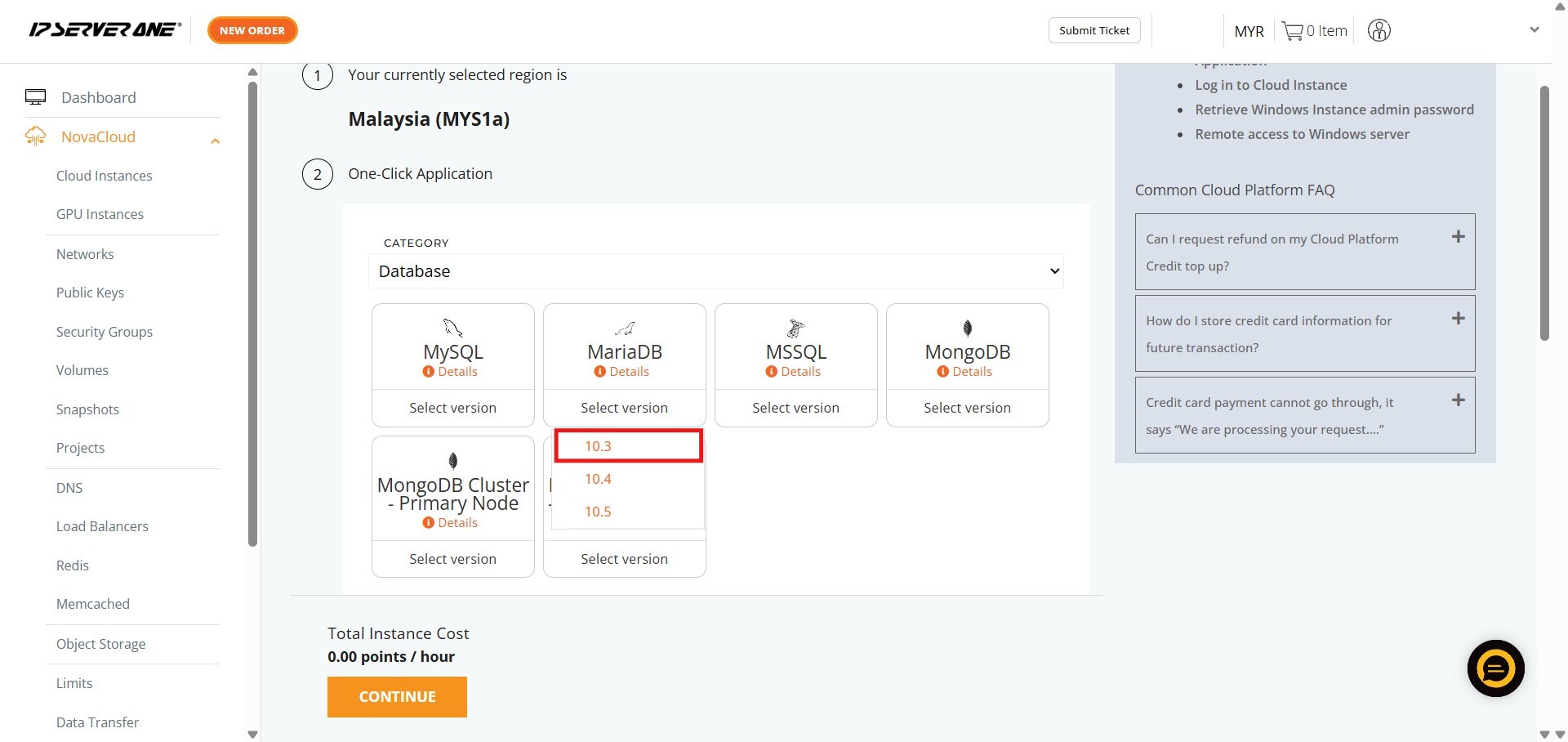
- Choose the required Memcached version you wish to deploy
- Choose the appropriate resource plan (CPU, RAM, data transfer limits) for the cloud instance
- Define the volume size for the cloud instance
- Associate the instance with an existing project (if desired) and provide a unique name for the cloud instance
- Select the necessary Public Key and copy the provided Memcached login information
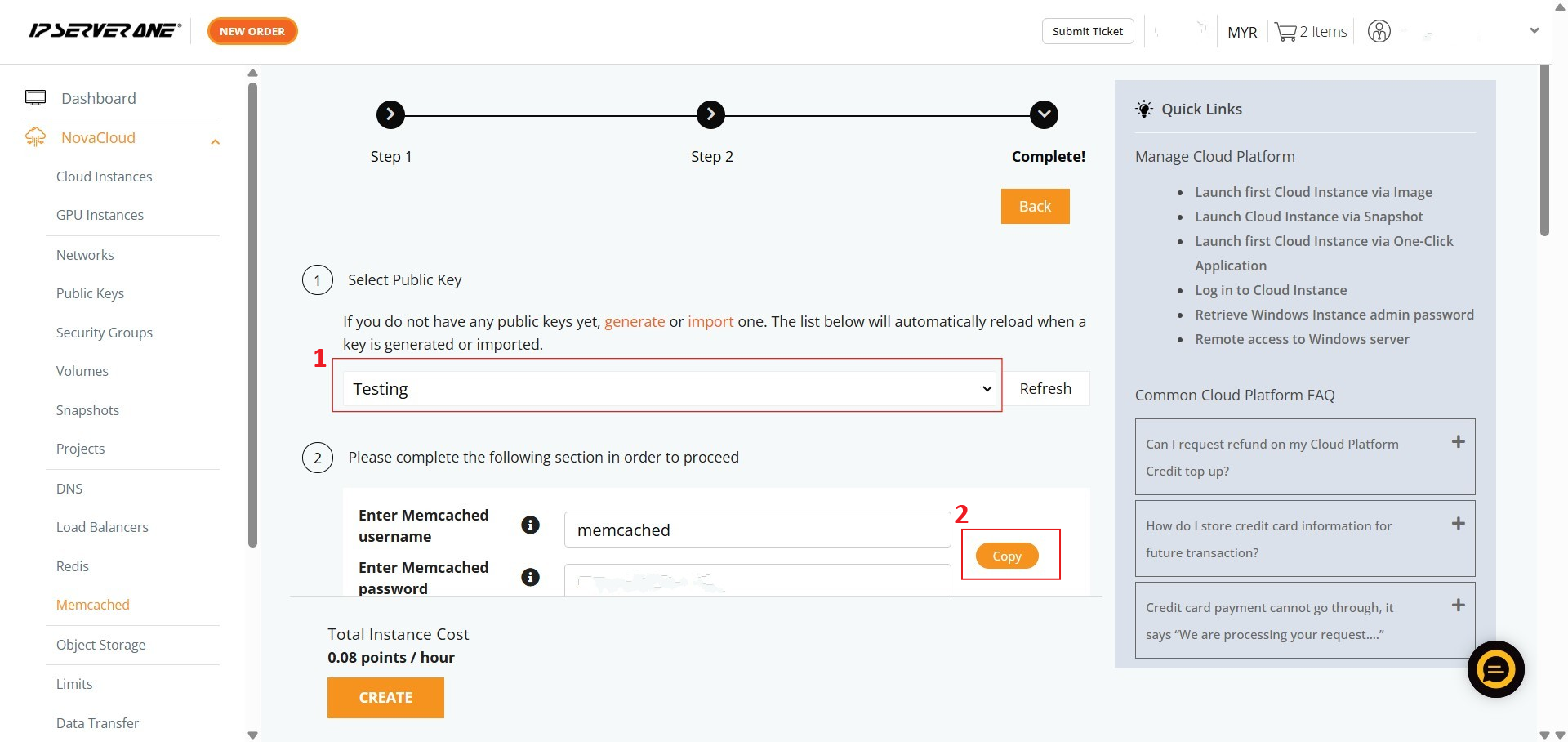
Step 3: Verify launched cloud instance
- If you HAVE NOT created any Security Group, you may consider follow the selection here and our system will assist to create the Security Group for the cloud instance
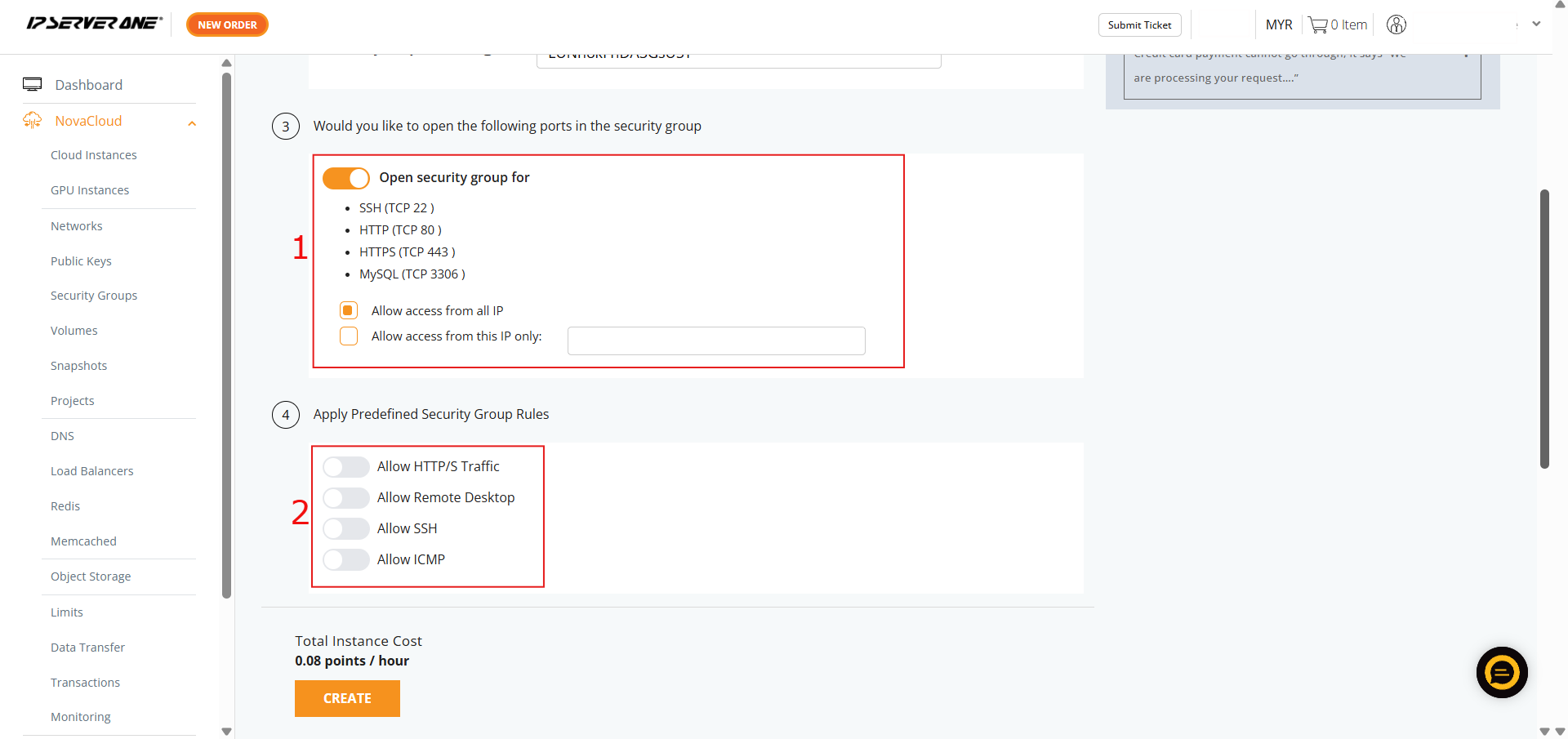
- If you HAVE created Security Group, you may select and apply the Security Group to the cloud instance
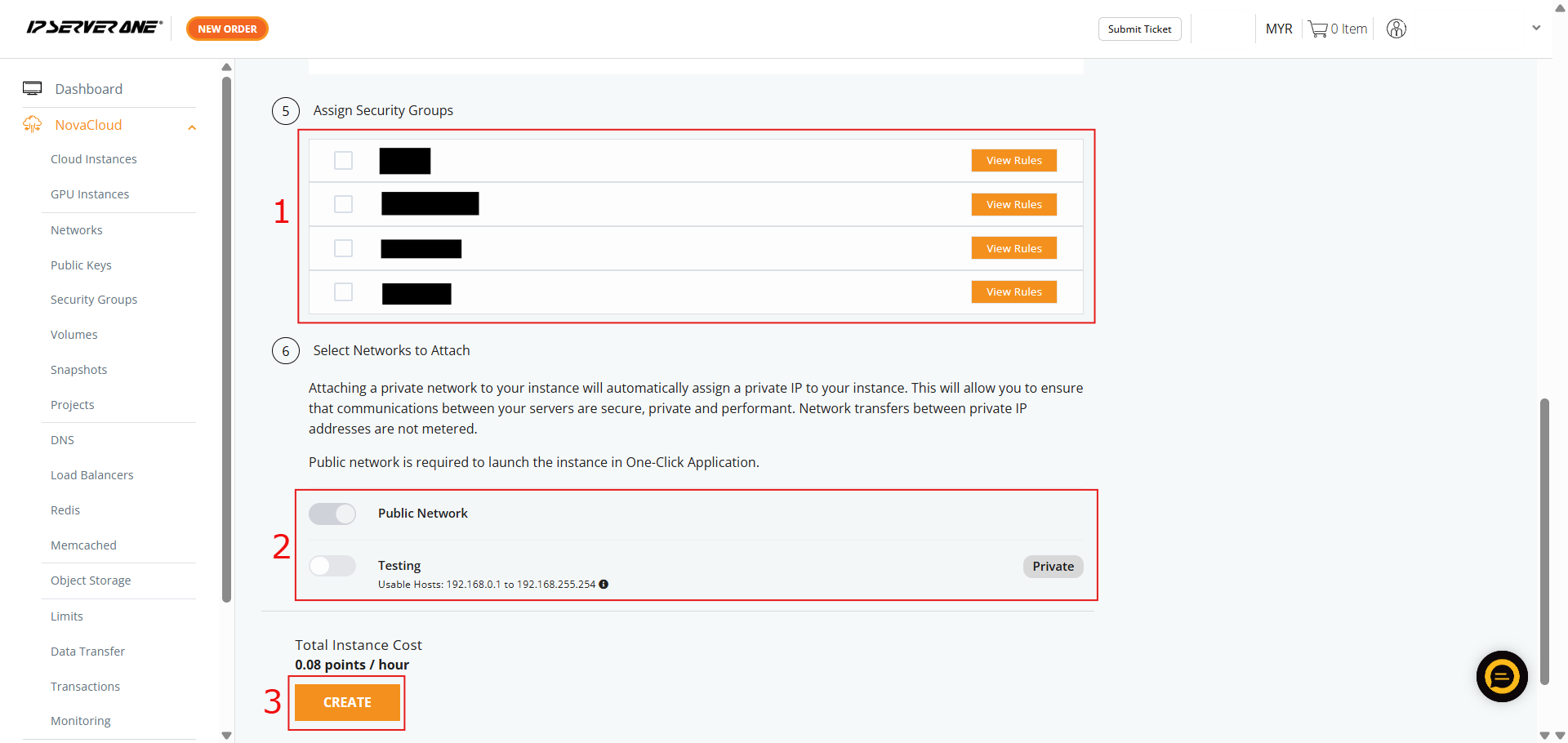
- A confirmation pop-up will appear. Review the specifications, scroll to the bottom, and click Create to launch the cloud instance
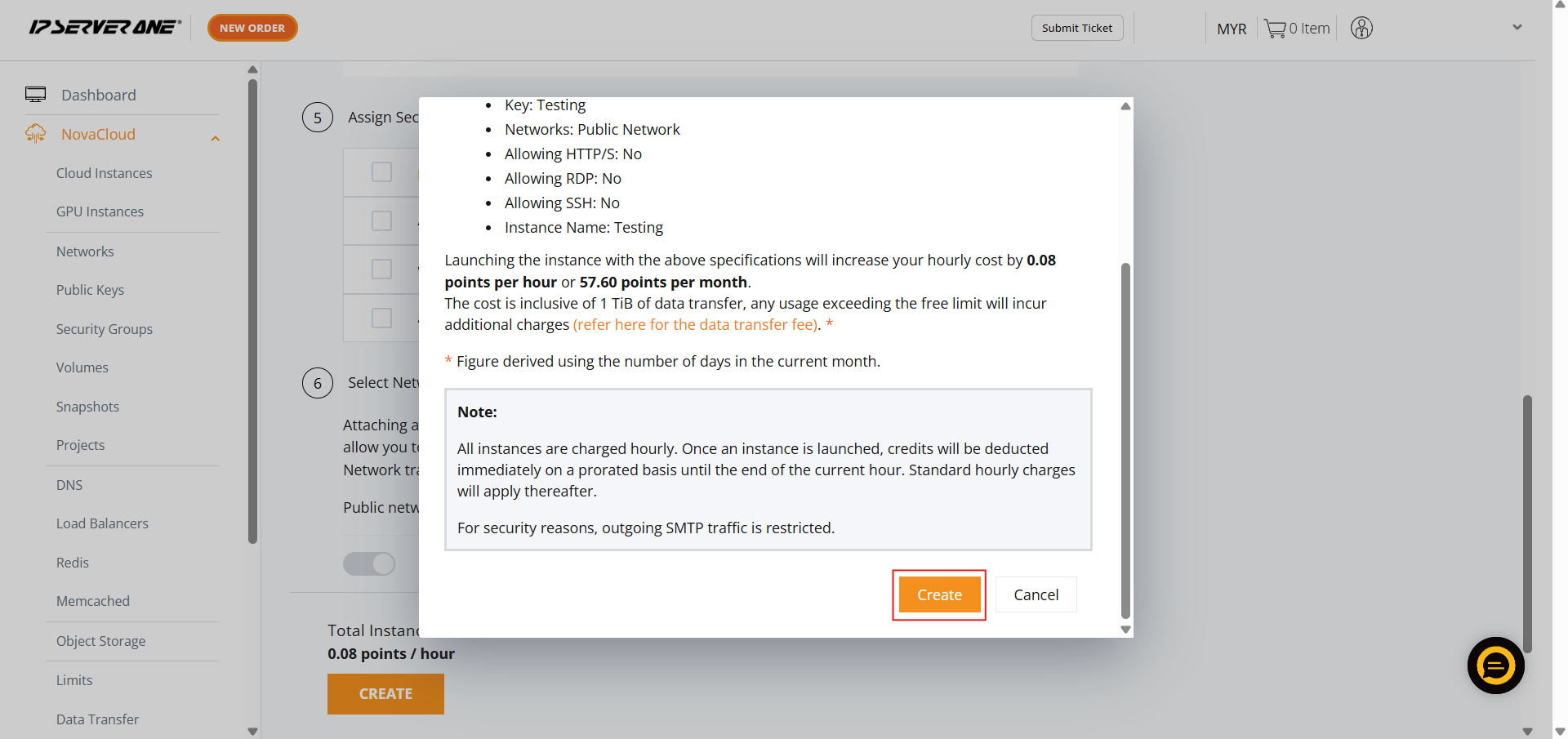
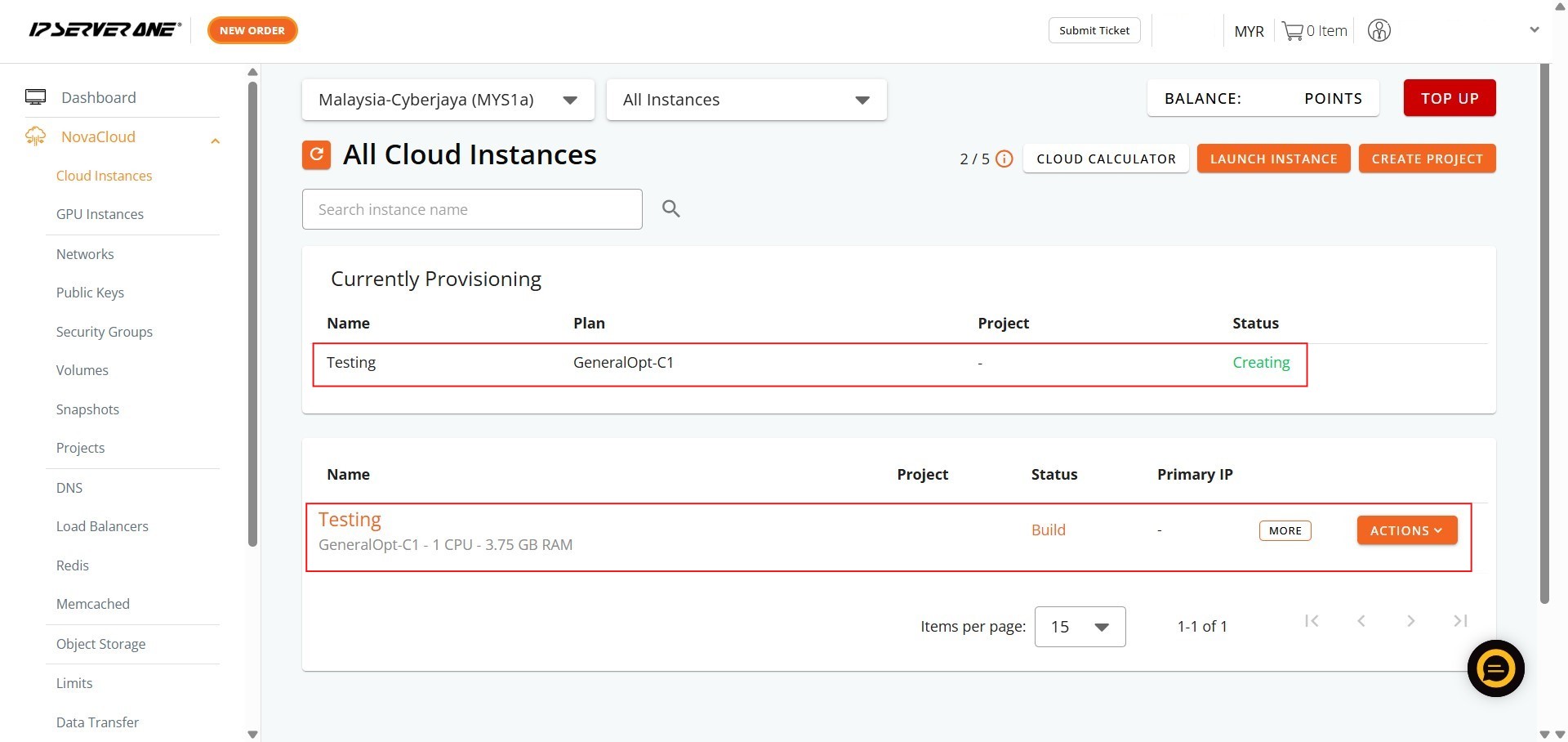
- Click the Instances button in the confirmation pop-up to navigate to the list of Cloud Instances
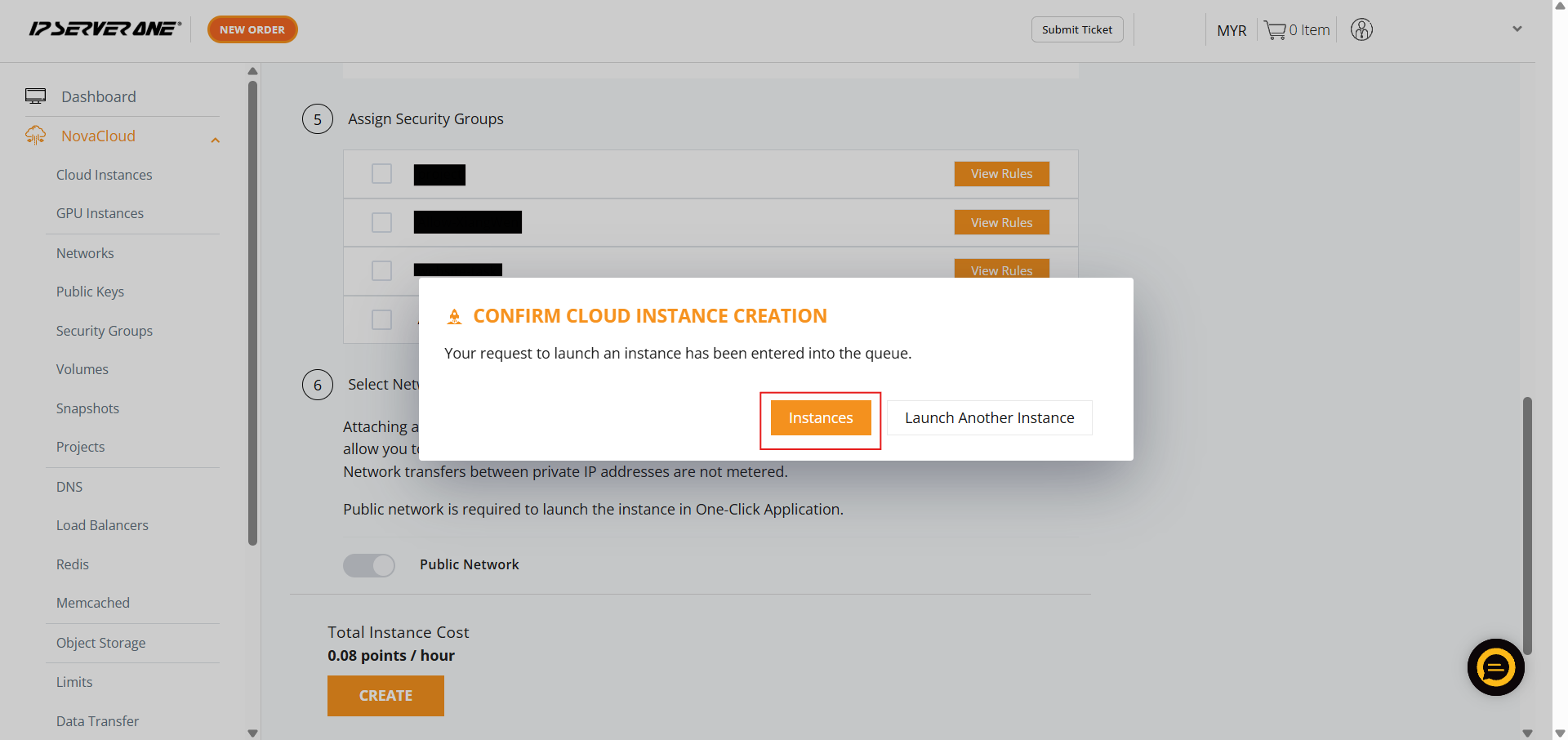
- Your request to launch the instance has been queued, and the provisioning process is underway (status “Creating” or “Active”)
Conclusion
By following this guidance, you can successfully deploy a Redis or Memcached instance using the streamlined One-Click Applications feature, ensuring your applications benefit from fast, reliable in-memory data caching.
For additional assistance or if you encounter any issues, please contact our support team at support@ipserverone.com.
Article updated on 08 July 2026 by Johnny H.