
Search Our Database
How to Create Public Key for the Cloud Server in Customer Portal
Introduction
Configuring public key authentication for your cloud server is an essential security best practice that enables secure, password-free SSH access while significantly reducing the risk of unauthorized breaches. As a cloud administrator or user, you can easily generate secure cryptographic key pairs directly through the IP ServerOne Customer Portal. This comprehensive guide outlines the step-by-step procedure to create public keys and attach them seamlessly to your cloud instances—such as NovaCloud and NovaGPU—empowering you to maintain robust security and streamlined access management across your cloud infrastructure.
Prerequisite
- Active account access to the IP ServerOne Customer Portal.
- Basic understanding of SSH key pair concepts (OpenSSH for Mac/Linux or PuTTY for Windows).
Step-by-Step Guide
Step 1: Accessing the Public Keys Section
- Log in to the [IPServerOne Customer Portal].
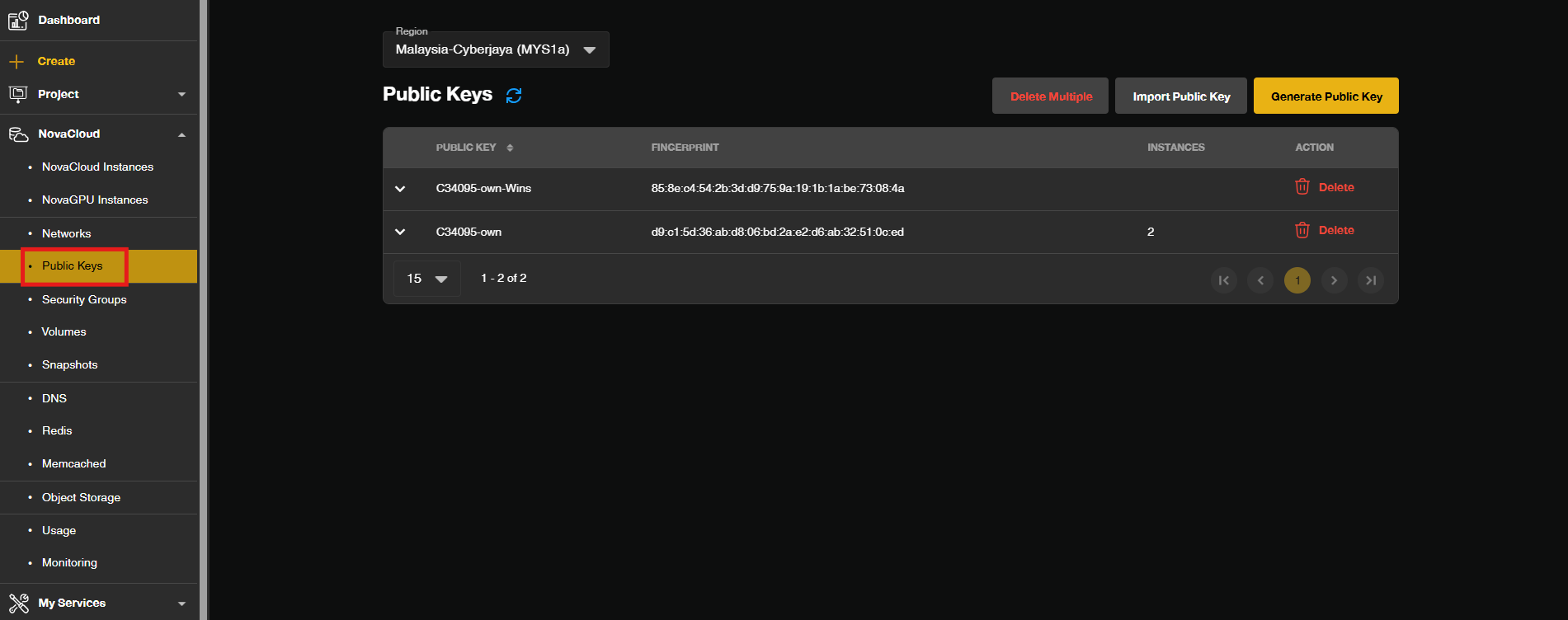
- Go to the NovaCloud and select Public Keys to view your public keys management page.
Step 2: Generating a New Public Key
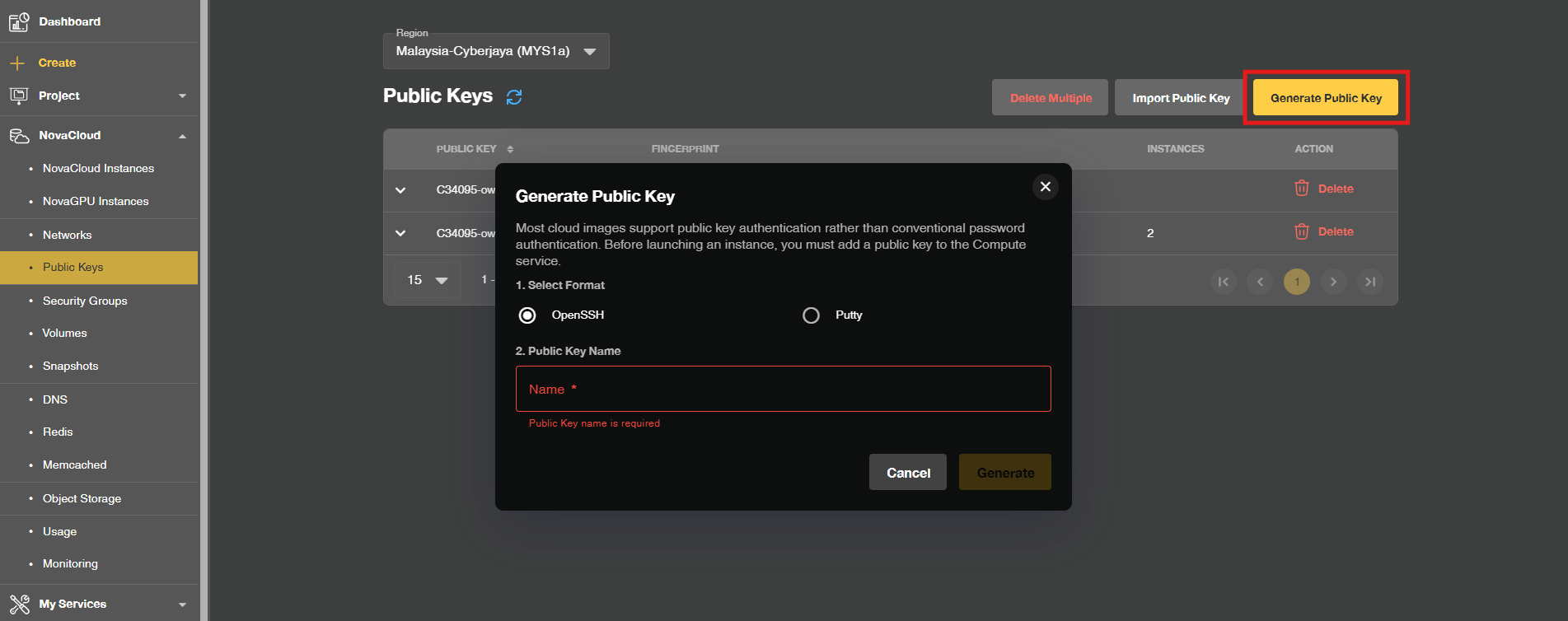
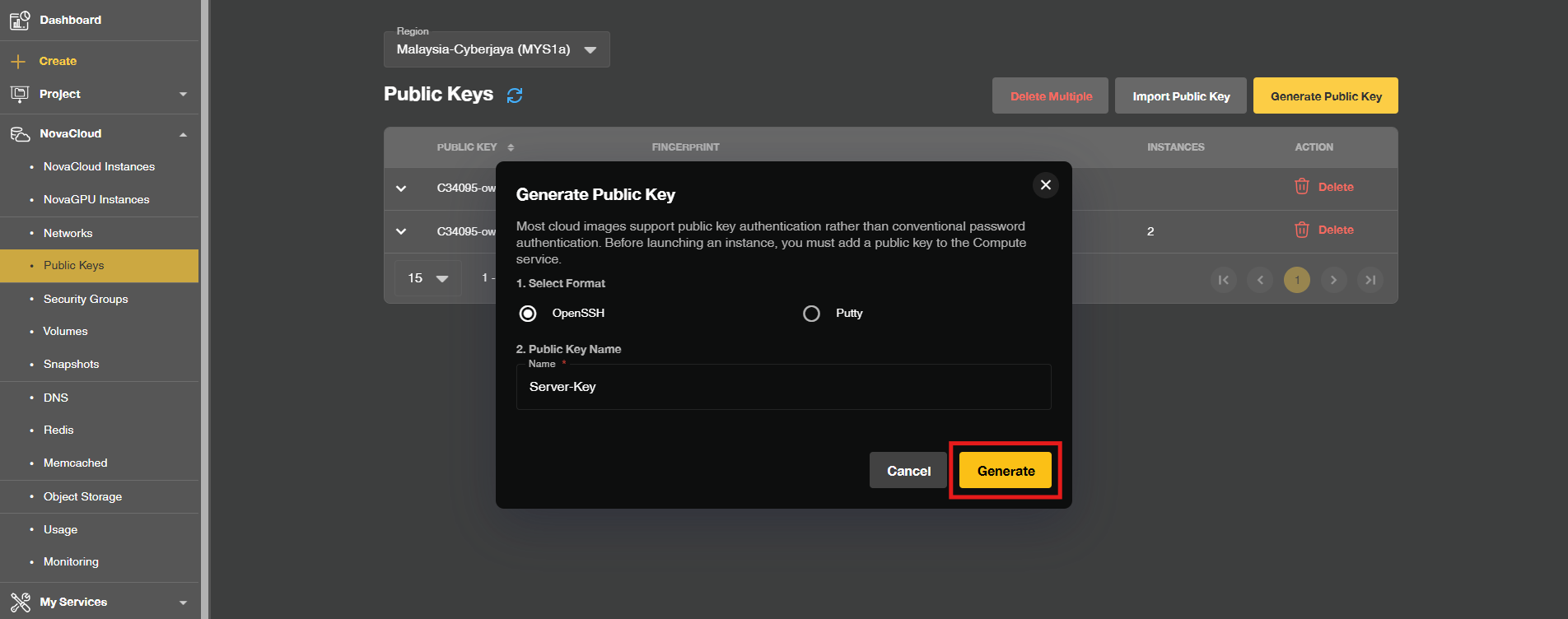
- Click the Generate Public Key button. A configuration prompt or modal window will appear.
Step 3: Configuring Key Settings
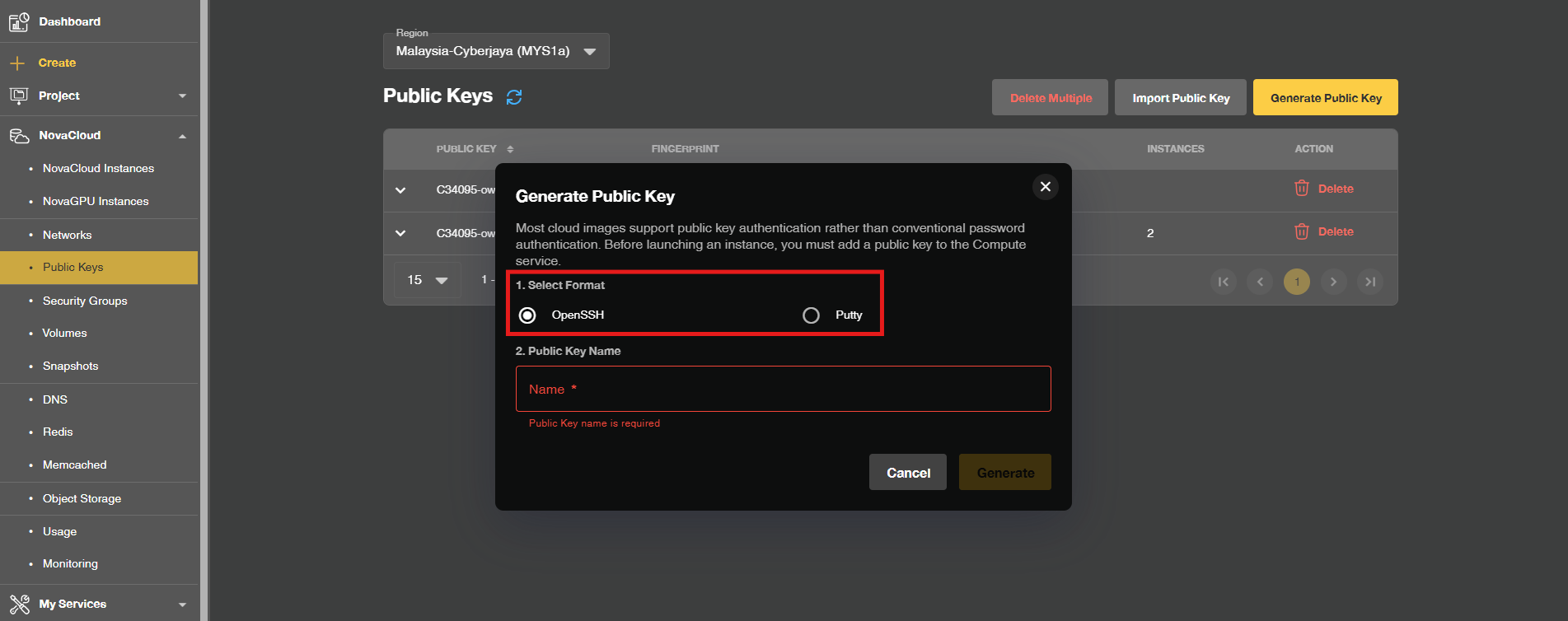
- Select your preferred format: OpenSSH (recommended for macOS and Linux) or PuTTY (recommended for Windows users utilizing PuTTY).
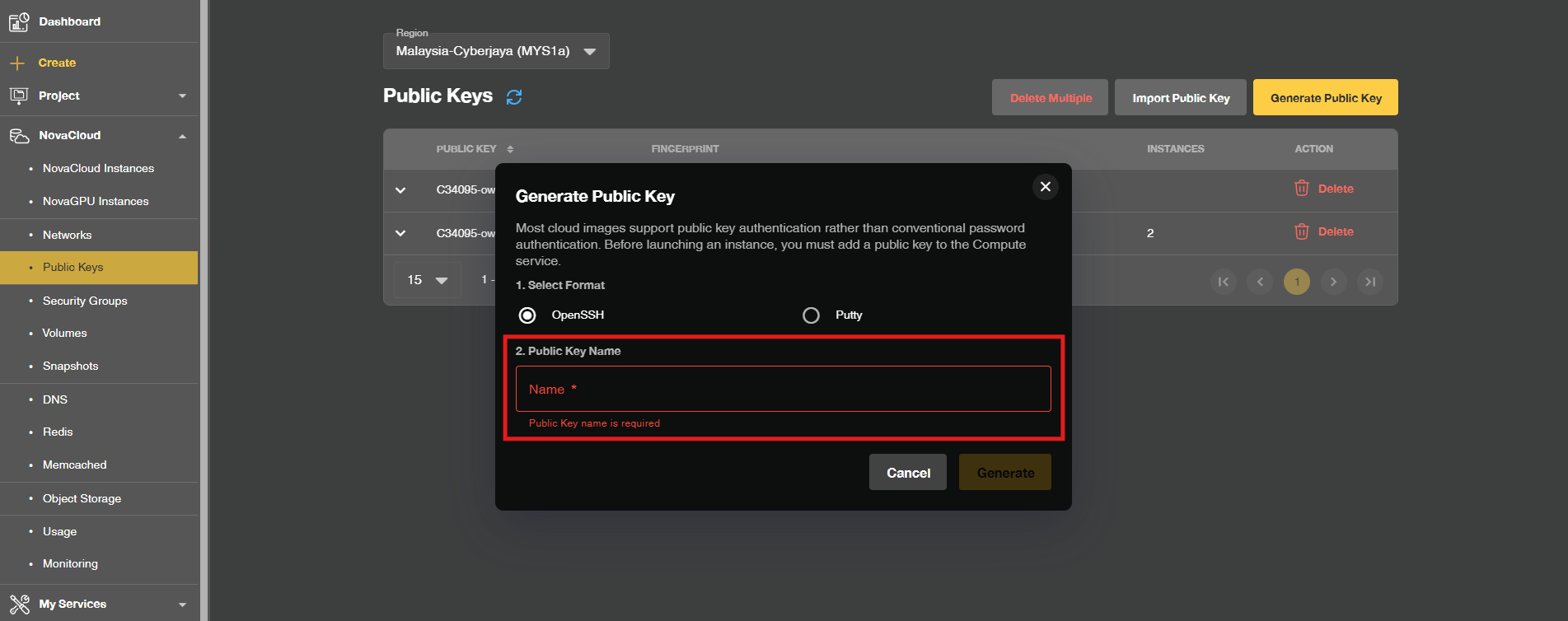
- Enter a unique Key Name.
Step 4: Generating and Downloading the Private Key
- Click Generate to create the cryptographic key pair.
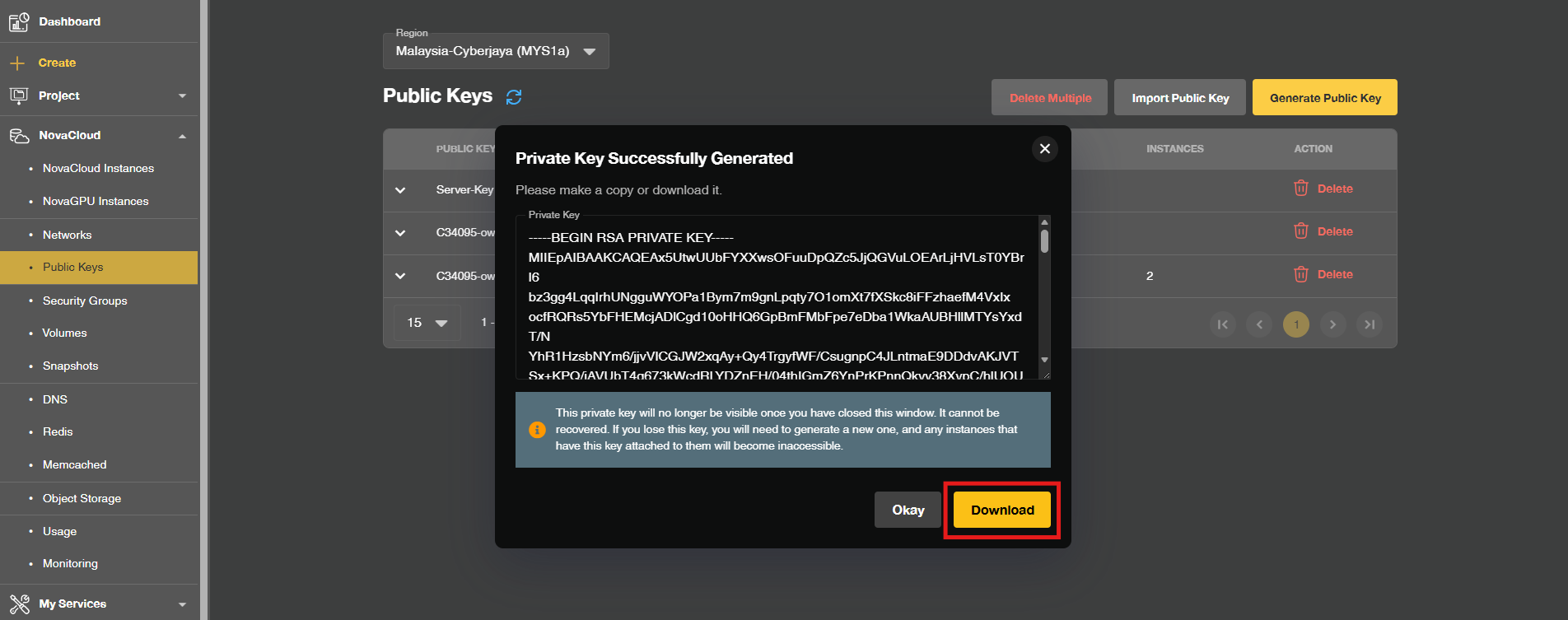
- A new window will display your private key details. Click Download to save the private key file directly to your local computer.
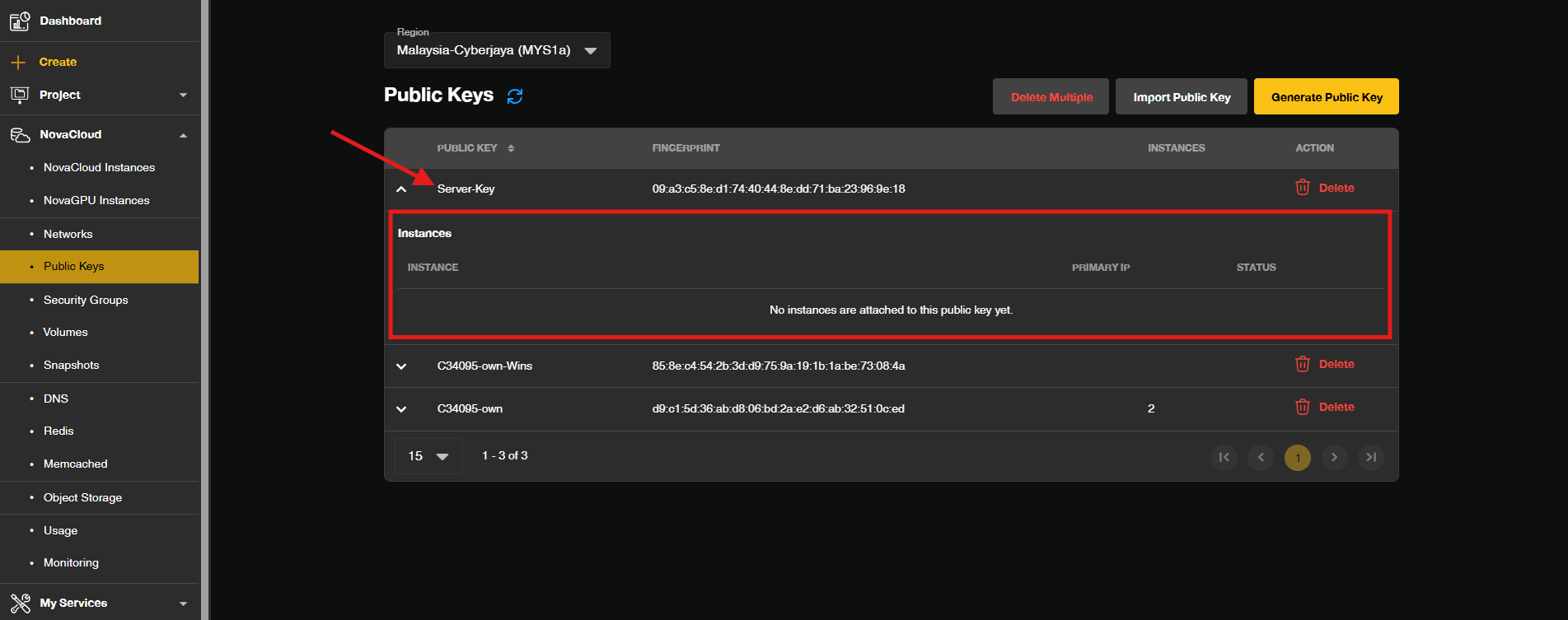
- The corresponding public key will now be stored and listed under your Customer Portal account. Any instances that used the public key will be listed too.
Step 5: Utilizing the Public Key for Cloud Instances
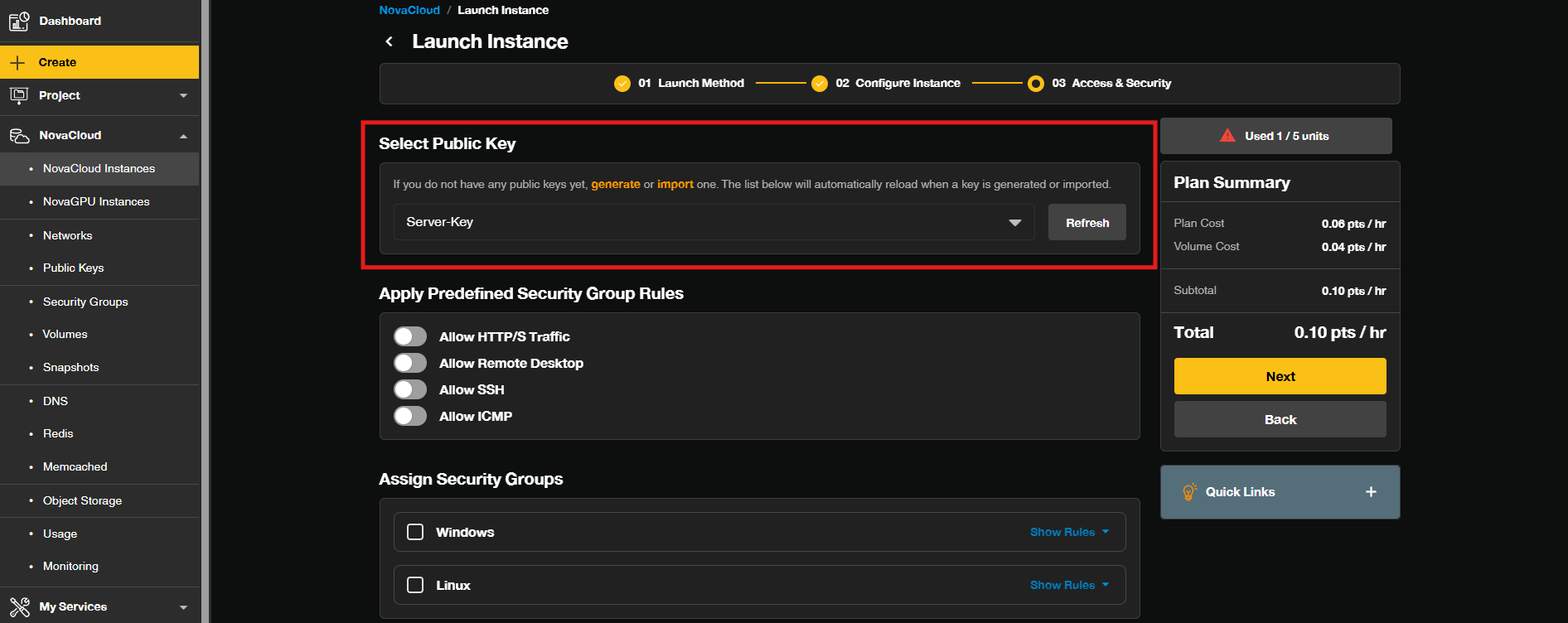
- When provisioning a new instance—such as a NovaCloud instance or NovaGPU instance—navigate to the instance creation wizard.
Conclusion
By following this guidance, you can successfully create and manage public keys in the Customer Portal, ensuring secure, password-free administrative access to your NovaCloud and NovaGPU servers.
If you encounter any issues or require further assistance, please reach out to our support team at support@ipserverone.com.
Article updated on 21 October 2026 by Johnny