
Search Our Database
How to delete Cloud Instance snapshot in Customer Portal
Introduction
Deleting a snapshot of your Cloud Instance through the Customer Portal helps you manage your storage resources efficiently by removing snapshots that are no longer needed. Snapshots capture the state of your volumes at a specific point in time, but over time, outdated snapshots can accumulate and continue to incur charges. This guide will walk you through the process step-by-step, ensuring you can safely remove unwanted snapshots within the Customer Portal environment.
Prerequisite
- Access to the Customer Portal where the Cloud Instance is under
- An existing snapshot you wish to delete
Note: This action is not reversible! Once a snapshot is deleted, it cannot be recovered. Kindly ensure the snapshot is no longer needed before proceeding with the deletion.
Step-by-step guide
Step 1: Login to the Customer Portal
- Login to [IPServerOne Customer Portal].
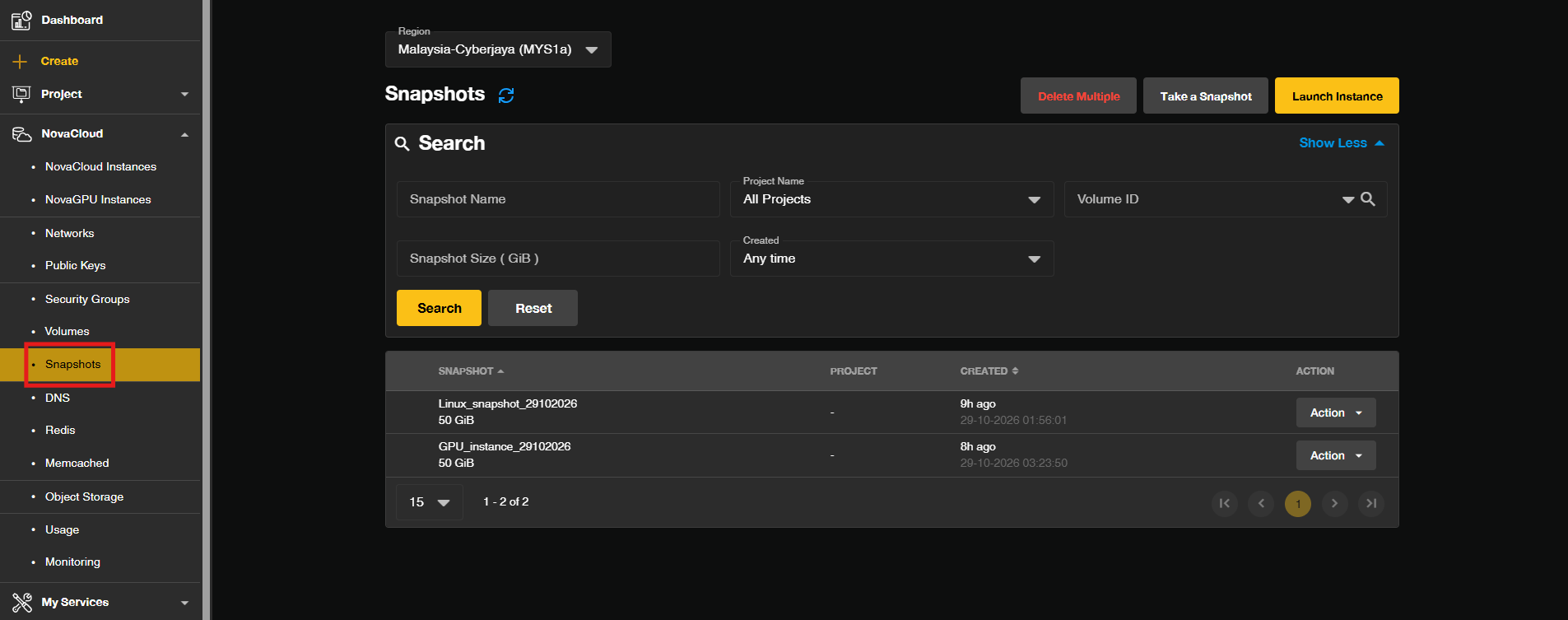
Step 2: Navigate to the Snapshot Section
- In the Dashboard, click on the NovaCloud dropdown menu and select Snapshot.
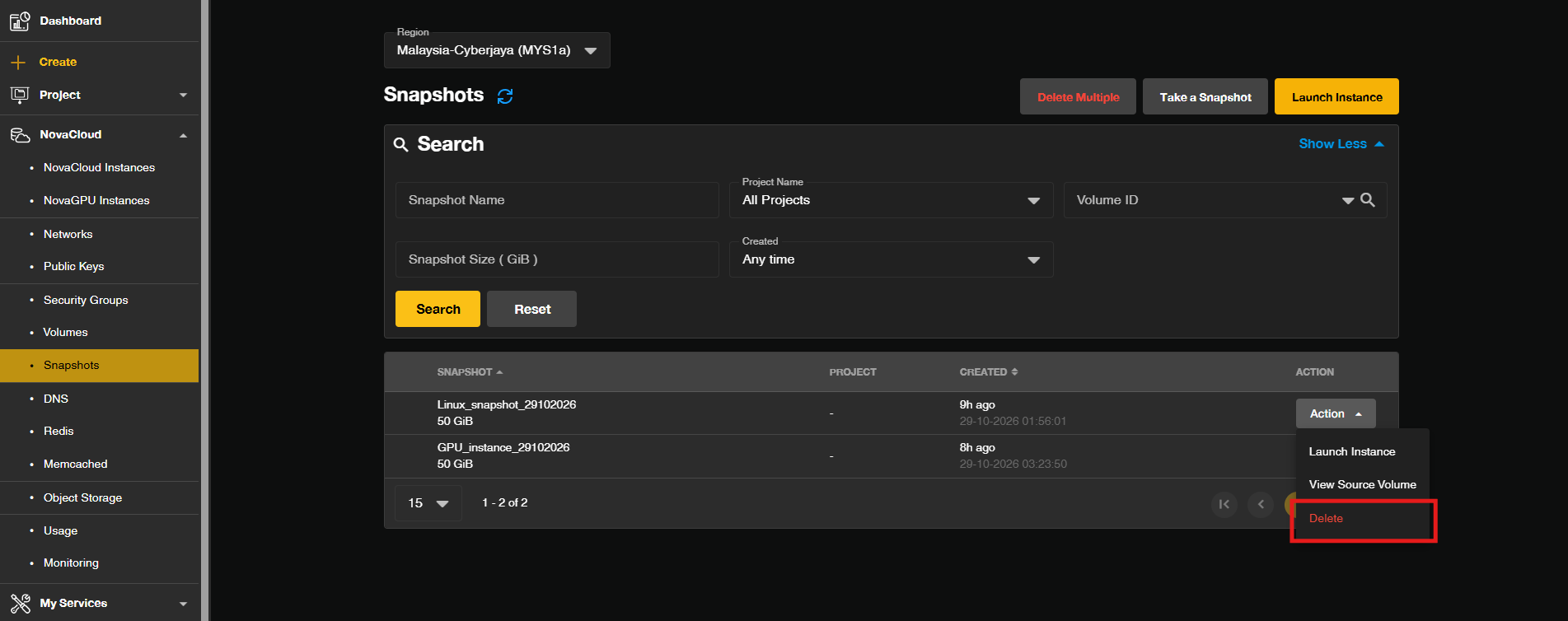
Step 3: Delete the Snapshot
- Locate the snapshot you wish to delete from the list. Click on the Action dropdown next to the snapshot to reveal a dropdown menu, then select Delete.
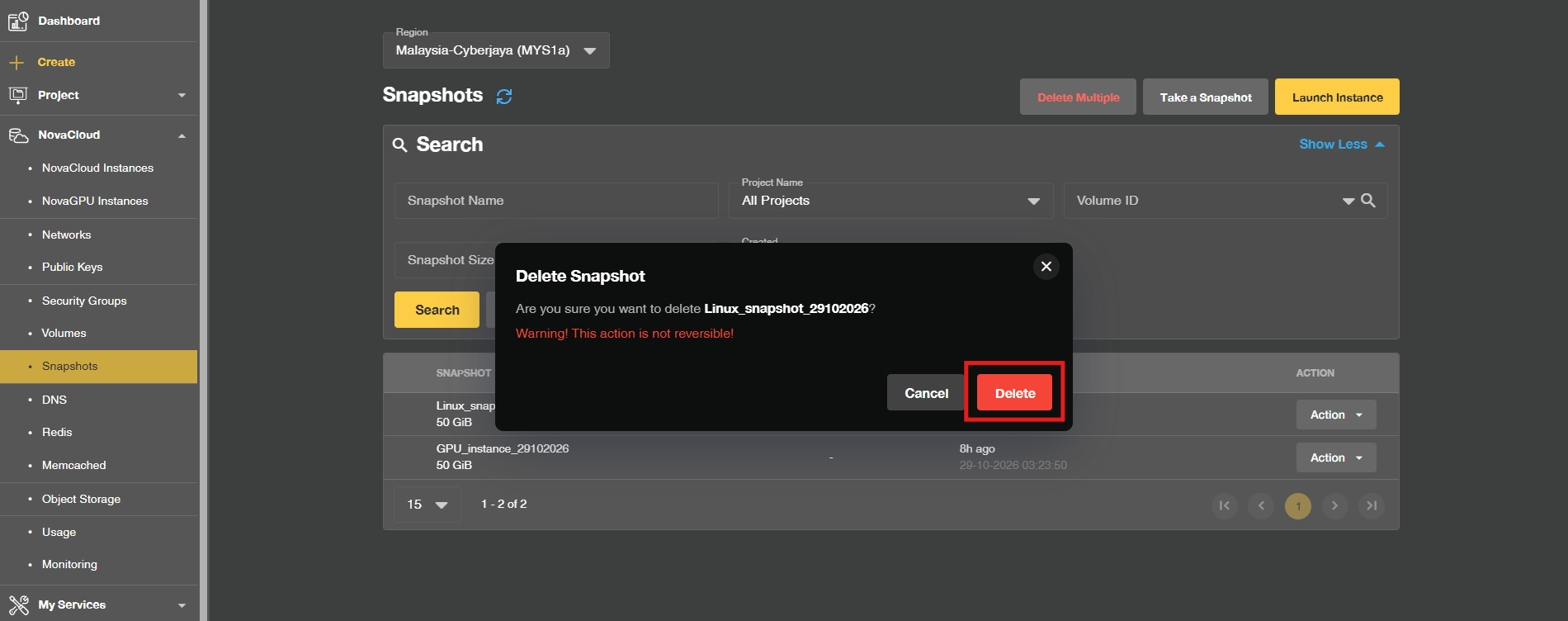
Step 4: Action Confirmation
- Click on the Delete button on the pop-out windows.
- Your snapshot will now be deleted. Once the deletion is complete, the snapshot will be removed from the list and you will no longer be charged for it.
Conclusion
By following this guidance, you can delete unwanted snapshots of your Cloud Instance in the Customer Portal quickly and confidently, keeping your storage resources organized and avoiding unnecessary charges. Remember to verify that the snapshot is no longer needed before deletion, as this action is irreversible.
For any inquiries, feel free to reach out to our support team at support@ipserverone.com.