
Search Our Database
How to launch Cloud Instance by using Image in Customer Portal
Introduction
Launching a cloud instance using a standard operating system image within the IP ServerOne Customer Portal is an essential process for deploying new virtual servers quickly and efficiently. This functionality allows system administrators and business users to provision pre-configured Linux or Windows environments on the Novacloud platform tailored to their specific application requirements. By utilizing standardized OS images rather than custom templates, users ensure a clean, reliable, and secure foundation for their infrastructure deployments. This guide outlines the straightforward procedure required to successfully spin up a new cloud instance through the portal interface.
Prerequisite
- Active account access to the IPServerOne Customer Portal with appropriate permissions
- Sufficient resource allocation (vCPU, RAM, and storage) within your Novacloud project
- Sufficient account cloud credit
Before diving into the launching cloud instance, you may refer to the guidance below, as there are being used across this guidance.
- To register and login into our Customer Portal
-> [How to register and login to Customer Portal] - To configure Security Group for the cloud instance, you may consider as the simple firewall for the cloud instance
-> [Configure Security Group in IPServerOne Customer Portal] - If you wish to unify the Public Key for all cloud instance, you may generate a Public Key before launching the cloud instance
-> [How to Create Public Key for the Cloud Server in Customer Portal] - If you have existing Public Key, you may consider import the Public Key
-> [How to Import Public Key(s) for the Cloud Server in Customer Portal] - To create a Project for your cloud instance for easier managing, and you are having an option to assign the Project later
-> [Managing project and instance assignment in Customer Portal] - To login the cloud instance via SSH
-> [How to login to your Linux Server via SSH] - To retrieve the Windows Administrator password for RDP access
-> [How to Retrieve the Windows Administrator Password]
Step-by-Step Guide
Step 1: Access the Customer Portal
- Log in to the [IPServerOne Customer Portal].
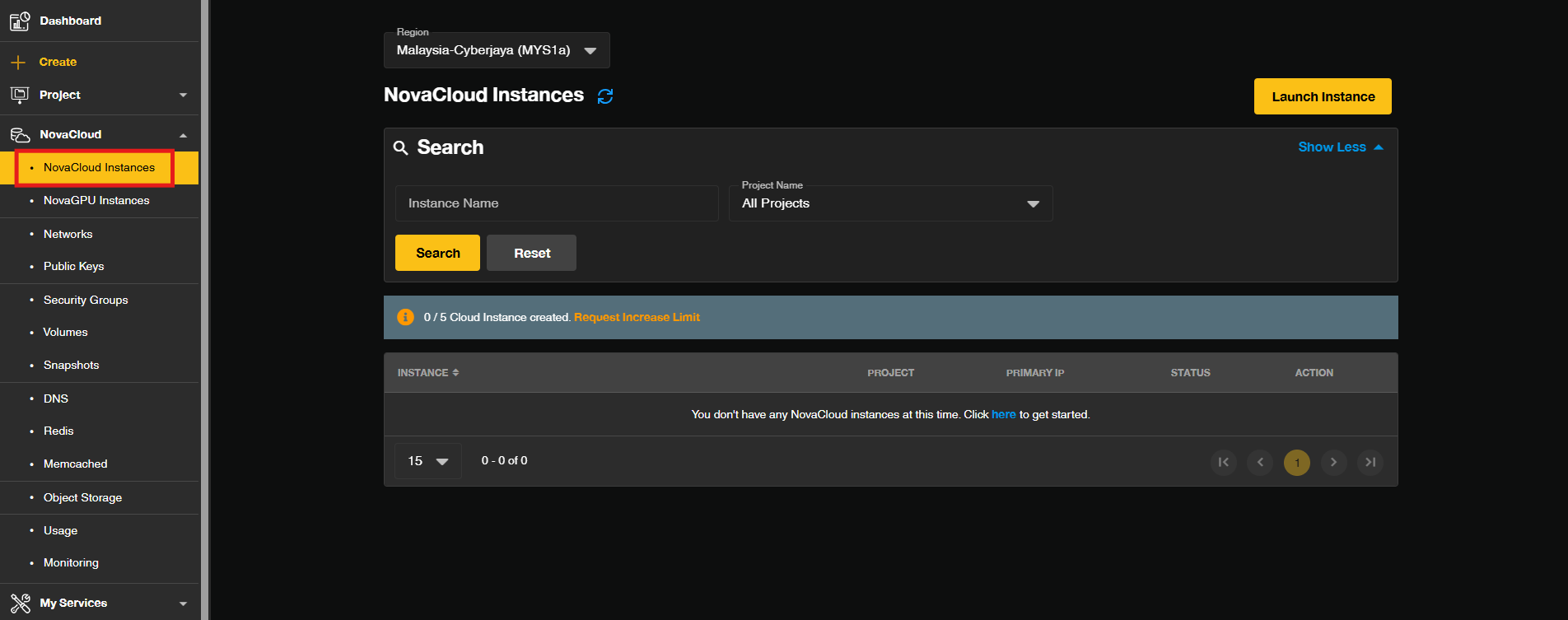
Step 2: Navigate to Novacloud
- Go to the NovaCloud and select NovaCloud Instances to view your cloud instance management page.
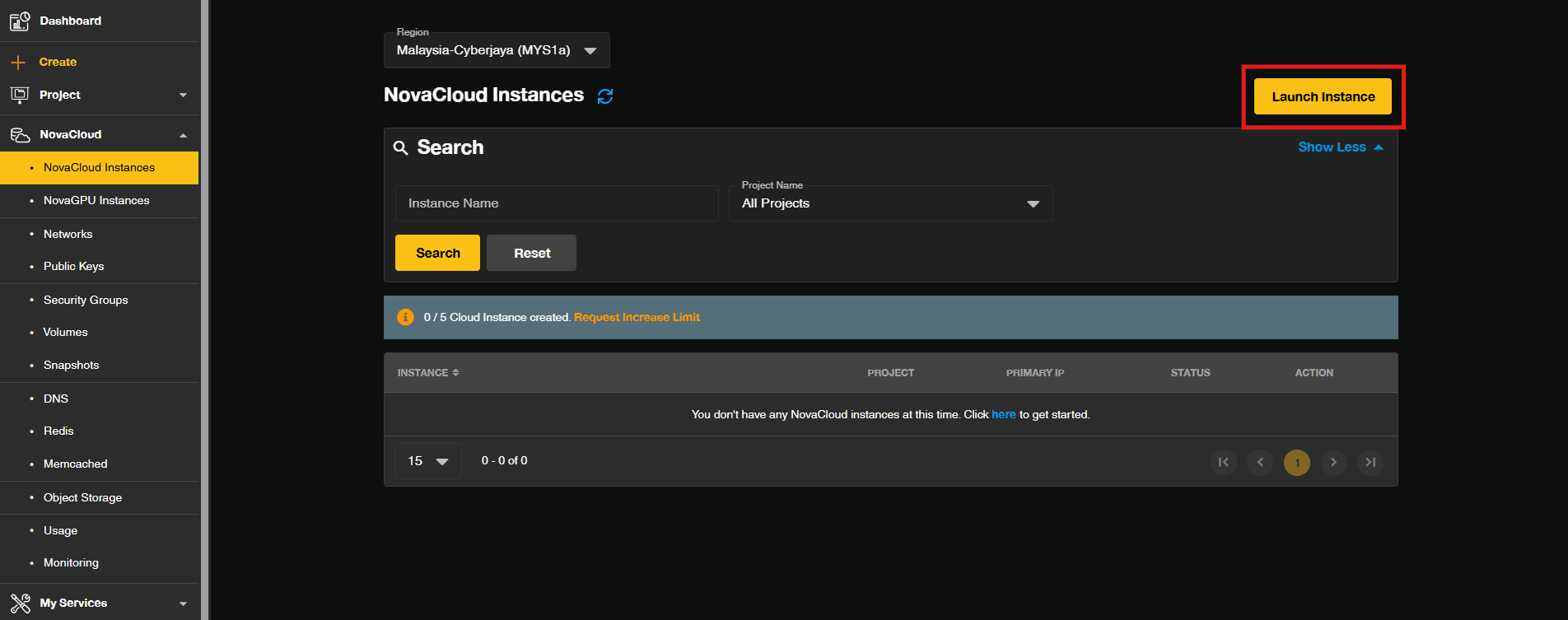
Step 3: Initiate Instance Launch
- Click the Launch Instance button to create a new cloud instance.
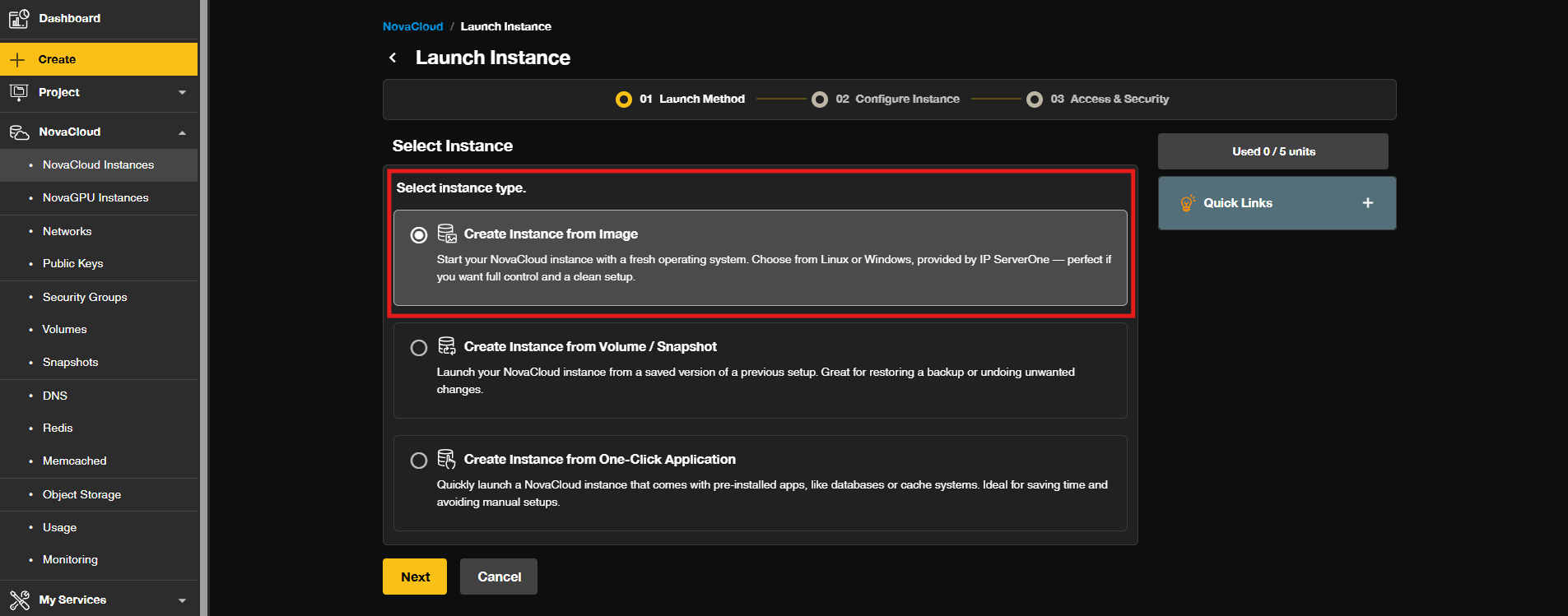
Step 4: Select Standard OS Image
- Under the Select instance type, choose Create Instance from Image as the type.
- Select your desired standard operating system image from the available list.
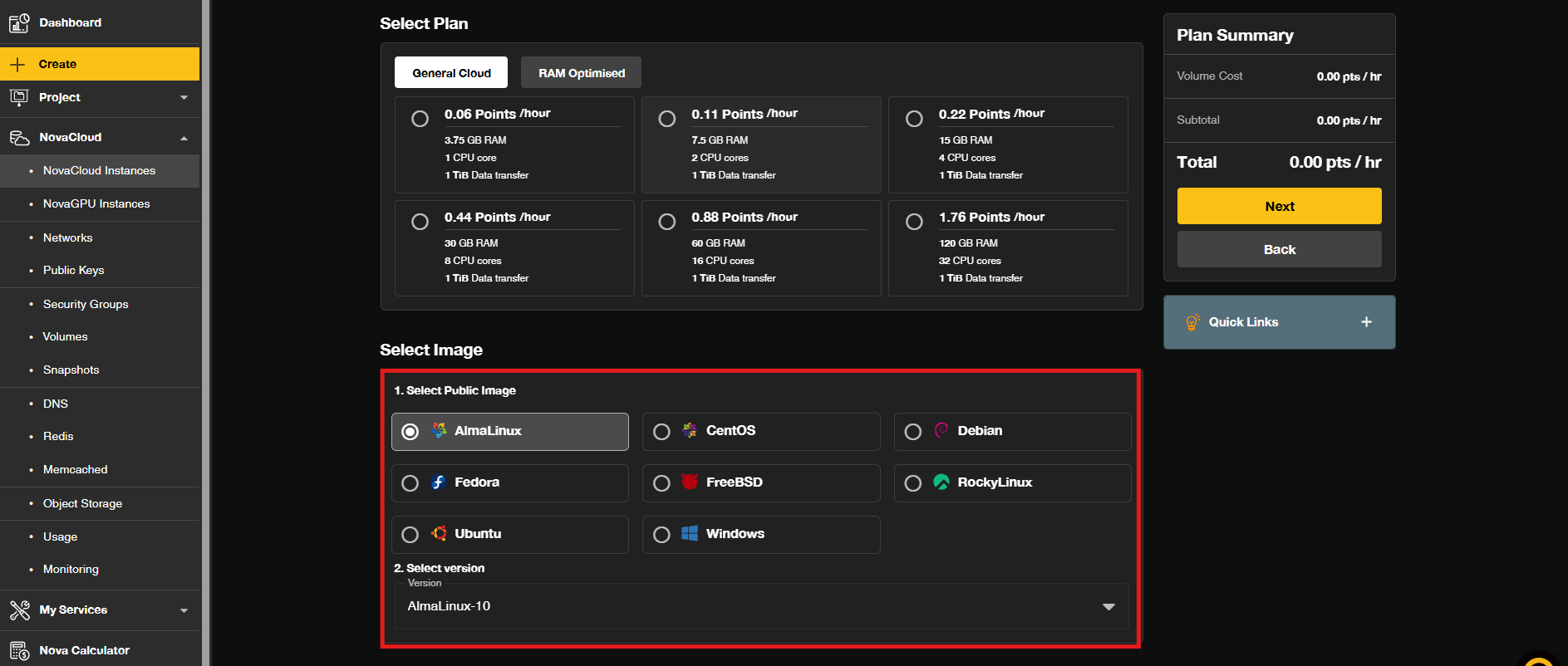
Step 5: Configure Resources and Network
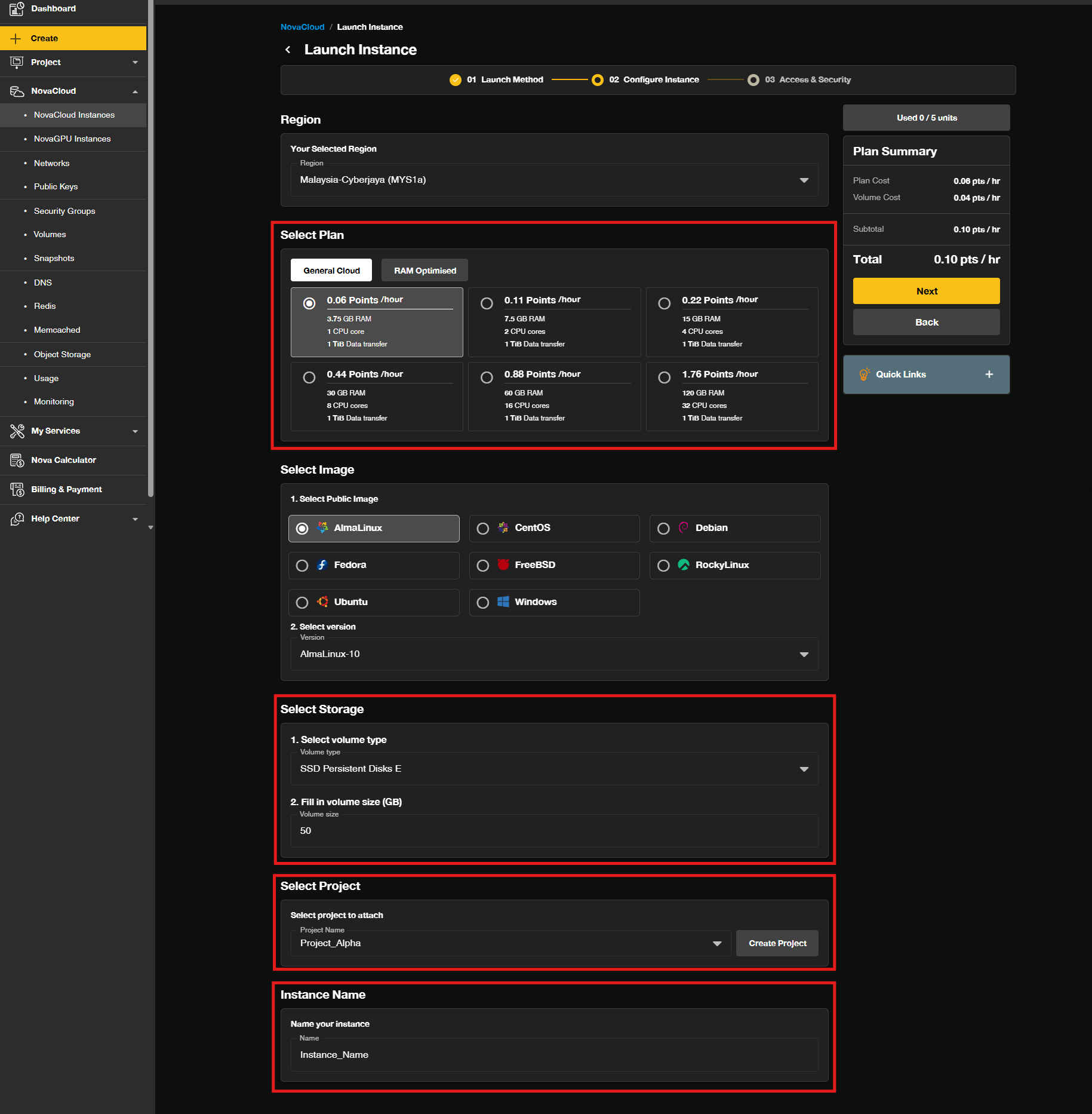
- Configure your desired Region, Plan, Project, then enter the desired Storage Size and Instance Name.
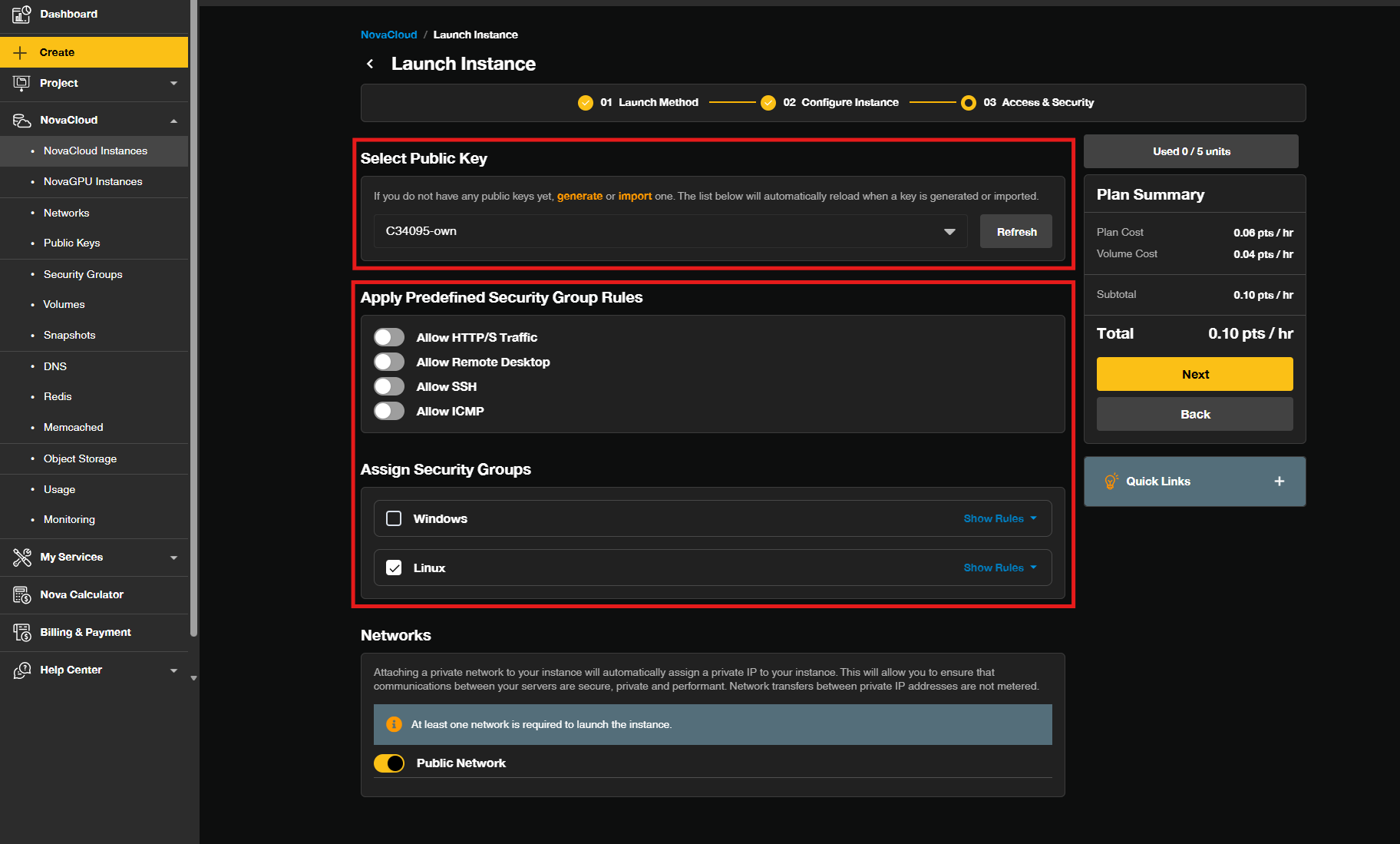
- Select your Public Key and using Security Group to assign which ports to be open.
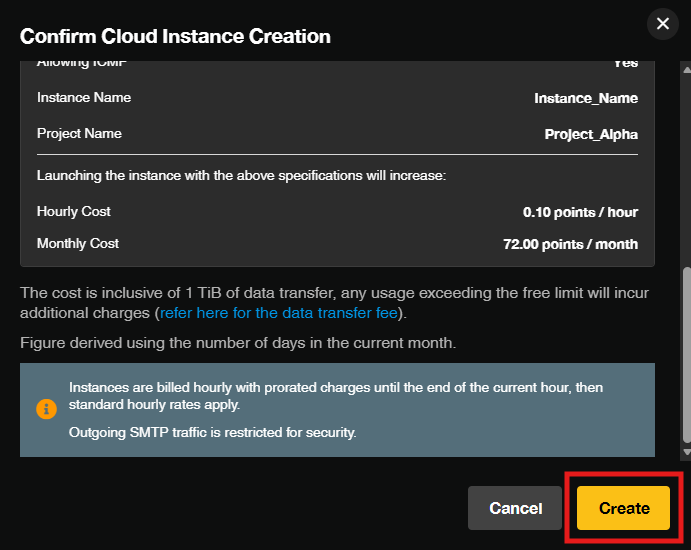
- In the pop-out windows, verify all the configured settings and resource allocations in the summary panel then click Create to initiate the instance creation process.
Step 6: Complete Deployment
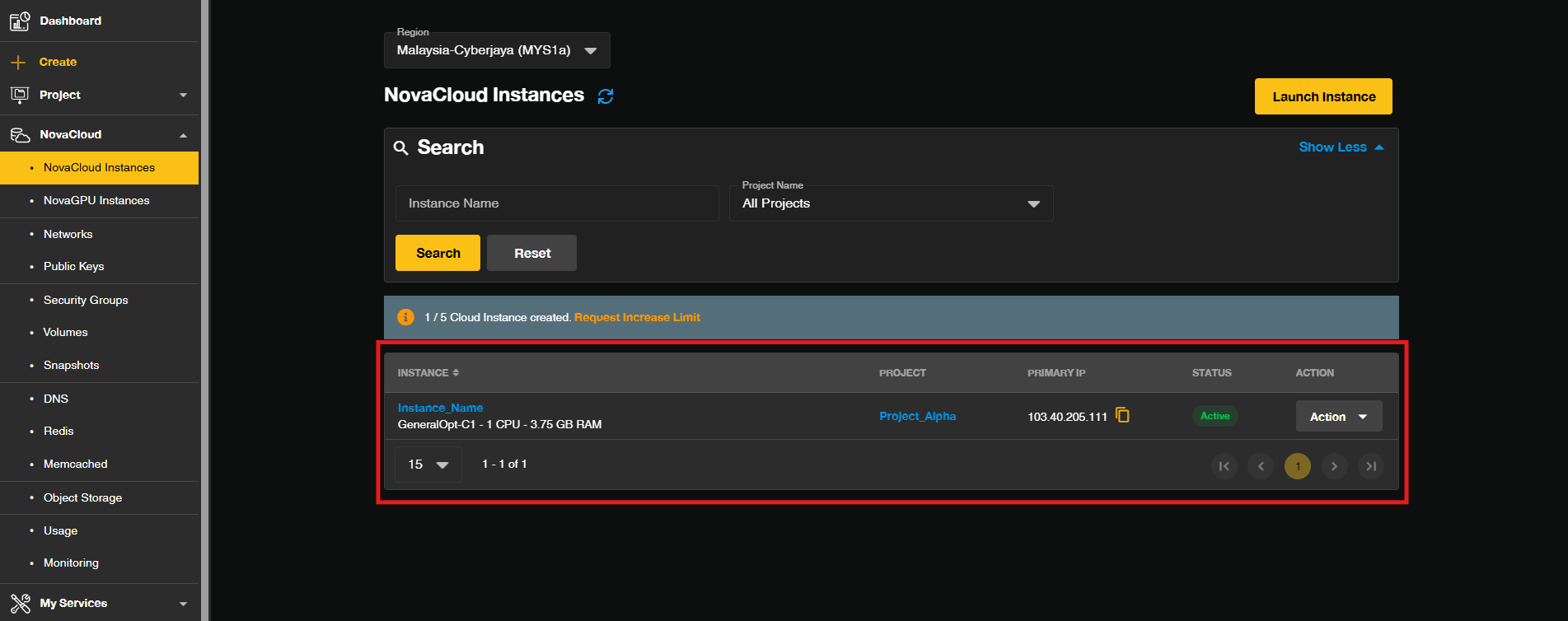
- Navigate back to your cloud instance management page and you may see the new created Cloud Instance.
Conclusion
By following this guidance, you can successfully launch and deploy a new cloud instance using a standard OS image on the Novacloud platform via the Customer Portal, enabling you to rapidly expand your infrastructure and manage your virtual environments with ease.
If you encounter any issues or need further assistance, please contact our support team at support@ipserverone.com.
Article updated on 20 October 2026 by Johnny