
Search Our Database
How to Increase the Outlook PST File Size Limit via Registry Editor
Introduction
This article is intended for users experiencing Outlook PST file size limit issues, such as being unable to add more emails or data to their PST file. It provides step-by-step instructions on how to increase the maximum PST file size limit using Windows Registry Editor. After completing the steps, users should be able to configure a higher PST file size limit to accommodate more Outlook data.
Prerequisites
Before proceeding, ensure that:
- You have backed up the Windows Registry before making any changes.
- Microsoft Outlook is installed on the computer and it been closed.
- You have permission to modify the Windows Registry.
- You have confirmed the Outlook version and the appropriate registry path for the installed version.
Step-by-Step Guide
Step 1: Open Registry Editor and Backup
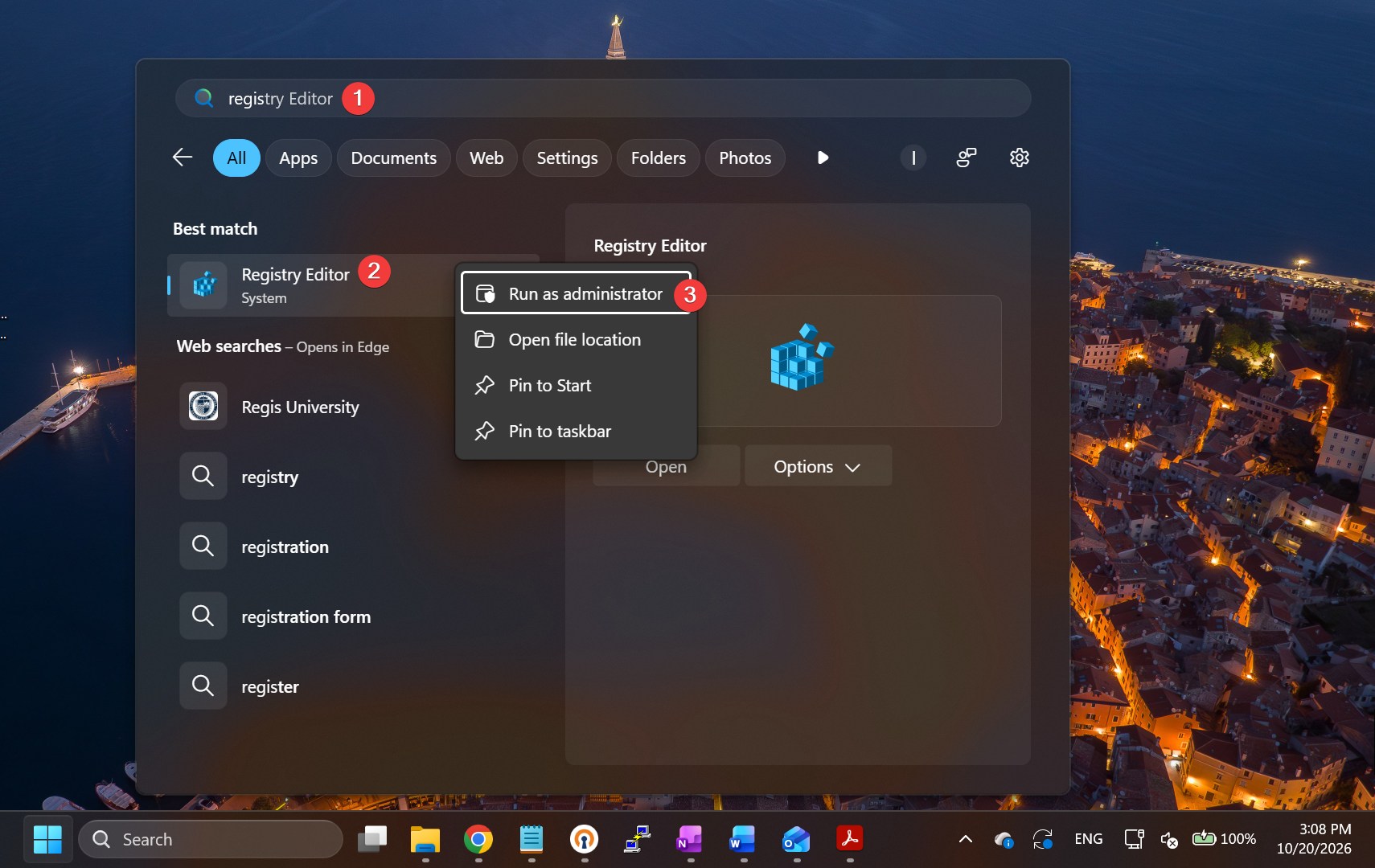
- Open Registry Editor and Run as administrator. Click Yes for the popup that asking for privilege to make change to device.
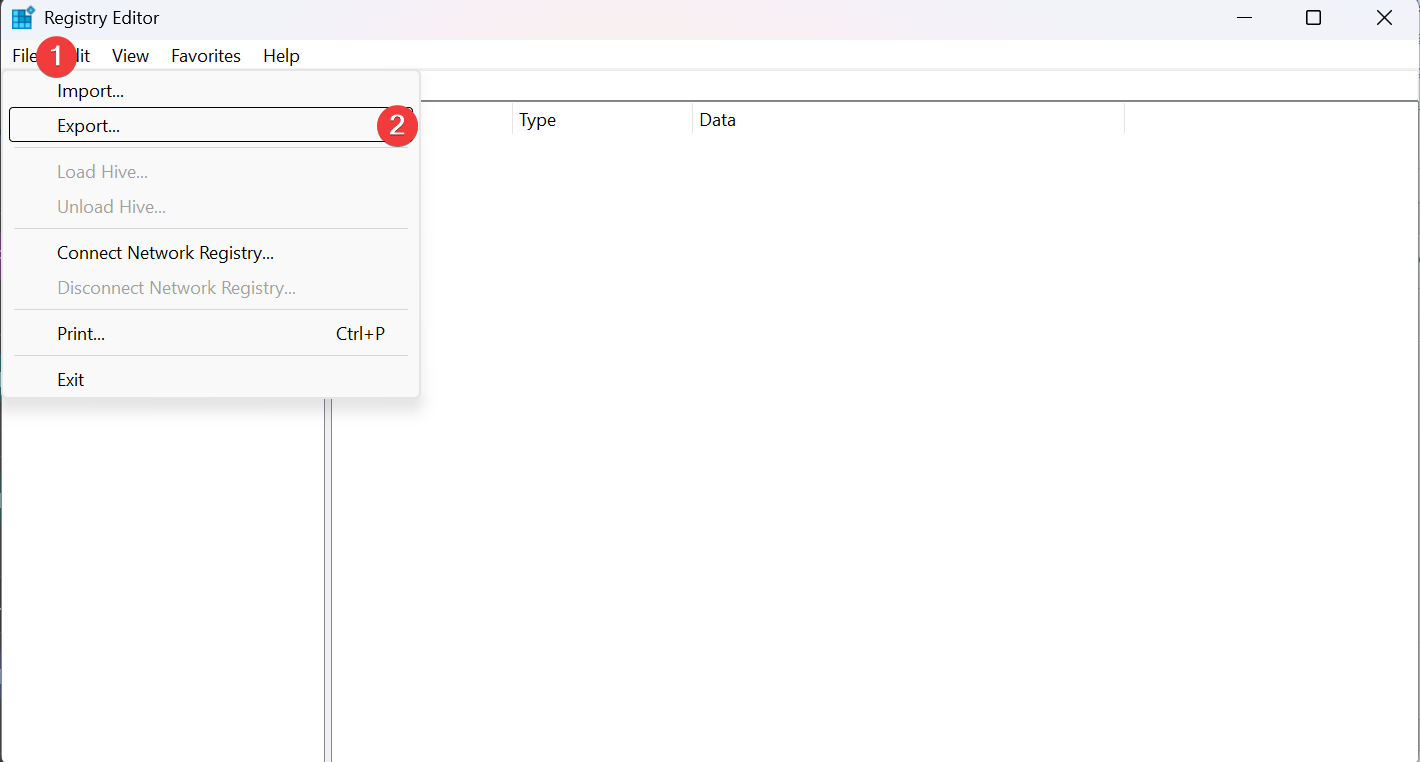
- Backup: Click File follow by Export.
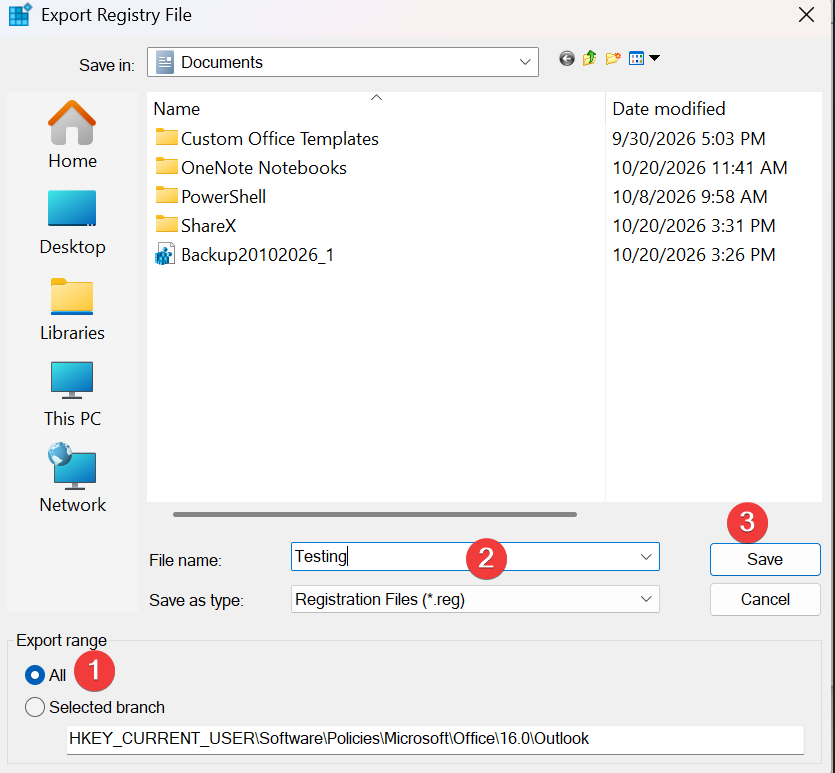
- Choose All in the export range and input any valid name and click Save.
Step 2: Navigate to the Outlook registry path
- For the size limit of outlook, we expand the directories and navigate to your outlook path or just copy the path and paste:
HKEY_CURRENT_USER\Software\Microsoft\Office\16.0\Outlook\PST
Tips🖊️: The version of outlook might not be 16.0 but others version. Please choose directory accordingly.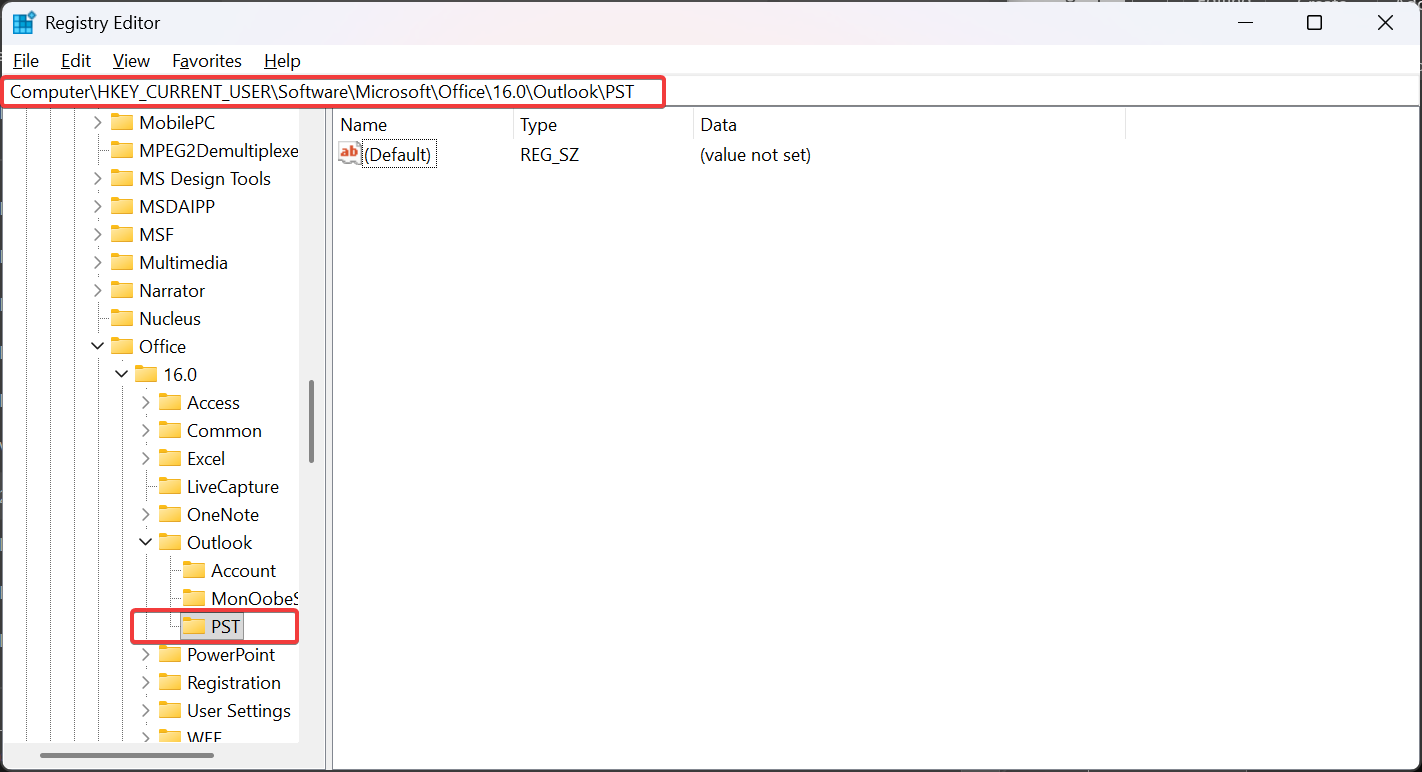
After navigating to the Outlook registry path, check whether the PST key exists under Outlook in the left pane of Registry Editor.
- In the left pane, locate the following parent key: HKEY_CURRENT_USER\Software\Microsoft\Office\16.0\Outlook.
- Check whether the PST key already exists underneath Outlook.
- If the PST key exists, select it and proceed to the next step.
- If the PST key does not exist, right-click the Outlook key in the left pane.
- Select New > Key.
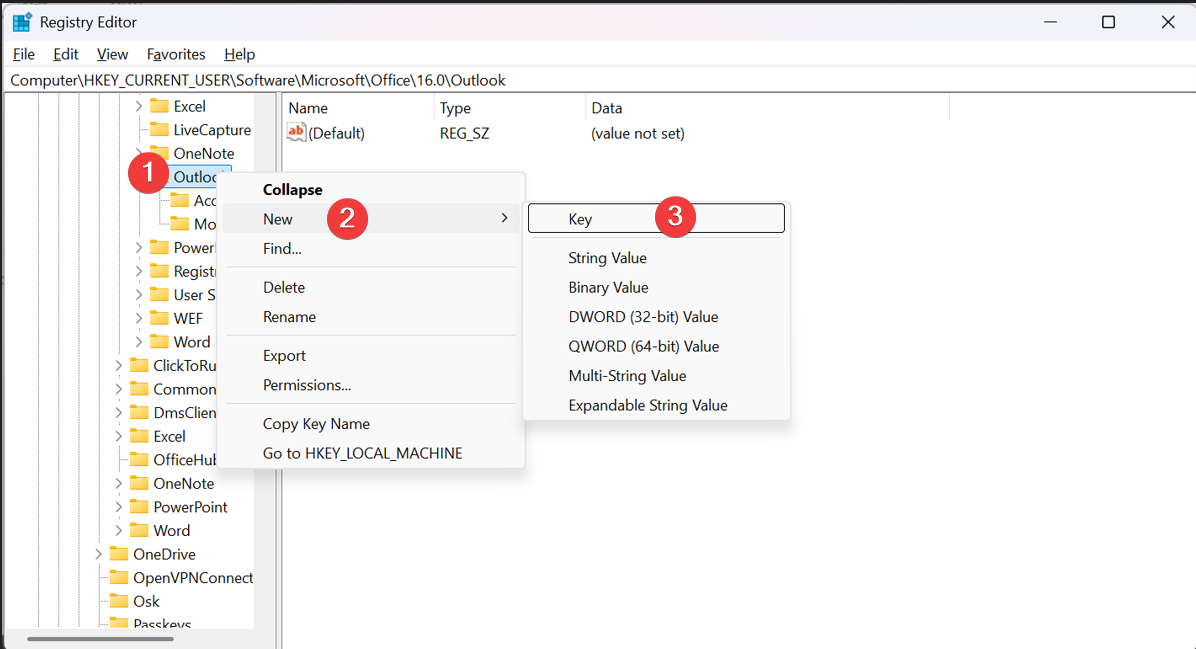
- Enter PST as the new key name and press Enter.
- Select the newly created PST key. You can now create or modify the required DWORD values in the right pane.
Expected result: The PST key is visible underneath Outlook in Registry Editor, ready for the required DWORD values to be created or modified.
Step 3: Create or Modify the PST File Size Limit Values
- In the right-hand panel of the PST registry key, check whether the following values exist:
- MaxLargeFileSize
- WarnLargeFileSize
- If the values already exist, double-click each value to modify it.
- If the values do not exist:
- Right-click an empty space in the right-hand panel.
- Select New → DWORD (32-bit) Value.
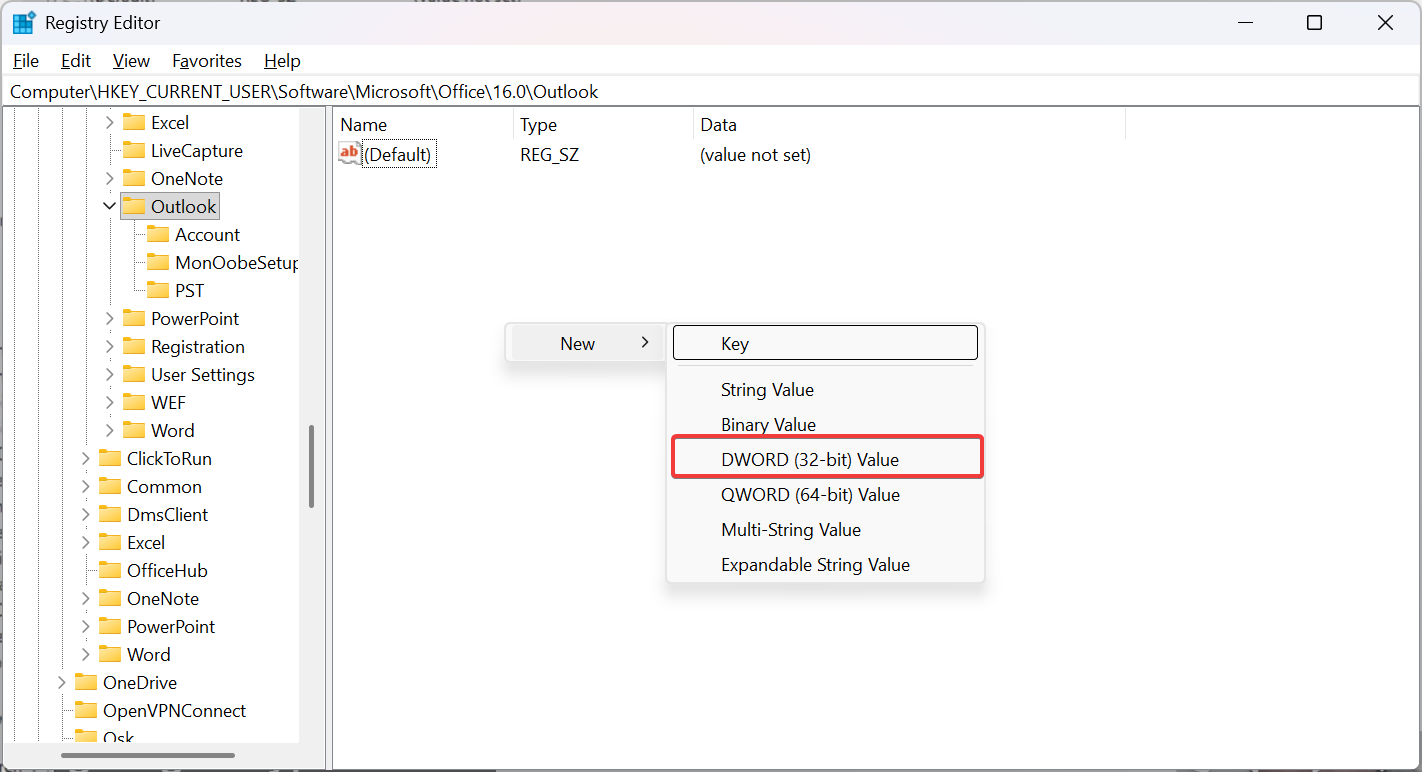
- Name the value MaxLargeFileSize.
- Repeat the process to create WarnLargeFileSize
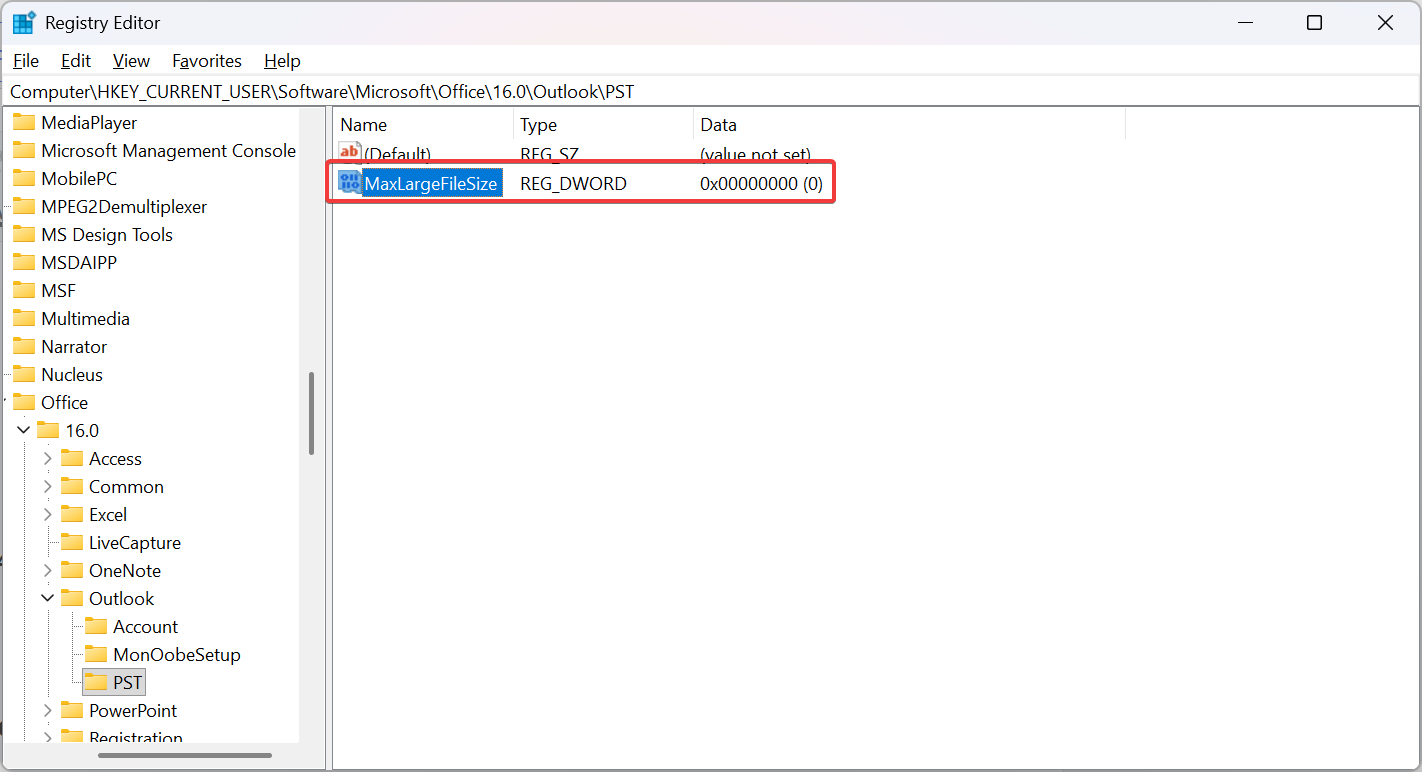
Step 4: Configure the Maximum PST File Size and Warning Threshold
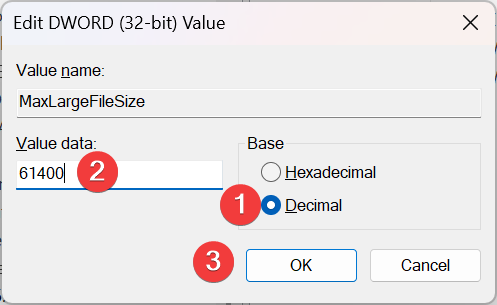
- In the right-hand panel, double-click MaxLargeFileSize.
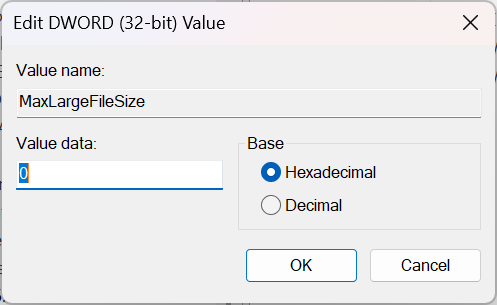
- Under the Base section, select Decimal.
- Enter 61440 in the Value data field to set the maximum PST file size to 60 GB. If need larger size can input any desire value.
- Click OK to save the changes.
Step 5: Restart Outlook and Verify the Configuration
- Close Registry Editor.
- Ensure that Microsoft Outlook is completely closed.
- Reopen Microsoft Outlook.
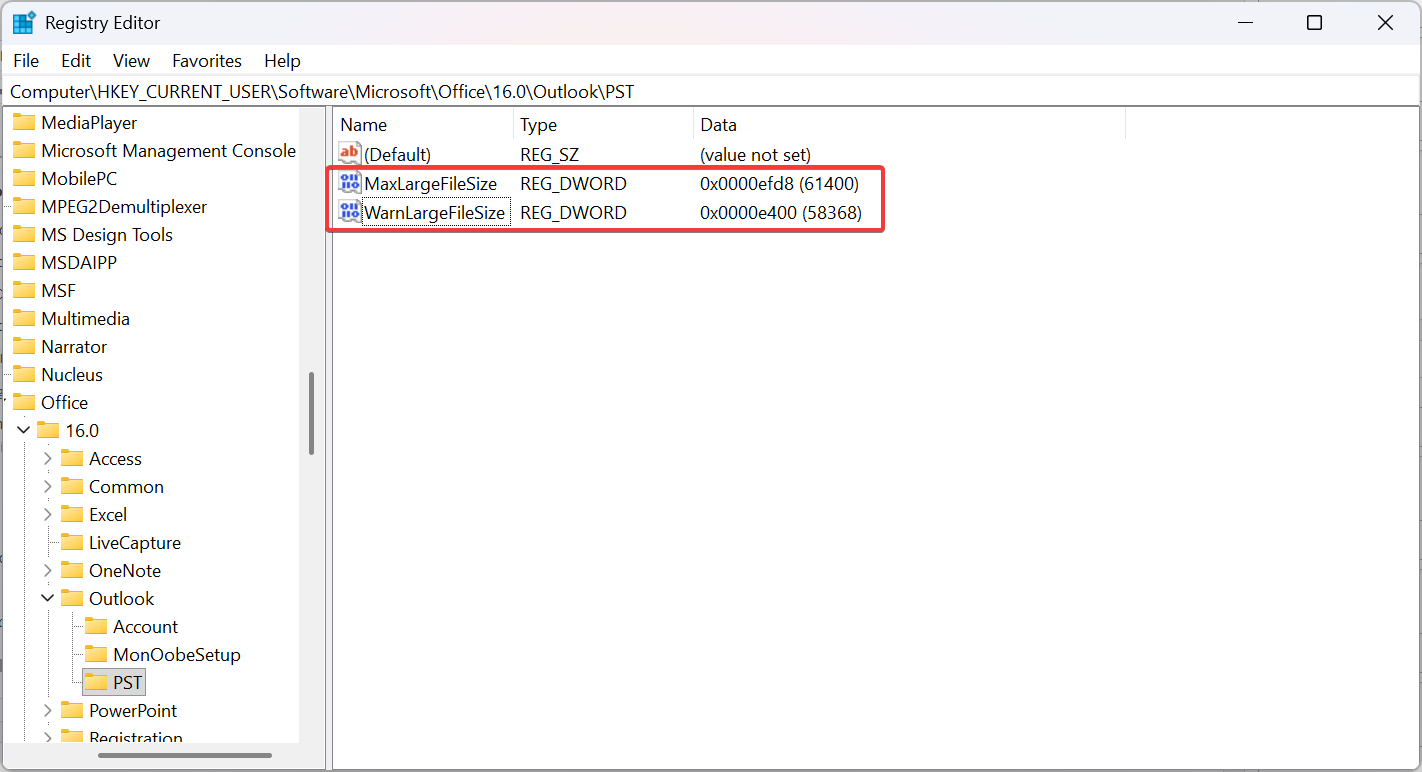
- Open Registry Editor and navigate to the following path: HKEY_CURRENT_USER\Software\Microsoft\Office\16.0\Outlook\PST
- Verify that MaxLargeFileSize and WarnLargeFileSize contain the configured values.
- If required, check the actual PST file size through Outlook’s File → Account Settings → Account Settings → Data Files tab. Select the PST file and click Open File Location. Right-click the file and select Properties to view its current size.
Conclusion
The maximum Outlook PST file size limit can be increased by configuring the MaxLargeFileSize and WarnLargeFileSize values in Windows Registry Editor. After completing the steps, verify that the registry values are saved correctly and reopen Outlook to confirm that it operates normally.
For additional assistance or if you encounter any issues, please contact our support team at support@ipserverone.com.