
Search Our Database
How to Enable Built-In Let’s Encrypt SSL Auto-Renewal on Linux SmarterMail Servers
Introduction
Configuring SSL certificates for auto-renewal on Linux SmarterMail servers is essential for maintaining secure communication and preventing service downtime. By utilizing SmarterMail’s native Let’s Encrypt ACME integration, administrators can automate certificate generation and renewal directly within the administration panel. This guide details the step-by-step configuration required to successfully enable and verify native auto-renewing SSL certificates on your Linux-based SmarterMail deployment.
Prerequisites
- Access to the SmarterMail web administration panel with system administrator privileges
- Basic knowledge of SSL/TLS certificate management concepts
- Active domain name pointed to your SmarterMail server with valid DNS records
- Required port bindings configured. You may refer this guide [How to Manage SmarterMail Server Bindings for IP Addresses and Ports] for the steps to configure port bindings:
- TCP port 80 (HTTP): Must be open and routing directly to the SmarterMail web interface. This is strictly required for Let’s Encrypt to validate your domain.
- TCP port 443 (HTTPS): For secure web administration and client connections.
- Standard secure mail ports: TCP 465 (SMTPS), 993 (IMAPS), and 995 (POP3S). Once the automatic certificates are generated, SmarterMail’s SNI feature will automatically assign them to these secure ports.
Step-by-step Guide
Step 1: Access SmarterMail Administration Panel
- Open your web browser and navigate to your SmarterMail server login URL.
- Enter your system administrator username and password, then click on the login button to access the management dashboard.
Step 2: Navigate to SSL Certificates Settings
- On the main dashboard, click on the Settings located on the top menu.
- Then, click on SSL Certificates on left panel to view your certificate management options.
- Navigate to the Options tab at the top of the SSL Certificates page.
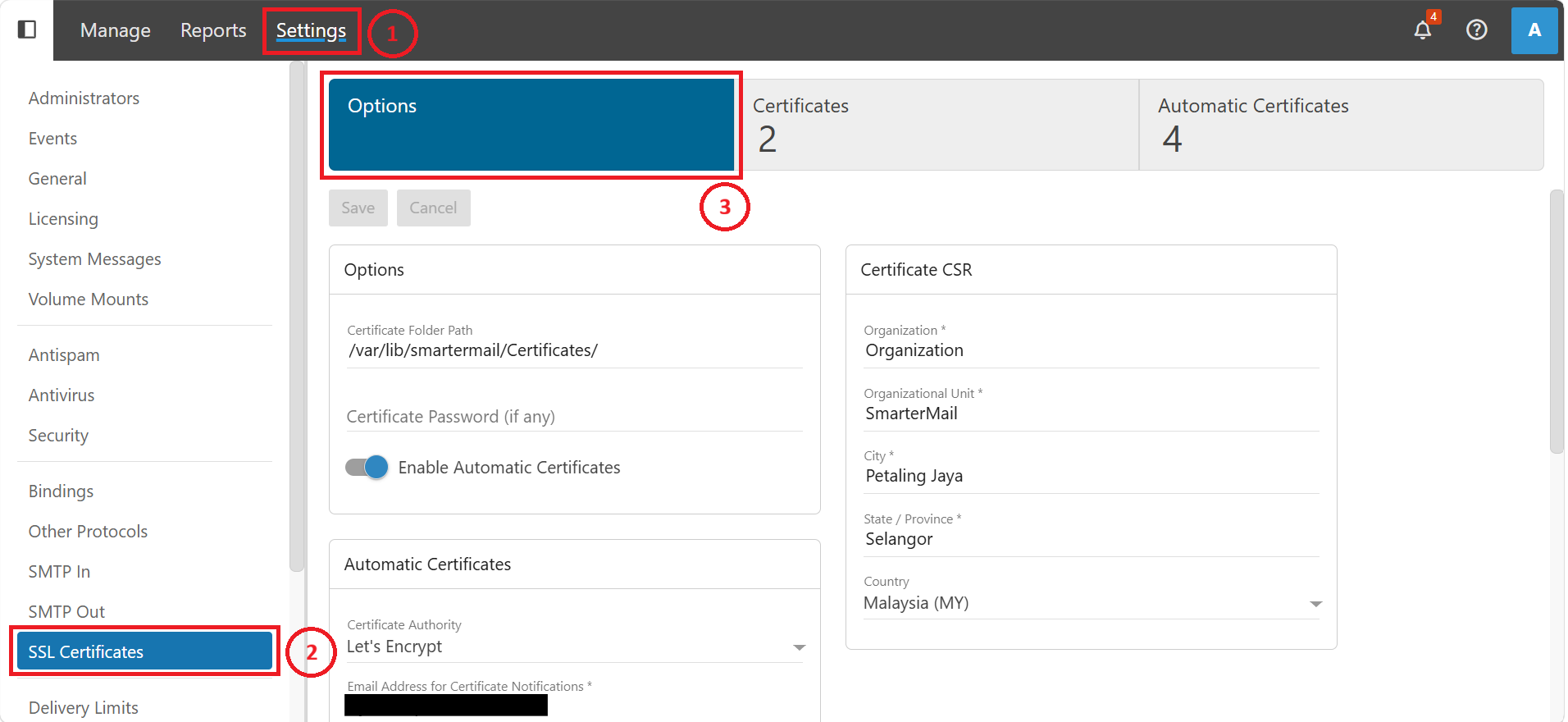
Step 3: Enable Automatic Certificates
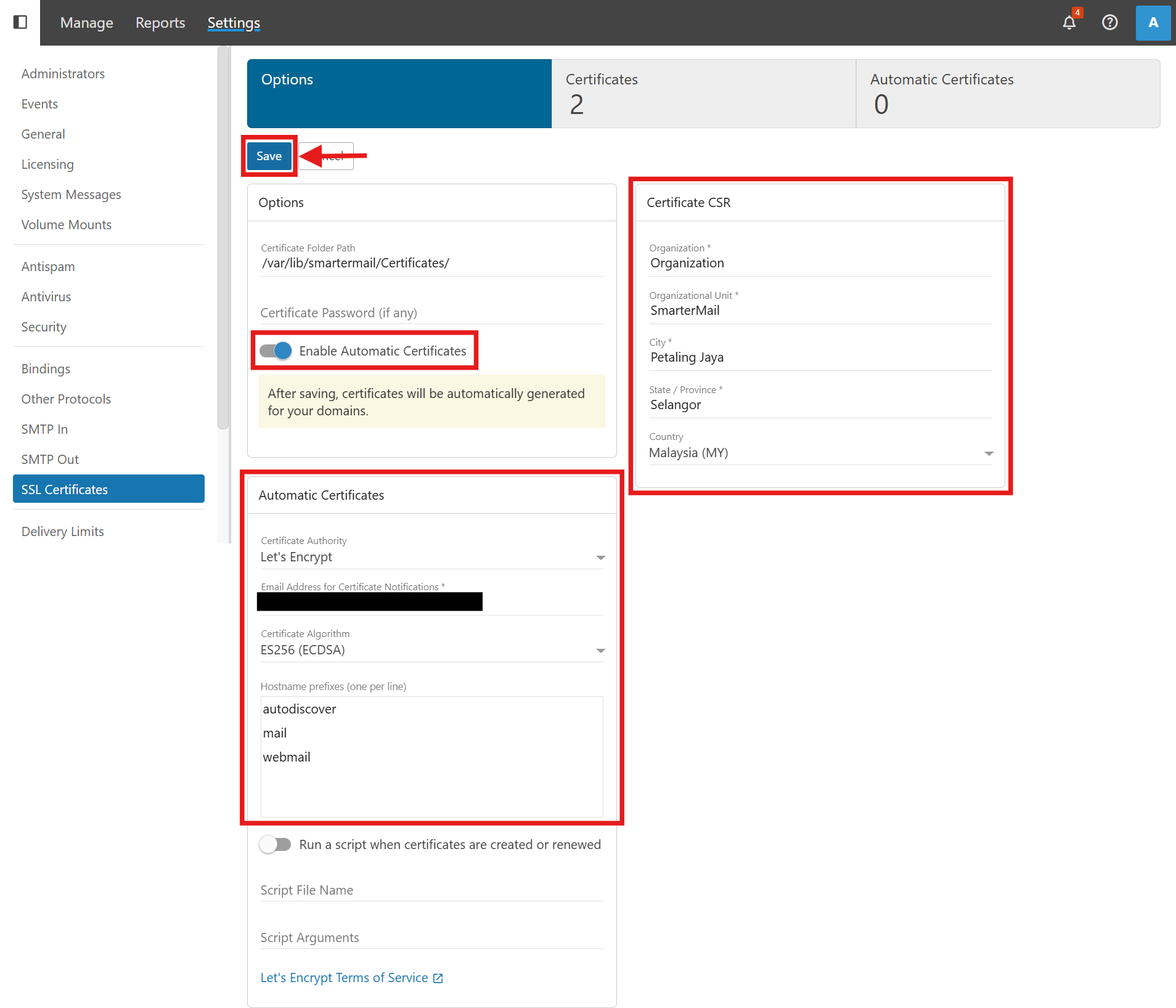
- Under the Options section, toggle on the Enable Automatic Certificates setting.
- Scroll to the Automatic Certificates section.
- Ensure Let’s Encrypt is selected as the Certificate Authority.
- Enter a valid administrator email in the Email Address for Certificate Notifications field, as this is a mandatory requirement.
- In the Hostname prefixes box, verify that the necessary subdomains for your mail services (typically autodiscover, mail, and webmail) are listed one per line.
- On the right side of the screen, locate the Certificate CSR section. Fill in all required fields marked with an asterisk (Organization, Organizational Unit, City, State / Province, and Country).
- Click Save at the top of the page. SmarterMail will now automatically provision Let’s Encrypt certificates for valid, routable domains on the server.
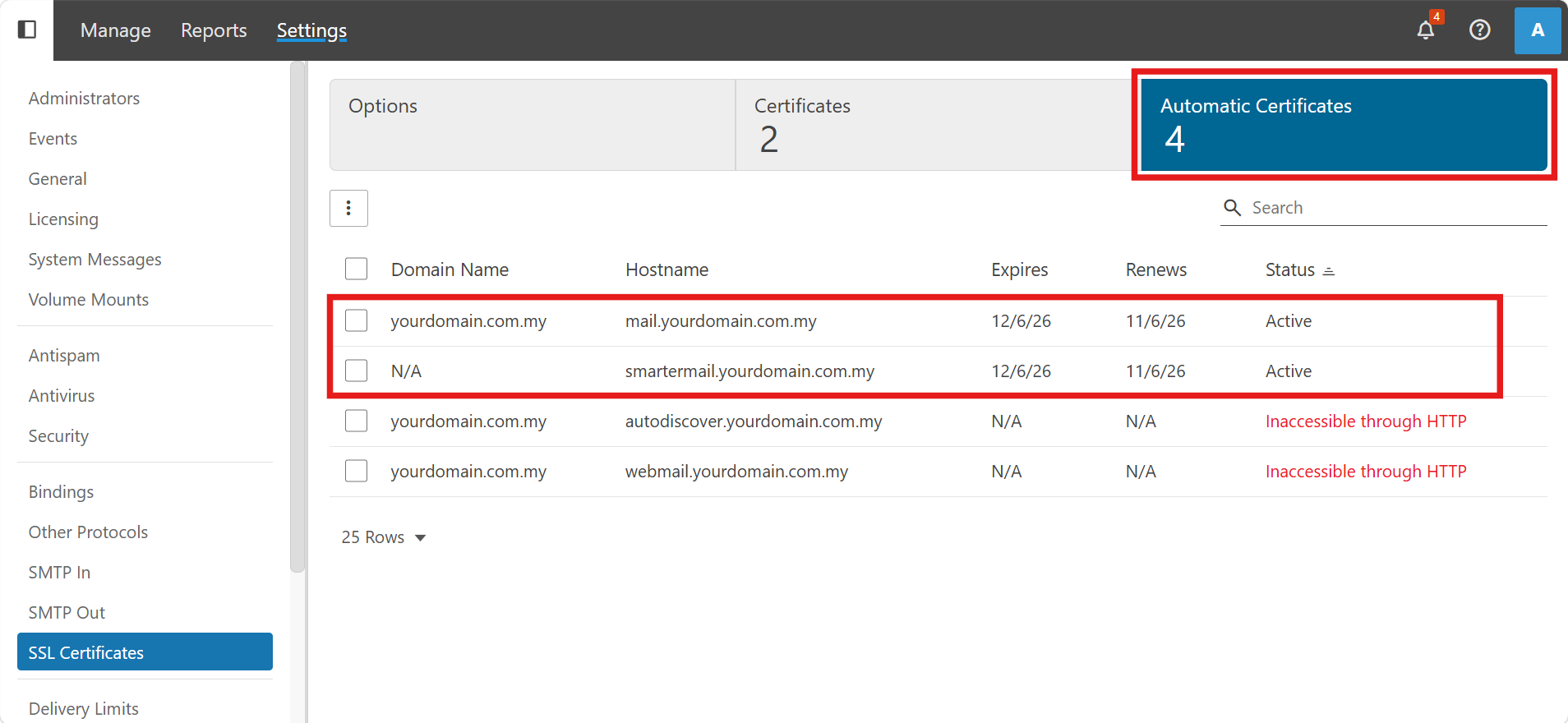
Step 4: Verify Certificate Generation and Renewal Status
- Switch to the Automatic Certificates tab to review your list of domains.
- Ensure your required hostnames display an Active status with valid “Expires” and “Renews” dates. SmarterMail will silently renew active certificates once they are within 41 days of expiring.
Important Note ⚠️: If you see a red “Inaccessible through HTTP” status, Let’s Encrypt cannot verify your domain. Ensure your DNS records are correct, and that Port 80 is not blocked by a firewall.
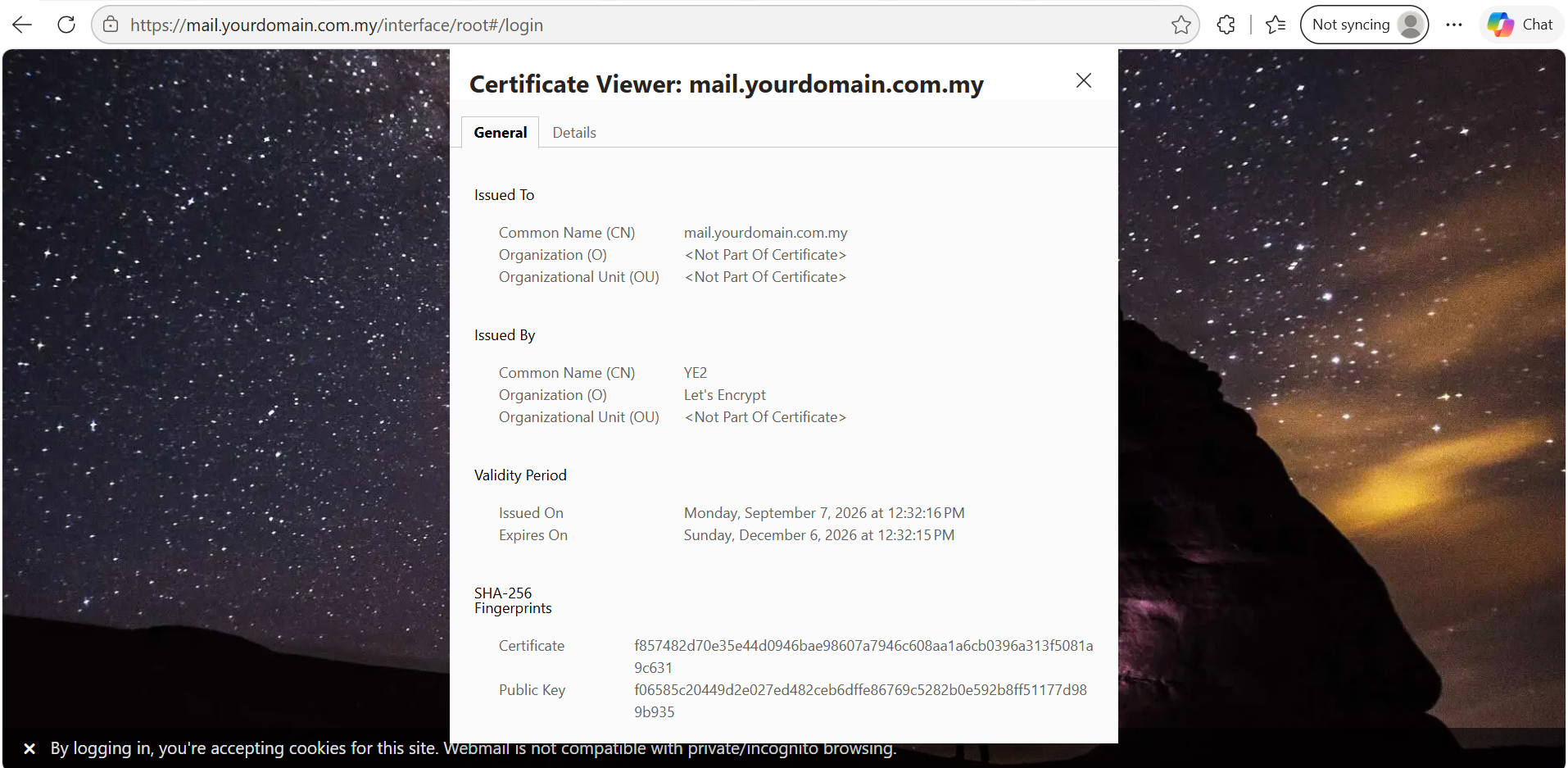
Step 5: Verify the Certificate in Your Browser
- To confirm the certificate is working, open a new browser window and navigate to your secure mail URL. (e.g. https://mail.yourdomain.com.my)
- Click the padlock icon in the browser’s address bar and view the certificate details.
- Verify that the certificate is issued by Let’s Encrypt and the validity period matches the dates shown in SmarterMail.
Conclusion
By following this guidance, you can successfully leverage SmarterMail’s built-in capabilities to enable automated SSL certificate renewals for your Linux server, ensuring continuous secure mail transmissions.
For additional assistance or if you encounter any issues, please contact our support team at support@ipserverone.com.