
Search Our Database
How to Monitor and Inspect SmarterMail Service Status via SSH and Admin Console
Introduction
This guide demonstrates how to verify SmarterMail service status using SSH and the SmarterMail Admin Console for system administrators managing email servers on Linux environments. You should perform these checks whenever services become unresponsive or during routine maintenance to ensure uninterrupted email delivery, prevent service downtime, and quickly isolate system-level failures.
Prerequisites
- A server running AlmaLinux 8/9 or Rocky Linux 8/9 with SmarterMail installed.
- Root access via SSH .
- Web browser access to the SmarterMail Admin Console with System Administrator credentials.
- Active SSH terminal client (e.g., PuTTY, OpenSSH, or Terminal).
Step-by-step Guide
Step 1: Check the SmarterMail Service Status in SSH
- Verify the current status of the SmarterMail service using the following command:
systemctl status smartermail
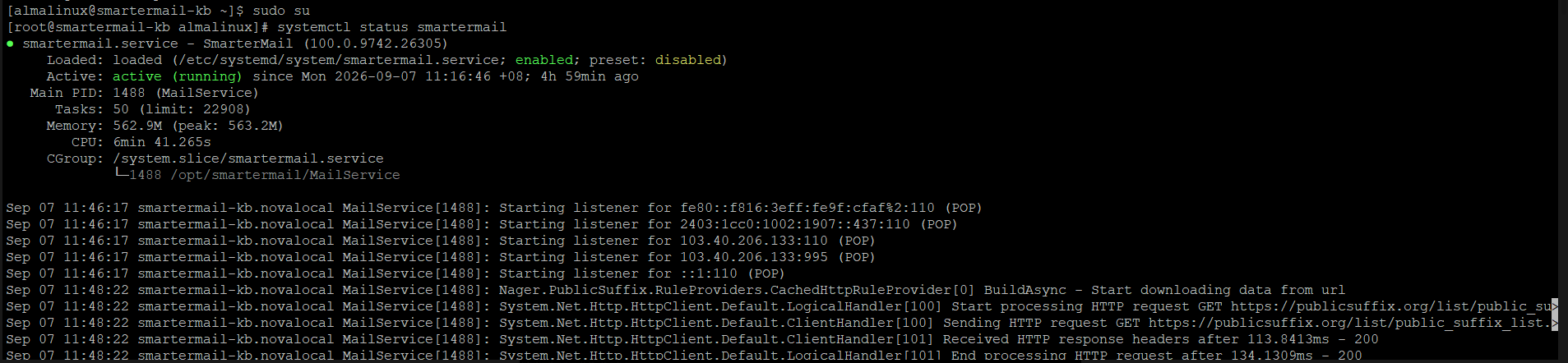
- Check the Active line in the output:
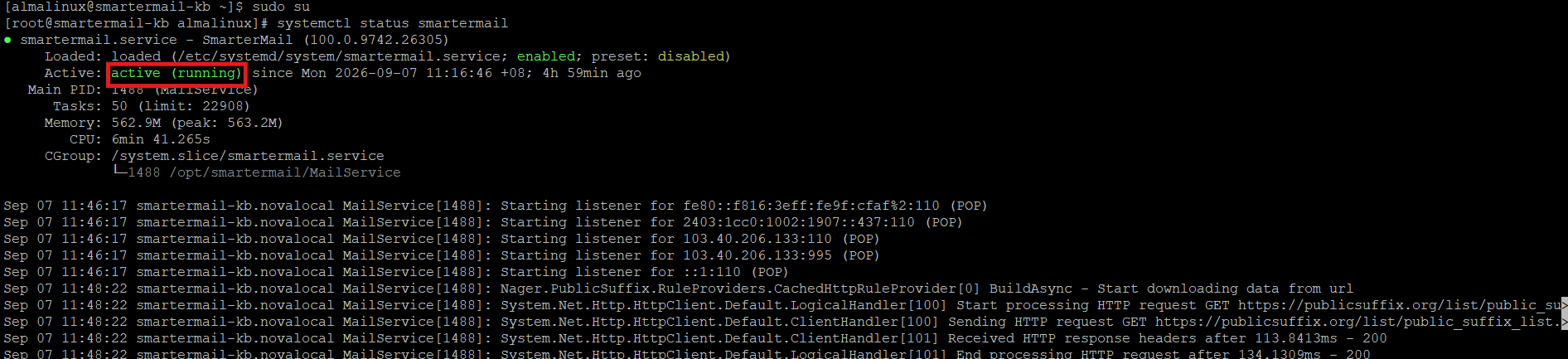
Active (running): The service is operational.Inactive (dead) / Failed: The service has stopped. Execute a restart:systemctl restart smartermail
Re-check the service state to ensure it started successfully:
systemctl status smartermail
Step 2: Log in to SmarterMail Admin Console
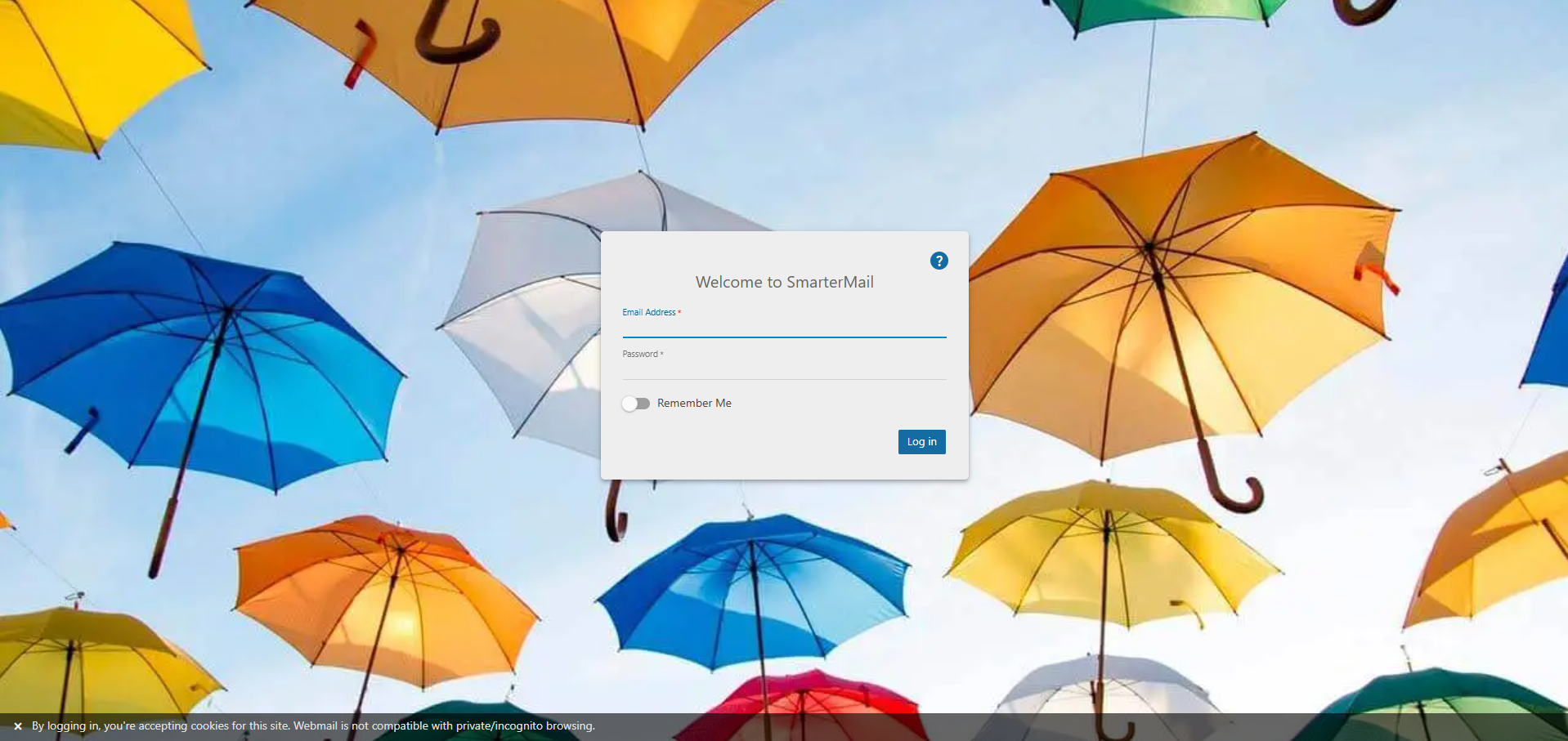
- Open your web browser and navigate to your SmarterMail URL.
- Enter your System Administrator credentials.
- Click Login.
Step 3: Check the SmarterMail Service Status in SmarterMail Admin Console
- Navigate to Manage > Troubleshooting (sidebar) > Services.
This interface displays the real-time operational status of all individual internal sub-services.
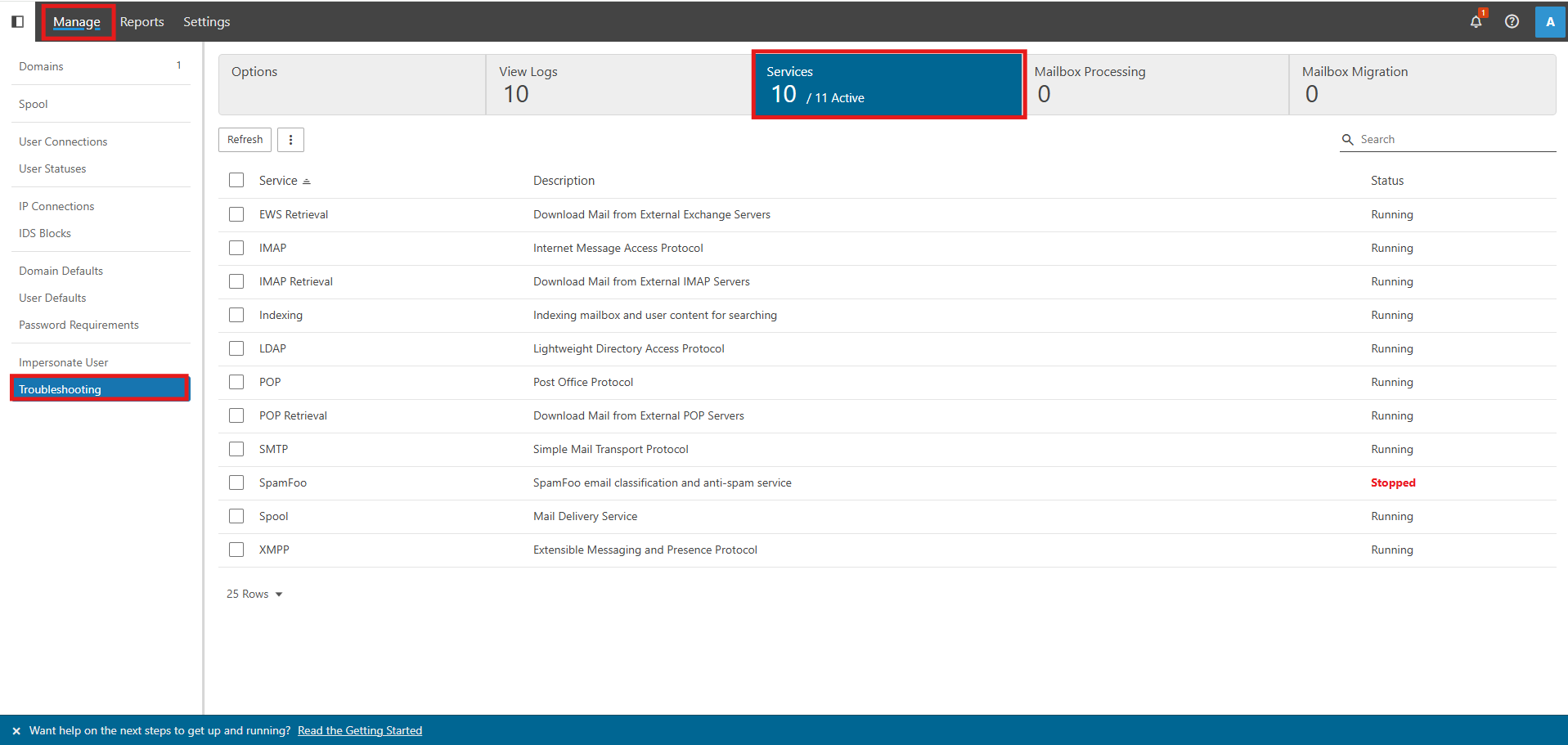
- Refresh Button: Re-scans and updates the status of all listed components immediately.
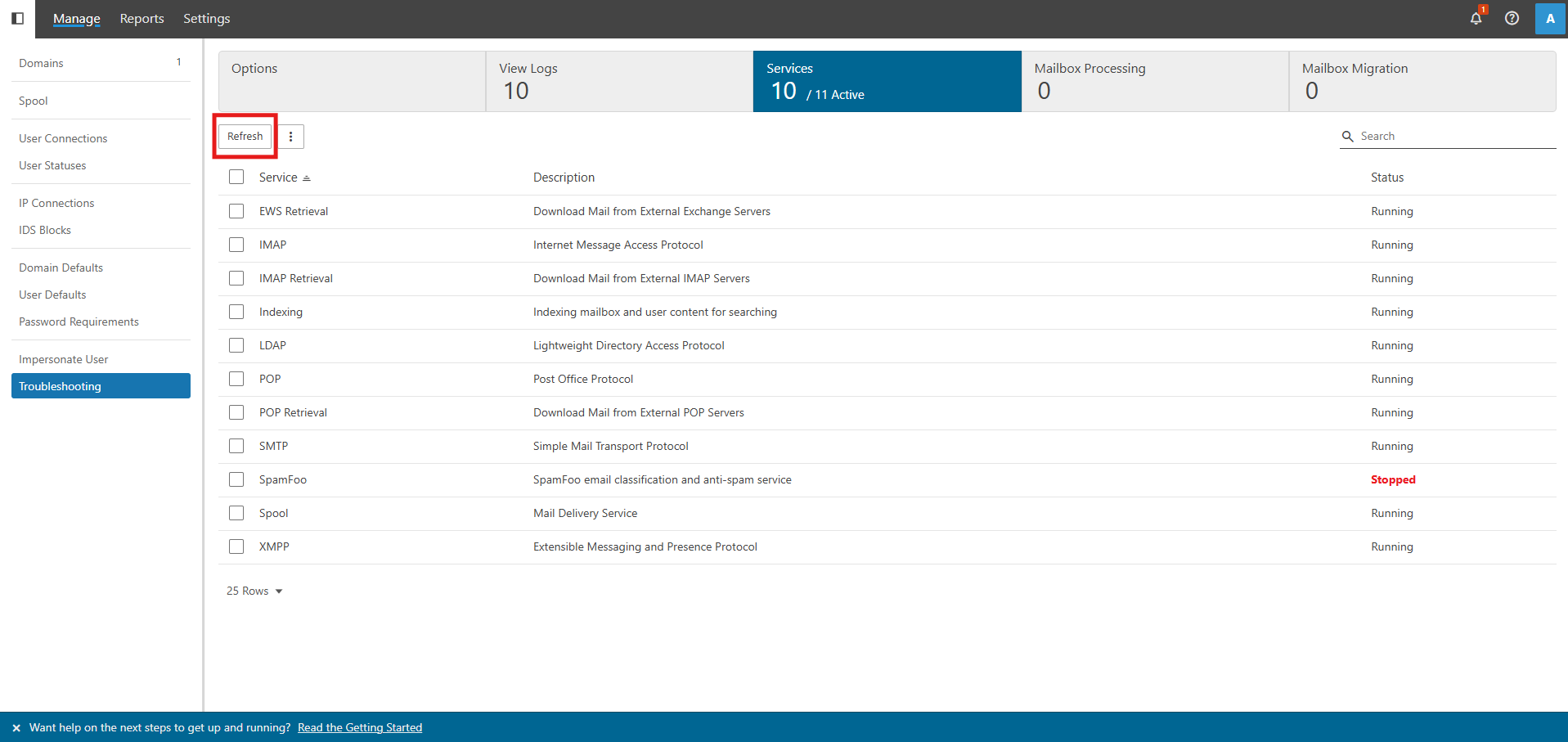
- Action Menu (⋮/ 3 Dots):
- Start: Manually boots up an individual service protocol that is currently turned off.
- Stop: Safely terminates a specific running protocol without shutting down the entire email application.
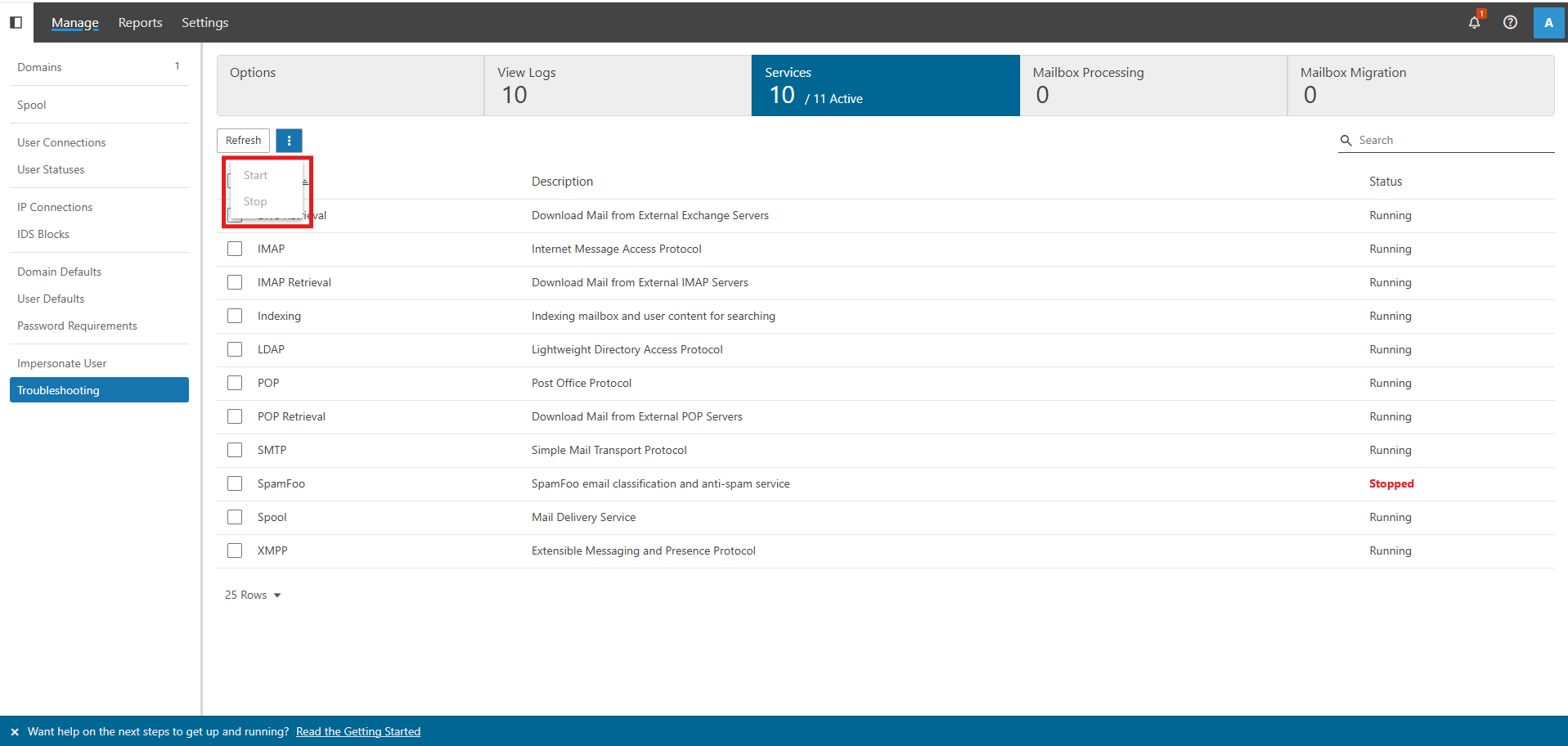
- Explanation of the services:
- EWS Retrieval: Pulls email data using Exchange Web Services for synced clients
- IMAP: Allows desktop and mobile apps to directly access and synchronize mailboxes on the server.
- IMAP Retrieval: Pulls emails from third-party IMAP accounts into local user accounts.
- Indexing: Generates and manages real-time search catalogs for fast message querying.
- LDAP: Processes address book and directory lookup requests from external clients.
- POP: Handles standard incoming mail retrieval for legacy client software.
- POP Retrival: Fetches messages from external POP3 accounts configured by users.
- SMTP: Manages outgoing message routing and receives incoming connections from other servers.
- SpamFoo: The built-in protection tool that scans, detects, and filters unwanted or malicious emails.
- Spool: The central queue manager that organizes and delivers queued messages.
- XMPP: Powers real-time instant messaging and chat features within webmail.
- Explanation of the status:
- Running: Component is fully functional and actively processing incoming requests.
- Stopped: Component has been manually disabled or crashed; no requests for this protocol are accepted.
- Starting / Stopping: Component is in a transition state while launching or safely shutting down.
- Disabled: Feature is administrative-turned-off globally in server options.
- Error / Faulted: Component crashed unexpectedly due to port conflicts or missing dependencies.
Conclusion
By following these steps, you can quickly verify whether SmarterMail services are running properly at both the system level and within the application. Monitoring these statuses allows you to swiftly identify protocol failures, restore interrupted services, and maintain smooth email delivery across your server.
For additional assistance, please contact our support team at support@ipserverone.com.