
Search Our Database
How to View Email Logs in SmarterMail via Web Interface & CLI
Introduction
This guide is designed for system administrators and mail server managers. It provides step-by-step instructions on how to access and inspect email delivery and system logs. Refer to this guide whenever you need to troubleshoot delivery failures, audit mail traffic, or monitor server activity. Logs can be viewed directly through the SmarterMail Web Interface or accessed via the Command Line Interface (CLI) on the host server. Reviewing logs is essential for diagnosing mail queue issues, tracking down bounce messages, and ensuring secure mail server operations. Follow the methods outlined below to locate your log files using either the web management console or server terminal commands.
Prerequisite
- System administrator-level access to the SmarterMail web management interface
- Terminal or SSH access to the host server with root access
- Basic familiarity with your server’s operating system command line
Step-by-step Guide
This method allows viewing and filtering email delivery and system logs directly through the web management console using the graphical interface:
- Log in to your SmarterMail management console using a system administrator account.
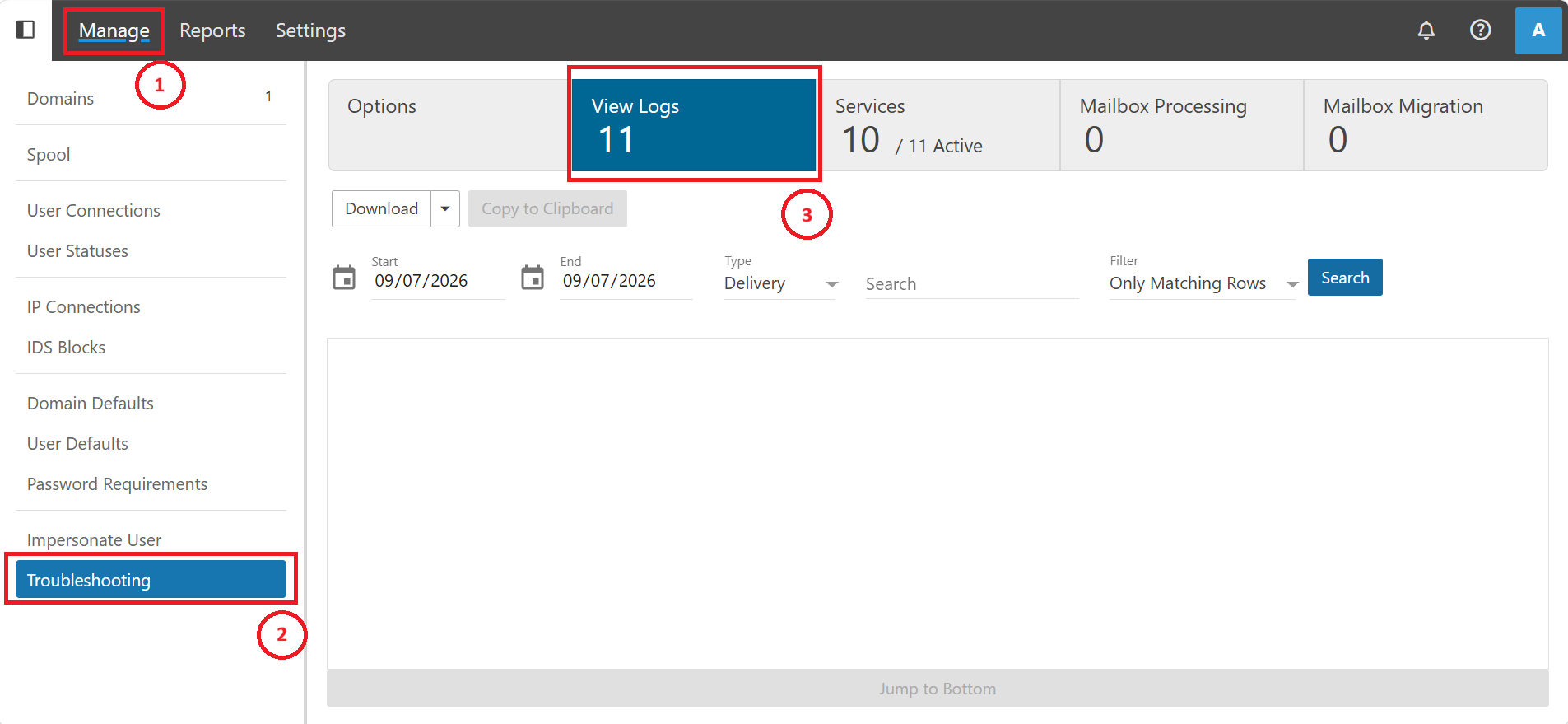
- Navigate to Troubleshooting in Manage Tab, and select View Logs Tab.
- Choose the start date, end date, type of log, and filter method, then enter keywords in search bar if needed, and click the Search button to generate the logs.
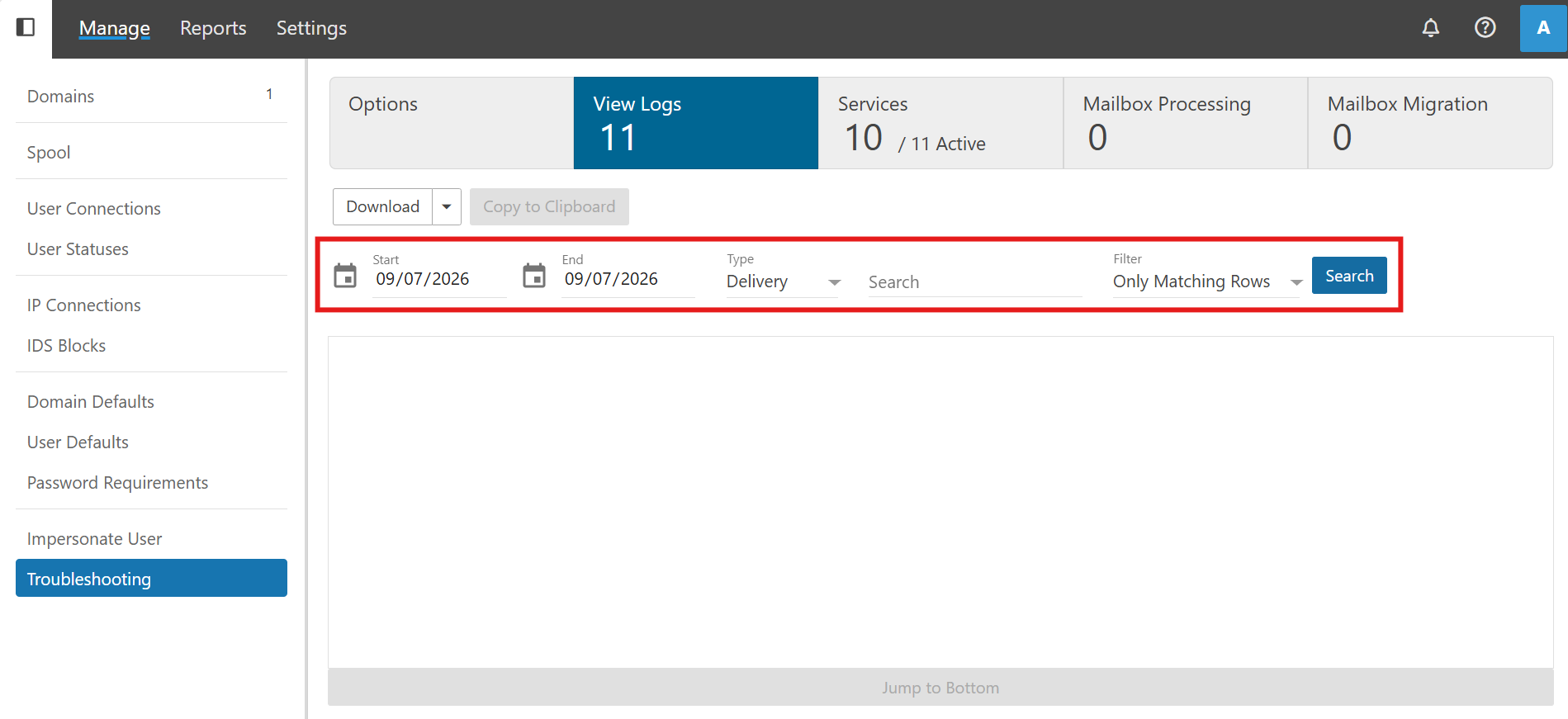
- Review the generated results directly on the screen, or click Download / Copy to Clipboard to export them as required.
- Types of Logs
- Administrative: Tracks configuration changes made within the system and logs which administrator performed them.
- Autodiscover: Records requests related to automatic client configuration, helping resolve device connectivity issues.
- Calendar: Monitors scheduling entries, calendar synchronization, and related appointment processes.
- Certificates: Tracks SSL/TLS certificate updates, bindings, and validation operations.
- Content Filter: Logs actions and modifications triggered by custom content filtering rules.
- Conversion: Records message format translations or document conversion tasks.
- Delivery: Tracks message flow, spool processing, final deliveries, or rejections.
- EAS (Exchange ActiveSync): Captures synchronization events and connectivity flows for mobile devices.
- Error: Logs generic application exceptions and system errors captured by SmarterMail.
- Events: Records triggers and automated responses configured within the event notification system.
- EWS: Monitors Exchange Web Services requests and client interactions.
- EWS Retrieval: Tracks background retrieval tasks specific to Exchange Web Services.
- Folder Auto-clean: Logs automated folder cleanup or retention policy executions.
- IMAP: Records IMAP client sessions, command executions, and mailbox interactions.
- IMAP Retrieval: Monitors background message fetching routines via IMAP.
- Indexing: Captures mail indexing processes used to build search catalogs.
- LDAP: Logs directory service queries and authentication traffic.
- Licensing: Records license validation checks and activation statuses with update servers.
- Mailing Lists: Tracks list subscription changes, message distributions, and broadcast events.
- Maintenance: Logs periodic server background maintenance tasks and cleanups.
- MAPI: Records MAPI protocol traffic and client session activities.
- Message-ID: Captures tracking entries linked to unique message identifiers across mail flows.
- OAB (Offline Address Book): Logs generation and distribution processes for offline address books.
- POP: Records POP3 client login sessions and message retrieval activities.
- POP Retrieval: Monitors scheduled remote POP fetching tasks.
- Routing Rules: Logs evaluations and actions applied by custom email routing policies.
- SharePoint: Records integration events and connection logs linked to SharePoint services.
- SMTP: Tracks inbound and outbound mail server handshakes, authentication, and transmission steps.
- SpamChecks: Records anti-spam evaluations, threshold scores, and blacklisting checks.
- WebDAV: Logs file management and web-based distributed authoring transactions.
- XMPP: Records instant messaging and chat protocol connections and events.
- Filter Methods
- Only Matching Rows: Restricts output to show strictly the individual log lines that directly contain your specified search terms.
- Display Related Traffic: Expands search output to include associated log lines and relevant mail traffic occurring within the same session.
This method allows accessing and inspecting raw server log files directly through the host terminal using command-line tools:
- Access your host server via terminal or SSH and switch to the root user:
sudo su
- Navigate to the SmarterMail logs directory:
cd /var/lib/smartermail/Logs
- List the files in the directory to locate the specific log you need:
ls
Expected Output:

- View the log contents using cat or any other suitable method (such as less, tail, or grep to filter specific events):
cat 2026.09.07-delivery.log
Conclusion
By following this guidance, you can ensure that you effectively locate, inspect, and troubleshoot email delivery and system logs in SmarterMail using either the web management interface or the command line interface.
For additional assistance, please contact our support team at support@ipserverone.com.