
Search Our Database
How to setup email in Outlook using SSL (POP/IMAP)
Introduction
Configuring your email in Outlook with the IMAP or POP protocol allows secure and flexible access to your emails across devices. IMAP is ideal for users who need synchronized email access on multiple devices, while POP is best suited for those who prefer offline storage with local management. This guide provides a step-by-step process to set up your email in Outlook using SSL encryption, ensuring your data remains secure as you access it through your preferred protocol. By following these instructions, users of all experience levels can successfully configure Outlook for safe, reliable email management.
Prerequisites
- The email address and its password
- Incoming and outgoing server hostname
Step-by-Step Guide
Step 1: Open Outlook and Access Account Settings
- Launch Outlook on your computer.
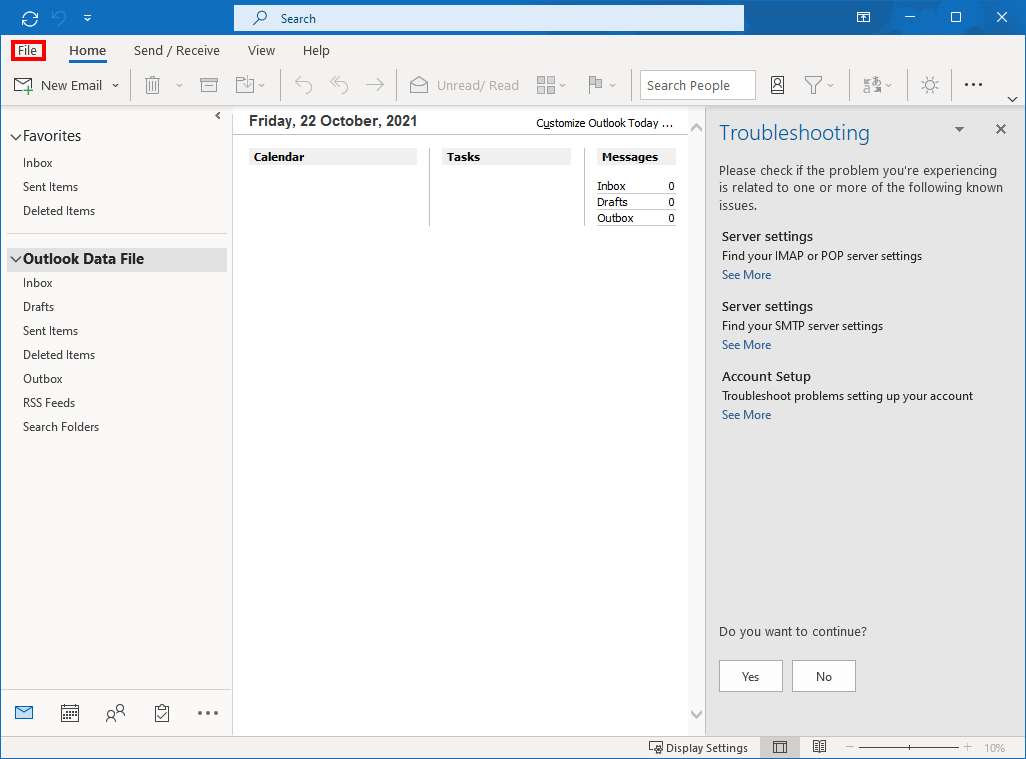
- Navigate to the top left corner and click on File.
Step 2: Start Adding a New Account
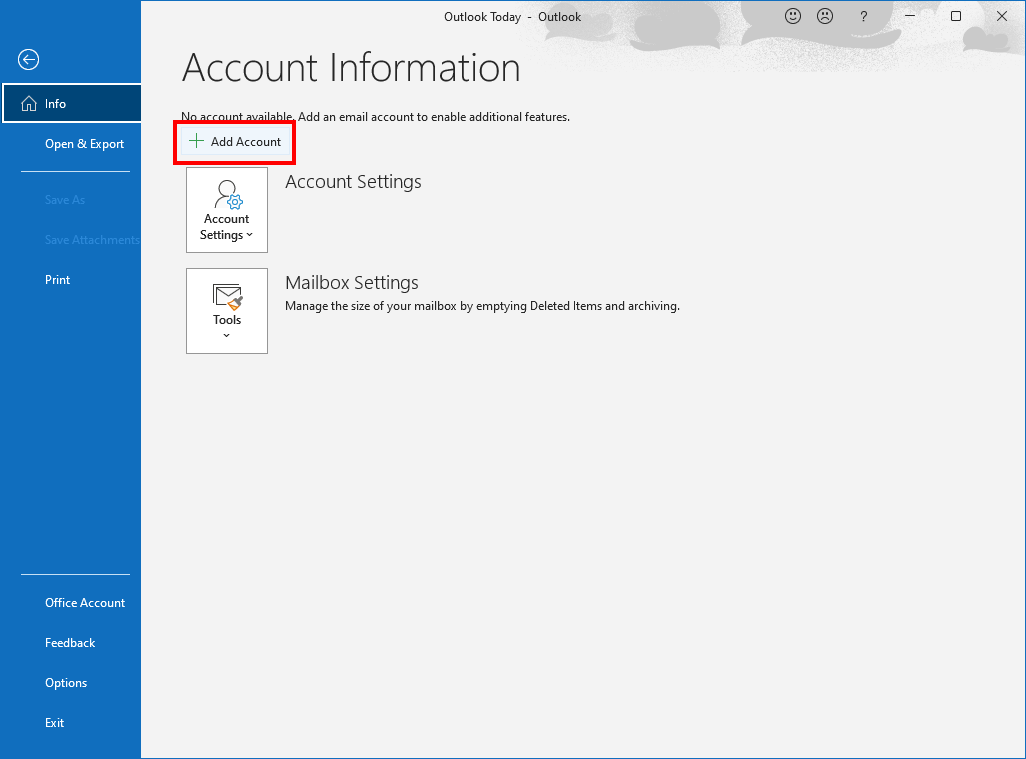
- Click Add Account to begin the setup process for your email.
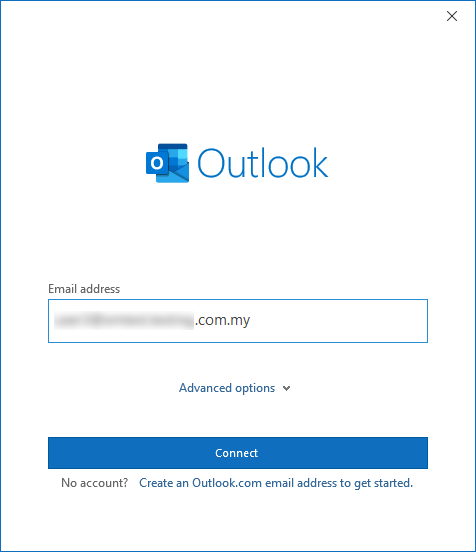
- In the prompt that appears, enter your email address and click Connect.
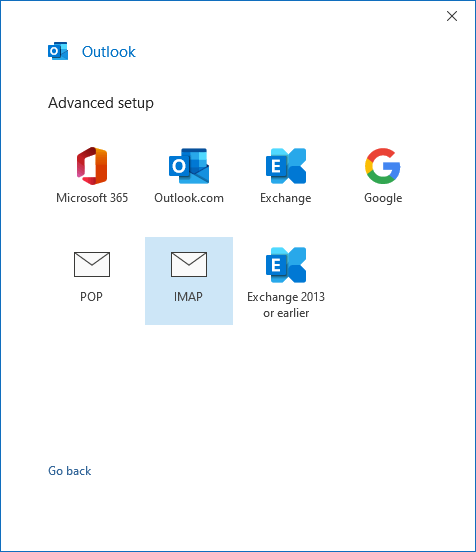
- You will be prompted to choose either IMAP or POP as your email protocol. Select the one that best fits your needs:
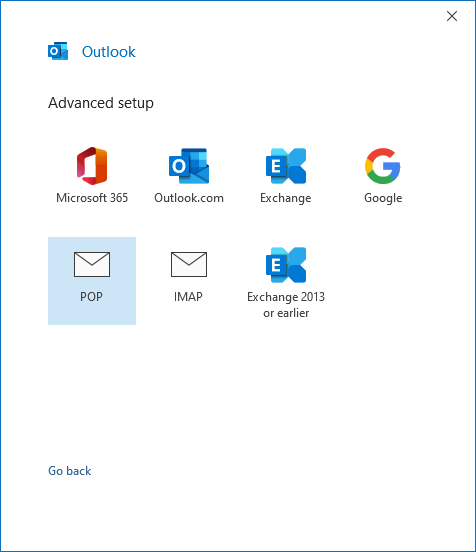
- Regardless of the protocol chosen, enter the following information for the mail server settings:
- mail.<yourdomain>.com
- sm<xx>.small-dns.com (for using SmarterMail shared hosting)
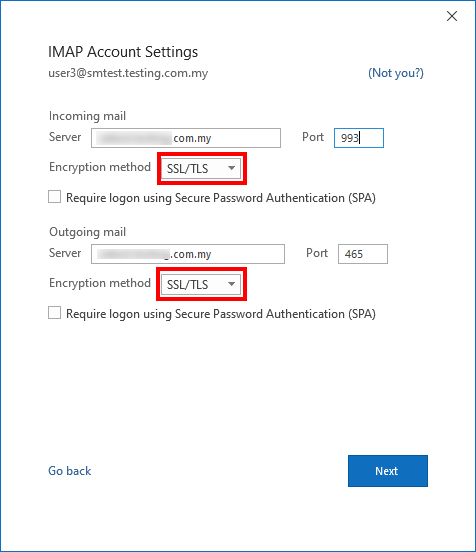
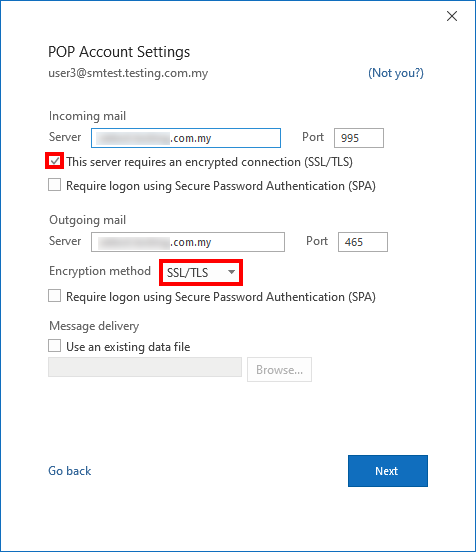
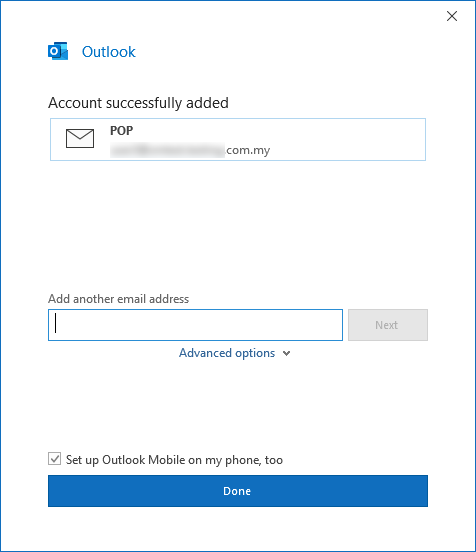
Step 3: Confirm Successful Configuration
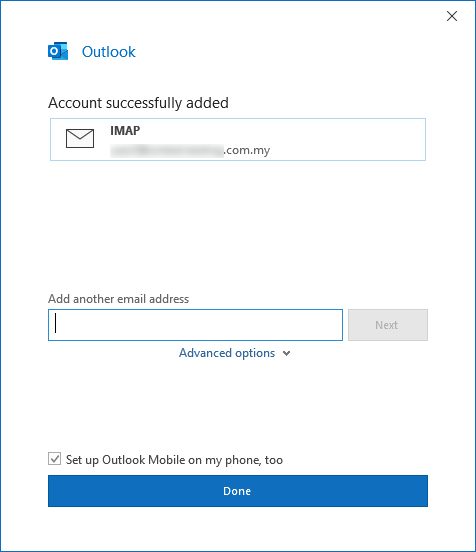
- Once the setup is complete, Outlook will display a confirmation message indicating that your email has been successfully added. Your account is now set up and ready to use in Outlook.
Conclusion
Congratulations! You have successfully configured your email in Outlook using either the IMAP or POP protocol with SSL encryption. This setup allows you to access and manage your emails securely, whether you prefer synchronized access or offline storage.
For additional assistance or if you encounter any issues, please contact our support team at support@ipserverone.com.
Article updated on 15 July 2026 by Johnny