
Search Our Database
How to clean up stuck email in Outlook Outbox
Introduction
When your emails get trapped in the Outlook Outbox due to large attachments or connection glitches, it halts your communication and disrupts your workflow. This guide helps Windows and Mac users resolve this common mail-stuck issue immediately within their Outlook application to restore normal email delivery.
Prerequisite
-
Active email account credentials configured in Outlook
-
Basic knowledge of Outlook’s navigation menu
Step-by-step guide
Step 1: Navigate to the Outbox folder
-
Open your Microsoft Outlook application.
-
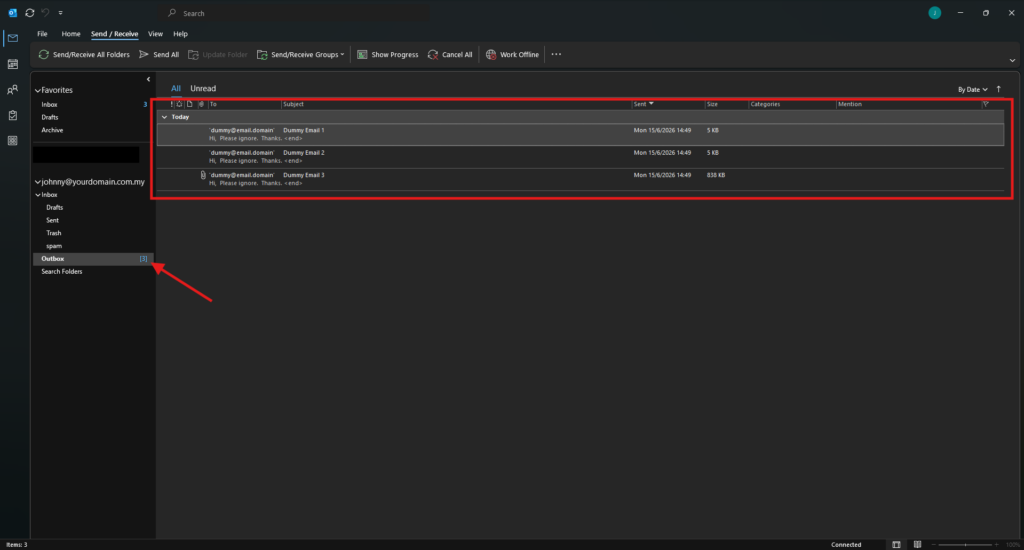
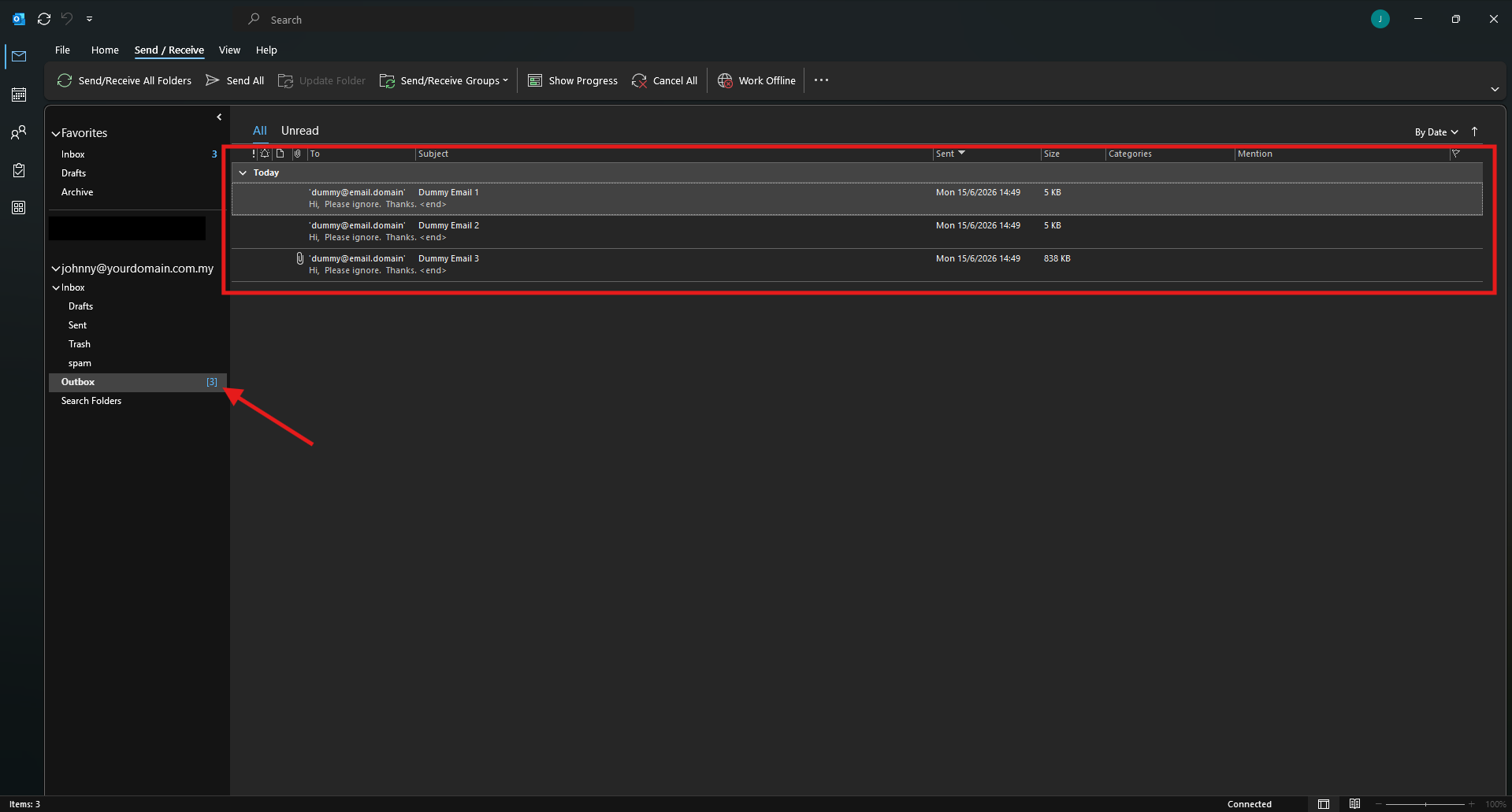
Locate the sidebar menu on the left side of the screen. Click on the Outbox to view the emails that are currently stuck in the sending queue.
Step 2: Switch Outlook to Offline Mode
-
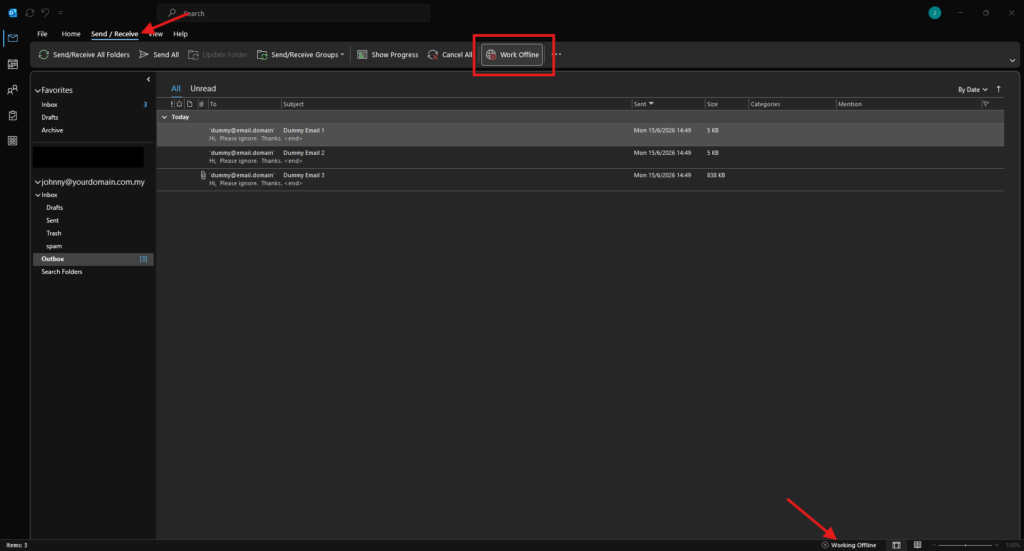
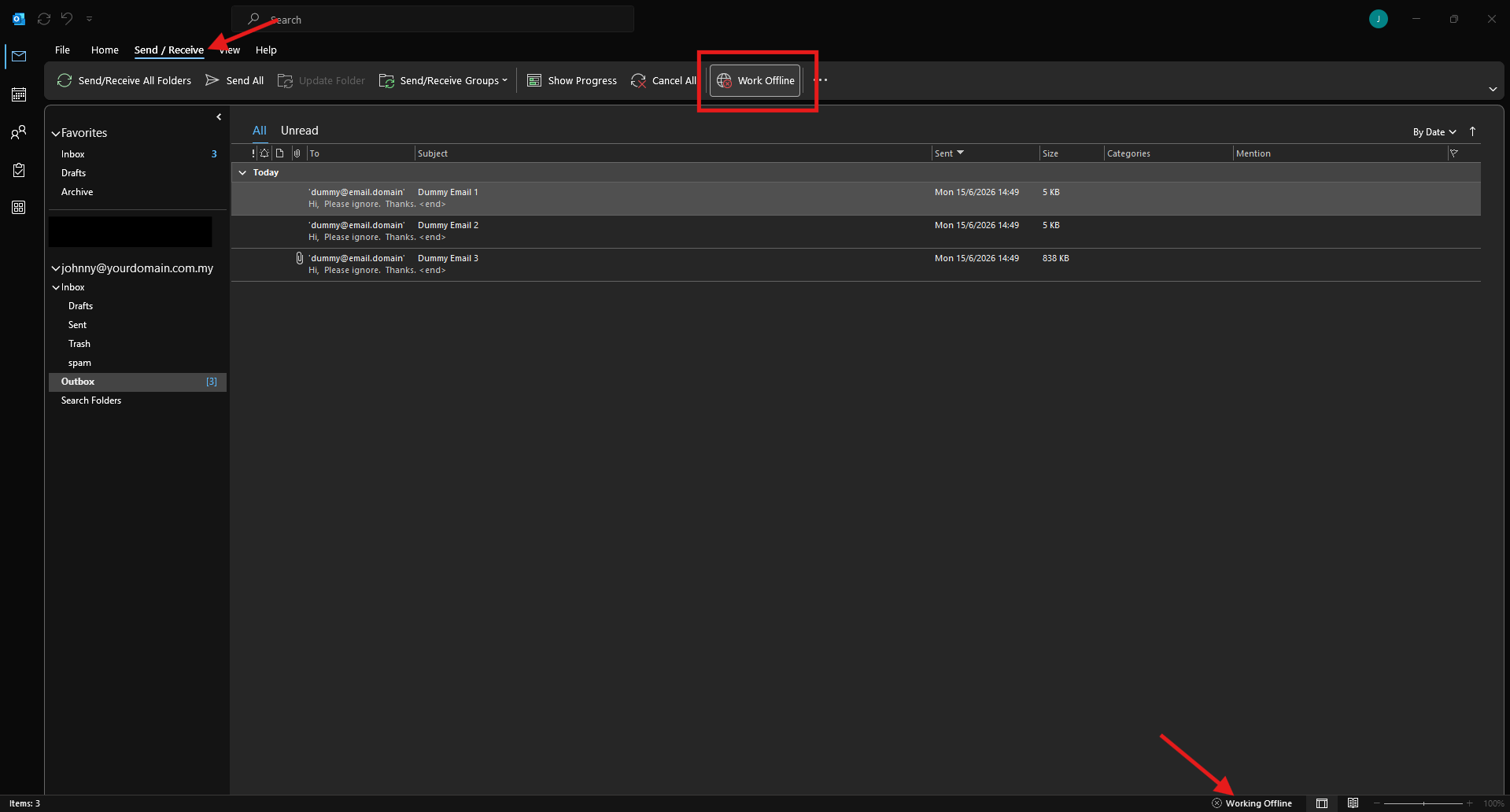
Click on the Send/Receive in the top ribbon menu.
-
Click the Work Offline to disconnect Outlook from the mail server, which stops it from continuously trying and failing to send the stuck message.
Step 3: Clear or move the stuck email
-
Go back to the Outbox.
-
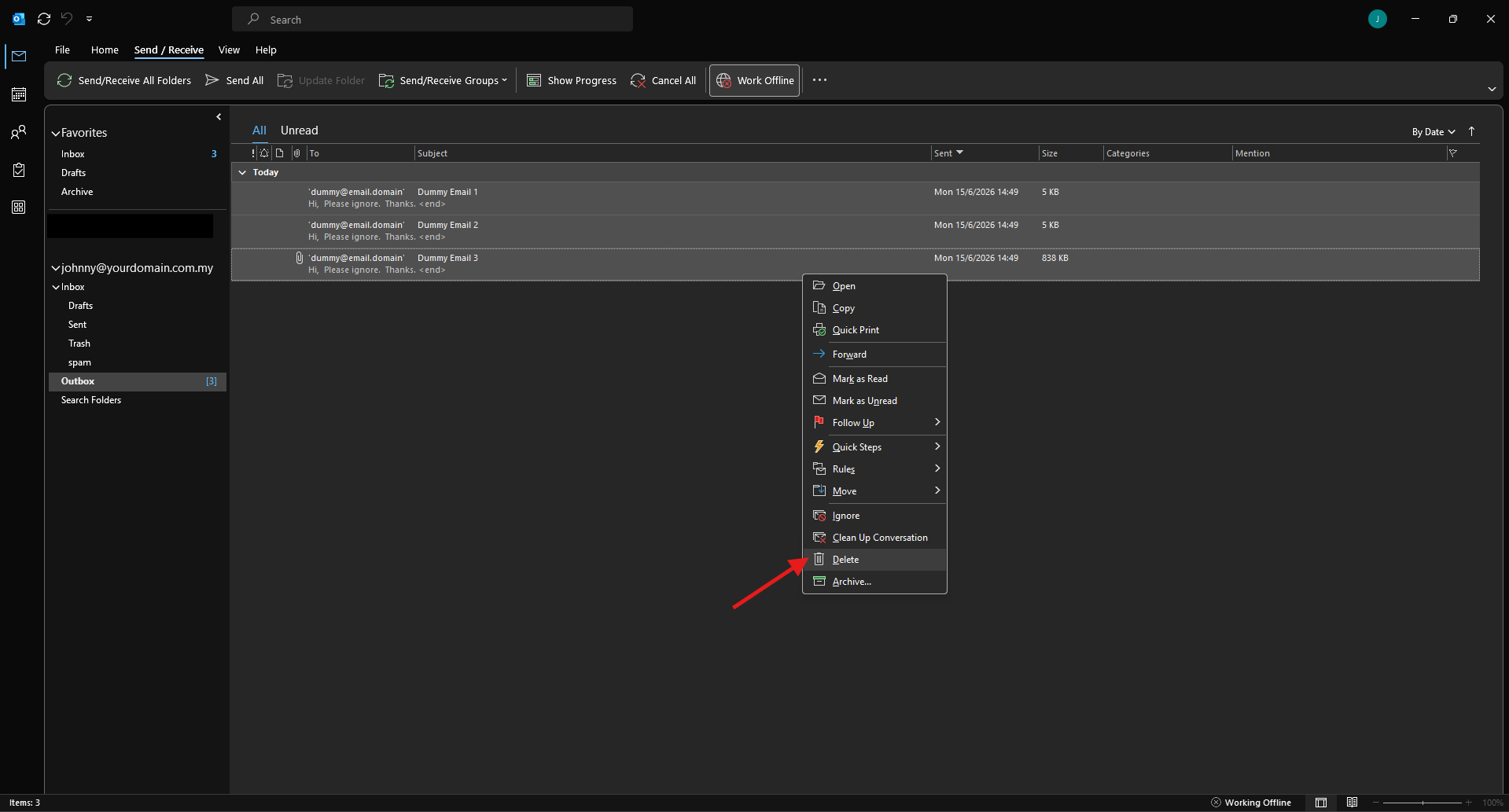
Right-click the stuck email message. Select Delete to remove the email completely or select Move and choose the Drafts if you want to edit and try resending it later.
Delete the stuck email• Right-click the stuck email and select Delete to remove the email.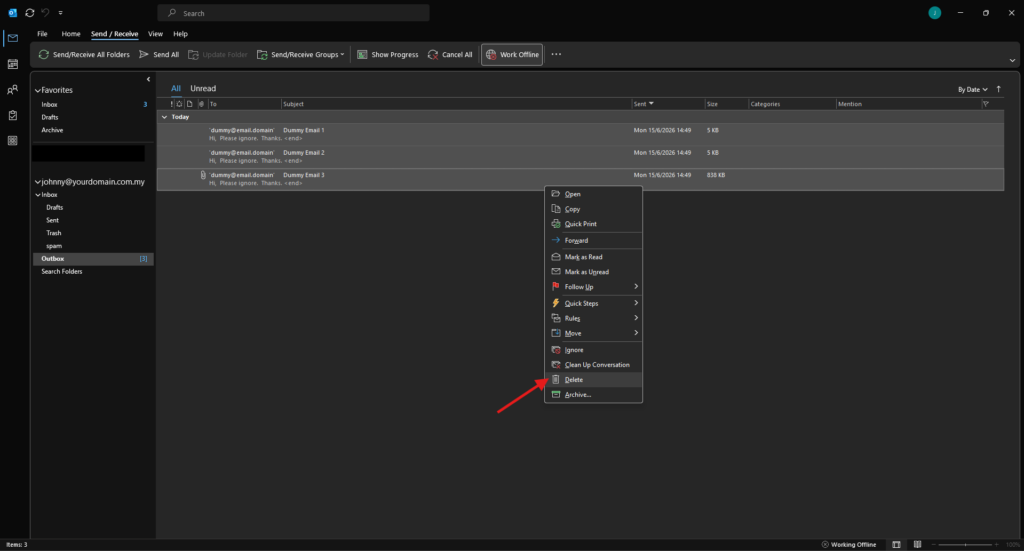
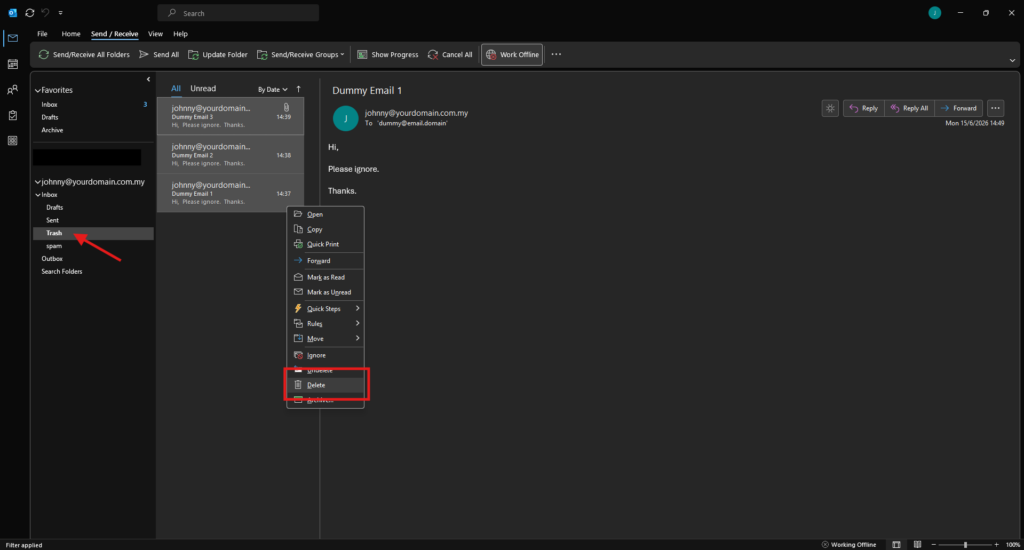
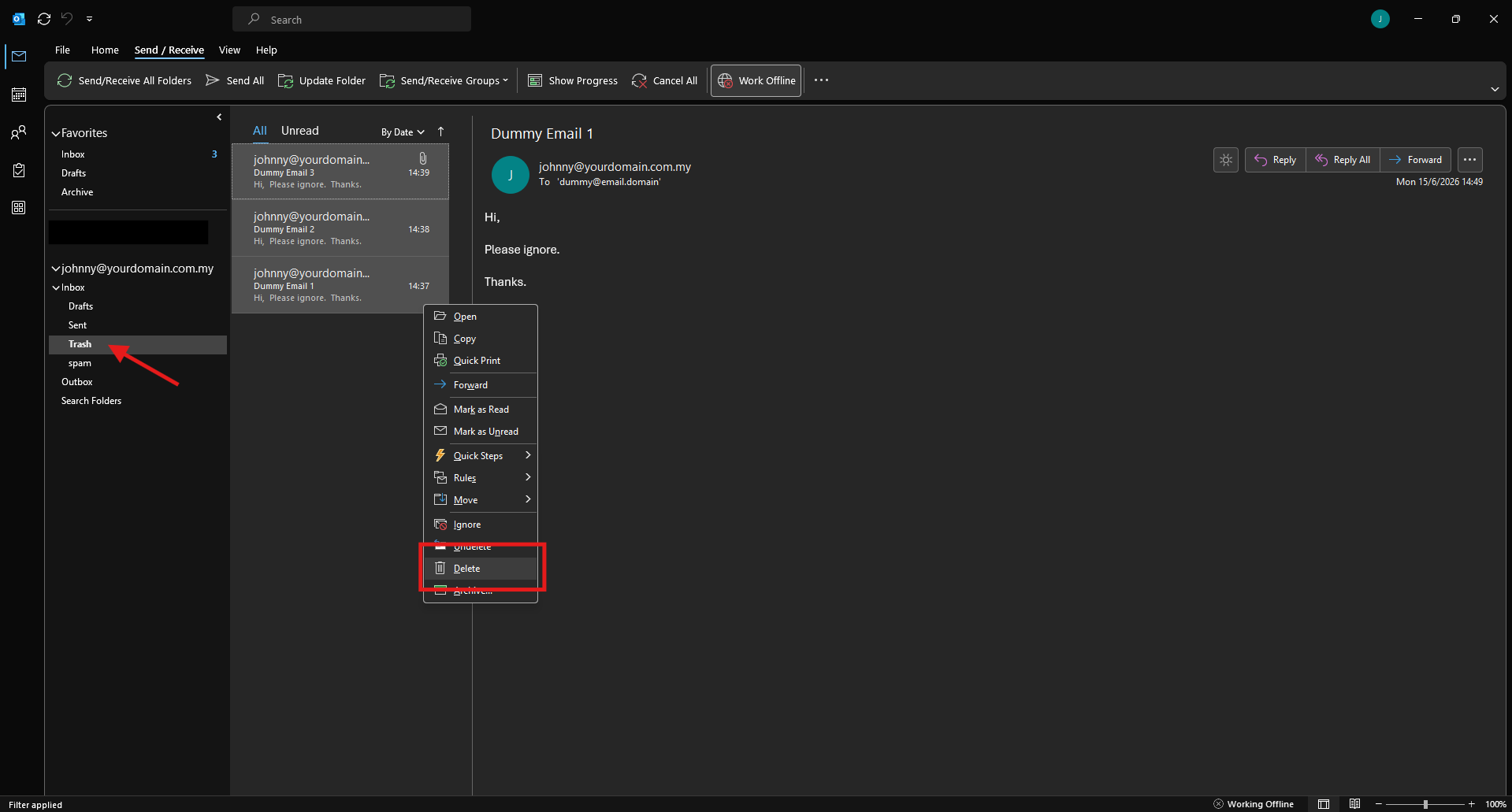
• Navigate to Trash to remove the email completely by right-click the stuck email and select Delete.
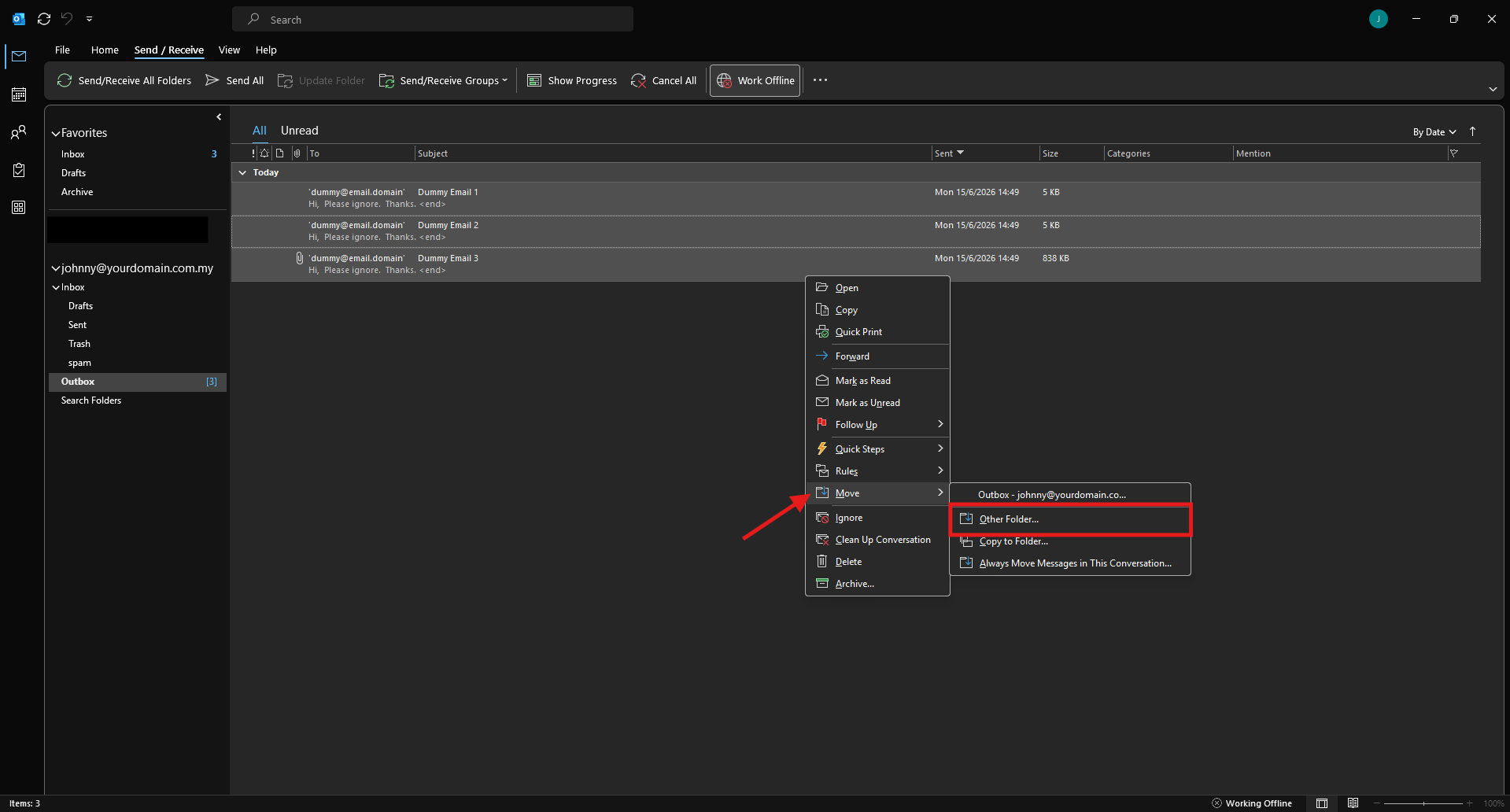
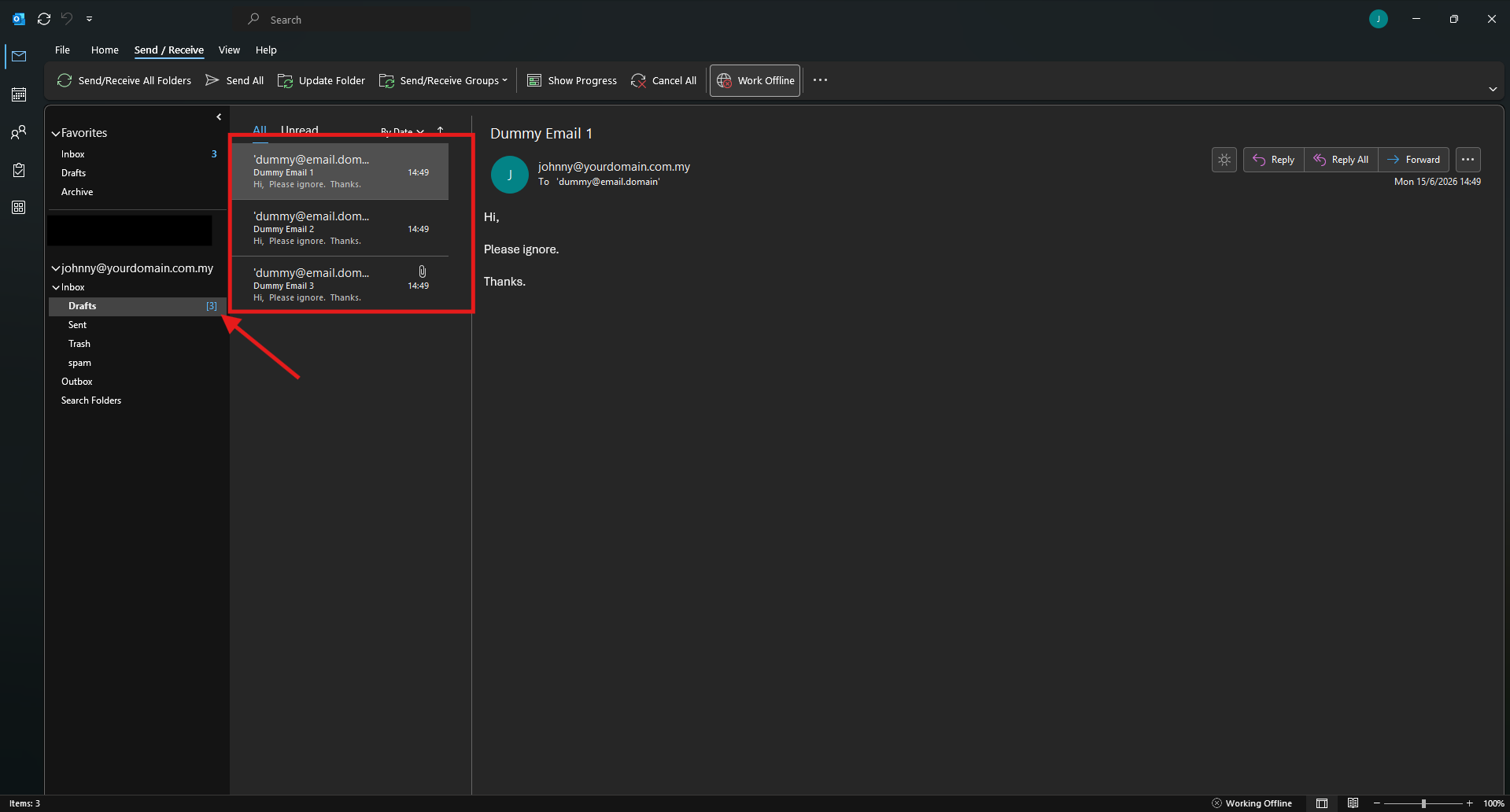
Move to Draft folder• Right-click the stuck email and select Move then Other Folder….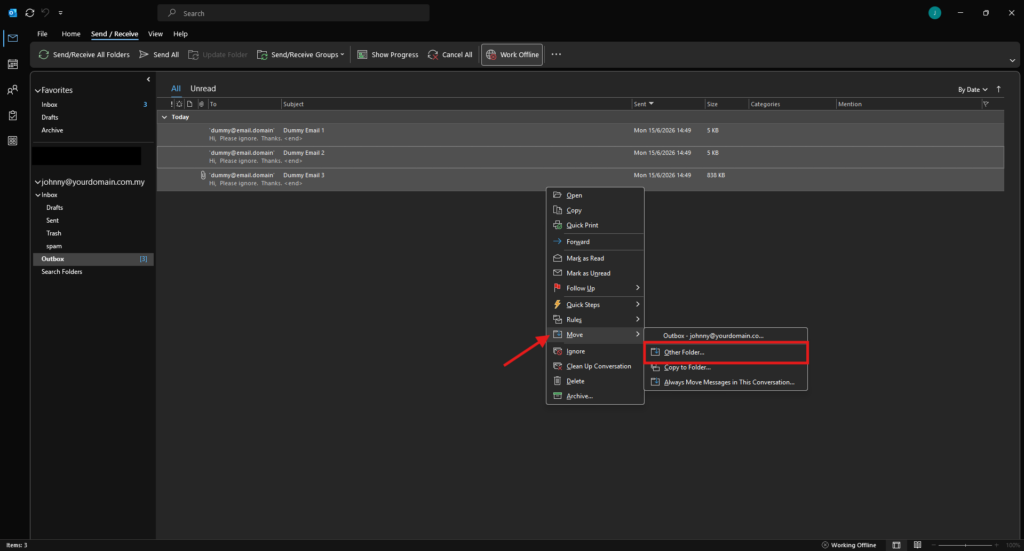
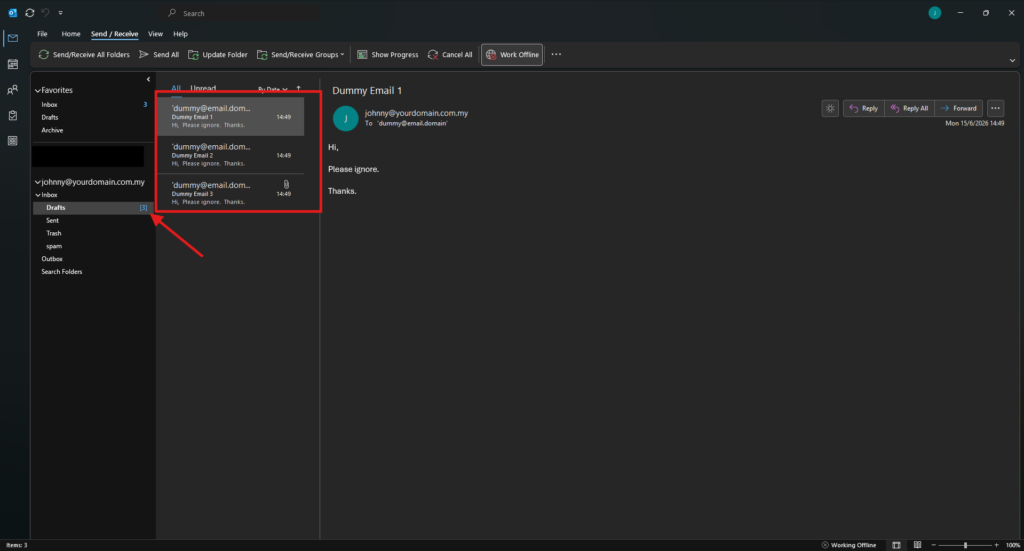
• Select Draft to move the stuck email to draft folder.
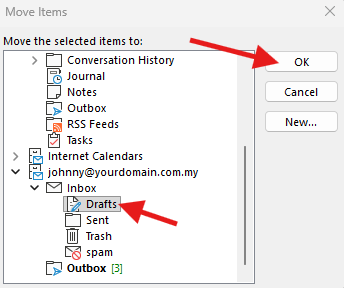
• Navigate to Draft to verify if the email has been moved. Once the Outlook back online, you may edit the email and retry to send again.
Step 4: Restore Outlook to Online Mode
-
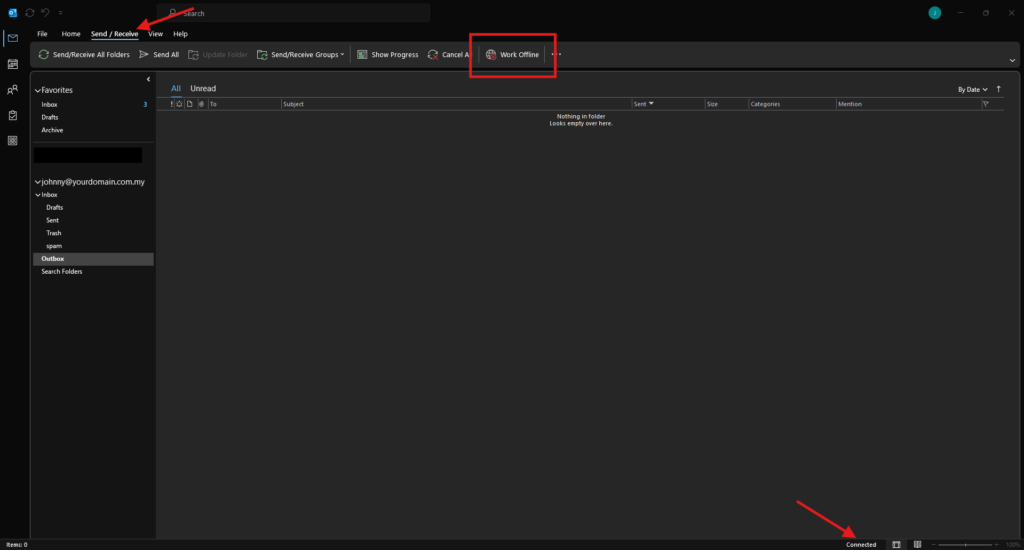
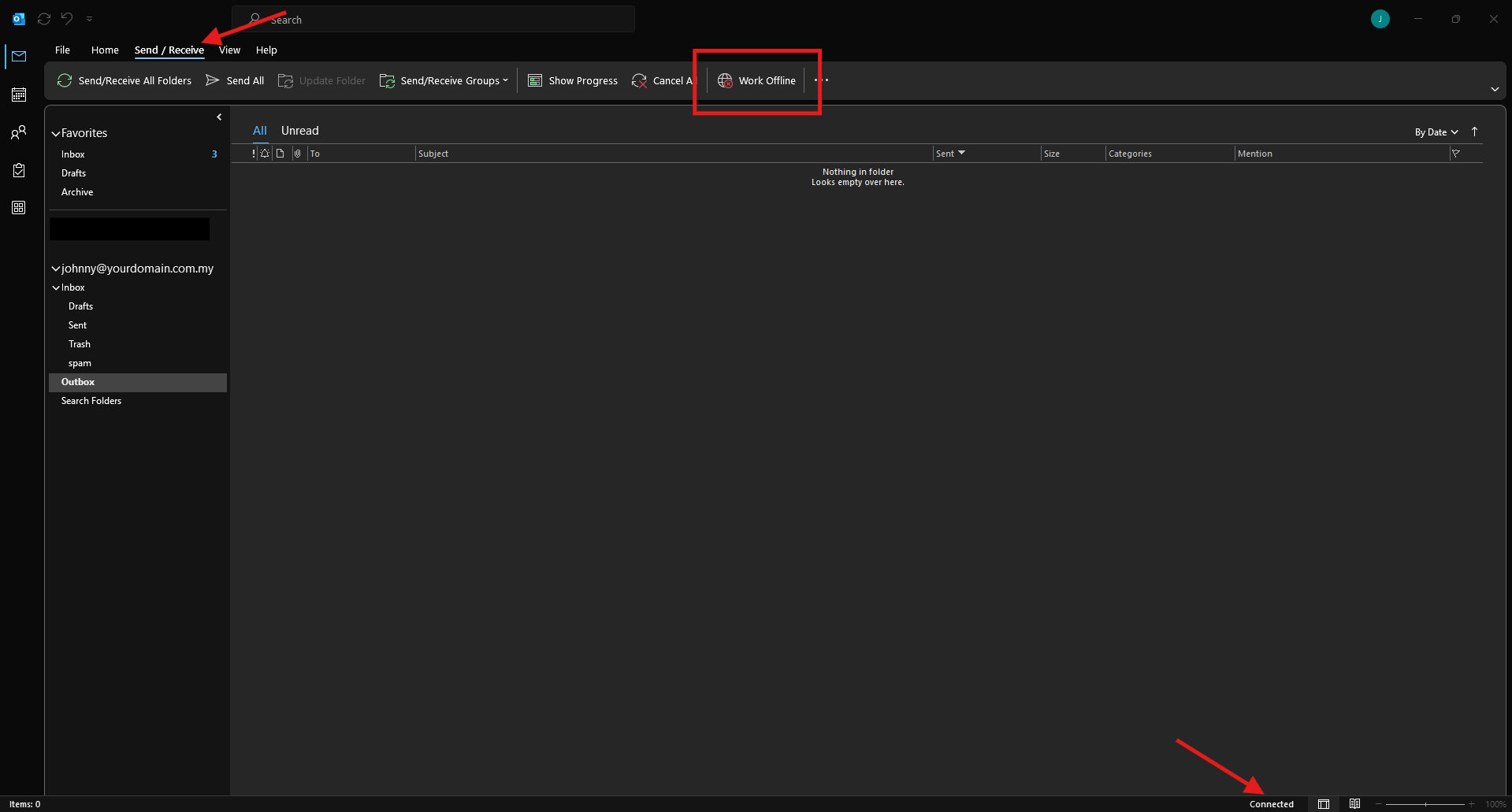
Return to the Send/Receive in the top ribbon menu.
-
Click the Work Offline again to deactivate offline mode and reconnect your application to the mail server.
Conclusion
By following this guidance, you can successfully clear any stuck emails from your Outlook Outbox and ensure your outgoing mail queue functions smoothly once again.
For additional assistance or if you encounter any issues, please contact our support team at support@ipserverone.com.