
Search Our Database
How to change date formats in Gmail
Introduction
Changing the date format in Gmail helps users customize how timestamps for incoming and outgoing messages are displayed, ensuring consistency with regional preferences such as US (MM/DD/YY) or UK (DD/MM/YY) standards. Whether accessing Gmail via a web browser or through the mobile application, adjusting your language and system region settings allows Gmail to automatically format dates to match your preferred layout. This quick configuration improves inbox readability and prevents scheduling misinterpretations for personal and professional communications globally.
Prerequisite
- Access to a Gmail account on a web browser or mobile device.
- Basic familiarity with device and account settings.
Step-by-step guide
Change Date Format in Gmail Web
Adjust the date display preference via Google Account language settings for browser access.
- Log in to your Gmail account on a web browser.
- Click the Settings icon (gear icon) in the top right corner.
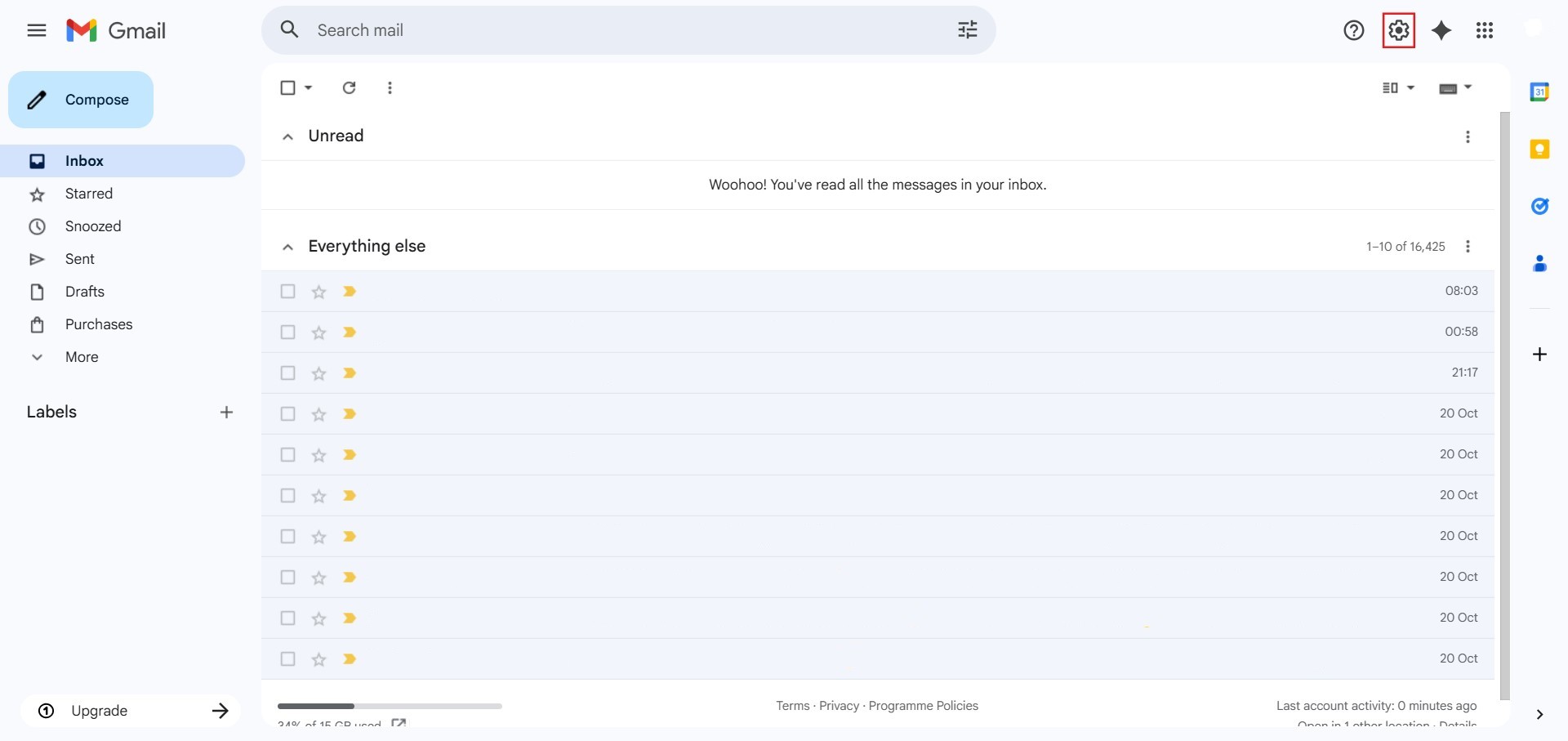
- Then click See all settings.
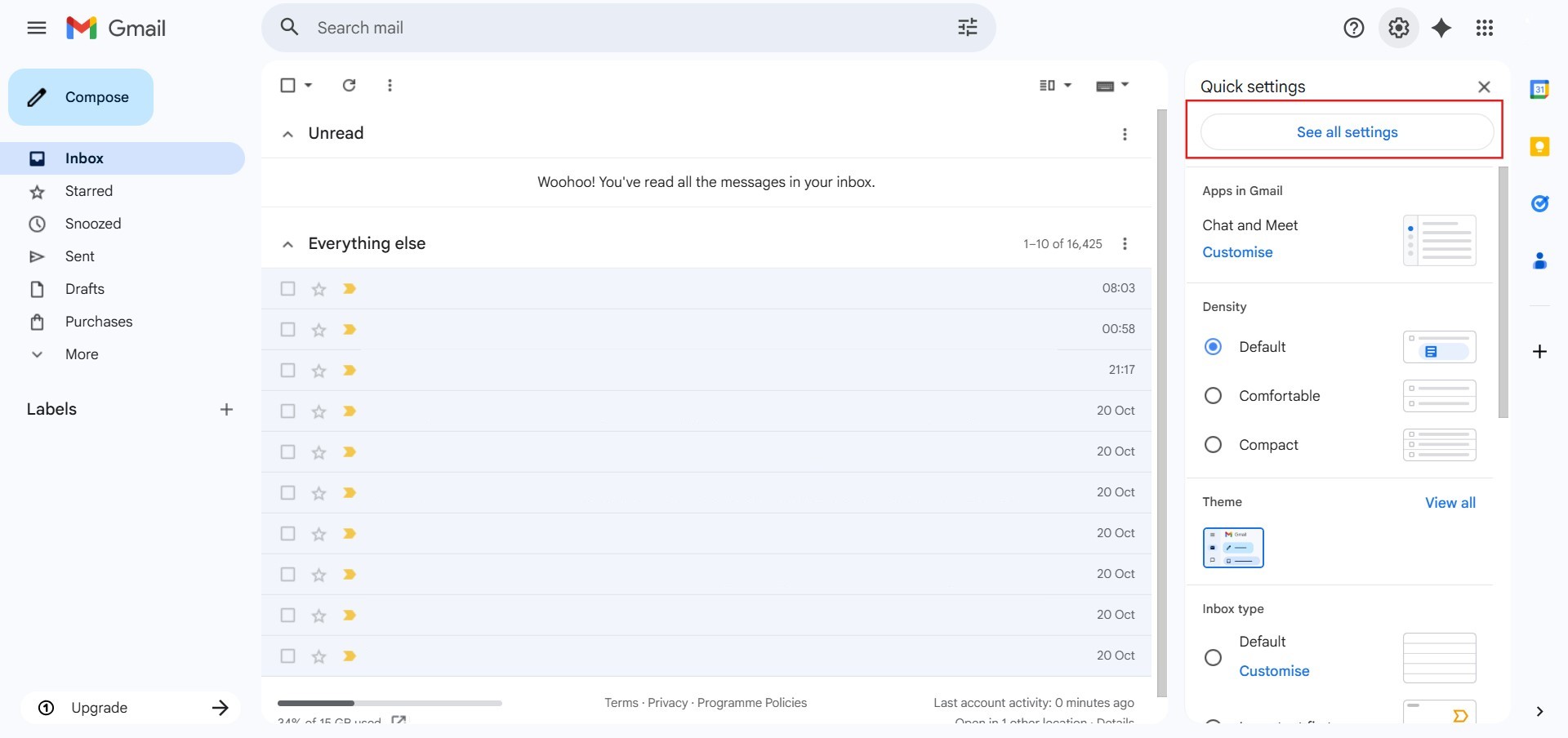
- Scroll down to the Gmail display language section and click on Language.
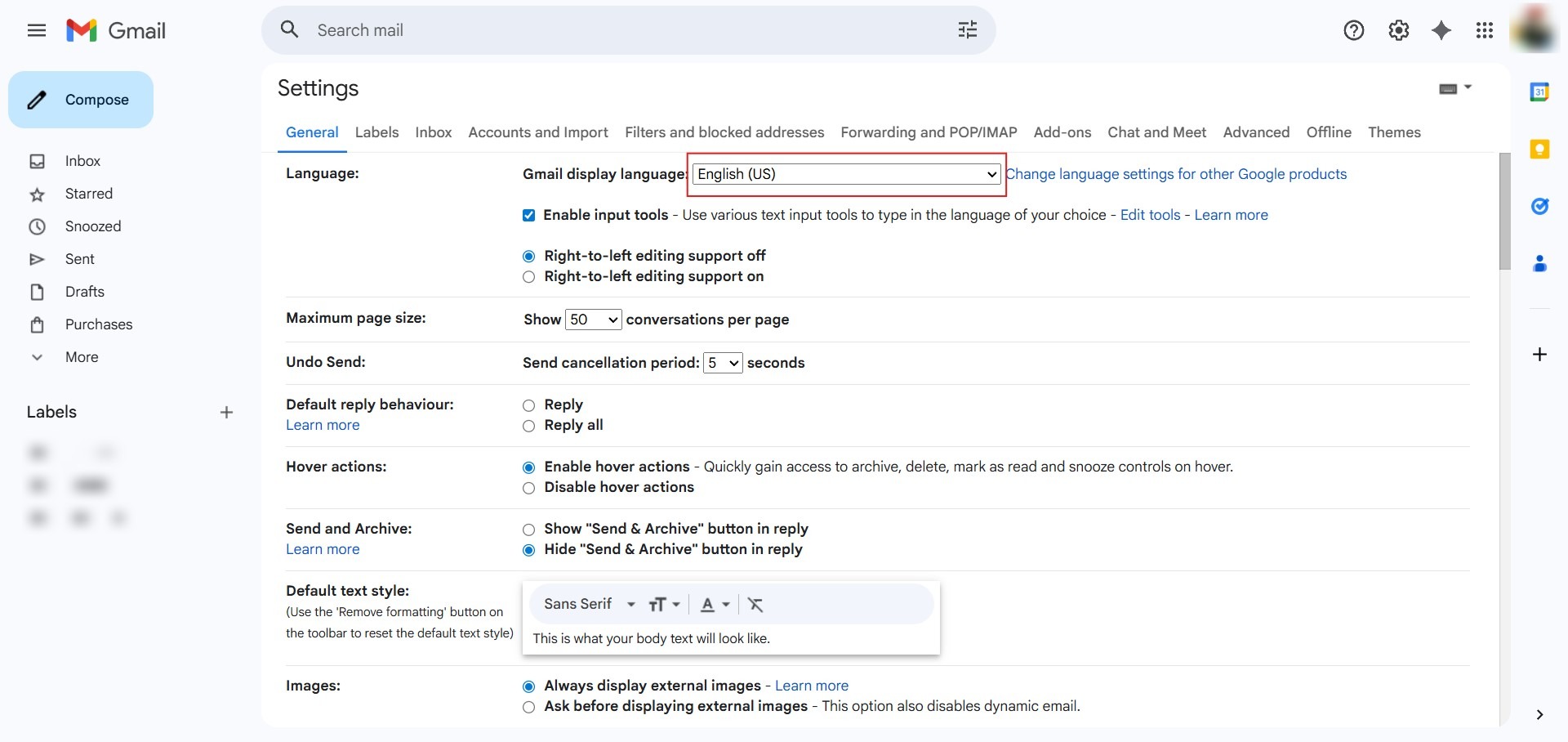
- Select your preferred language:
- Select English (United States) for US style (MM/DD/YY).
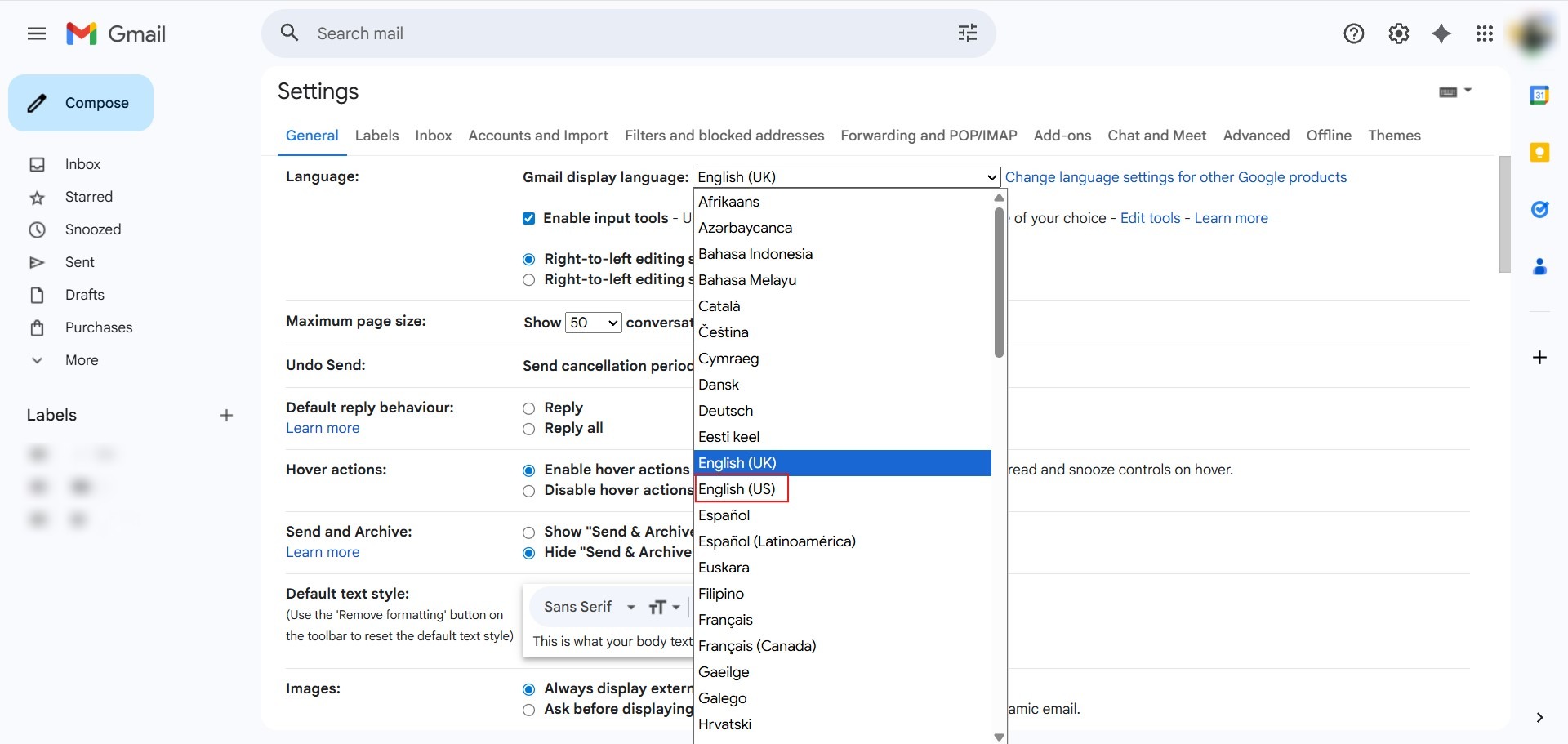
- Select English (United Kingdom) for UK style (DD/MM/YY).
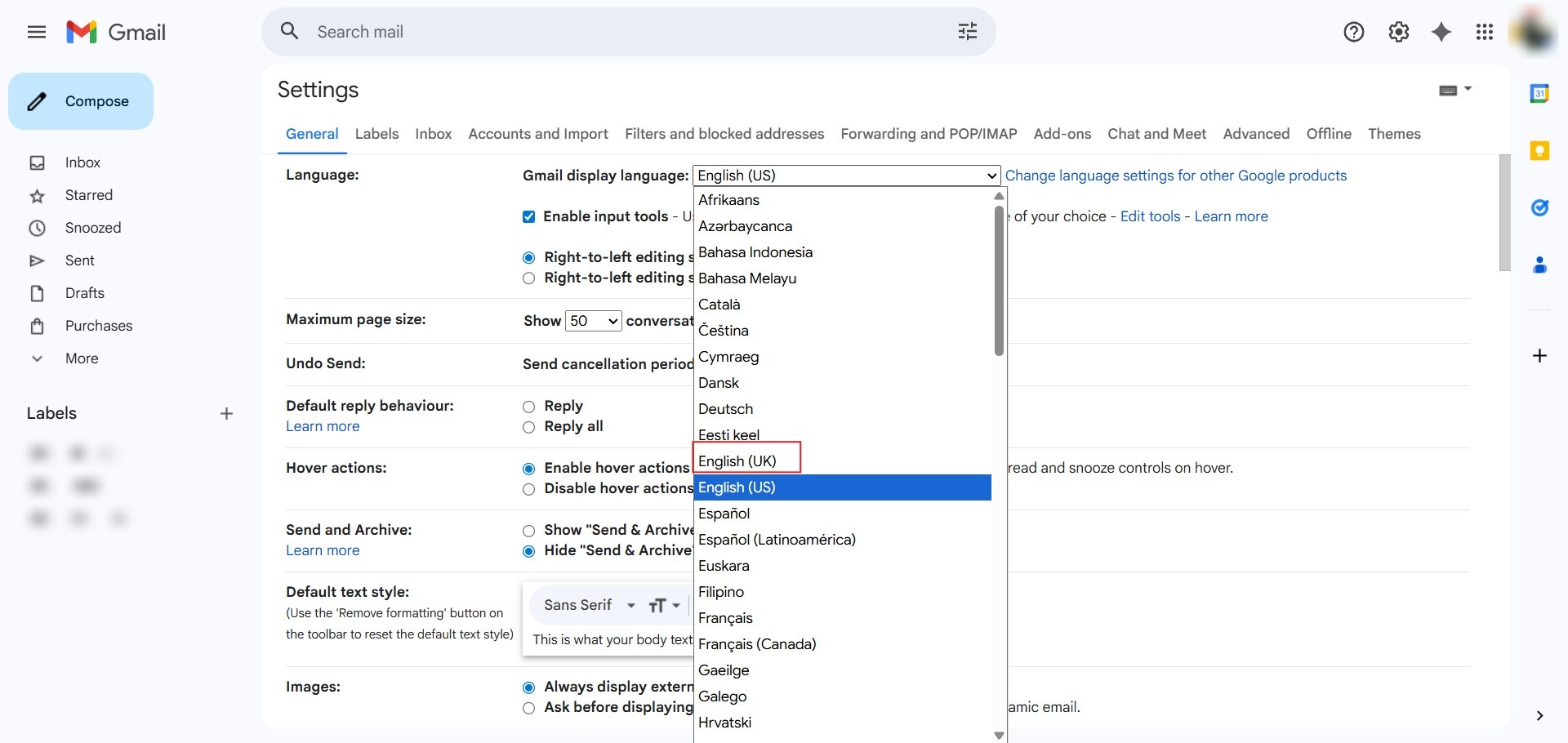
- Select English (United States) for US style (MM/DD/YY).
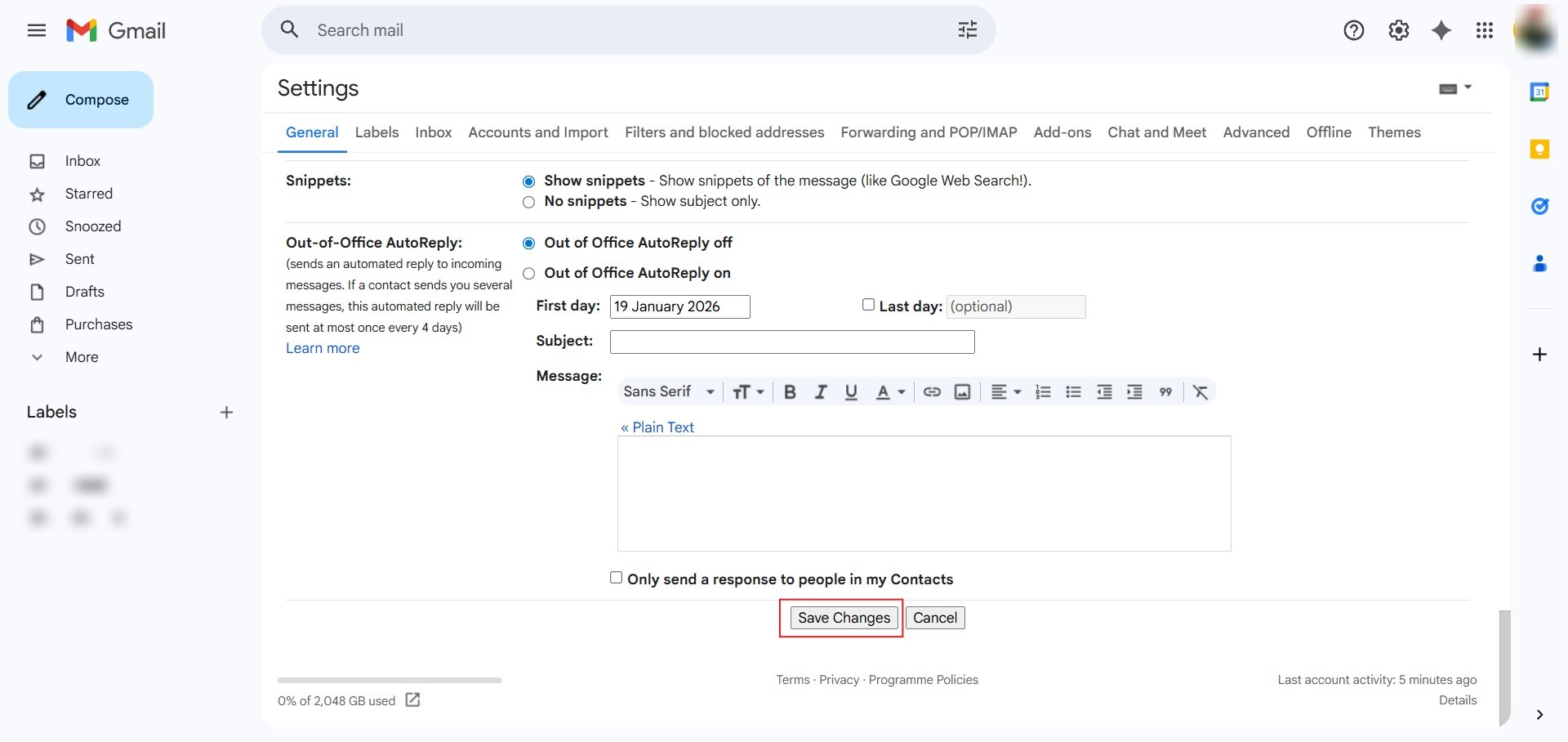
- Scroll to the bottom of the page and click Save Changes.
Change Date Format in Gmail Mobile App
Adjust the system regional language on your Android or iOS device to update the Gmail app date format.
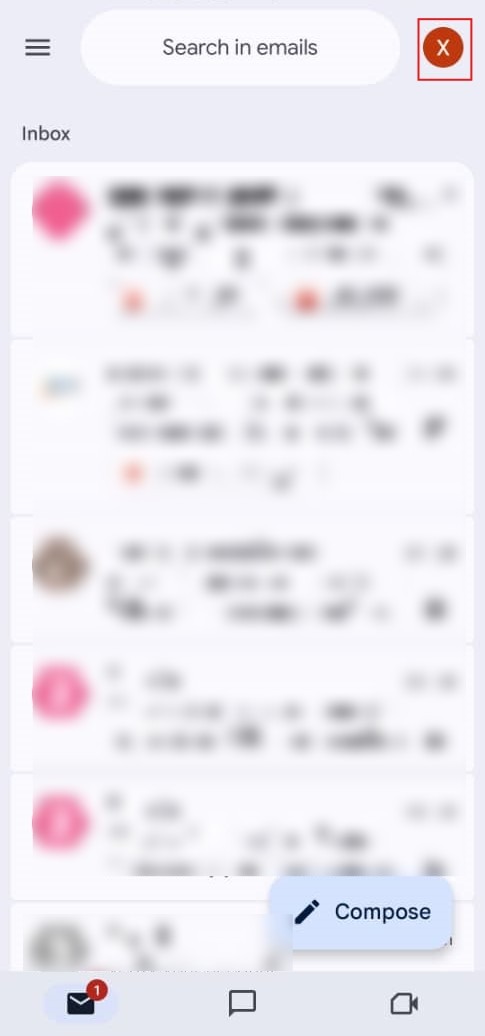
- Open the Gmail app and tap your profile icon in the top-right corner of the screen.
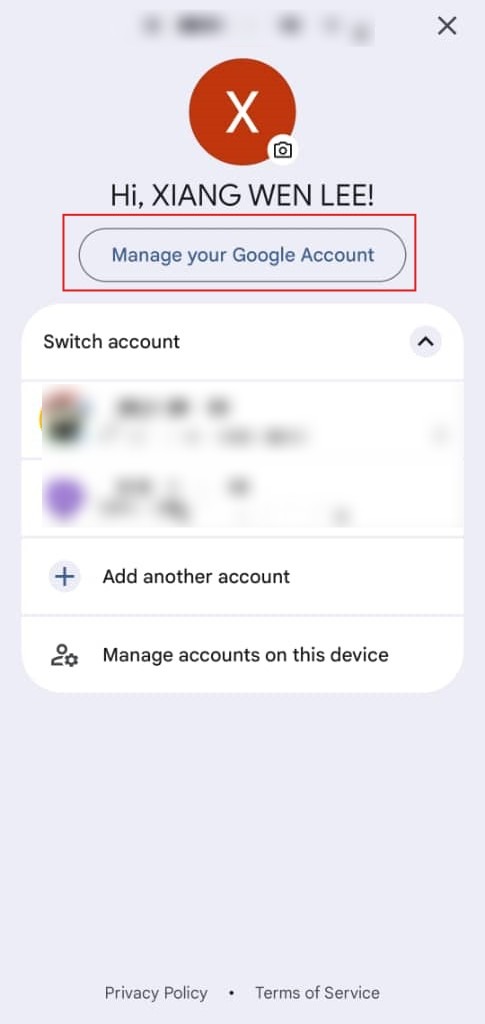
- Select the button labeled Manage your Google Account to enter the centralized settings dashboard.
- Tap the Search icon (magnifying glass) located at the top of the Google Account interface.
- Type language into the search bar and select Language.
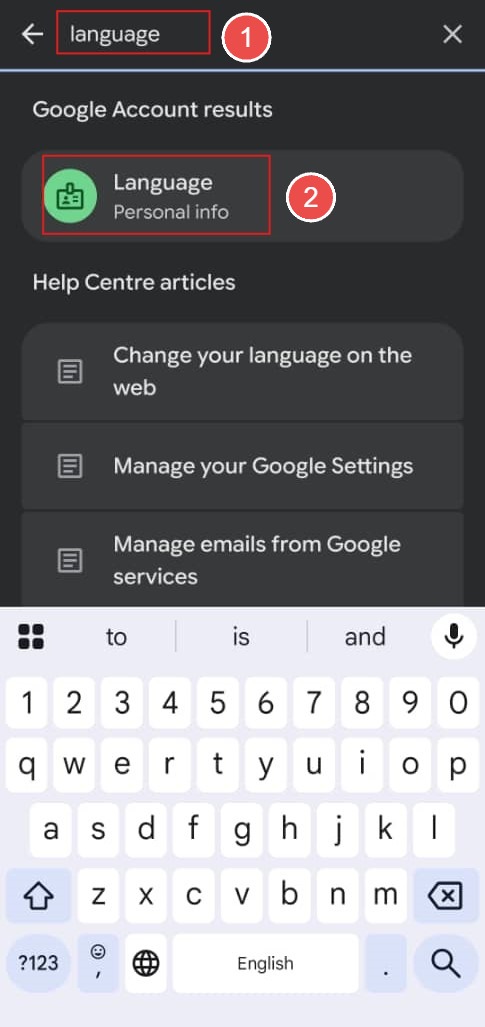
- Under Preferred language section, tap Edit (pencil) icon.
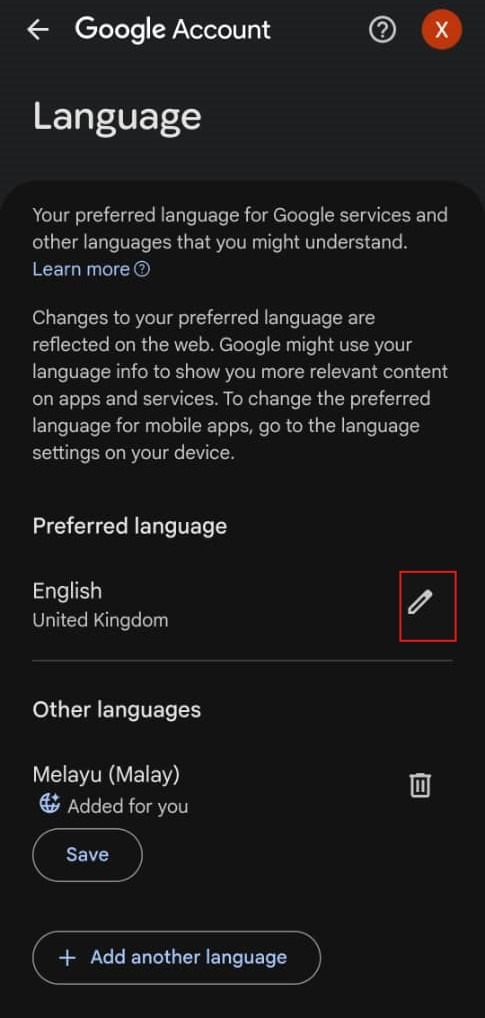
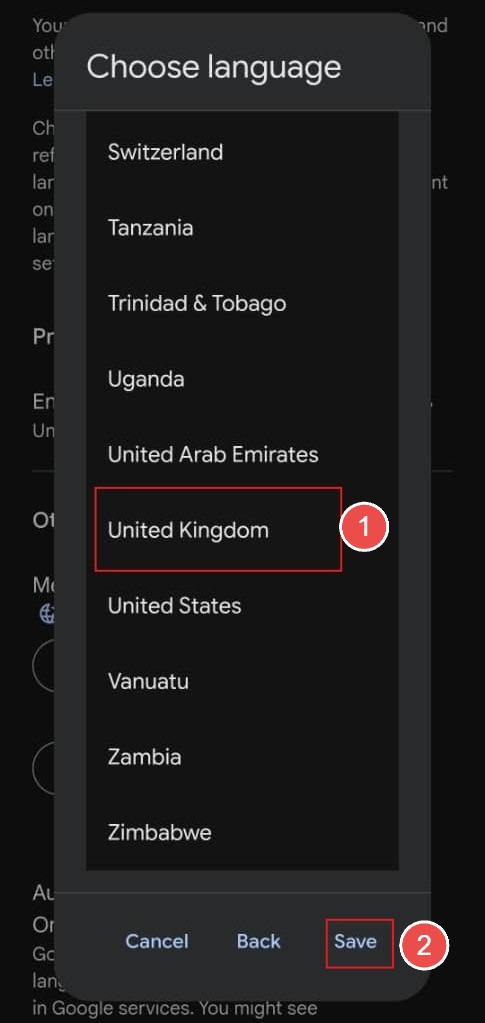
- Select your preferred language and then tap the Save button:
- Choose English (United States) for MM/DD/YY format.
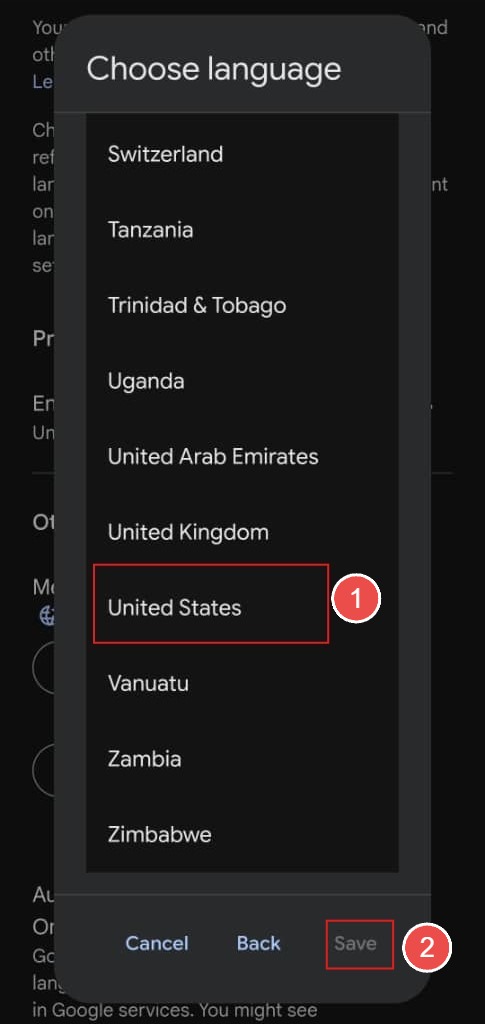
- Choose English (United Kingdom) for DD/MM/YY format.
- Choose English (United States) for MM/DD/YY format.
Conclusion
By following this guidance, you can easily change date formats in Gmail Web and the Gmail app to match your preferred regional display style.
For additional assistance or if you encounter any issues, please contact our support team at support@ipserverone.com.
Article updated on 03 August 2026 by Johnny