
Search Our Database
How to add Mail Signature on Gmail
Introduction
Adding a personalized email signature in Gmail allows users to automatically append professional contact details, branding, or closing remarks to all outgoing messages. Whether you are managing business communications or personal correspondence, setting up a signature ensures consistency across your emails. This guide provides step-by-step instructions for everyday users on how to create and configure custom email signatures using both the Gmail Web interface and the Gmail Mobile App platforms.
Prerequisite
- Access to a active Gmail account
- Access to the Gmail Web interface or the Gmail App on a mobile device
Step-by-step guide
Adding a Mail Signature on Gmail Web
Creating a signature on the Gmail web interface allows you to format text, add links, and include images.
Step 1: Access Signature Settings
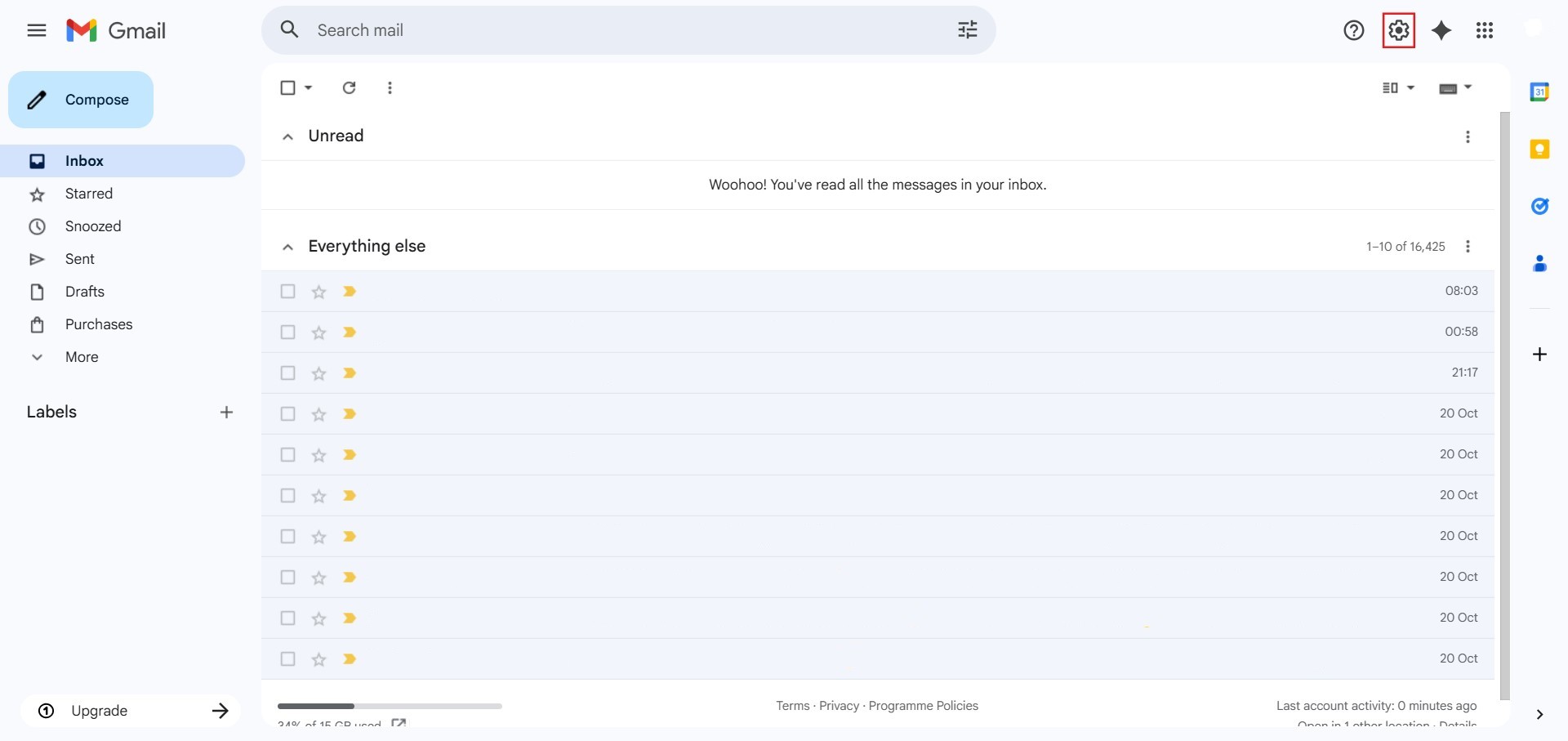
- Click the Settings (gear icon) at the top right corner.
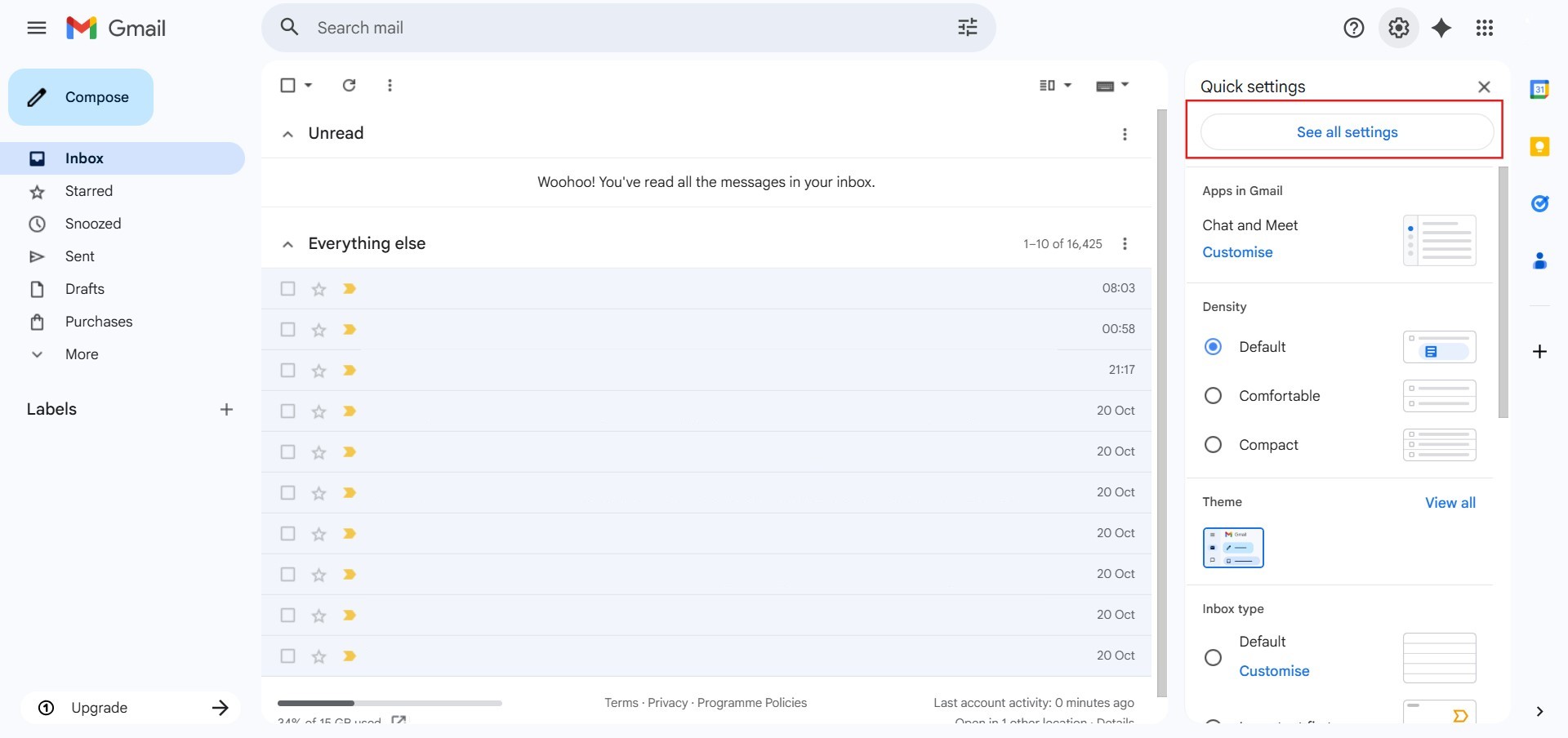
- Click See all settings.
Step 2: Create and Edit Signature
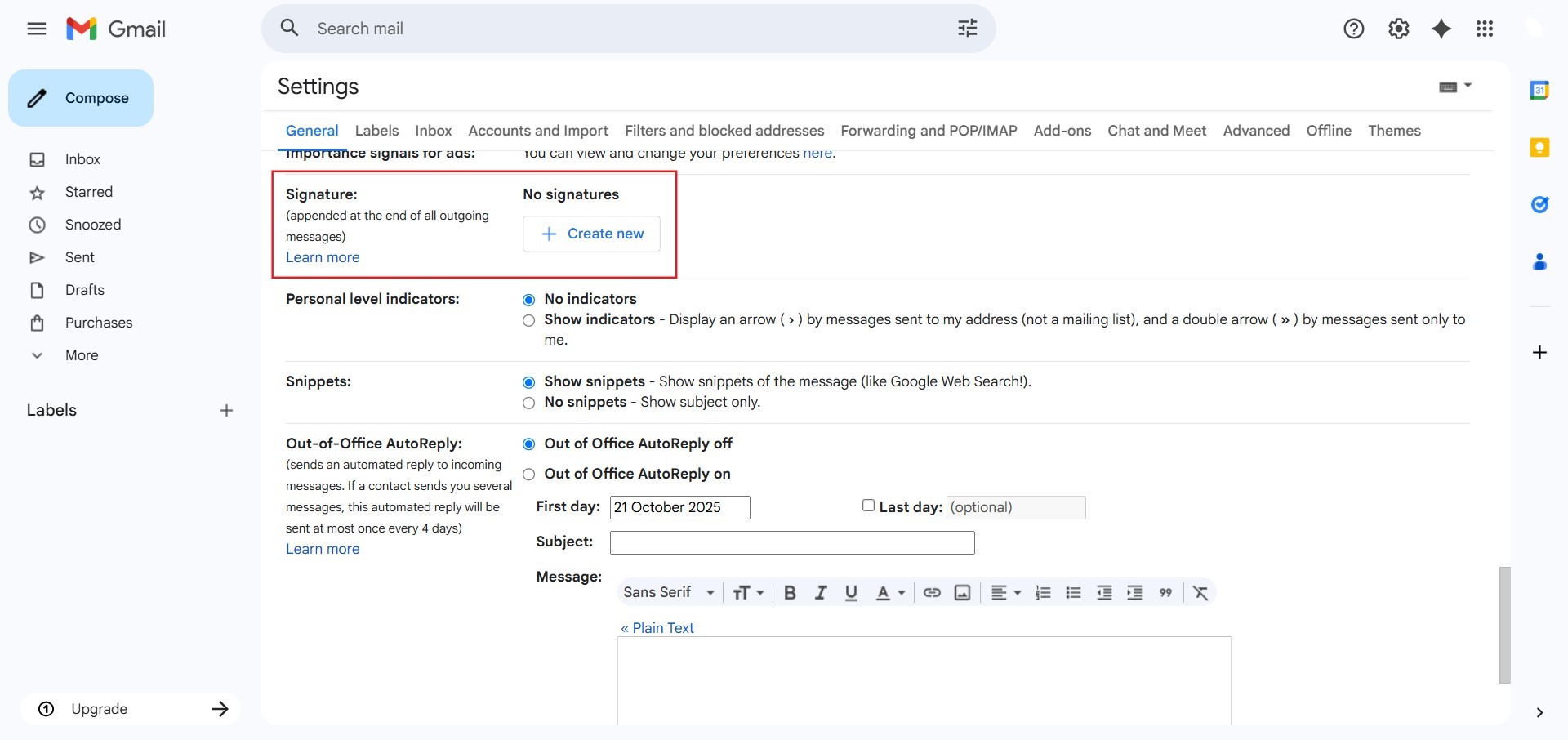
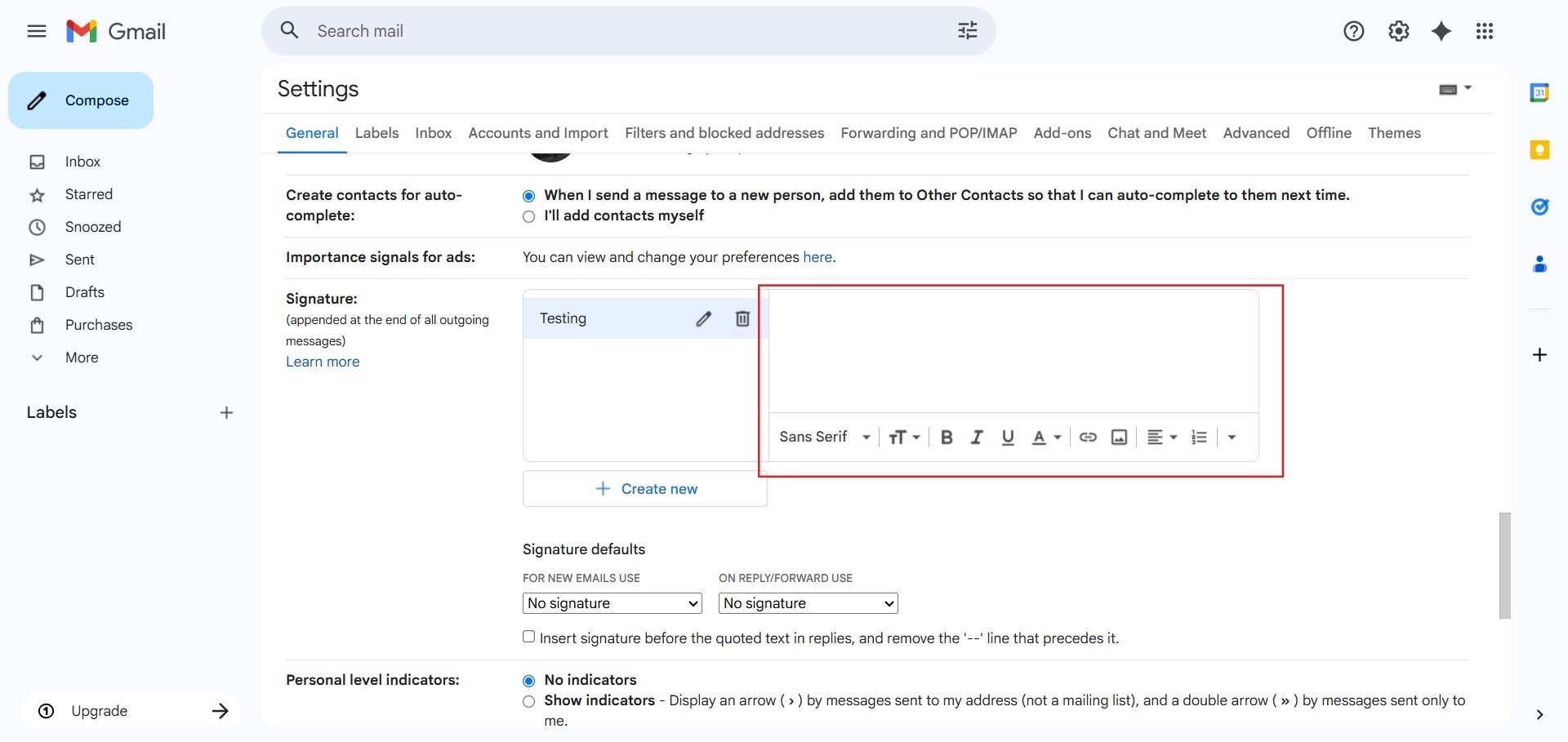
- Scroll down to the Signature section under the General tab.
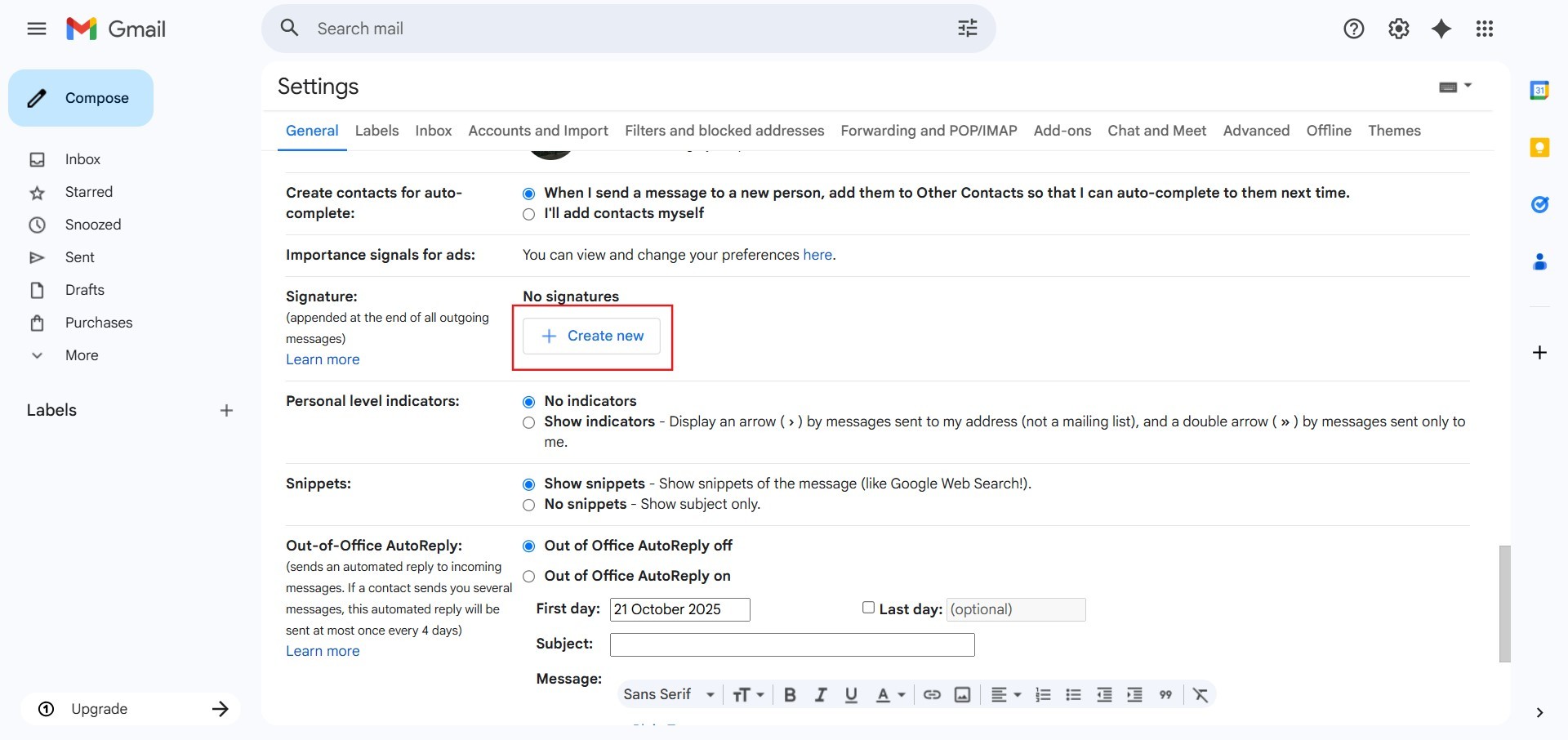
- Click + Create new and enter a name for your signature.
- Type and format your desired signature content in the text box.
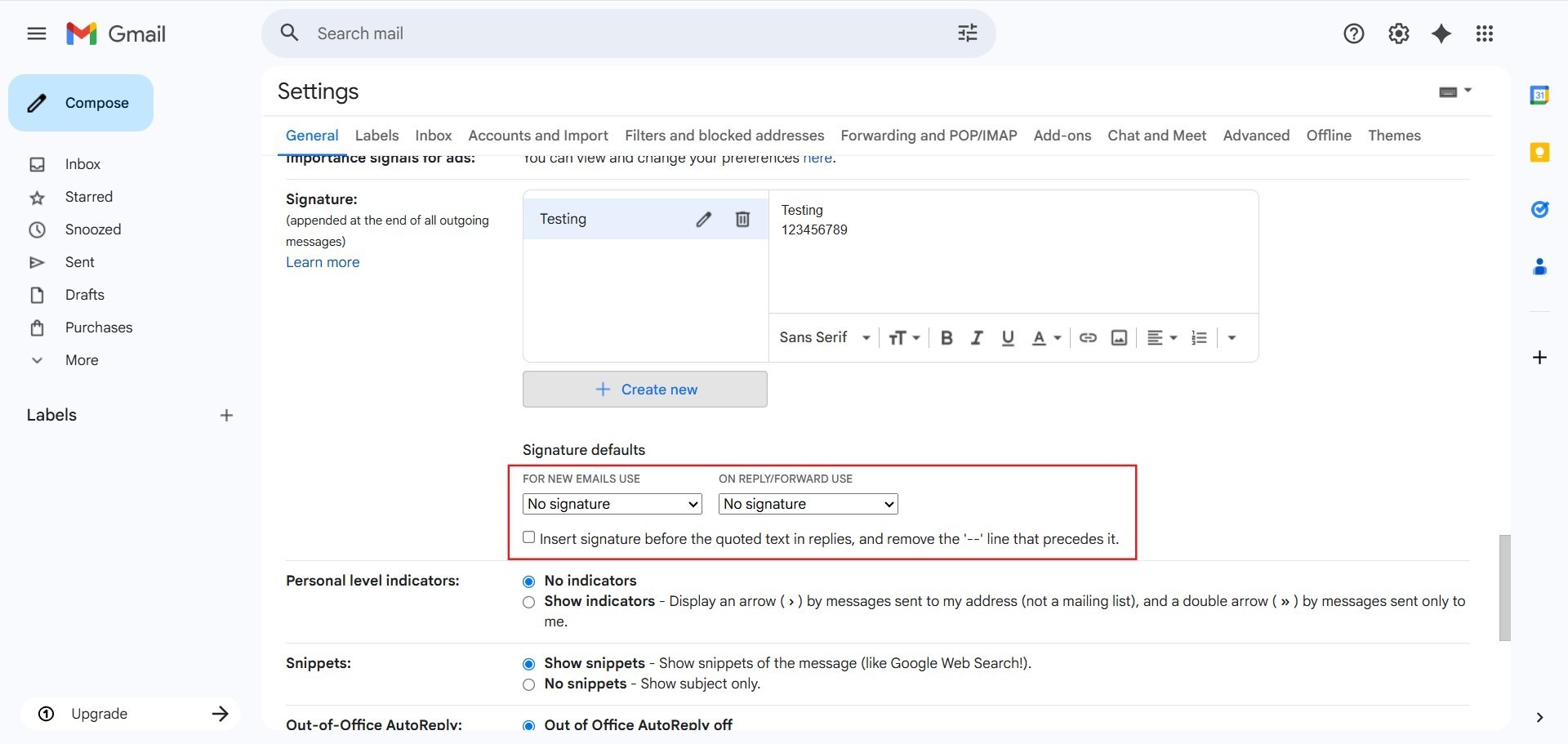
Step 3: Set Signature Defaults and Save
- Under Signature defaults, choose your signature for new emails and replies/forwards.
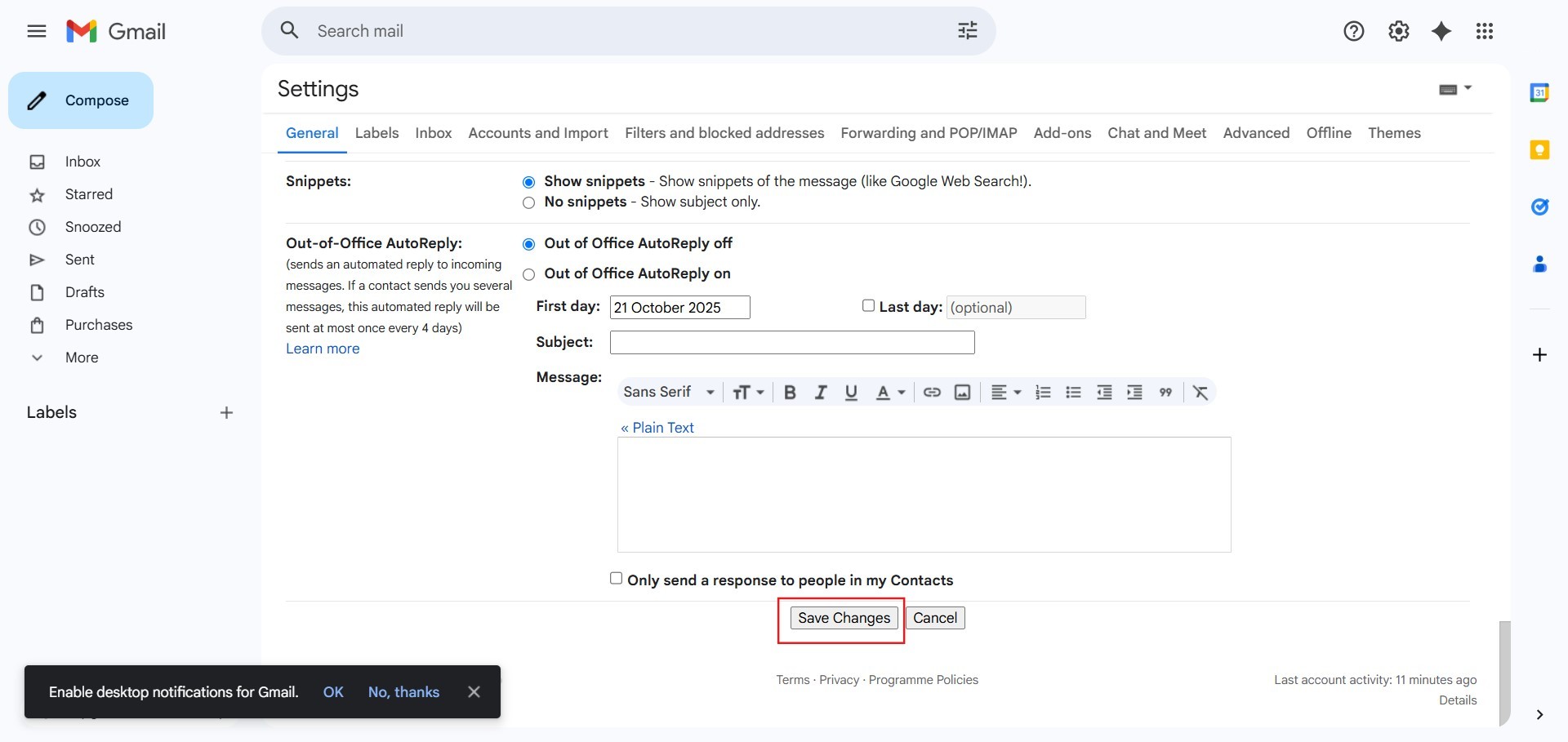
- Scroll to the bottom of the page and click Save Changes.
Adding a Mail Signature on Gmail Mobile App
Configuring a mobile signature ensures a plain text closing line is added automatically when sending emails from your phone.
Step 1: Access Mobile Settings
- Tap the Menu icon (three horizontal lines) in the top left corner.
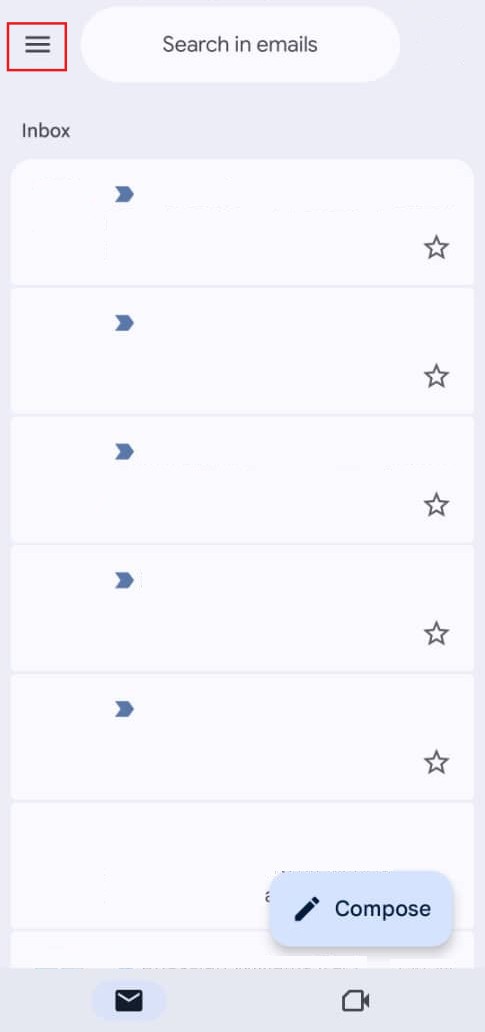
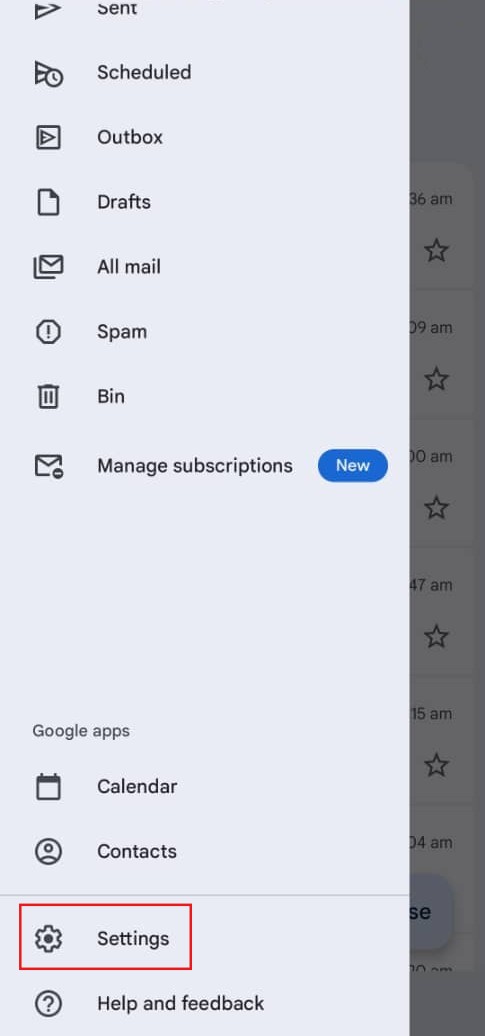
- Scroll down and tap Settings.
Step 2: Configure Mobile Signature
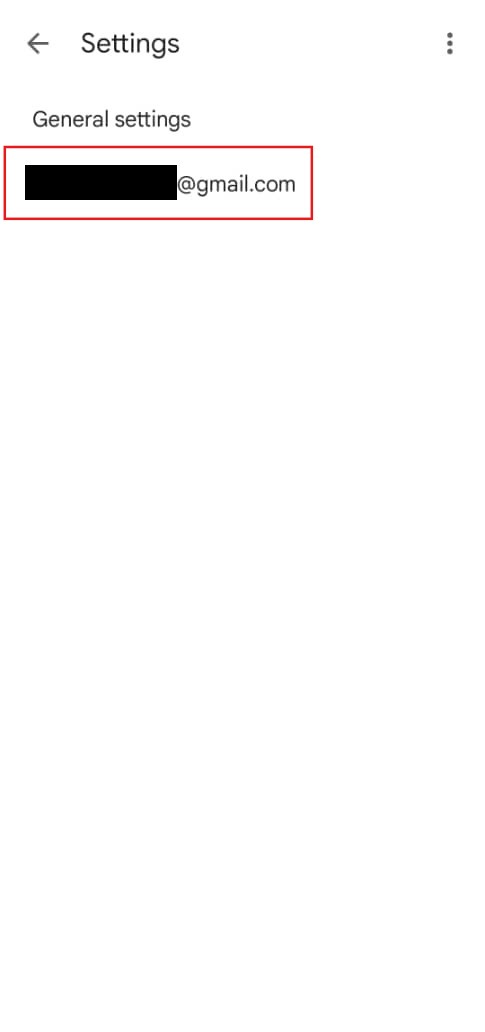
- Select the email account you wish to update.
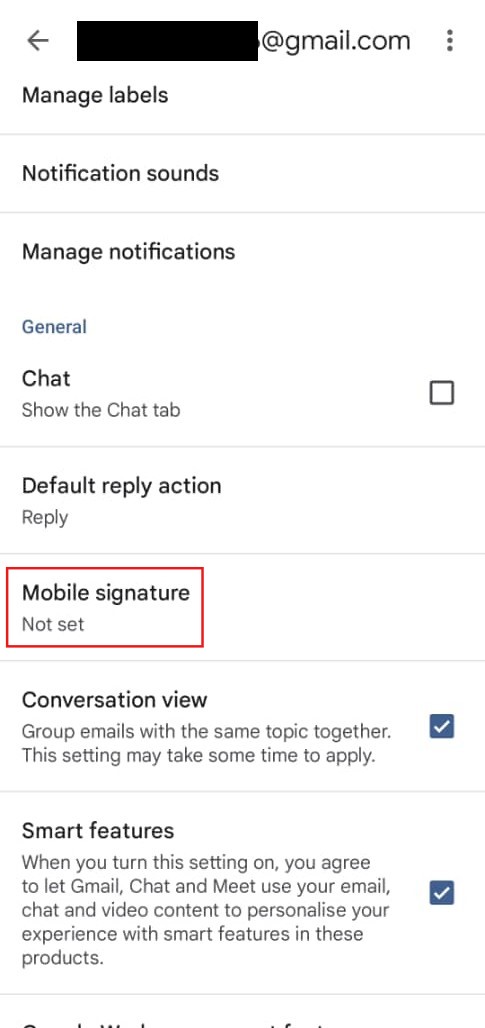
- Tap Mobile Signature.
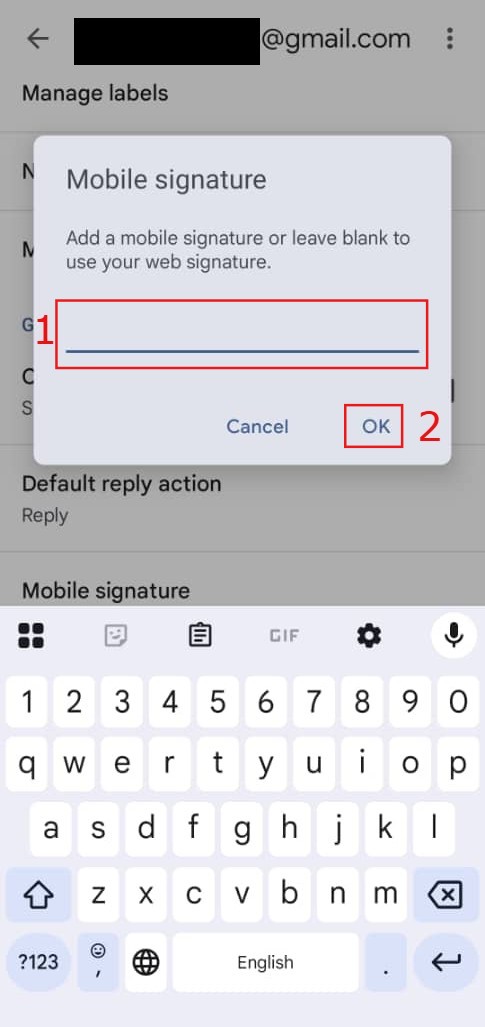
- Type in your preferred signature text, then tap OK to save.
Conclusion
By following this guidance, you can effortlessly set up and maintain a uniform email signature across both web and mobile versions of Gmail.
For additional assistance or if you encounter any issues, please contact our support team at support@ipserverone.com.
Article updated on 13 August 2026 by Johnny