
Search Our Database
How to add and delete Contacts in Gmail
Introduction
Gmail allows users to efficiently manage their personal and professional address books across both web and mobile platforms. Managing your contacts helps ensure seamless communication, allowing you to easily store email addresses, locate existing contacts, and remove outdated entries from any device. This guide provides step-by-step instructions for everyday users on how to search for contacts, save contacts from incoming messages, create new contacts manually, and delete unnecessary contacts using both the Gmail Web and Gmail App interfaces.
Prerequisite
- Access to a active Gmail account
- Access to the Gmail Web interface or the Gmail App on a mobile device
Step-by-step guide
Adding and Searching Contacts on Gmail Web
Managing contacts on the desktop web interface allows you to add new entries manually or save them directly from incoming messages.
- Locate the search bar.
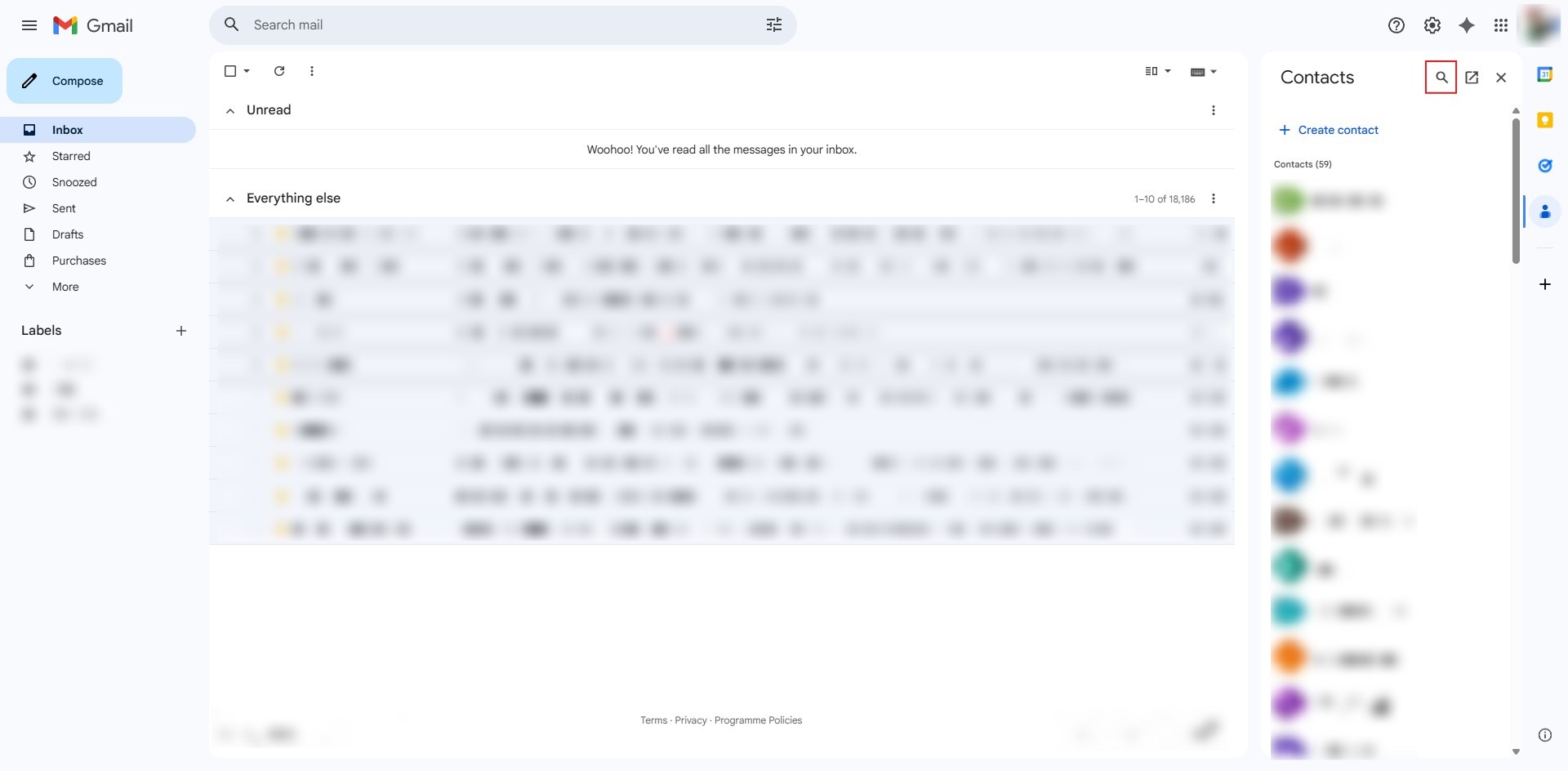
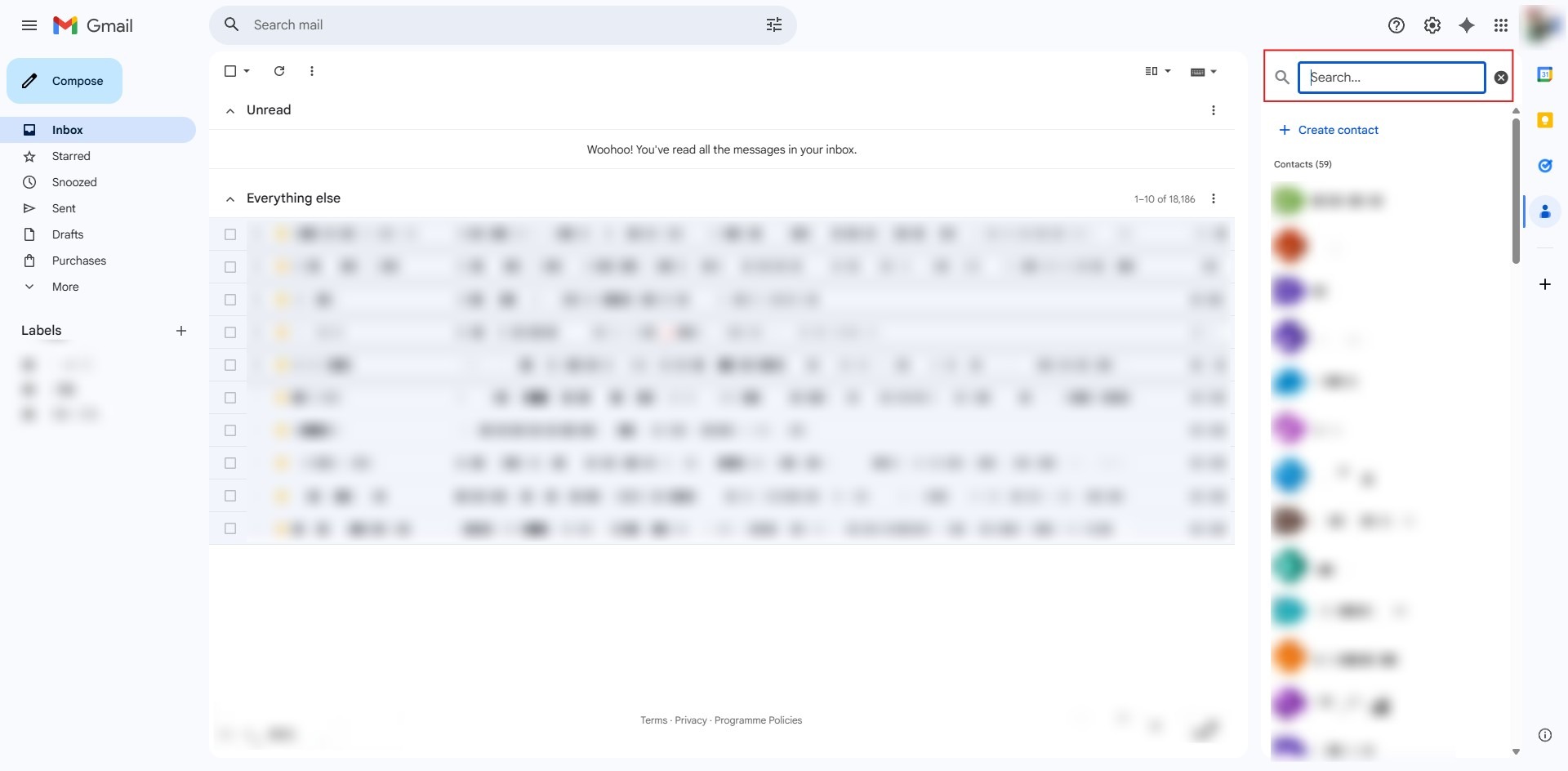
- Type the name or email address of the person you are looking for to display matching results.
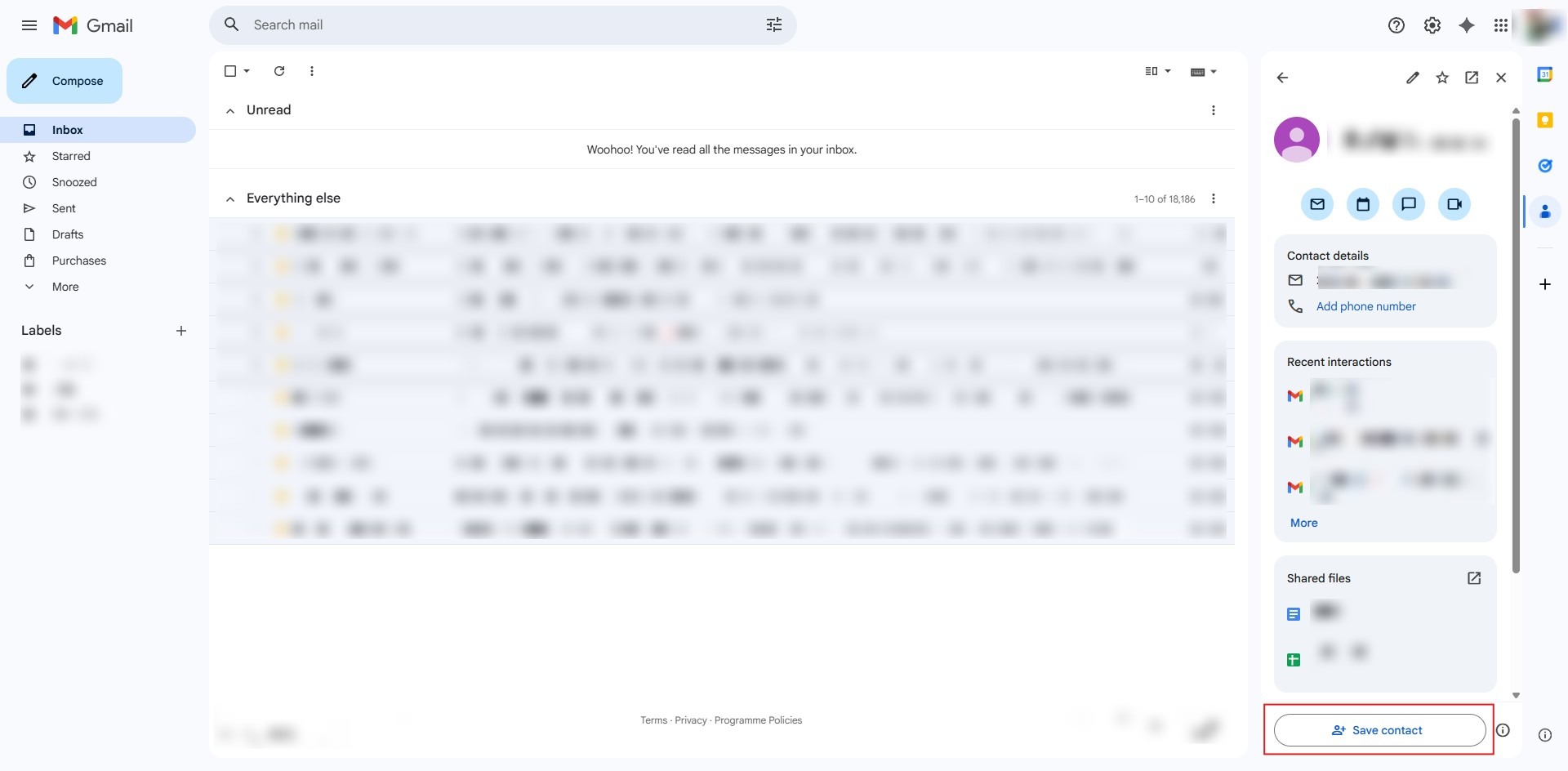
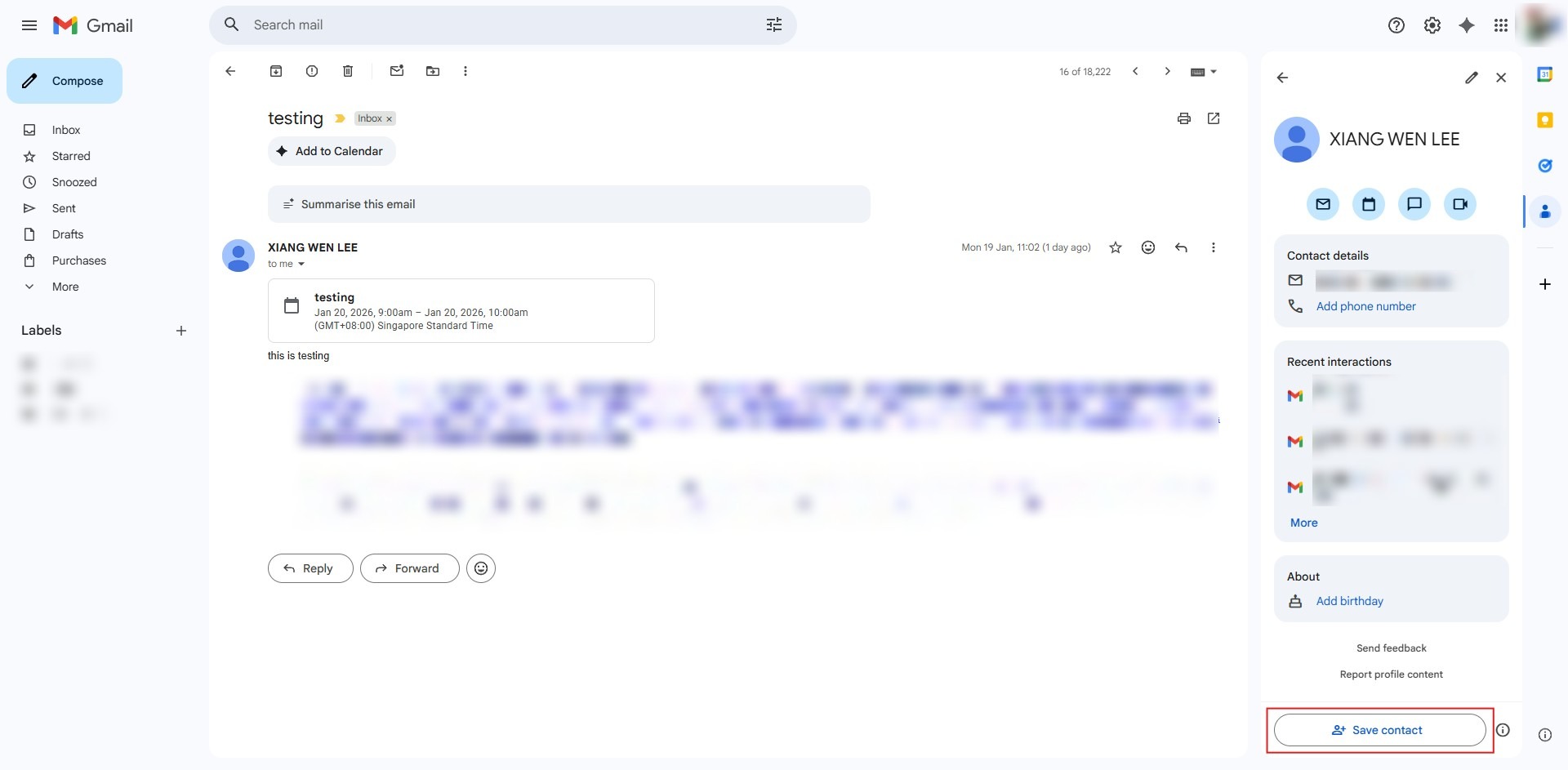
- Click on Save contact in the pop-up card.
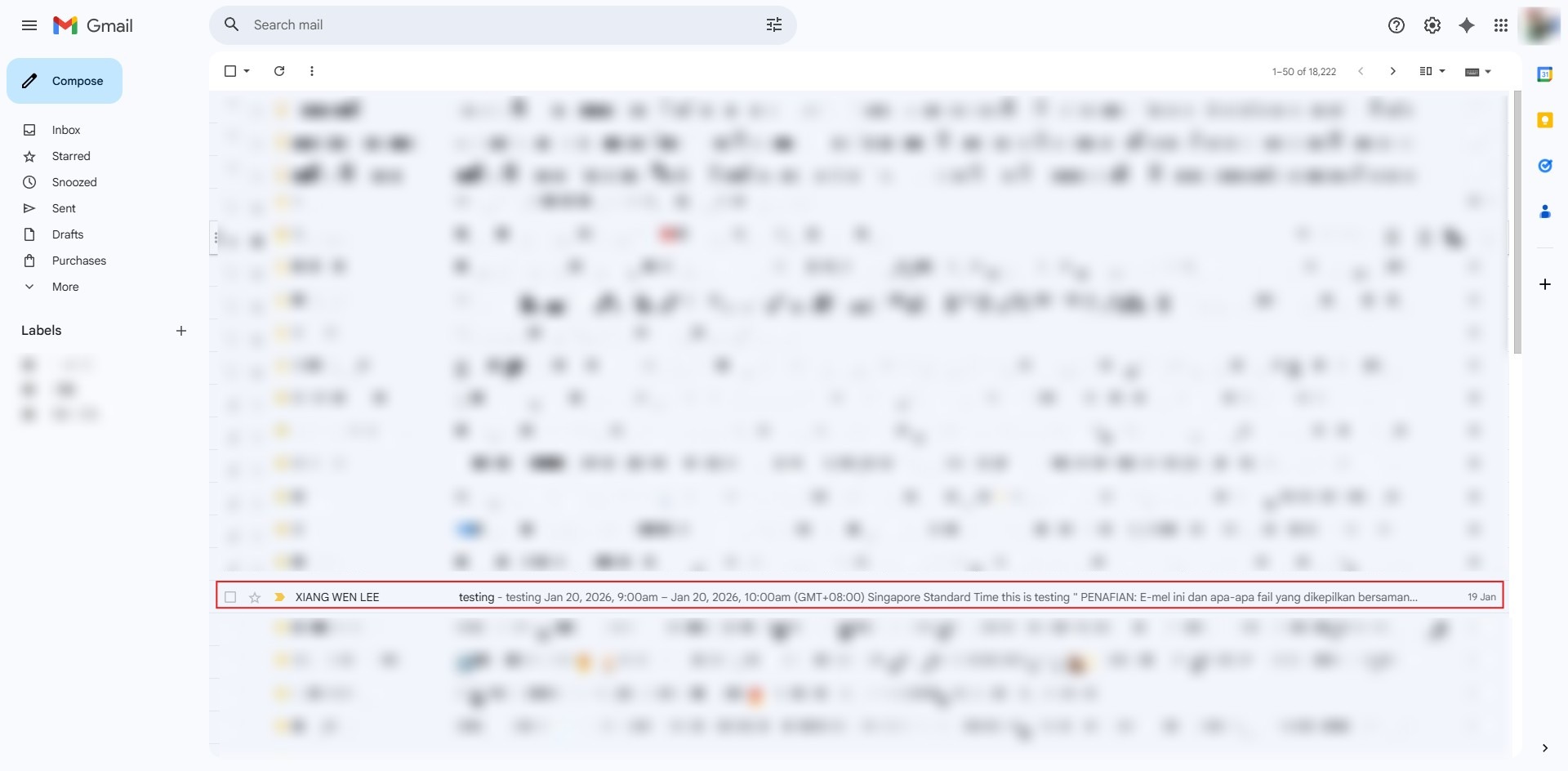
- Open an email received from the sender you want to save.
- Select on the specific person you intend to save from Contact in the vertical sidebar.
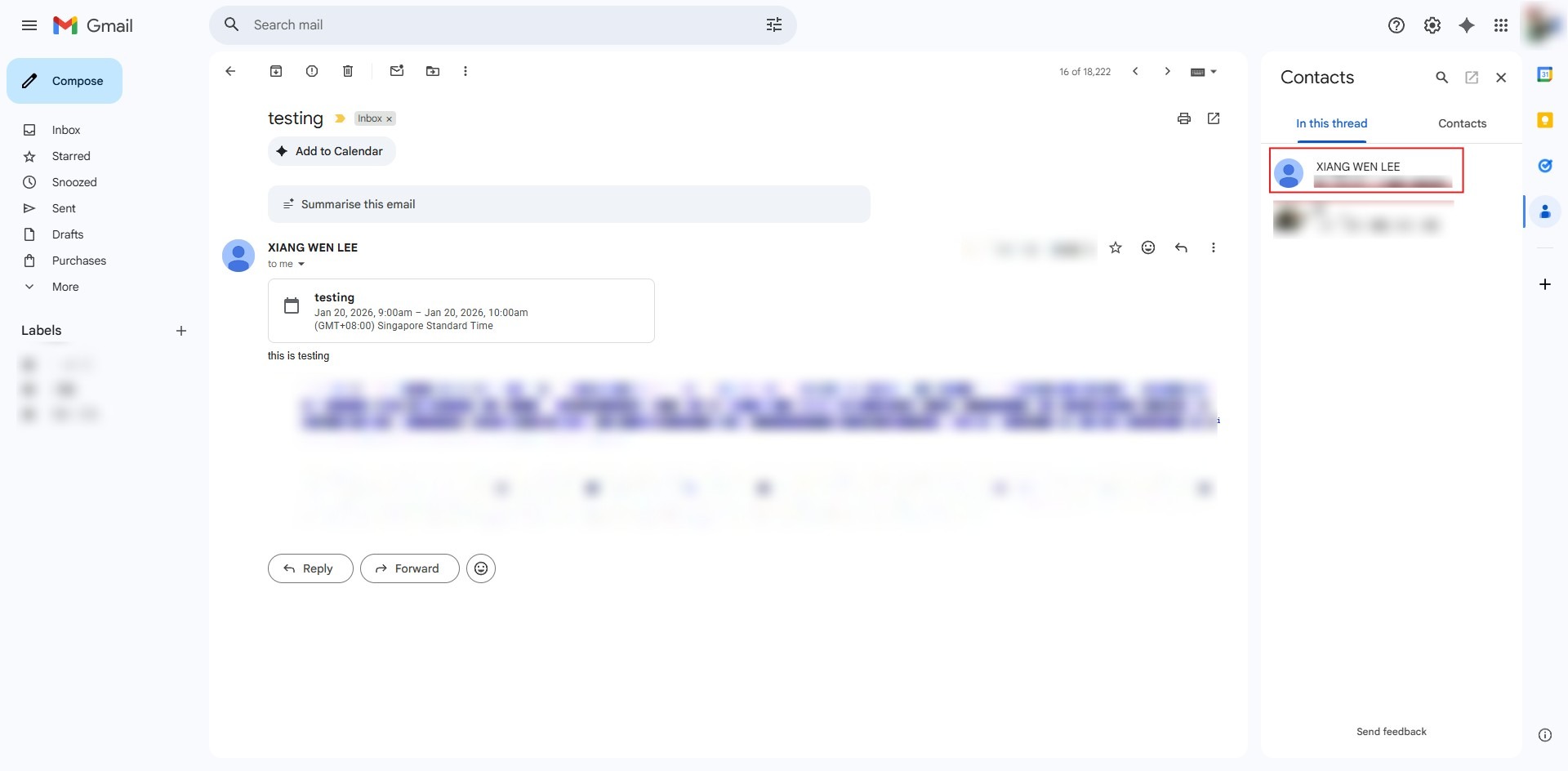
- Click on Save contact in the pop-up card.
Adding Contacts on Gmail Mobile App
You can add new contacts directly or save senders from email headers within the Gmail mobile app on iOS or Android.
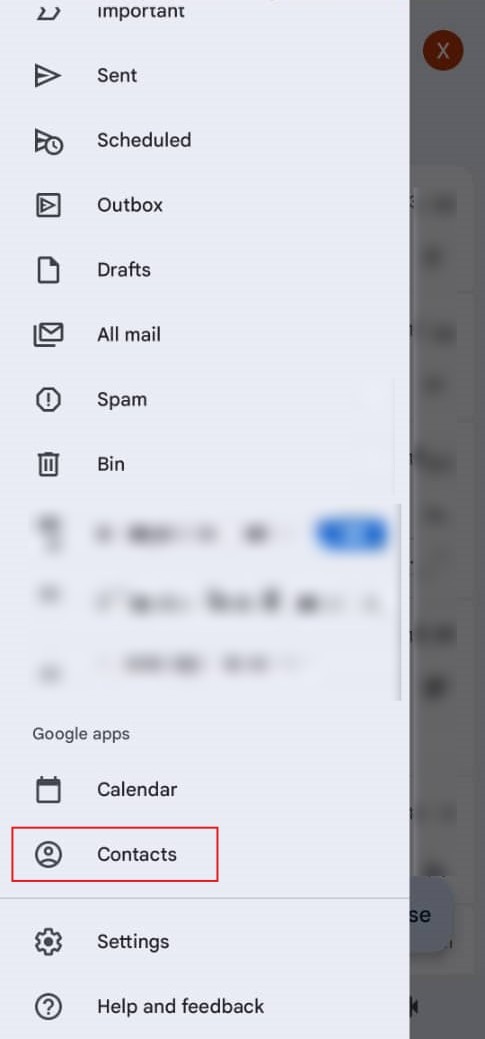
- Open your Google Contacts app via Gmail app.
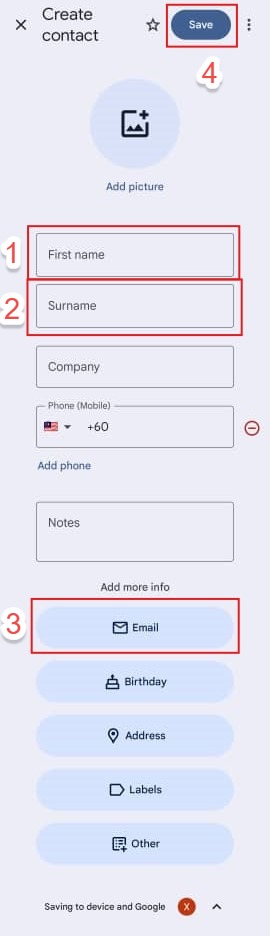
- Type in the name and email address details and tap Save.
- Open an email message from the sender you want to add.
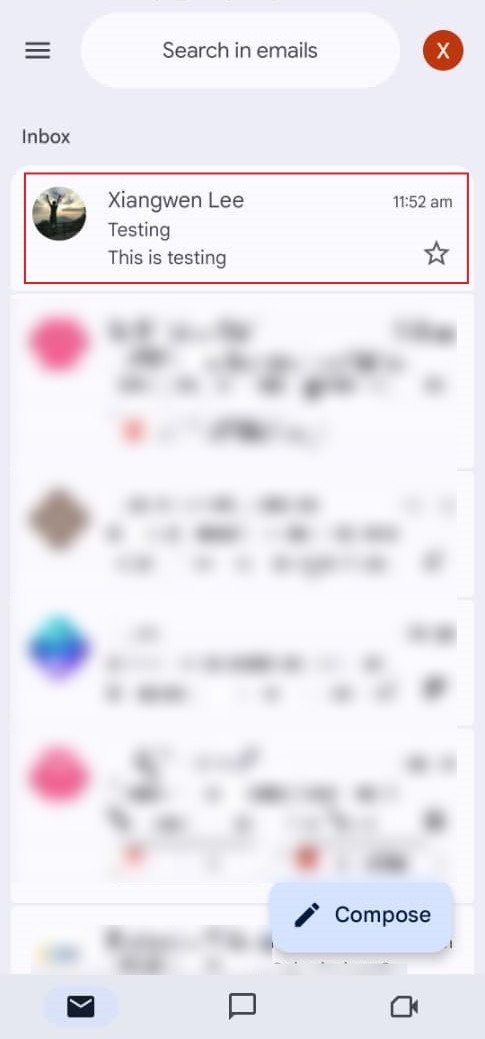
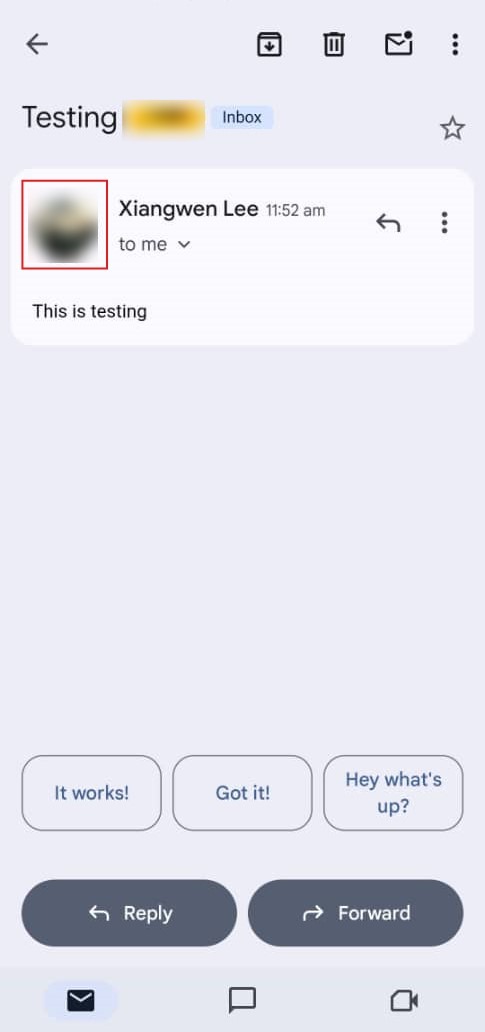
- Tap on the sender’s profile picture or avatar icon.
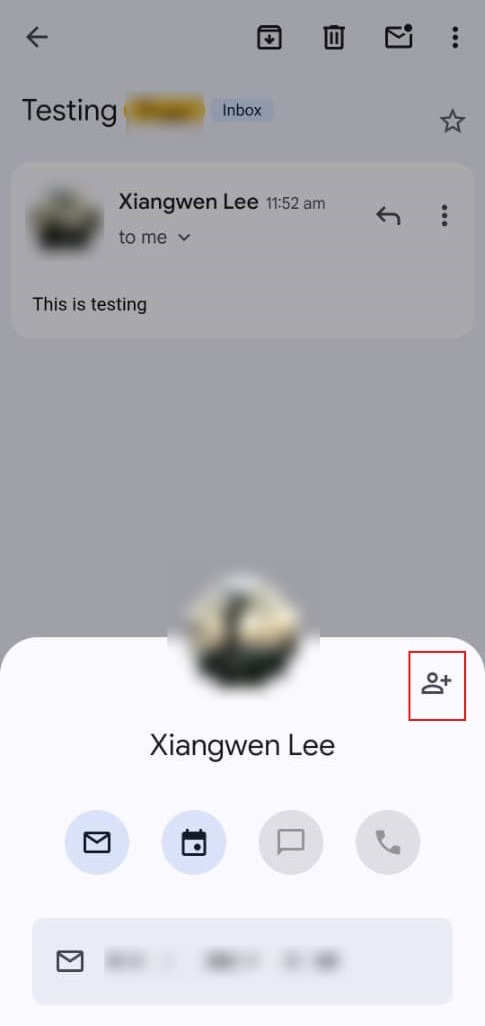
- Tap Add in the pop-up card.
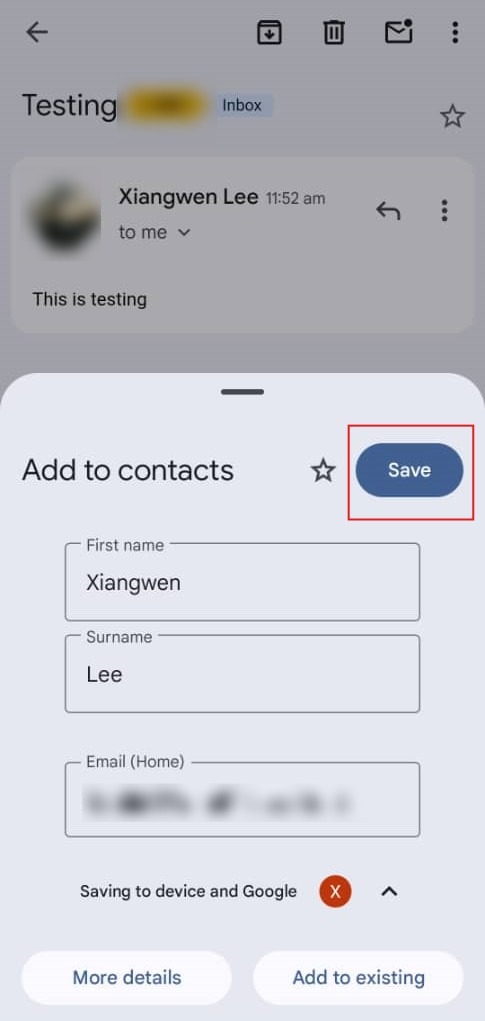
- Fill in any additional information if needed and tap Save.
Deleting Contacts on Gmail Web and Gmail App
Removing outdated contacts ensures your address book stays organized and prevents clutter.
- Open the Google Contacts app synced with your Gmail account.
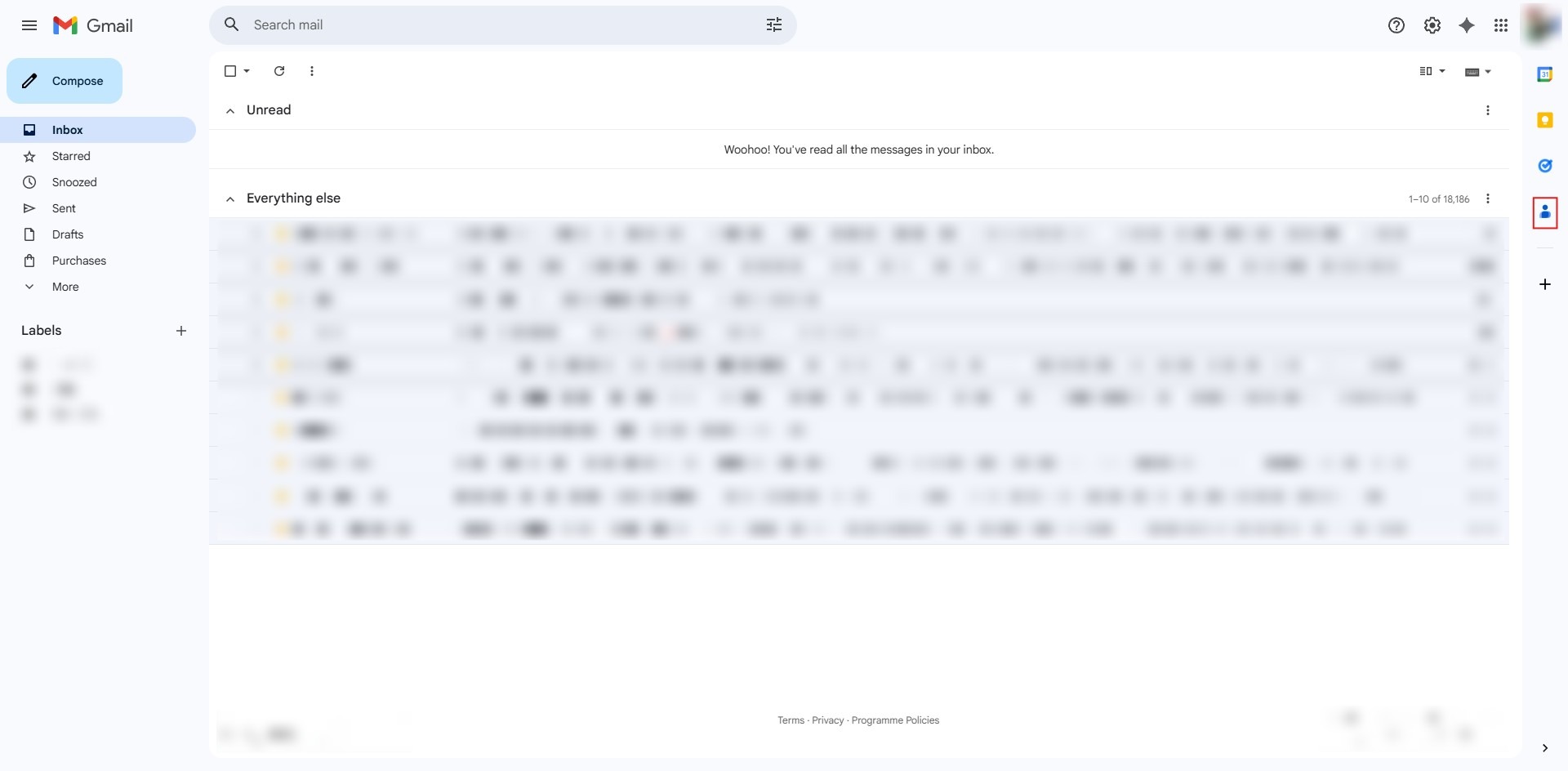
- Select the contact you want to remove.
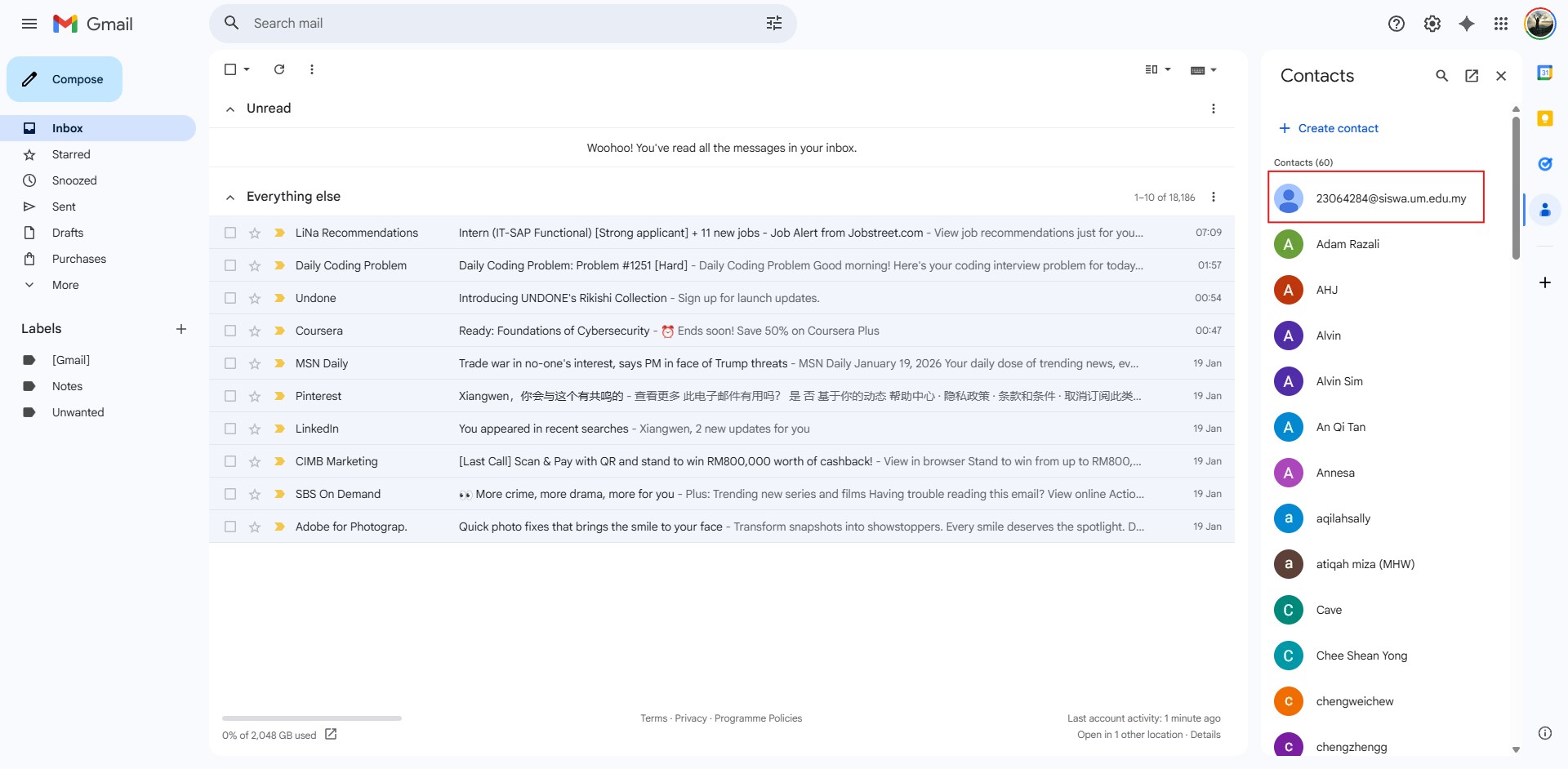
- Tap Delete and confirm removal.
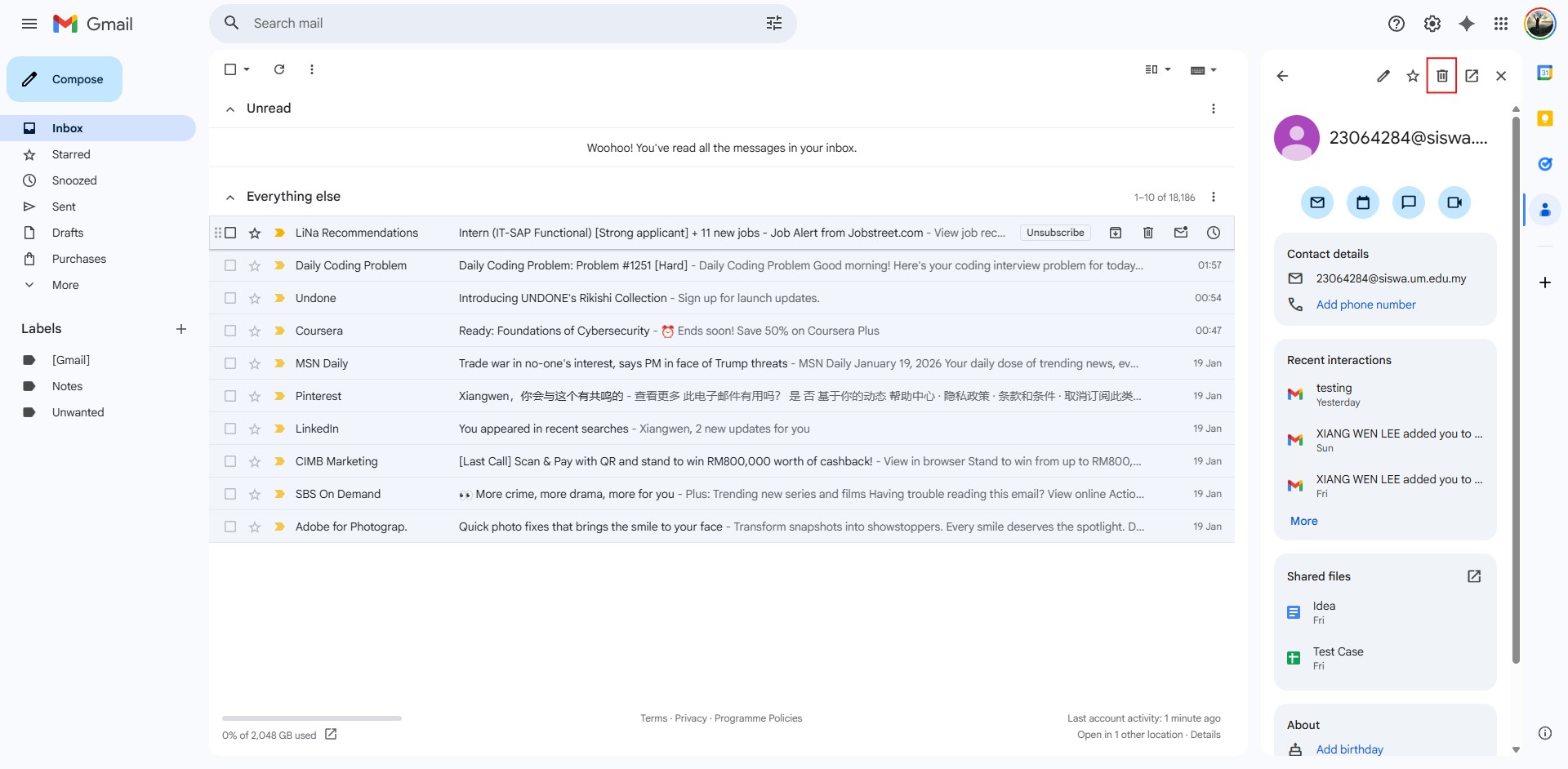
- Open your Google Contacts app via Gmail app.
- Select the contact you want to remove.
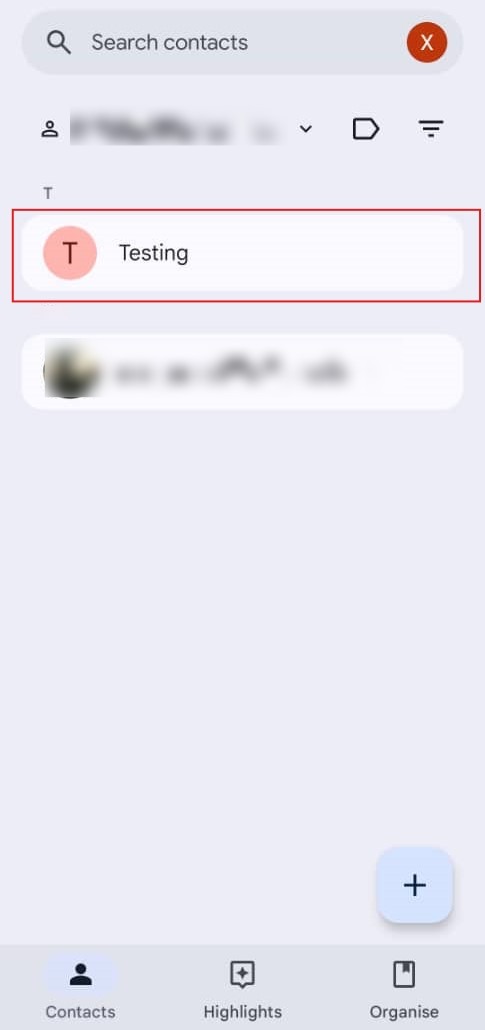
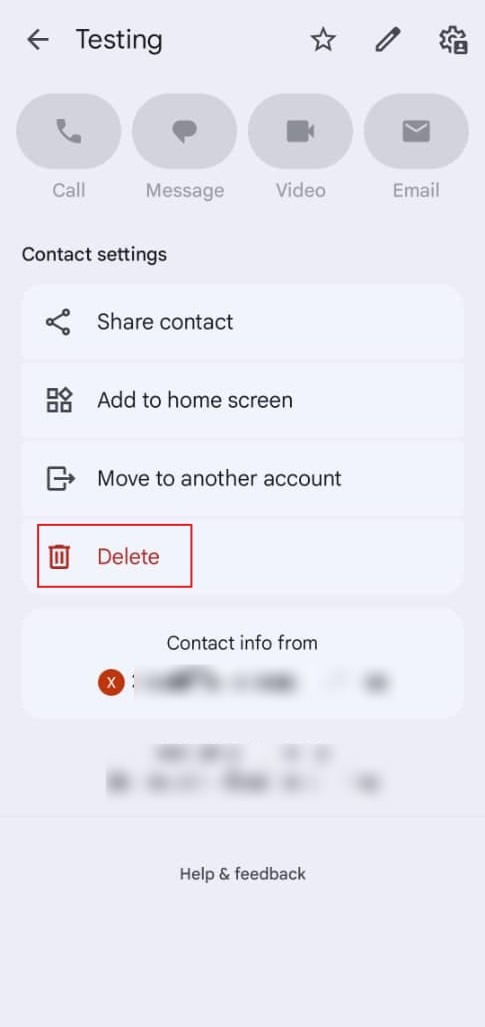
- Scroll to the very bottom till you seeing the Delete button. Tap Delete and confirm removal.
Conclusion
By following this guidance, you can effortlessly manage, search, and delete your contact entries across both web and mobile environments in Gmail.
For additional assistance or if you encounter any issues, please contact our support team at support@ipserverone.com.
Article updated on 13 August 2026 by Johnny