
Search Our Database
Managing data transfer usage alarm and instance assignment in Customer Portal
Introduction
Managing data transfer usage alarms and instance assignments in the IPServerOne Customer Portal allows cloud administrators to monitor network bandwidth consumption proactively and assign alarms to specific cloud instances. By accessing the NovaCloud Monitoring section, users can set up customized alarm thresholds, update alarm parameters, and link instance resources whenever needed to maintain optimal performance and control cloud hosting costs. This guide walks you through the step-by-step process of creating, modifying, and assigning bandwidth usage alarms to keep your cloud environment organized, secure, and running efficiently without unexpected usage spikes.
Prerequisite
- Access to IPServerOne Customer Portal
- Access to IPServerOne Customer Portal with active Cloud Instance service
- Basic knowledge of IPServerOne Customer Portal navigation
Step-by-step guide
Step 1: Access to monitoring managing site
- Login into our [Customer Portal]
- If you wish to assist to manage the instance’s bandwidth usage alarm that is not under your user account, you may ask instance’s owner to grant you the necessary role by [Delegate access in portal: Assigning roles and notifications to secondary users]
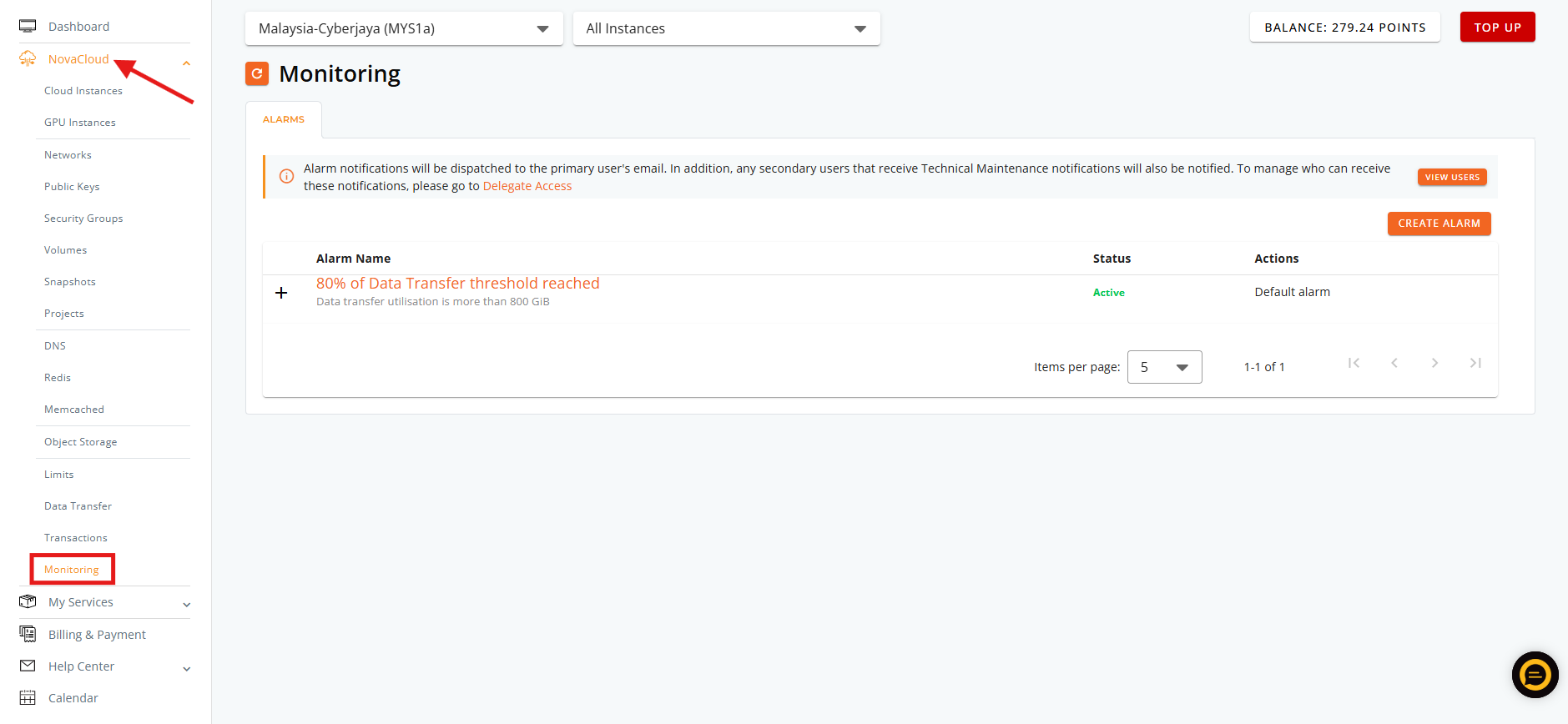
- Navigate to monitoring managing site by click the Monitoring on the left side menu.
Step 2: Managing data transfer usage alarm
- There are 2 ways to create new alarm in Customer Portal, which create within the monitoring managing site and instance managing site.
- For instance managing site, the guidance will be share in the next step, Step 3: Data transfer alarm instance assignment.
- Click the ADD ALARM button
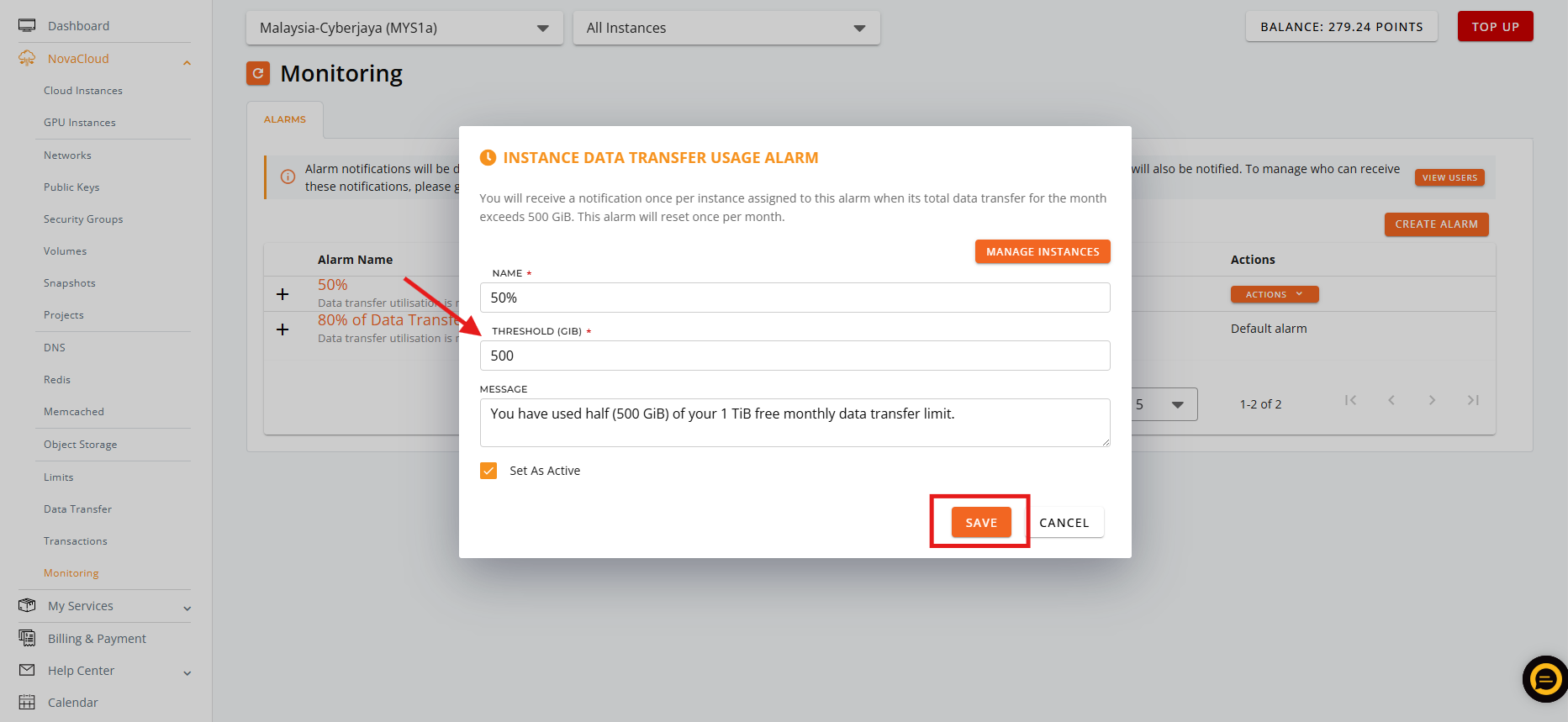
- Specify the required details including the Alarm Name, Threshold limit, and notification Message.
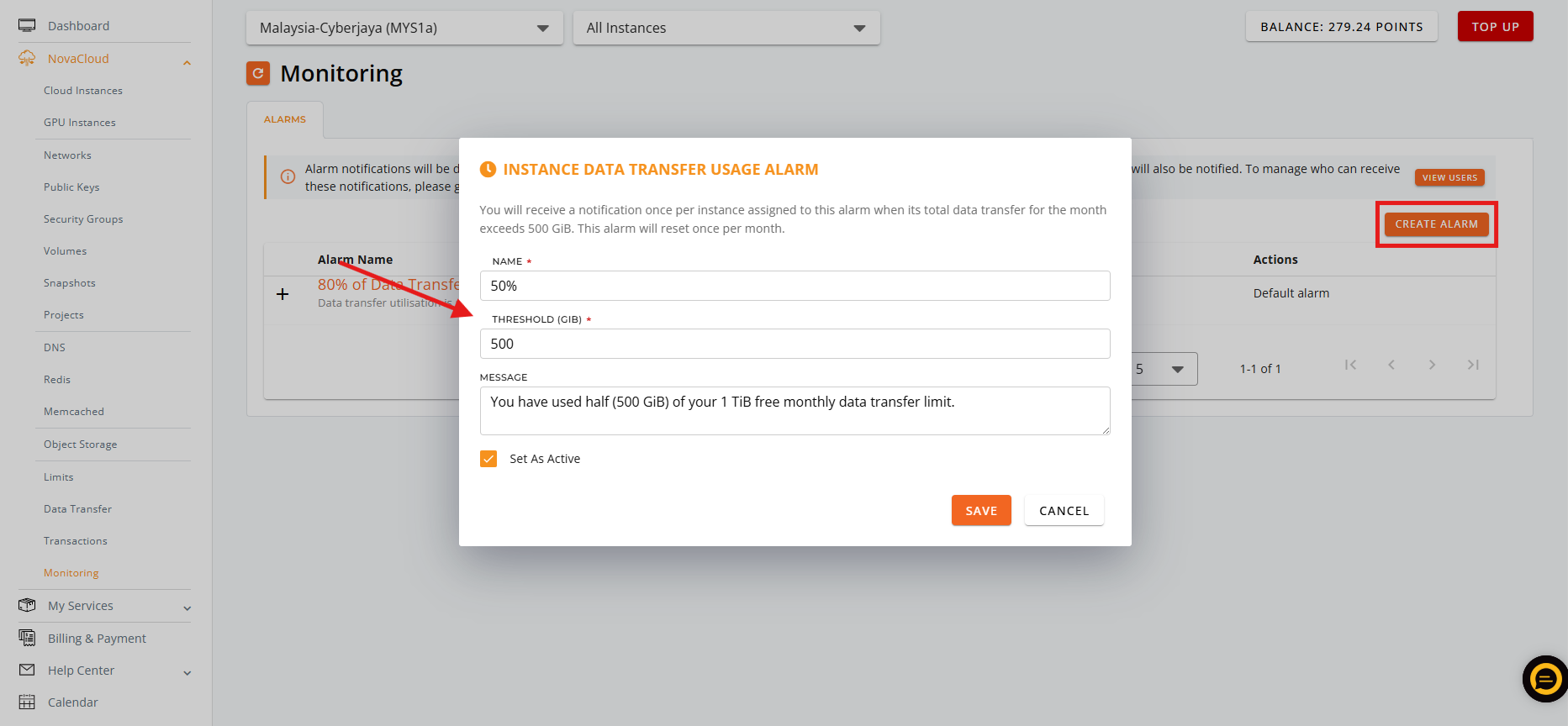
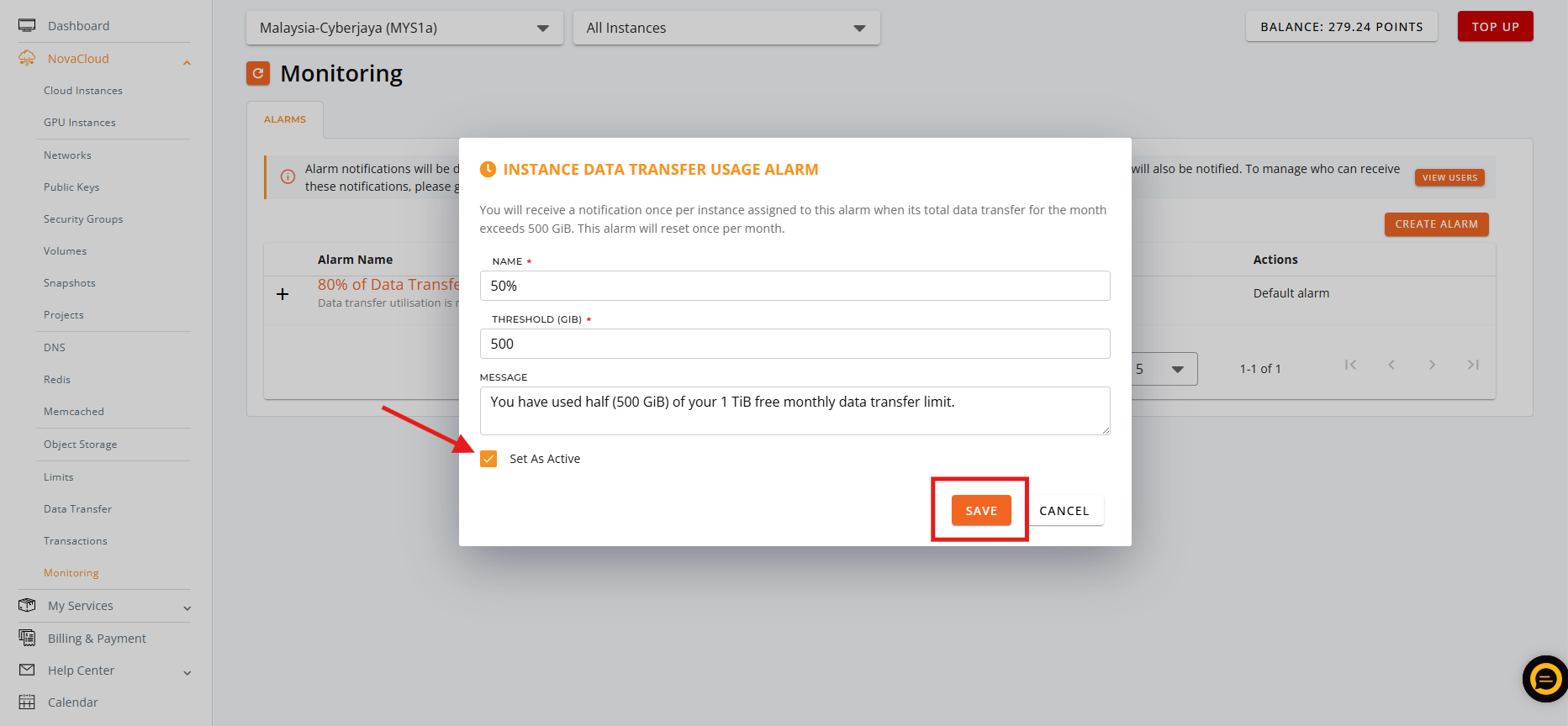
- Click Set As Active and SAVE to create the alarm.
- Locate the alarm you want to update, click ACTIONS, and select Edit.
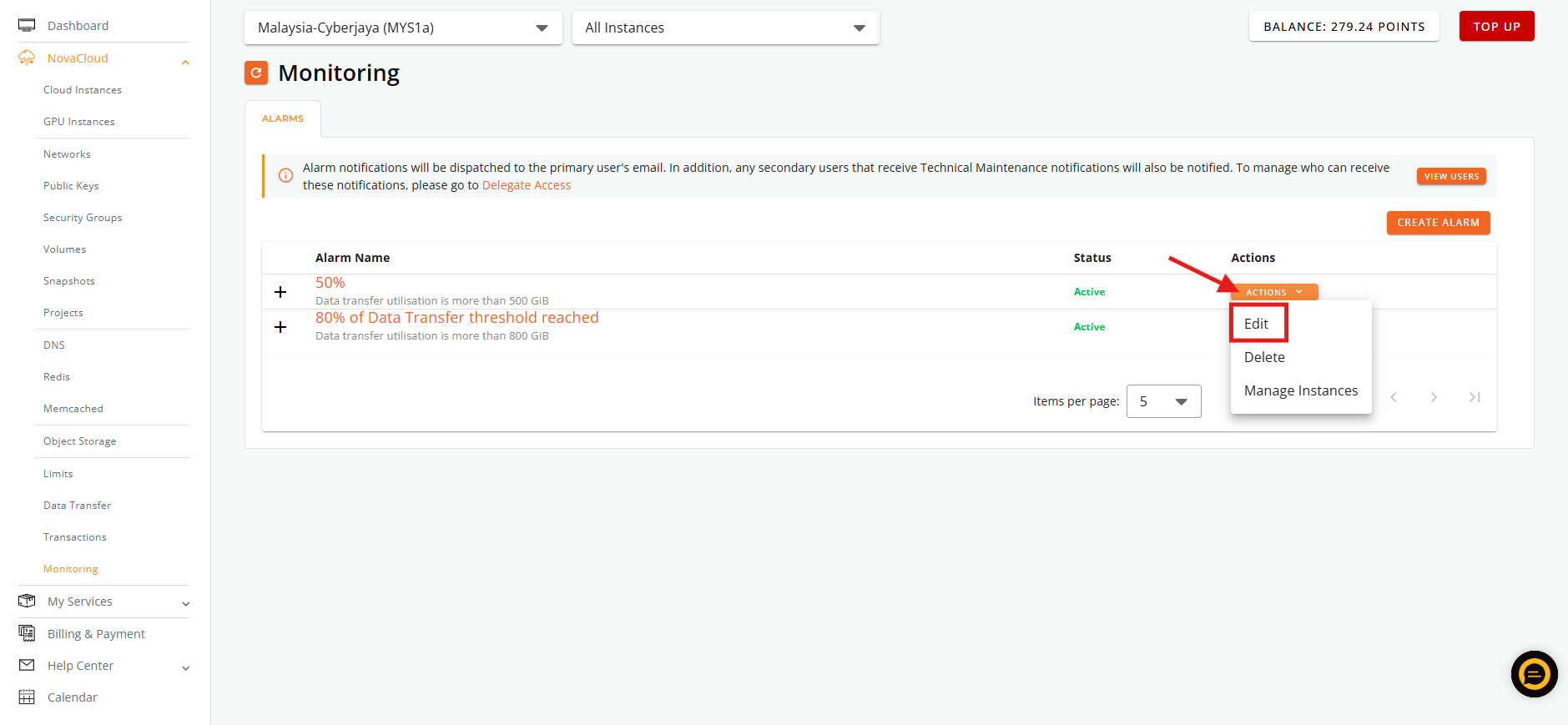
- Update the Alarm Name, Threshold value, or notification Message as needed and click SAVE to save.
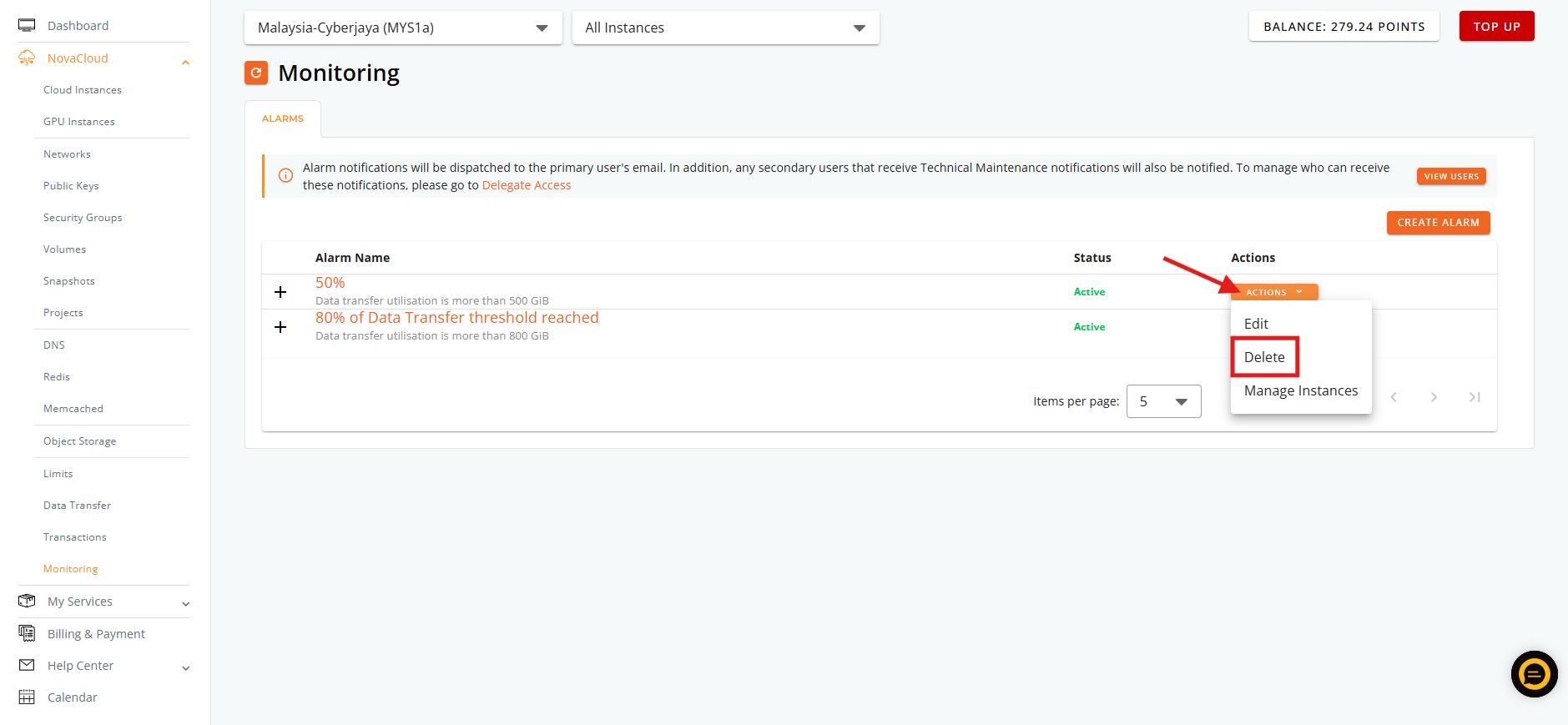
- Locate the alarm you want to delete, click ACTIONS, and select Delete.
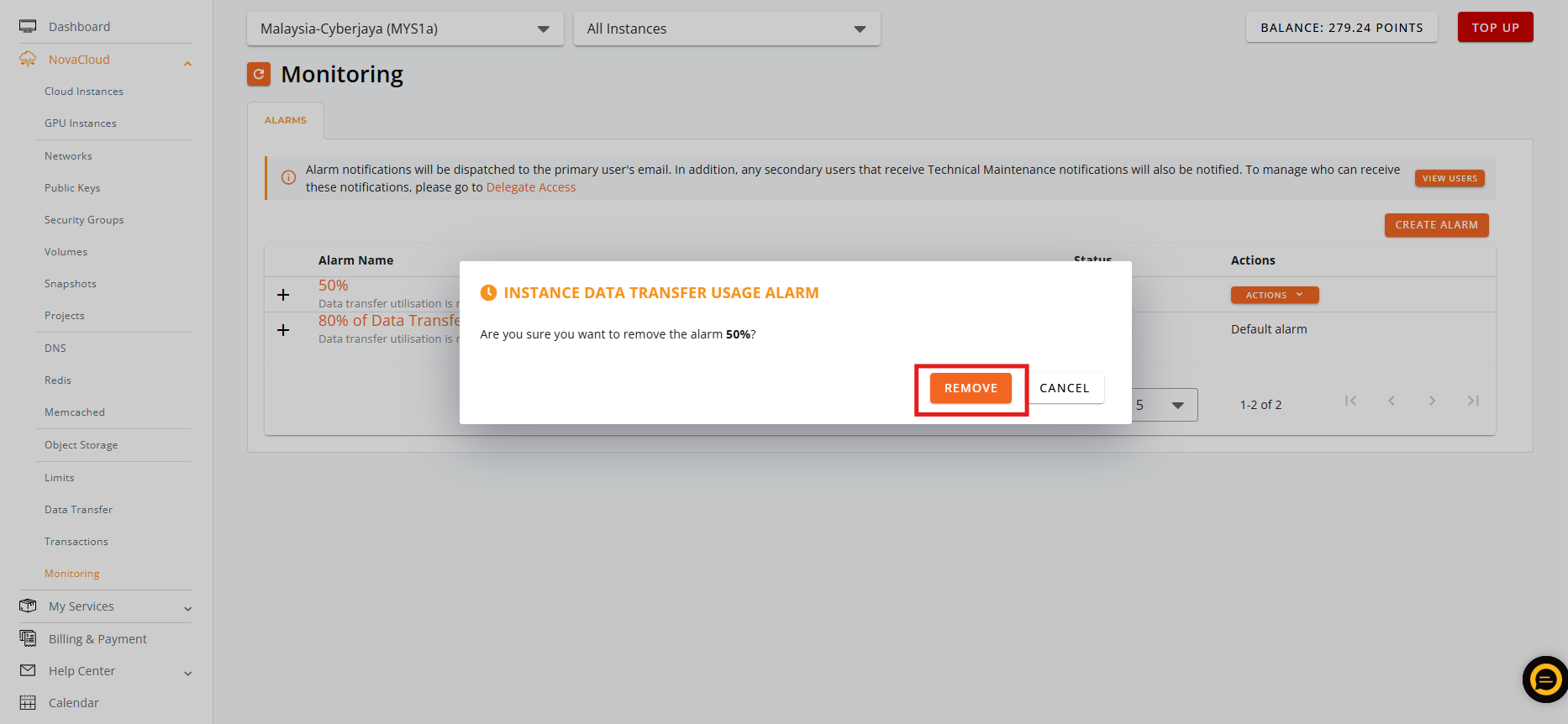
- Click REMOVE to permanently remove the bandwidth alarm.
Step 3: Data transfer usage alarm instance assignment
- There are 2 ways to assign the data transfer usage alarm to instances in Customer Portal, in monitoring managing site and instance managing site.
- Using monitoring managing site allow you to perform the actions in the fastest way. While instance managing site allow you to wider view of the instance list before performing any actions.
- Once you have created a new data transfer usage alarm, a window will show up and provide the option ADD or SKIP.
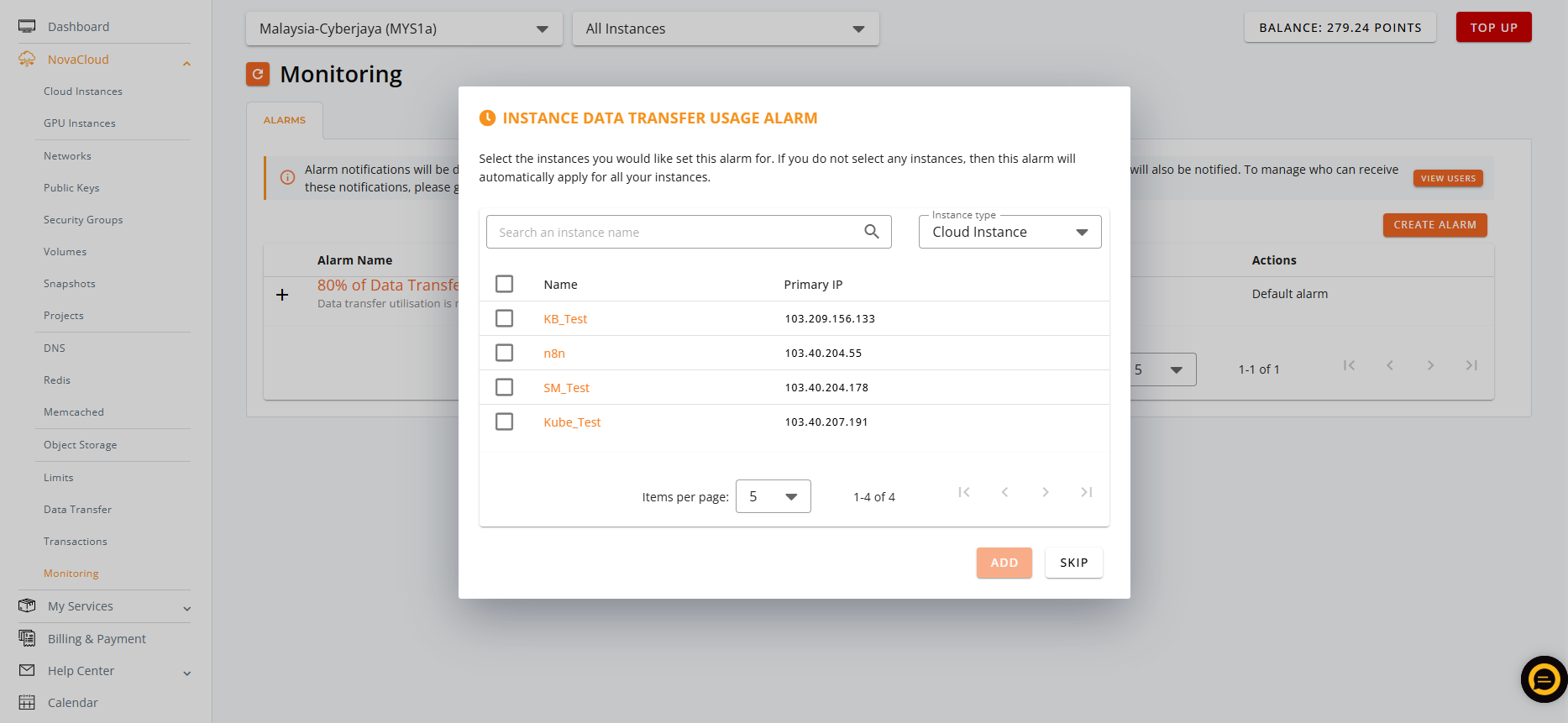
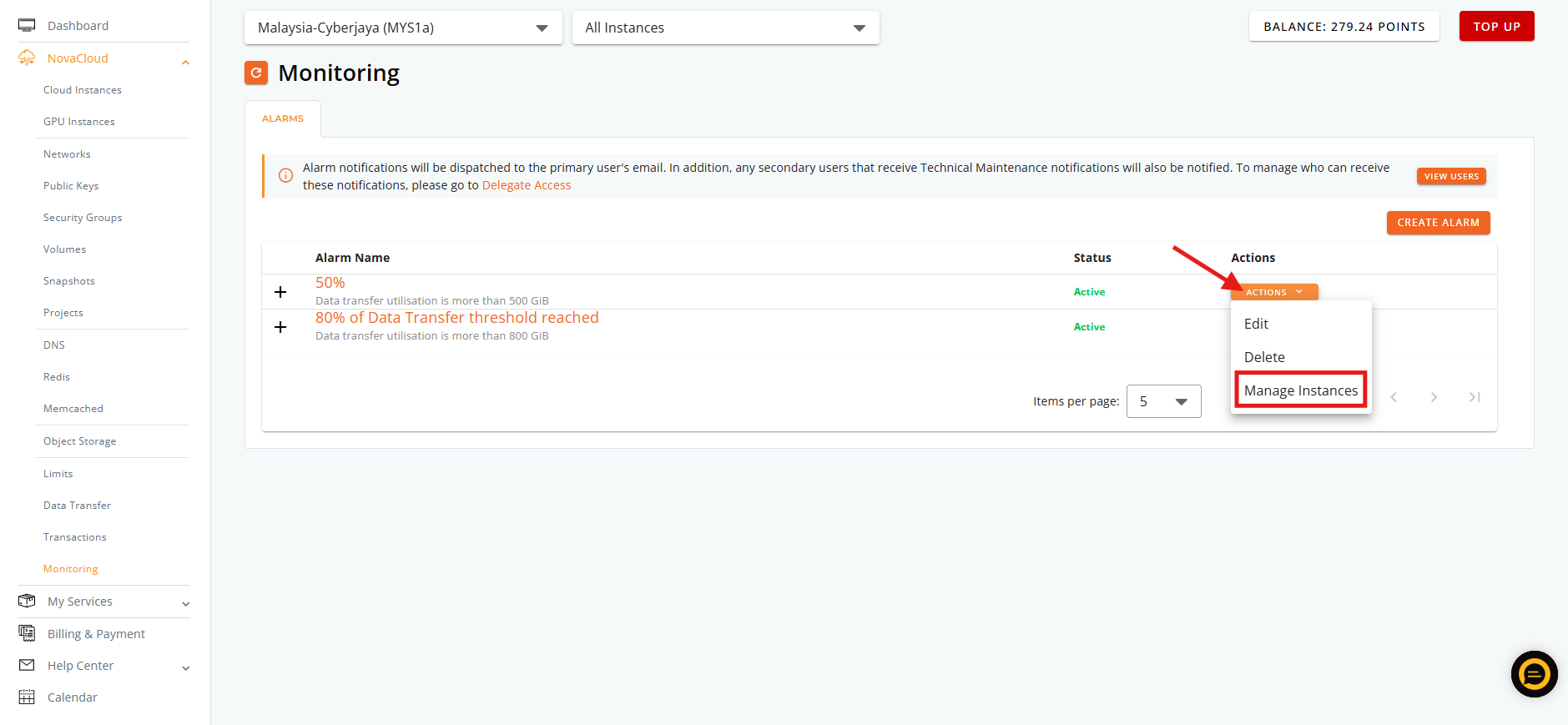
- If you have missed the window or the data transfer usage alarm was not created recently, you may click on the ACTIONS then Manage Instances to start adding the instances to the alarm.
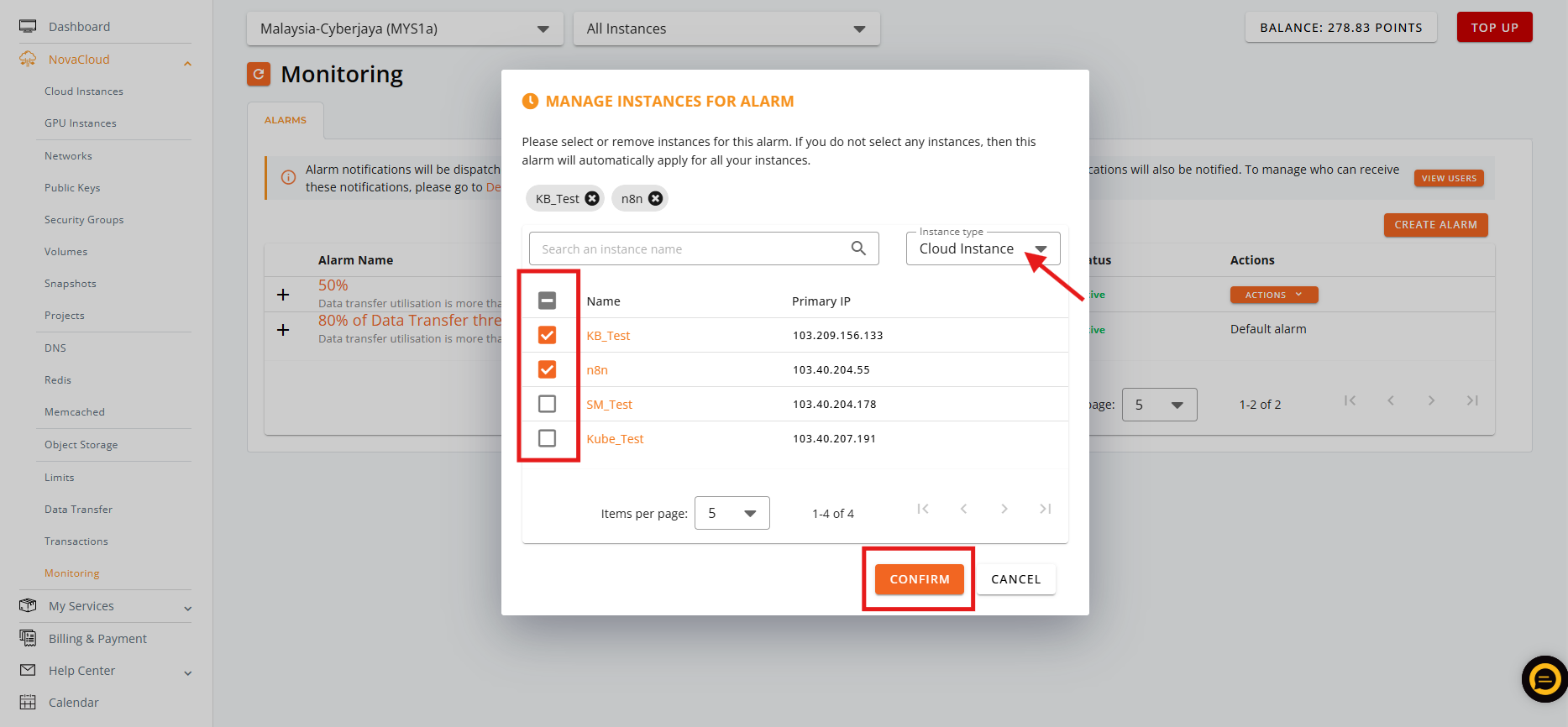
- Make sure you have selected the Instance type (Cloud Instance or GPU Instance). Tick on the instance you wish to assign then CONFIRM to apply.
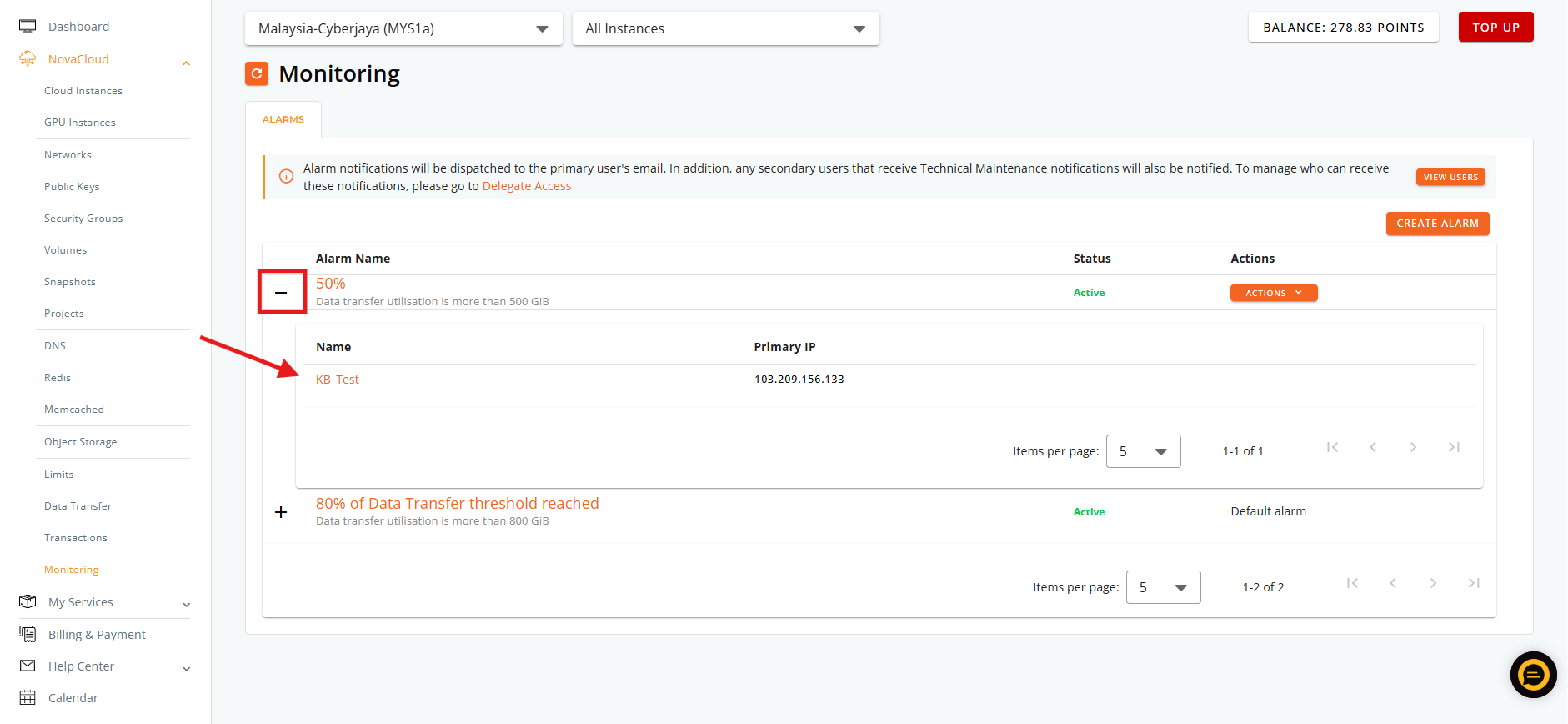
- In this screen, you will be seeing the assigned instances listed.
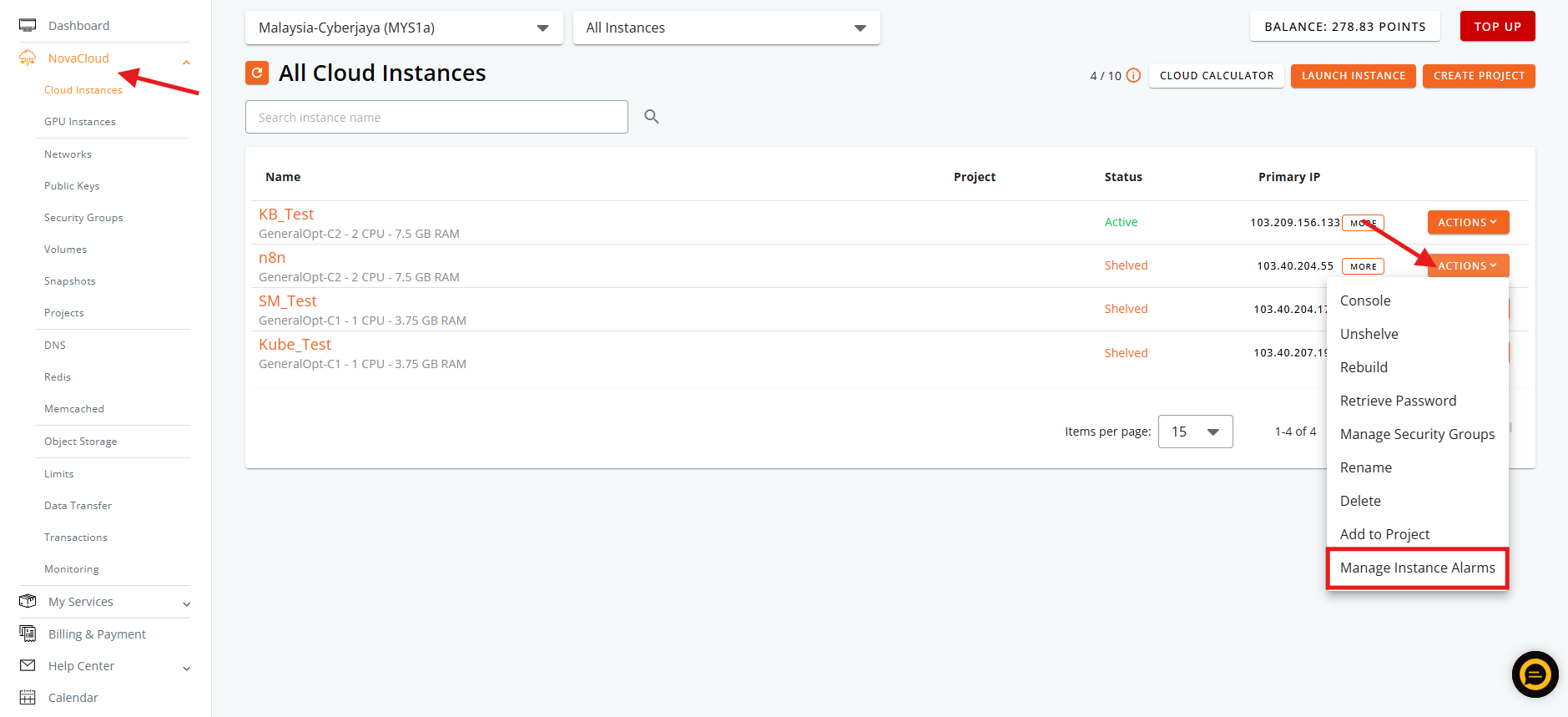
- Navigate Cloud Instance and click on ACTIONS drop-down then select Manage Instance Alarms.
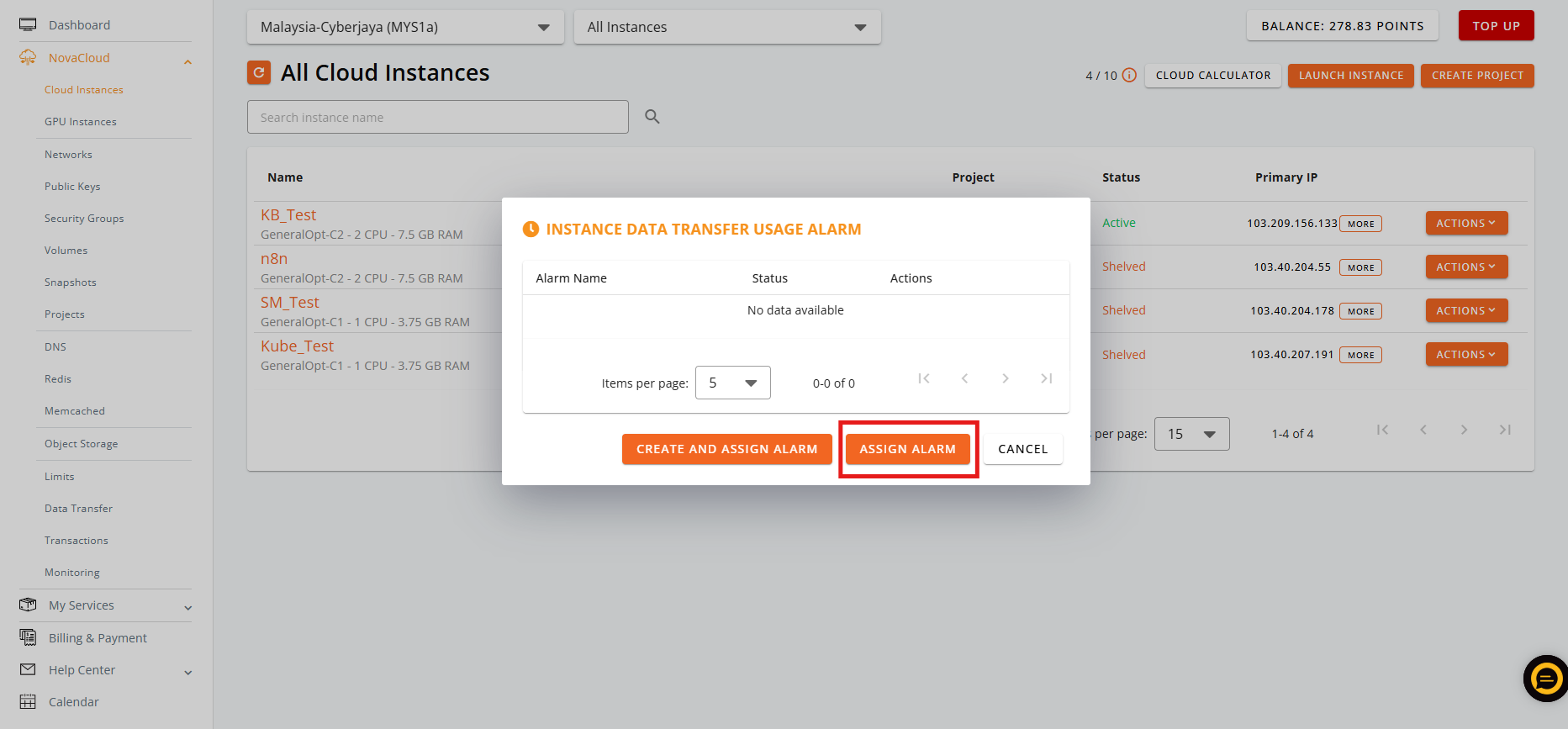
- Select the ASSIGN ALARM.
Tips 🖊️: You can use CREATE AND ASSIGN ALARM to create new alarm on the spot and add to it after creation
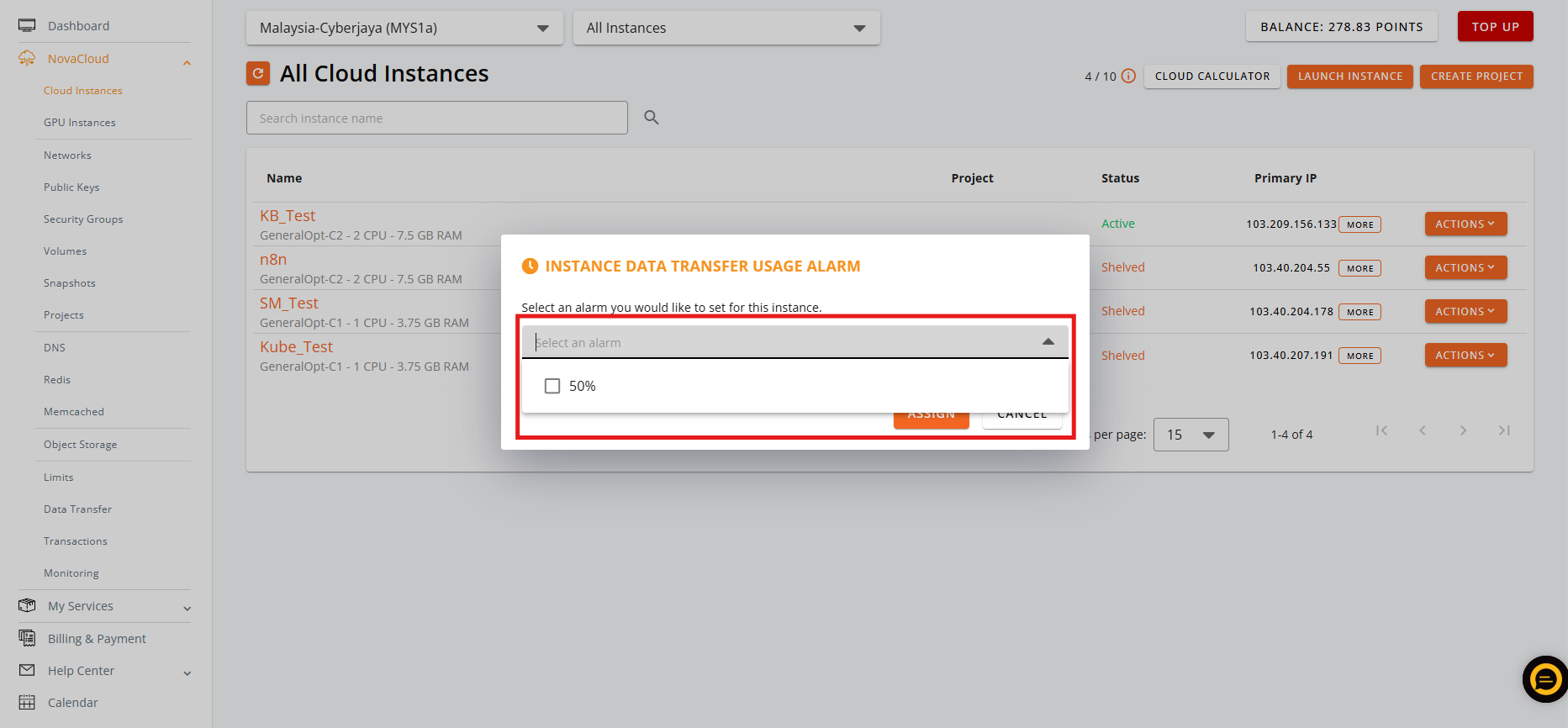
- Select the Alarm from the drop-down then click ASSIGN button to apply.
- To remove the data transfer usage alarm from the instances in monitoring managing site and instance managing site.
- In monitoring managing site, click on the ACTIONS then Manage Instances.
- Make sure you have selected the Instance type (Cloud Instance or GPU Instance). Untick on the instance you wish to assign then CONFIRM to remove the instance for the alarm.
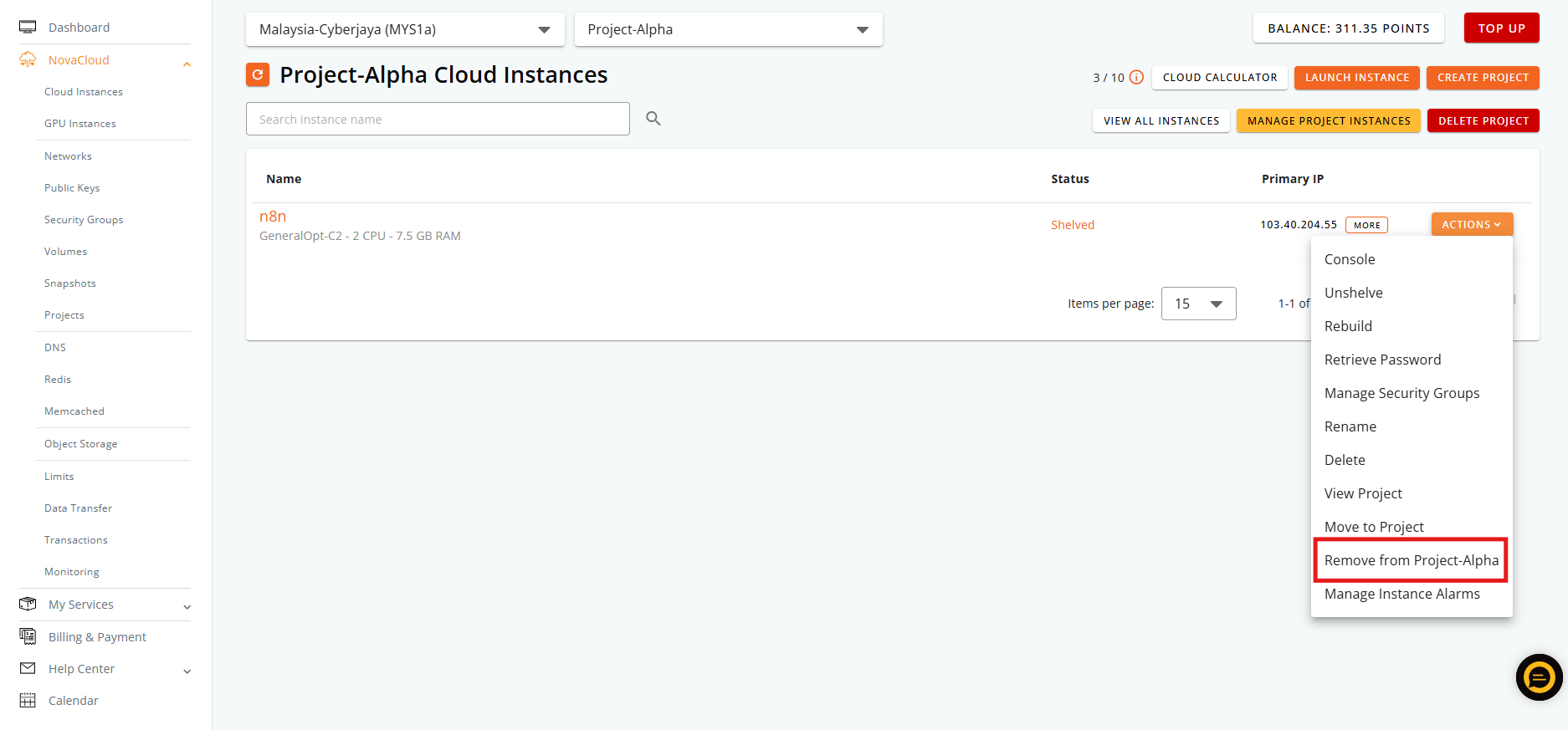
- In instance managing site, click on ACTIONS drop-down then select Manage Instance Alarms.
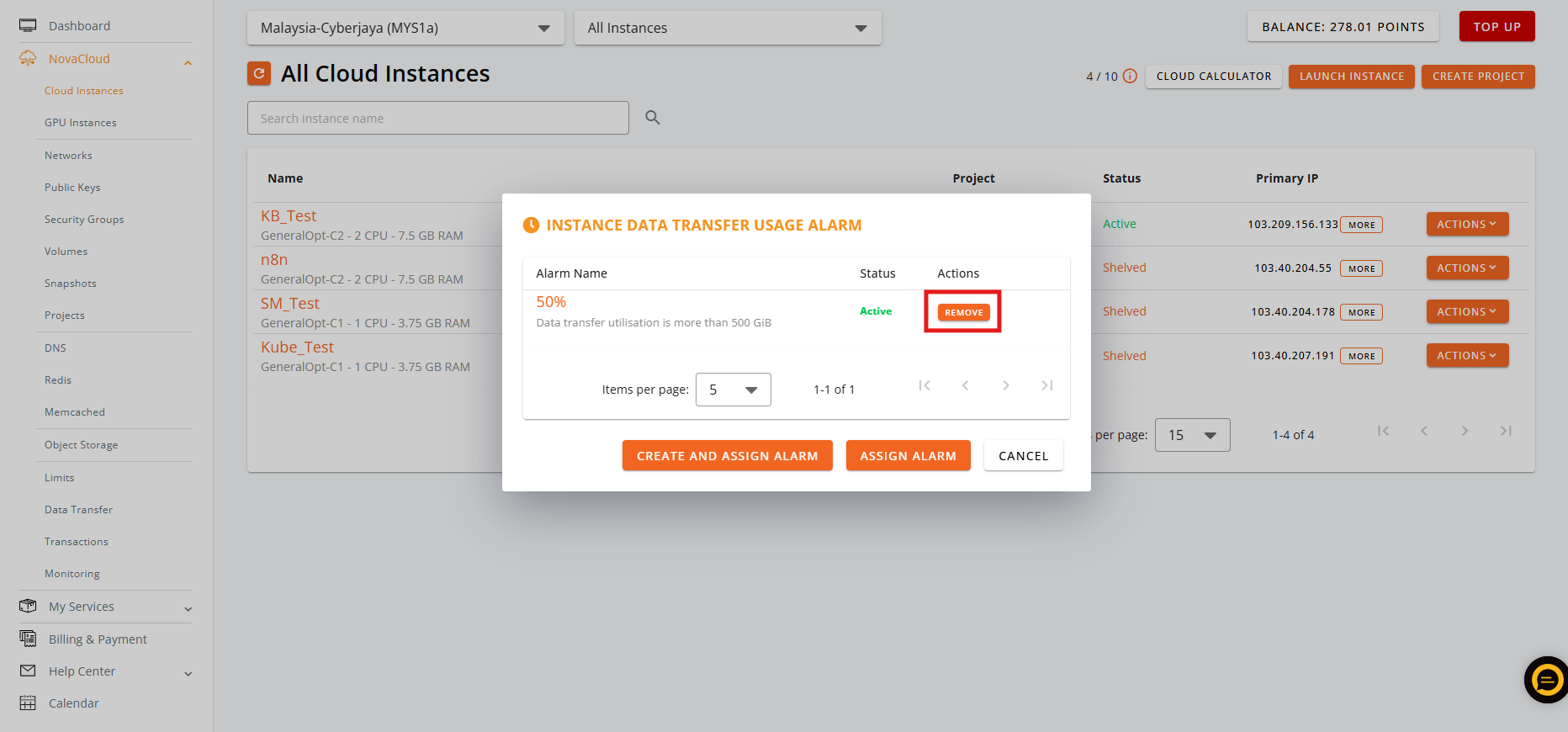
- Click on REMOVE to remove the alarm for the instance.
Conclusion
By following this guidance, you can successfully set up, assign, and manage data transfer usage alarms for your cloud instances within the IPServerOne Customer Portal, ensuring continuous bandwidth monitoring and cost management.
For additional assistance or if you encounter any issues, please contact our support team at support@ipserverone.com.
Article updated on 31 July 2026 by Johnny