
Search Our Database
How to Configure WAN and LAN Firewall Rules in pfSense
Introduction
Network administrators and system engineers often need to manage traffic policies on firewall interfaces to protect network infrastructure while allowing authorized services to communicate seamlessly. Configuring WAN and LAN firewall rules in pfSense enables administrators to control inbound connections from the public internet and regulate outbound or internal traffic from the local network. This setup ensures that critical services remain accessible to trusted hosts while blocking unauthorized access attempts. By establishing proper rule parameters on both interfaces, you maintain robust network security and optimized operational connectivity.
Prerequisite
- Access to pfSense web management console
- Access to pfSense with admin privileges
- Basic knowledge of networking concepts and firewall rules
Step-by-step guide
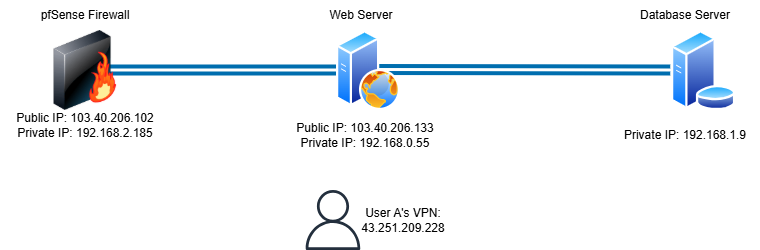
The diagram below illustrates the example IP addresses and entities used throughout this guide.
- This section guides you through creating firewall rules specifically for the WAN interface to manage inbound traffic from external networks.
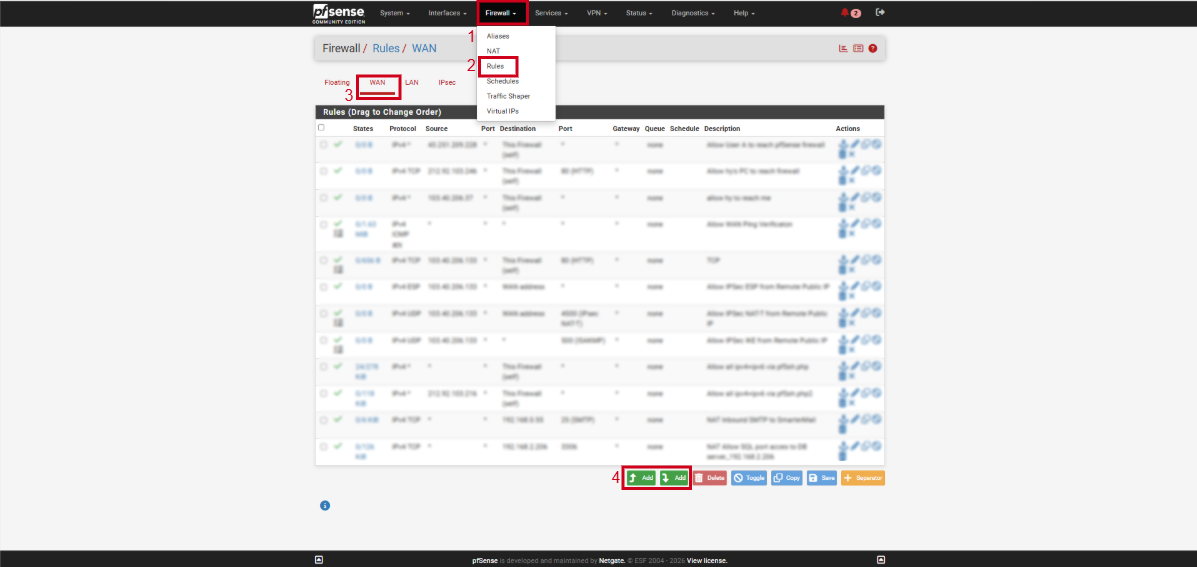
- Log in to your pfSense web management console.
- Navigate to Firewall menu and click Rules.
- Select the WAN tab.
- Click the green Add button to create a new rule.
-
- Set the Action (Pass or Block), Interface (WAN), Protocol, Source, and Destination details.
- Enter a descriptive name in the Description field.
- Click Save and then click Apply Changes to activate the rule.
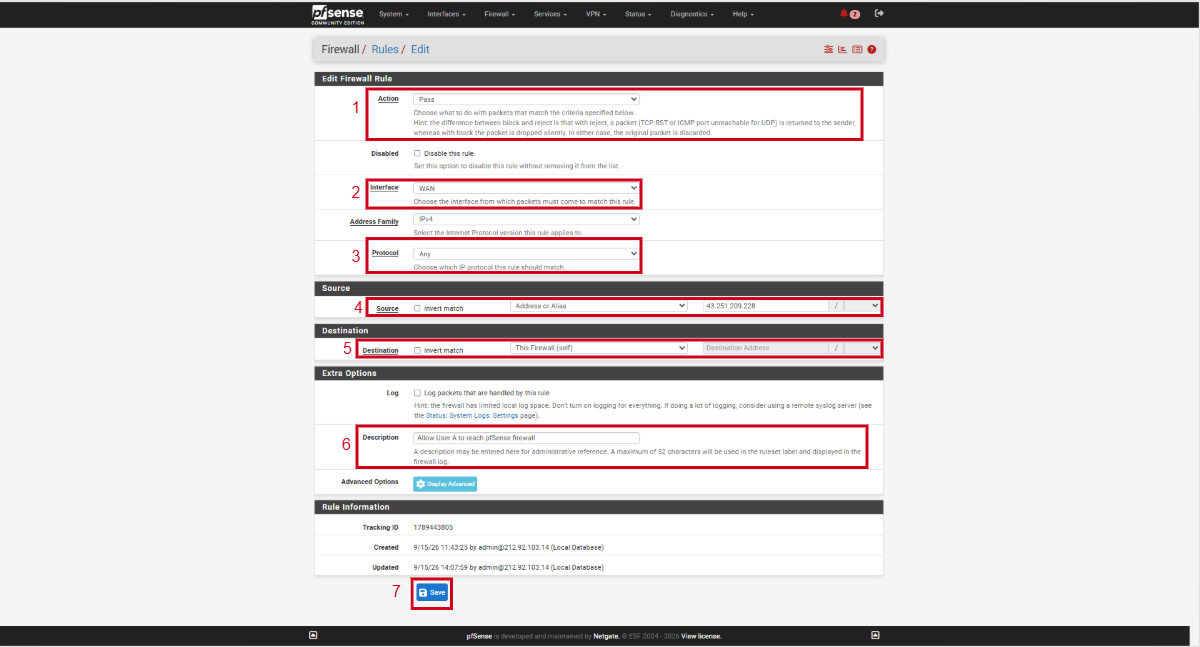
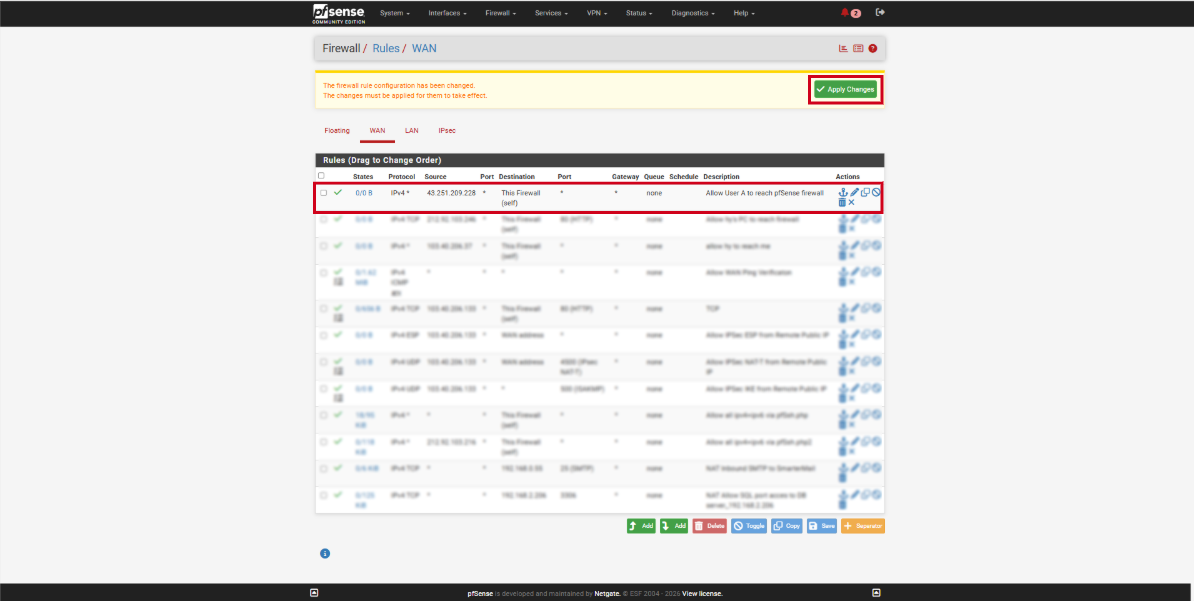
- In this configuration, the WAN rule grants traffic from User A’s VPN IP address (43.251.209.228) to the pfSense firewall (103.40.206.102).
- To verify connectivity, User A can run the following command in their terminal:
telnet 103.40.206.102 80
- This section guides you through setting up firewall rules on the LAN interface to regulate internal network traffic and outbound requests.
- Log in to your pfSense web management console.
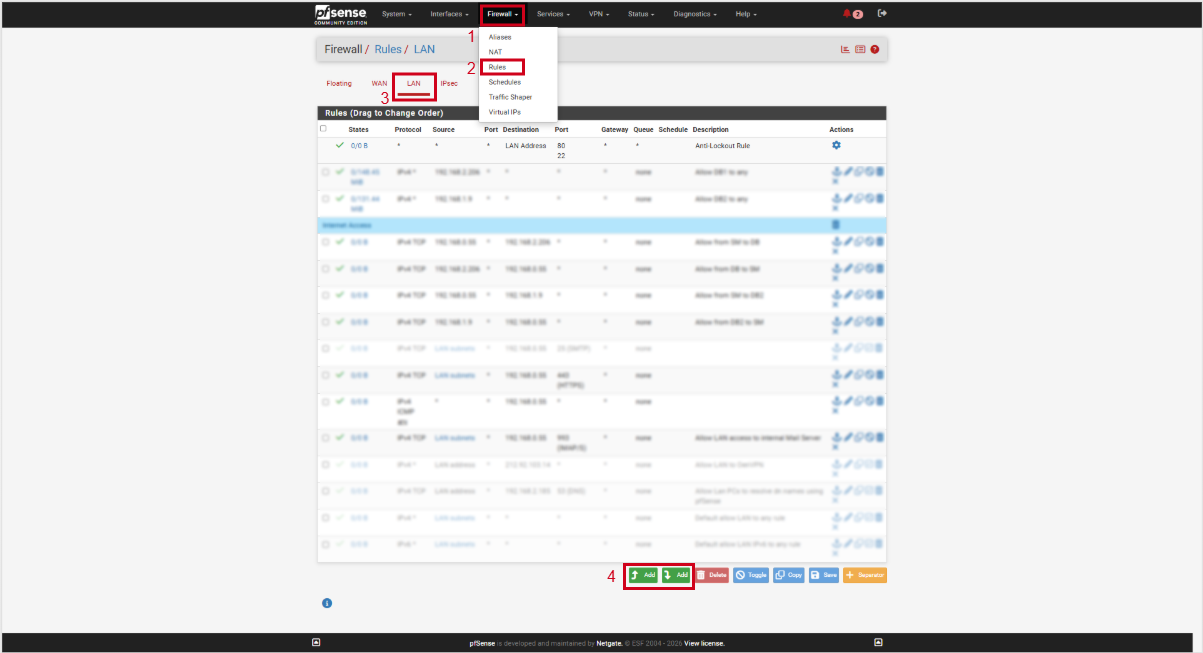
- Navigate to Firewall menu and click Rules.
- Select the LAN tab.
- Click the green Add button to add a new LAN rule.
-
- Define the Action (Pass or Block), Protocol, Source (e.g., LAN net), and target Destination.
- Add a clear summary in the Description field.
- Click Save and select Apply Changes to update firewall behavior.
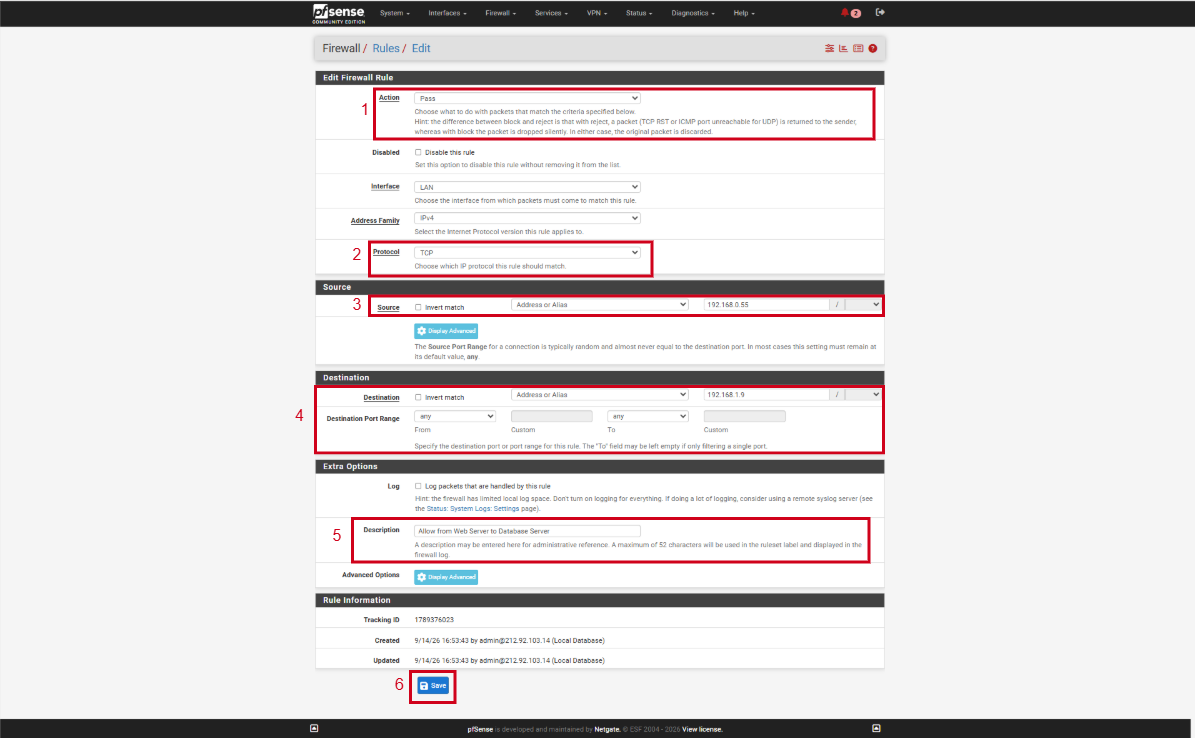
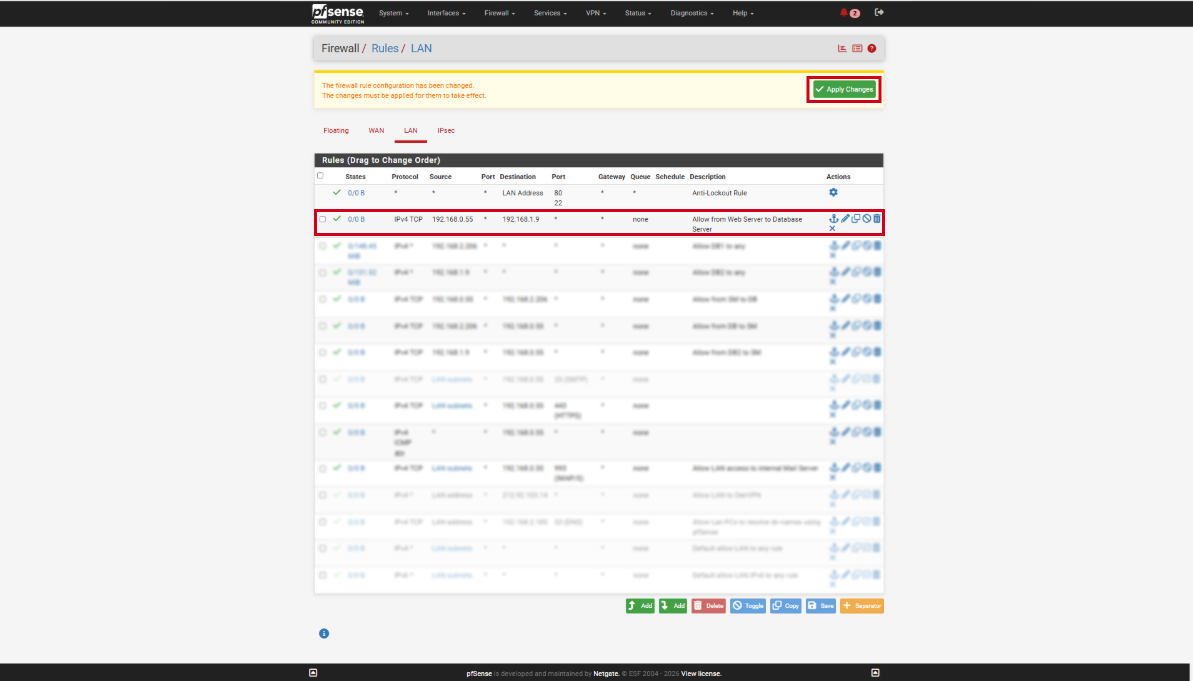
- In this configuration, the LAN rule grants traffic from web server’s IP address (192.168.0.55) to the database server’s IP address (192.168.1.9).
- To verify connectivity, run the following command on your web server via SSH. (Port 3306 is used in this example because it is the configured open port.)
telnet 192.168.1.9 3306
Conclusion
By following this guidance, you can successfully configure and manage WAN and LAN firewall rules in pfSense to protect your internal network and securely control incoming and outgoing traffic.
For additional assistance or if you encounter any issues, please contact our support team at support@ipserverone.com.