
Search Our Database
How to schedule and host Google Meet meetings via Google Calendar and Gmail
Introduction
Scheduling and hosting virtual collaboration requires seamless integration between your calendar and communication platforms. Designed for individuals and remote teams, Google Meet allows users across web browsers and mobile applications to quickly create, distribute, and launch video conferences directly through Google Calendar and Gmail. Whether you need to arrange a planned team conference or start an instant online discussion, this guide demonstrates how to generate video call links, invite participants, and access meeting rooms effortlessly across both platforms.
Prerequisite
- Access to an active Google or Gmail account
- Access to Google Calendar and Gmail via web browser
- Installed Google Calendar app on iOS or Android device
Step-by-step guide
Scheduling Online Meetings via Google Calendar Web
Create scheduled video conference links using the web browser version of Google Calendar.
Step 1: Open Google Calendar and create an event
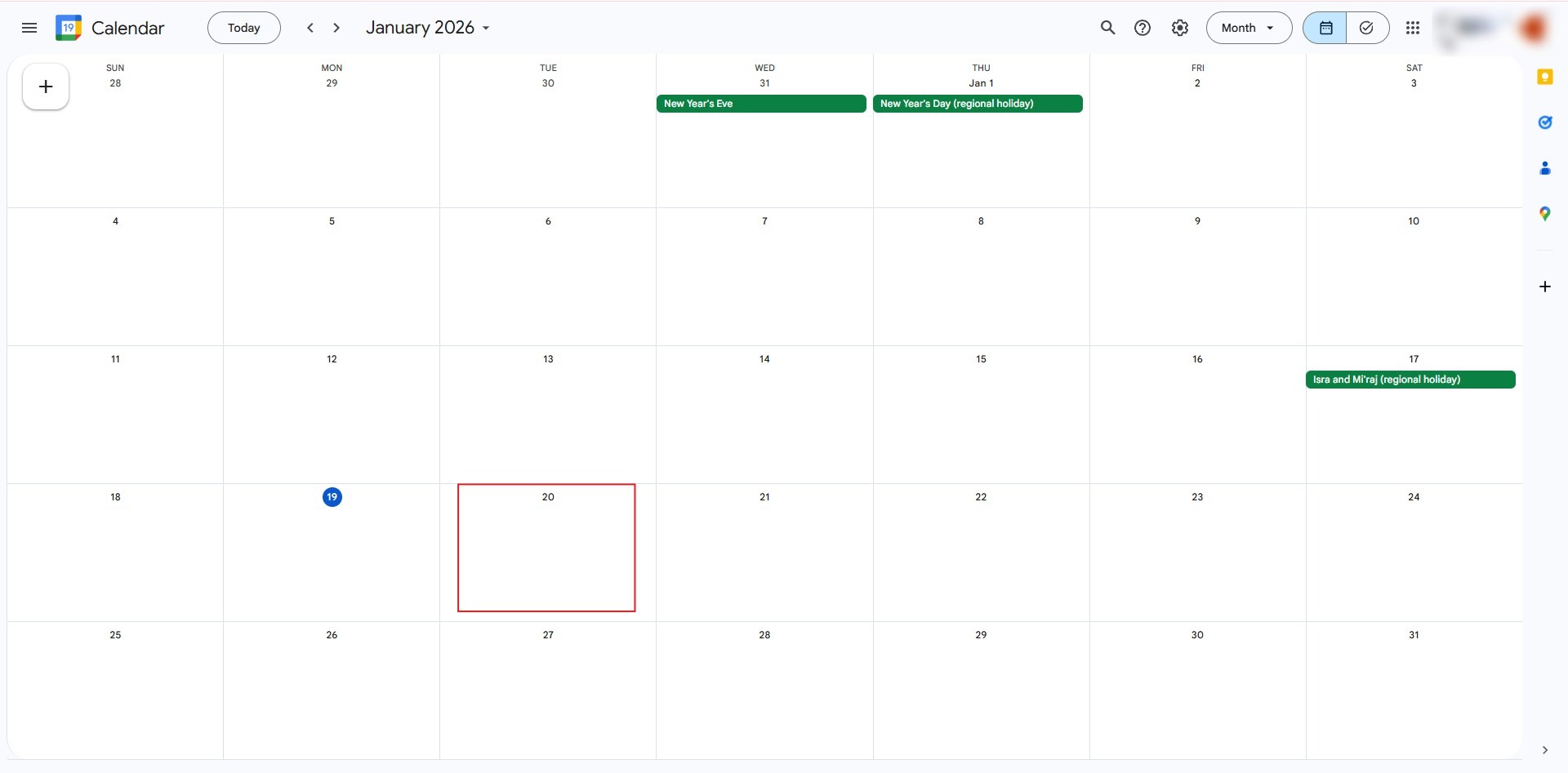
- Access Google Calendar in your browser. Click the + Create button in the top left corner or the date you wish the meeting to held on and select Event.
Step 2: Add Google Meet video conferencing
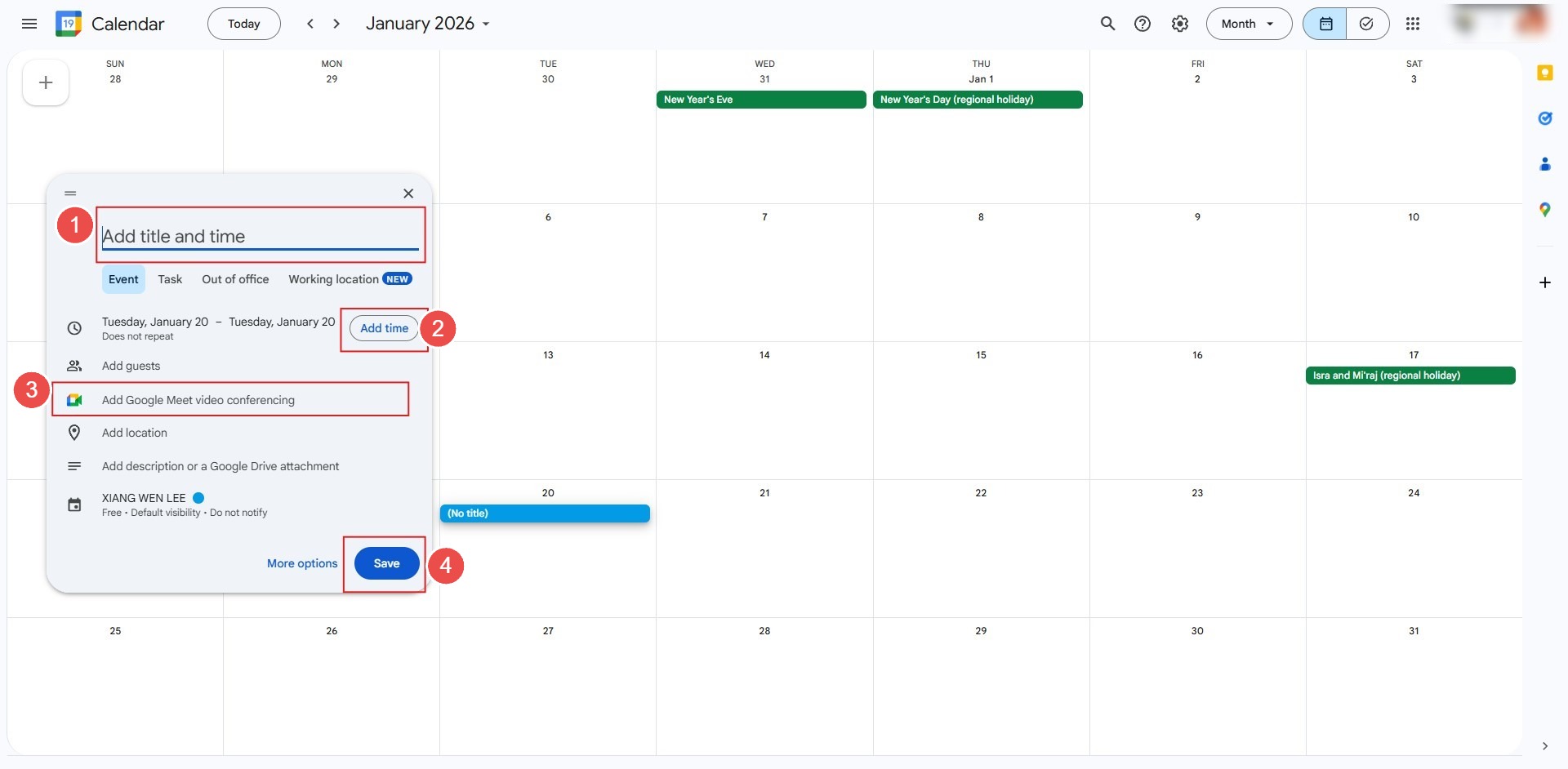
- Enter your event title, set the date and time, and click the blue Add Google Meet video conferencing button.
- If you wish to send event invites and calendar notifications to all participants while creating the event, enter the email addresses of the attendees In the Add guests field.
- Click Save and select Send to dispatch email invitations containing the meeting link.
Scheduling Online Meetings via Google Calendar App
Set up Google Meet video calls on mobile devices using the Google Calendar app.
Step 1: Create a new event in the app
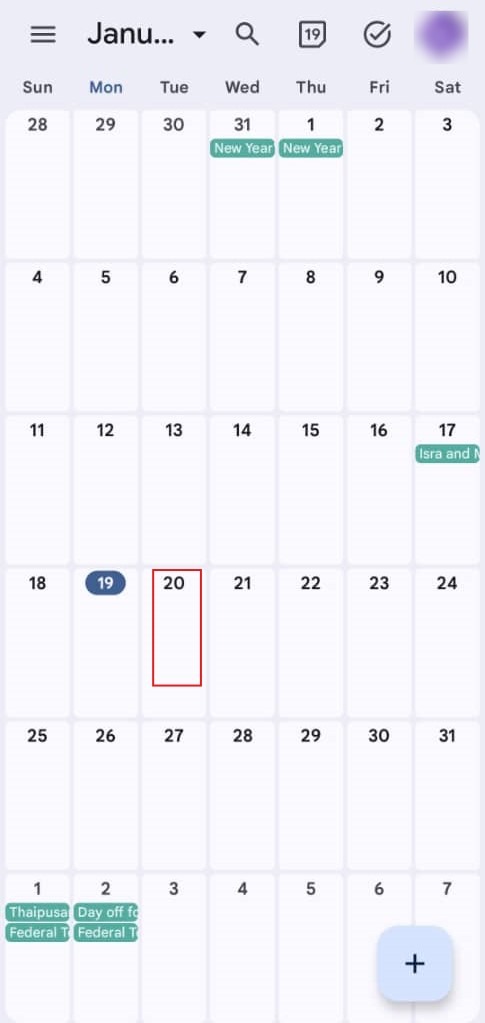
- Open the Google Calendar app on your mobile device, tap the + icon in the bottom right corner or the date you wish the meeting to held on, and select Event.
Step 2: Attach Google Meet and add attendees
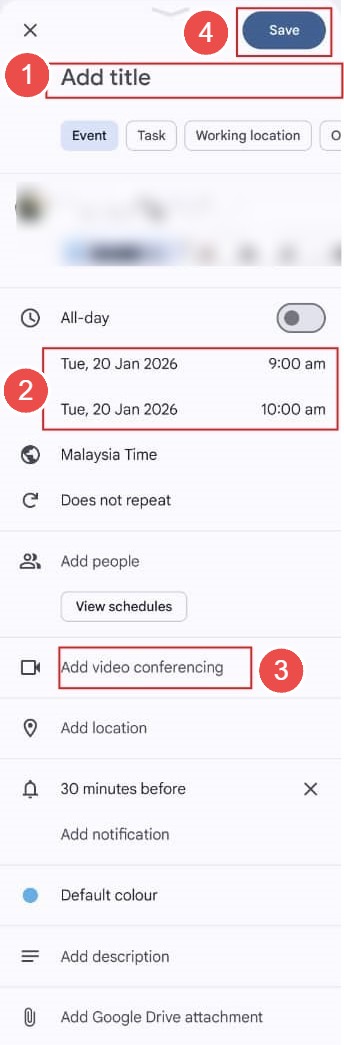
- Title your event, set the time, and tap Add Google Meet video conferencing. Tap Add people to invite participants by email.
- Tap Save in the top right corner to send event invites and calendar notifications to all participants.
Creating Google Meet Event via Gmail Web Compose
Step 1: Open Gmail Compose window
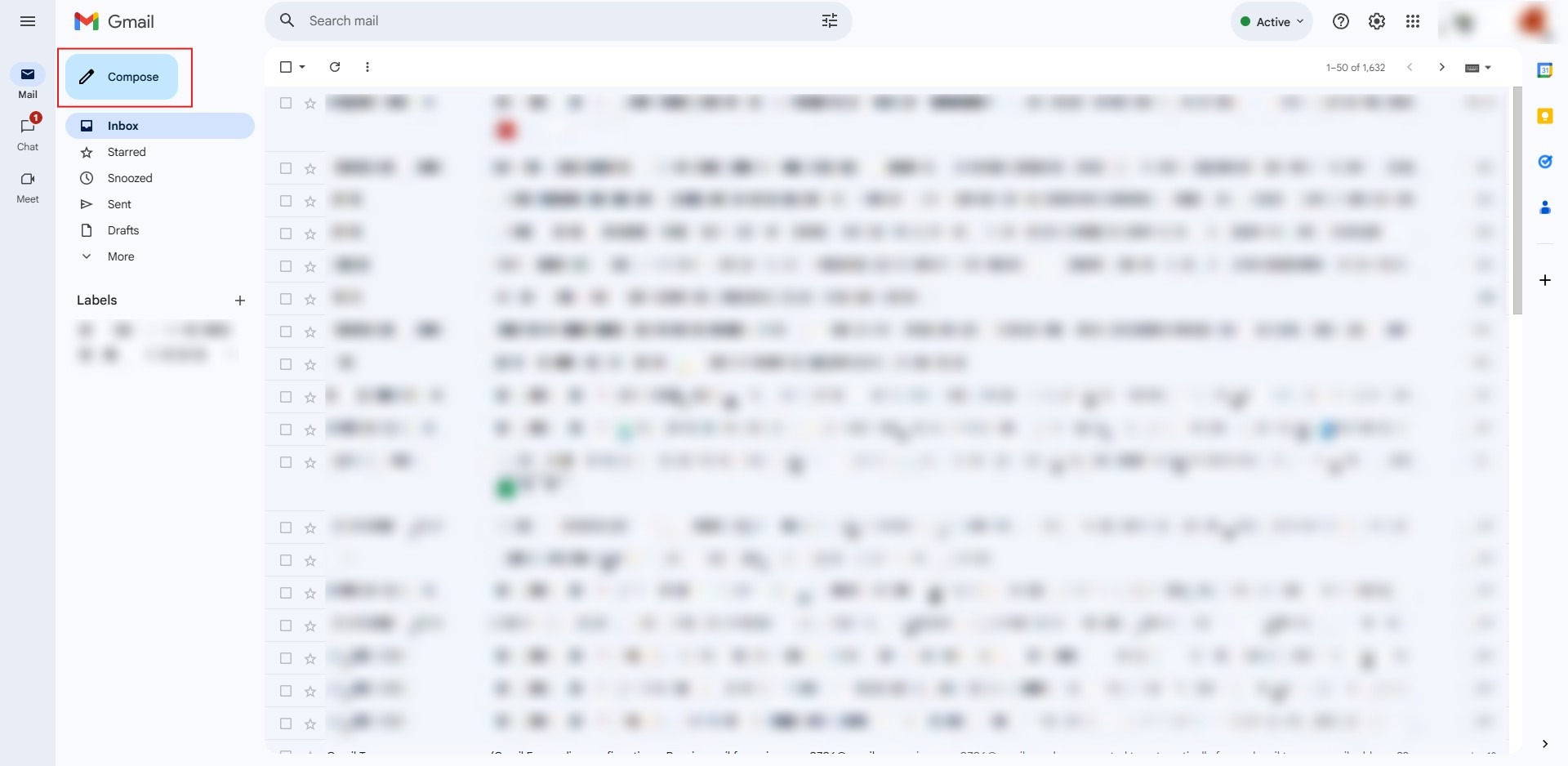
- Log into Gmail Web, click Compose to start a new email message.
Step 2: Add Calendar Event from email toolbar
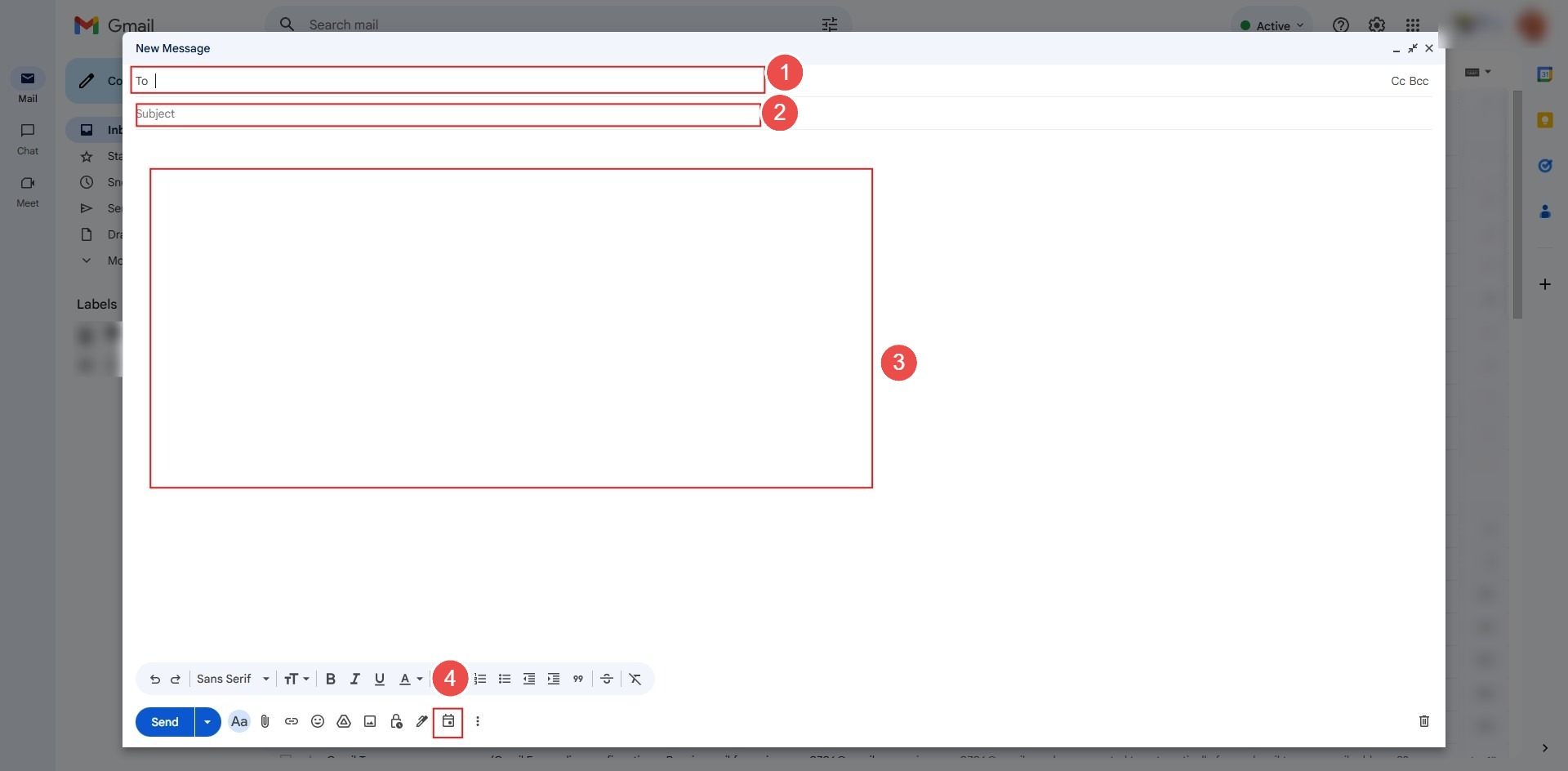
- Enter the recipient email, subject, and message body.
- Click the three dots (More options) or the Calendar icon in the bottom formatting toolbar and select Create an event.
Step 3: Set date, time, and save
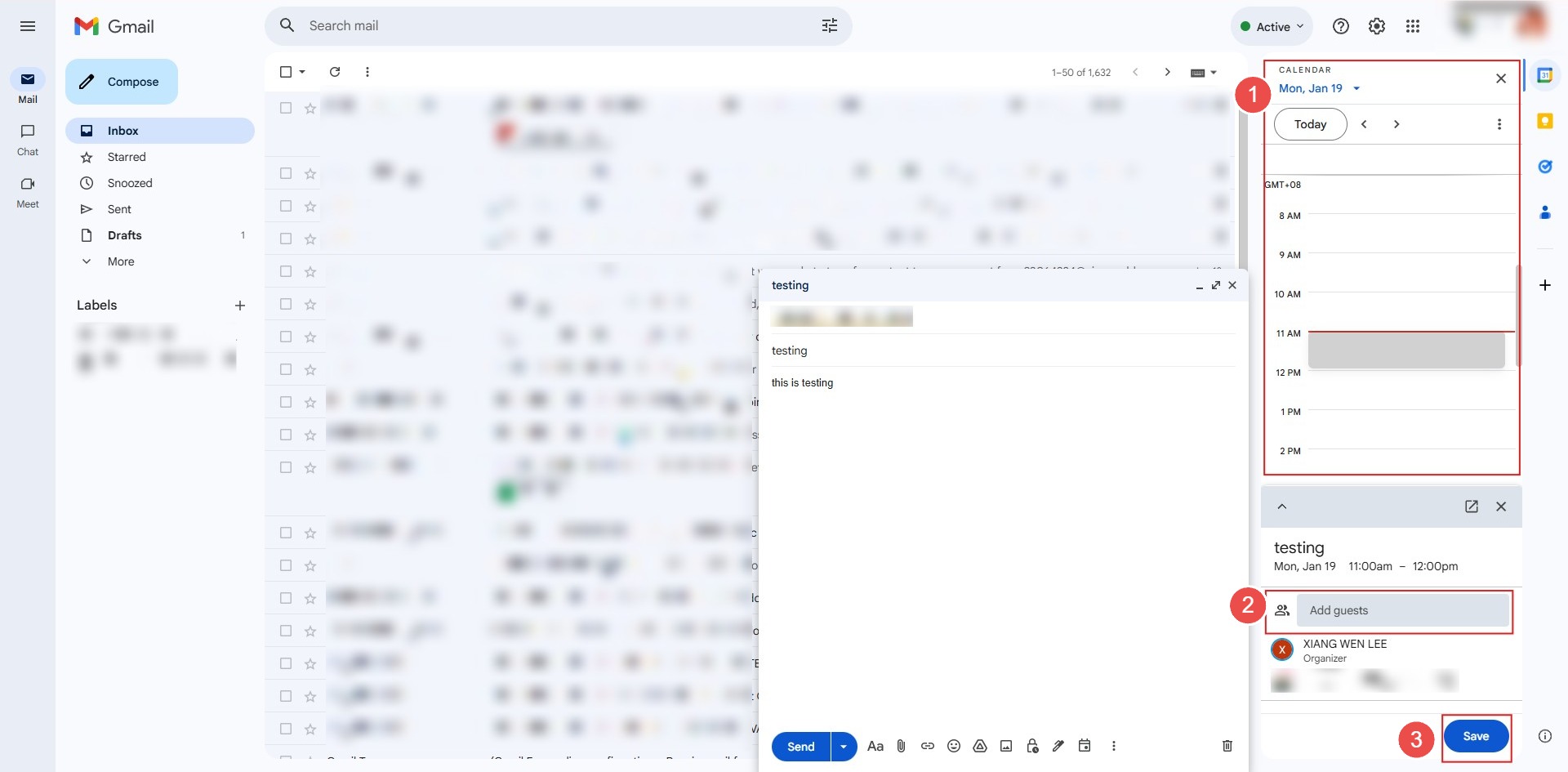
- A side panel will open displaying event settings with Google Meet automatically attached. Adjust the date and time, click Save, and then click Send Email to send the invitation to the recipient.
Conclusion
By following this guidance, you can seamlessly schedule and host Google Meet video conferences using both Google Calendar and Gmail across web and mobile platforms.
For additional assistance or if you encounter any issues, please contact our support team at support@ipserverone.com.
Article updated on 14 August 2026 by Johnny