
Search Our Database
How to Import Public Key(s) for the Cloud Server in Customer Portal
Introduction
Importing an existing public cryptographic key into the IP ServerOne Customer Portal allows you to seamlessly reuse your predefined SSH keys for secure, password-free server authentication. As a cloud administrator or user, you can easily import your public key directly through the Customer Portal dashboard whenever required. This comprehensive guide outlines the step-by-step procedure to import your public keys and associate them with your cloud instances—such as NovaCloud and NovaGPU—empowering you to maintain consistent security and streamlined access control across your infrastructure.
Prerequisite
- Active account access to the IP ServerOne Customer Portal.
- An existing public key file or text string ready on your local machine.
- Basic understanding of SSH key pair concepts (OpenSSH for Mac/Linux or PuTTY for Windows).
Step-by-Step Guide
Step 1: Accessing the Public Keys Section
- Log in to the [IPServerOne Customer Portal].
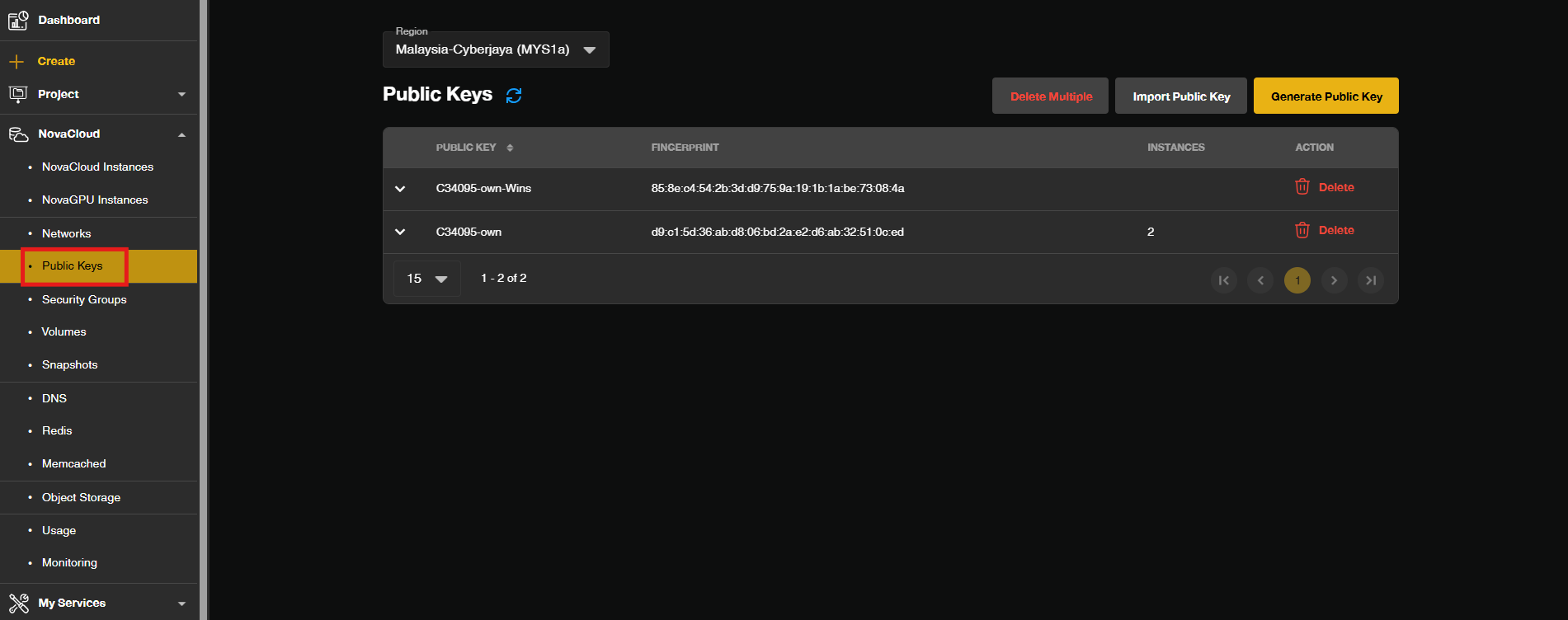
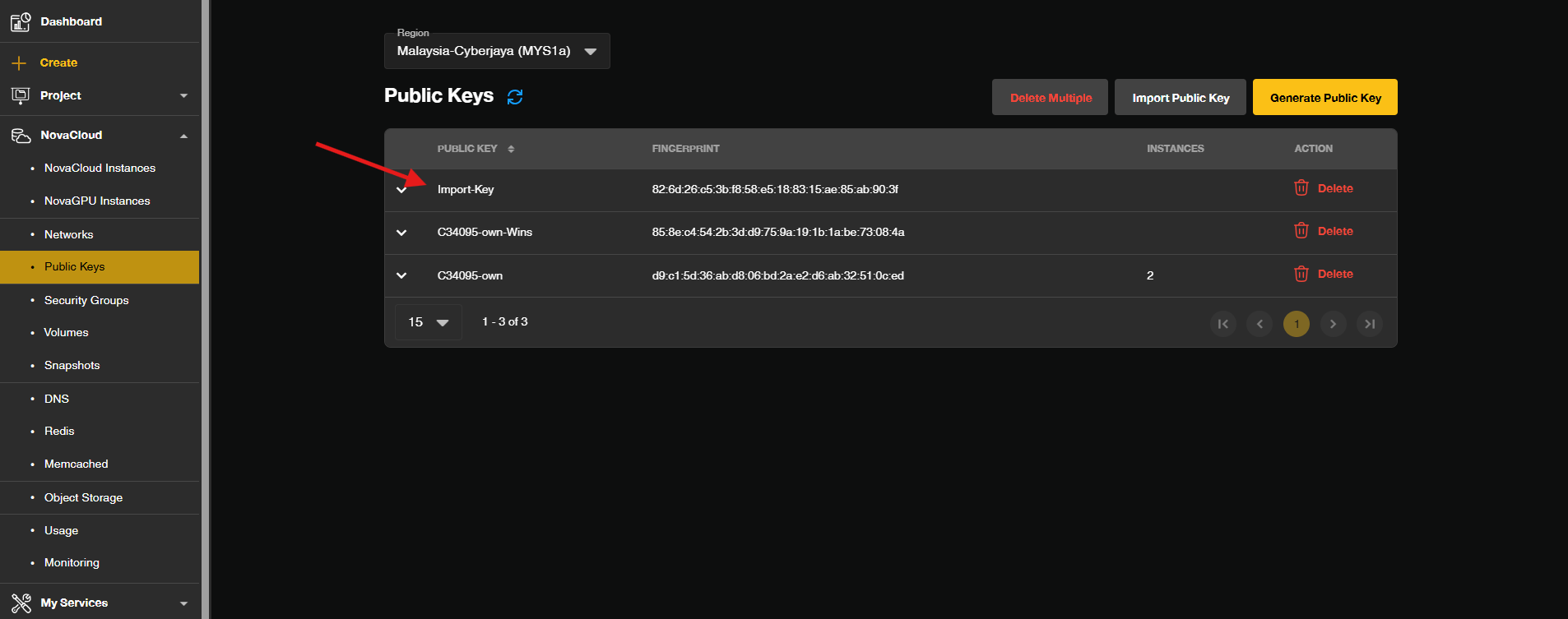
- Go to the NovaCloud and select Public Keys to view your public keys management page.
Step 2: Initiating the Import Process
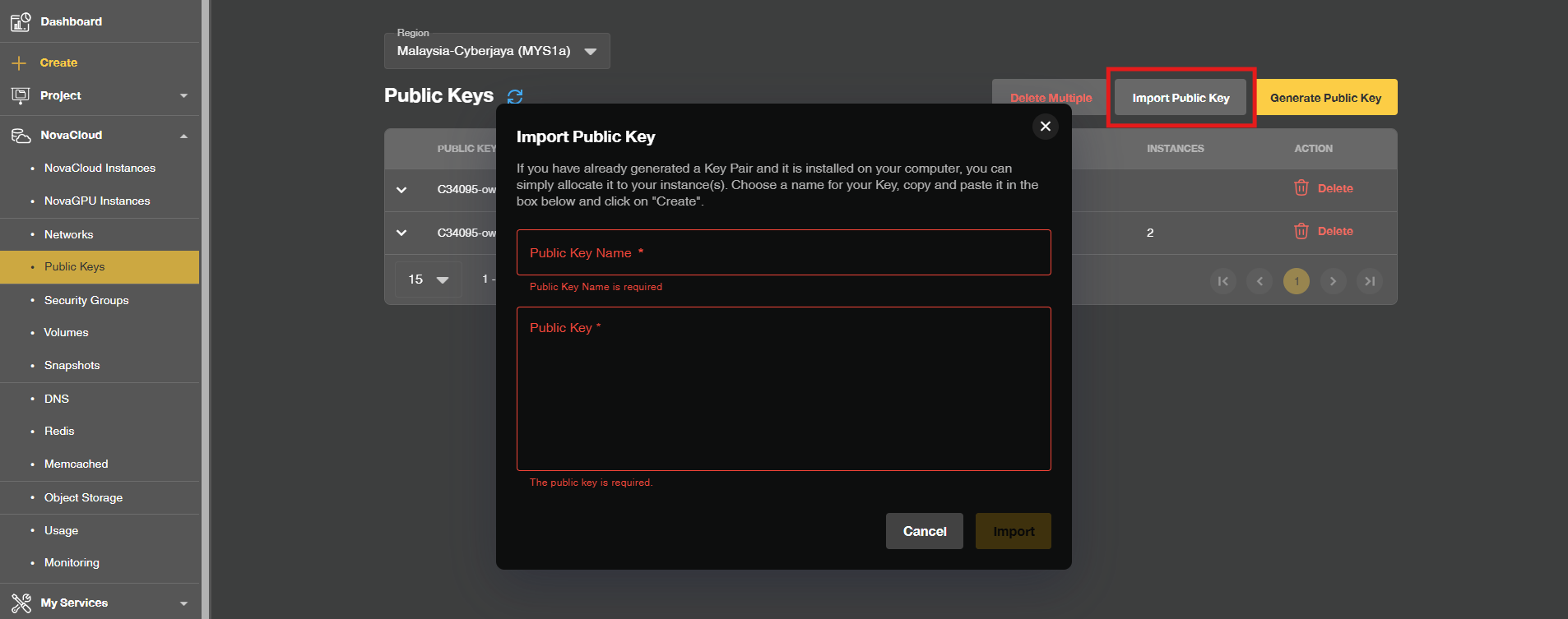
- Click the Import Public Key button to open the import configuration prompt window.
Step 3: Configuring Key Details and Public Key Content
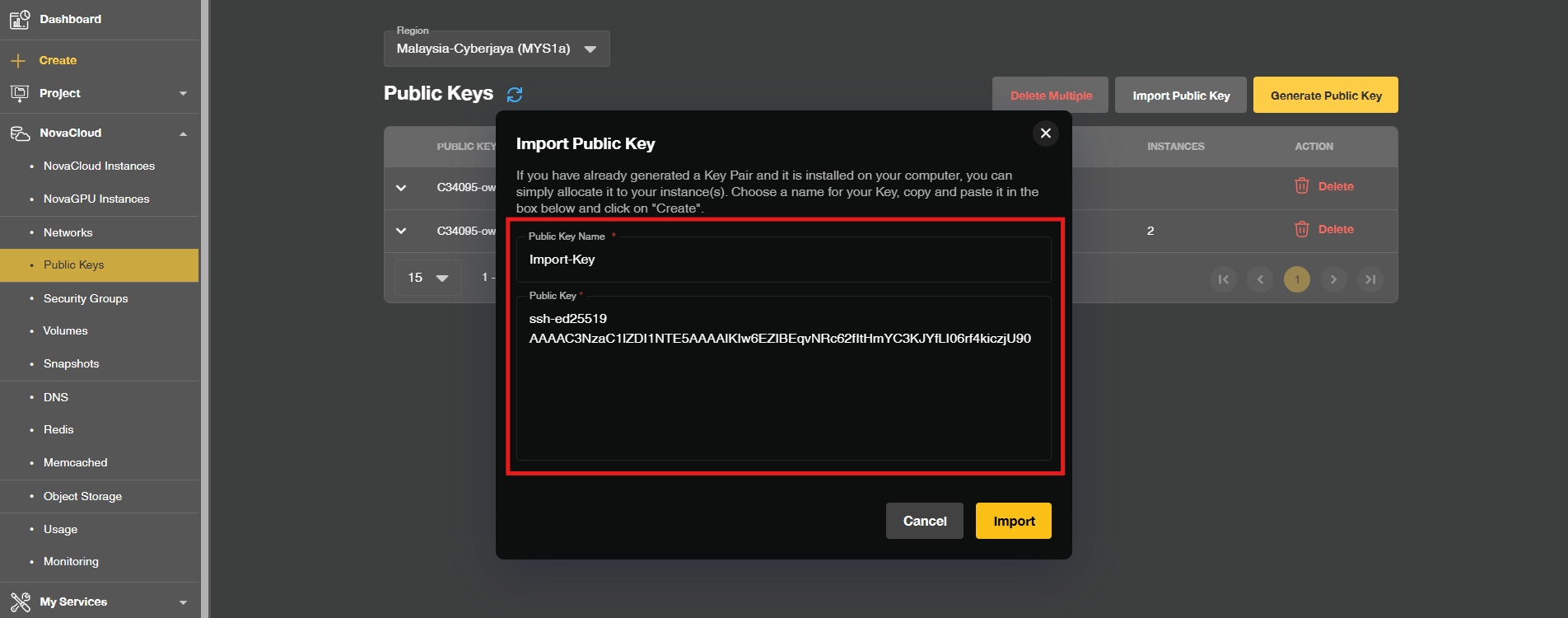
- Enter a descriptive Key Name and paste the contents of your public key into the Public Key text area field.
Step 4: Saving the Imported Key
- Click the Import button to store the key.
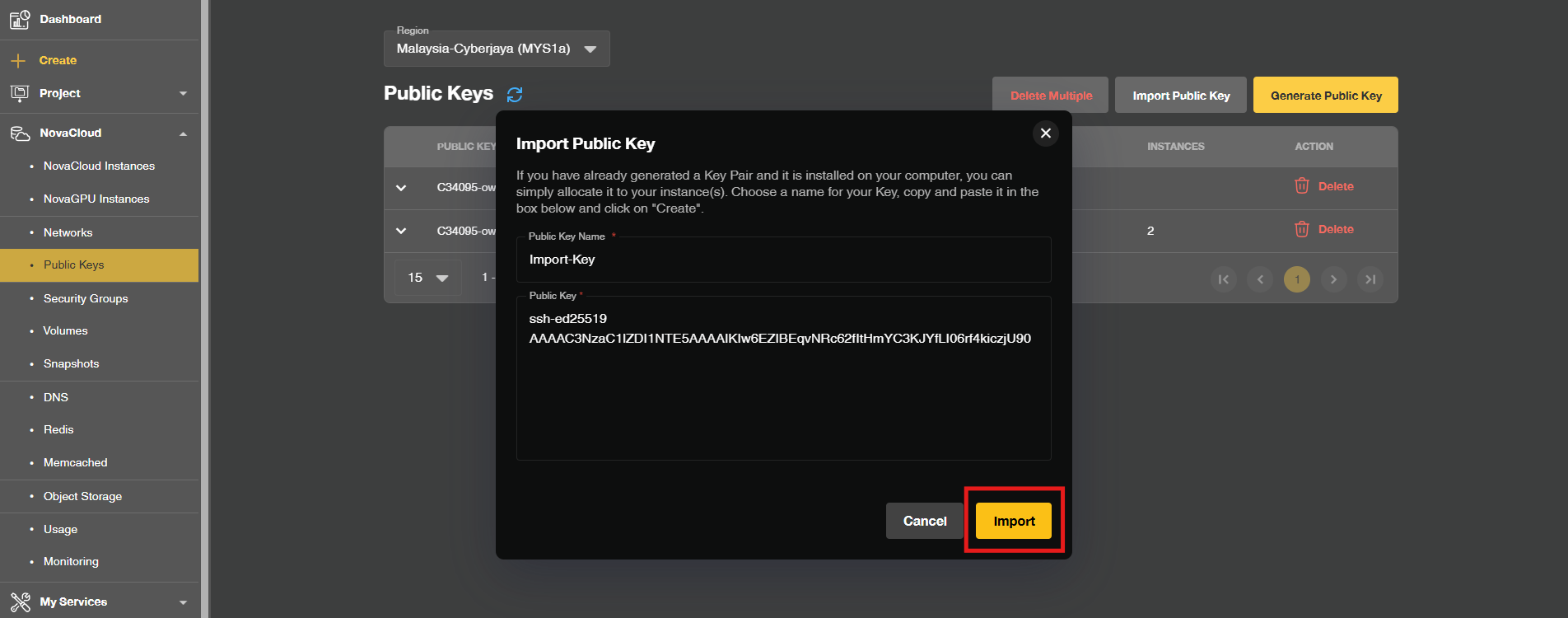
- Once completed, your imported public key will appear in your list of available keys.
Step 5: Utilizing the Public Key for Cloud Instances
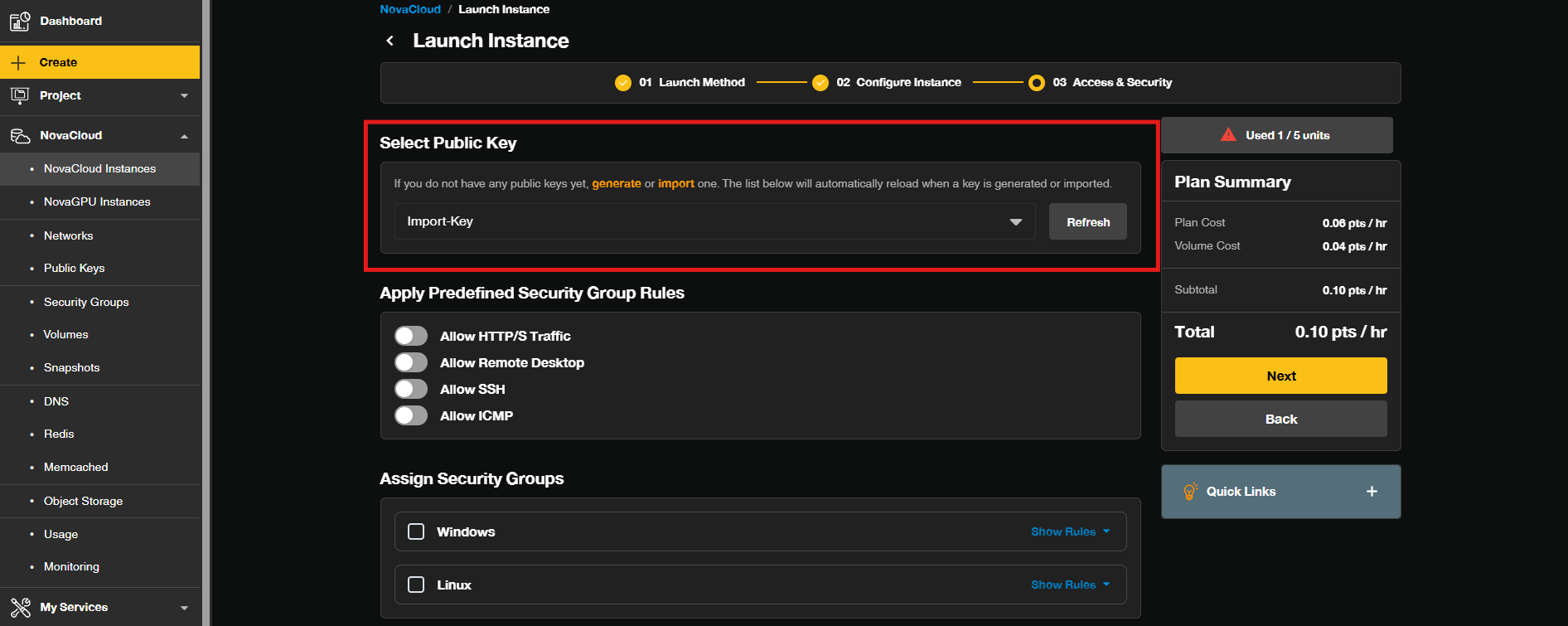
- When provisioning a new instance—such as a NovaCloud instance or NovaGPU instance—navigate to the instance creation wizard.
Conclusion
By following this guidance, you can successfully import and manage your public keys in the Customer Portal, ensuring secure and flexible access to your cloud servers.
If you encounter any issues or require further assistance, please reach out to our support team at support@ipserverone.com.
Article updated on 21 October 2026 by Johnny