
Search Our Database
How to Delete Public Key(s) for the Cloud Server in Customer Portal
Introduction
Removing outdated or unused public cryptographic keys from your IP ServerOne Customer Portal is an important housekeeping practice that reduces potential security risks and eliminates unnecessary clutter. As a cloud administrator or user, you can easily delete unwanted public keys associated with your cloud instances—such as NovaCloud and NovaGPU—directly through the Customer Portal dashboard whenever required. This comprehensive guide outlines the step-by-step procedure to safely delete public keys while ensuring no active administrative access is disrupted.
Prerequisite
- Active account access to the IP ServerOne Customer Portal.
- Confirmation that the public key is no longer needed or active for authentication.
- Any server instances linked to the target public key are inactive or no longer require access.
- Basic understanding of SSH key pair concepts (OpenSSH for Mac/Linux or PuTTY for Windows).
Step-by-Step Guide
Step 1: Accessing the Public Keys Section
- Log in to the [IPServerOne Customer Portal].
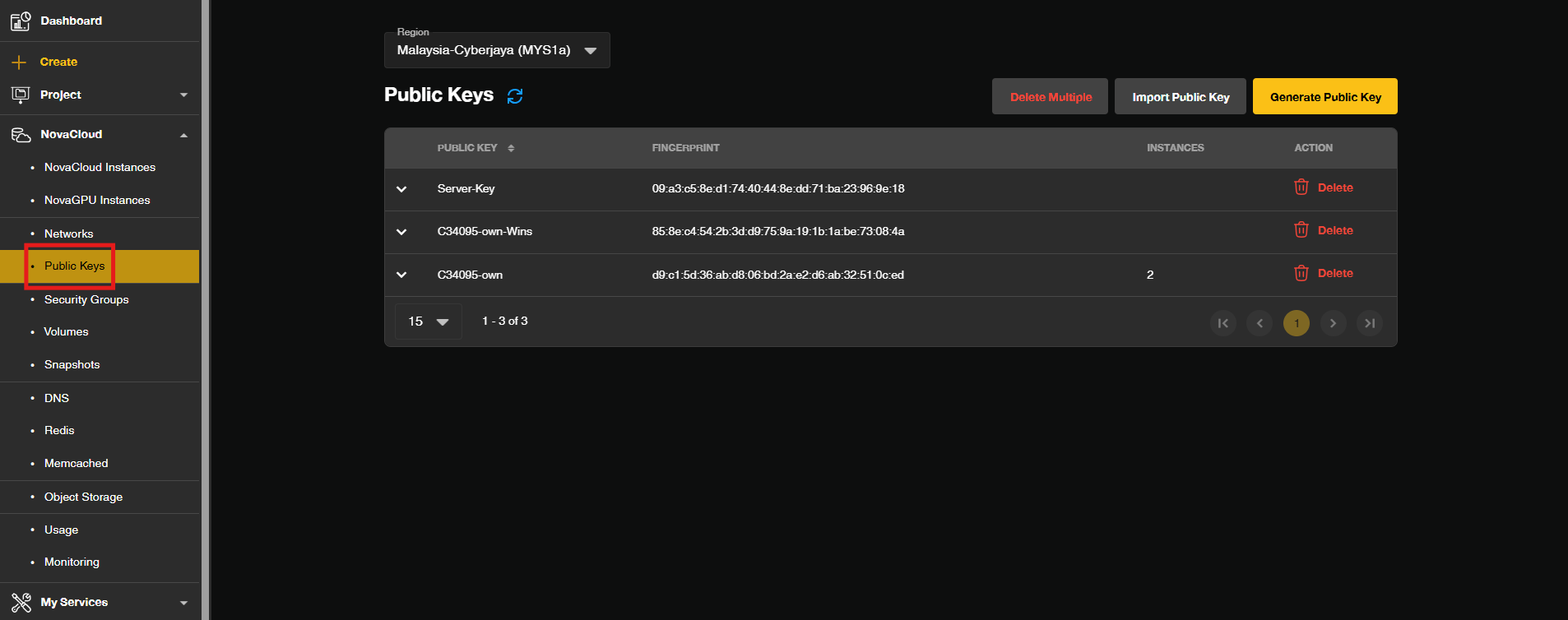
- Go to the NovaCloud and select Public Keys to view your public keys management page.
Step 2: Initiating Key Deletion
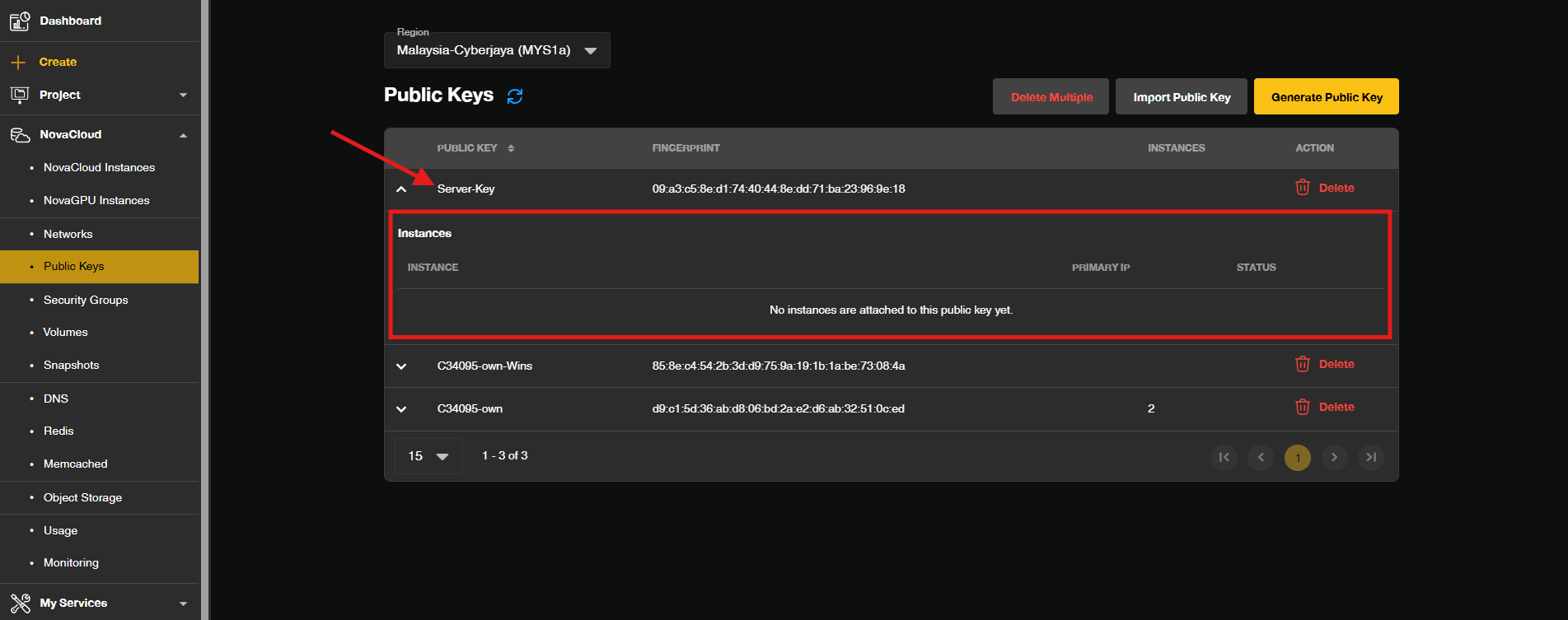
- Locate the specific public key you wish to remove from your account in the table and ensure there are no server instances linked to it.
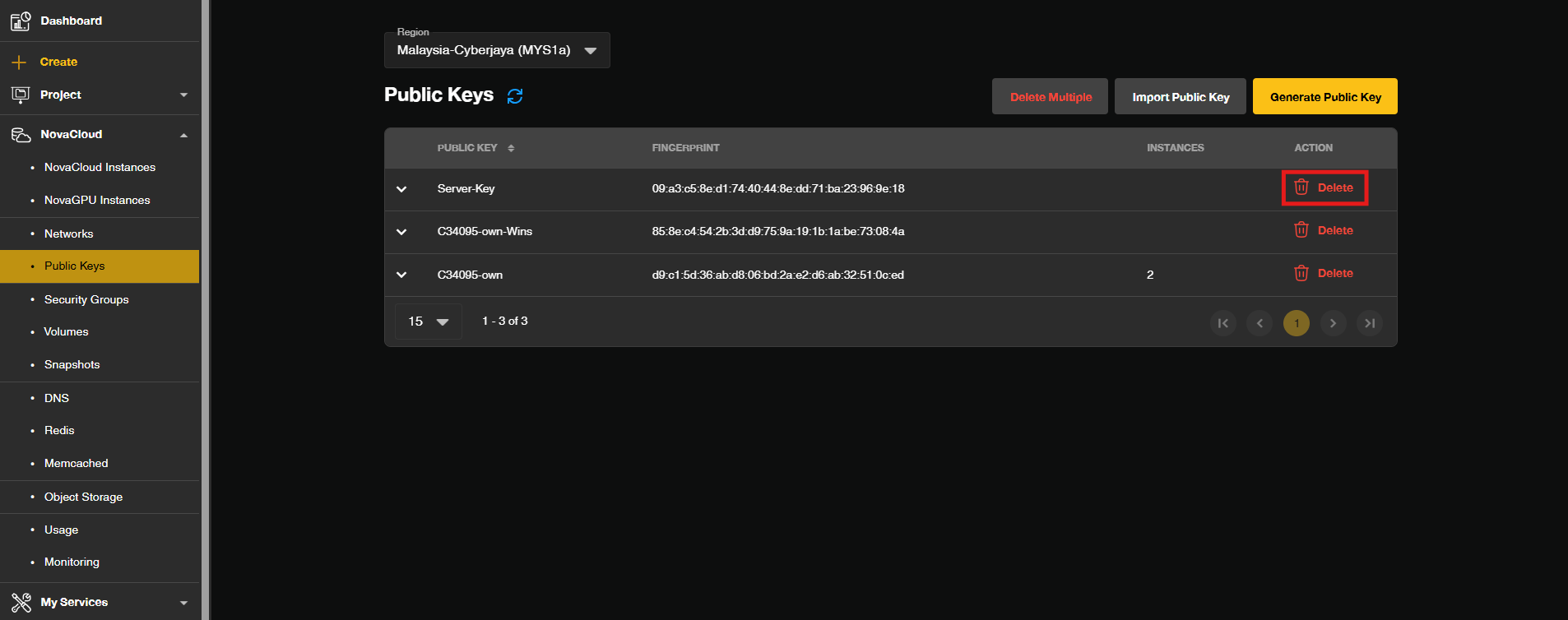
- Click the Delete button located on the far right side of that key’s row.
Step 3: Confirming and Completing the Deletion
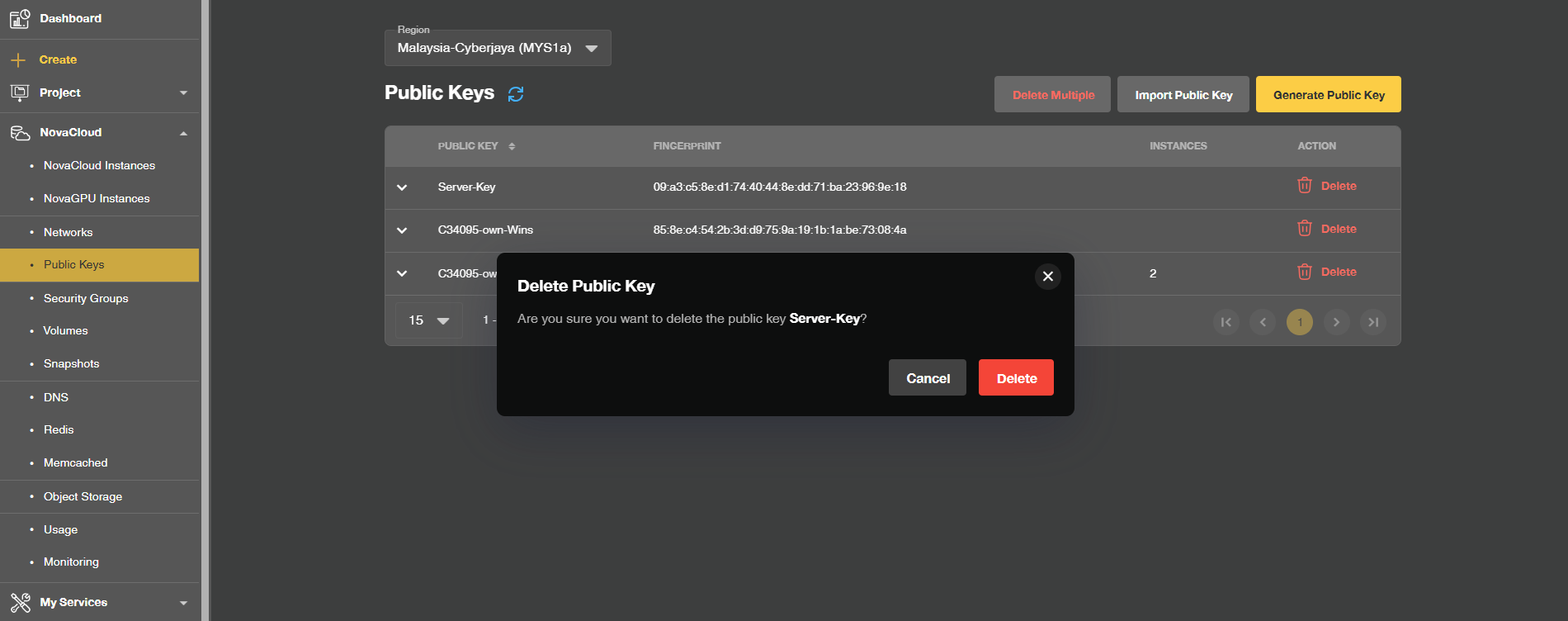
- A confirmation pop-up window will appear asking to confirm the deletion.
Conclusion
By following this guidance, you can successfully clean up and manage your public keys in the Customer Portal, ensuring a secure and organized environment for your NovaCloud and NovaGPU instances.
If you encounter any issues or require further assistance, please reach out to our support team at support@ipserverone.com.
Article updated on 21 October 2026 by Johnny