
Search Our Database
How to Renew the Server TLS Certificate in DirectAdmin
Introduction
The Server TLS Certificate secures access to DirectAdmin through the server hostname, such as https://server.example.com:2222.
When the certificate has expired or is close to expiry, a server administrator can renew it from the Server TLS Certificate page in DirectAdmin.
Prerequisite
Before proceeding, ensure that:
- You have a DirectAdmin administrator account.
- You have a valid domain or subdomain for the server hostname.
- The hostname points to the correct server IP address.
To configure the server hostname, refer to:
[How to Change Server Hostname in DirectAdmin Evolution Skin]
[How to Change Server Hostname in DirectAdmin Enhanced Skin].
Step-by-Step Guide
Step 1: Access DirectAdmin
- Login to your DirectAdmin control panel.
- The URL to your DirectAdmin typically will be:
https://your-domain.com:2222 or https://server-ip-address:2222
Step 2: Open the Server TLS Certificate Page
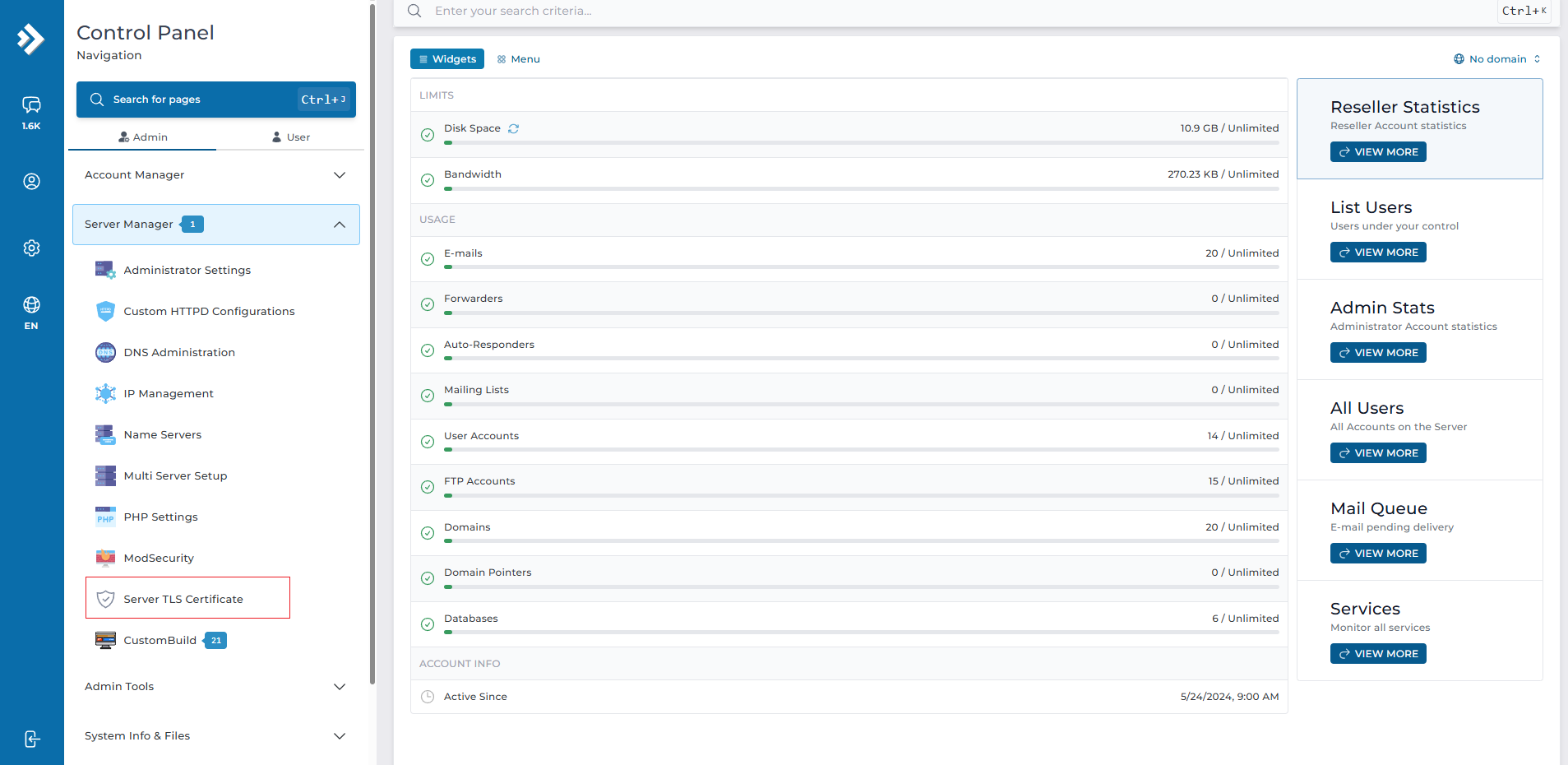
- Navigate to: Server Manager > Server TLS Certificate
Step 3: Renew the Certificate
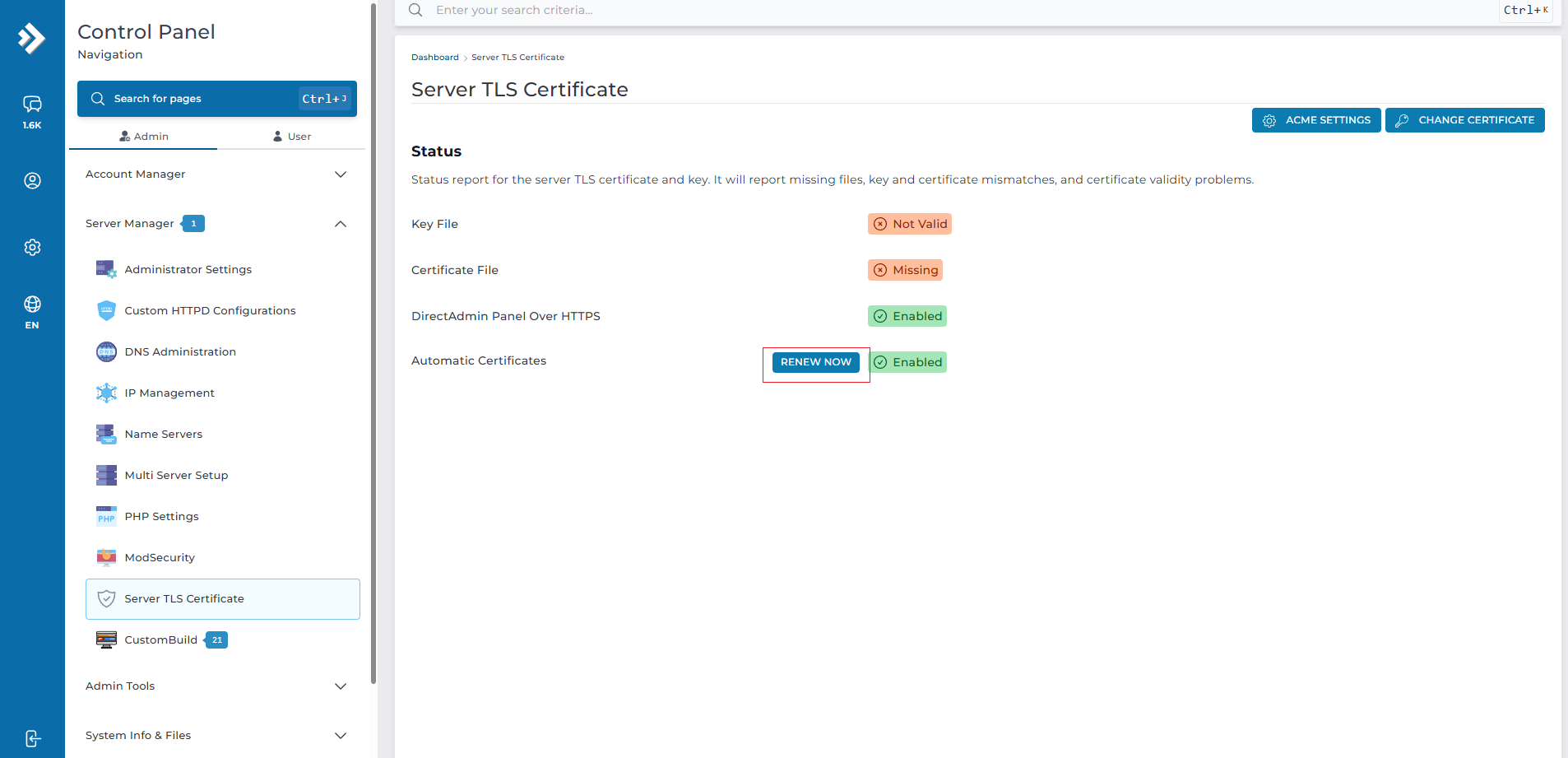
- Under Automatic Certificates, click RENEW NOW.
- When the confirmation window appears, click CONFIRM.
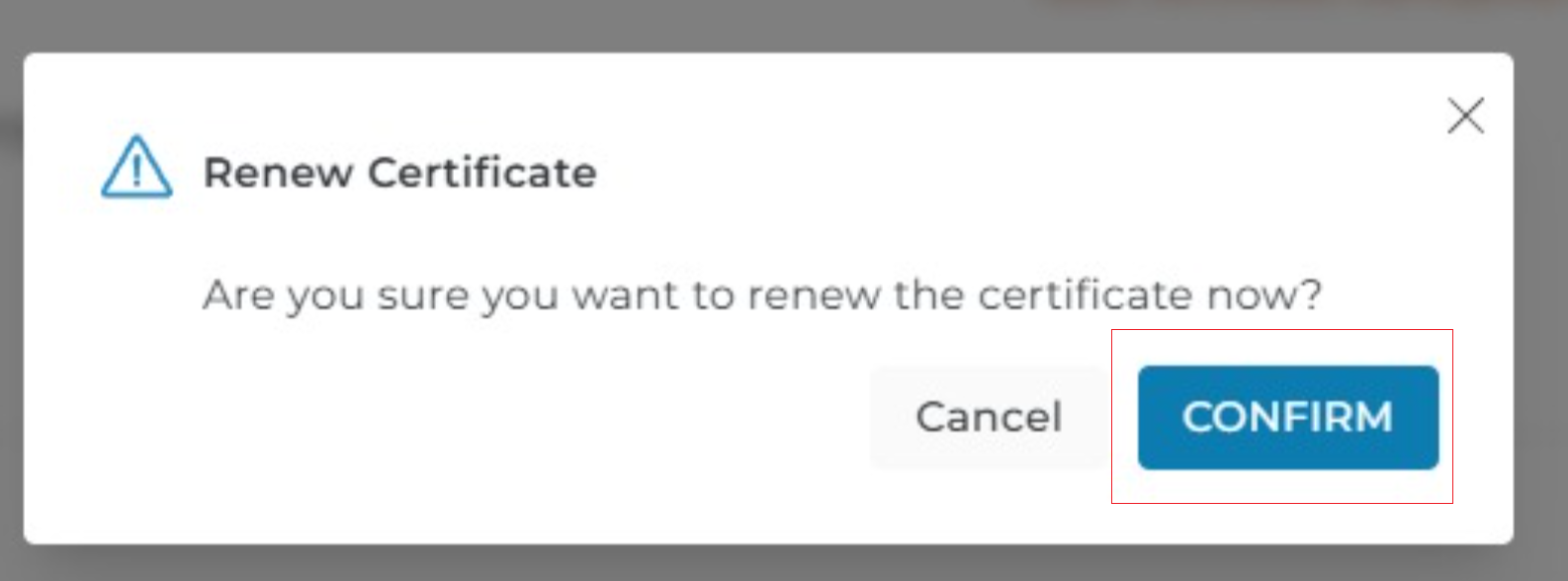
DirectAdmin will request and install a new TLS certificate for the server hostname.
Step 4: Verify the Renewed Certificate
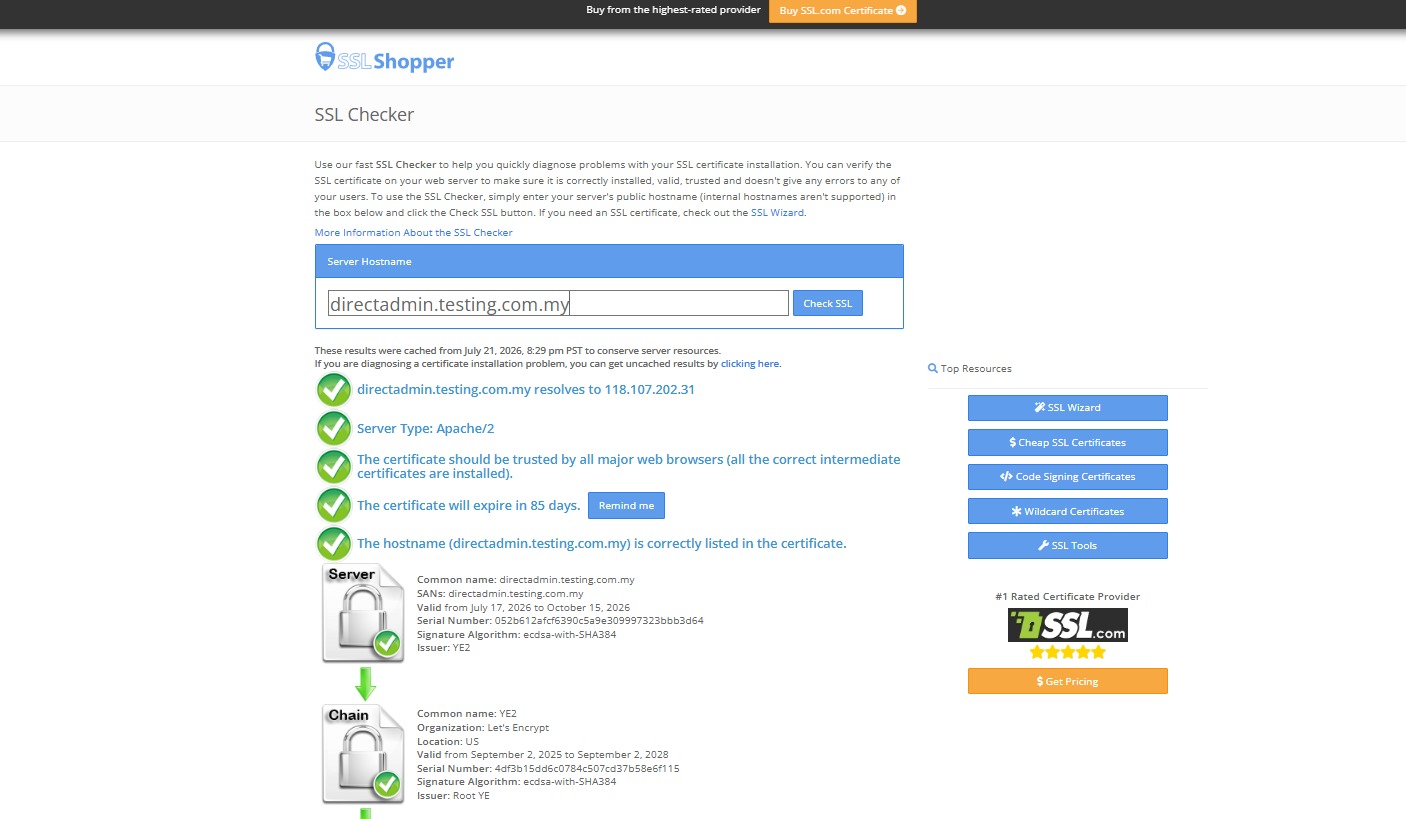
- After the renewal is completed, check the certificate using the [SSL Shopper SSL Checker].
- Enter the server hostname and click Check SSL.
Conclusion
The Server TLS Certificate has been renewed. Use the SSL Shopper SSL Checker to confirm that the certificate is valid.
For further assistance, please contact IP ServerOne Support at support@ipserverone.com.