
Search Our Database
How to manage website content using Site Publisher in cPanel
Introduction
Managing your website content efficiently is essential for domain owners who want to publish, update, or remove online pages quickly without complex coding. Using Site Publisher in cPanel, website administrators can easily launch temporary landing pages, update existing site details, or take down published files directly from the web hosting control panel. This guide walks you through the straightforward process of creating, updating, and removing website content using the cPanel Site Publisher tool.
Prerequisite
- Access to cPanel account with Site Publisher privileges
- A domain or subdomain pointed to your cPanel hosting account
Step-by-step guide
Step 1: Access to Site Publisher
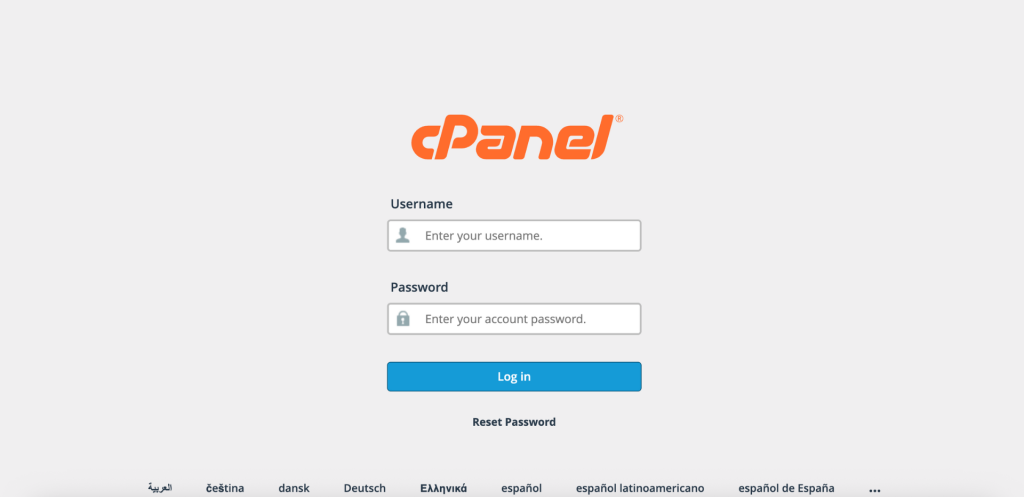
- Access and log in to your cPanel account using your username and password.
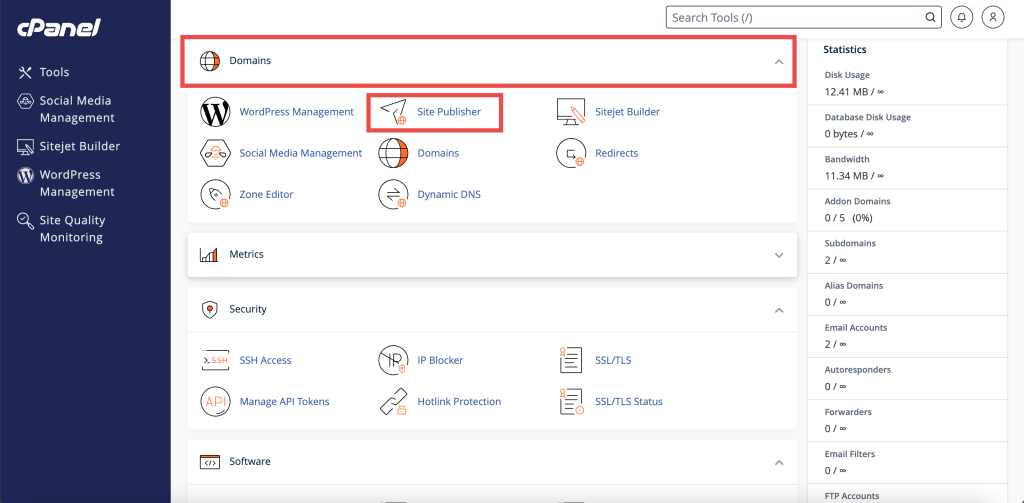
- In the Home page, under Domains, click Site Publisher.
Step 2: Managing website contenta using Site Publisher
Create Website using Site Publisher in cPanel
This method explains how to select a template and launch a new site.
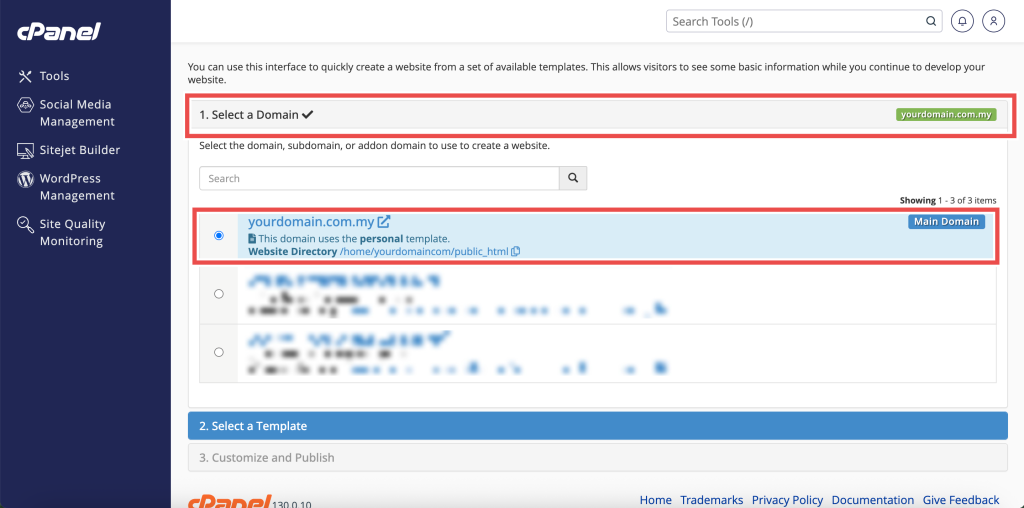
- Select the domain or subdomain where you want to publish the site.
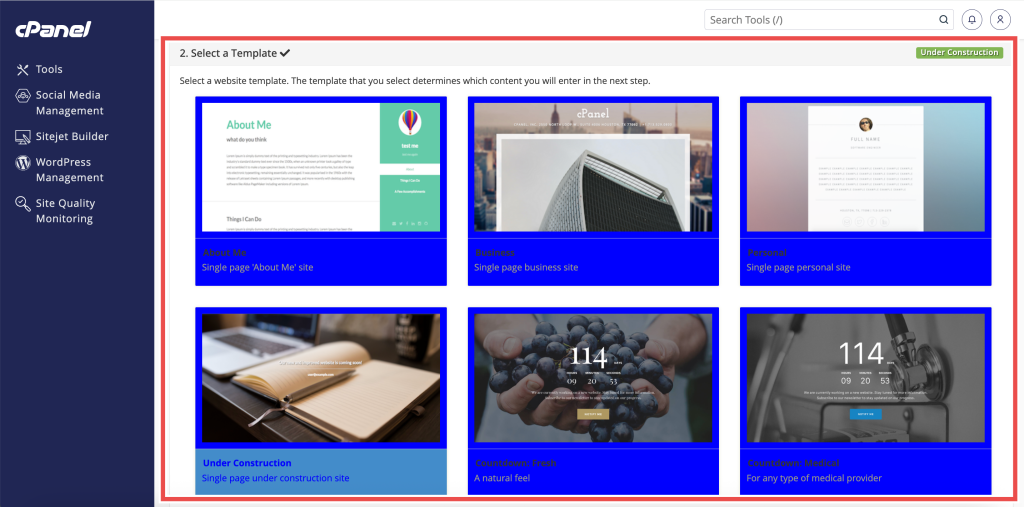
- Choose a template from the available options (e.g., Personal, Business, or Under Construction).
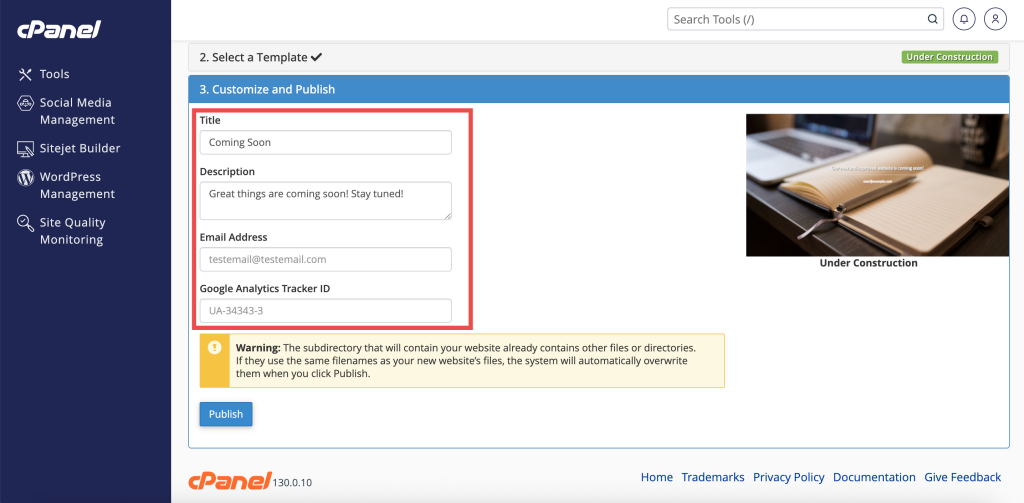
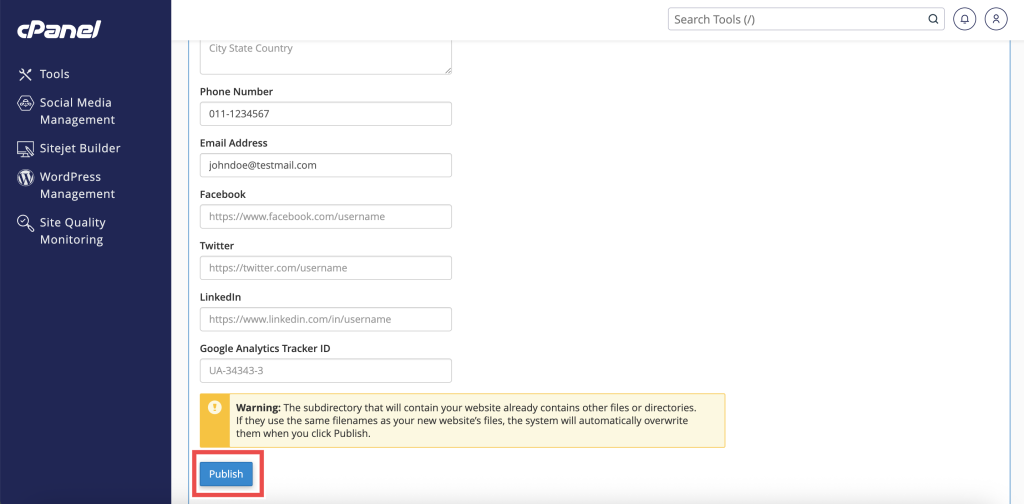
- Fill in the required site customization details such as header title, text, and social media links.
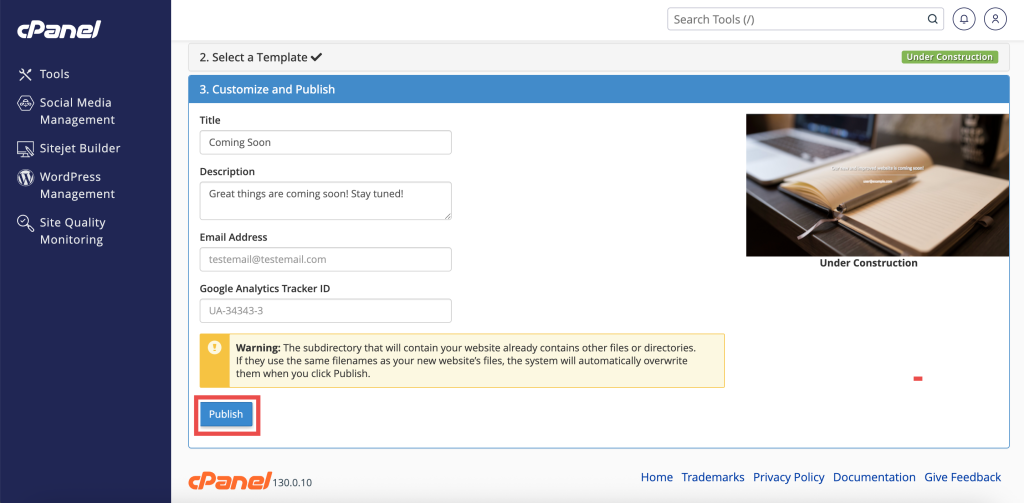
- Click Publish to make your site live.
Update or Modify Existing Website using Site Publisher in cPanel
This method shows how to alter content on a site generated by Site Publisher.
- Select the target domain that already has a published site.
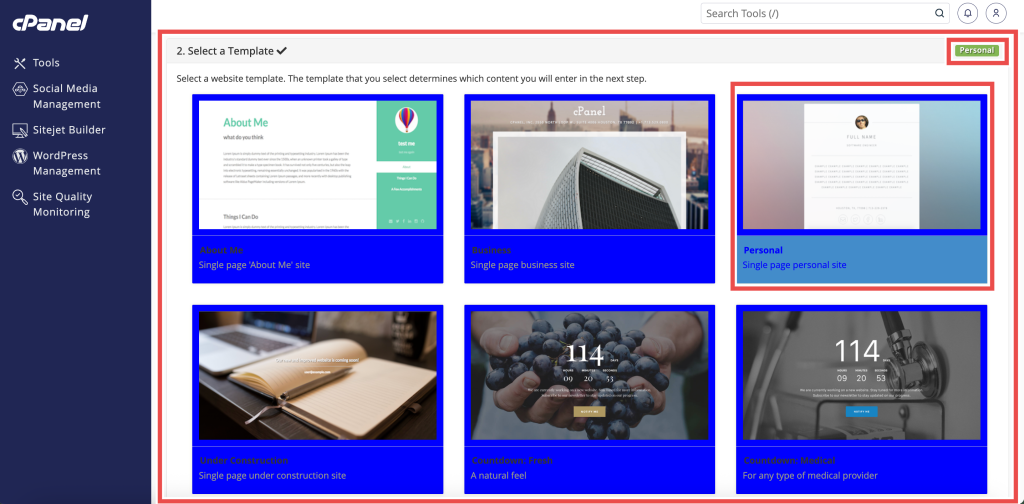
- Choose a template (you can select the current one or pick a new layout).
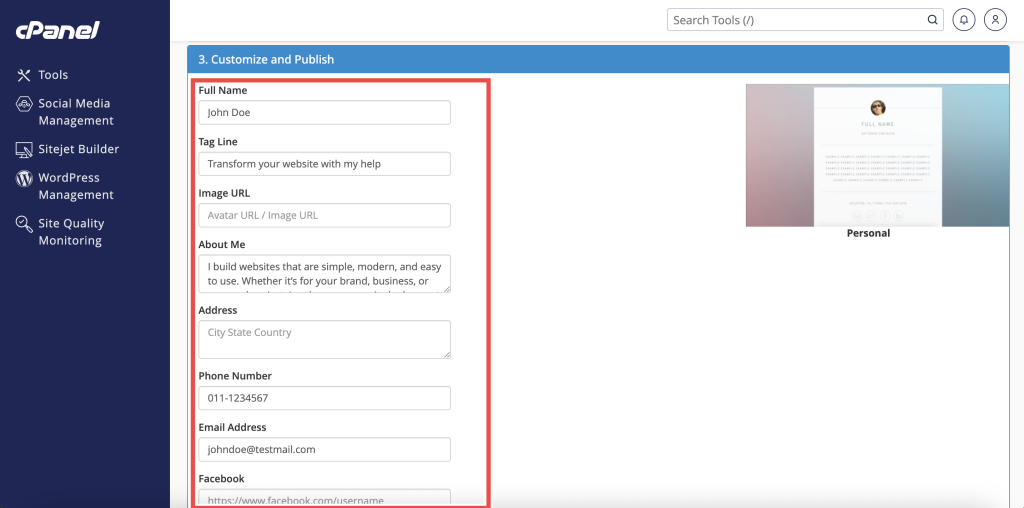
- Update the text, contact details, or media links in the configuration form.
- Click Publish to overwrite and apply the new changes.
Remove Website Content Created by Site Publisher in cPanel
This method details how to remove published files when you no longer need the template site.
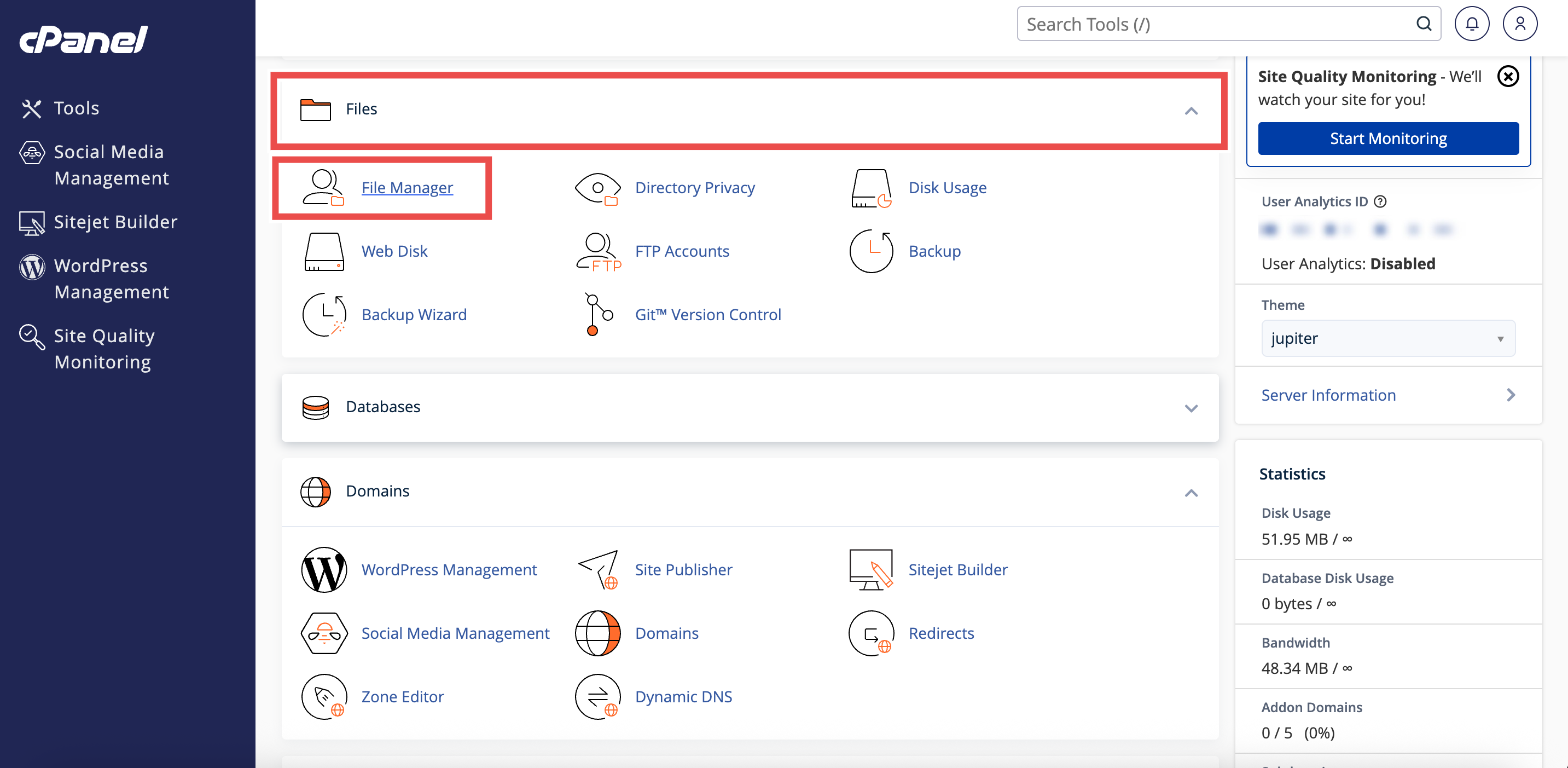
- Navigate to the Files section and click File Manager.
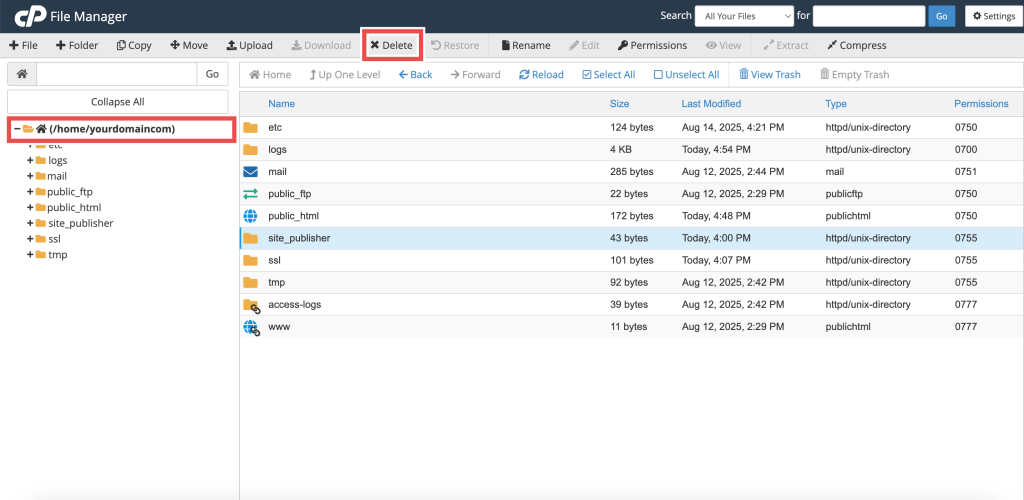
- Open the directory corresponding to your domain (e.g., public_html or subdomain directory).
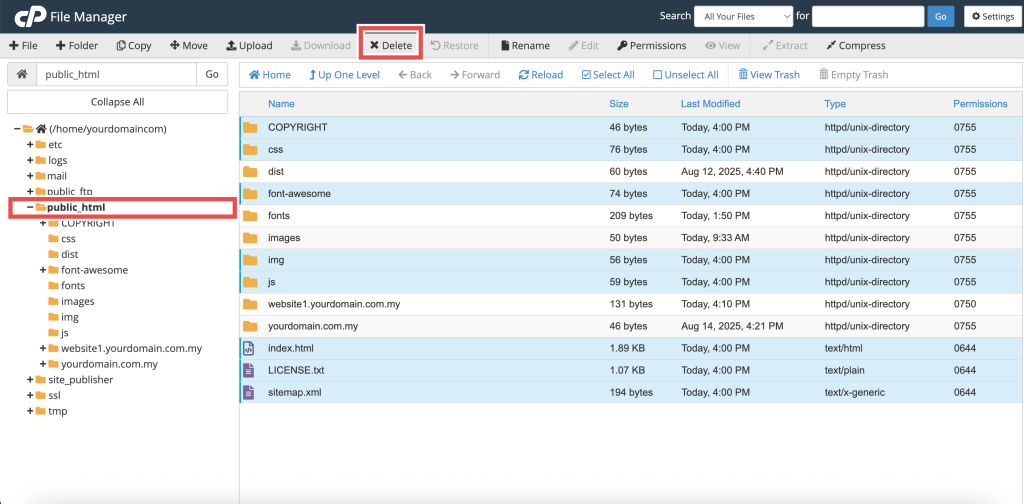
- Select the files and folders generated by Site Publisher (such as index.html, assets, or configuration files).
- Click Delete in the top toolbar to remove the content.
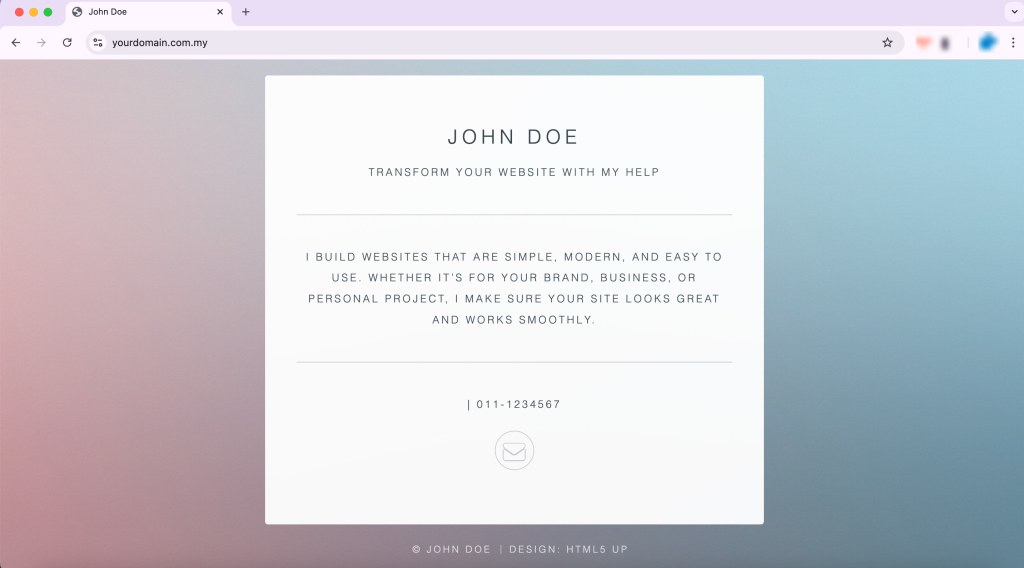
Step 3: Verify the changes
- Access to the domain in browser and notice the changes.
Conclusion
By following this guidance, you can successfully create, update, or remove website content using Site Publisher in cPanel to control your domain’s online presence effectively.
For additional assistance or if you encounter any issues, please contact our support team at support@ipserverone.com.
Article updated on 17 August 2026 by Johnny