
Search Our Database
How to Fix High CPU Usage by Adjusting IIS Application Pool Recycling Schedules and Memory Limits
Introduction
When hosting web applications on Windows Server Internet Information Services (IIS), administrators may experience high CPU usage and memory leaks caused by the w3wp.exe worker process. Left unmanaged, this can lead to slow website performance and server unresponsiveness. This guide explains how to fix high CPU usage by proactively adjusting the IIS application pool recycling schedules and setting specific memory limits within IIS Manager, ensuring your server maintains optimal resource allocation automatically.
Prerequisite
- Access to Windows Server via RDP with Administrator privileges.
- Basic knowledge on navigating IIS Manager.
Step-by-step Guide
Step 1: Access the Application Pool Recycling Settings
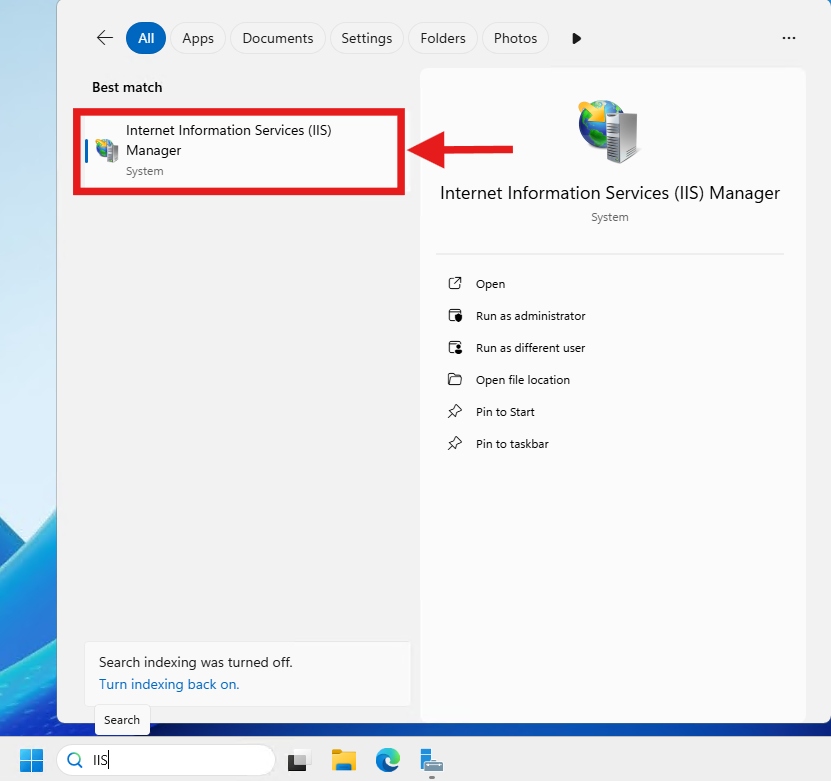
- Open Internet Information Services (IIS) Manager from the Windows Start menu.
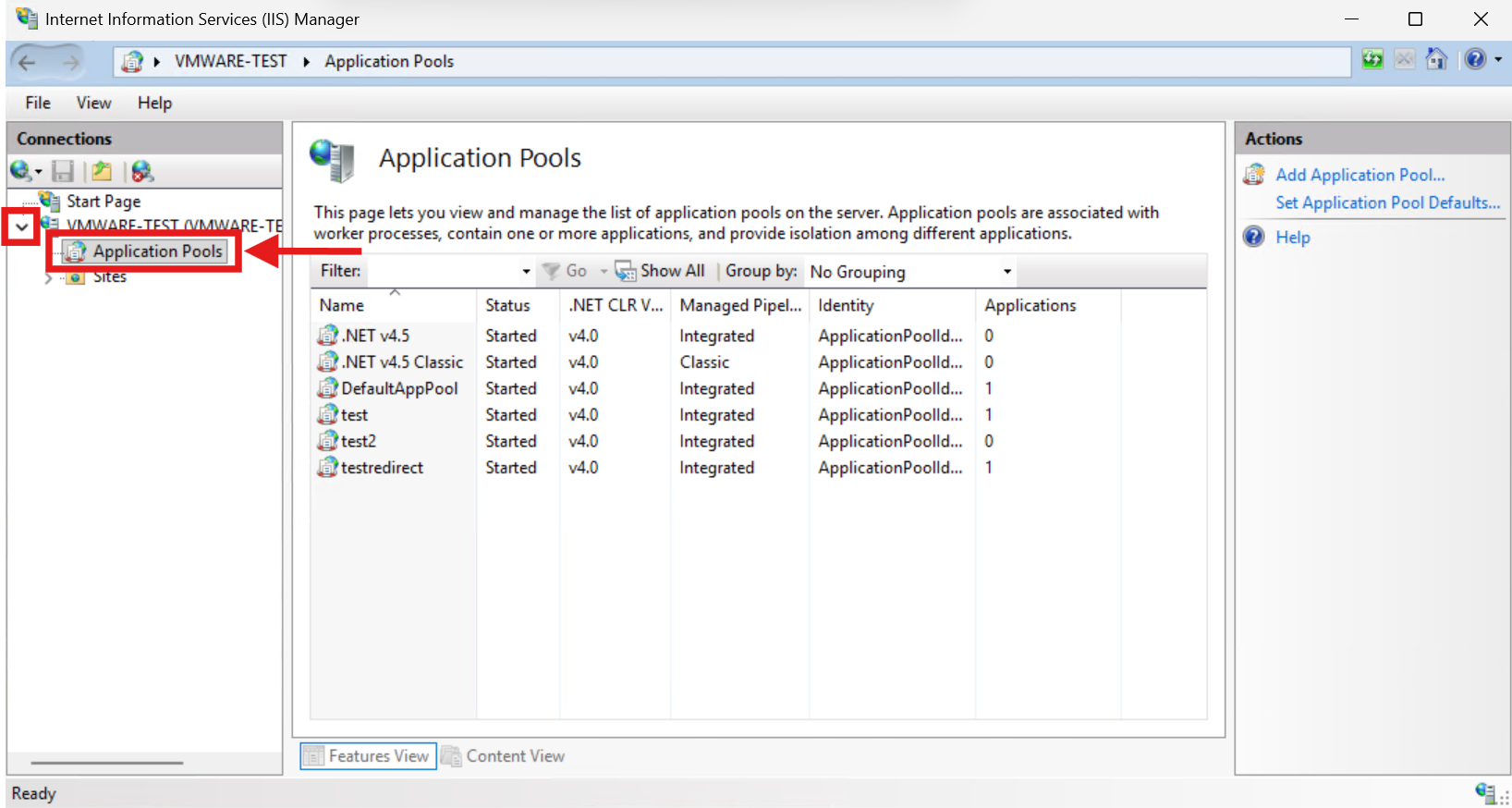
- In the left Connections pane, expand the server node and click on Application Pools.
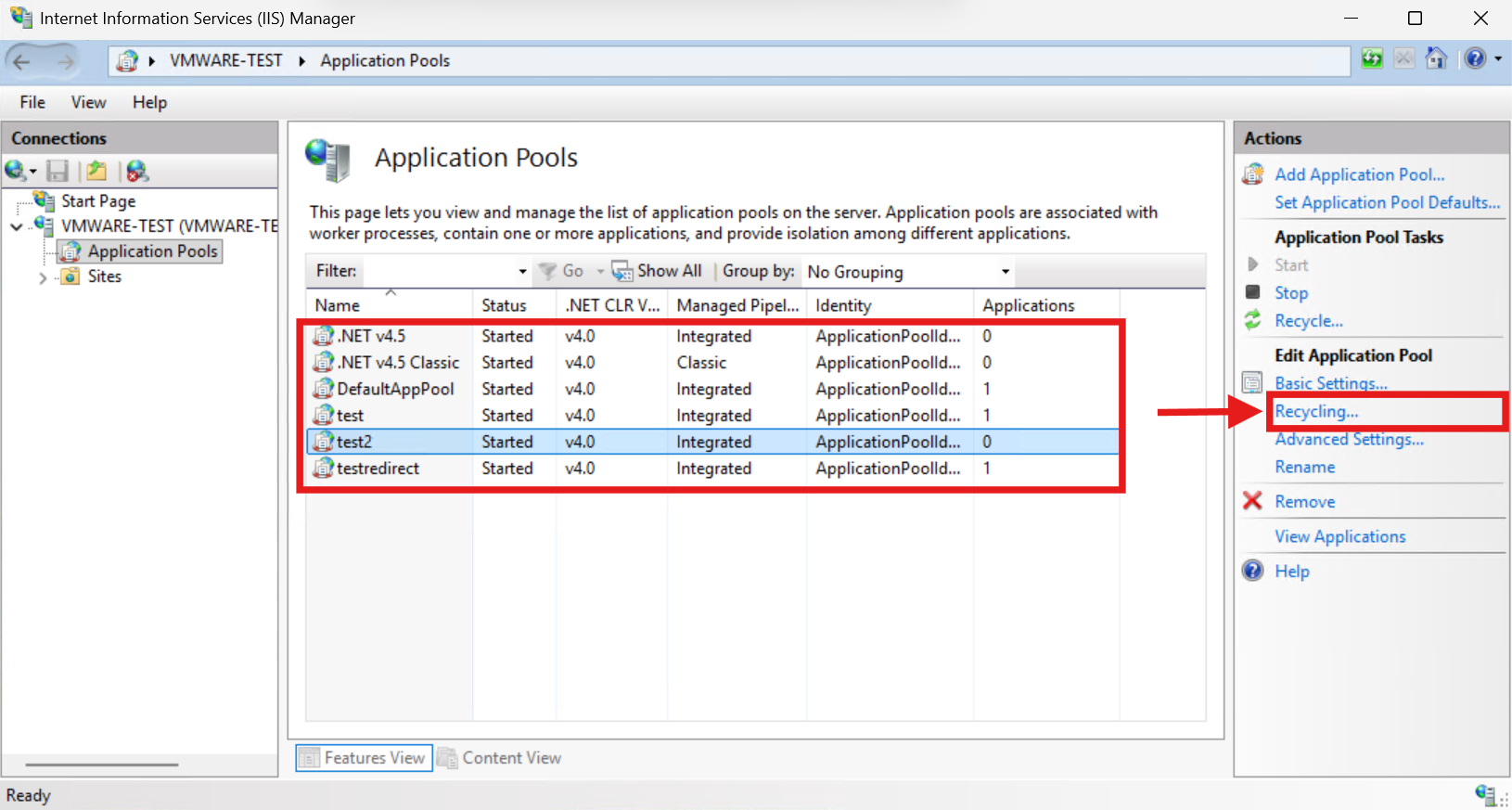
- In the middle pane, select the specific application pool that is causing high CPU usage.
- In the right Actions pane, click on Recycling….
Step 2: Configure the Recycling Schedule
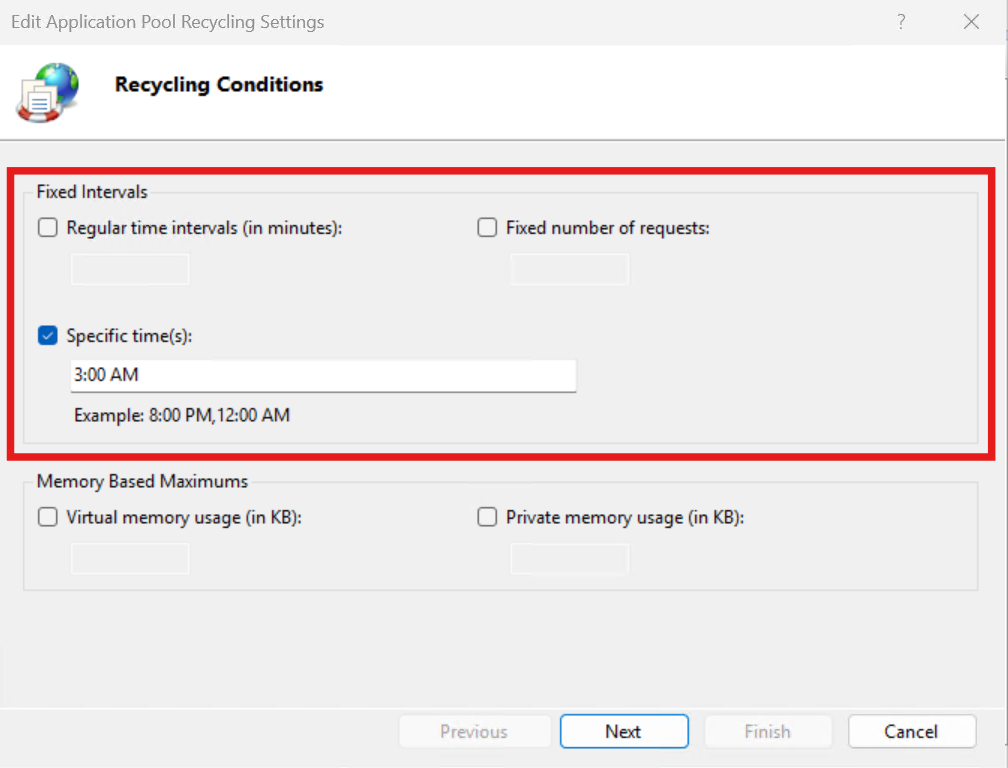
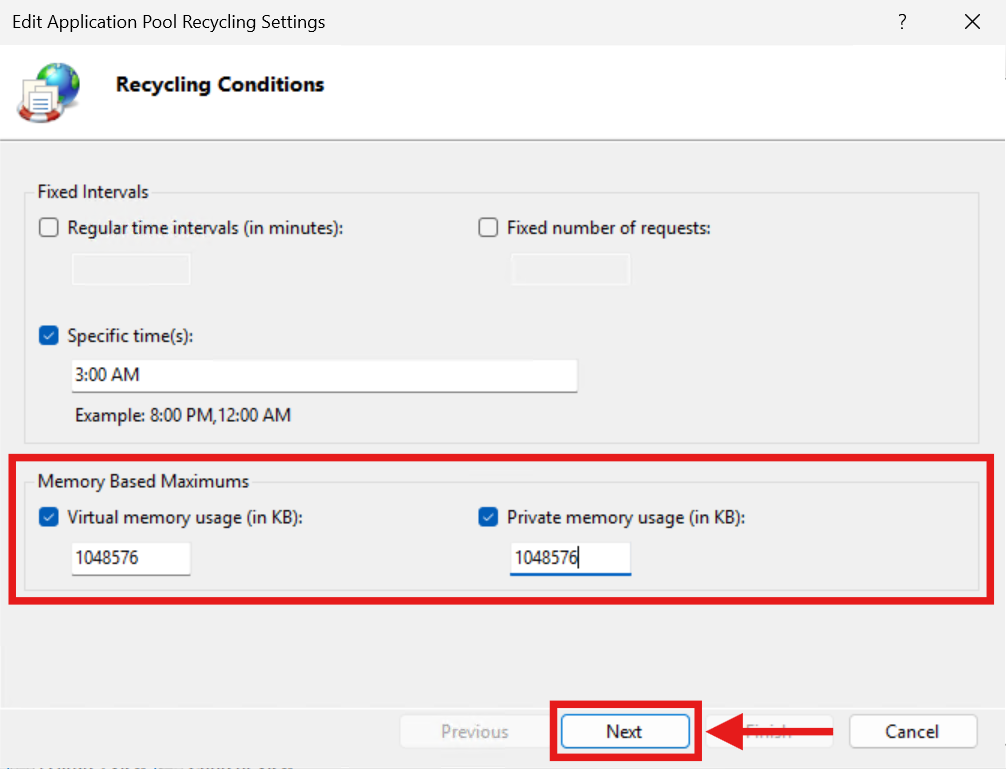
- In the Recycling Conditions window, under the Fixed Intervals section, uncheck the default Regular time intervals (in minutes) if you want to avoid arbitrary mid-day restarts.
- Check the Specific time(s) option, enter a time when your website traffic is at its lowest (e.g., 3:00 AM).
Step 3: Configure Memory Usage Limits
- Under the Memory Based Maximums section, check Virtual memory usage (in KB) and Private memory usage (in KB).
- Enter appropriate limits based on your server capacity (e.g., 1048576 for 1GB limit).
- Click Next to proceed to the Recycling Events to Log page.
Step 4: Enable Logging and Apply Changes
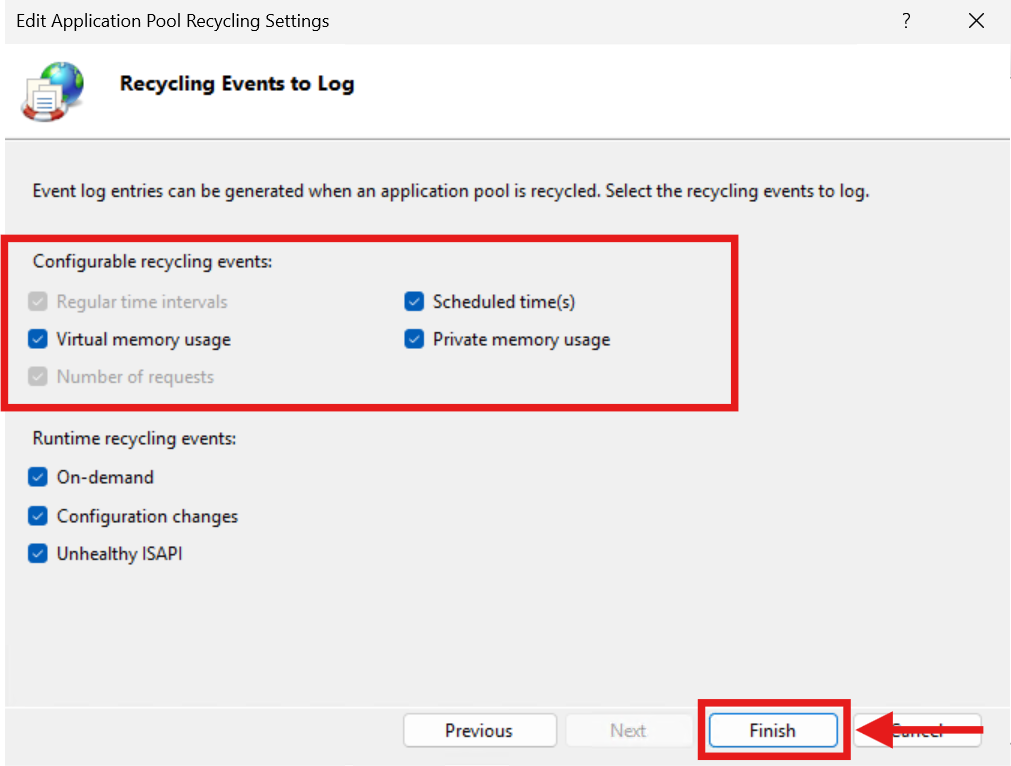
- Ensure the corresponding logging events (such as Scheduled time(s), Virtual memory usage, and Private memory usage) are checked so you can track the automated recycles in the Windows Event Viewer.
- Click Finish to apply the new recycling schedules and memory limits.
Conclusion
By following this guidance, you can successfully fix high CPU usage and memory leaks by configuring your IIS application pool to recycle automatically based on custom schedules and specific memory limits.
If you require further assistance, please contact our support team at support@ipserverone.com.