
Search Our Database
Directadmin | Enabling Two-Factor Authentication (2FA) for DirectAdmin Administrators
Introduction
DirectAdmin administrator accounts can manage hosting users, website services, and important server settings. If an administrator password is exposed or reused, an unauthorized login could affect the wider hosting environment. Two-Factor Authentication (2FA) adds a second check that helps protect these privileged accounts even when a password has been compromised.
DirectAdmin supports time-based one-time passwords (TOTP) generated by authenticator applications such as Google Authenticator, Microsoft Authenticator. This guide walks through the Evolution Skin setup for the admin account, including changing from the Enhanced Skin, testing the new login, checking optional server settings, and handling access recovery.
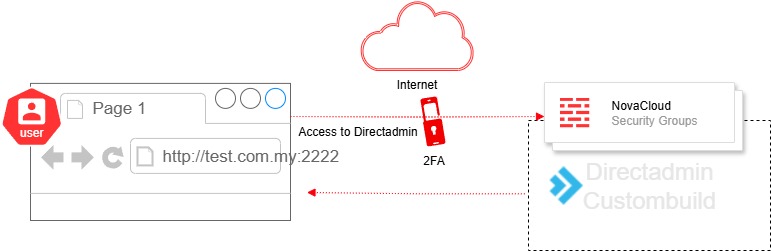
Why this matters
- Protects administrative access: A password alone is not sufficient for a normal account login after 2FA is enabled.
- Reduces credential-attack risk: Time-limited codes add a barrier to attacks using stolen or guessed passwords.
- Supports safer hosting operations: Protecting privileged access helps reduce the chance of unauthorized changes to hosted services.
2FA complements strong passwords, HTTPS, and good account management; TOTP alone does not prevent every phishing attack.
Prerequisites
- Working access to the DirectAdmin admin account and its HTTPS login page.
- A supported authenticator application on a mobile device.
- An authorized recovery route such as the Customer Portal console or another approved server administrator.
- A secure location for storing one-time scratch/recovery codes.
Important: Enabling 2FA changes the login process for the account being configured. Keep your existing session open until you have verified a separate login and securely stored scratch codes. Never share or publish the TOTP secret, its QR code, or recovery codes.
Step-by-step guide
Part A: Switch from Enhanced to Evolution Skin (if required)
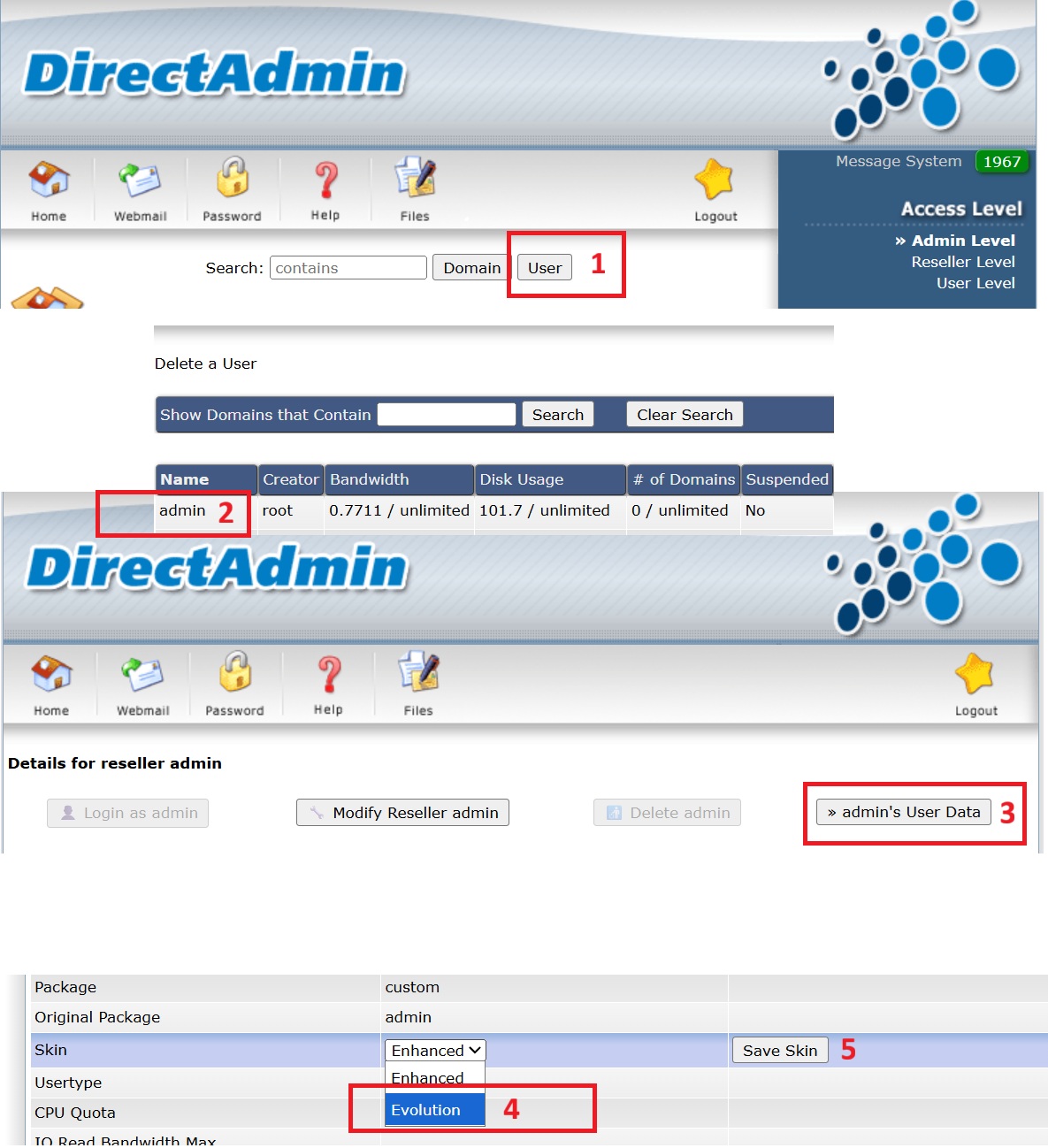
If your admin account already uses the Evolution Skin, skip this part and continue to Part B. The screenshot below shows the older Enhanced Skin interface; menu labels may differ between DirectAdmin releases.
Step 1: Sign in to DirectAdmin and locate the admin account
- Log in to DirectAdmin as the admin user.
- In the Enhanced Skin, select the User view, then locate the admin account.
- Open admin’s User Data to access the skin preference.
Step 2: Select Evolution and save the skin setting
- Under the account skin setting, select Evolution.
- Click Save Skin (or Save in the installed version).
- Confirm that the admin interface now loads with the Evolution layout.
Part B: Enable Two-Step Authentication for admin
Step 3: Open the Two-Step Authentication settings
- Log in using the admin account in Evolution.
- Open the password/account menu and select Two-Step Authentication. Depending on the skin layout, the option may appear under account settings.
- Confirm that the Two-Step Authentication page opens, then select Generate Secret.
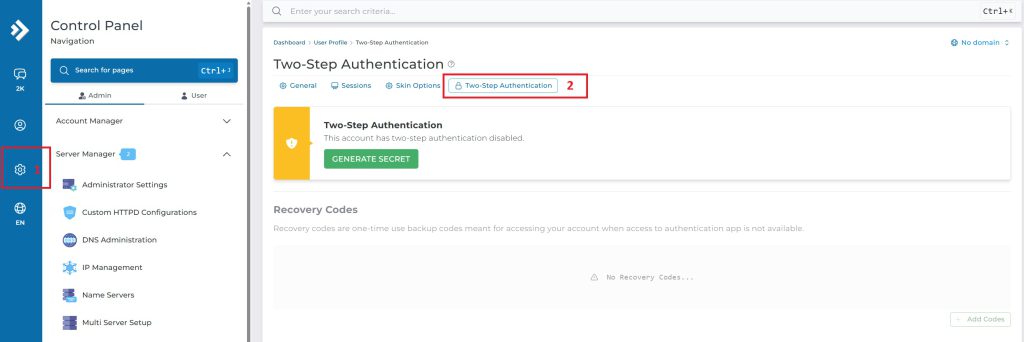
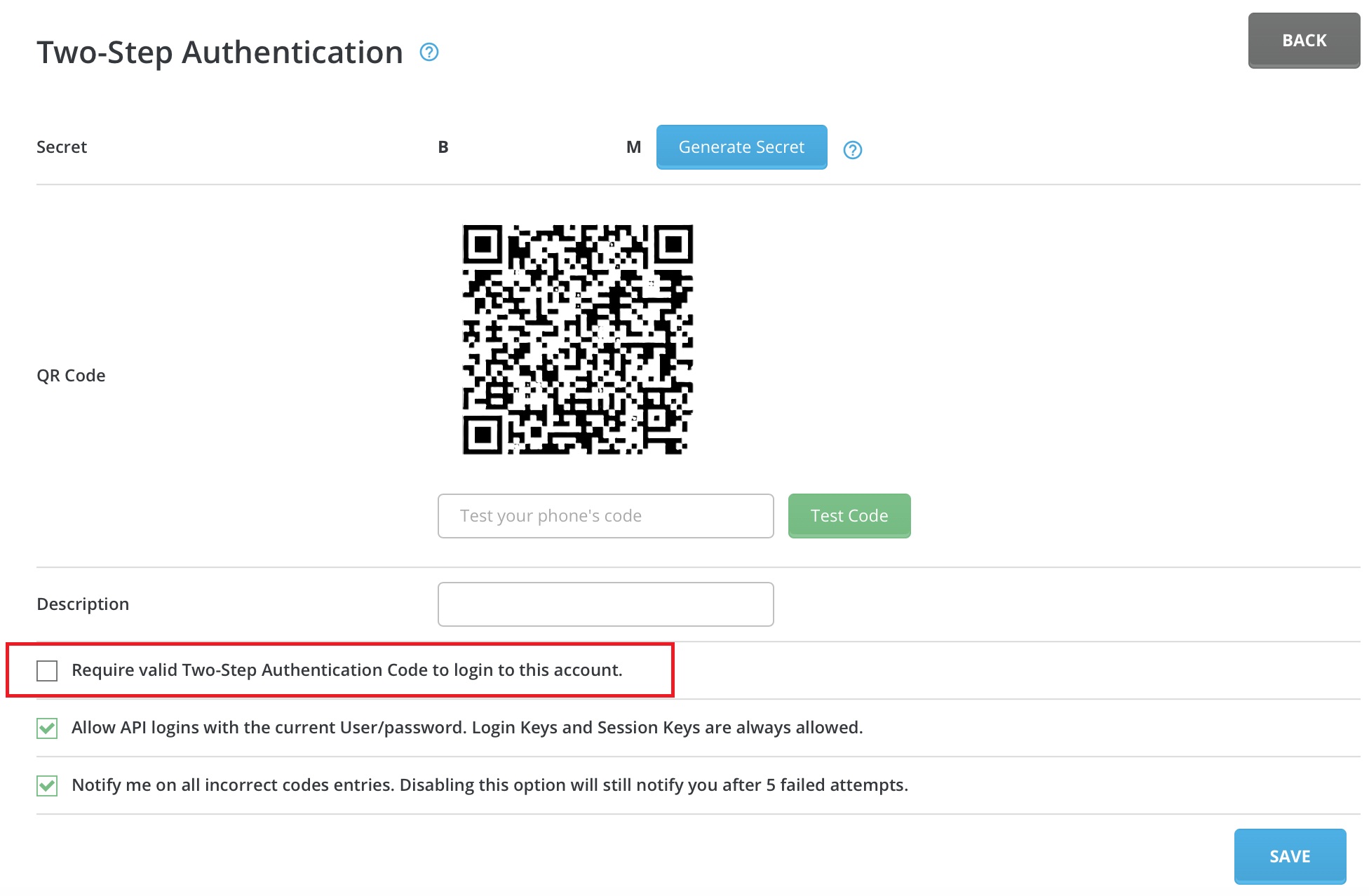
Figure 3: Original Evolution Skin screenshot showing the Two-Step Authentication section and Generate Secret button.
Step 4: Pair your authenticator and test the code
- In your authenticator app, choose the option to scan a QR code (or enter a setup key manually).
- Scan the unique QR code generated in DirectAdmin. Treat it like a password.
- Enter the current six-digit code displayed by the app into the Test Code field and select Test Code or Check.
- Confirm that DirectAdmin accepts the test code. If not, check the time settings on both the server and phone before retrying.
Step 5: Require a 2FA code and save the account settings
- Enable the account-level setting that requires two-step verification for login. In the older screenshot, this is the Require valid Two-Step Authentication Code to login to this account checkbox.
- Click Save to apply the setting.
- Return to the authentication page and confirm that 2FA is enabled for the admin account.
Important distinction: This protects the current administrator account. It does not require all DirectAdmin users or resellers to enrol in 2FA.
Step 6: Generate and store scratch (recovery) codes
- Open the Recovery Codes or Scratch Codes section.
- Generate the available one-time codes and save them in a secure location separate from the authenticator device.
- Confirm the codes are accessible through your approved recovery procedure before closing the working session.
Expected result: You have an alternative login method if your mobile device is lost. Each DirectAdmin scratch code is valid for one use only.
Step 7: Test the login from a fresh browser session
- Open a new private/incognito browser window and navigate to your DirectAdmin HTTPS login URL.
- Enter the admin username and password.
- At the second verification prompt, enter the current TOTP code from your authenticator app.
- Verify that DirectAdmin opens the administrator dashboard only after the second step succeeds.
Check: If the new login works, you can end the original browser session. A browser previously marked as trusted may behave differently, so use a fresh session for verification.
Optional: Check or enable the server-wide feature switch using CLI
These commands manage whether DirectAdmin offers two-step authentication. They do not automatically enforce enrolment for every DirectAdmin account. Perform configuration changes only with approved administrator access and recovery access available.
1. Check the current setting:
A returned value of 1 means the feature is enabled; this is normally the default. If disabled and a change is approved, enable it using:
systemctl restart directadmin
2. Verify the setting:
DirectAdmin also documents twostep_auth_trust_days for trusted-browser behavior. Do not copy legacy settings blindly: max_twostep_auth_attempts was removed in DirectAdmin 1.669.
Optional: Recover from failed logins or IP blacklisting
Repeated incorrect passwords or verification codes can trigger DirectAdmin brute-force protections. If the legitimate administrator becomes blocked, first confirm the correct source IP and verify that the lockout is not part of an ongoing attack.
- Use an approved console or another authorized administrator session to review the affected source IP.
- The DirectAdmin blacklist is stored at the path below. Remove only an entry that has been positively identified as an authorized administrator address, following your change policy.
- Retry one normal login using a fresh valid TOTP code. Avoid repeated guesses.
DirectAdmin also supports an administrative IP whitelist at the following path, but permanent allowlisting should be a separately approved security decision—not a routine workaround for an incorrect OTP:
Verification
- Account protection: Confirm the admin account shows 2FA enabled and a fresh login requires a TOTP code.
- Recovery readiness: Confirm that valid unused scratch codes are stored securely.
- Scope: Check other DirectAdmin accounts separately; the admin account setup does not enforce 2FA for every user.
References
- DirectAdmin — Two-Step Authentication
- DirectAdmin — Configuring DirectAdmin
- DirectAdmin — Version 1.670 authentication updates
- IP ServerOne — Changing from Enhanced to Evolution
Through technology, we learn. Through sharing, we connect.
Explore more guides at https://kb.ipserverone.com/
For technical support / service enquiries, please reach out to support@ipserverone.com for assistance.