
Search Our Database
Performing Routine Maintenance – System Updates and DirectAdmin Software Update
Introduction
System maintenance is essential for server administrators, system engineers, and hosting providers seeking to maintain server performance and security. Performing updates on system packages and DirectAdmin components patches critical security vulnerabilities, ensures compatibility with recent application libraries, and prevents unexpected downtime. This routine maintenance should be conducted regularly within scheduled server maintenance windows via SSH terminal or the DirectAdmin web interface. Following these steps guarantees server stability, optimal performance, and uninterrupted service delivery across your cloud environment.
Prerequisite
- Access to DirectAdmin with Admin privilege
- SSH root access or sudo privileges to the server
- Valid and active DirectAdmin license
- Schedule maintenance period
Impact
- Temporary service disruption (Apache, MySQL, Exim, PHP) during software rebuild
- Reboot may cause short downtime, advisable to schedule during maintenance windows
- PHP version changes may break legacy applications or custom scripts
- DNS or mail configurations could be reset if improperly customized
Best Practices
- When running updates/upgrades, do not quit the process half-way. Let the processes complete before moving on to next item.
- Directadmin CustomBuild updates do not upgrade the OS (Operating System), these are separate steps.
- Keeping the OS updated is essential for kernel patches, security compliance (e.g., CVEs), and ensuring compatibility with system libraries used.
- Always refer to official Directadmin changelog for the latest changes, access to [DirectAdmin Changelog]
Step-by-step guide
Method 1: Performing Routine Maintenance via DirectAdmin Graphical User Interface (GUI)
This method allows updating DirectAdmin binaries and system packages directly through the web panel using the Evolution Skin.
-
Access your DirectAdmin control panel via web browser using your Admin credentials.
The URL to your DirectAdmin typically will be like <domain>:2222 or <server IP>:2222.
- If you are using Enhanced Skin on DirectAdmin, you will have to switch to Evolution Skin for the update features.
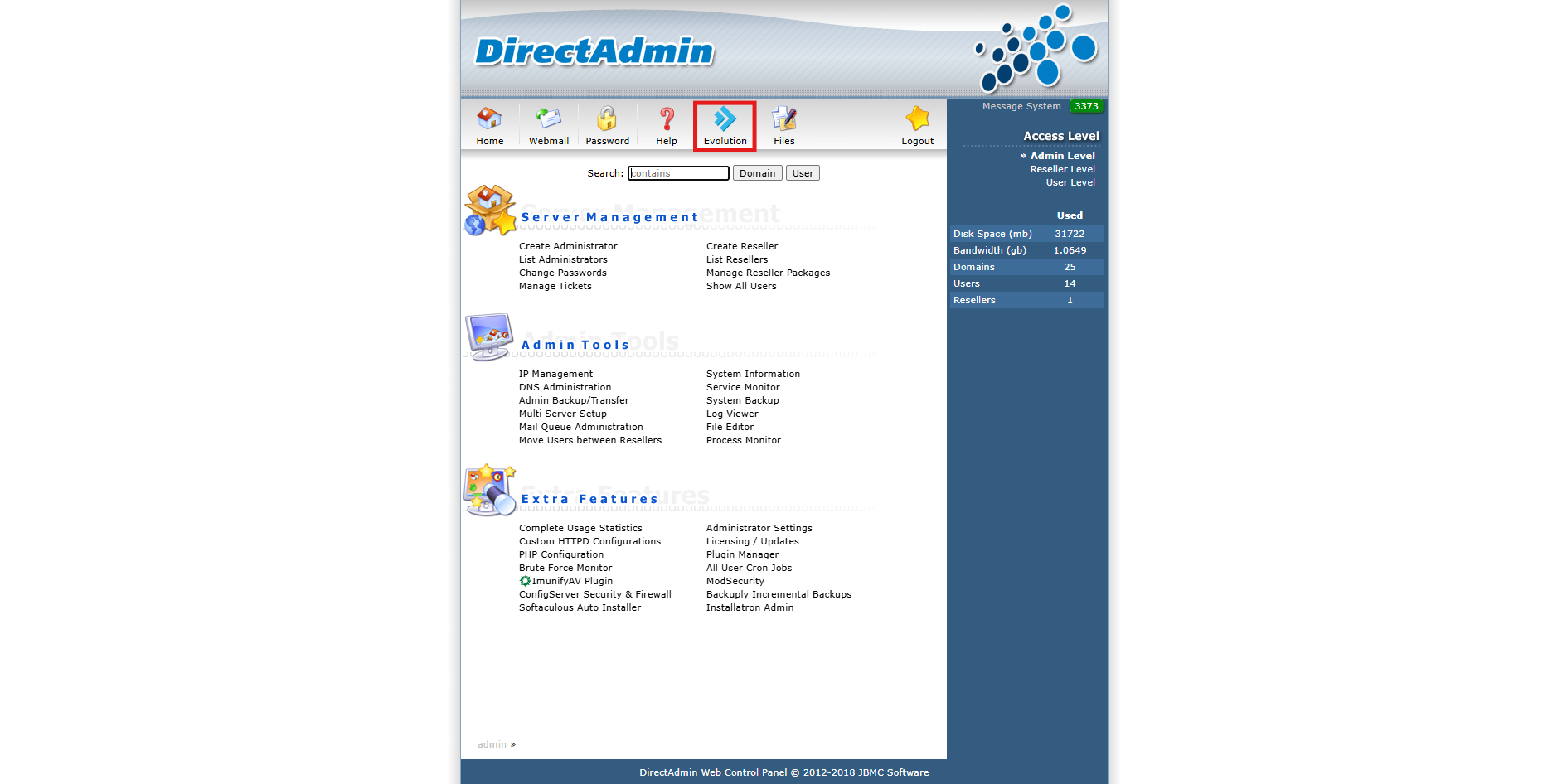
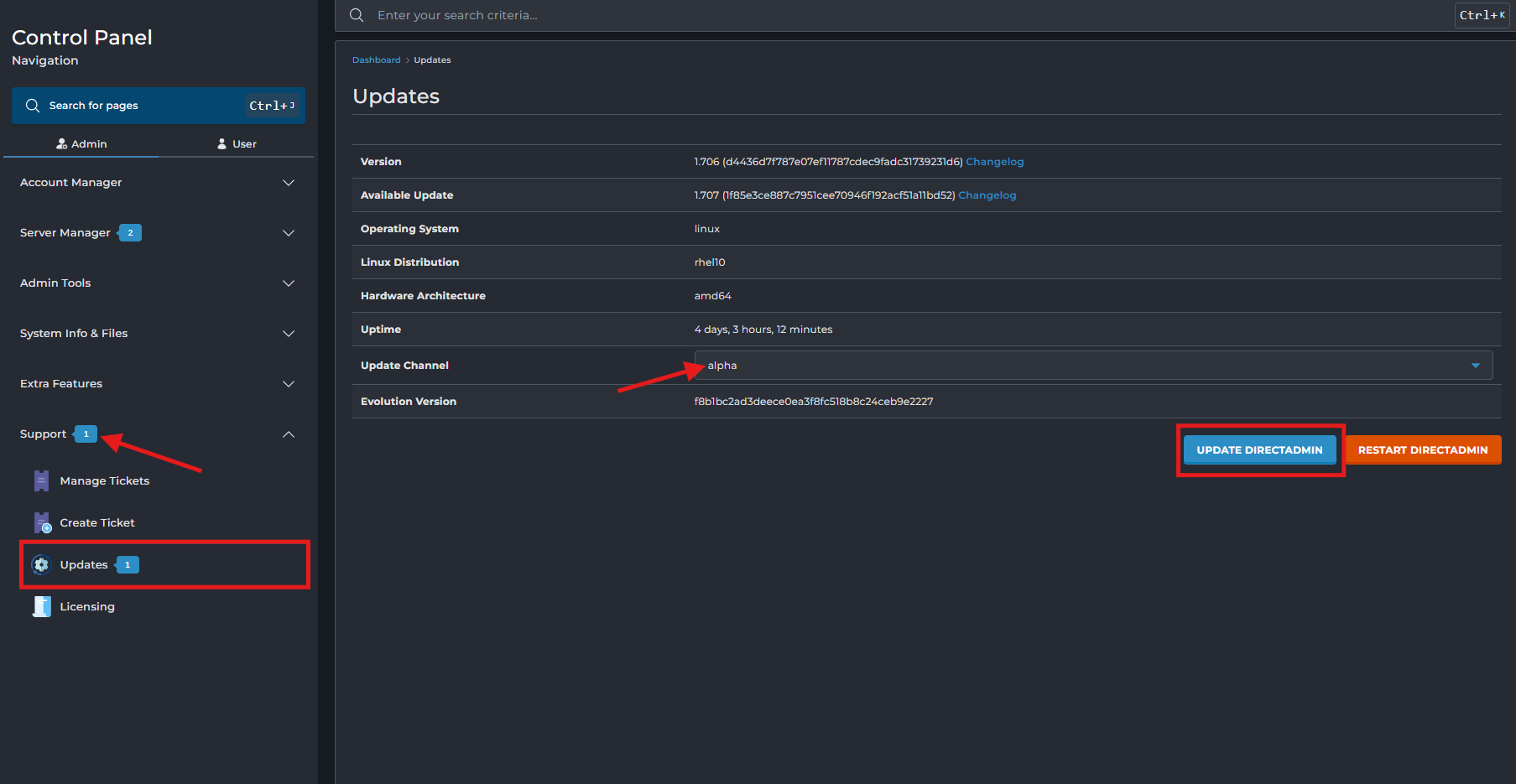
- To update DirectAdmin, navigate to Updates under Support drop-down, and click UPDATE DIRECTADMIN.
Important Note ⚠️: Choose wisely on the Update Channel when updating the DirectAdmin.
-
current: The standard channel used when installing or updating the DirectAdmin.
-
stable: A safer channel that receives updates later than the current channel, usually staying one version behind.
-
alpha: An experimental channel updated daily with the newest, untested code.
-
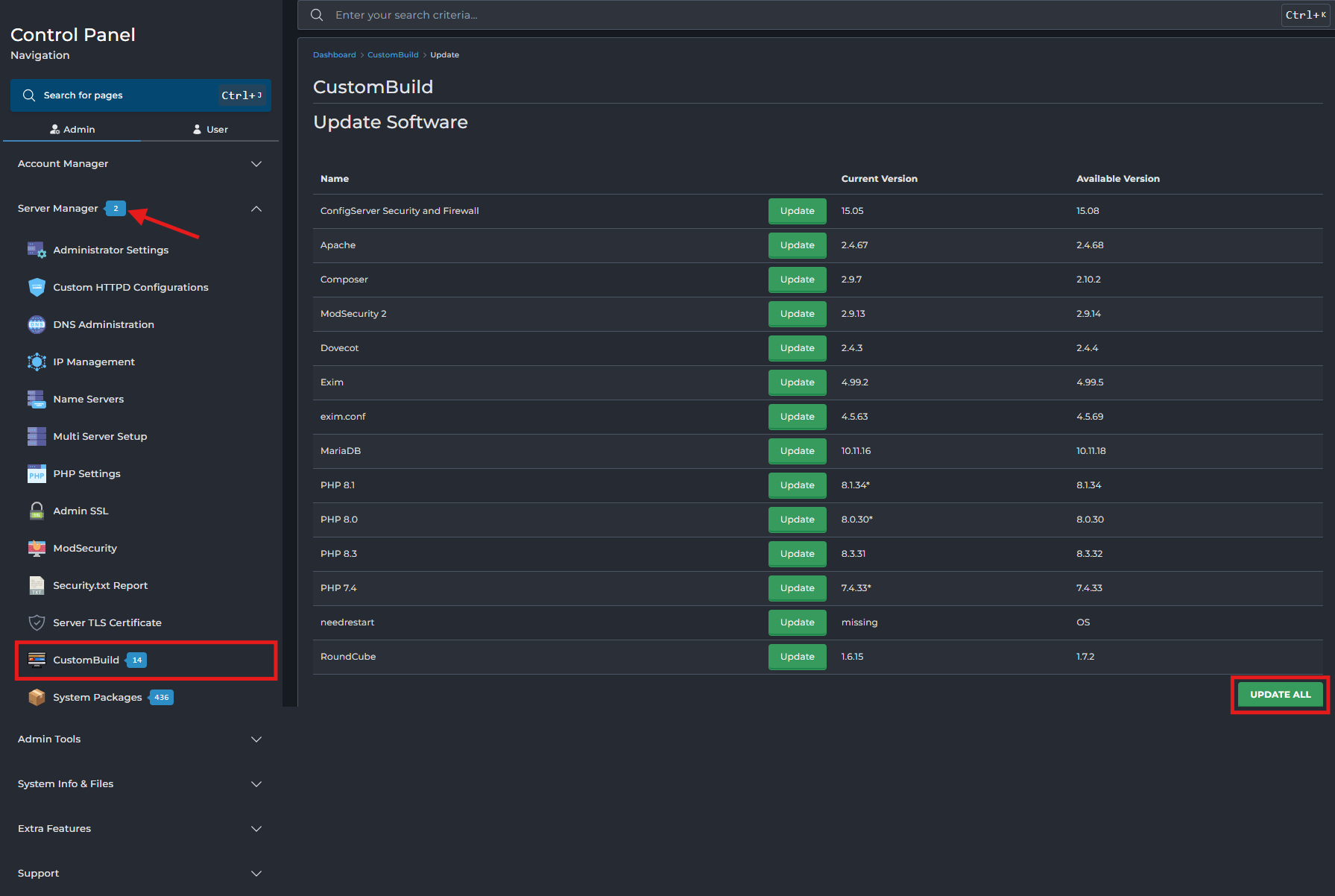
- To update CustomBuild Services, navigate to CustomBuild under Server Manager drop-down, and click UPDATE ALL.
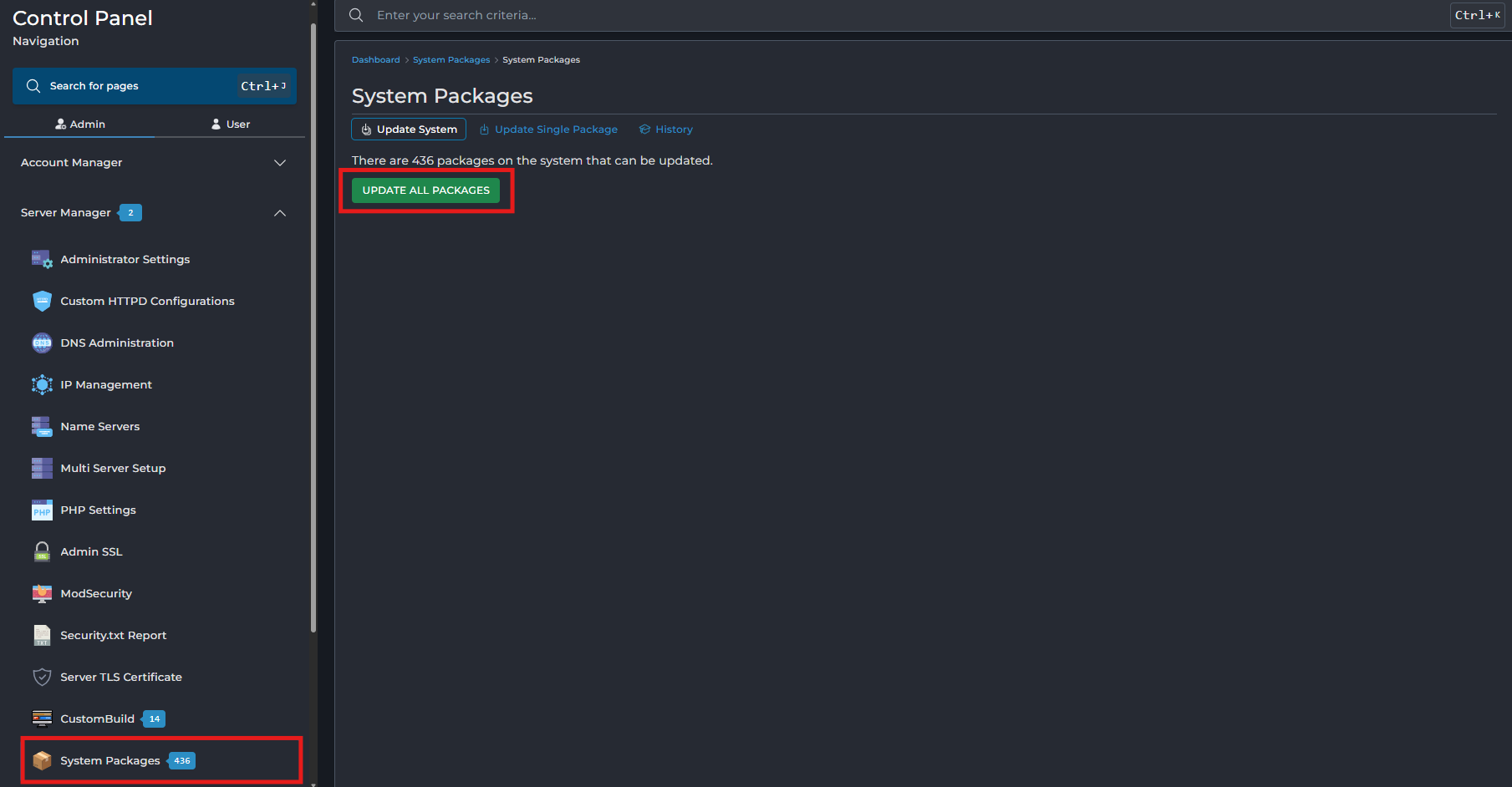
- To update System OS Packages, navigate to System Packages under Server Manager drop-down, and click UPDATE ALL PACKAGES.
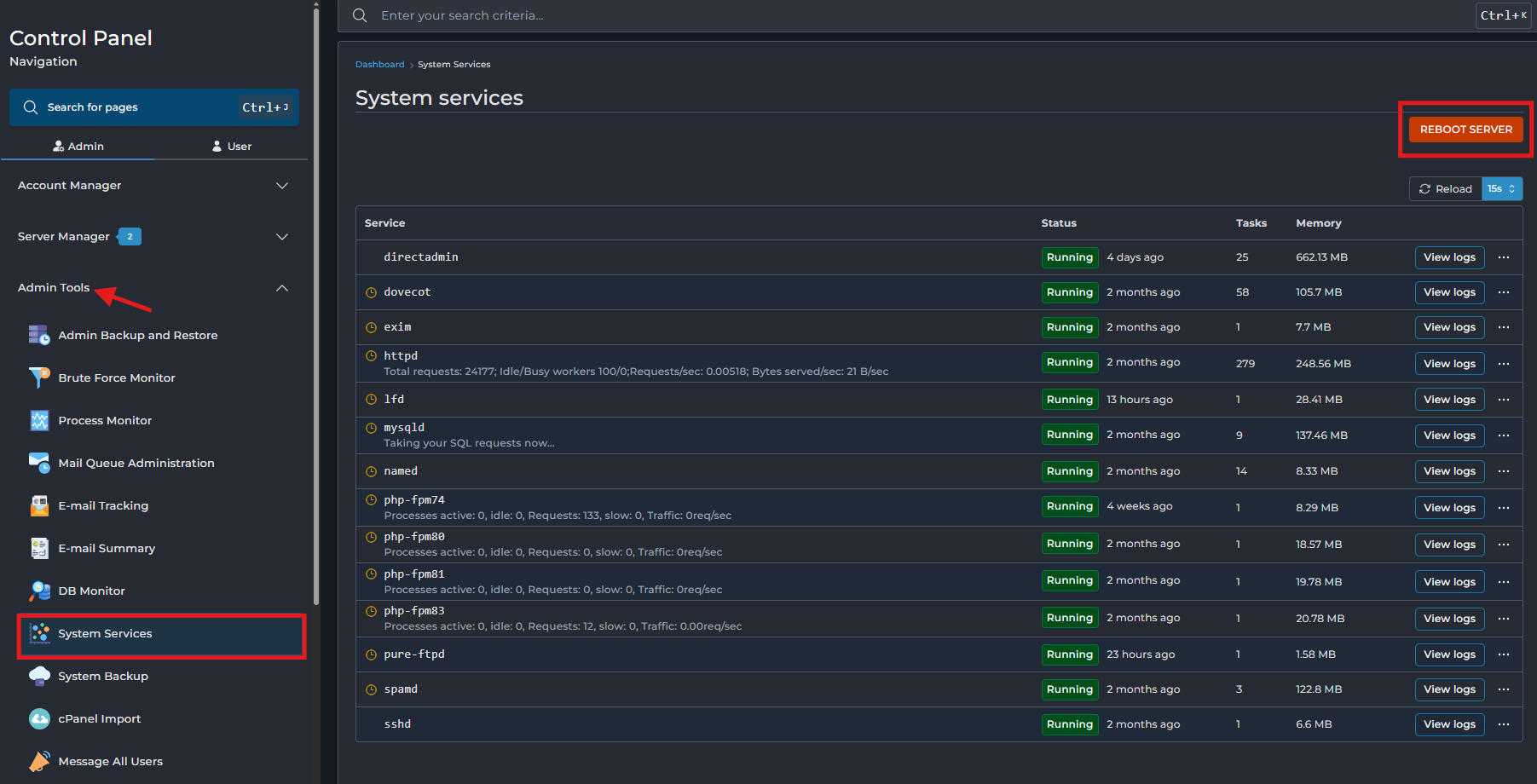
- Reboot the server by navigate to System Services under Admin Tools drop-down, and click REBOOT SERVER to apply any newly installed Linux kernel updates.
Important Note ⚠️: You will have to enter DirectAdmin Admin User’s Password to acknowledge the server reboot action.
Method 2: Performing Routine Maintenance via Command-Line Interface (CLI)
Updating via CLI ensures a complete update of the operating system, kernel, dependencies, and DirectAdmin CustomBuild applications.
Conclusion
By following this guidance, you can ensure your server’s operating system and DirectAdmin environment remain fully updated, secure, and running smoothly.
For additional assistance or if you encounter any issues, please contact our support team at support@ipserverone.com.
Article updated on 28 July 2026 by Johnny