
Search Our Database
Auto cloud credit top up for cloud instance
Introduction
Effectively managing cloud resources is essential for maintaining uninterrupted operations. This guide aims to assist customers in ensuring the continuous functionality of their cloud instances without the need for manual credit management. The focus is on the auto top-up feature, which automatically replenishes your cloud credits to prevent service interruptions. It is crucial to enable auto top-up before your cloud credit balance runs low to avoid downtime due to insufficient funds. This guide applies to cloud hosting platforms where users manage their resources, ensuring that cloud instances remain active. Let’s walk through the steps to set up automatic cloud credit top-up, making cloud management smoother and more efficient.
- If you haven’t yet linked your card in the IP ServerOne portal, please follow this guide:
How to set up and manage auto-renewal payment method in the portal
Step-by-step guide
1. Log in to the portal
First, login to the IP ServerOne Customer Portal.

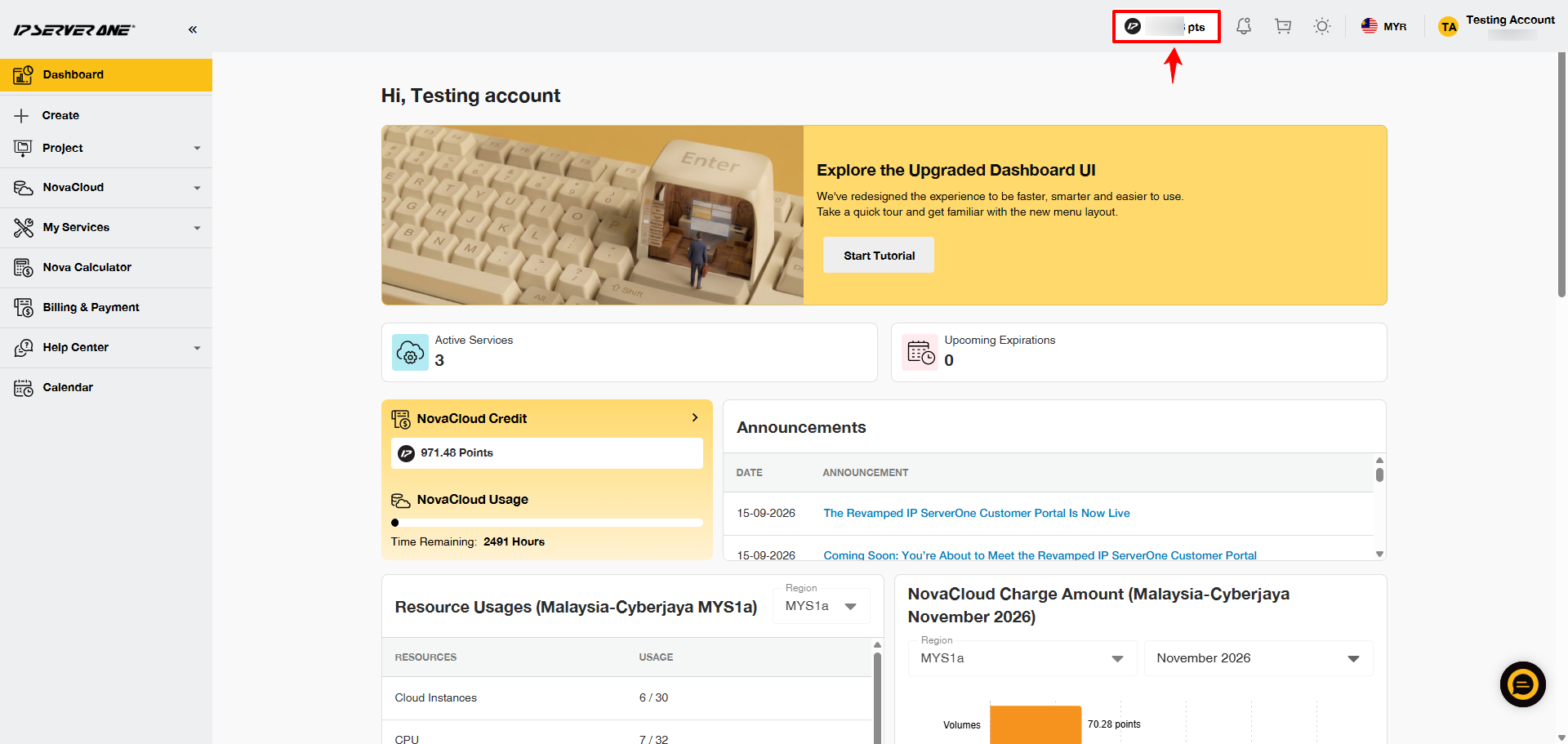
2. Click on Cloud Credit Indicator
From the menu on the right, click on the Cloud credit indicator.
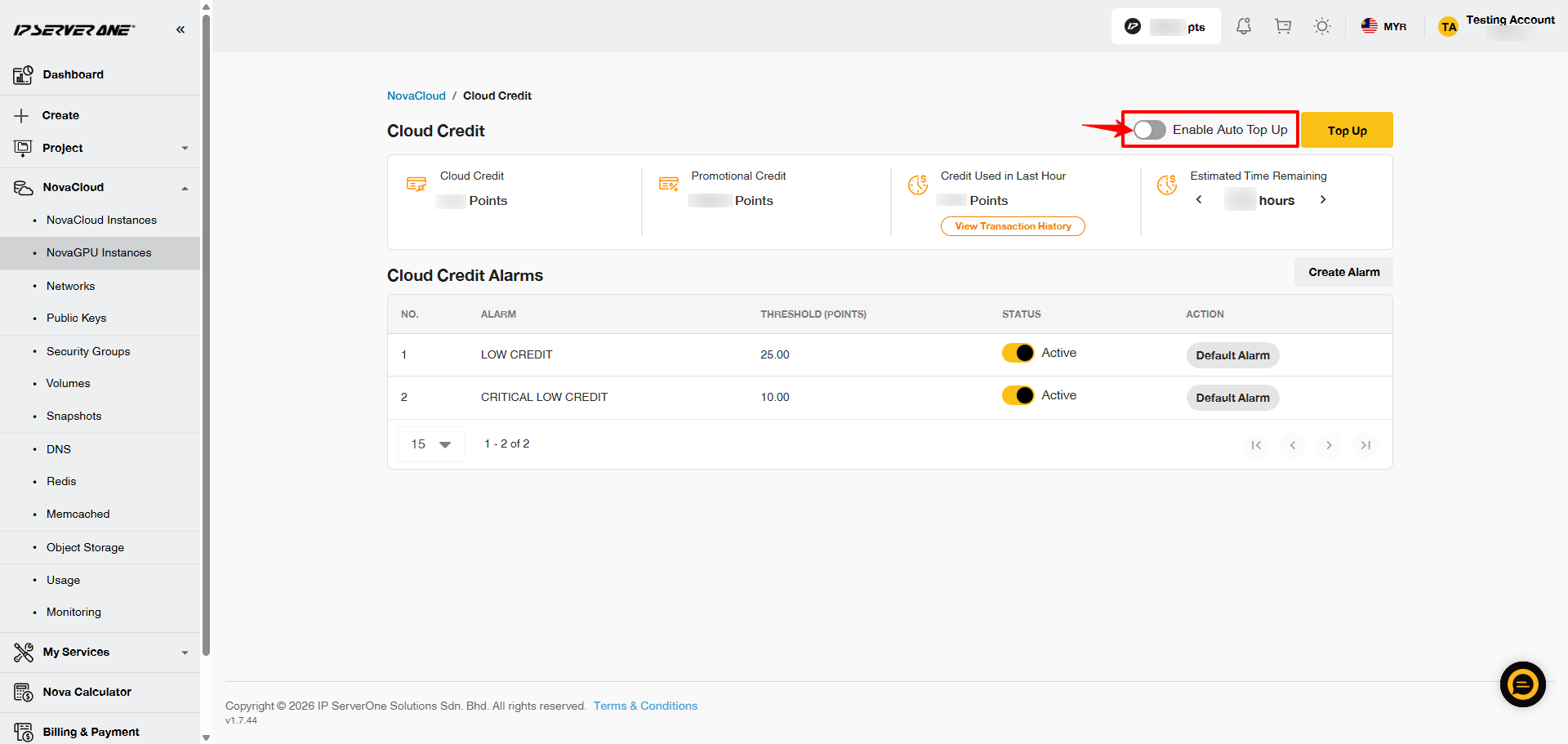
 3.Enable automatic credit reload
On this page, you may view the settings and details of your cloud credit balance. To enable cloud credit to top up automatically, turn on the toggle of Enable Auto Top Up.
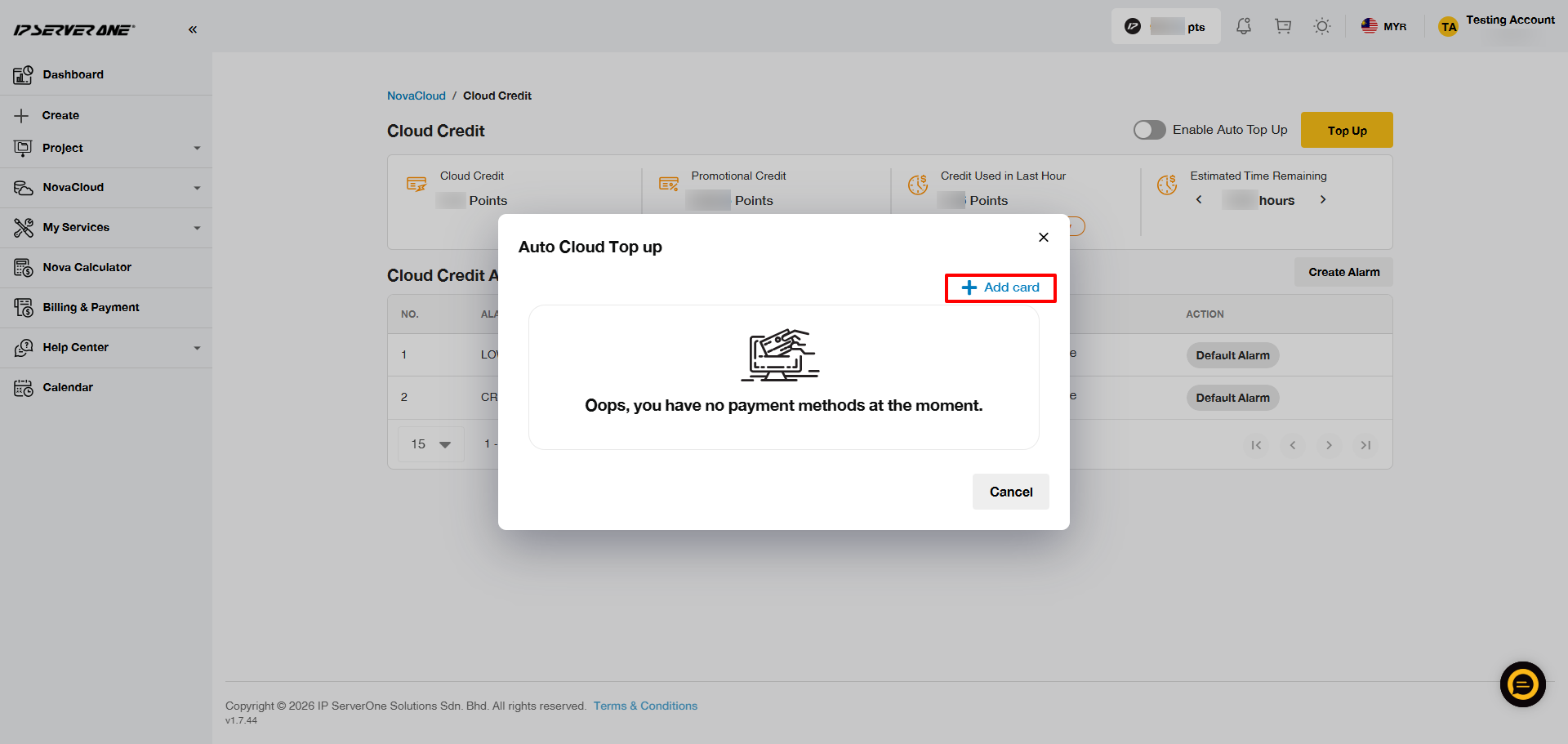
4. Add a new card (if no card saved)
If no debit or credit card is saved, you will required to click Add Card.
5. Select the payment method
Select the payment method and click on Add New Payment Method.
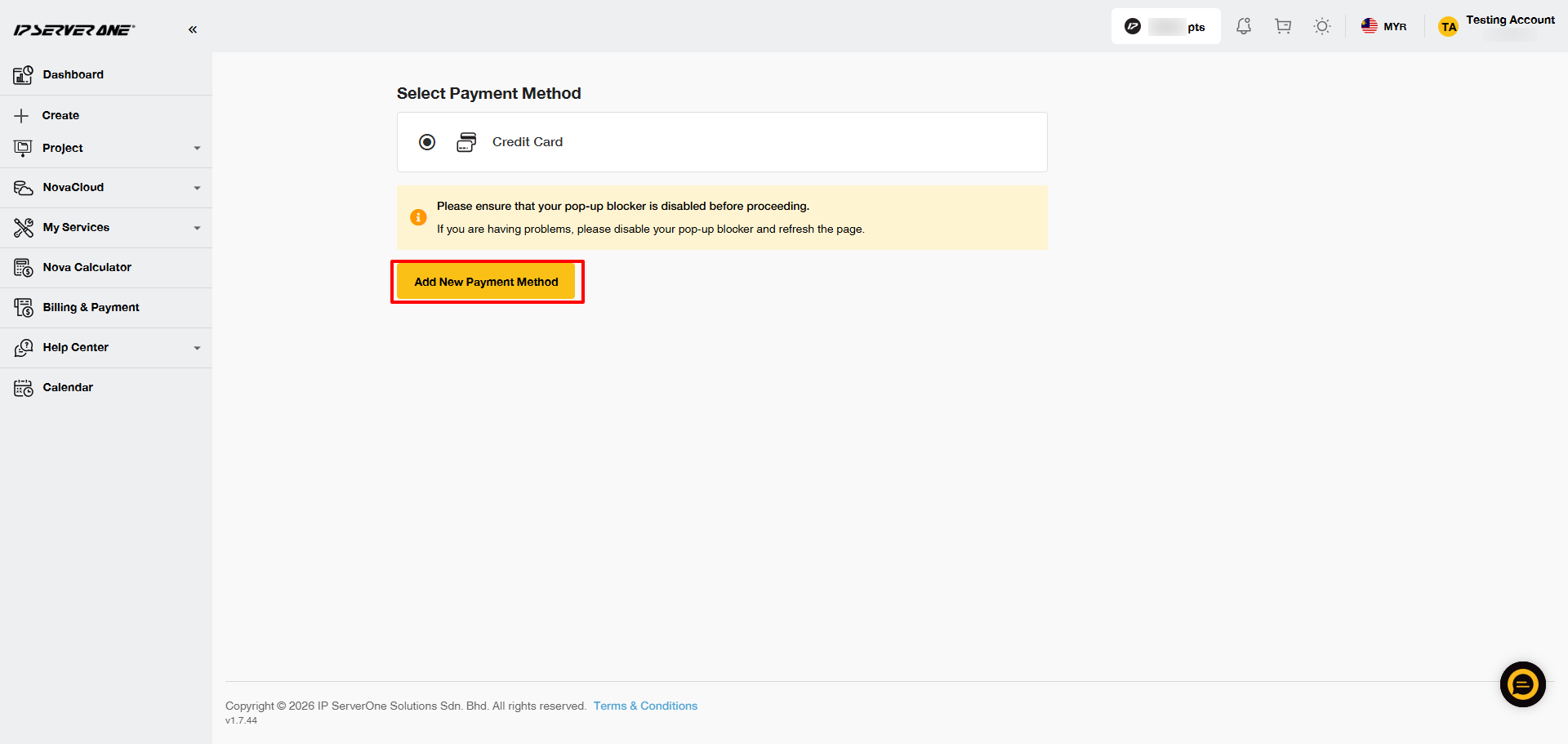
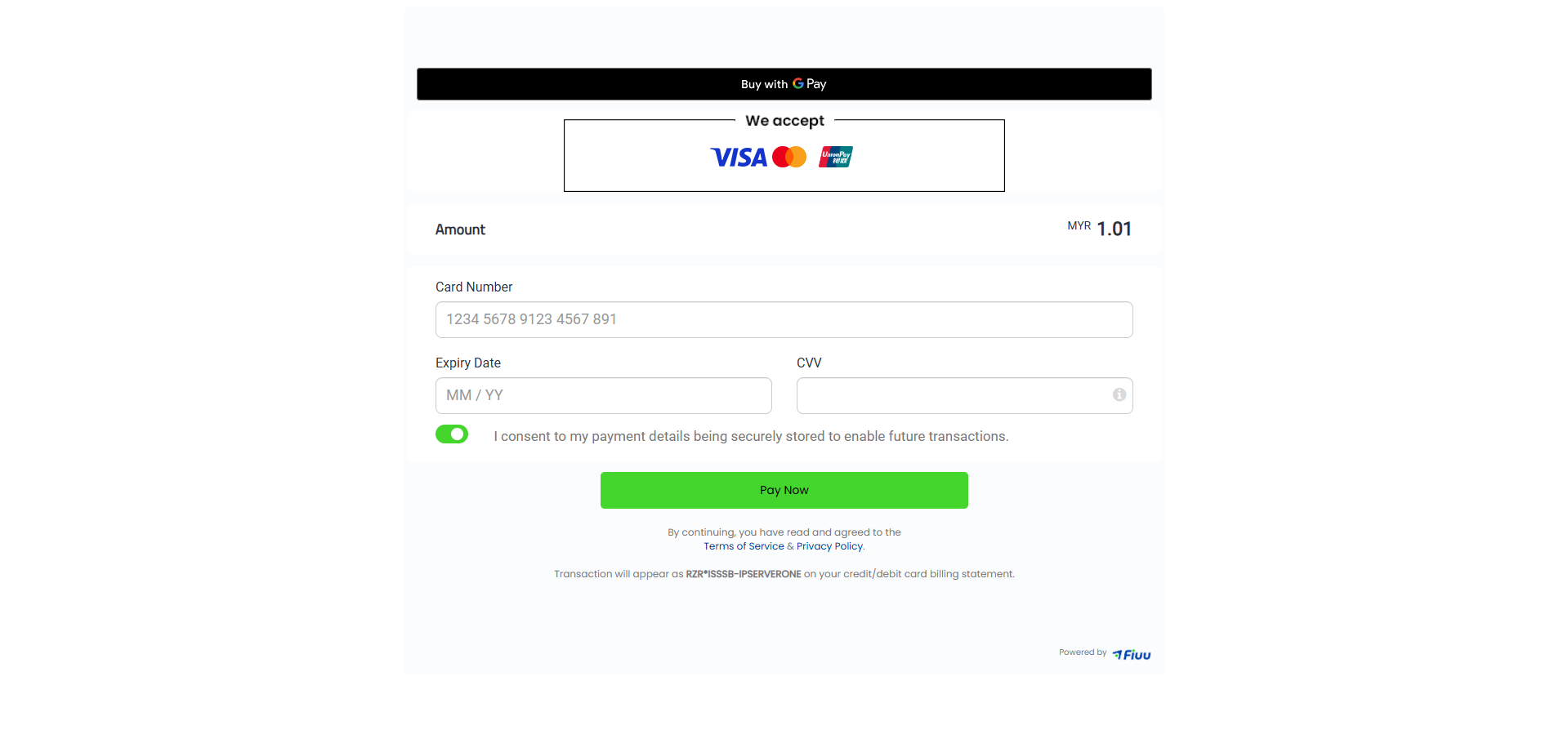
You will be redirect to the payment page. Enter the card information and click Pay Now.
6. Confirm auto top-up
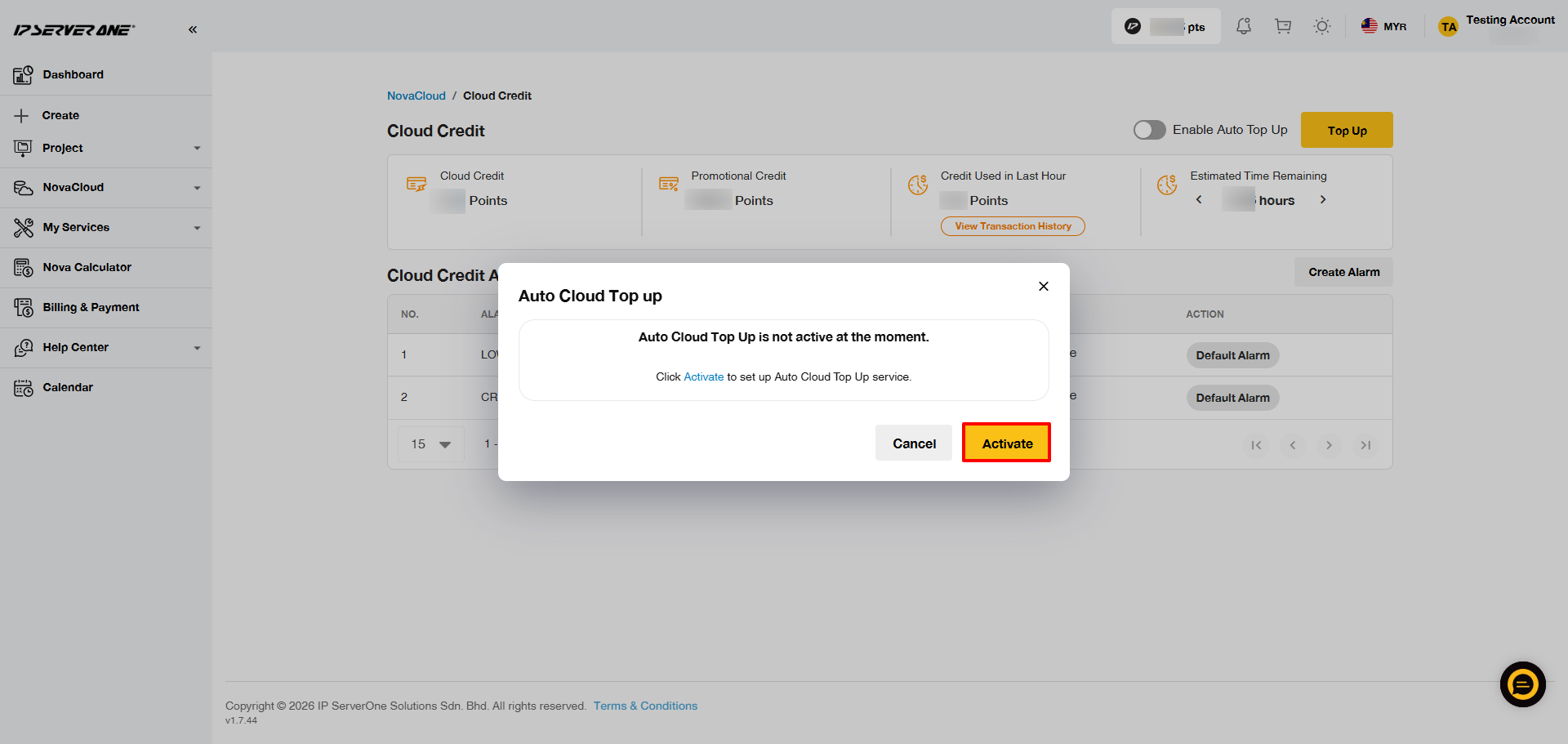
A pop-up will prompt you to click Activate to confirm your selection.
6. Set card, threshold, and top-up amount
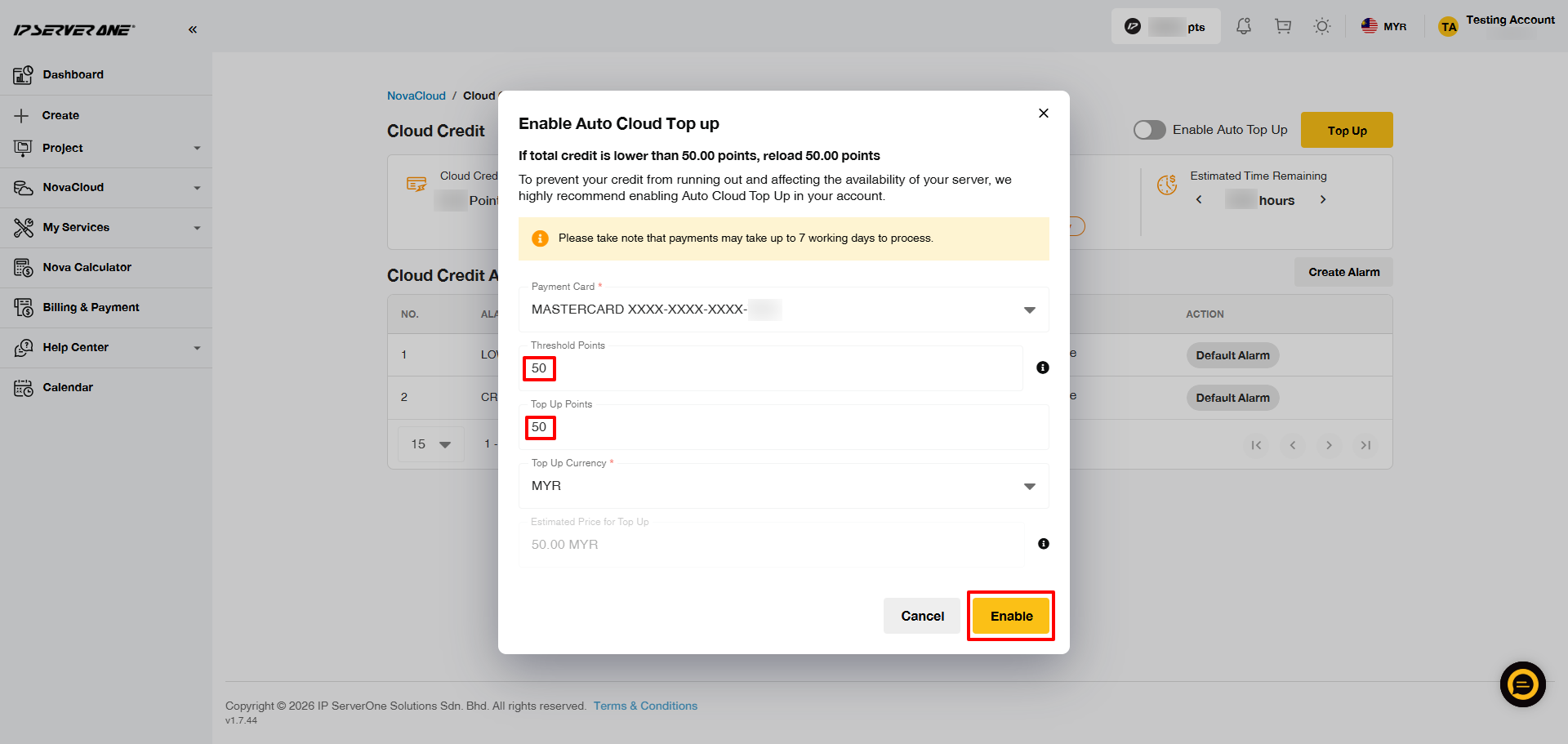
Select your preferred credit card, set a threshold amount, and choose the auto top-up amount. Click Enable to proceed.
- Threshold amount: The minimum cloud credit balance that triggers the auto top-up.
- Top-up amount: The amount deducted from your credit card when the threshold is reached.
For optimal cloud performance, it is recommended to set your threshold based on seven days of average usage to prevent service interruptions.
Example: Daily cloud credit usage = RM21.00
Threshold Calculation: 21.00 x 7 days = RM147
Suggested threshold: RM160, with a top-up amount of RM50.
8. Auto top-up successfully enabled
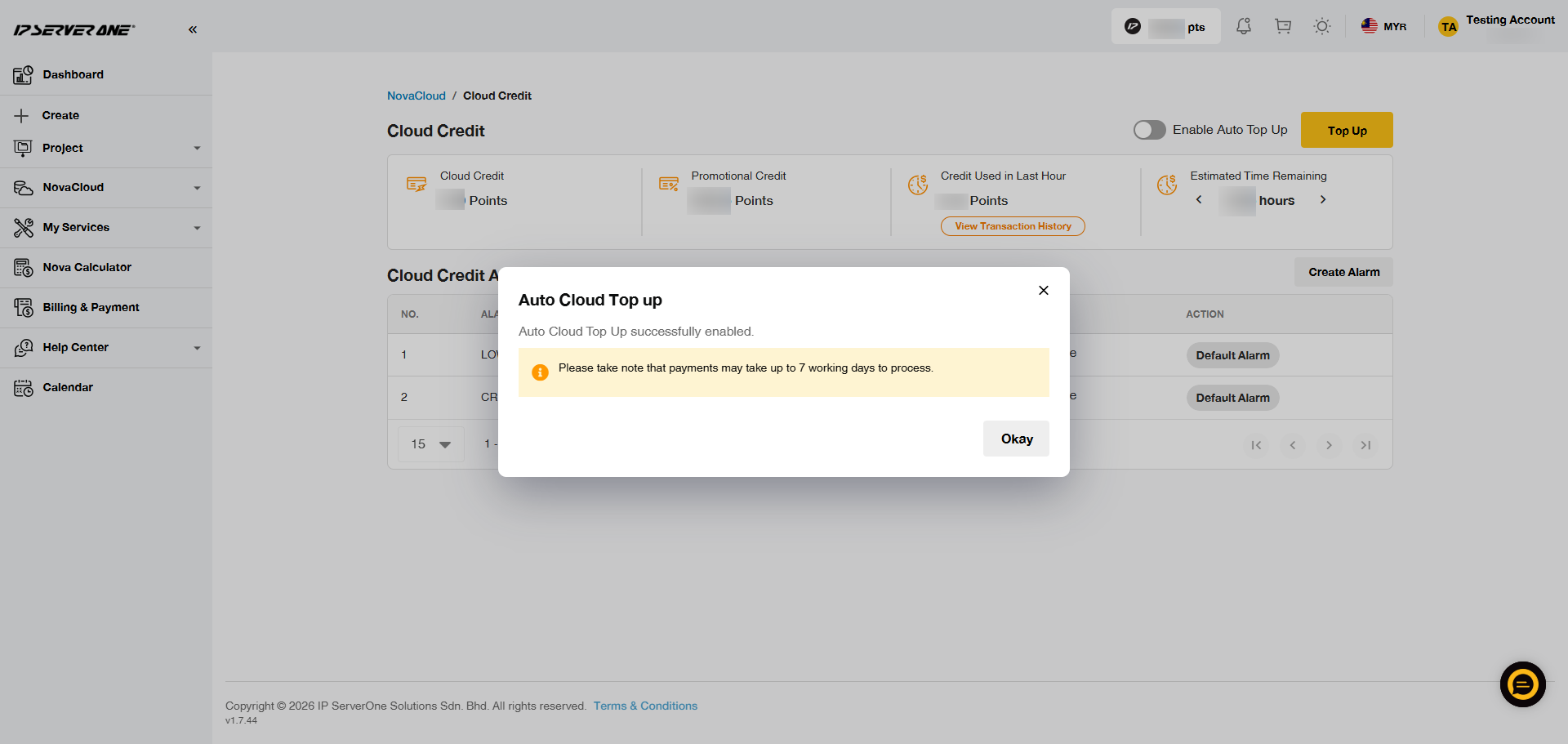
Once completed, a notification stating Auto cloud top-up successfully enabled will appear.
9. Check auto top-up status
To verify the status, confirm that the Enable Auto Top Up is enabled.
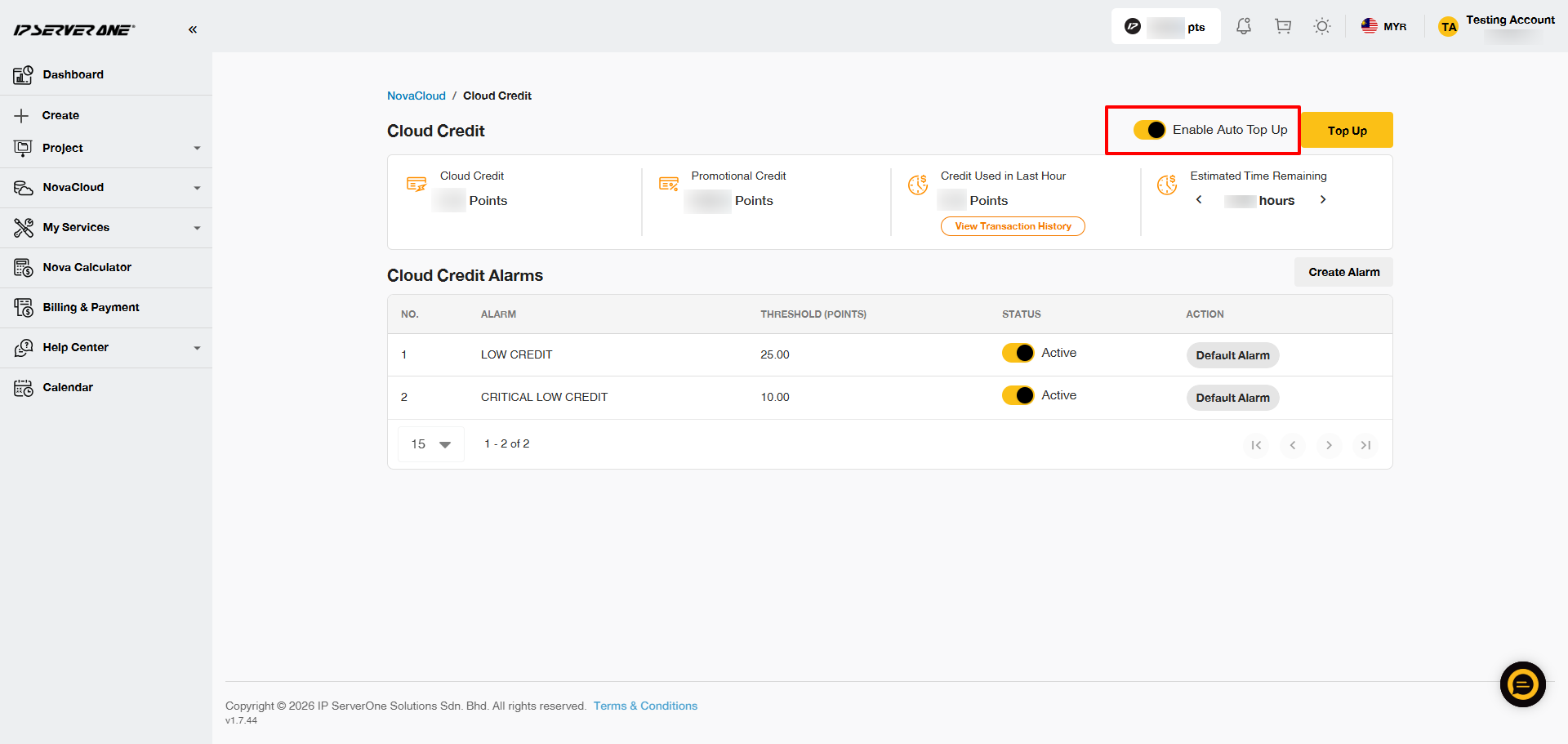
10. Disable auto top-up
If you wish to disable auto top-up, simply turn off the Enable Auto Top Up and click Manage.
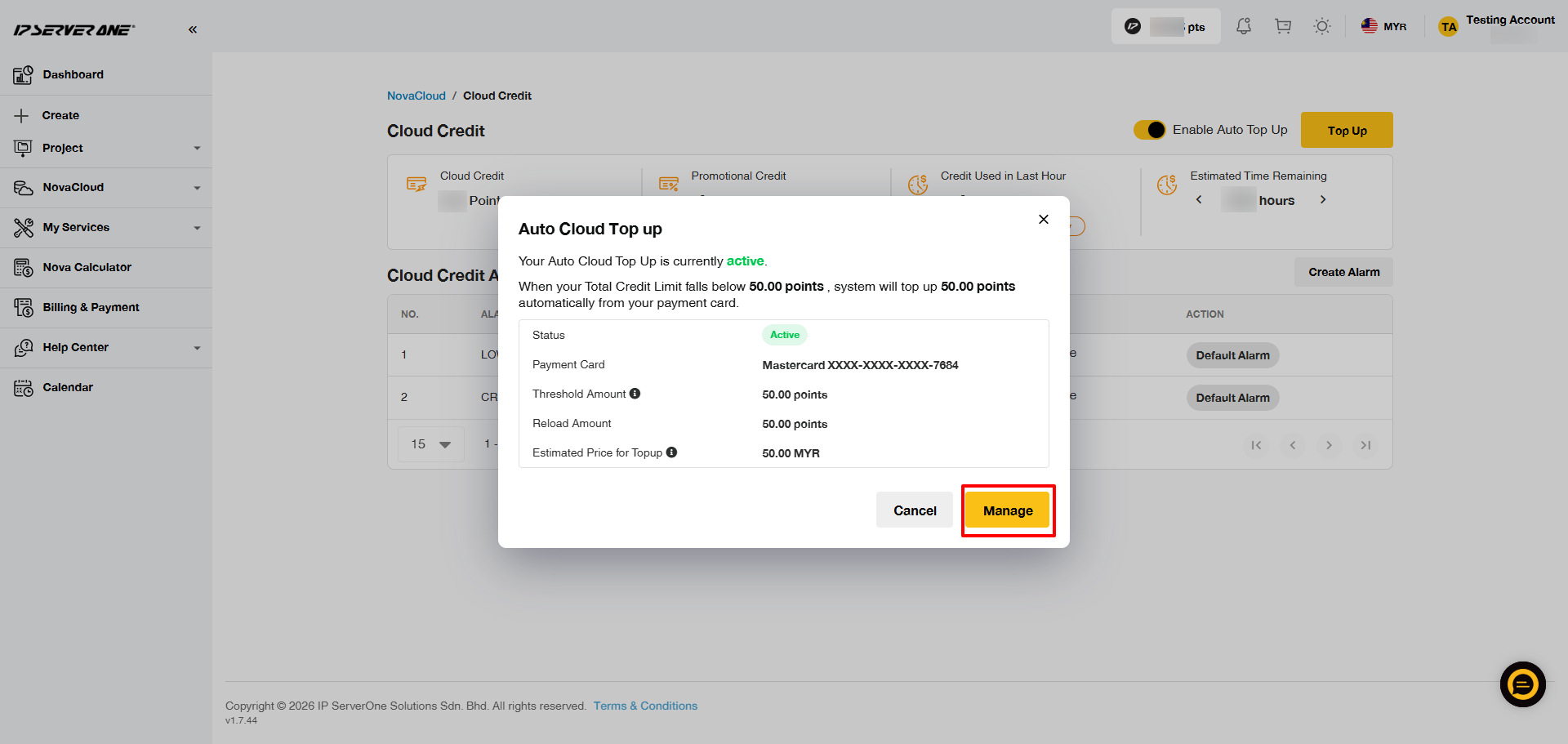
Then, turn off the Enable Auto Top Up toggle and select Update.
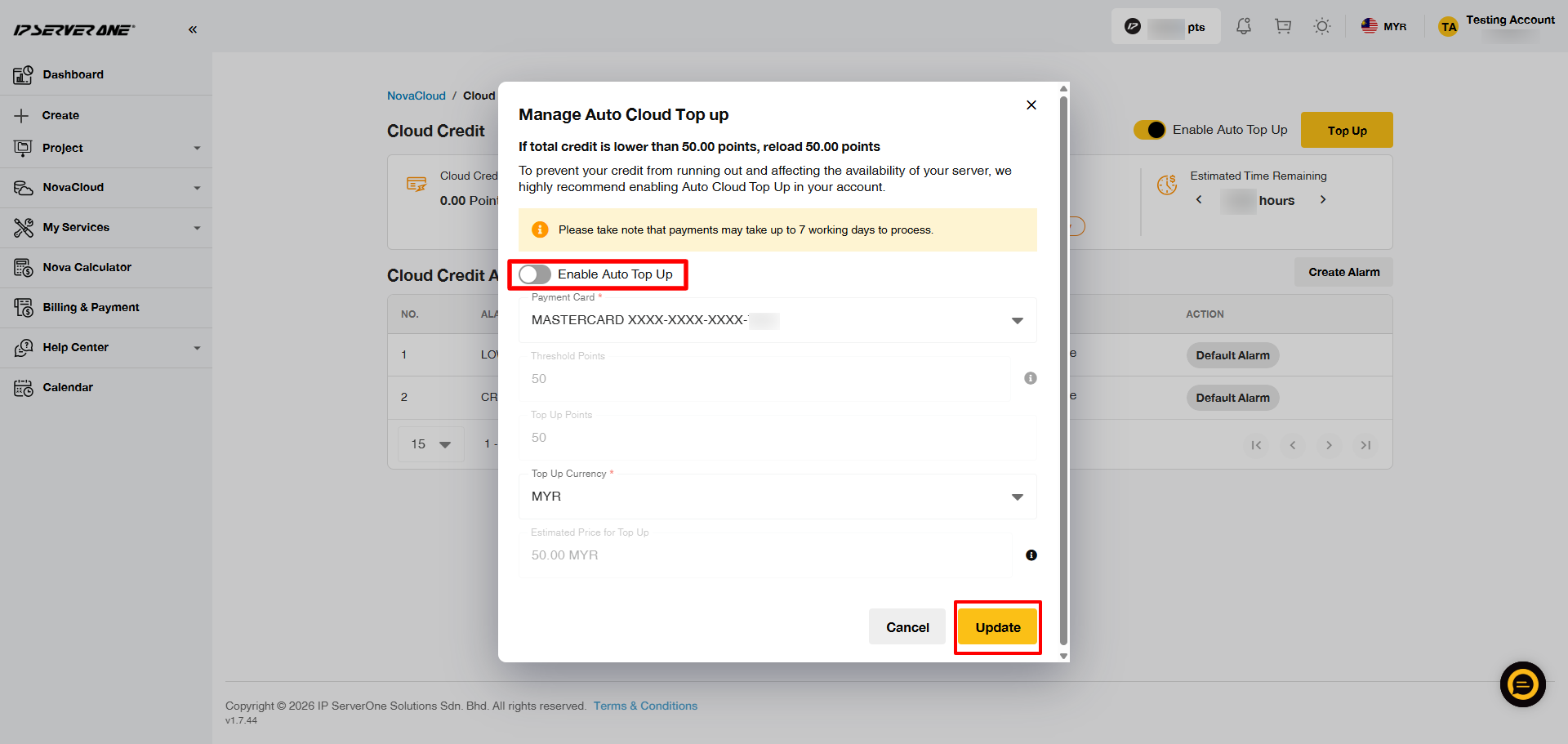
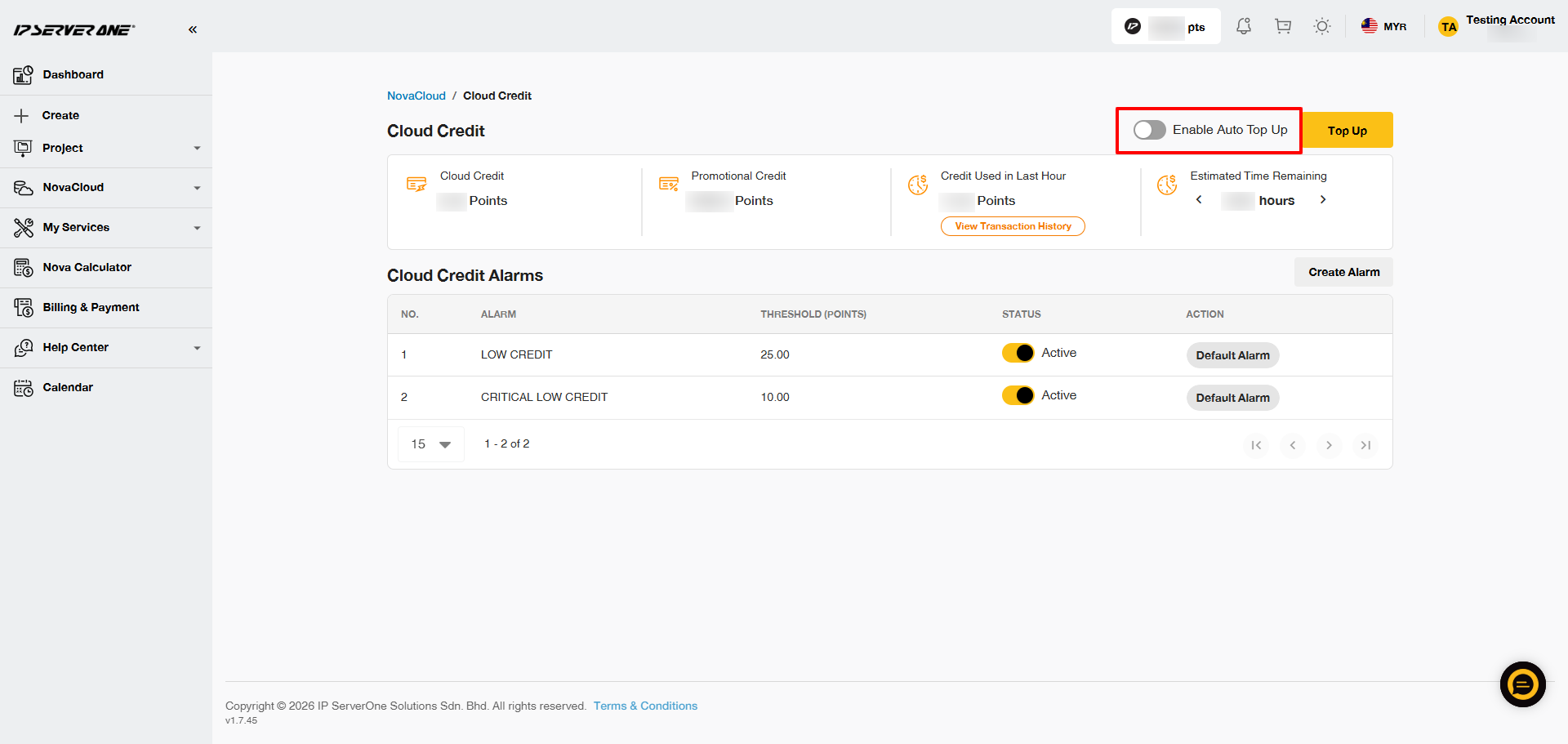
11. Confirm auto top-up disabled
Once disabled, the toggle will be off, indicating that the Auto Top-Up feature has been turned off.
Conclusion
Setting up auto top-up in the IP ServerOne portal ensures that your cloud services run smoothly without interruptions due to low credit. This feature saves time and eliminates the need for manual monitoring by automatically reloading your credits. Adjusting the threshold and top-up amounts to fit your usage helps manage costs efficiently. For any further assistance, feel free to reach out to cs@ipserverone.com .
Article posted on 23 March 2021 by Louis.