
Search Our Database
How to upgrade SmarterMail on Linux
Introduction
Upgrading your Linux-hosted SmarterMail mail server ensures optimal security, performance, and access to new features. System administrators can easily perform this maintenance task directly on the server via the command-line interface within a few minutes.
Prerequisite
-
Access to the Linux server with root or sudo privileges
-
Active SmarterMail license covering the new version updates
-
Basic knowledge of Linux command-line operations and service management
Step-by-step guide
Step 1: Check the current SmarterMail version
- Log in to the SmarterMail web interface.
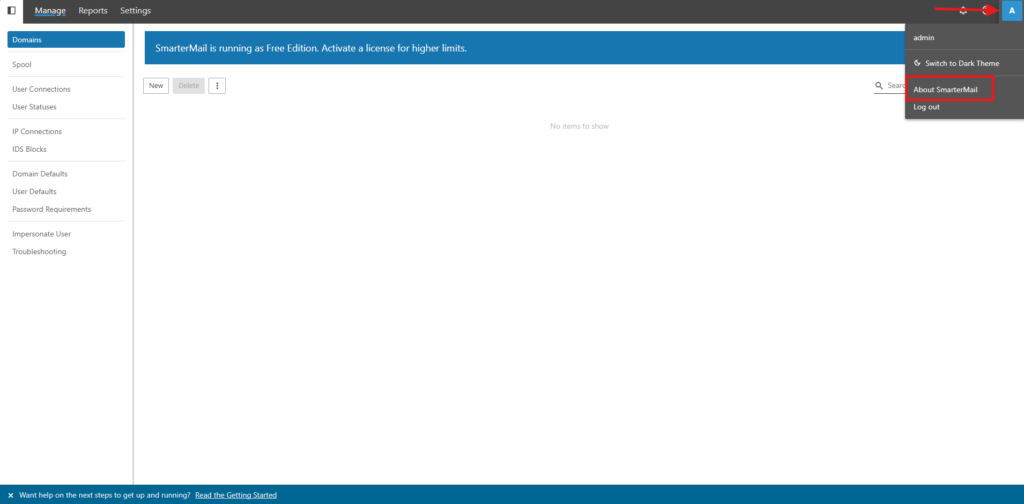
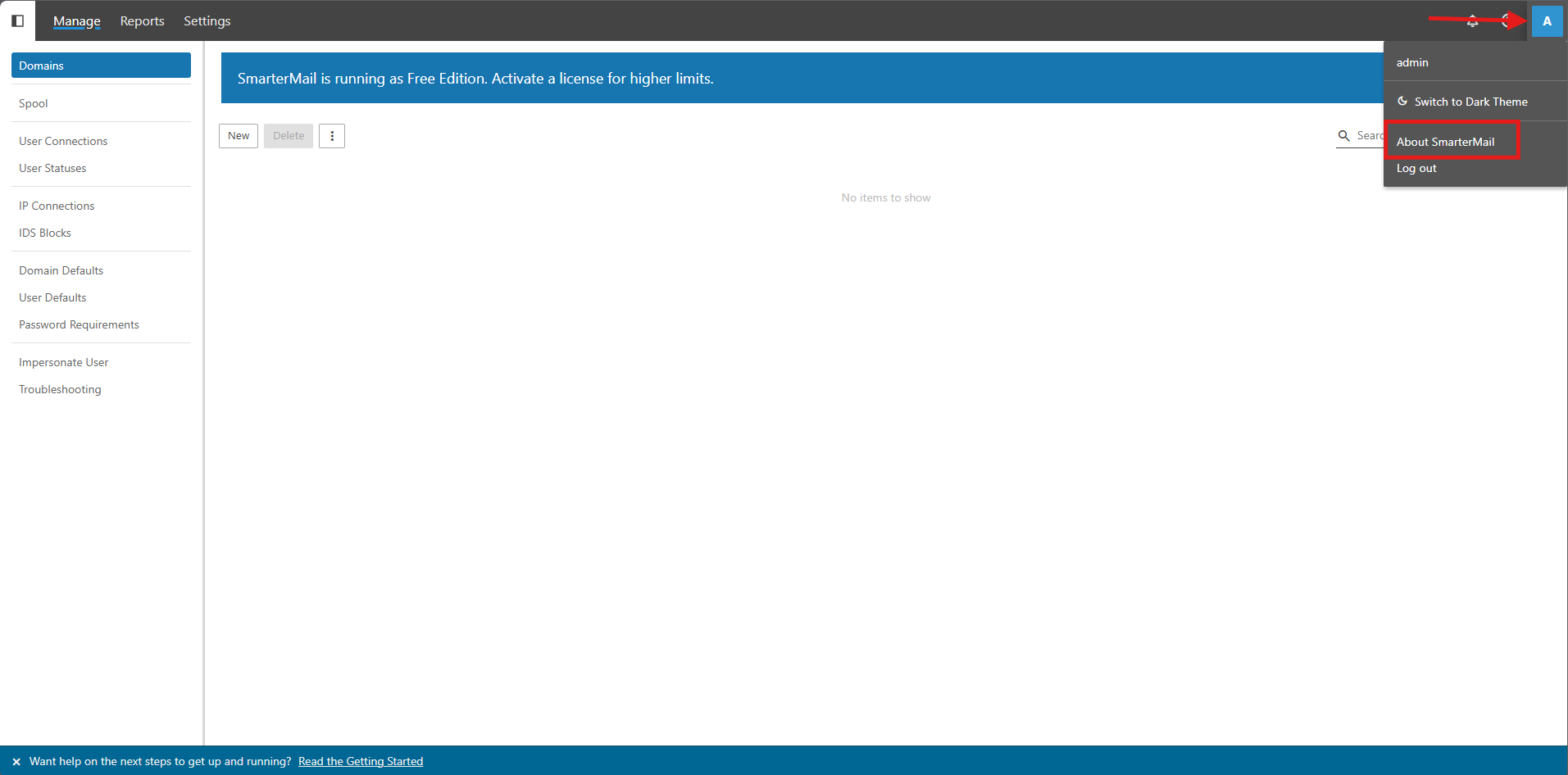
- Navigate to User at the top right corner > About SmarterMail. Record the current version number to compare after upgrading.
Step 2: Backup existing SmarterMail data
- Access the Linux server via SSH. You may refer the step from the [How to login to your Linux Server via SSH].
-
Stop the SmarterMail service to prevent data corruption during backup by using the command below.
sudo systemctl stop smartermail
- Verify if the SmarterMail service has stopped completely by using the command below.
sudo systemctl status smartermail
- Copy the entire SmarterMail domain data and SmarterMail configuration files to a secure backup location. By default,
The configuration path – /etc/smartermail
The domain data path – /var/lib/smartermail
-
Verify the backup size and contents match the original directory
Tips🖊️: The server might not have enough disk space for backup the SmarterMail domain data, you may just backup the SmarterMail configuration files.
Step 3: Download and install the latest SmarterMail package
- Navigate to the official SmarterTools download page or copy the direct link for the Linux package – [SmarterMail Download Link].
- Navigate to your designated directory for storing the downloaded files. Copy the command line shows on the SmarterMail site to download the package to your server and it will overwrite and update the existing binaries.
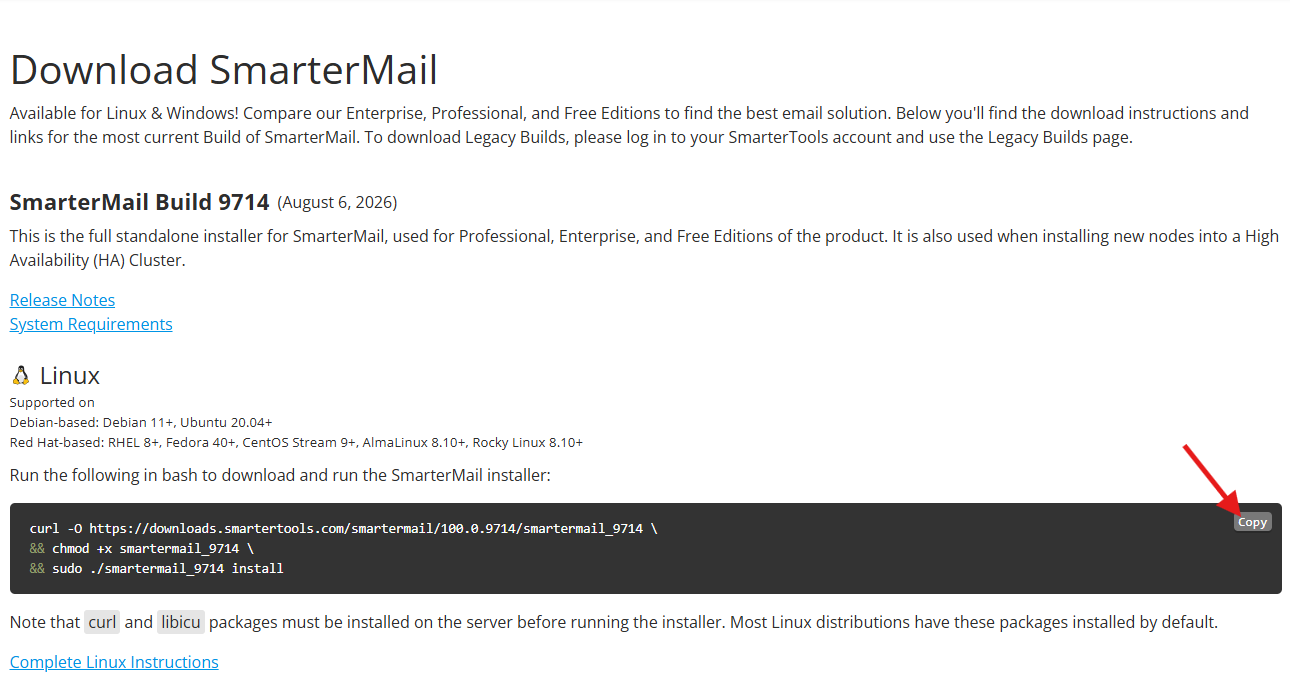
- You should be having similar output as below.
[root@smartermail /]# systemctl stop smartermail
[root@smartermail /]# systemctl status smartermail
[root@smartermail /]# curl -O https://downloads.smartertools.com/smartermail/100.0.9714/smartermail_9714 \
&& chmod +x smartermail_9714 \
&& sudo ./smartermail_9714 install
% Total % Received % Xferd Average Speed Time Time Time Current
Dload Upload Total Spent Left Speed
100 18.3M 100 18.3M 0 0 11.7M 0 0:00:01 0:00:01 --:--:-- 11.7M
------------------------------
OS: Rocky Linux 9.8 (Blue Onyx)
Installer version: 100.0.9714.29506
------------------------------
Selected build: 100.0.9714.29506
Detected SmarterMail version 100.0.9714.29506 installed on this machine.

Are you sure you want to update SmarterMail to version 100.0.9714.29506?
 No
>Yes

Downloading SmarterMail and prerequisites
Downloading SmarterMail ━━━━━━━━━━━━━━━━━━━━━━━━━━━━━━━━━━━━━━ 100% 00:00:00 109.6 MiB
Downloading Message Sniffer Antispam ━━━━━━━━━━━━━━━━━━━━━━━━ 100% 00:00:00 487.3 KiB
Downloading Cyren Premium Antispam ━━━━━━━━━━━━━━━━━━━━━━━━━━ 100% 00:00:00 4.0 MiB
Downloading Cyren Zero-hour Outbreak Detection ━━━━━━━━━━━━━ 100% 00:00:00 6.8 MiB
Downloaded SmarterMail 100.0.9714.29506
Stopping SmarterMail service
Stopping SmarterMail service
Successfully removed SmarterMail filesRemoving SmarterMail files ━━━━━━━━━━━━ 100%

Successfully extracted SmarterMail files

Extracted SmarterMail to /opt/smartermail

Do you want to use the built-in SmarterMail web-server?
>Yes
 No

Extracting into /opt/smartermail ━━━━━━━━━━━━━━━━━━━━━━━━━━━━━━━━━━━━━━━ 100% 00:00:00

Extracted SmarterMail to /opt/smartermail
Configuring web server...
Ports 80 and 443 are now open for SmarterMail
Created /opt/smartermail/run-webserver.txt file
SmarterMail is now configured as the web server
Configuring MailService permissions...
Configuring Cyren permissions...
Configuring MessageSniffer permissions...
Opening default mail ports...
Ensuring Extra Packages for Enterprise Linux (EPEL) is installed...
Installing ClamAV...
Editing /etc/clamd.d/scan.conf...
Updating ClamAV by running freshclam... (This may take some time)
Configuring SmarterMail as a systemd Service...
Starting SmarterMail Service...
Starting ClamAV service...

SmarterMail is now running.
Installation complete!
Step 4: Restart services and verify the upgrade
-
The SmarterMail service should be auto start after the upgrade. You may use the command below
systemctl status smartermail
- Log in as the system administrator and check the dashboard to confirm the version number reflects the new upgrade
Conclusion
By following this guidance, you can successfully transition your SmarterMail deployment on Linux to the latest version while keeping your data safe and minimizing system downtime.
For additional assistance or if you encounter any issues, please contact our support team at support@ipserverone.com.