
Search Our Database
How to setup user email mailbox quota alert in cPanel
Introduction
Monitoring storage is essential to prevent server disruption and ensure steady email delivery. This guide explains how to enable and configure mailbox disk quota alerts in WHM, allowing administrators to notify cPanel users automatically before their email storage reaches critical capacity limits.
Prerequisite
- Access to WHM with root privileges
- Basic knowledge of navigating the WHM interface
Step-by-step guide
Step 1: Navigate to Tweak Settings
-
Login to your cPanel control panel with root privileges.
The URL to your cPanel typically will be like <domain>:2087 or <server IP>:2087. -
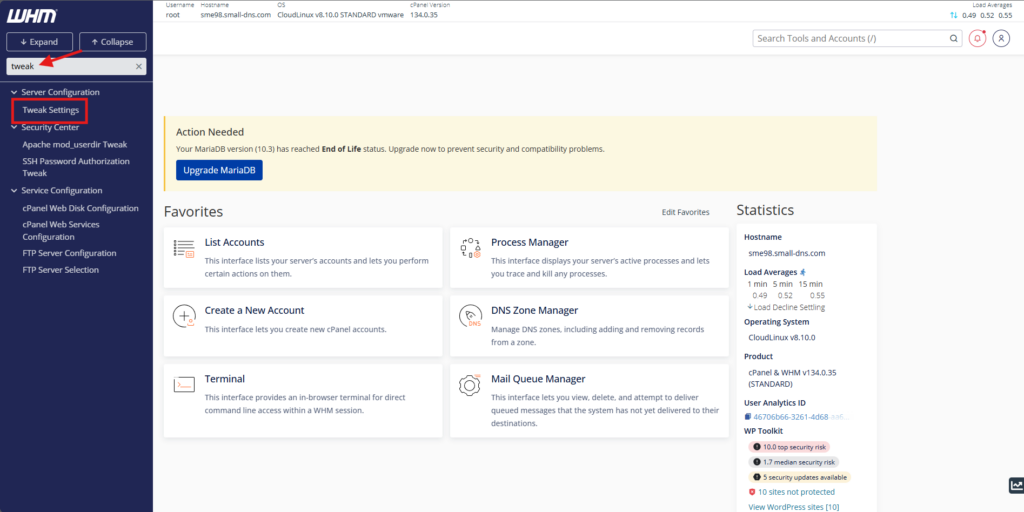
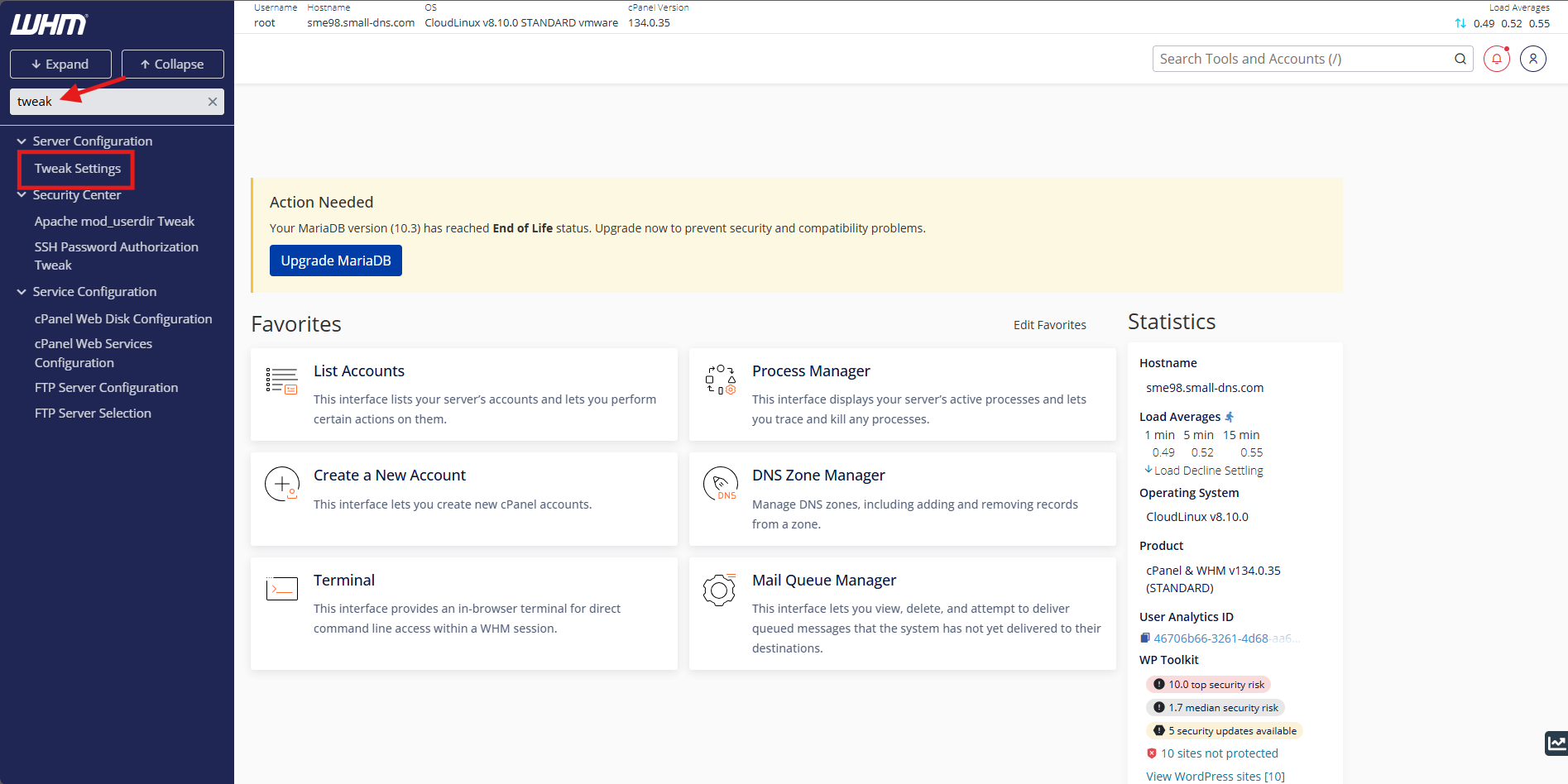
Use the top-left search bar to search for Tweak Settings
-
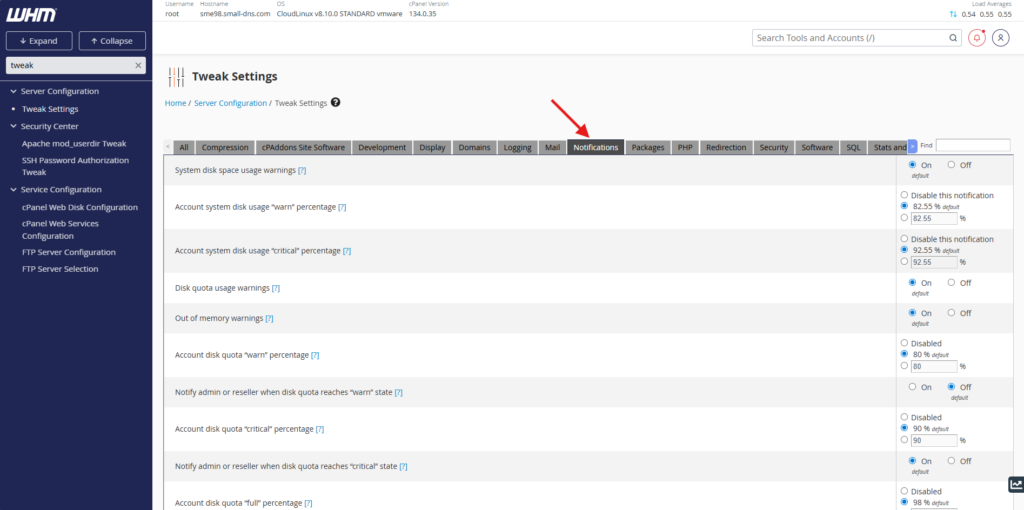
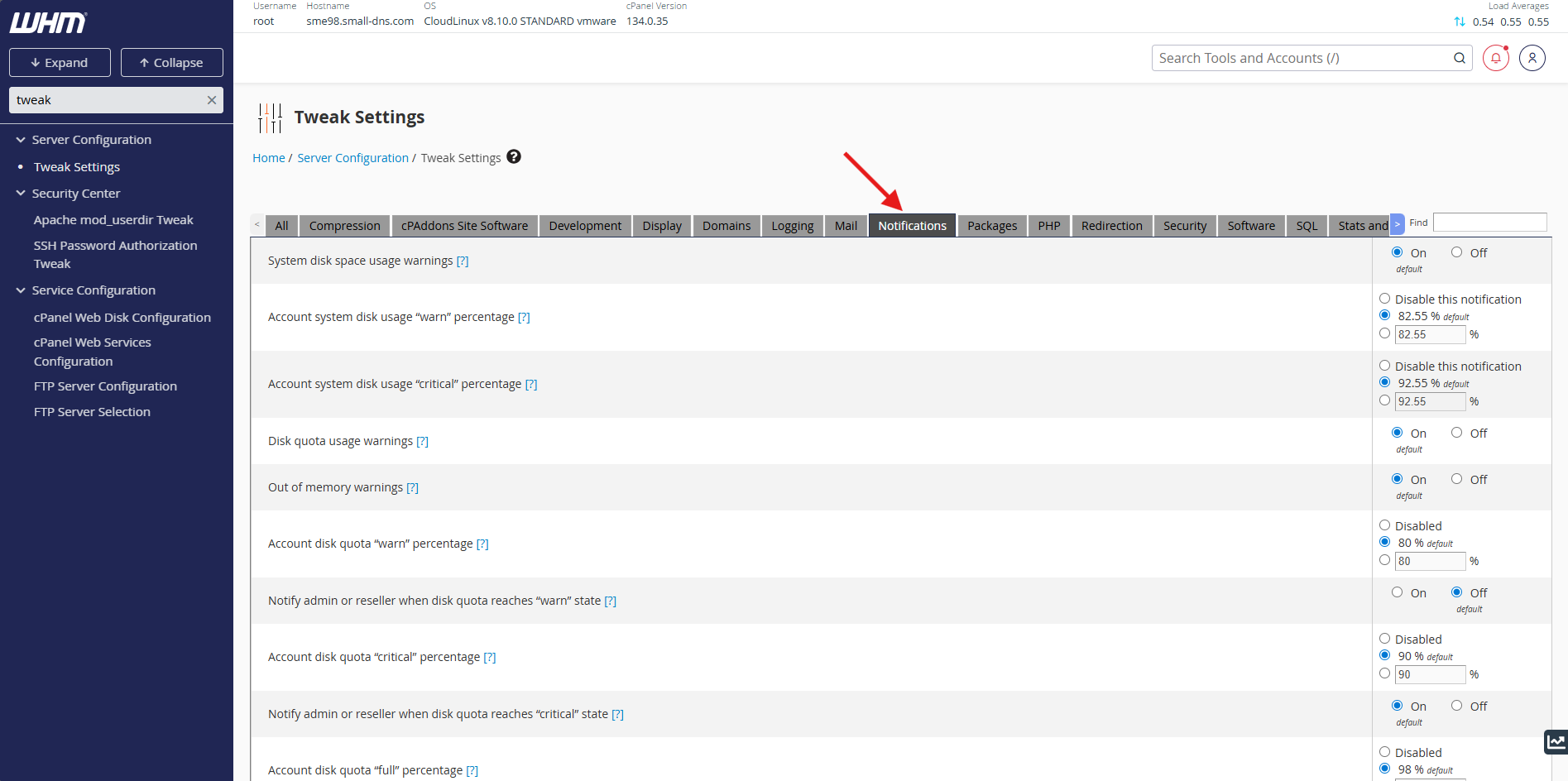
Select the Notifications tab from the top menu bar
Step 2: Configure notification thresholds
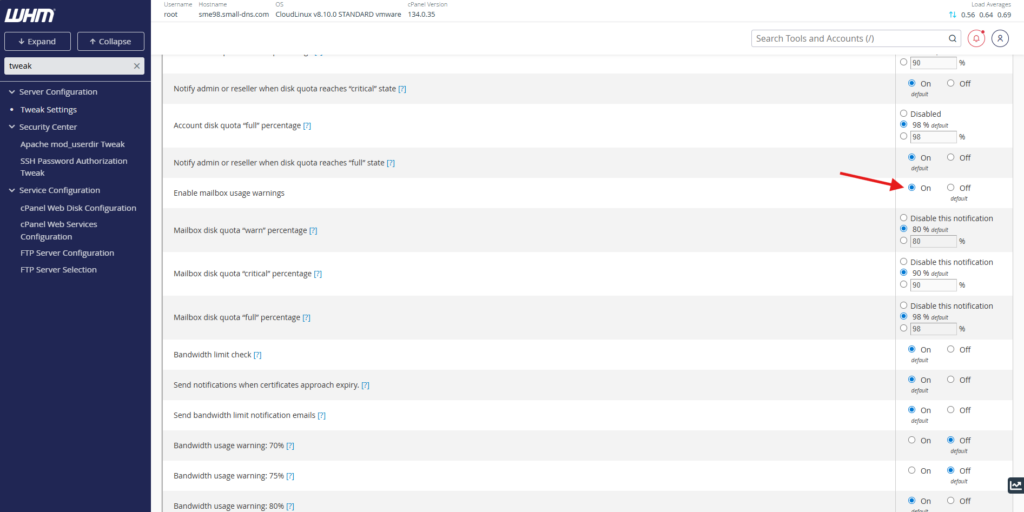
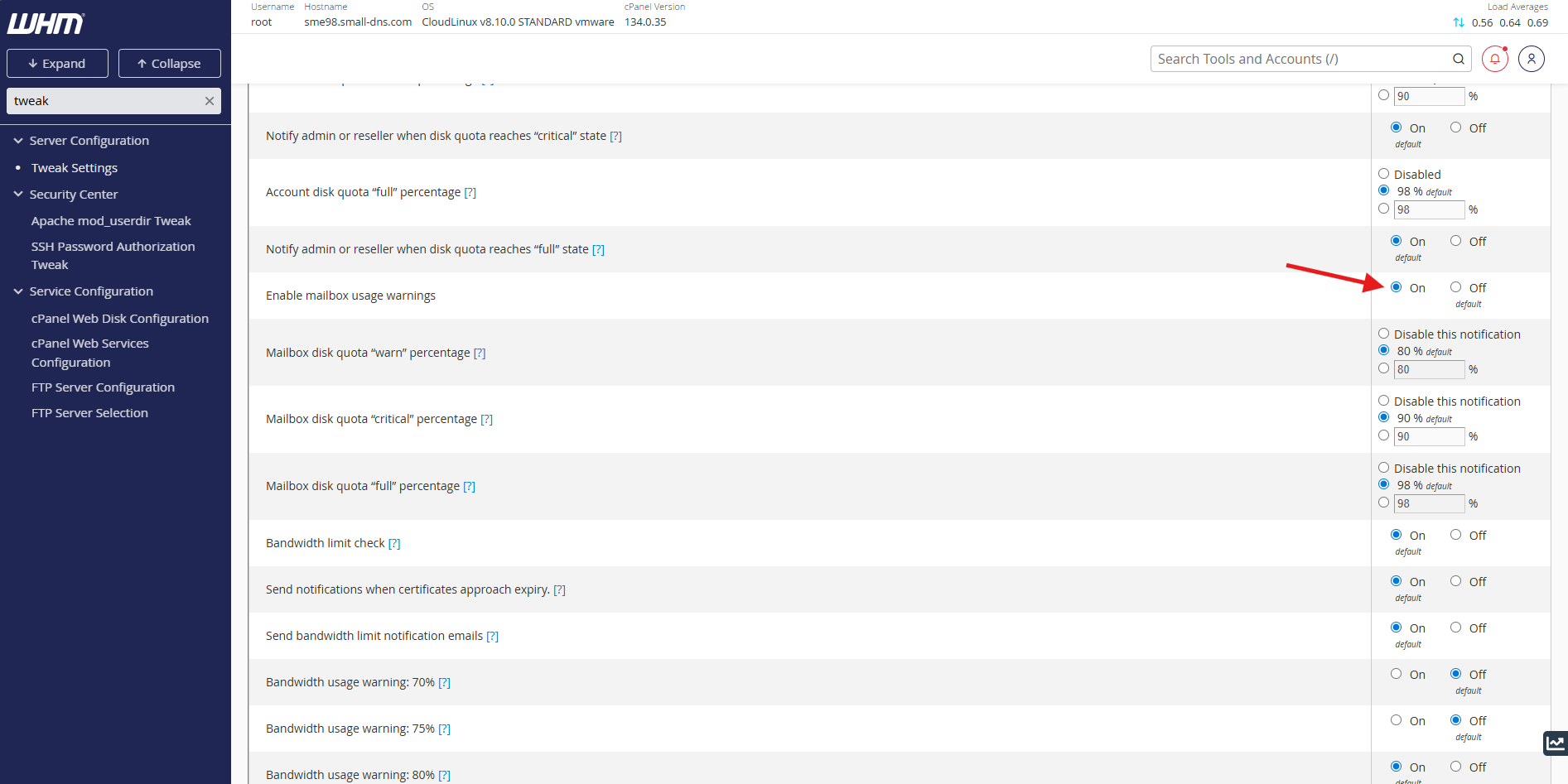
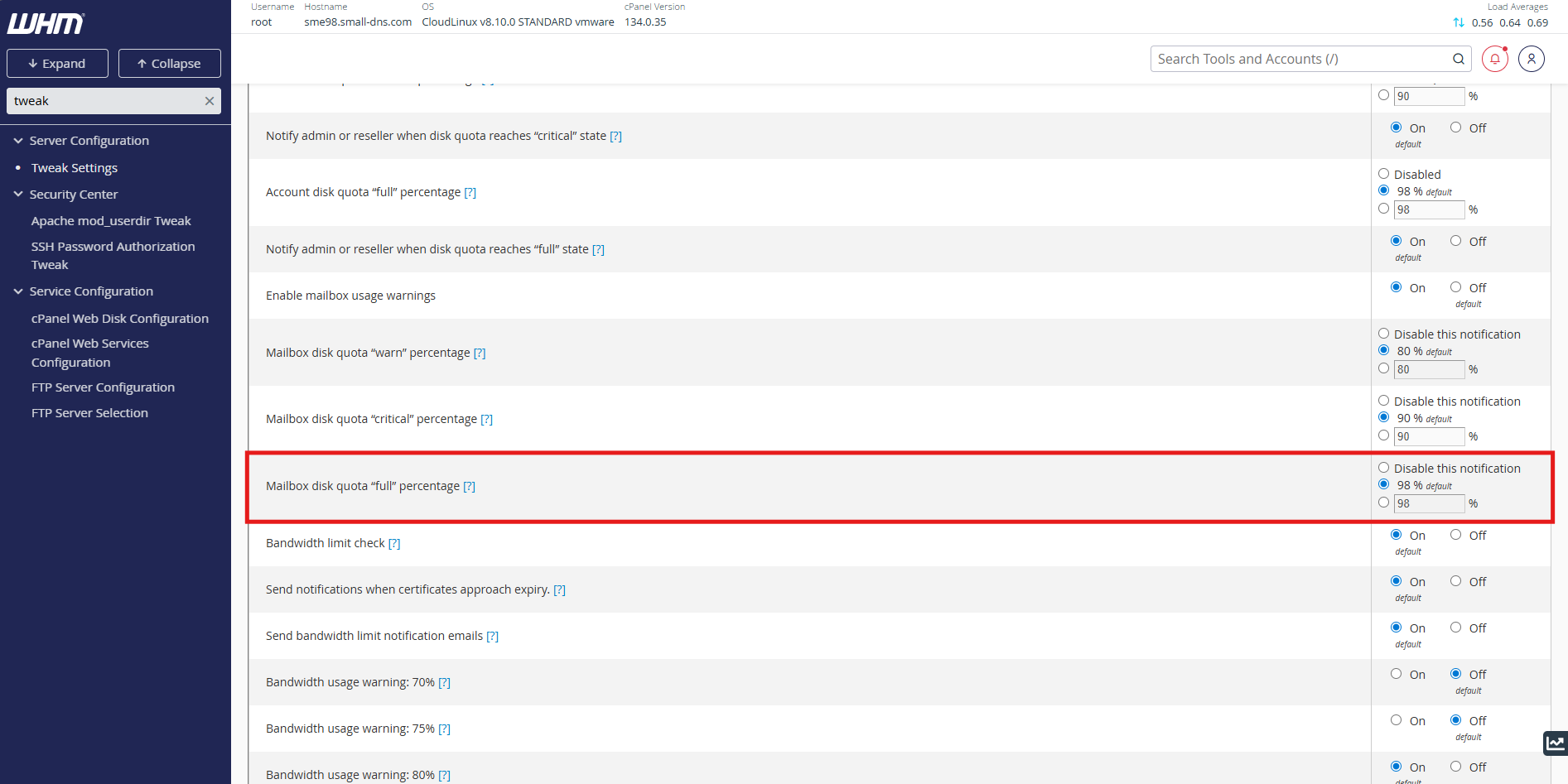
- Locate the Enable mailbox usage warnings setting and select On to enable it
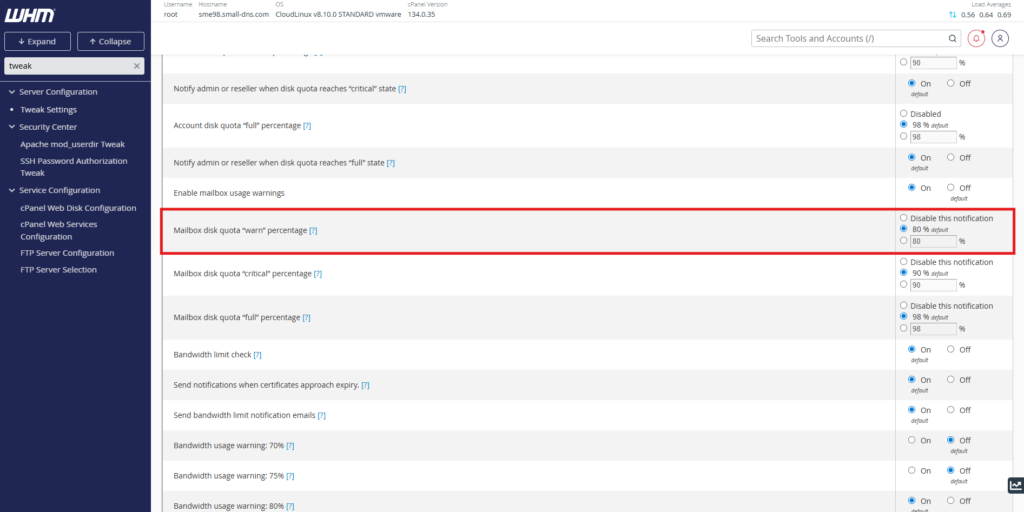
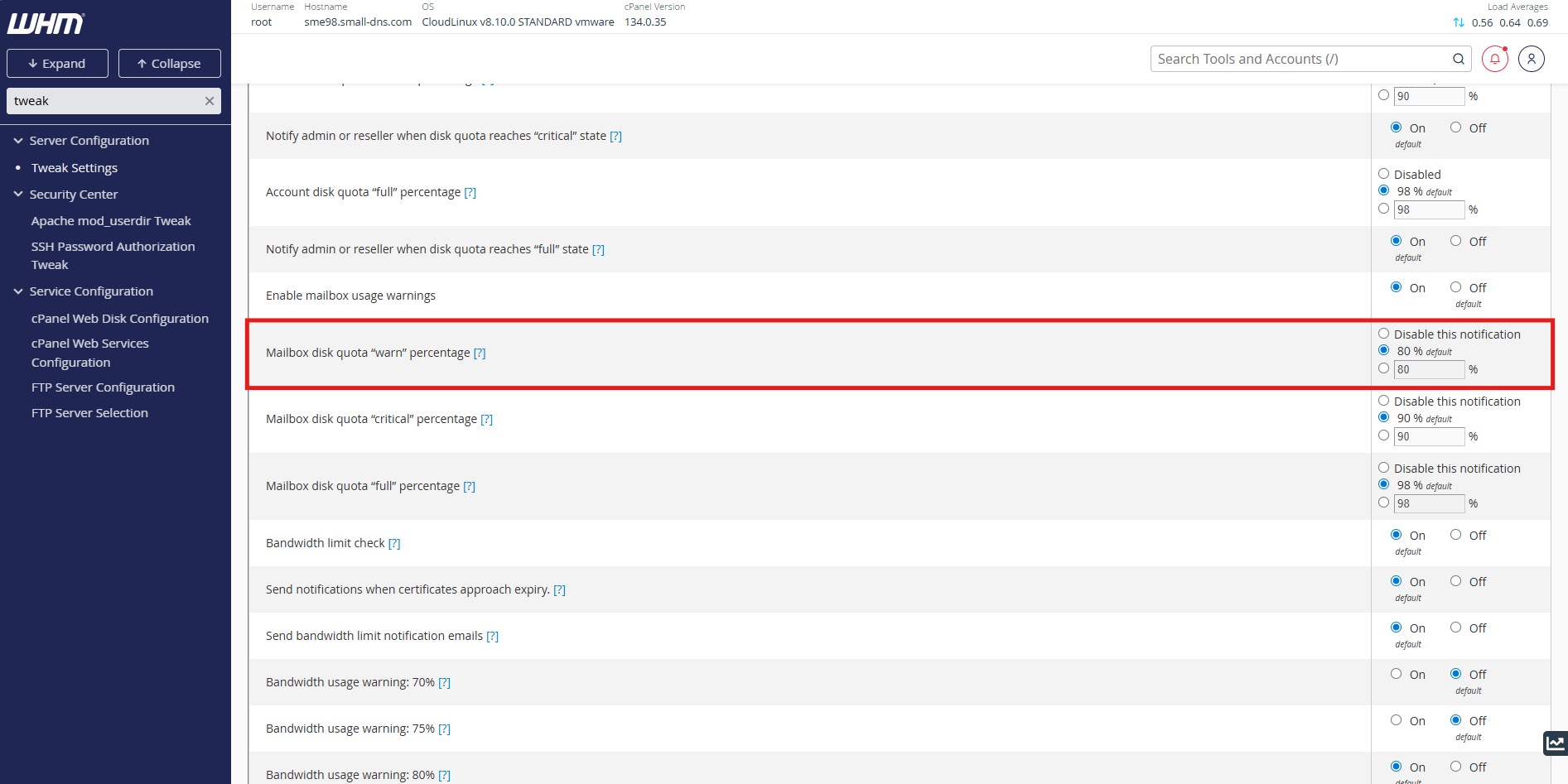
- Adjust the Mailbox disk quota “warn” percentage text box to your preferred threshold value
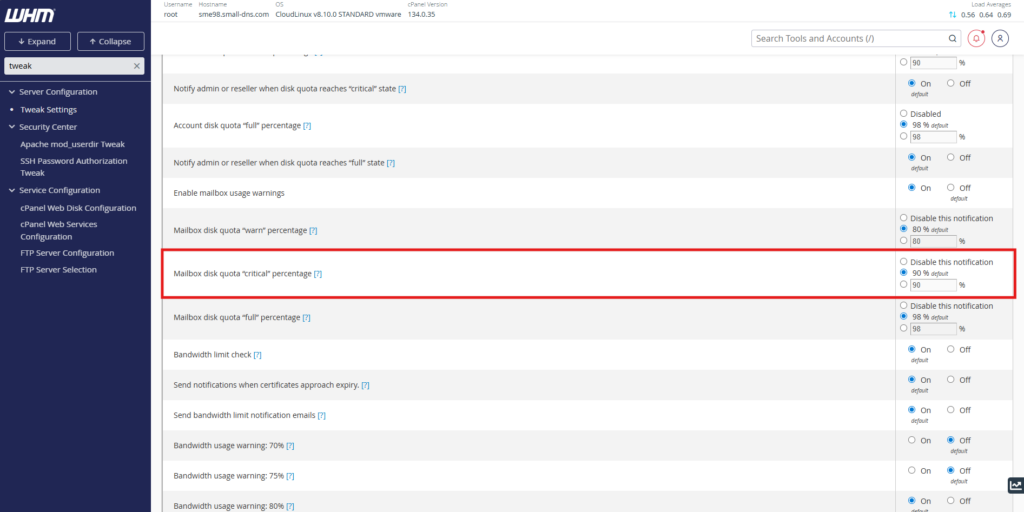
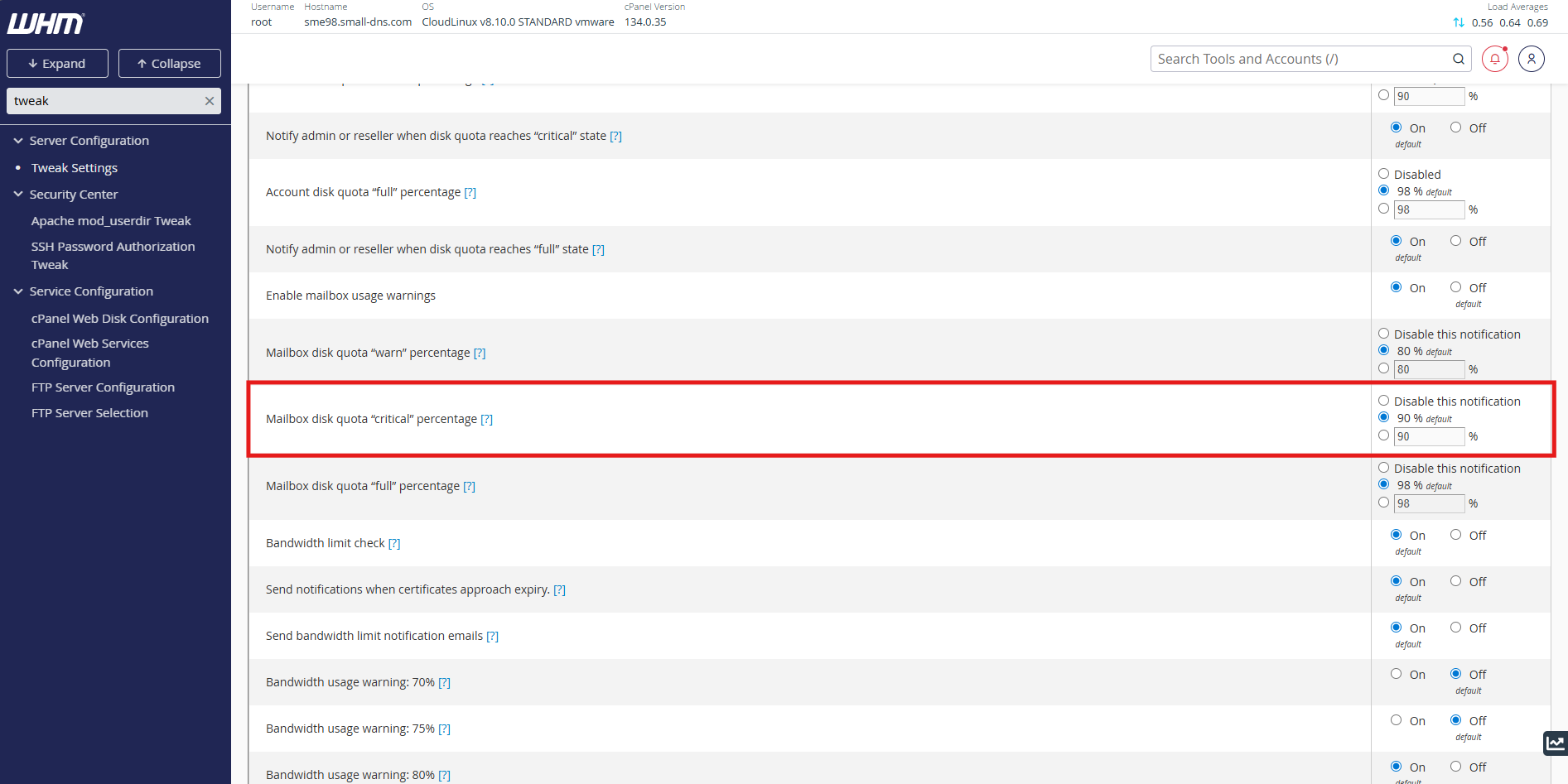
- Adjust the Mailbox disk quota “critical” percentage text box to your preferred threshold value
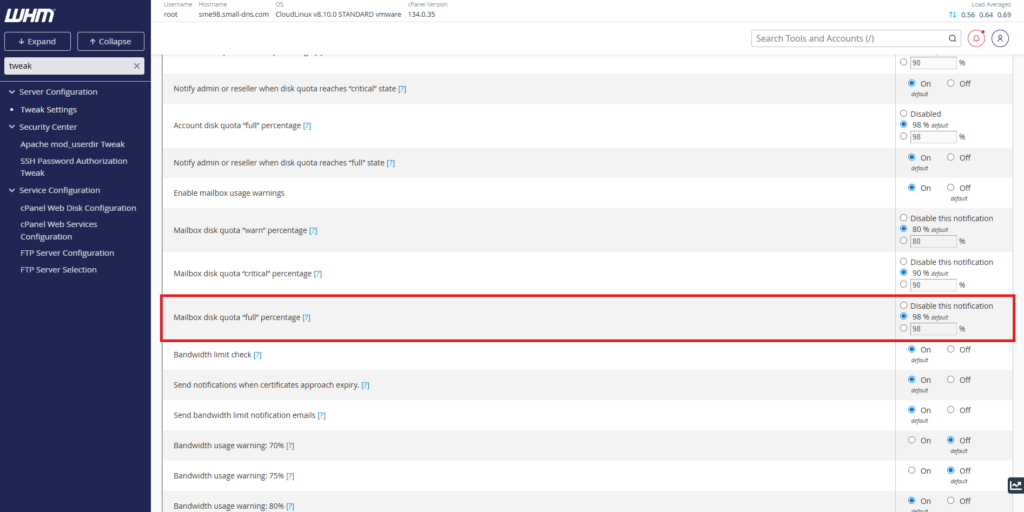
- Adjust the Mailbox disk quota “full” percentage text box to your preferred threshold value
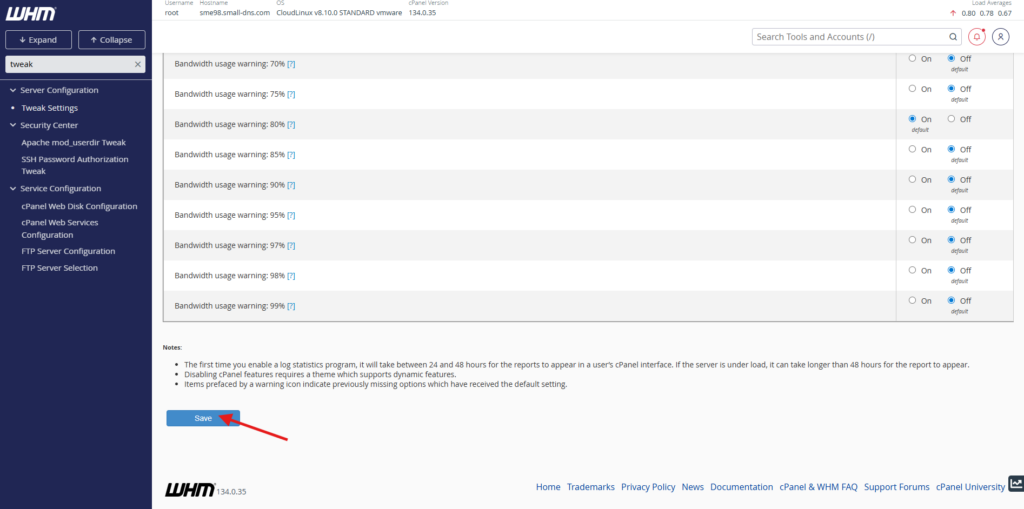
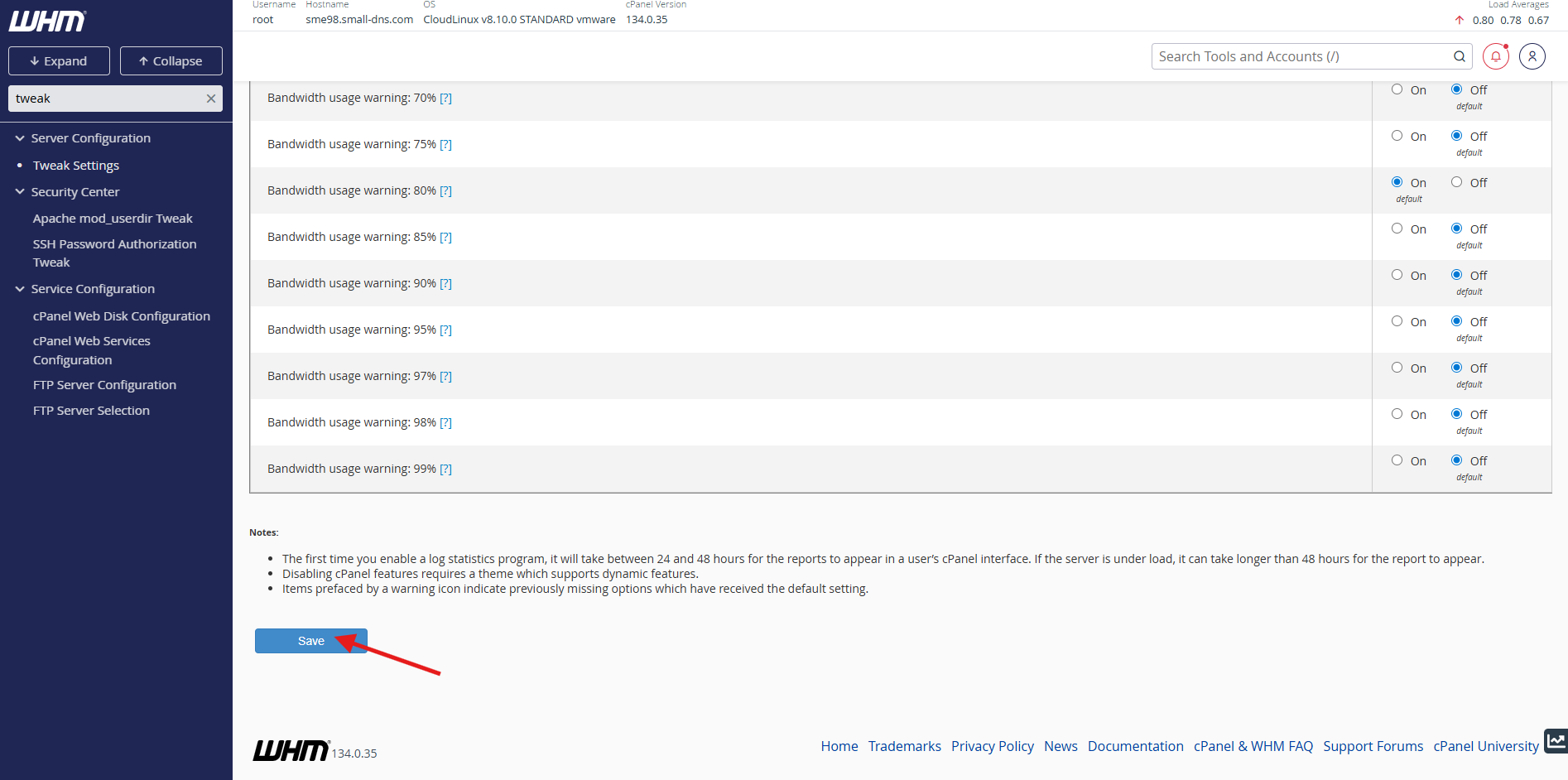
- Click the Save button at the bottom of the page to apply the changes
Conclusion
By following this guidance, you can successfully automate user email mailbox quota alerts within your cPanel server environment, helping your users maintain their mailboxes proactively and preventing email delivery failures.
For additional assistance or if you encounter any issues, please contact our support team at support@ipserverone.com.