
Search Our Database
How to accept domain ownership transfer as a new domain owner
Introduction
The process of initiating a domain ownership transfer involves transferring control from the current domain owner to a new recipient, whether or not the recipient has an IP ServerOne account. This transfer typically occurs when domain ownership changes due to business transactions or partnership shifts. The transfer can be carried out through IP ServerOne’s platform if both parties have accounts, or via other domain management tools if the recipient does not. The steps may vary slightly depending on the recipient’s account status, but the overall process ensures a secure handover of domain rights and responsibilities.
Step-by-Step Guide
This guide includes two methods for the recipient to accepting domain ownership from the current owner based on the recipient’s account status with IP ServerOne.
- For The Recipient That Having IP ServerOne Account
- For The Recipient Without IPServerOne Account
-
For The Recipient That Having IP ServerOne Account
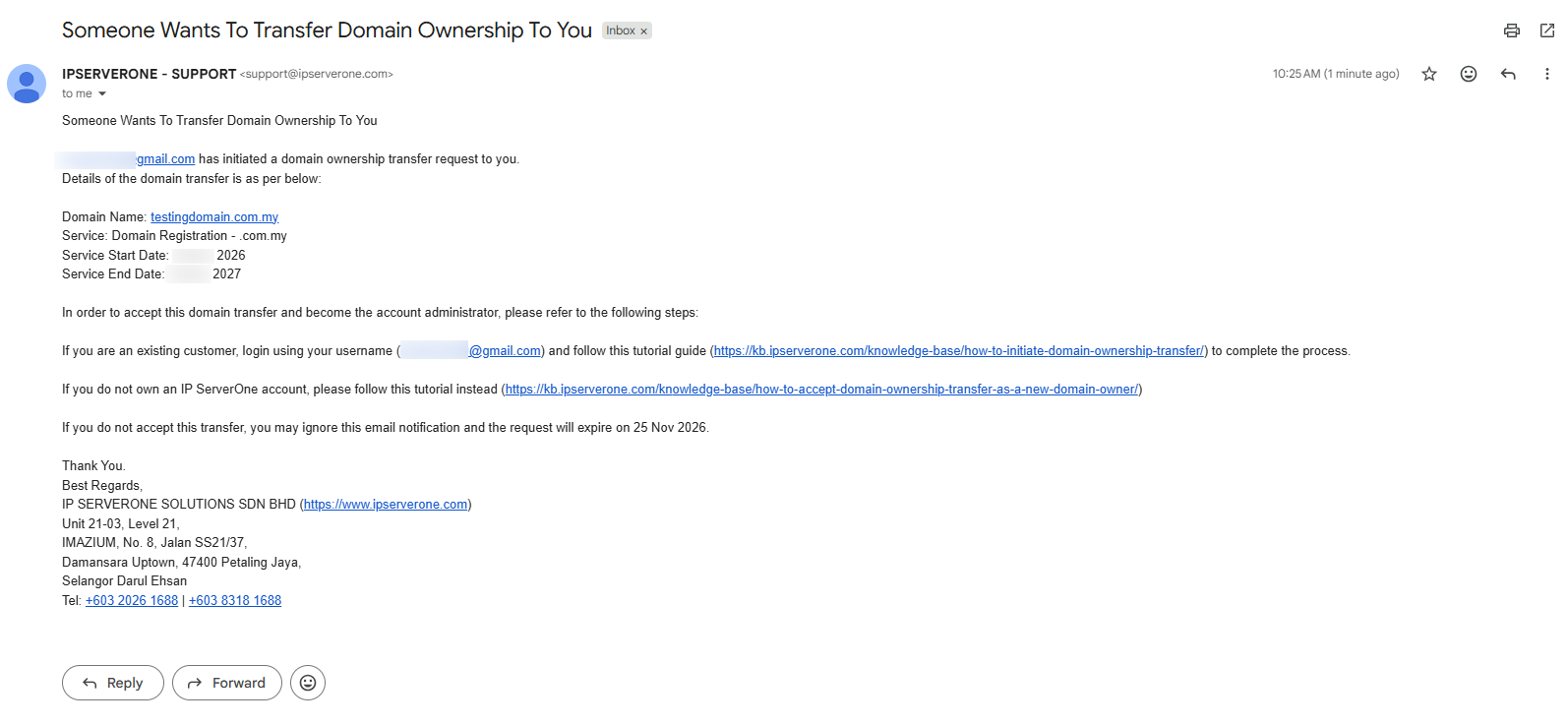
- After the current domain owner initiates the ownership transfer via the customer portal, the recipient will receive an email notification.
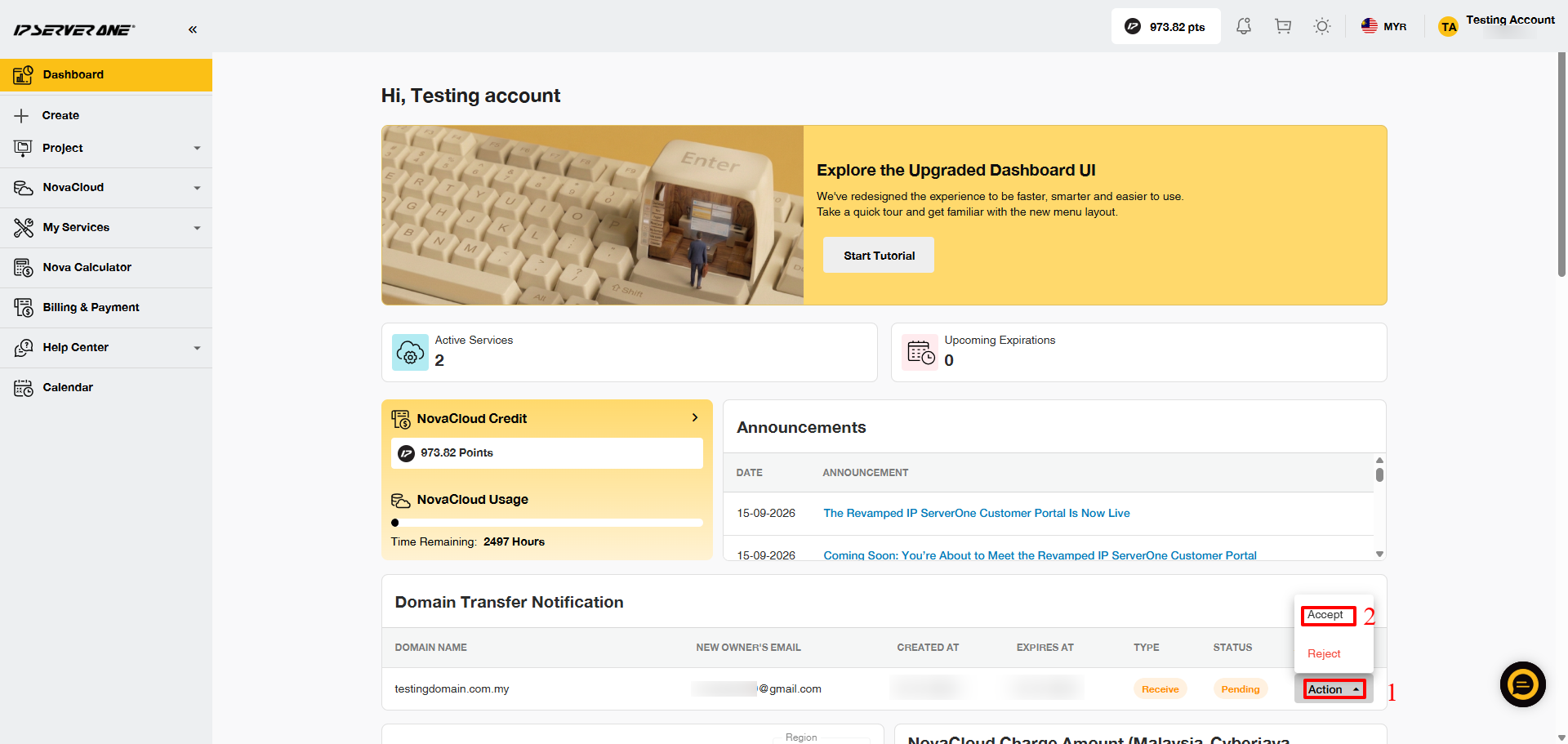
- Upon logging into the customer portal, the recipient will see a notification on the dashboard. Click on Action and select Accept to ensure domain transfer successfully.
3. The recipient must agree to IP ServerOne’s terms and conditions before clicking the Complete Transfer button.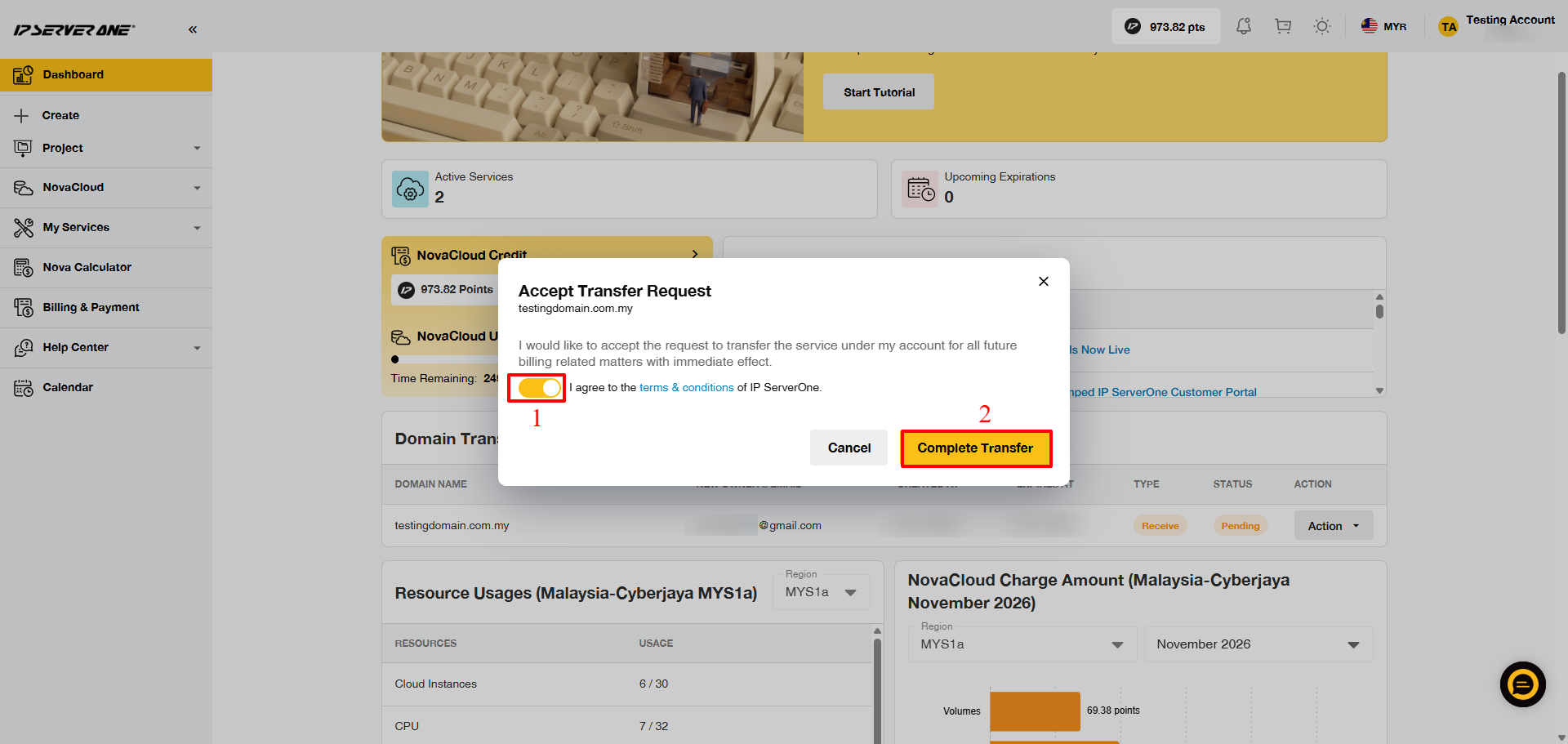
4. Once the transfer is successful, the new recipient can view the domain under the My Services section by selecting Domain from the left-hand menu in the customer dashboard.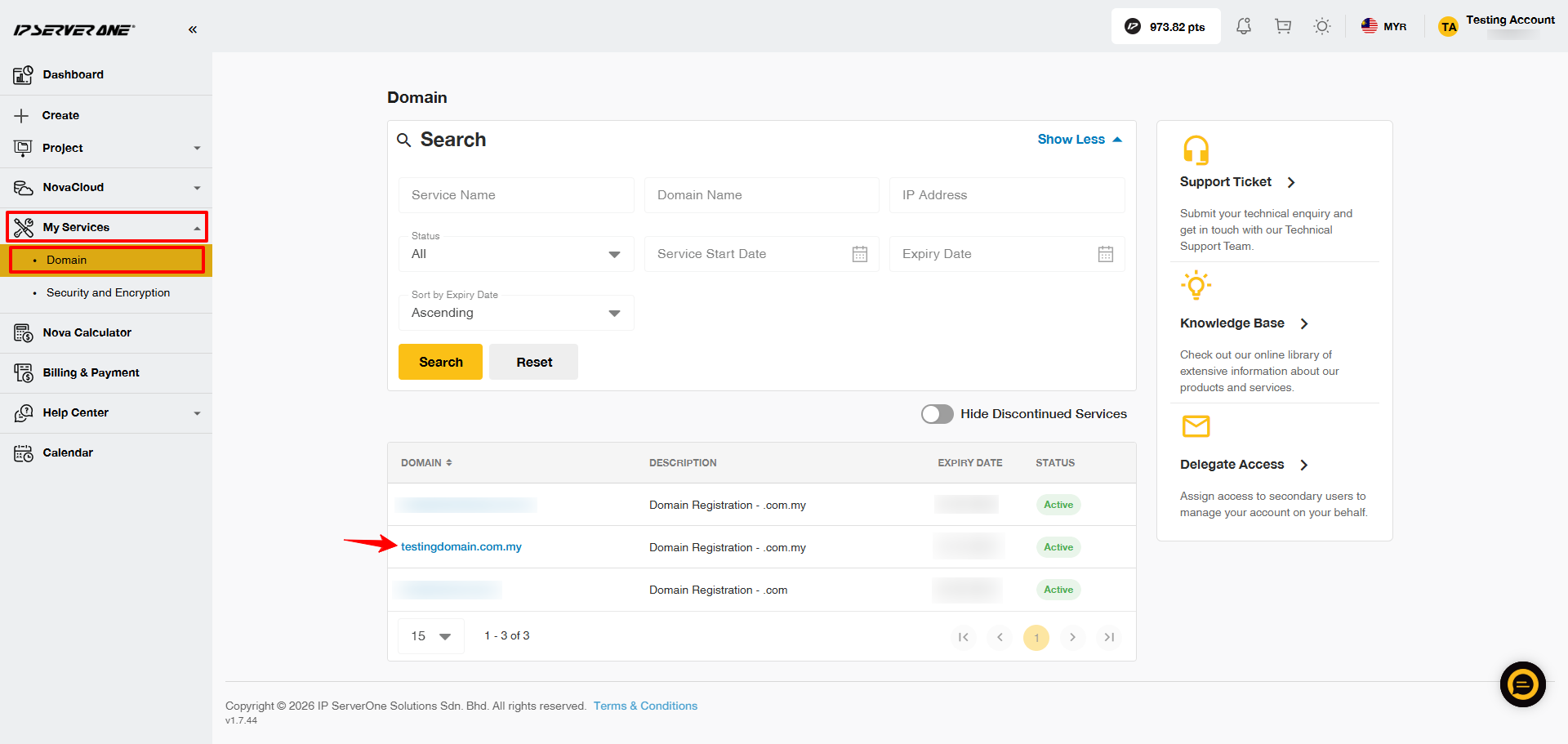
-
For The Recipient Without IPServerOne Account
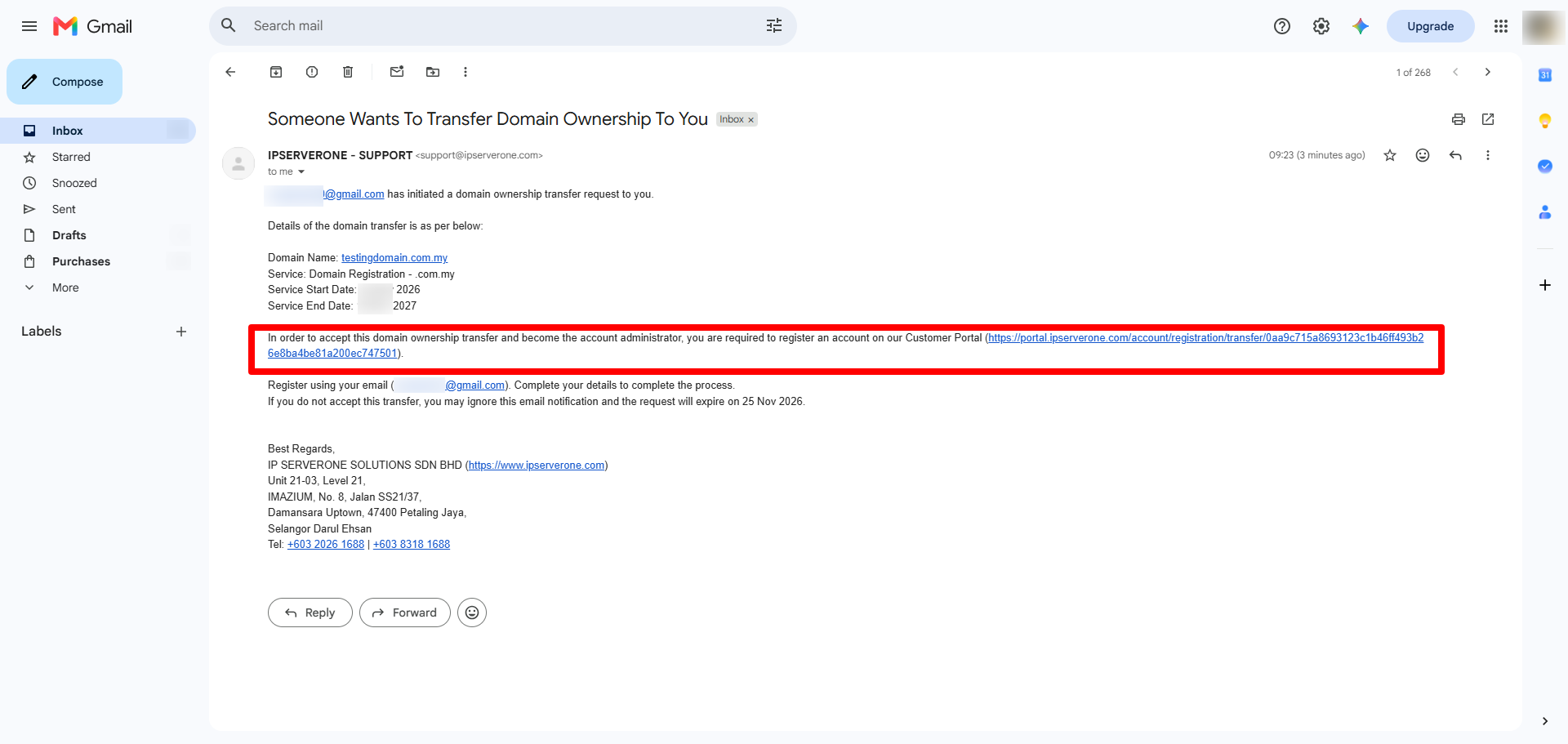
- Once the current domain owner initiates the transfer of ownership through the customer portal, the recipient will receive an email notification. The recipient must create an account with IP ServerOne by clicking the link provided in the email.
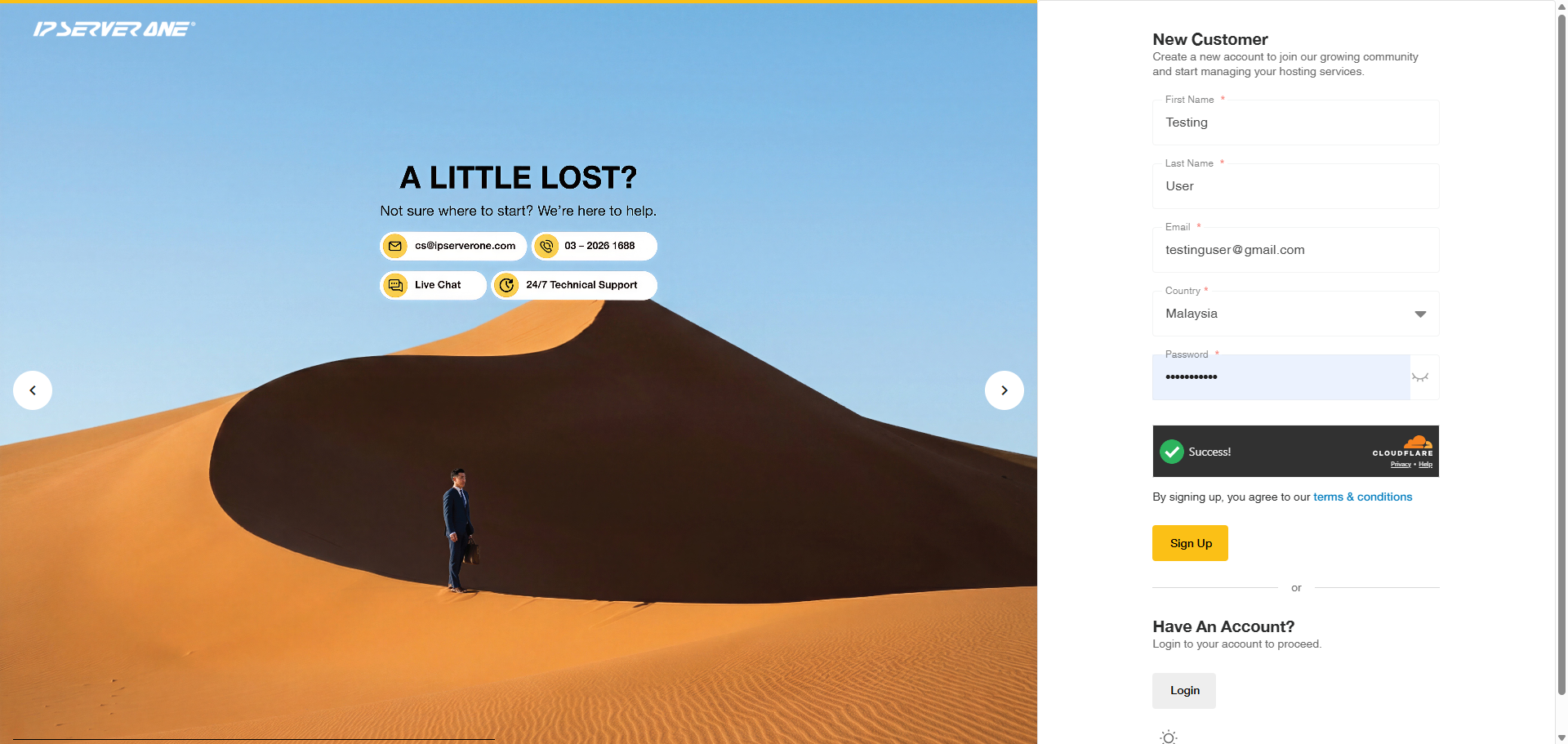
 2. The recipient is required to complete the registration form with accurate information and click Sign Up to proceed.
 3. A valid mobile number must be provided for verification purposes.
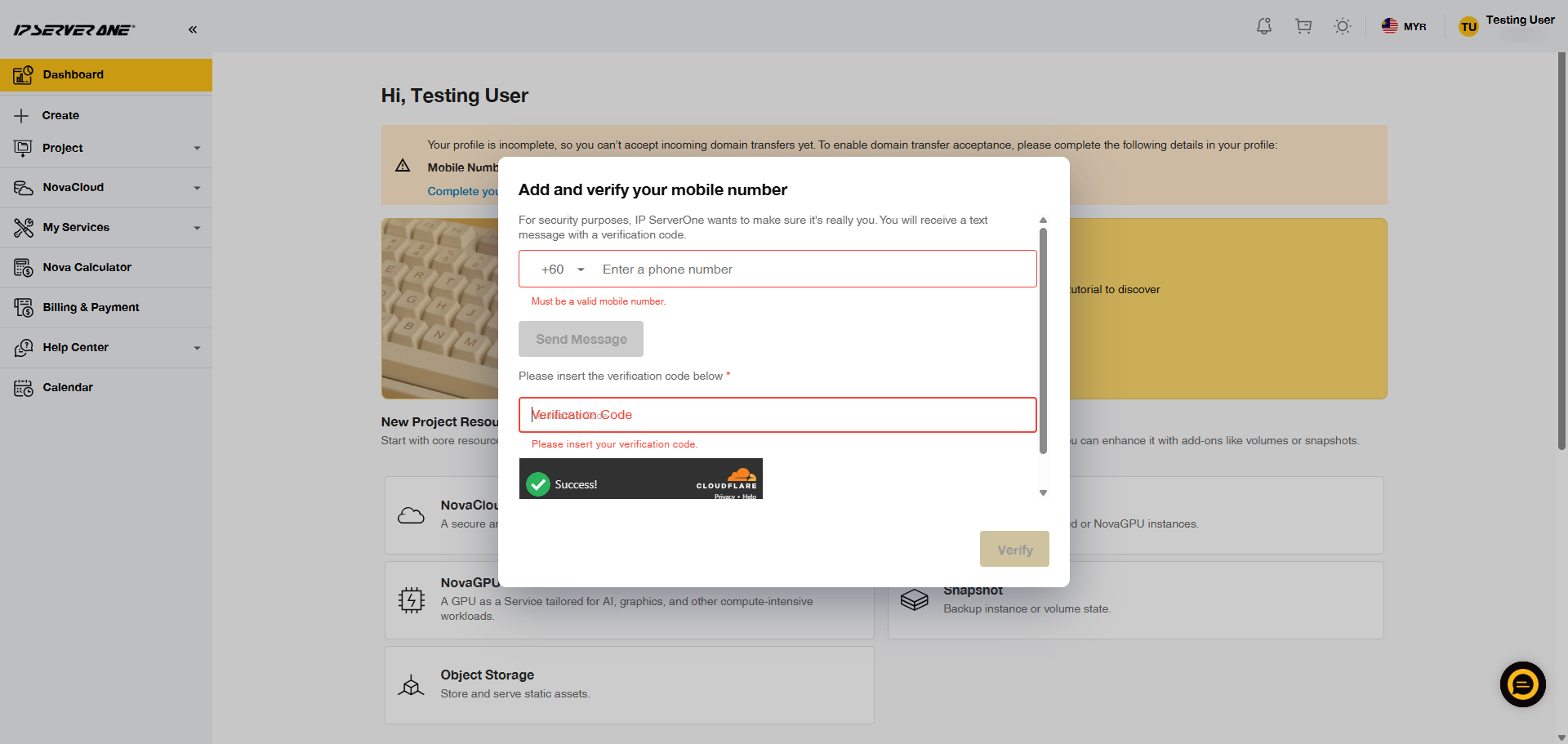
To accept the domain ownership transfer, you are required to complete your profile first. You may do so by clicking on the “Complete your profile” hyperlink, or by clicking on your account at the top left corner of the page and selecting “My Account”.
In addition, a minimum of 50 cloud credits is required in your account to ensure the DNS records are transferred together with the domain. For more information on how to top up cloud credit, kindly refer to the following article:How to Top Up Cloud Credit
4. Upon logging into the customer portal, the recipient will see a notification on the dashboard. Click Action > Accept to accept the domain ownership transfer. 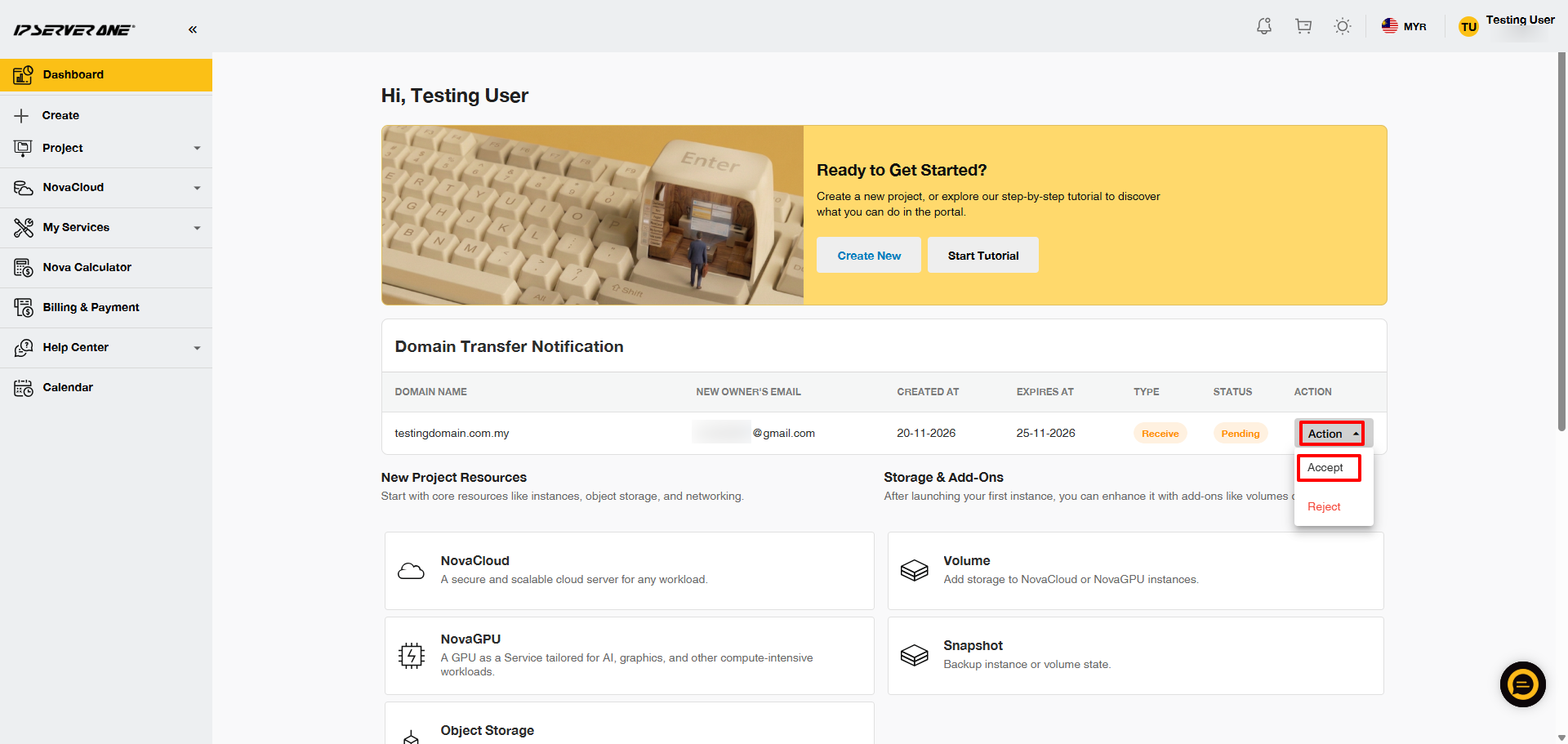
5. The recipient must agree to IP ServerOne’s terms and conditions before clicking Complete Transfer.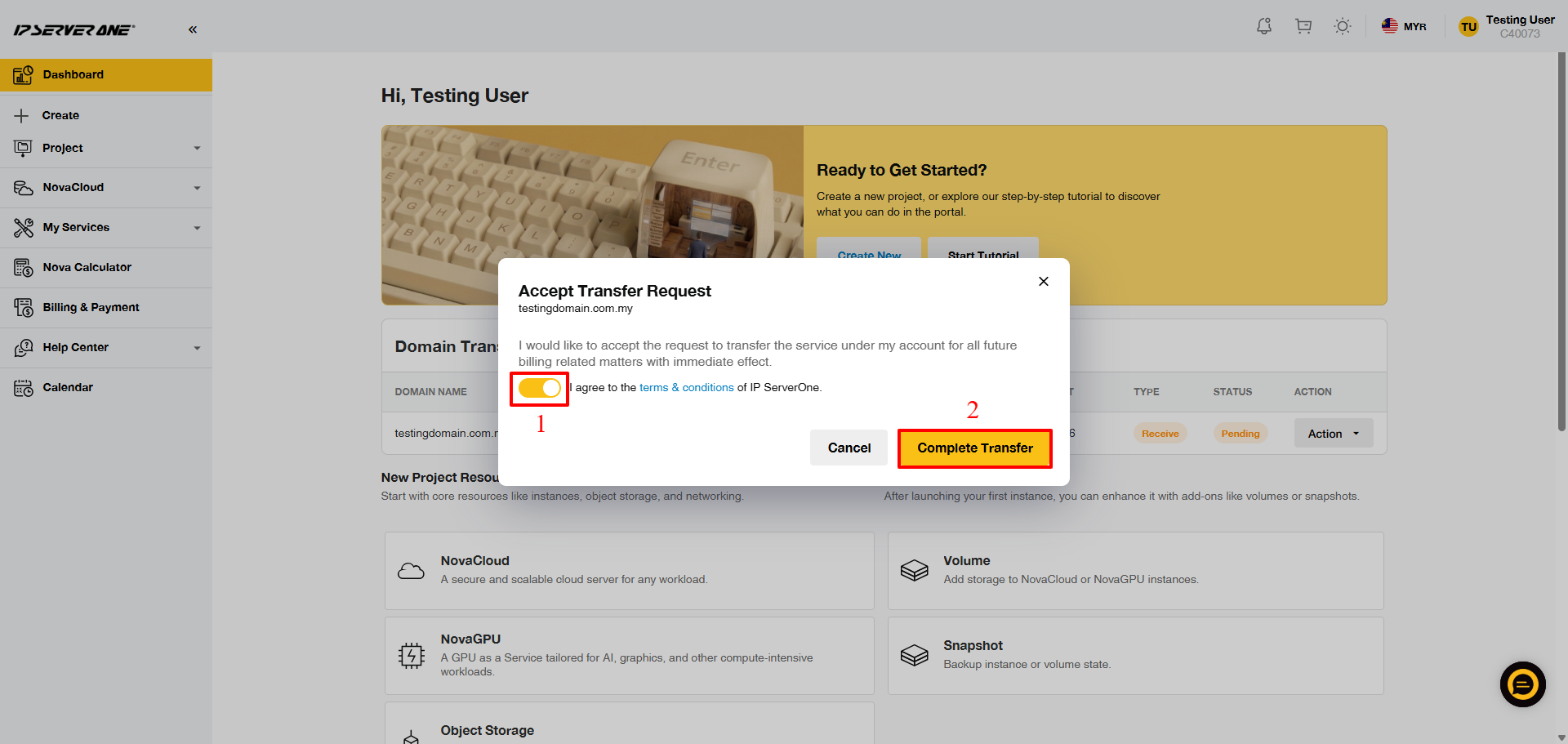
6. Upon successful transfer, the recipient can view the domain under the My Services section by selecting Domain from the left-hand menu in the customer dashboard.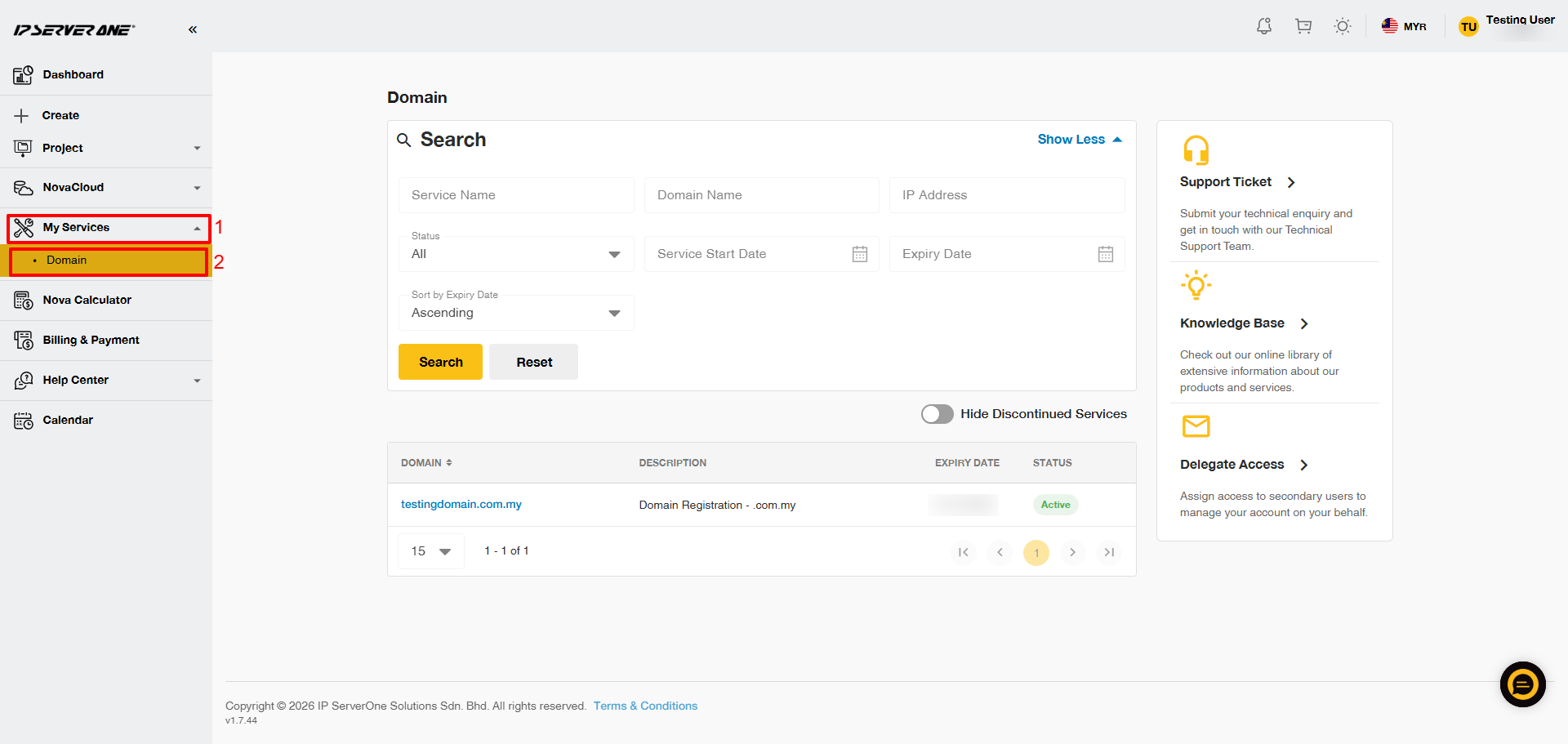
Conclusion
Completing these steps will initiate the domain ownership transfer to a recipient who does not have an IPS1 account. The process is designed to be straightforward, ensuring a smooth transition of domain ownership.
For further queries or if you encounter any issues during the process, please don’t hesitate to reach out to our support team at support@ipserverone.com.
Article updated on 20 November 2026 by Zihui