
Search Our Database
How to submit ticket through Customer Portal
Introduction
When you encounter technical challenges or require assistance with your hosted services, knowing how to efficiently reach out to the support team is essential. Users can raise support requests anytime directly through the Customer Portal by selecting appropriate departments, attaching relevant files, and tracking progress. This centralized ticketing system ensures that all inquiries are logged, monitored, and resolved promptly by qualified support specialists, minimizing downtime and ensuring smooth management of your account and infrastructure.
Prerequisite
- Access to the IPServerOne Customer Portal with an active user account
- Active cloud hosting or related services under your account
- Relevant details, descriptions, or error attachments related to your issue
Step-by-step guide
Step 1: Access the Support Ticket Section
- Log in to the [IPServerOne Customer Portal].
- Navigate to the My Support Ticket under Help Center.
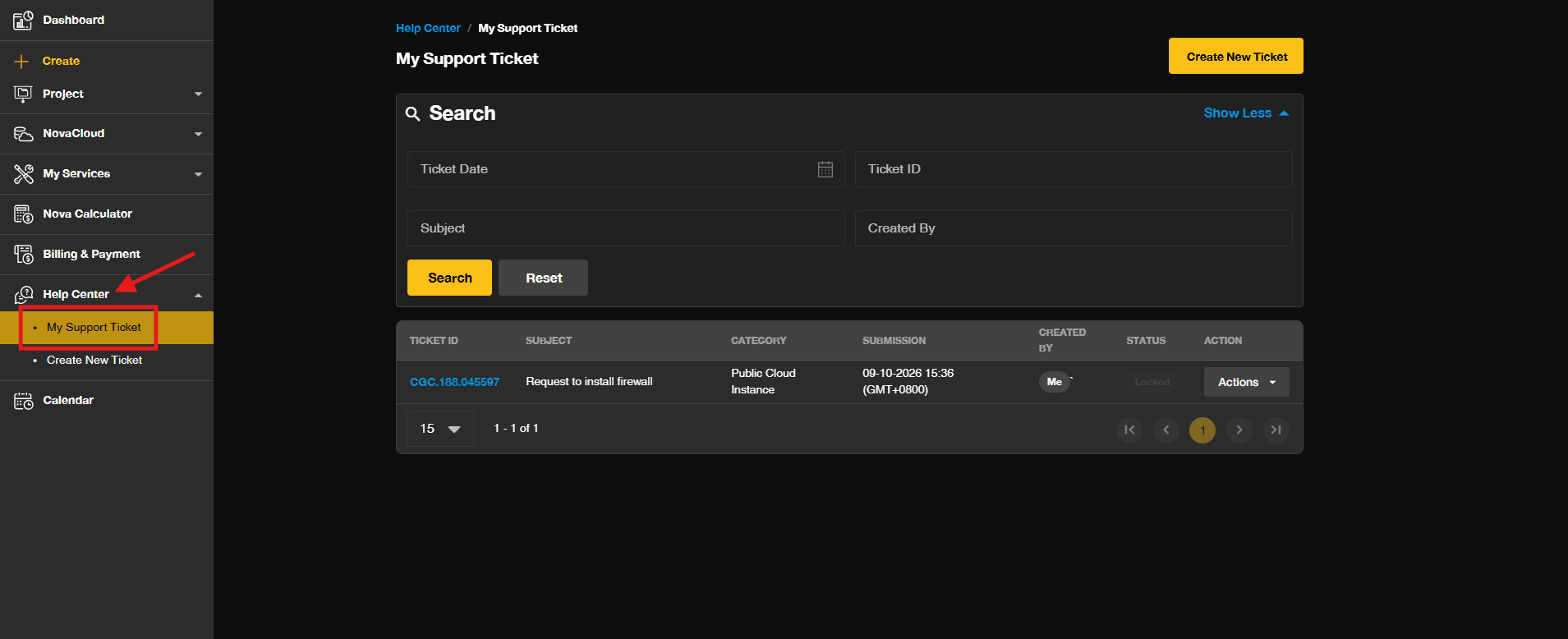
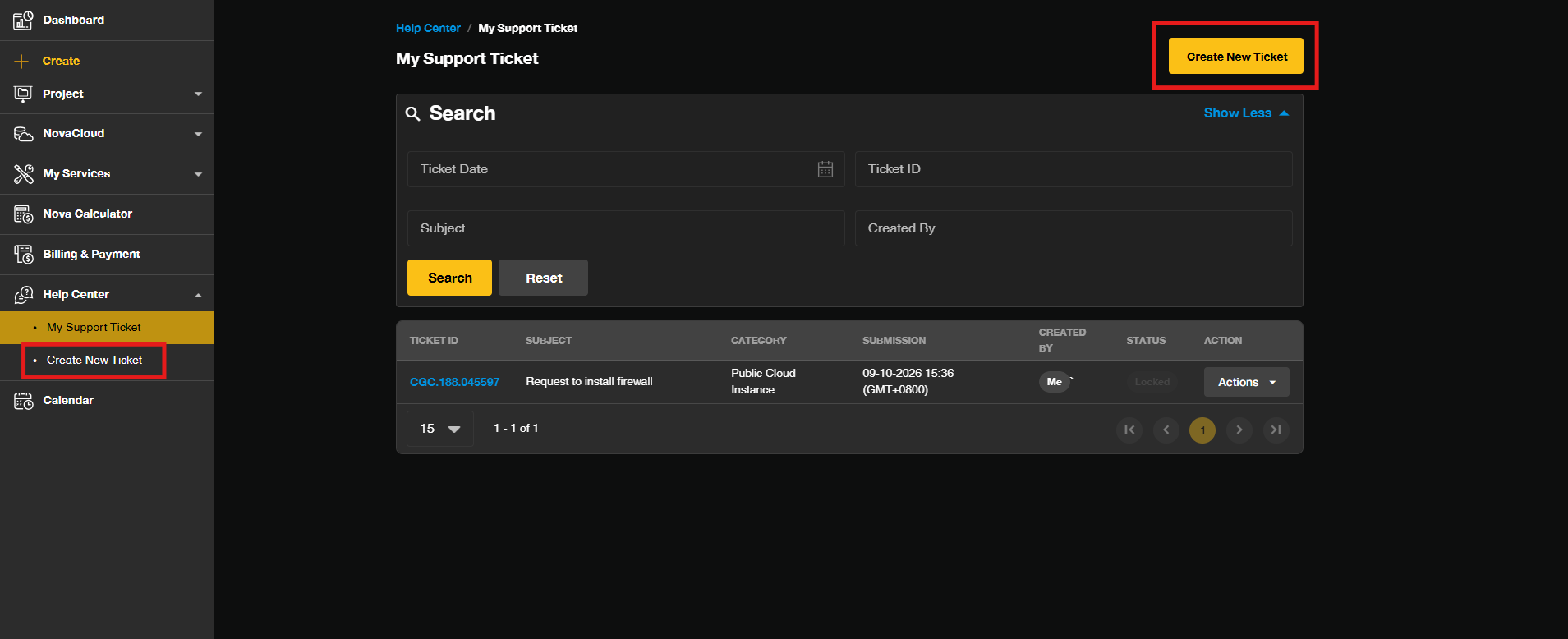
- Click on Create New Ticket to create a new ticket.
Step 2: Fill in Ticket Details and Submit
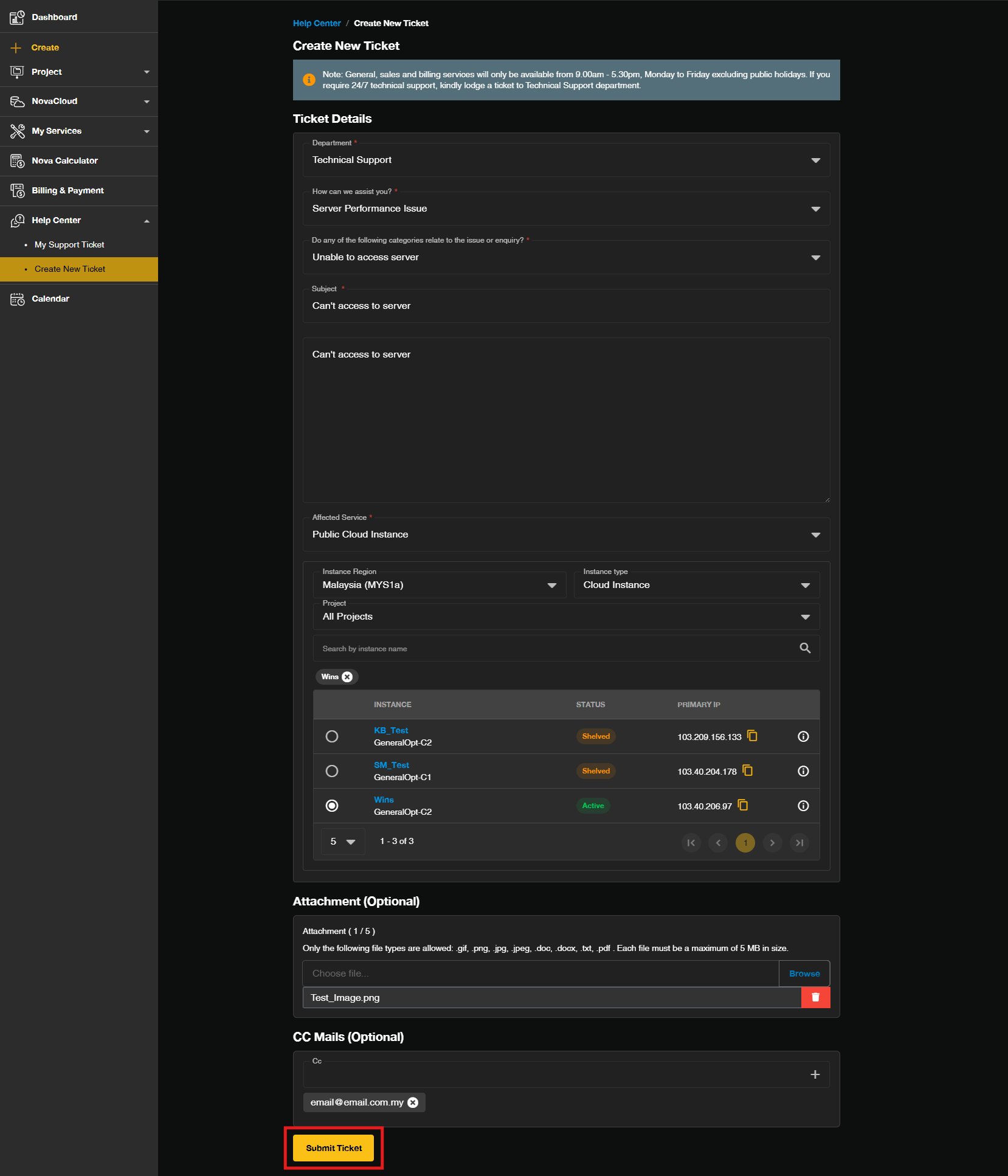
- Select the appropriate Department and service category related to your inquiry.
- Enter a subject and describe your issue or request in detail within the message box.
- Upload any necessary files or screenshots by clicking the Browse.
- Add any additional email addresses in the CC field if you want other team members to receive updates.
- Click Submit to send your ticket to the support team.
Step 3: View and Respond to Ticket Details
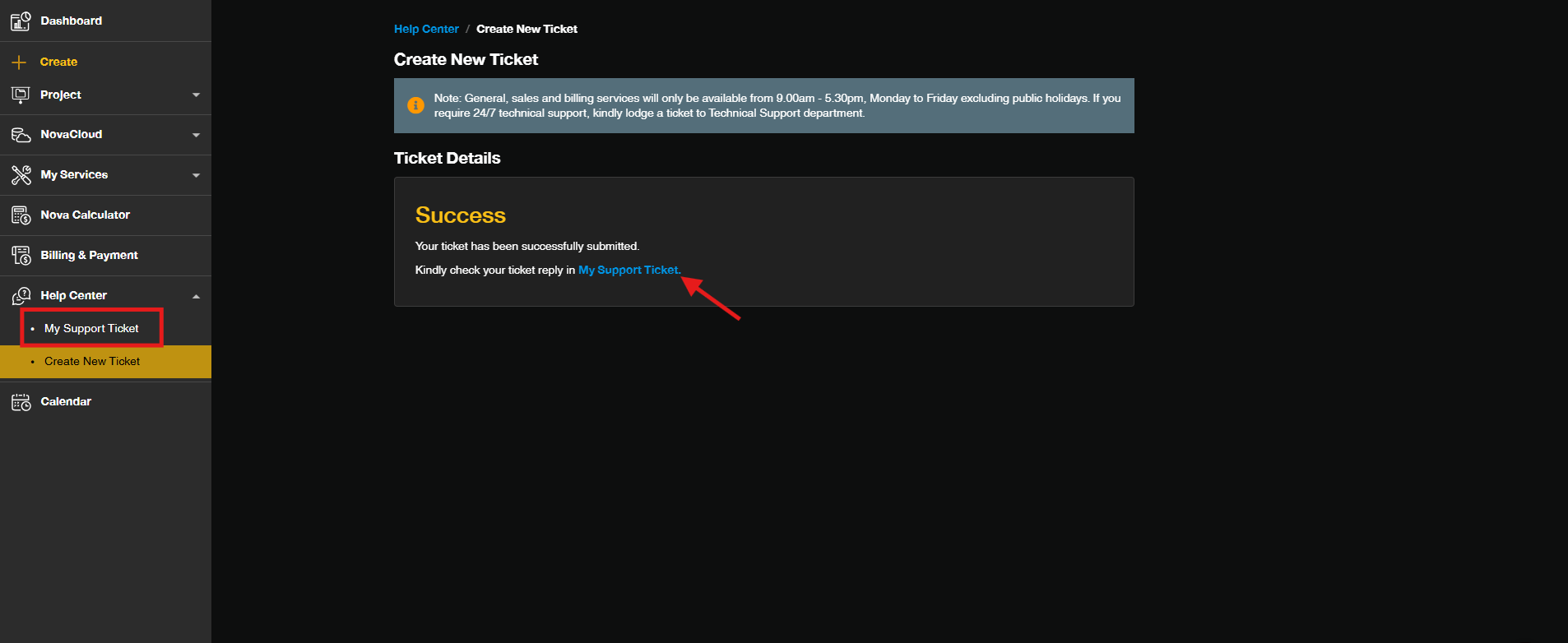
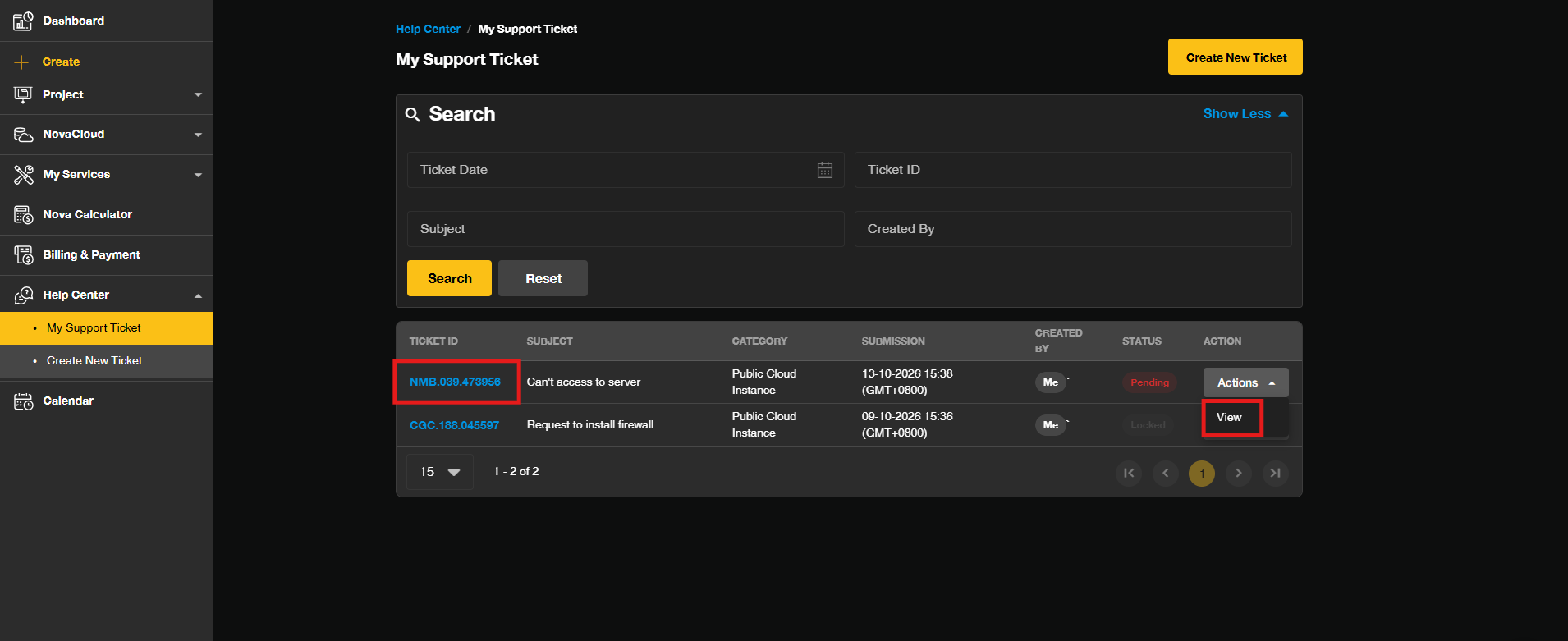
- One the ticket created, click My Support Ticket to navigate to ticket dashboard.
- Click on the Ticket ID or View under Actions to view the complete conversation history.
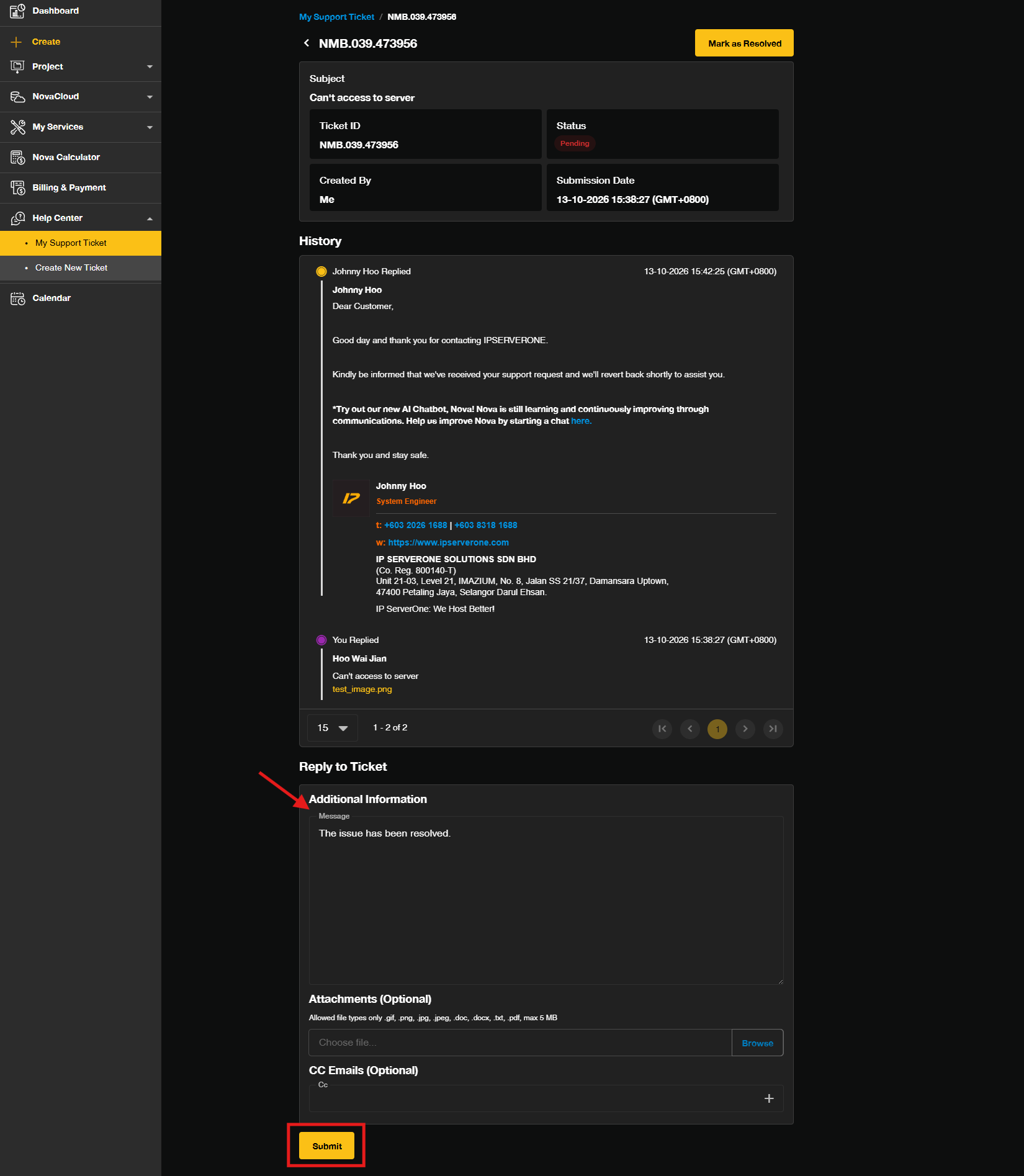
- Type your reply in the response box and click Submit to provide further information.
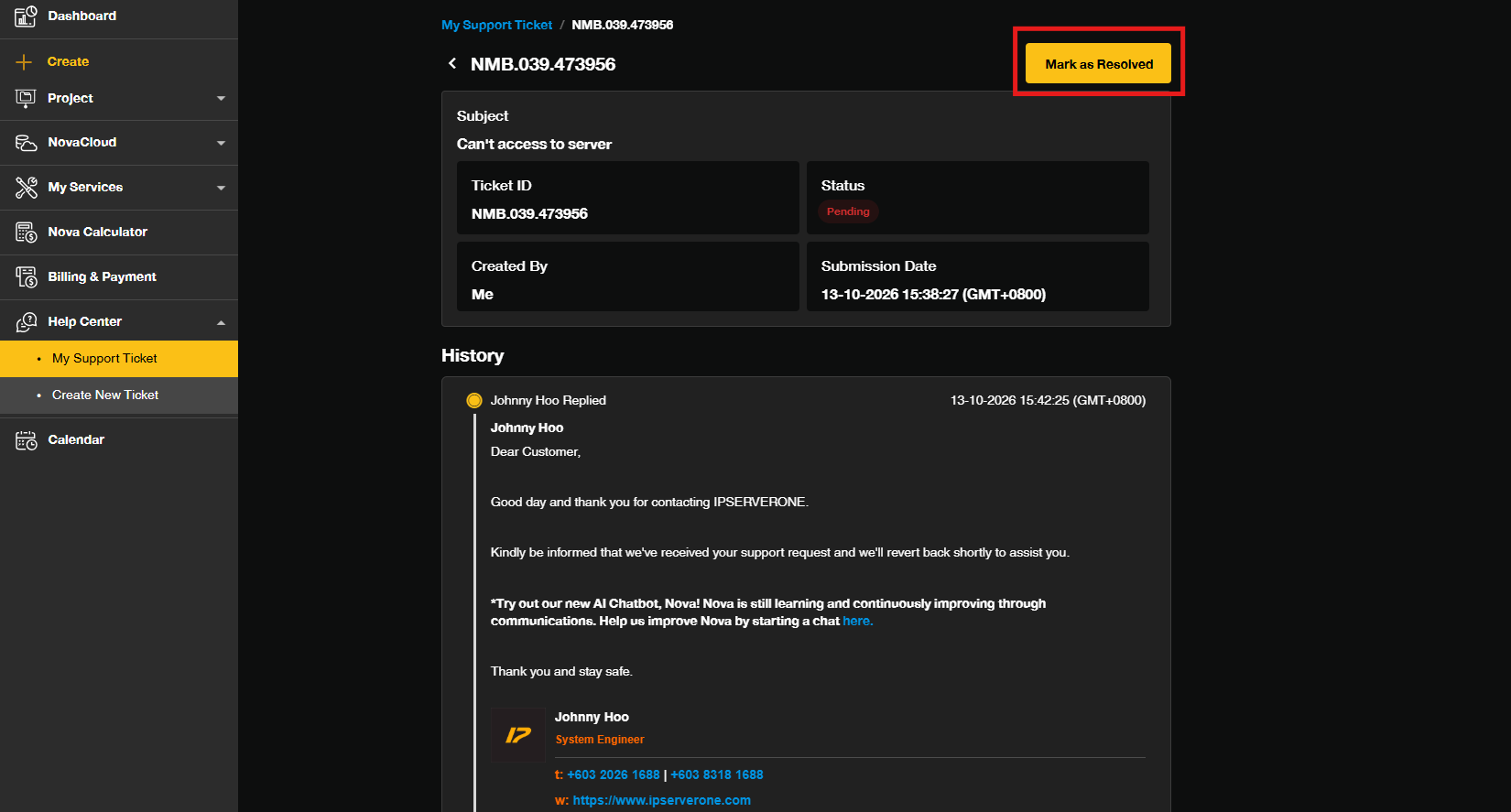
- Click Mark as Resolved if your issue has been successfully resolved.
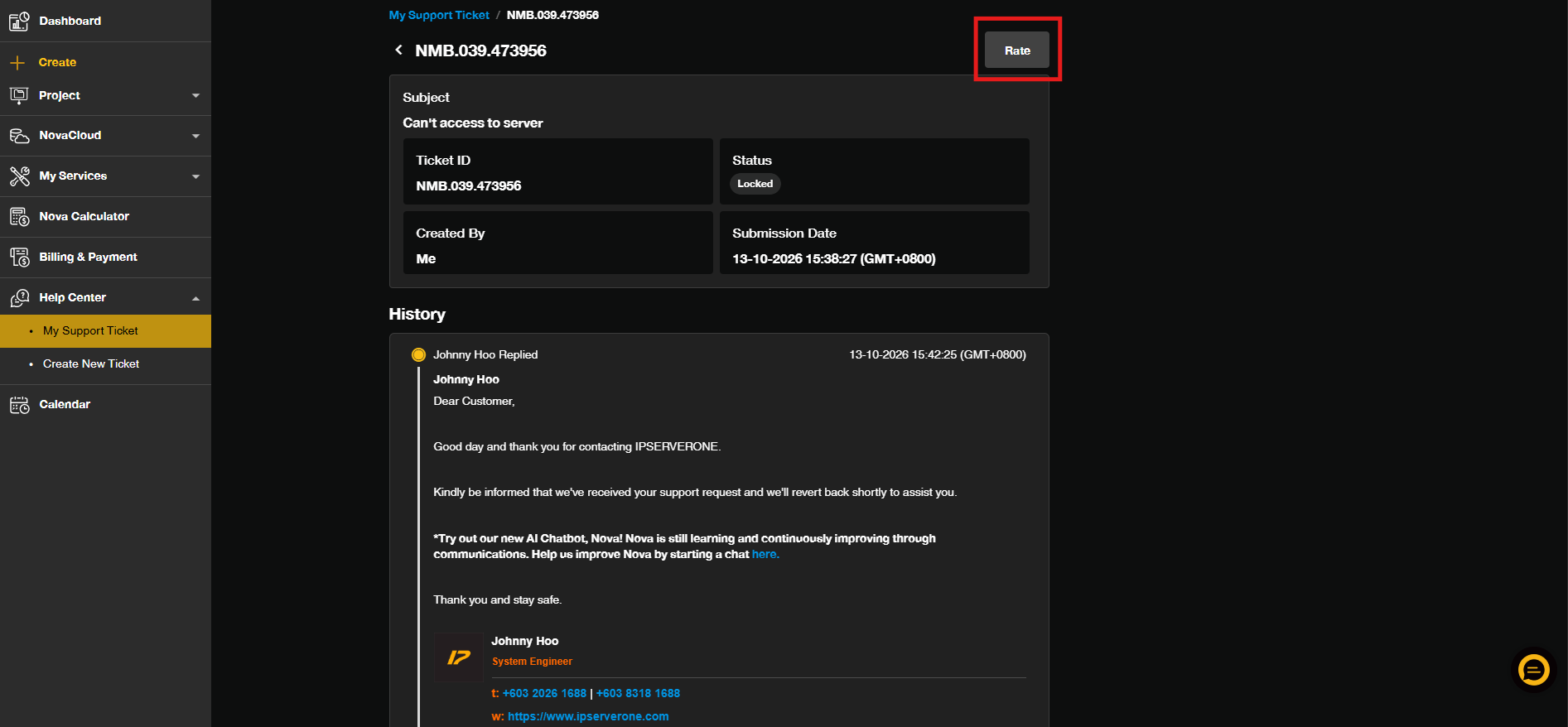
Step 4: Rate Your Support Ticket
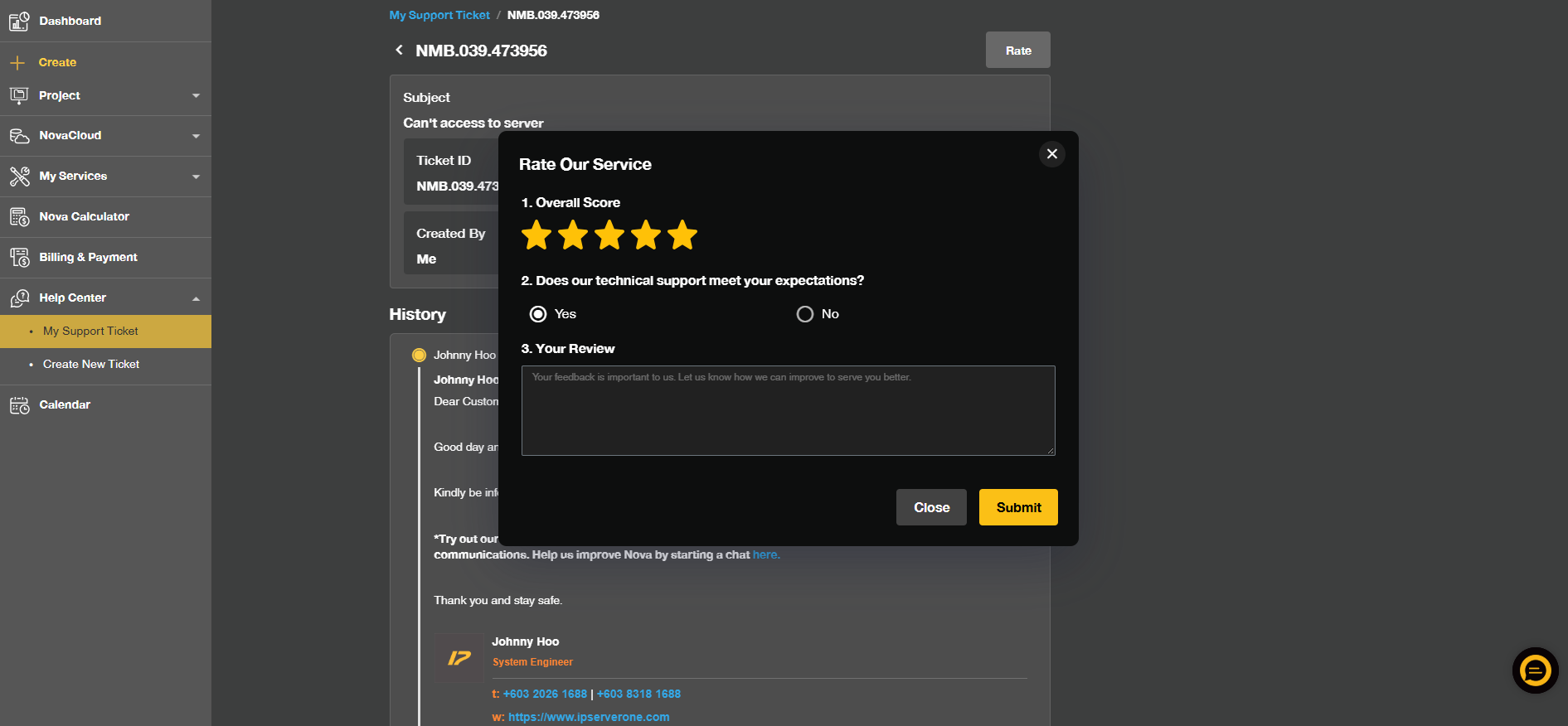
- Once your ticket has been closed, you may share us your feedback or rating by click the Rate.
- Select your rating and leave optional comments to provide feedback on the support experience.
Extra Step: Find Tickets Within Your History
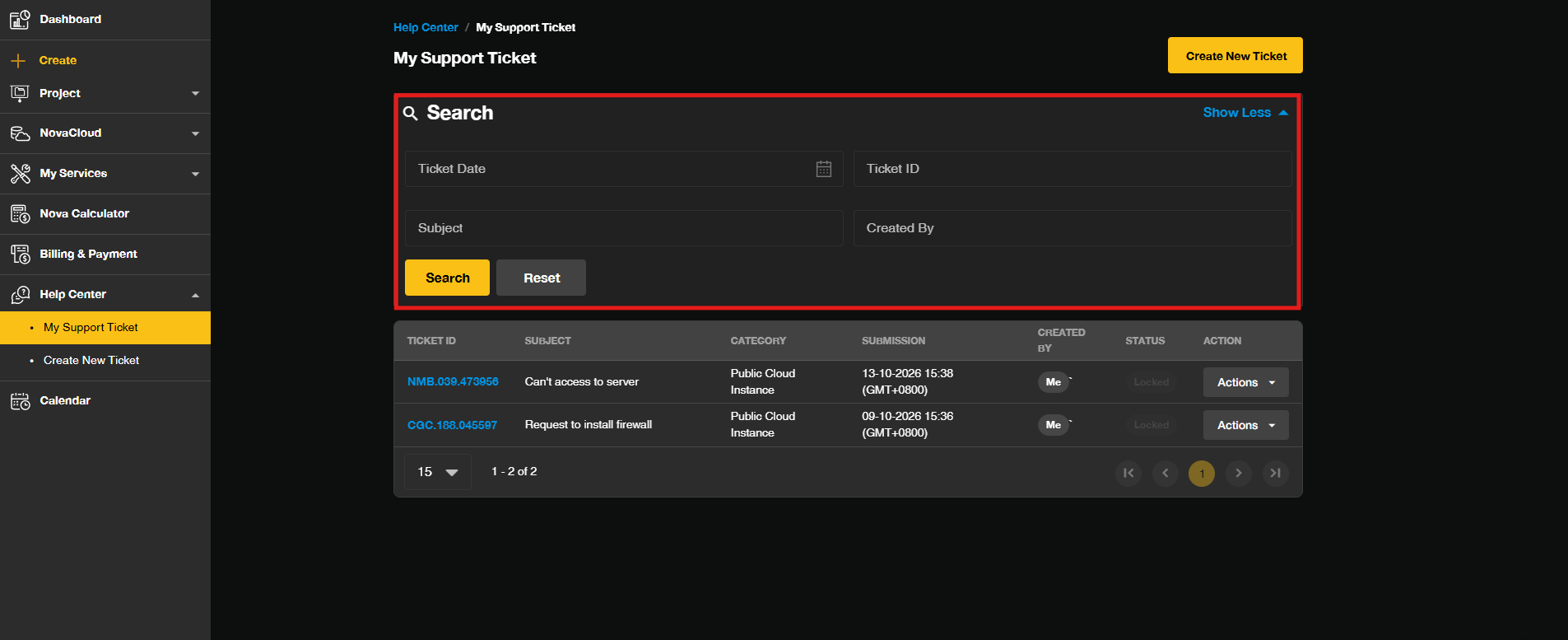
- Navigate to ticket dashboard, use the Search options to quickly locate past or ongoing support tickets.
Conclusion
By following this guidance, you can successfully submit, track, manage, and rate support tickets within your Customer Portal to ensure efficient resolution of any technical or account inquiries.
For additional assistance or if you encounter any issues, please contact our support team at support@ipserverone.com.
Article updated on 13 October 2026 by Johnny