
Search Our Database
How to access Domain Settings as Domain Admin in SmarterMail
Introduction
SmarterMail allows Domain Administrators to manage domain-level settings through its webmail interface. These settings include email account management, spam filtering, password requirements, and other domain configurations.
This guide provides step-by-step instructions on how to access Domain Settings in SmarterMail using a Domain Administrator account.
Prerequisites
- You have access to the SmarterMail webmail interface.
- You have valid login credentials for an email account with Domain Administrator privileges.
Step-by-step guide
Step 1: Log in to SmarterMail
- Access your SmarterMail webmail interface and log in using your Domain Administrator account.
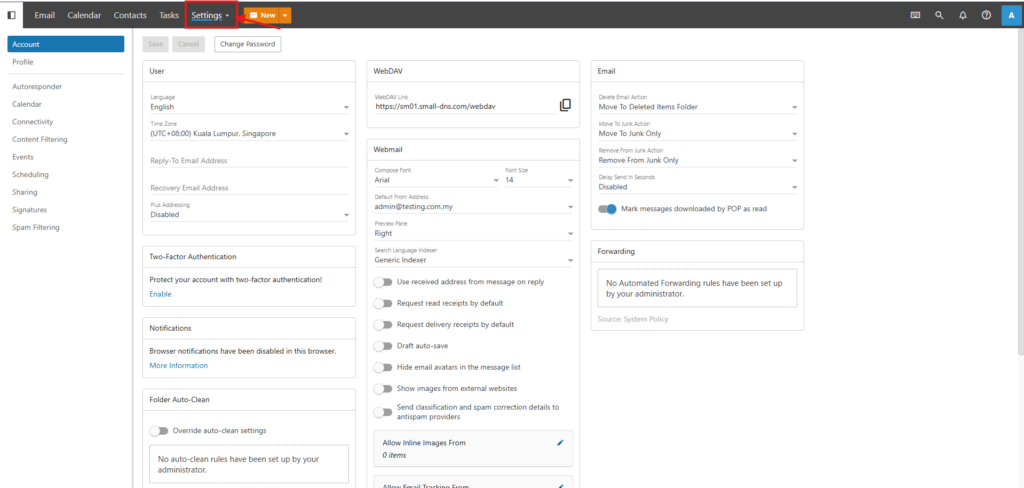
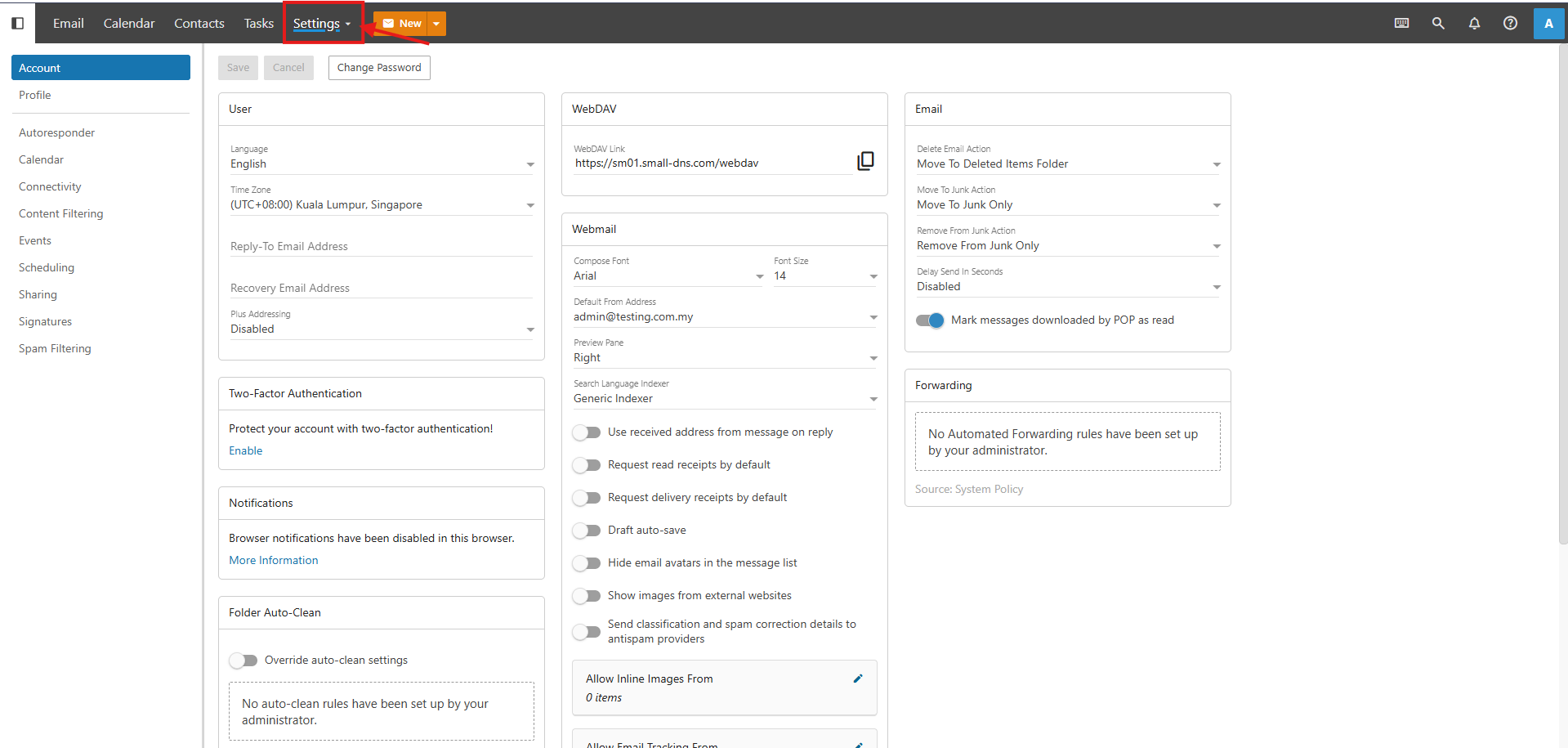
- Once logged in, click Settings on the top navigation bar.
Step 2: Access Domain Settings
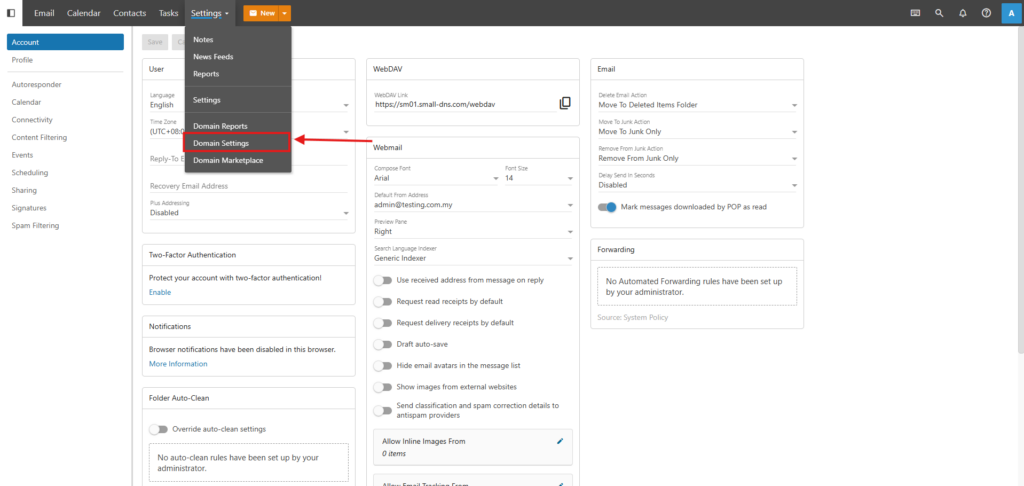
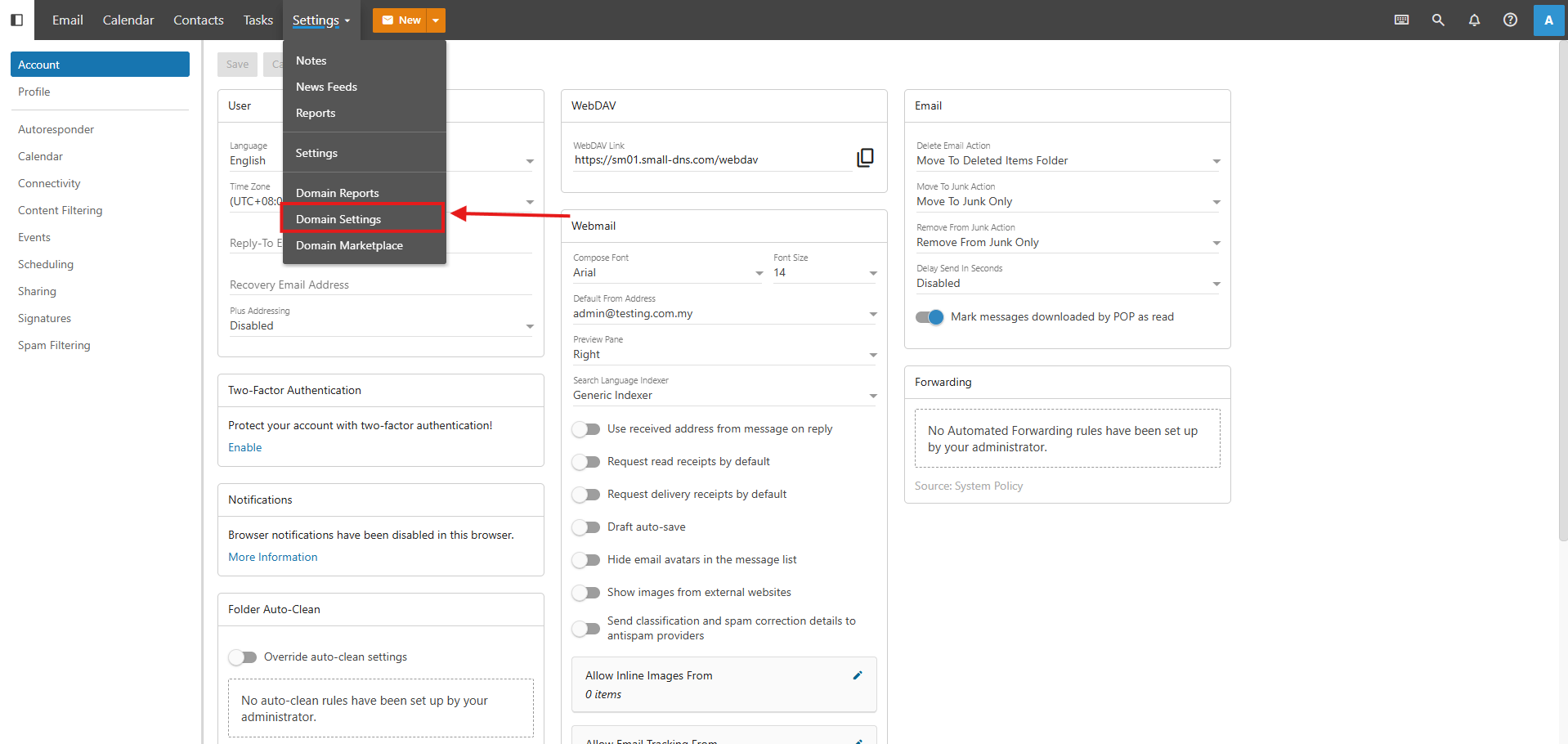
- From the Settings dropdown menu, select Domain Settings.
Step 3: View Domain Settings
- You will be redirected to the Domain Settings page, where you can view and manage various domain-level configurations.
- By default, the Accounts section displays the existing email accounts and the allocated user limit for your domain.
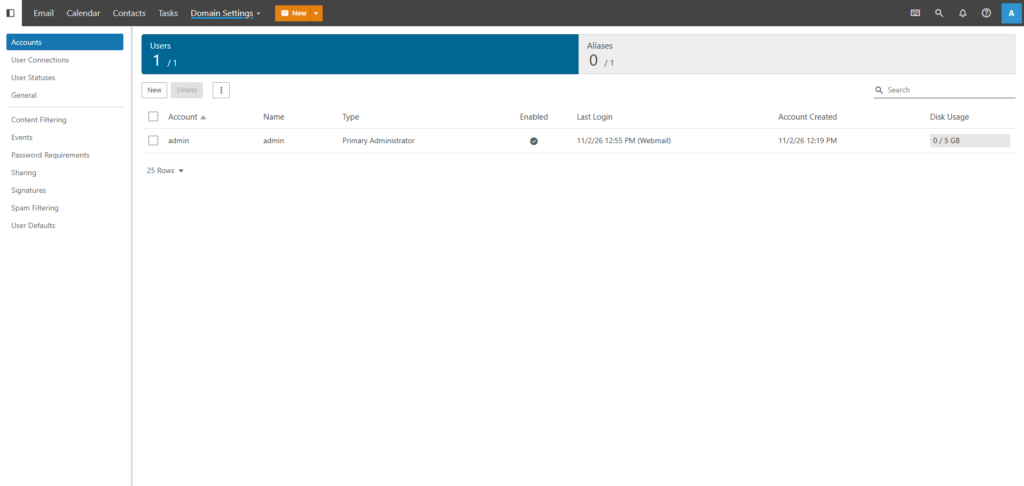
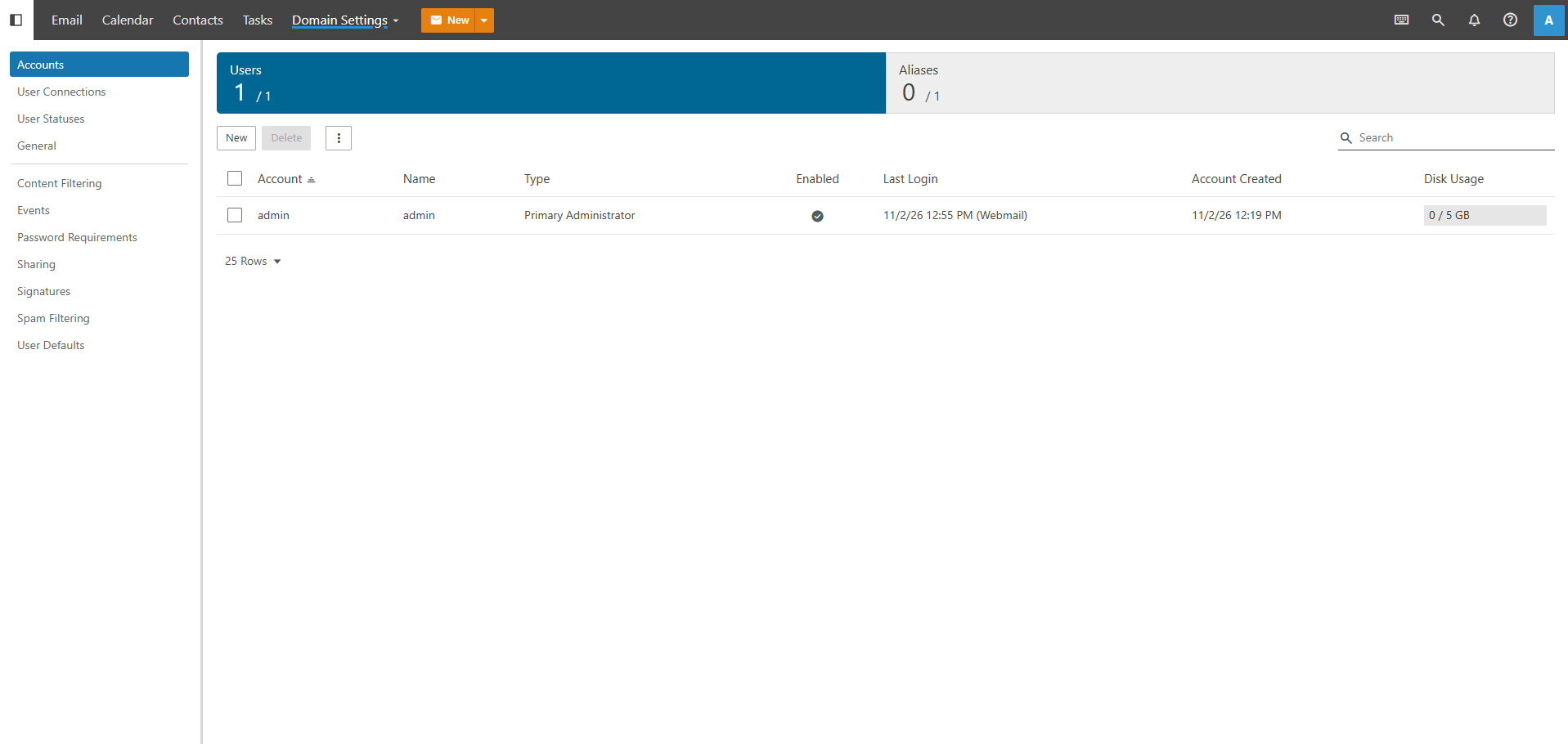
Important Note ⚠️: Please note that the number of email accounts you can create is subject to your domain’s allocated user limit.
Conclusion
You have successfully accessed the Domain Settings page in SmarterMail using your Domain Administrator account. From here, you can view and manage the available domain-level settings based on your administrative privileges.
For additional assistance or if you encounter any issues, please contact our support team at support@ipserverone.com.