Introduction
Analyzing system event logs effectively is vital when diagnosing performance issues, hardware failures, or security incidents within a Windows Server environment. System administrators frequently need to inspect operational records to trace application errors, system warnings, and service failures. This guidance details the essential administrative steps required to access and review system logs using built-in Windows Event Viewer tools, ensuring rapid troubleshooting and maintaining reliable network infrastructure standards.
Prerequisite
- Access to Windows Server via Remote Desktop with administrative privileges
- Basic knowledge of Windows event logging and troubleshooting concepts
Step-by-step guide
Step 1: Open the Event Viewer management console
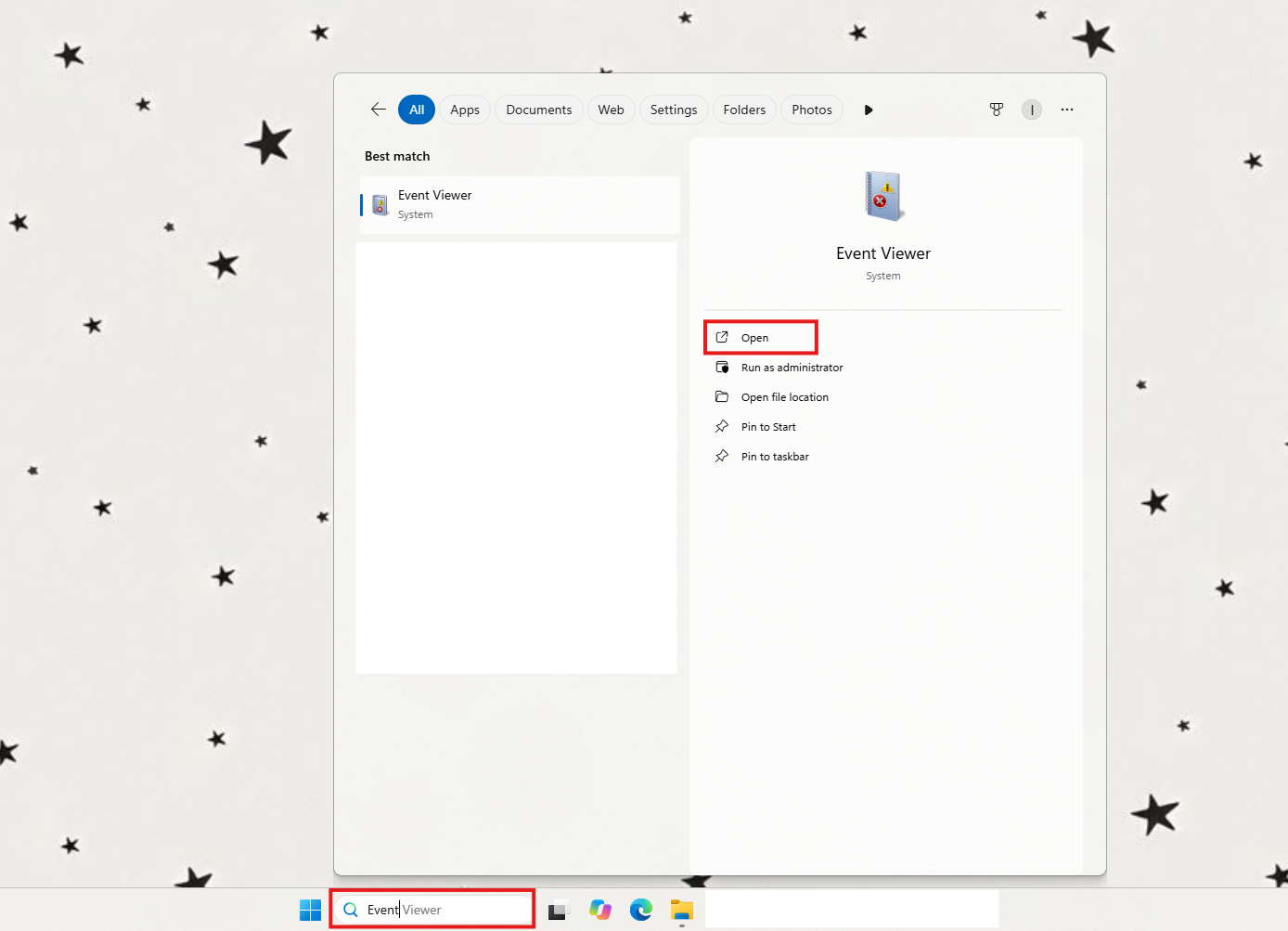
- Click on the Windows Start search bar and type “Event Viewer”. Press Open to launch the Event Viewer tool.
Step 2: Inspect specific log categories at the left panel
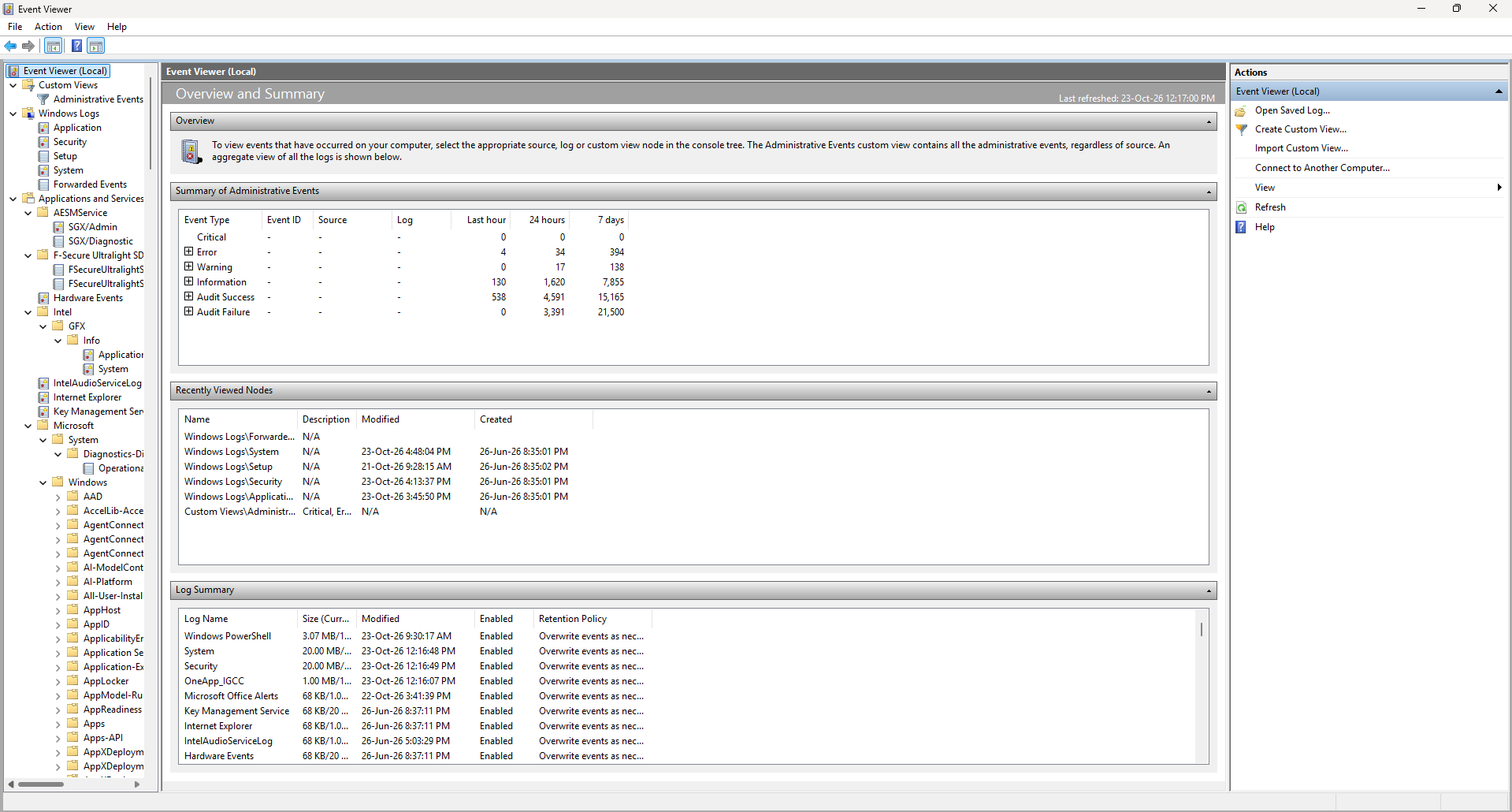
Expand the accordion below to read about Custom Views.
Custom Views
- Administrative Events
- Function: Combines important Critical, Error, and Warning events from multiple logs into one view.
Tips 🖊️: Event Severity Levels
Critical: A serious failure, such as an unexpected shutdown or major hardware problem.
Error: An operation or component failed, such as an application crash or service startup failure.
Warning: A potential issue, such as connection timeouts, resource limitations, or temporary retries.
Information: Normal activities, successful operations, and changes recorded by Windows.
Audit Success: An audited security action succeeded, such as a successful login.
Audit Unsuccessful: An audited security action failed, such as an unsuccessful login.
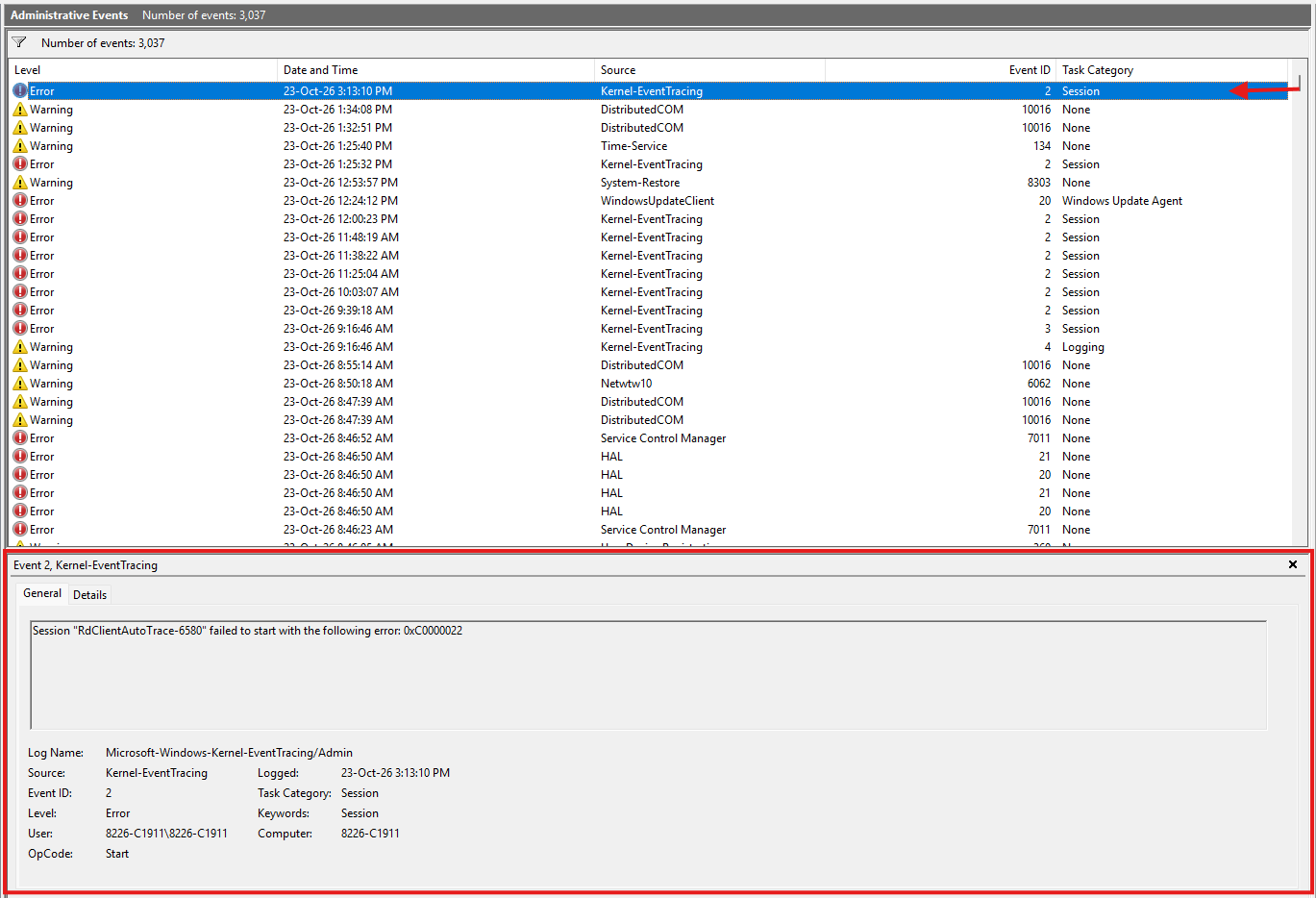
- You may see hundreds or thousands of entries. That does not necessarily mean the computer is unhealthy, because Administrative Events is a combined view of historical records and may show the same underlying event already present in an individual log.
- Example:
You may select on an event to look at the details in the bottom panel.
Expand the accordion below to read about Windows Logs.
Windows Logs
- Application
- Function: Records events generated by installed applications, application frameworks, and some Windows application services.
- Potential Issues: An application has crashed (1000), Windows generated an error or crash report (1001), An application stopped responding(1002)
- Example:
This event indicates that an application has crashed unexpectedly. In this example, Windows recorded an error involving Snipping Tool (SnippingTool.exe) and the system runtime library (ucrtbase.dll).Users may experience the application closing suddenly or becoming unavailable. To troubleshoot, restart the application, check for available updates, or repair the application if the issue continues.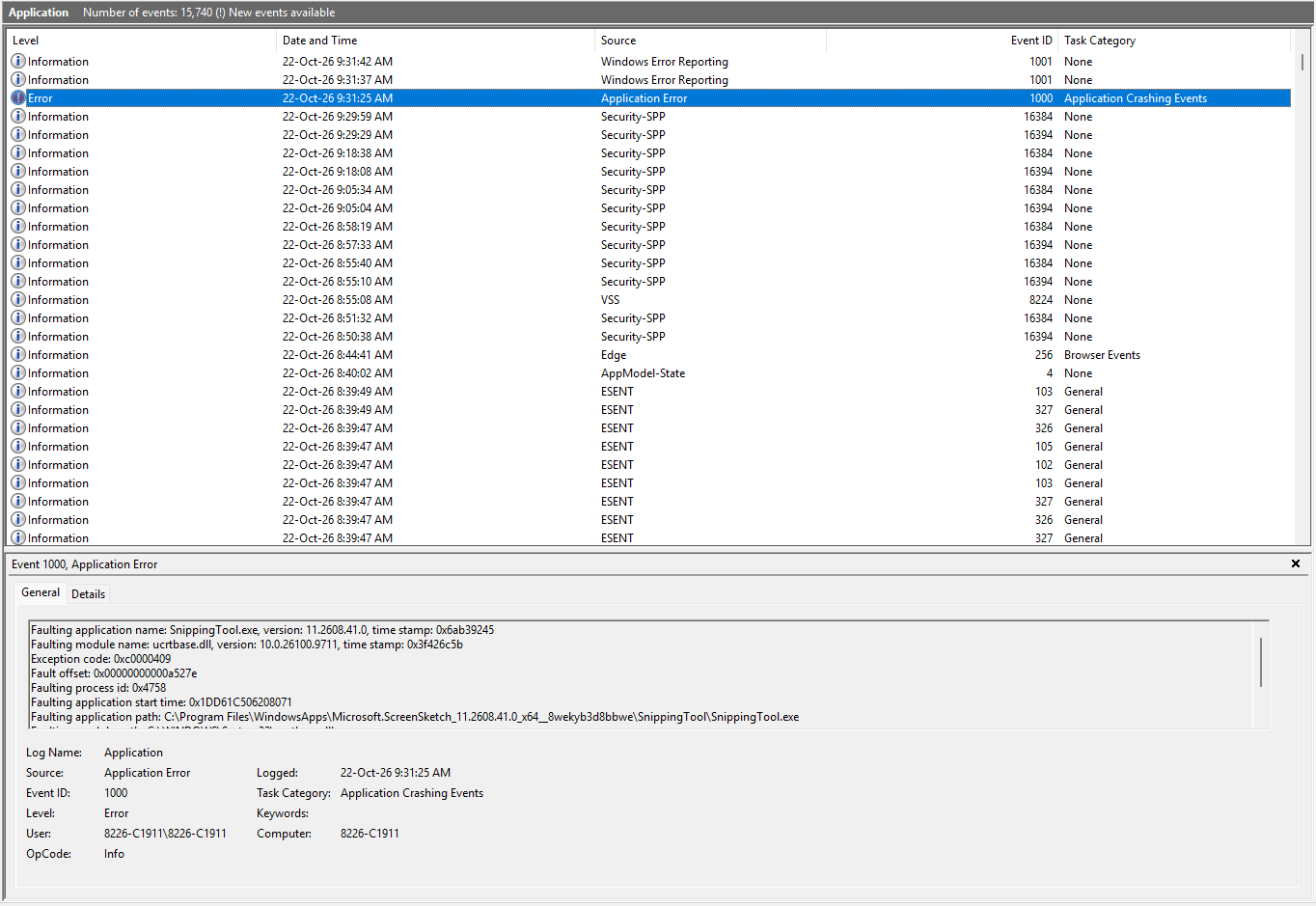
- Security
- Function: Records audited security-related activities such as Windows logins, failed authentication, account management, permission changes, and access to resources when relevant audit policies are enabled. This is particularly useful when investigating suspected unauthorized access to a server.
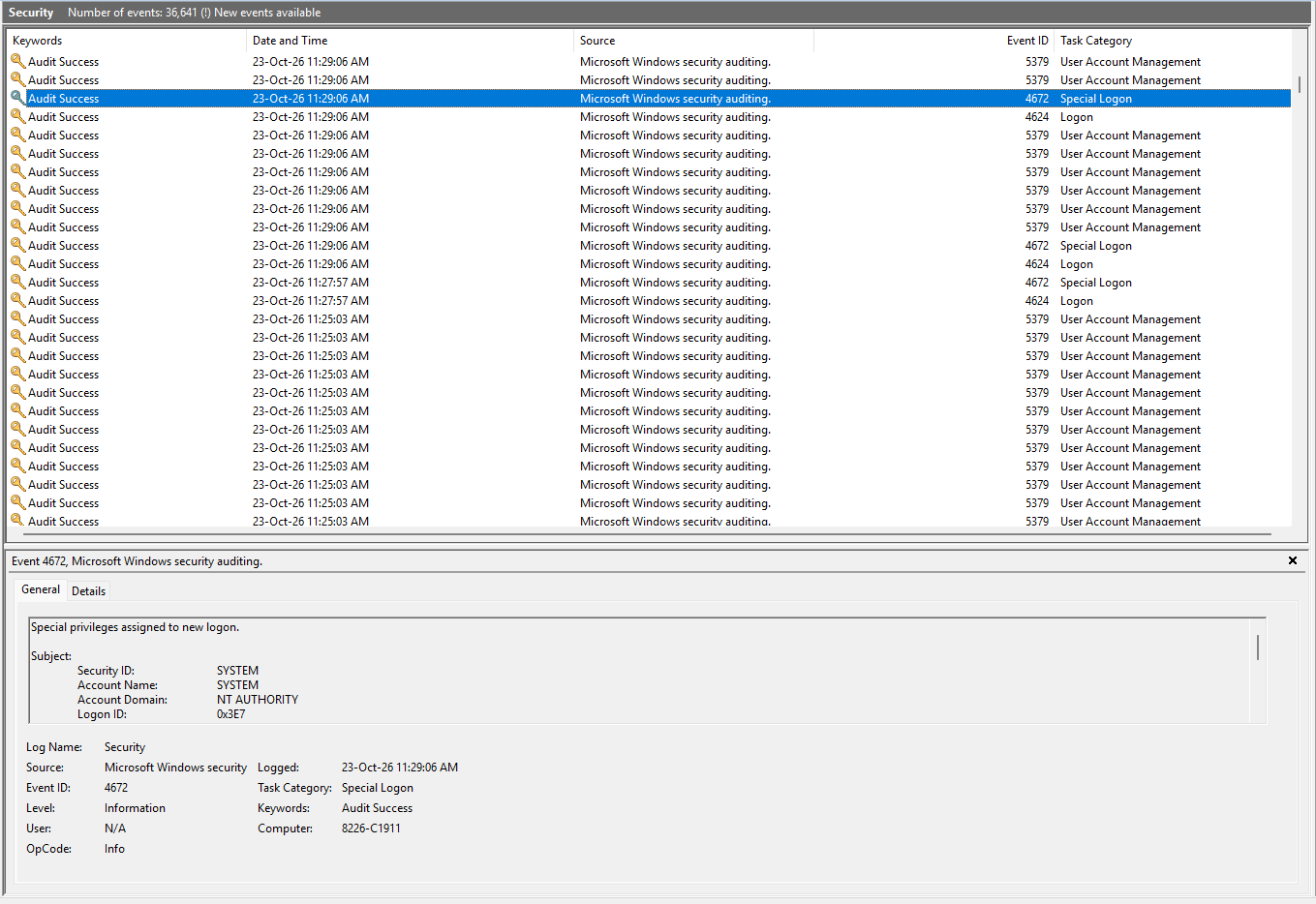
- Common security events: Successful login (4624), Failed login (4625), Special privileges assigned to new logon (4672)
- Example:
This event records when a user or system account successfully logs on to Windows. It provides information such as the account name, login time, logon type, and source IP address, if available.In this example, users can review the Logon Type to identify whether the login was performed locally, through a network, or using Remote Desktop (RDP).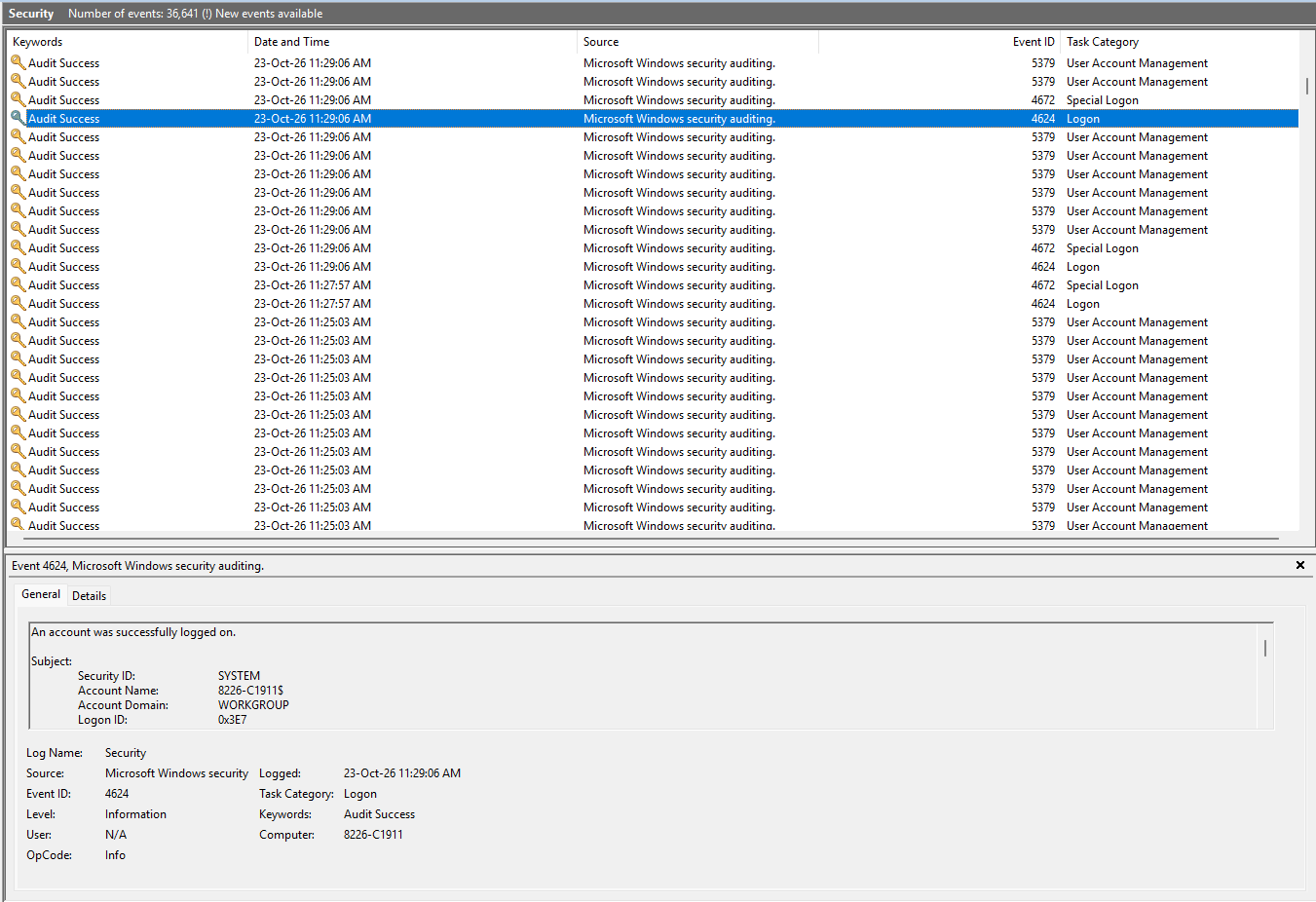 This event records when an account logs on with special administrative privileges. It is commonly generated during normal Windows system activities.In this example, the SYSTEM account was assigned special privileges, which is usually expected behaviour and does not indicate a security issue on its own.If an unfamiliar account appears, check the account name, logon time, and related login events to identify whether the activity is authorized.
- Setup:
- Function: Records Windows setup, component installation, and servicing activities, including some Windows Update-related installation events.
- Potential errors:
- Windows update package failed to install
- Windows features could not be enabled
- Windows servicing or component changes failed
- Installation requires restart
- Servicing package or dependency error
- Example:
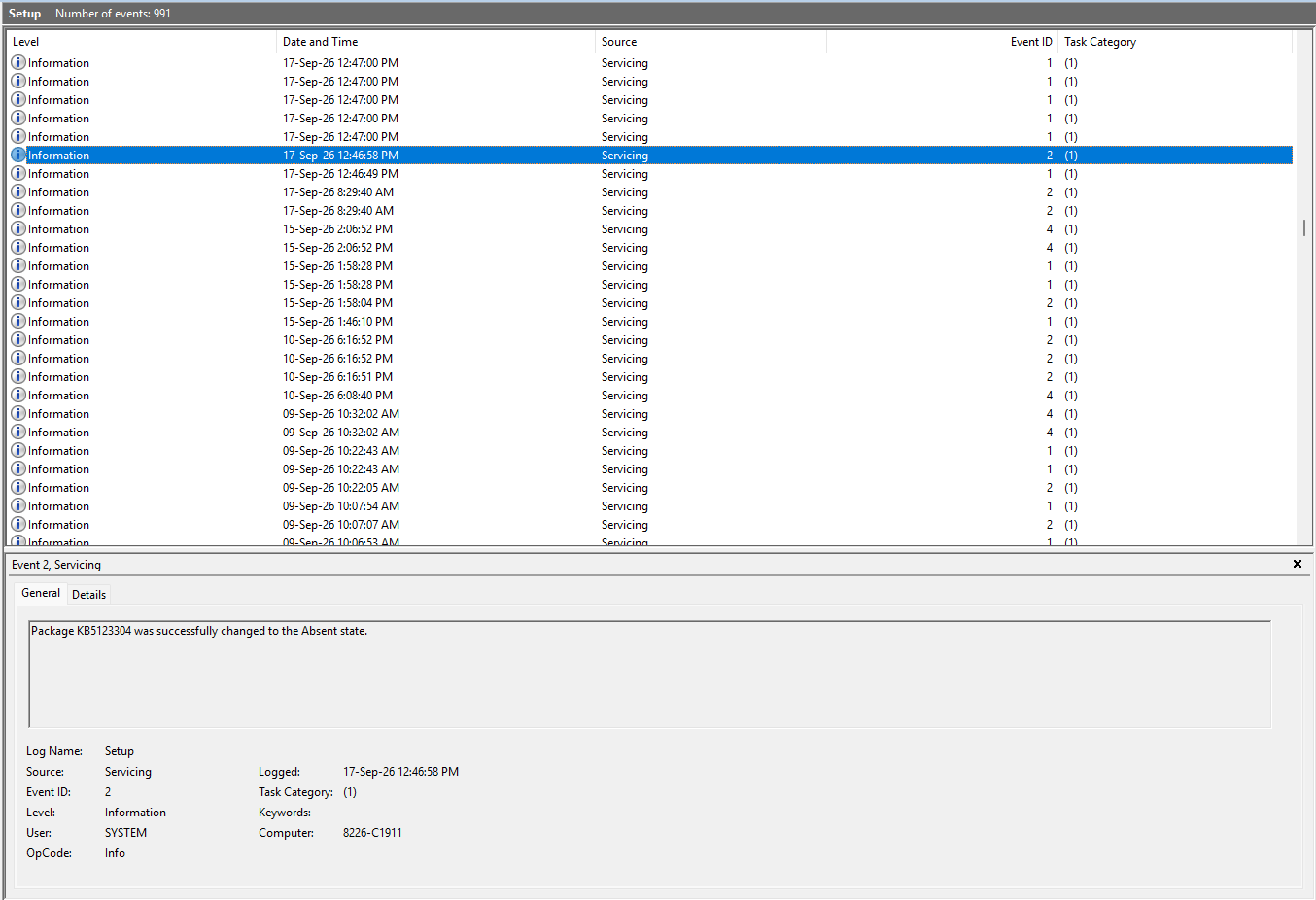
This event records changes to Windows update packages or system components.
In this example, Windows successfully changed package KB5123304 to the Absent state, meaning the package is no longer installed in its previous state.
This is an informational event and does not indicate an error. No action is normally required unless the system experiences issues after the change.
- System
- Function: Records operating-system-level events involving drivers, hardware, Windows services, disks, storage, networking, power, and startup or shutdown operations. For server administration, this is often the first log to inspect when Windows becomes unstable, restarts unexpectedly, or a system service stops working.
- Potential errors:
- Unexpected restart or power interruption
- Service terminated unexpectedly
- Service failed to start
- Error detected during a paging-related disk operation
- Application-specific permission or activation issue, often benign
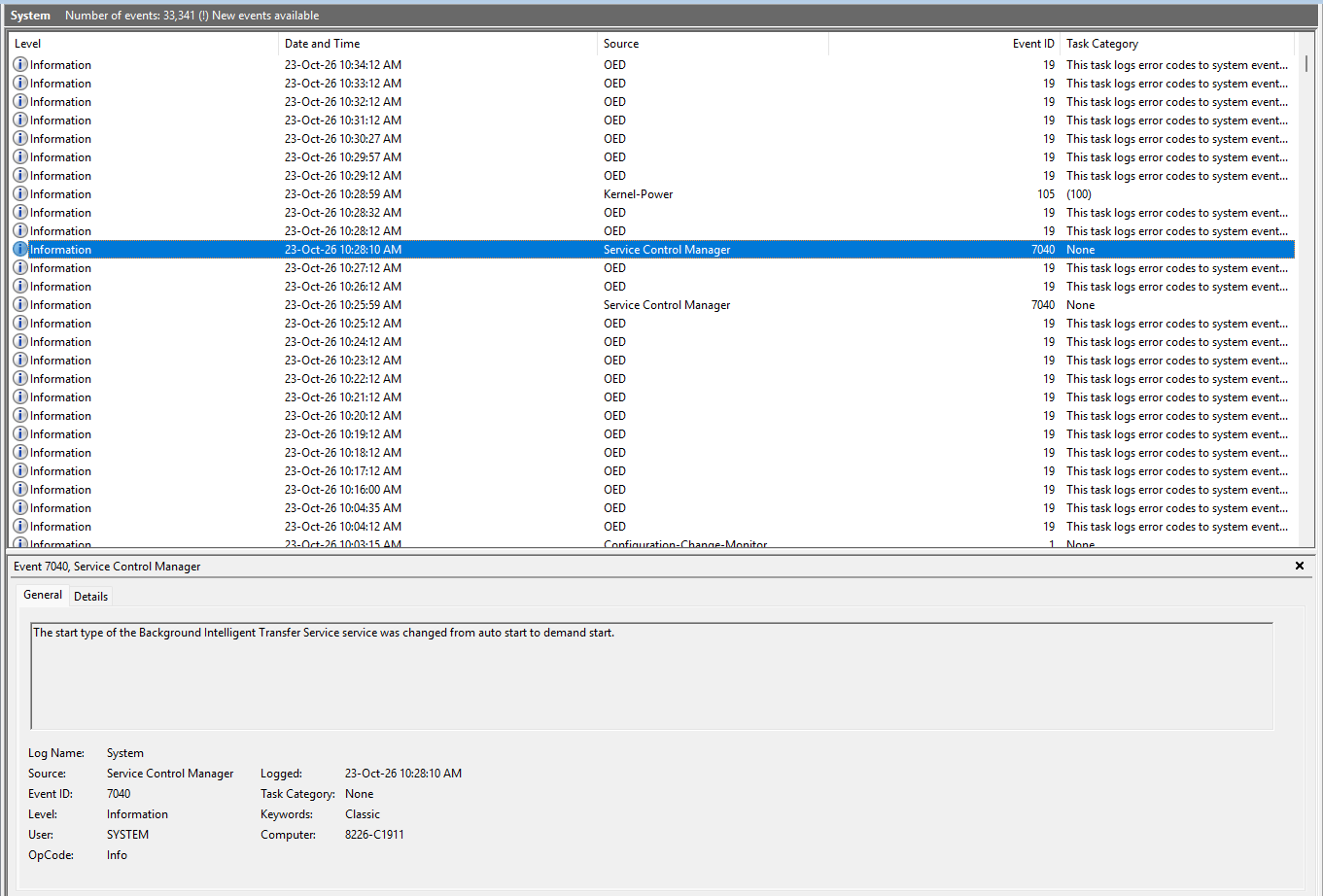
- Example:
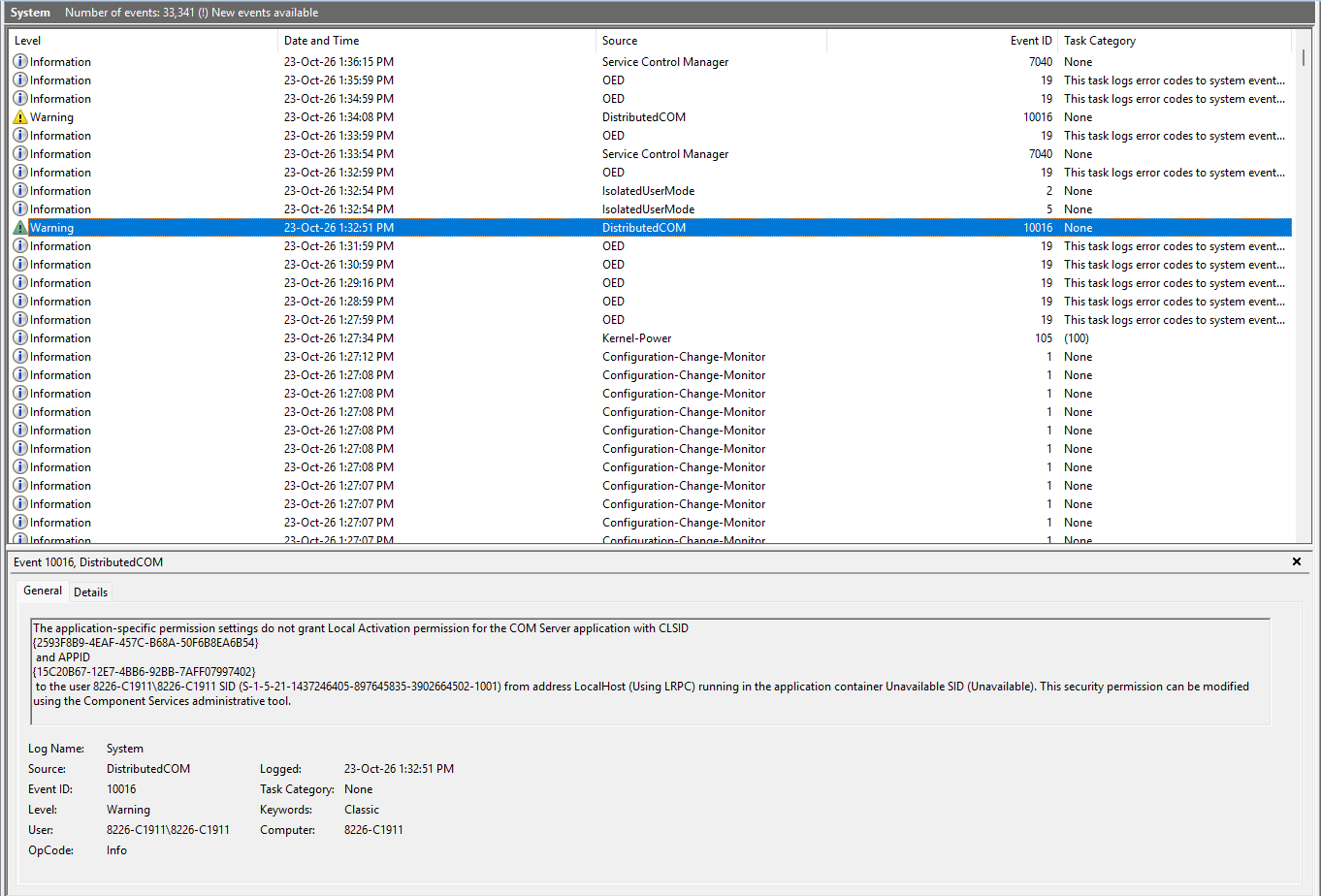
This event indicates that a Windows component attempted to activate another component without the required permission. This is a common Windows warning and usually does not affect normal system operation. Further investigation is only required if an application or Windows feature is experiencing a related issue.
This event indicates that the startup configuration of a Windows service has changed. In this example, the Background Intelligent Transfer Service (BITS) was changed from Automatic to Manual startup. This is a system configuration record and does not necessarily indicate a problem.
- Forwarded Events
- Function: Stores event records forwarded from other Windows computers or servers using Windows Event Forwarding (WEF). This enables centralized log collection.
For example, an organization with 20 Windows Servers could configure those servers to forward selected Security or System events to one centralized event collector,
- Potential errors:
- Collector is not receiving events
- WinRM connectivity problem
- Permission or authentication failure
- Event subscription misconfiguration
- Firewall blocking required communication
- Source server not forwarding logs
- When to use: Mainly in corporate environments with centralized Windows event monitoring. If you have not configured Windows Event Forwarding, this log may be empty, which is normal.
Expand the accordion below to read about Applications and Services Logs.
Applications and Services Logs
This section contains more specialized logs created by Windows features, hardware drivers, and third-party programs installed on your computer. Unlike Windows Logs, these logs focus on individual components.
- AESMService
- Function: This generally refers to the Intel Software Guard Extensions (SGX) Architectural Enclave Service Manager. It helps manage services required by applications that use Intel SGX, a technology designed to protect selected application code and data in isolated memory regions.
- Potential errors:
- Intel SGX service cannot start
- SGX hardware or firmware is unavailable or disabled
- The service cannot initialize an enclave
- Required drivers or software components are missing
- SGX security or cryptographic self-check fails.
- F-Secure Ultralight SDK
- Function: This typically relates to F-Secure or WithSecure security software components, depending on the installed product. The logs may be associated with antivirus protection, scanning engines, or other endpoint-security functions.
- Potential errors:
-
Antivirus engine failed to initialize.
-
Security definitions failed to update.
-
Scanning operation could not complete.
-
Security component stopped unexpectedly.
-
Files could not be scanned due to permissions or access problems.
-
Communication with a security management service failed.
Important Note⚠️: Do not disable antivirus services or protection simply because an error appears in Event Viewer.
- Hardware Events
- Function: Contains hardware-related events reported through supported Windows hardware-event providers. These may describe hardware health problems, depending on the device and driver.
- Potential errors:
-
-
Device communication errors
-
Component initialization problems
-
Hardware diagnostics indicating an abnormal condition
Tips 🖊️: Not all hardware errors appear in this log. Many are recorded in Windows Logs → System, especially through sources such as WHEA-Logger, Disk, or storage drivers.
For a physical Windows Server, also check hardware management systems such as iDRAC or iLO, if available. For a virtual server, some hardware issues can only be confirmed by the virtualization host administrator.
- Intel
- Function: A collection of logs associated with Intel software, device drivers, and hardware management components. Expand this folder to identify its actual subcategories. Different computers may have different Intel log providers.
- Potential errors:
-
Intel driver startup failure
-
Graphics component failure
-
Hardware feature initialization error
-
Driver-to-software communication failure
-
Intel utility or background service crash
- IntelAudioServiceLog
- Function: Records diagnostics associated with an Intel audio service or Intel audio-related driver component.
For example, user reports that their laptop suddenly has no sound. Check IntelAudioServiceLog, Windows System events, and Device Manager around the time the audio stopped functioning.
- Potential errors:
-
Audio service initialization failed.
-
Audio device could not be detected.
-
Audio driver encountered a problem.
-
An audio component failed during startup or resume from sleep.
-
Communication between an audio service and device failed.
- Internet Explorer
- Function: Contains diagnostic events associated with legacy Internet Explorer components. Although Internet Explorer has been retired as a standalone browser on supported modern Windows versions, some legacy components and compatibility features may remain.
- Potential errors:
-
Legacy browser component failure
-
Browser security policy or compatibility issue
-
Failure loading a legacy webpage component
-
Add-on or ActiveX-related problems in older environments
- Key Management Service
- Function: This log is associated with Microsoft volume activation using Key Management Service (KMS). KMS is used by organizations to activate qualifying Windows and Office products within a managed environment.
For example, a company manages multiple Windows Servers through volume licensing, but some machines cannot activate. An administrator may check the KMS host logs alongside activation events on the affected client.
- Potential error:
-
KMS activation requests not handled properly
-
KMS host configuration problems
-
Activation threshold not met
-
Unsupported activation requests
-
Licensing or activation service errors
- Microsoft
- Function: Contains detailed diagnostic logs from individual Microsoft Windows features and services. When expanded, Microsoft → Windows may show many subfolders, depending on the installed Windows features.
| Subfolder |
Main Function |
Potential errors |
| Windows Defender |
Antivirus protection |
Malware detections, update failures |
| WindowsUpdateClient |
Windows update operations |
Download and installation failures |
| TaskScheduler |
Scheduled task execution |
Tasks not starting or failing |
| TerminalServices-LocalSessionManager |
Remote Desktop sessions |
Authentication or connection problems |
| DNS Client Events |
DNS resolution |
Name-resolution failures |
| GroupPolicy |
Group Policy processing |
Policies failing to apply |
| SMBClient / SMBServer |
Firewall events |
Policy and firewall-related problems |
| User Profile Service |
Windows user profiles |
Profile loading failures |
| Hyper-V-VMMS |
Hyper-V virtual machine management |
VM management errors |
- Microsoft Office Alerts
- Functions: Records certain warning and diagnostic messages generated by Microsoft Office applications, particularly in configurations that use this legacy event provider.
- Potential errors:
-
Office application or component encountered a problem.
-
Document could not be opened or processed.
-
Add-in or integration generated an alert.
-
Office reported a file-related warning.
-
Application configuration or compatibility issue.
- OneApp_IGCC
- Function: Associated with the Intel Graphics Command Center or its background service. Intel Graphics Command Center provides controls and information for supported Intel graphics devices.
For example, a user can display their desktop normally but cannot open Intel Graphics Command Center. Check the OneApp_IGCC events, then verify the graphics driver and application installation. Intel recommends steps such as repairing or resetting the application and updating the relevant graphics driver for supported problems.
- Potential errors:
-
Graphics control application failed to launch.
-
Graphics settings could not be applied.
-
Graphics service crashed.
-
Graphics driver and application versions are incompatible.
-
Intel graphics software failed to communicate with the driver.
- OpenSSH
- Function: Records diagnostics for OpenSSH components installed on Windows, particularly OpenSSH Server. This is especially useful for Windows Servers that provide SSH or SFTP access.
- Potential errors:
-
SSH authentication failed.
-
SSH server could not start.
-
SSH configuration contains invalid settings.
-
SSH key permissions are incorrect.
-
Server cannot listen on its configured port.
-
SSH or SFTP connection closes unexpectedly
- Windows PowerShell
- Functions: Records events generated by Windows PowerShell, including PowerShell engine and provider activity. Depending on the enabled logging policies, separate PowerShell operational logs can provide more detailed information about scripts and commands.
For example, a scheduled PowerShell script is supposed to run daily, but a task is not completing. You could investigate Task Scheduler Operational events, PowerShell logs, the script’s output, and any application-specific logs.
- Potential errors:
-
PowerShell engine failed to start properly.
-
PowerShell runspace or provider encountered an error.
-
-
A PowerShell module could not be loaded.
-
An automated administrative task failed.
PowerShell event IDs
| Event ID |
Meaning |
| 400 |
PowerShell engine state change, often startup |
| 403 |
PowerShell engine state change, often shutdown |
| 600 |
PowerShell provider lifecycle event |
| 4103 |
Module logging event, if enabled |
| 4104 |
Script block logging event, if enabled |
Expand the accordion below to read about Subscriptions.
Subscriptions
- Function: Manages subscriptions for Windows Event Forwarding. Instead of manually checking every server, an organization can collect selected event records from multiple Windows systems. Primarily used when you maintain centralized monitoring across several Windows Servers. For a standalone Windows computer with no event subscriptions configured, you generally do not need to change anything here.
- Potential errors:
-
Subscription cannot connect to a remote server.
-
Authentication or permissions prevent event forwarding.
-
-
Firewall blocks communication.
-
The event source has not been configured.
-
Subscription configuration does not match the source.
Step 3: Filter event logs and review event details
- Click on Filter Current Log… in the right action pane to narrow down events by level or ID.
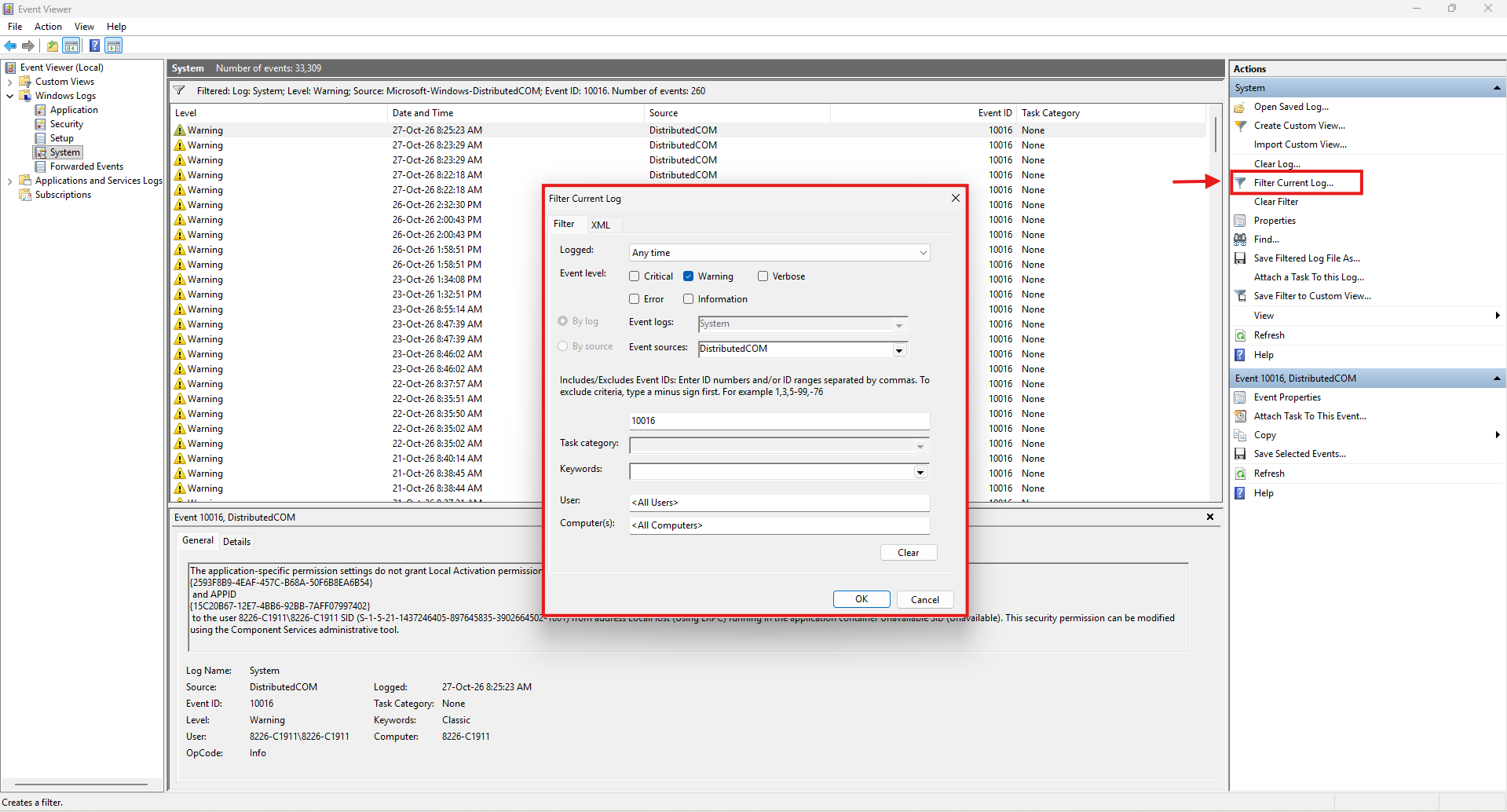
| Filter field |
Functions |
| Logged |
Select a time period, such as the last hour, 24 hours, or 7 days |
| Event Level |
Choose Critical, Error, Warning, Information, or Verbose |
| Event Logs |
Shows the log being filtered, such as System |
| Event sources |
Filter events generated by a particular component |
| Event IDs |
Search for specific event ID numbers |
| Task category |
Narrow the results by a provider’s task category |
| Keywords |
Filter using predefined event keywords, such as auditing |
| User |
Show events associated with specific account |
| Computer(s) |
Filter events associated with a computer name |
Conclusion
By following this guidance, you can effectively view and check event logs on Windows Server to diagnose issues and maintain system stability.
For additional assistance or if you encounter any issues, please contact our support team at support@ipserverone.com.
