
Search Our Database
How to Schedule Online Meetings Using Apple Calendar on iPhone
Introduction
Apple Calendar allows iPhone users to organize schedules, create events, and manage online meetings in one place. Users can add video conferencing links from platforms such as Google Meet, Microsoft Teams, and Zoom, making it easier to access virtual meetings directly from their calendar. This guide demonstrates how to schedule online meetings, invite participants, and manage meeting details using Apple Calendar on an iPhone.
Prerequisite
- An iPhone with the Apple Calendar application.
- An active calendar account, such as iCloud, that supports meeting invitations.
Step-by-Step Guide
Create and schedule online meeting events using the Apple Calendar application on an iPhone.
Step 1: Create a New Calendar Event
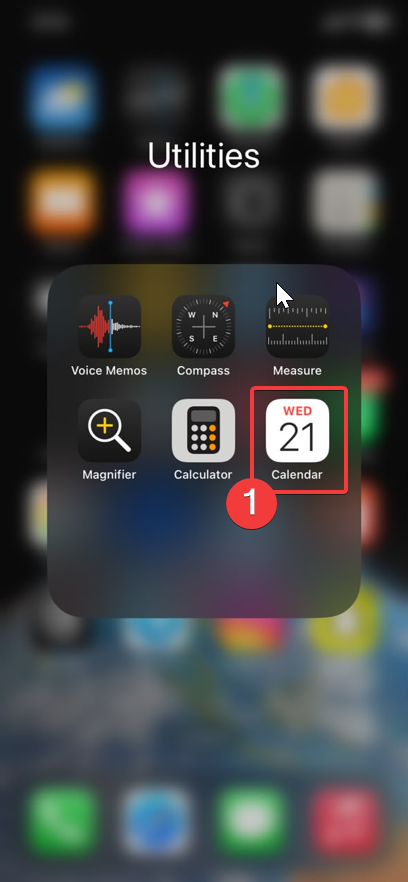
- Open the Calendar application on your iPhone.
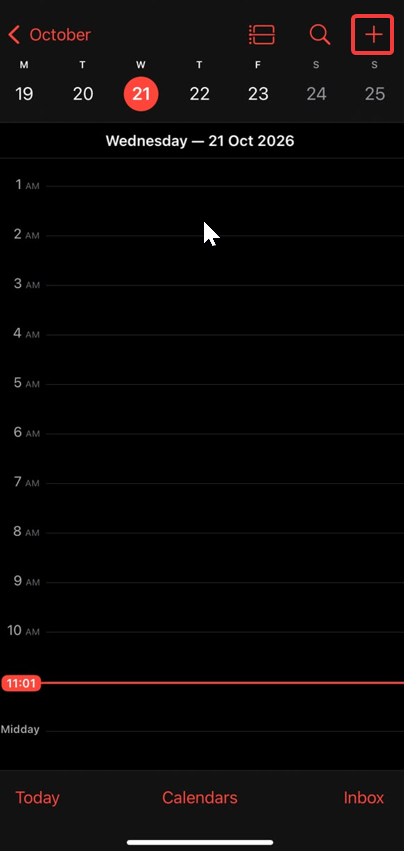
- Tap the + icon at the top-right corner to create a new event.
-
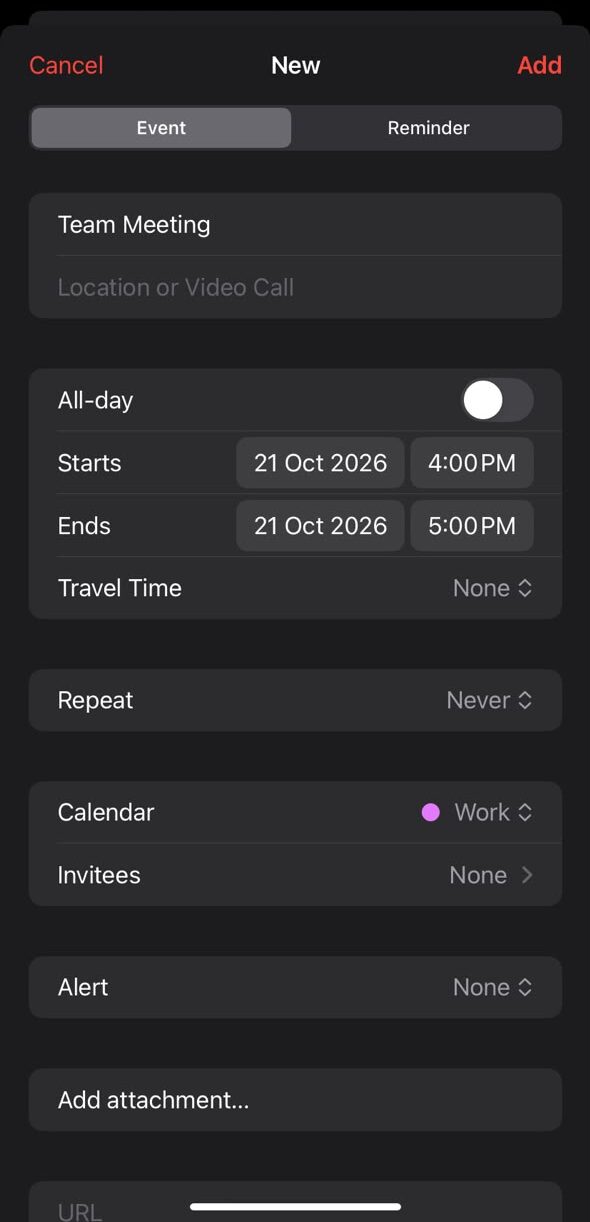
Enter a meeting title, such as Team Meeting.
Step 2: Add an Online Meeting Link
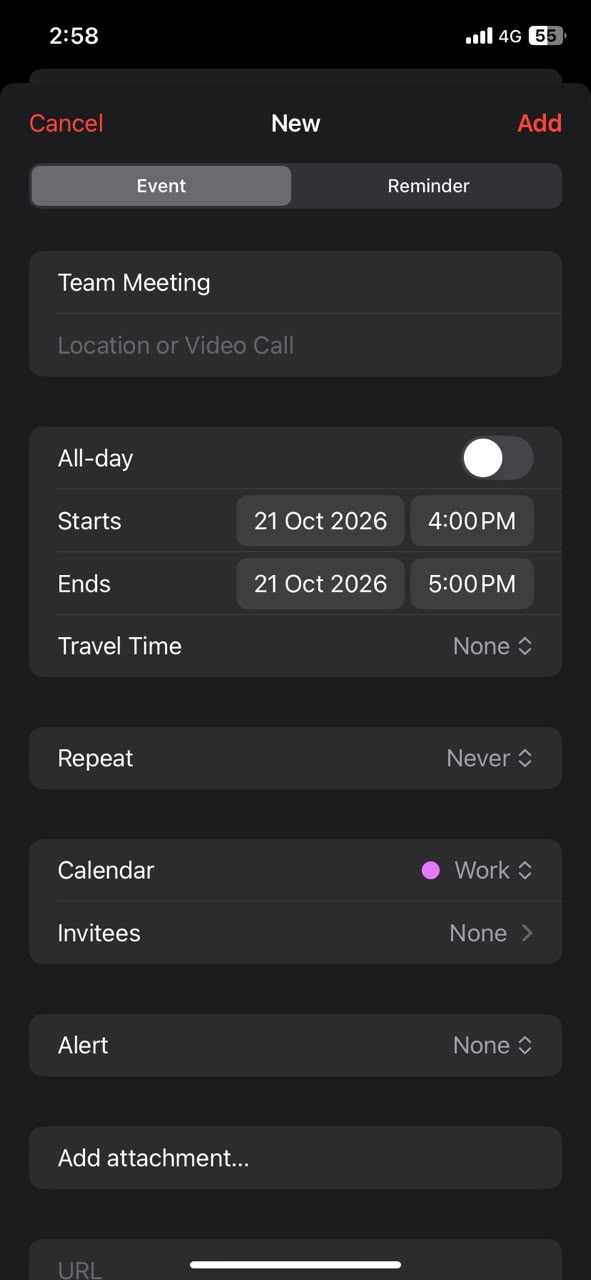
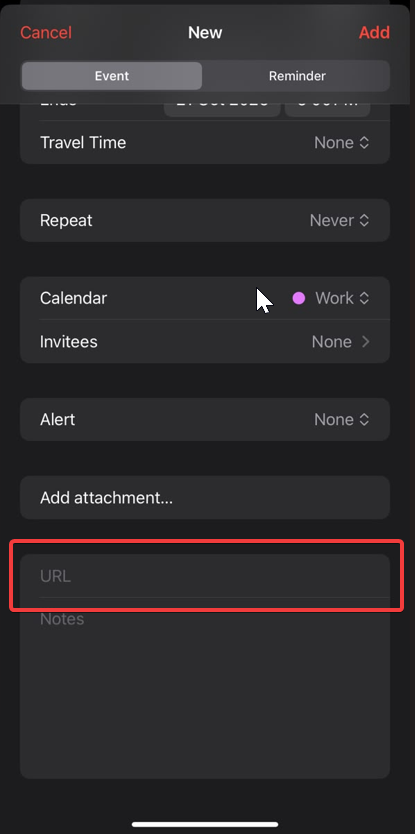
- In the New Event screen, scroll down to locate the URL field.
-
Paste the meeting link from your preferred video conferencing platform, such as Google Meet, Zoom or Microsoft Teams.
Step 3: Invite Participants
- Tap Invitees.
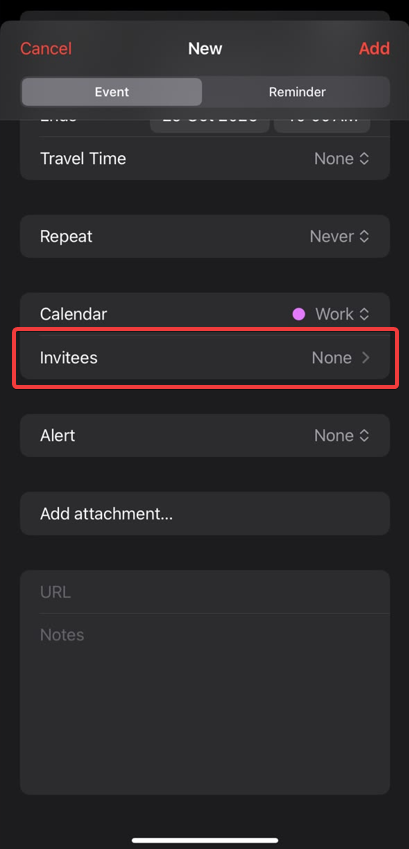
- Enter the email address of the participant you want to invite.
- Tap Done to return to the event details, if prompted.

- In the New Event screen, tap Alert.
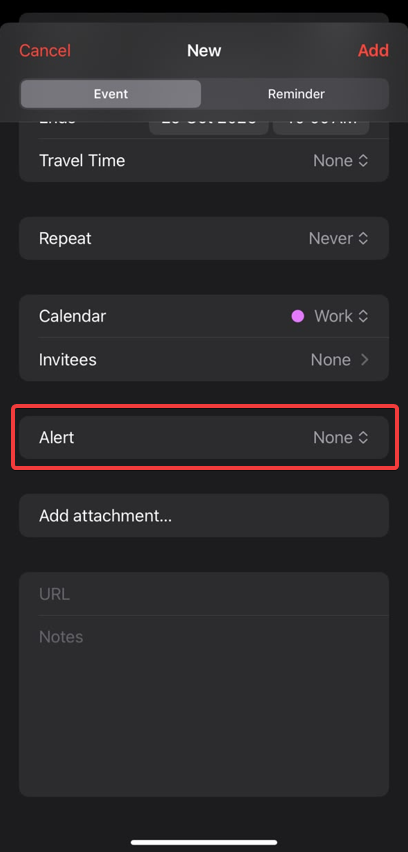
- Select the preferred notification time, such as 15 minutes before the meeting.
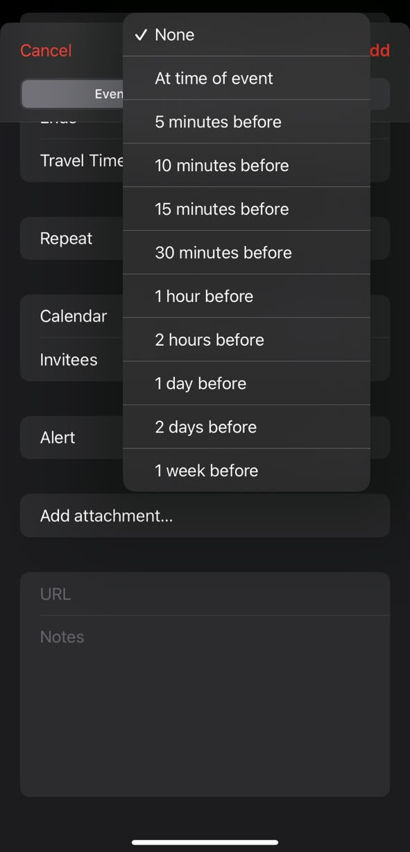
- Review the meeting details and tap Add at the top-right corner to save the event.
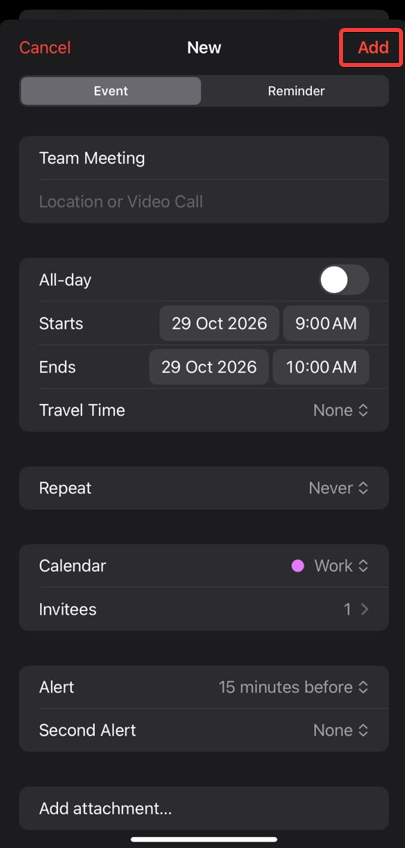
- The scheduled meeting will appear in Apple Calendar, and invitations will be sent to the participants.
Conclusion
By following this guide, you can easily schedule and manage online meetings using Apple Calendar on your iPhone. You can add meeting links, invite participants and set reminders to stay organized and access your meetings conveniently.
For additional assistance or if you encounter any issues, please contact our support team at support@ipserverone.com.