
Search Our Database
How to Secure Network with pfBlockerNG Package in pfSense
Introduction
pfBlockerNG is a powerful package in pfSense that allows network administrators and users to implement network-wide ad blocking and malicious domain filtering. By configuring pfBlockerNG on your pfSense firewall today, you can automatically prevent all connected devices from accessing harmful websites and intrusive advertisements without needing to install individual ad-blockers on each computer or mobile device. This guide explains exactly how to install the necessary package and configure DNSBL feeds to significantly enhance your overall network security and browsing experience directly through the pfSense web interface.
Prerequisite
- Access to the pfSense WebGUI with administrator privileges.
- pfSense must be updated to the latest stable release. Refer [How to Perform System Update in pfSense] to view the steps to perform update if needed.
- The DNS Resolver (Unbound) must be enabled, and client devices must be using the pfSense firewall as their primary DNS server.
- Virtual IP (VIP) for both IPv4 and IPv6 must be planned or configured to ensure no IP conflicts occur with local subnets. Refer Method 1 of [How to Add Multiple IPs to a Single Interface Using Virtual IPs in pfSense] if needed.
- Basic knowledge of navigating the pfSense dashboard and firewall menus.
- Possess a MaxMind account and license key (as built-in GeoIP lookups within pfBlockerNG strictly rely on the MaxMind database backend).

Step-by-step Guide
Step 1: Install the pfBlockerNG package
- Navigate to System > Package Manager > Available Packages.
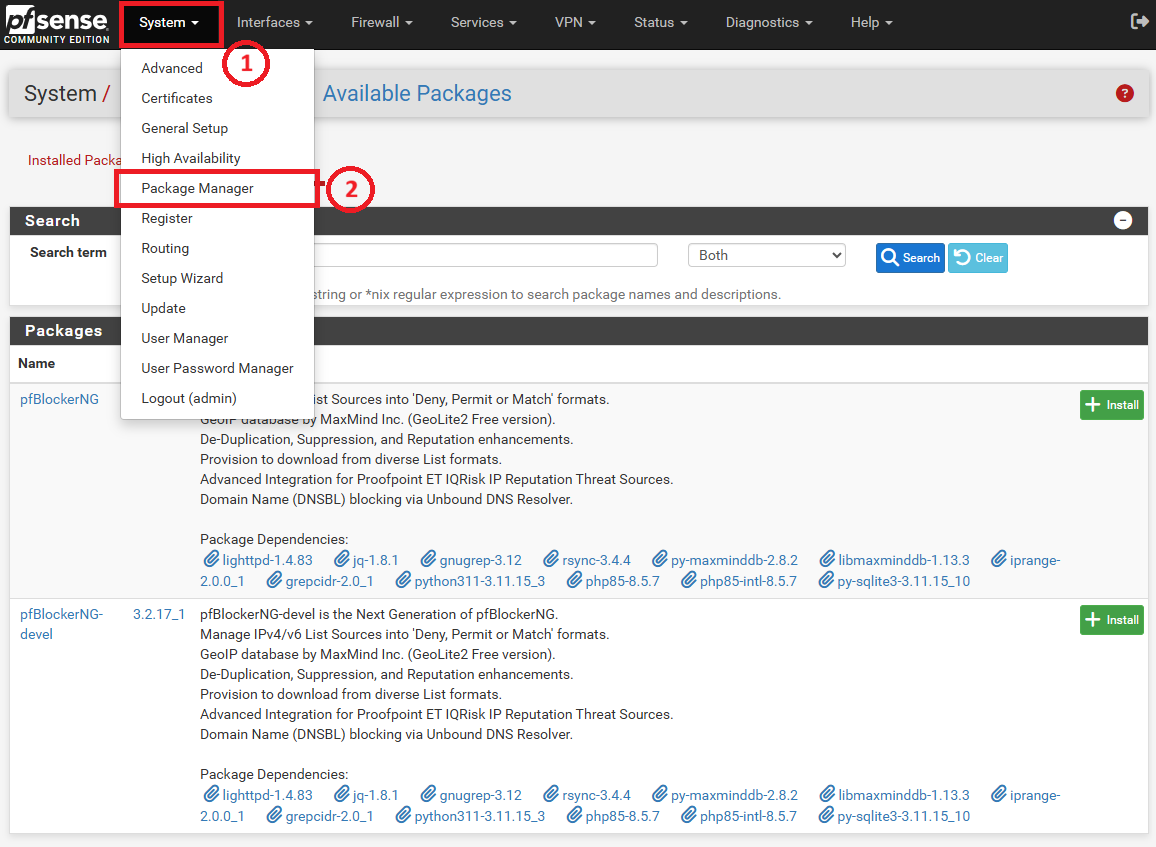
- In Available Packages page, search for pfBlockerNG in the search bar. Then, click Search and click the Install button next to pfBlockerNG (or pfBlockerNG-devel). In this example, pfBlockerNG-devel is installed.
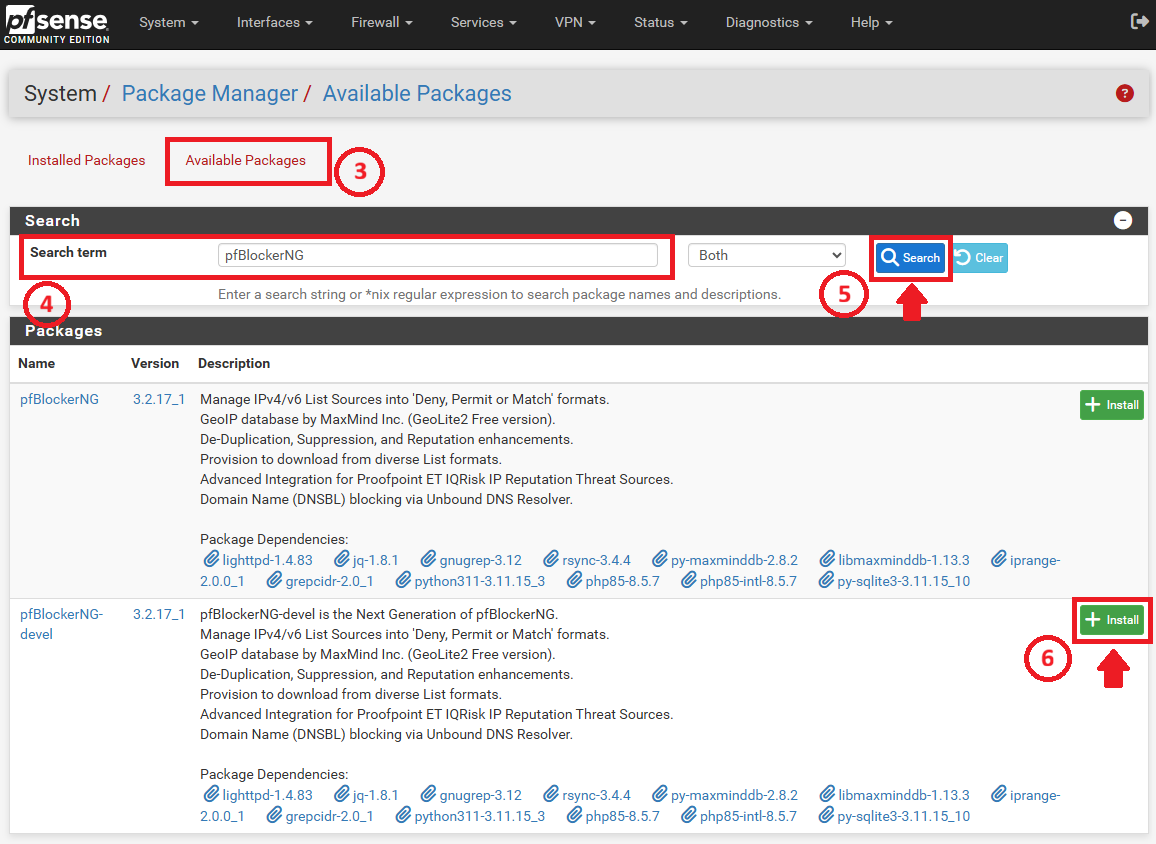
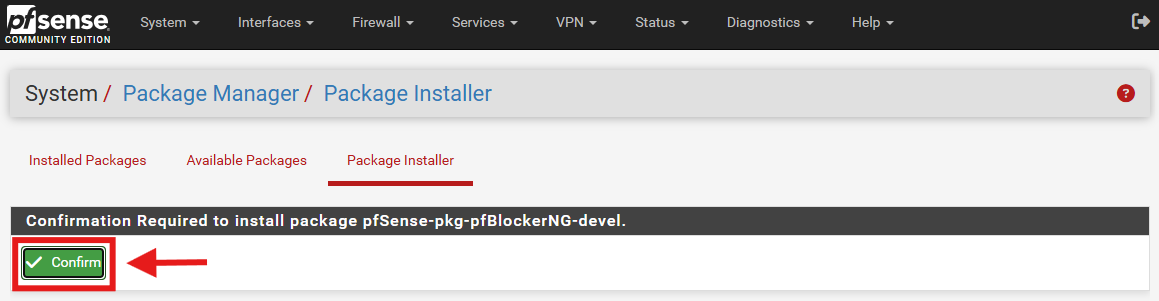
- Next, confirm the installation by clicking the Confirm button.
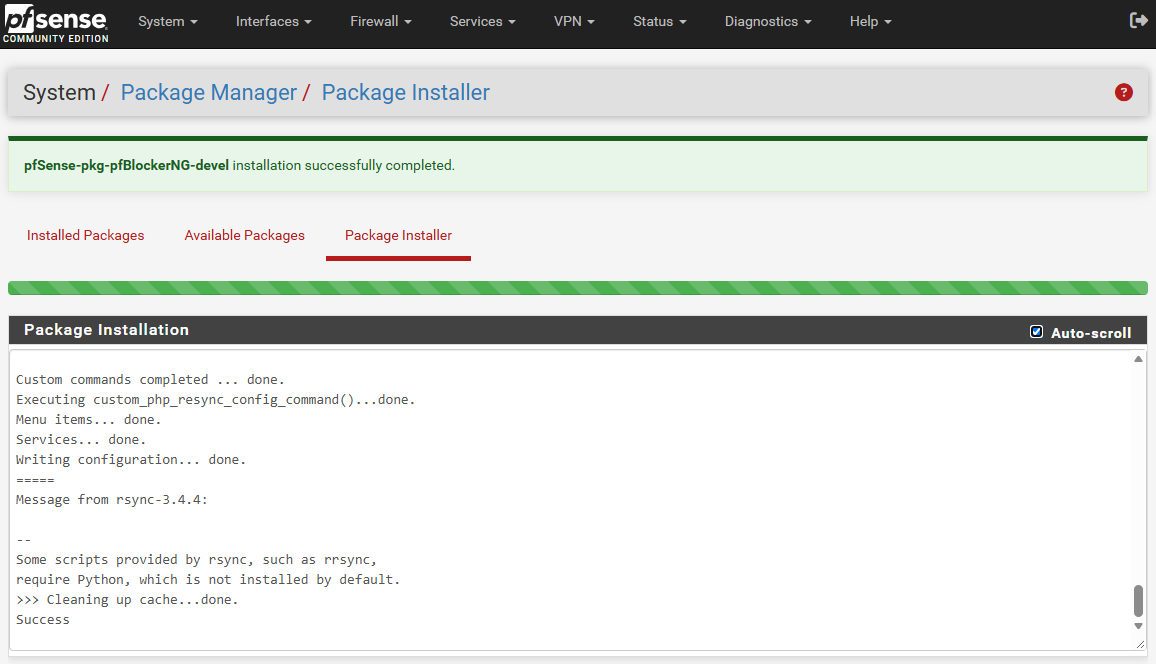
- Wait for the installation to complete successfully.
Step 2: Run the pfBlockerNG Setup Wizard
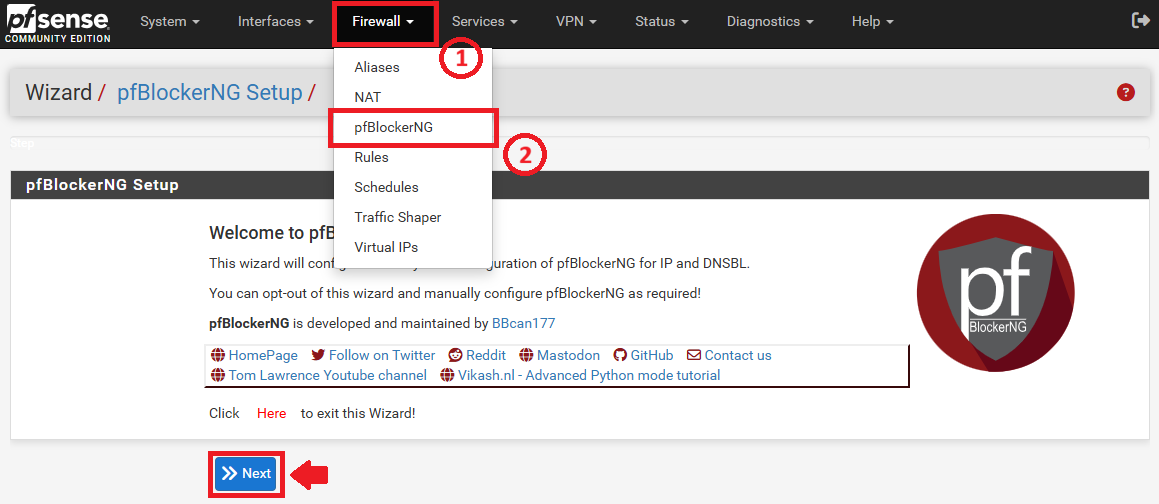
- Once installed, go to Firewall > pfBlockerNG. A setup wizard will appear automatically. Click >> Next to proceed.
- Follow the on-screen prompts, leaving the default inbound and outbound interface settings as they are, unless your network requires custom interface selection. You might refer the following example while setting up:
- Select Inbound Firewall Interface: WAN
- Select Outbound Firewall Interface: LAN
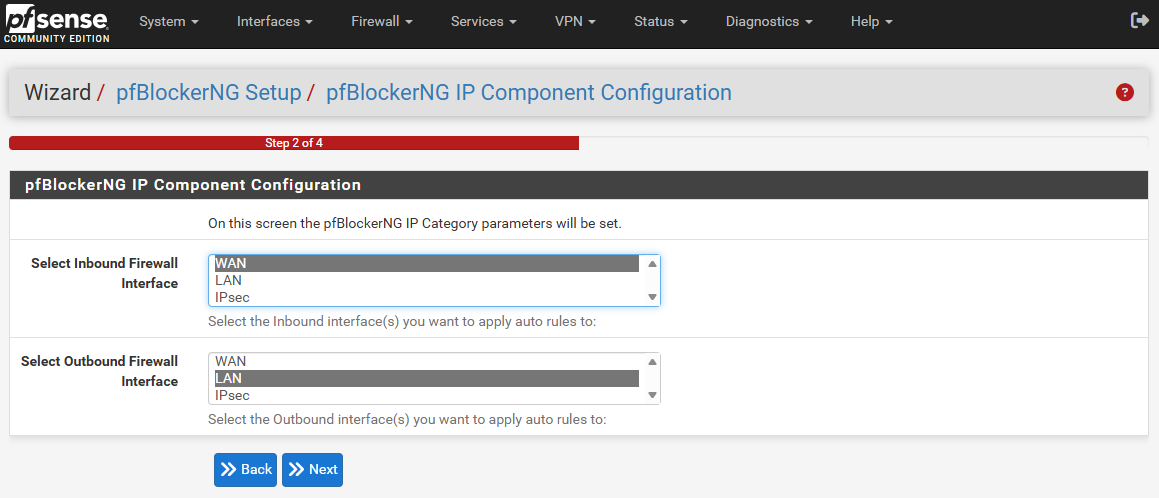
- Then, click >> Next to go to the next page.
- IPv4 DNSBL Virtual IP: 172.16.0.1 (pfB DNSBL)
- IPv6 DNSBL Virtual IP: ::10:10:10:1 (pfB DNSBL IPv6)
-
Important Note ⚠️:
Virtual IPs must be configured beforehand. Please refer to the Method 1 of this KB: [How to Add Multiple IPs to a Single Interface Using Virtual IPs in pfSense]. When following this guide, ensure you configure the following specific settings:
– Type: IP Alias
– Interface: Localhost
Ensure the Virtual IP addresses designated for IPv4 and IPv6 DNSBL do not overlap with any live IP address or DHCP scope on your network to avoid routing conflicts.
-
- Port: 8081
- SSL Port: 8443
Tips 🖊️: These alternate ports are used to prevent conflicts with the pfSense WebGUI (which uses ports 80 and 443).
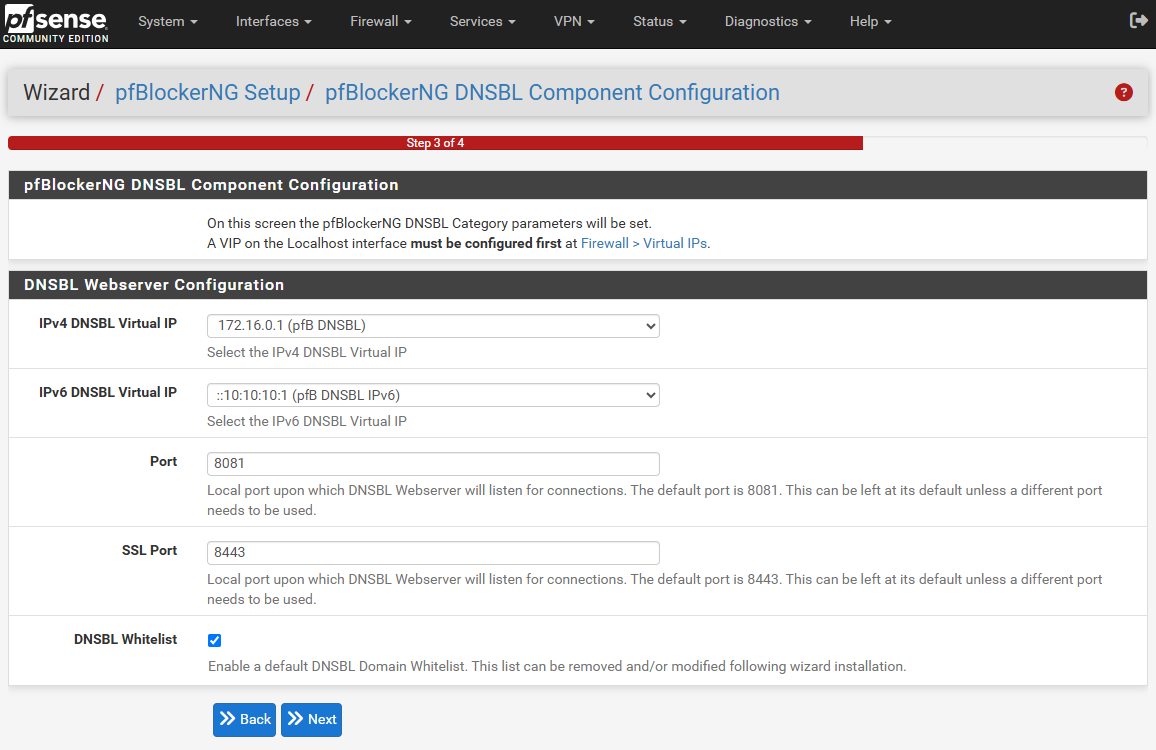
- Then, click >> Next to go to finalize page.
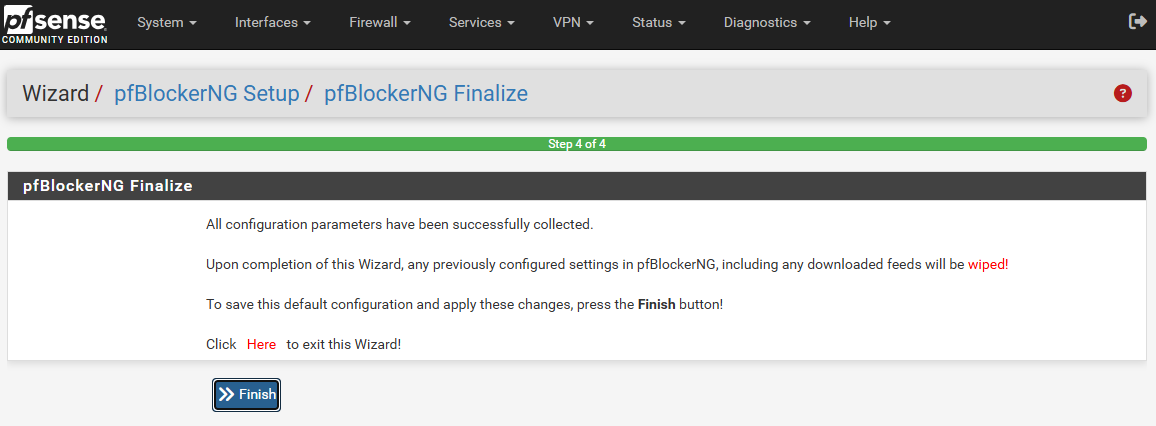
- Complete the wizard to establish the base configuration by clicking >> Finish.
Step 3: Configure Blocking Lists (DNSBL, Single IP, and Region Blocking)
pfBlockerNG provides three primary filtering methods to protect your network. Configure the desired protection levels below:
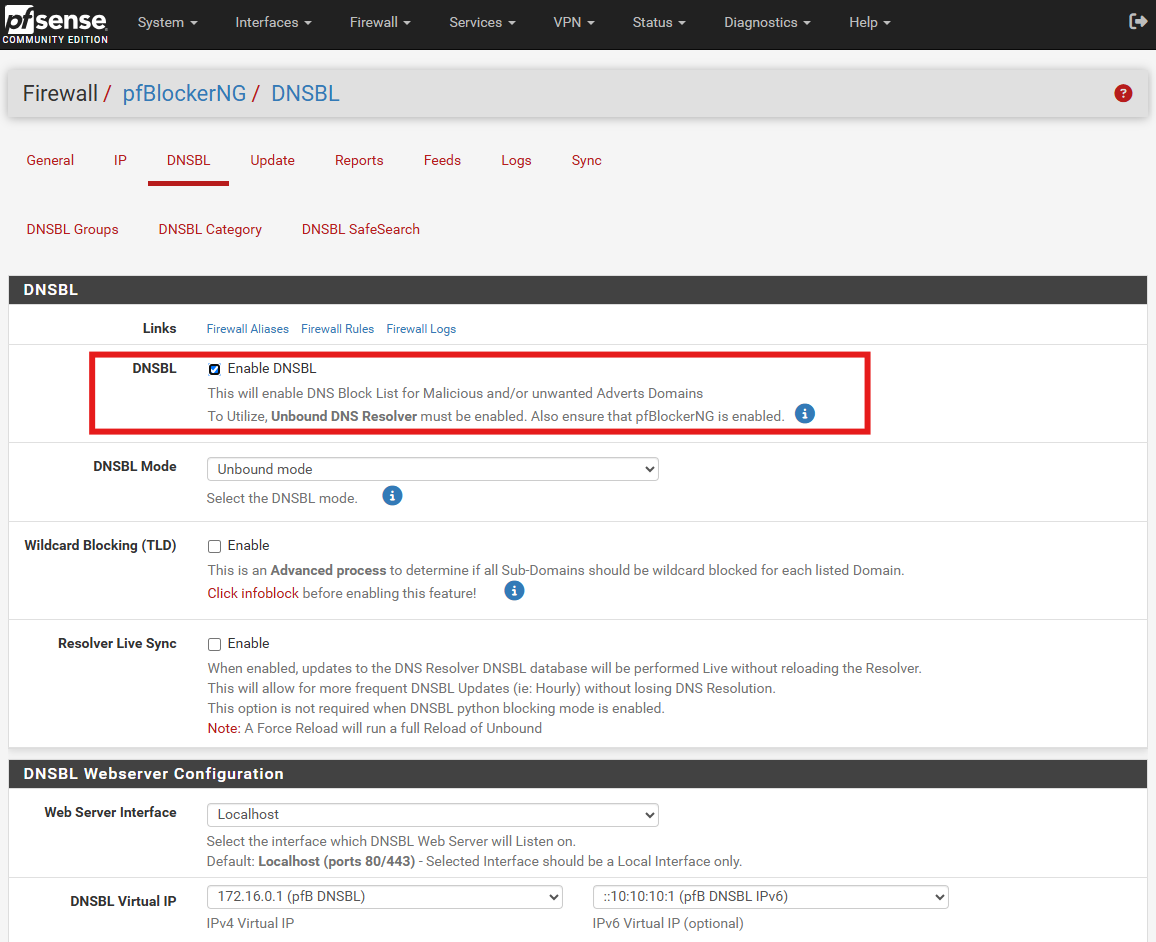
- Ensure the Enable DNSBL is checked by navigating to Firewall > pfBlockerNG > DNSBL.
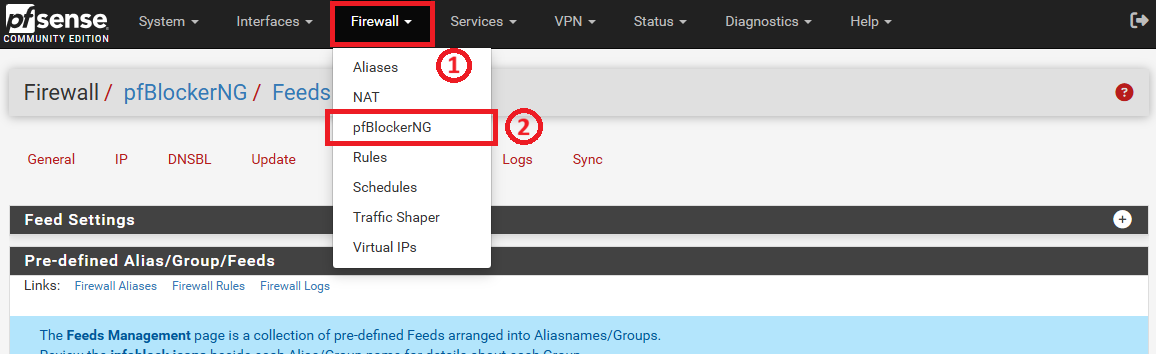
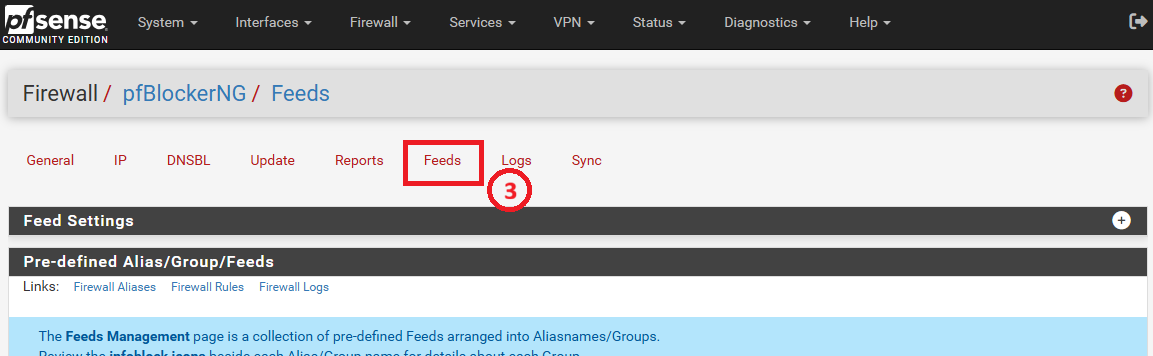
- Navigate to Firewall > pfBlockerNG > Feeds.
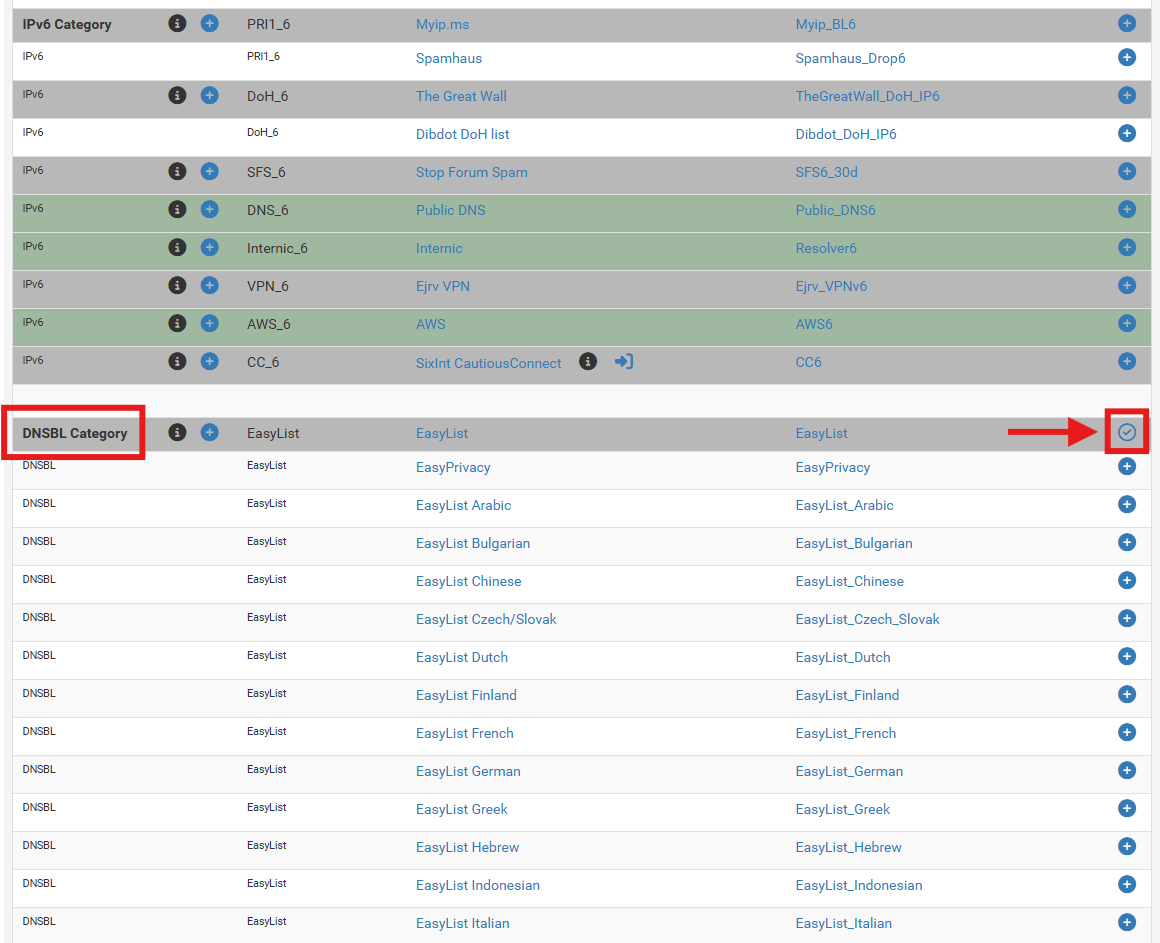
- In Feeds page, scroll down the page until you find the section labeled DNSBL Category.
- Look for a reputable ad-blocking list. StevenBlack or EasyList are excellent choices for blocking ads and trackers. Click the + (plus) icon on the right side of the row for the list you want to use. In this example, EasyList is used.
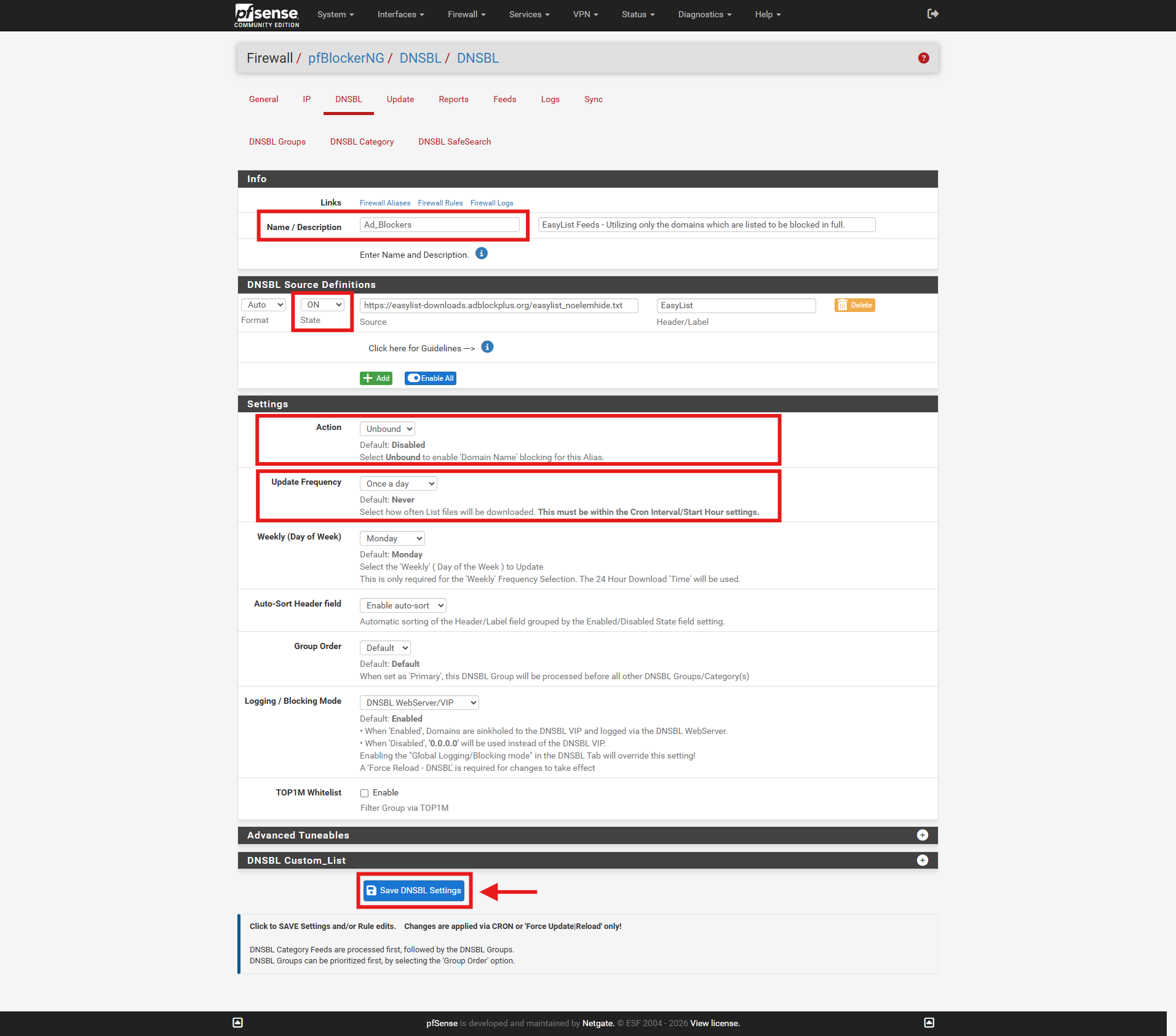
- Clicking the + icon will automatically transport you to the DNSBL Groups page and pre-fill the complex URL settings for you. You just need to verify a few settings on this screen:
- Name/Description: Give the group a simple name (e.g., Ad_Blockers).
- State: Ensure this is set to ON.
- Action: Set this to Unbound (this tells the system to block these via the DNS resolver).
- Update Frequency: Set this to Once a day.
- Scroll to the bottom of the page and click Save DNSBL Settings.
 Important Note ⚠️:Enabling too many lists at once can cause false positives, potentially blocking legitimate websites. Start with basic lists and add more as needed.
- Navigate to Firewall > pfBlockerNG > Feeds.
- Scroll to find the desired IP threat intelligence list (e.g., PRI1 or Spamhaus DROP).
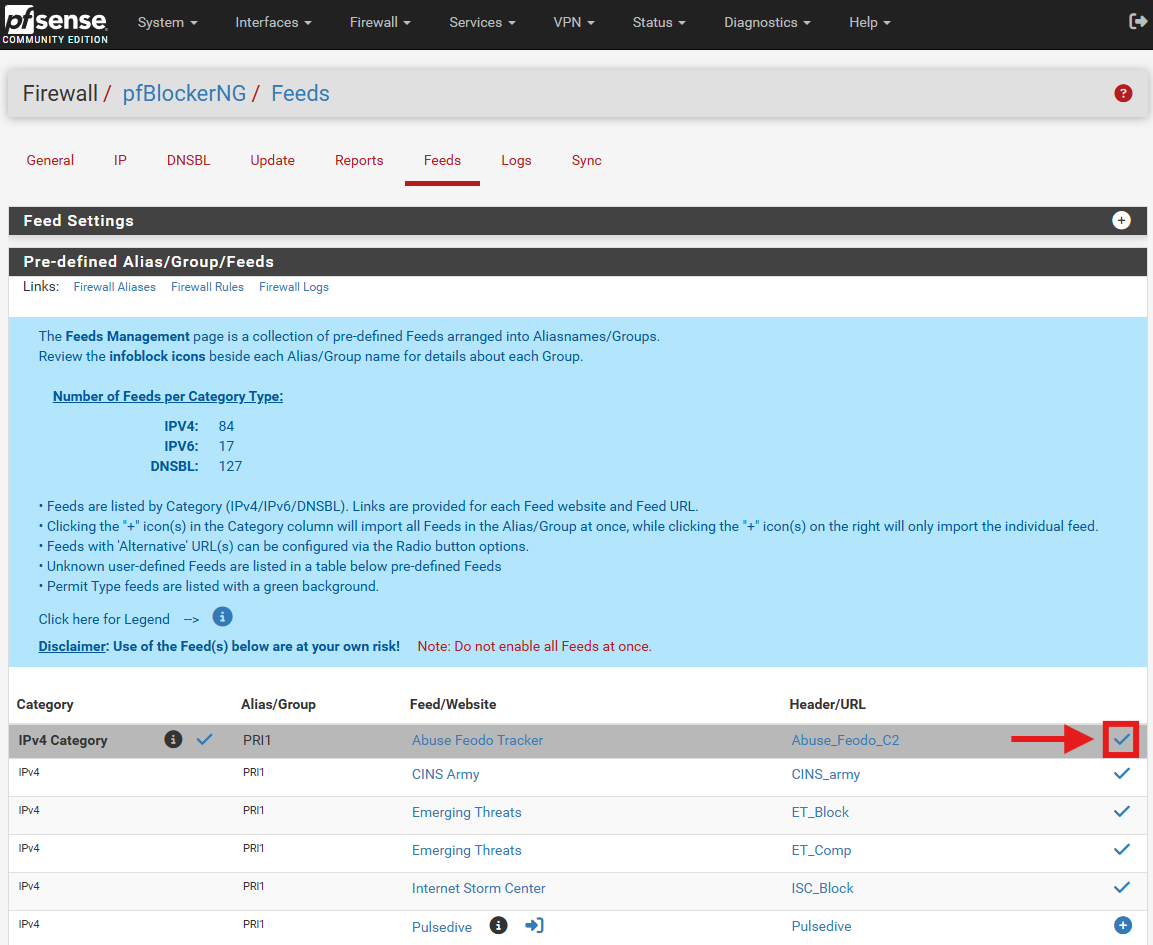
- Click the + (plus) icon or tick icon on the right side of the row. This automatically creates the group and pre-configures the feed sources for you.
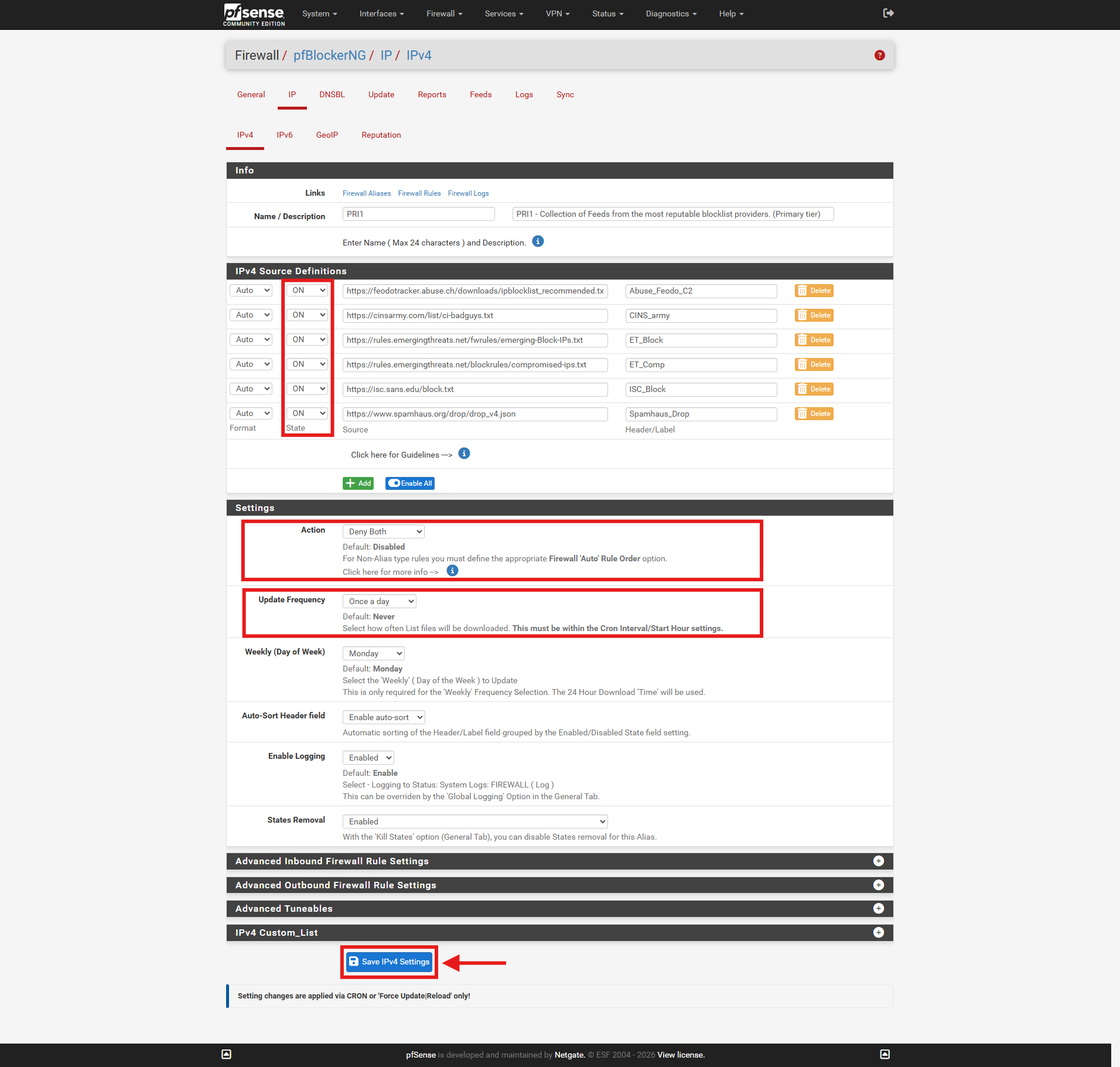
- On the configuration page, verify and configure the following settings:
- State: Set to ON.
- Action: Set to Deny (Inbound/Outbound/Both) (e.g., Deny Both to block traffic to and from those malicious IPs).
- Update Frequency: Set to Once a day.
- Scroll to the bottom of the page and click Save IPv4 Settings.
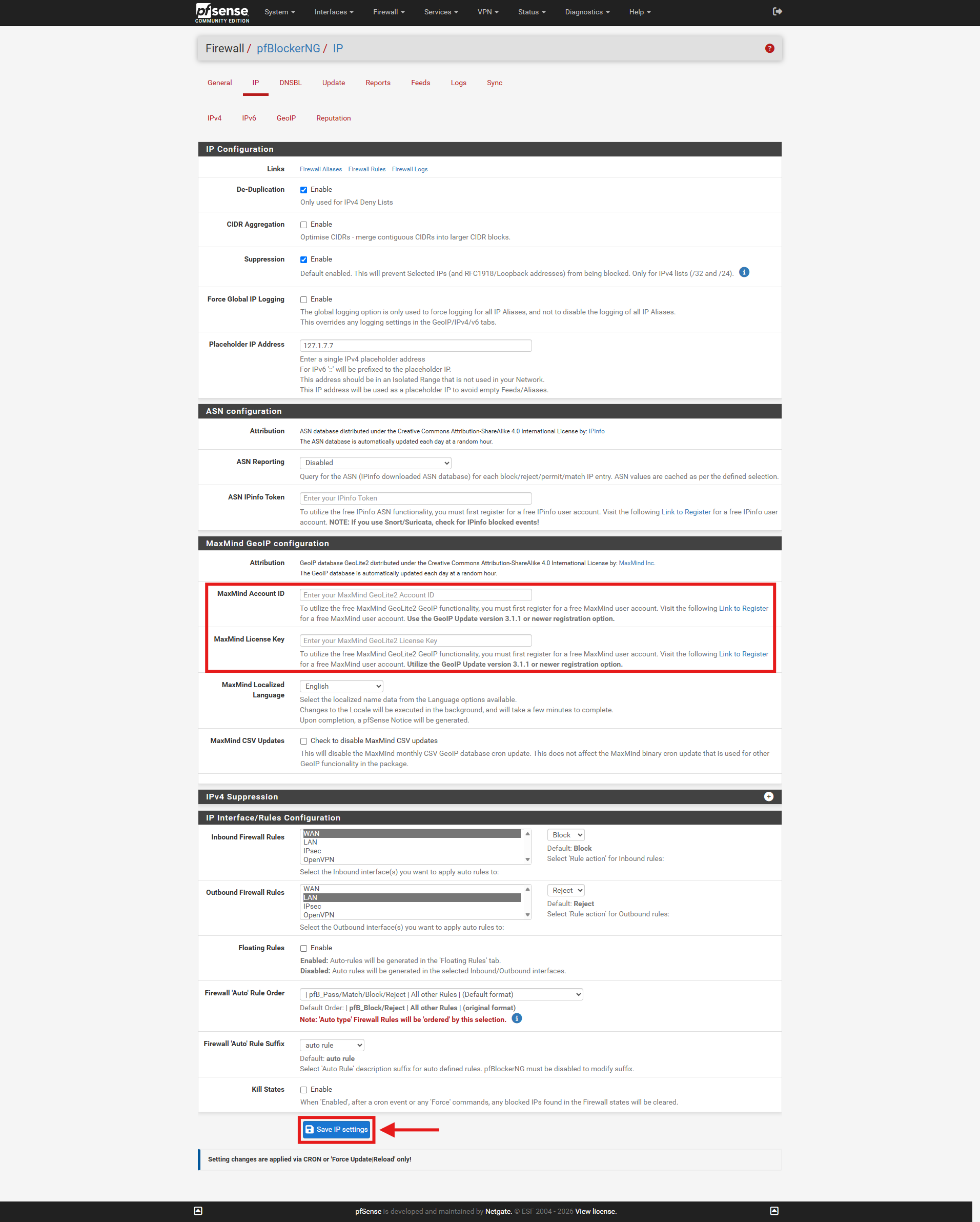
- Ensure you have registered a free account at MaxMind and pasted your MaxMind License Key under Firewall > pfBlockerNG > IP, and click on Save IP settings.
- Navigate to Firewall > pfBlockerNG > IP and click on the GeoIP tab/section. You will see a pre-populated GeoIP Summary table listing continents, top spammers, and global regions.
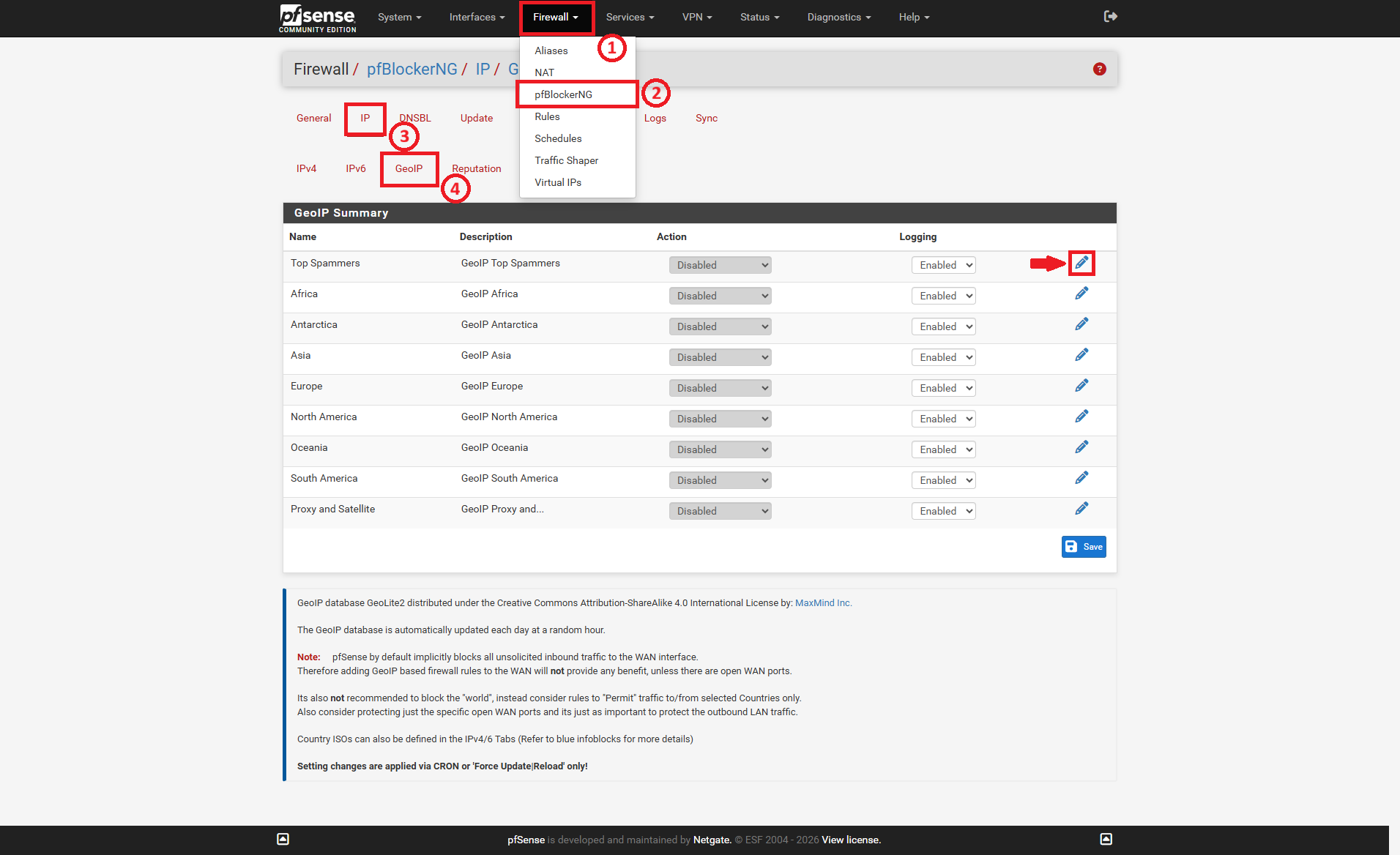
- To configure a region or view/customize specific countries:
- Select the countries or continents you wish to block from the region lists. Then, click the edit (pencil icon) on the right side of the region row you want to manage (e.g., Asia or Top Spammers). Next, select the specific countries and select Deny Inbound or Deny Both from the List Action dropdown.
Tips on Selecting Countries 🖊️: Instead of relying entirely on generalized aggregate lists like Top Spammers, click the edit icon on regional groups (such as Asia or Europe) to hand-pick specific countries (e.g., CN, RU) based on your organization’s threat profile. Always avoid blocking countries where your users, clients, or essential branch offices require legitimate access.
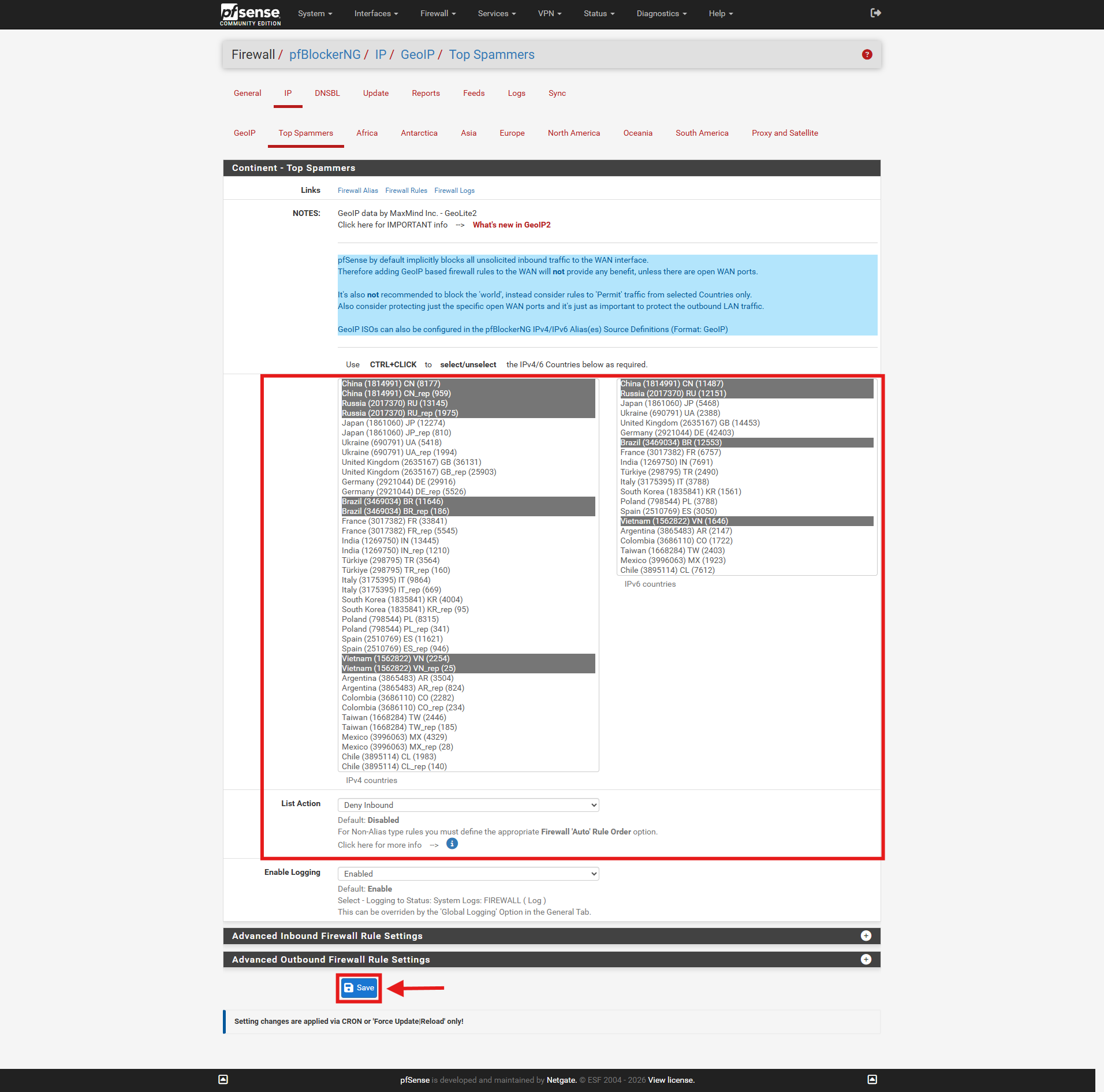
- Select the countries or continents you wish to block from the region lists. Then, click the edit (pencil icon) on the right side of the region row you want to manage (e.g., Asia or Top Spammers). Next, select the specific countries and select Deny Inbound or Deny Both from the List Action dropdown.
- Alternatively, change the Action dropdown next to the region from Disabled to your desired setting (e.g., Deny Inbound or Deny Both). Then, click the Save button to save the GeoIP settings.
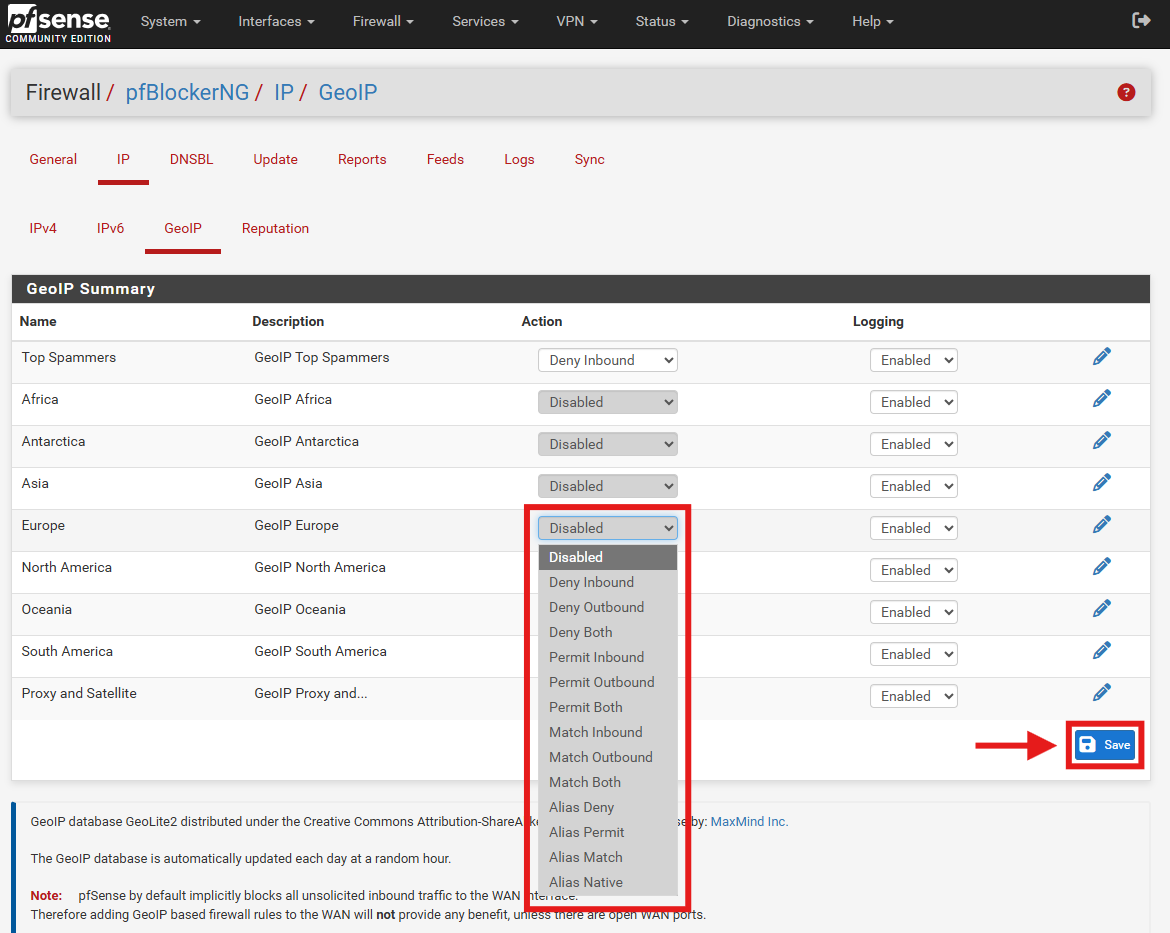
Step 4: Force an Update to Apply Changes
- Go to Firewall > pfBlockerNG > Update.
- Select Force and then choose Reload for the update type.
- Select All for the components to reload.
- Click Run.
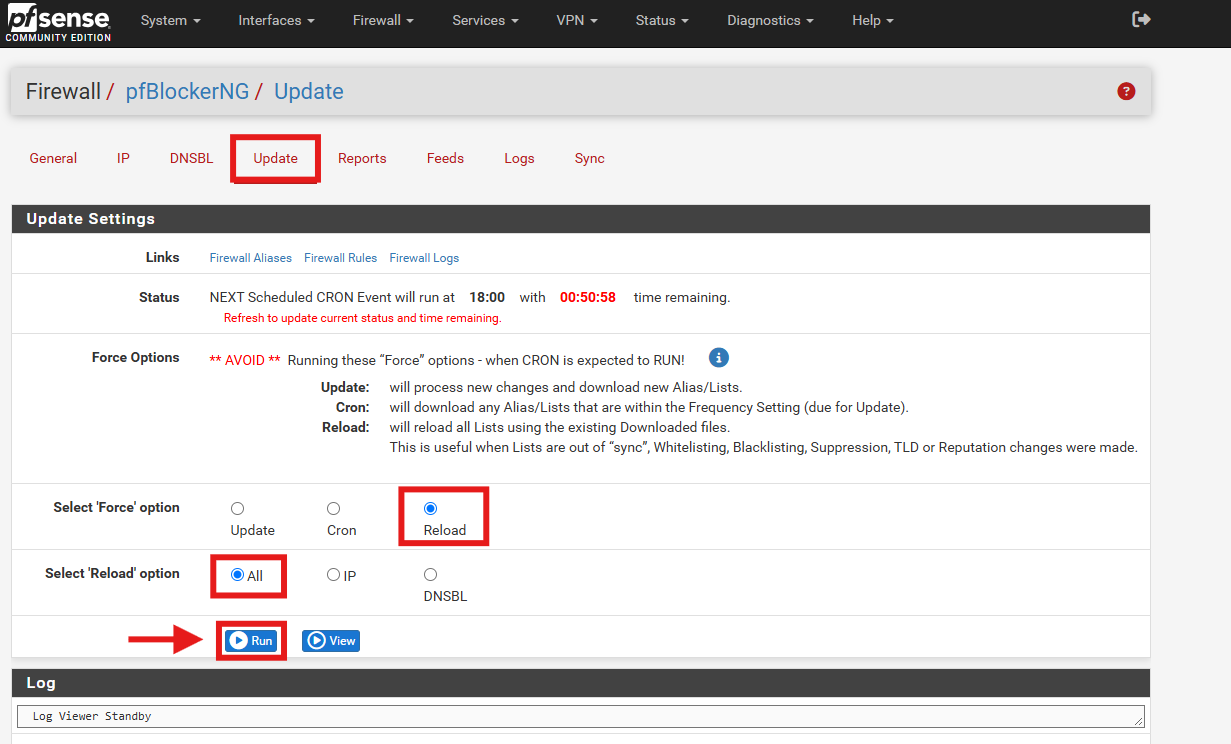
- Wait for the process to finish. The log window will output the update status as it downloads and compiles the blocklists.
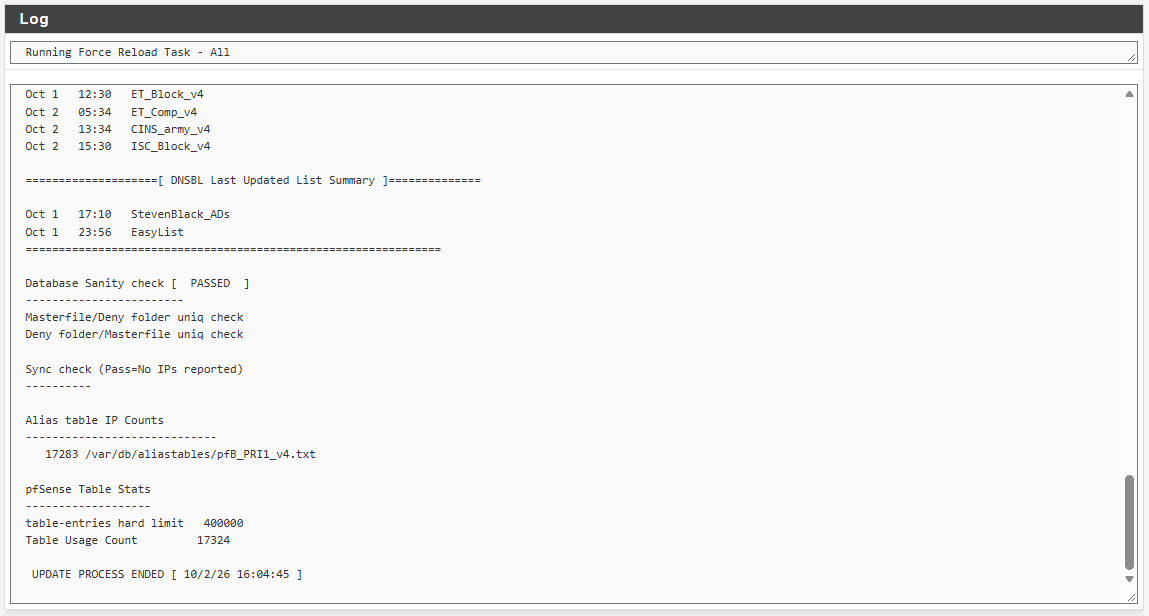
Step 5: Verify Blocking Functionality
To confirm that all filtering mechanisms are working correctly, perform the following verification checks:
- Open a terminal or command prompt on a client machine connected to your network and query known ad-tracking domains against your pfSense DNS server (e.g., 10.10.2.132):
nslookup doubleclick.net 10.10.2.132
- Expected Output: The domain resolves to your configured DNSBL Sinkhole Virtual IPs (172.16.0.1 and ::10:10:10:1) instead of its public IP.
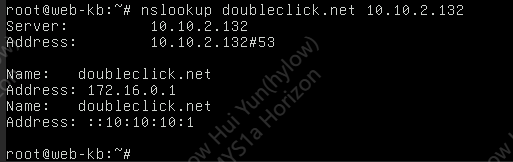
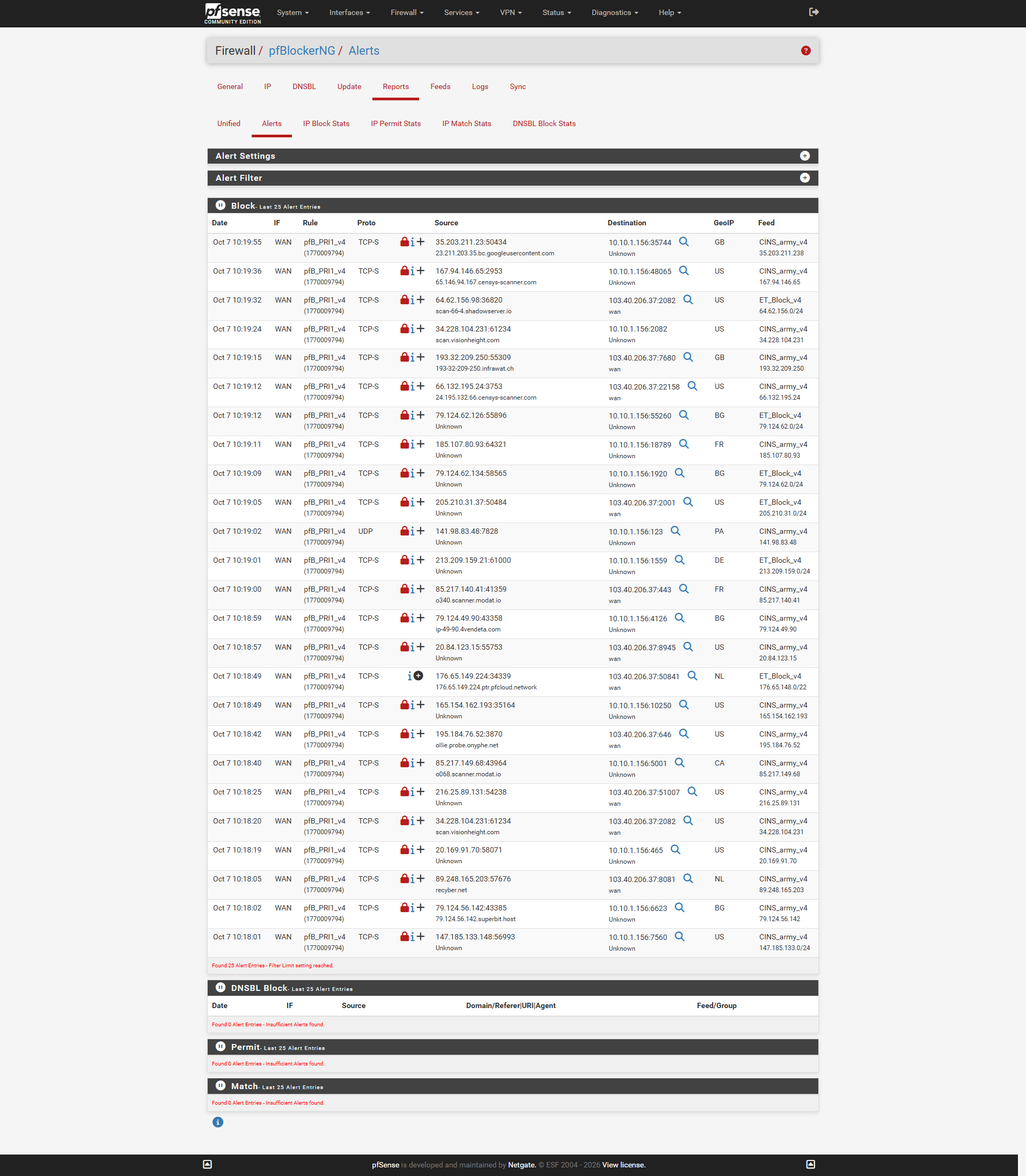
- Navigate to Firewall > pfBlockerNG > Alerts to review live logs showing dropped packets matching your configured IP feeds. Confirm that incoming or outgoing connection attempts from blacklisted IPs display under the block log with the corresponding rule name (e.g., pfB_PRI1_v4).
- Open a web browser on any device and navigate to ping.pe. Enter your pfSense public WAN IP address and hit Go.

- The tool will begin running checks from multiple global locations simultaneously. Scroll down the list of testing nodes to find a country you configured pfBlockerNG to block (for example, Brazil, Vietnam, and China).


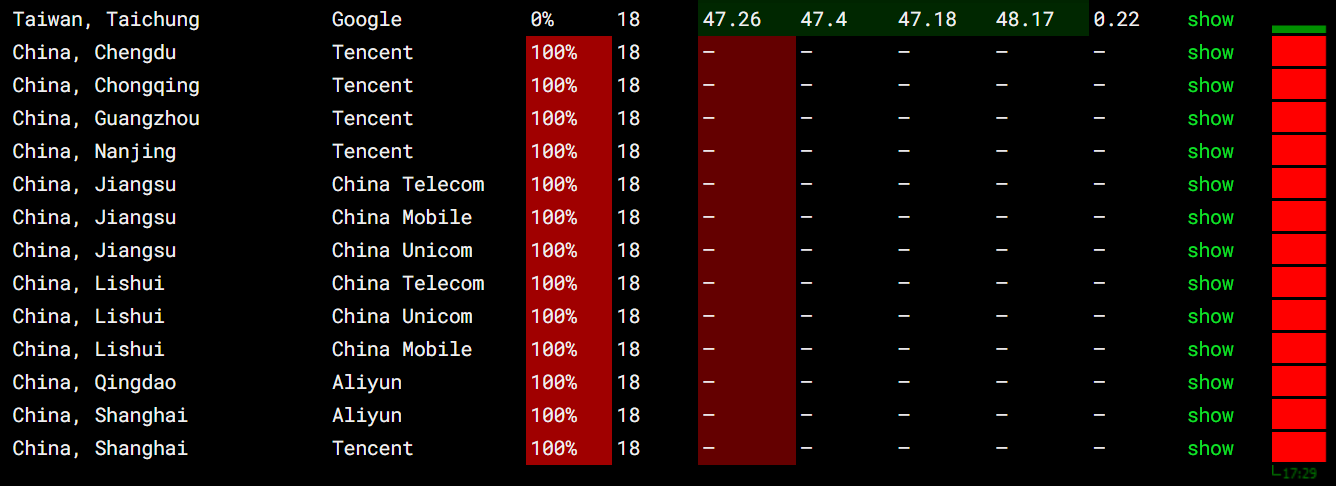
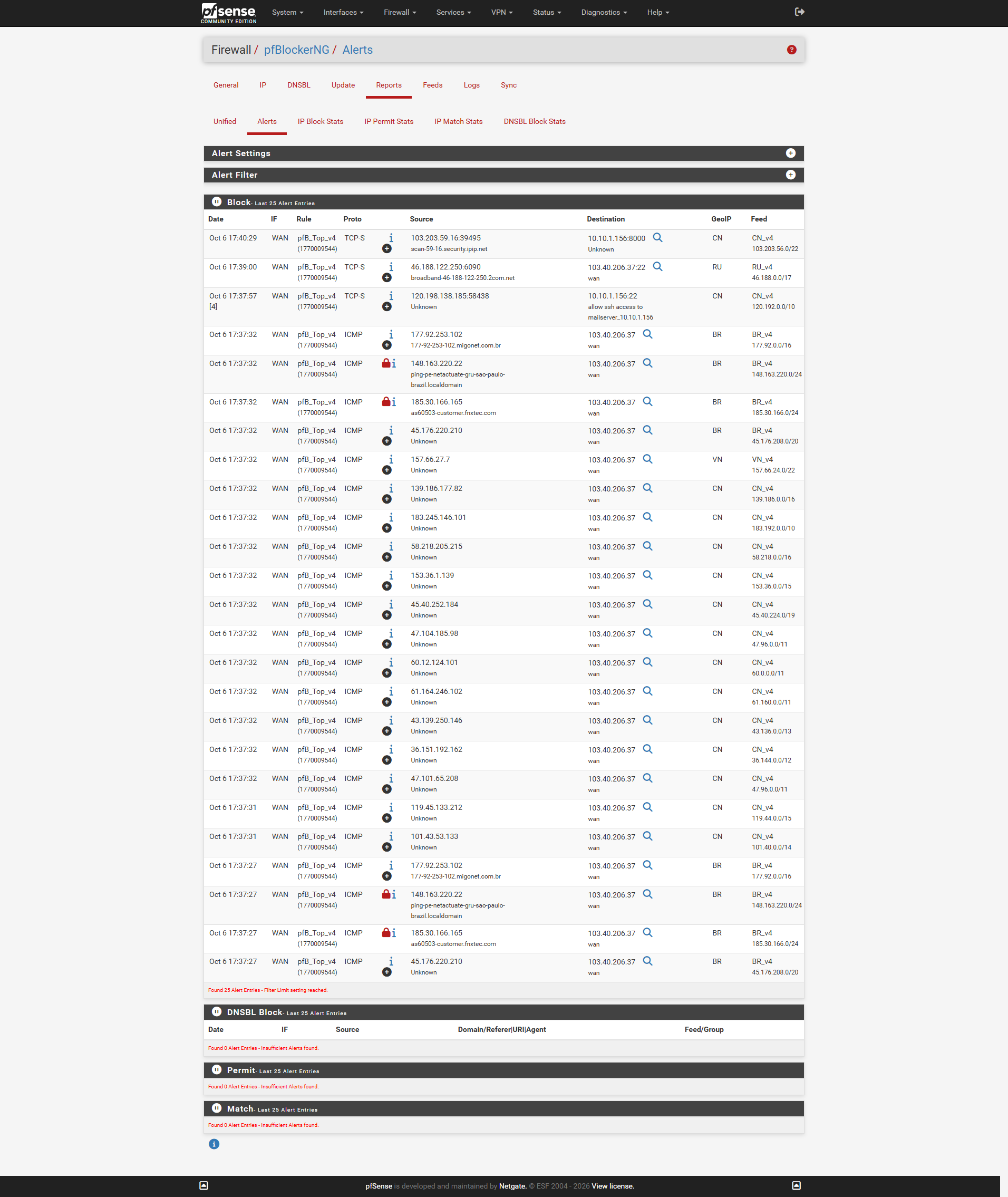
- You may also check at Firewall > pfBlockerNG > Reports > Alerts for the lists being blocked after the ping. The rule causing the GeoIP being blocked is pfB_Top_v4.
Conclusion
By following this guidance, you can successfully configure network-wide ad blocking and malicious domain filtering using pfBlockerNG on pfSense. This centralized approach secures all connected endpoints and minimizes bandwidth usage across your organization.
For additional assistance or if you encounter any issues, please contact our support team at support@ipserverone.com.