
Search Our Database
How to manage and configure Global Email Filters in cPanel
Introduction
Global email filters in cPanel allow system administrators and domain owners to automate incoming mail handling across all email accounts under a single domain. This centralized feature helps manage spam, auto-route critical messages, or block unwanted content before it reaches individual inboxes. Configured through the cPanel interface, global email filters apply immediately to all incoming traffic, optimizing mail handling and server performance. This guide provides step-by-step instructions for creating, editing, deleting, auto-routing emails to default system folders, and setting up advanced filter rules.
Prerequisite
- Access to cPanel account with valid login credentials.
- Basic understanding of email filter conditions (e.g., Subject, From, To).
Step-by-step guide
Step 1: Access global email filters
- Log in to your cPanel account.
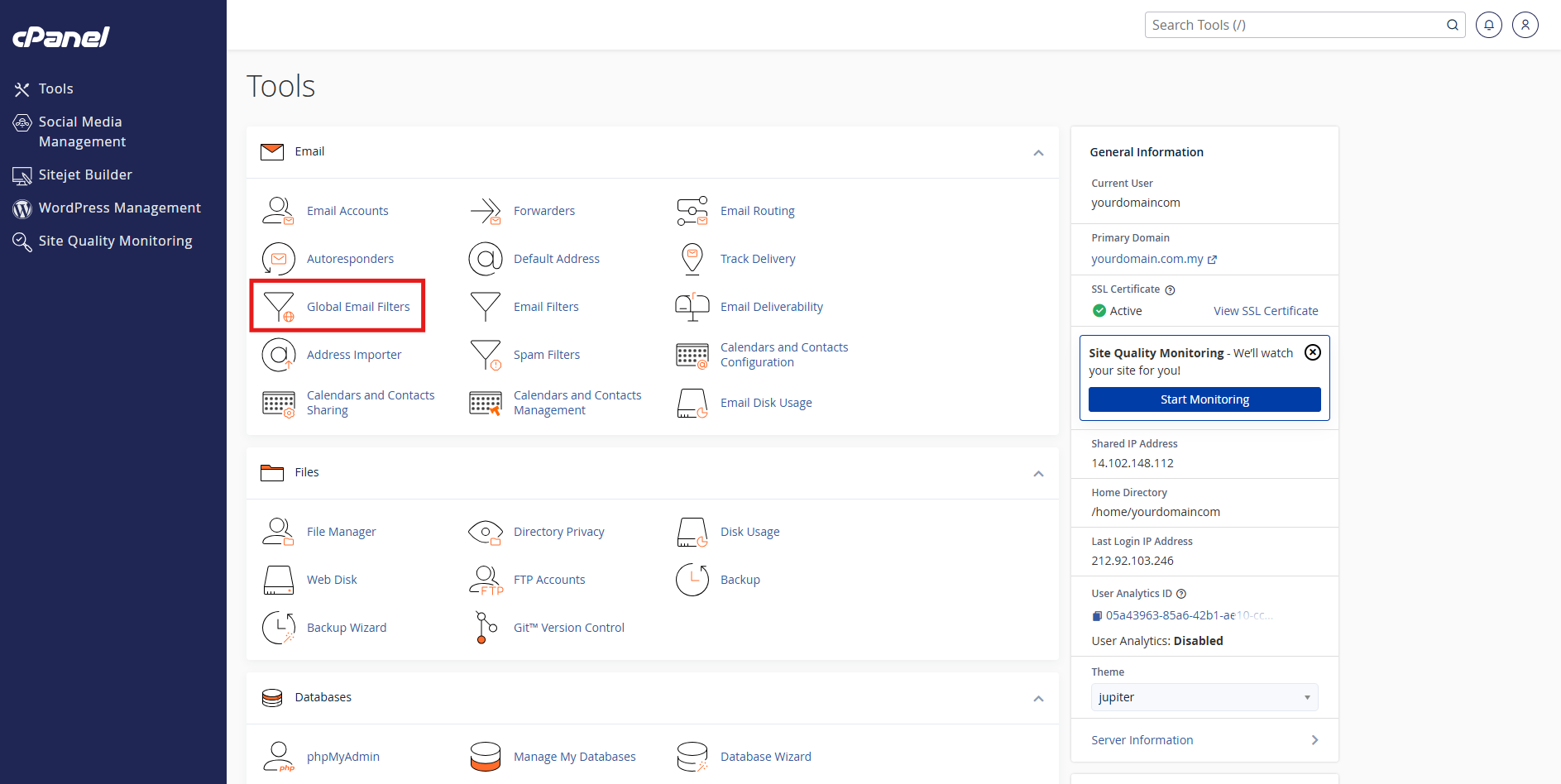
- Navigate to the Email section and click Global Email Filters.
Step 2: Manage and configure global email filters
Creation, editing, and deletion
Learn how to create new rules, modify existing configurations, or remove filters.
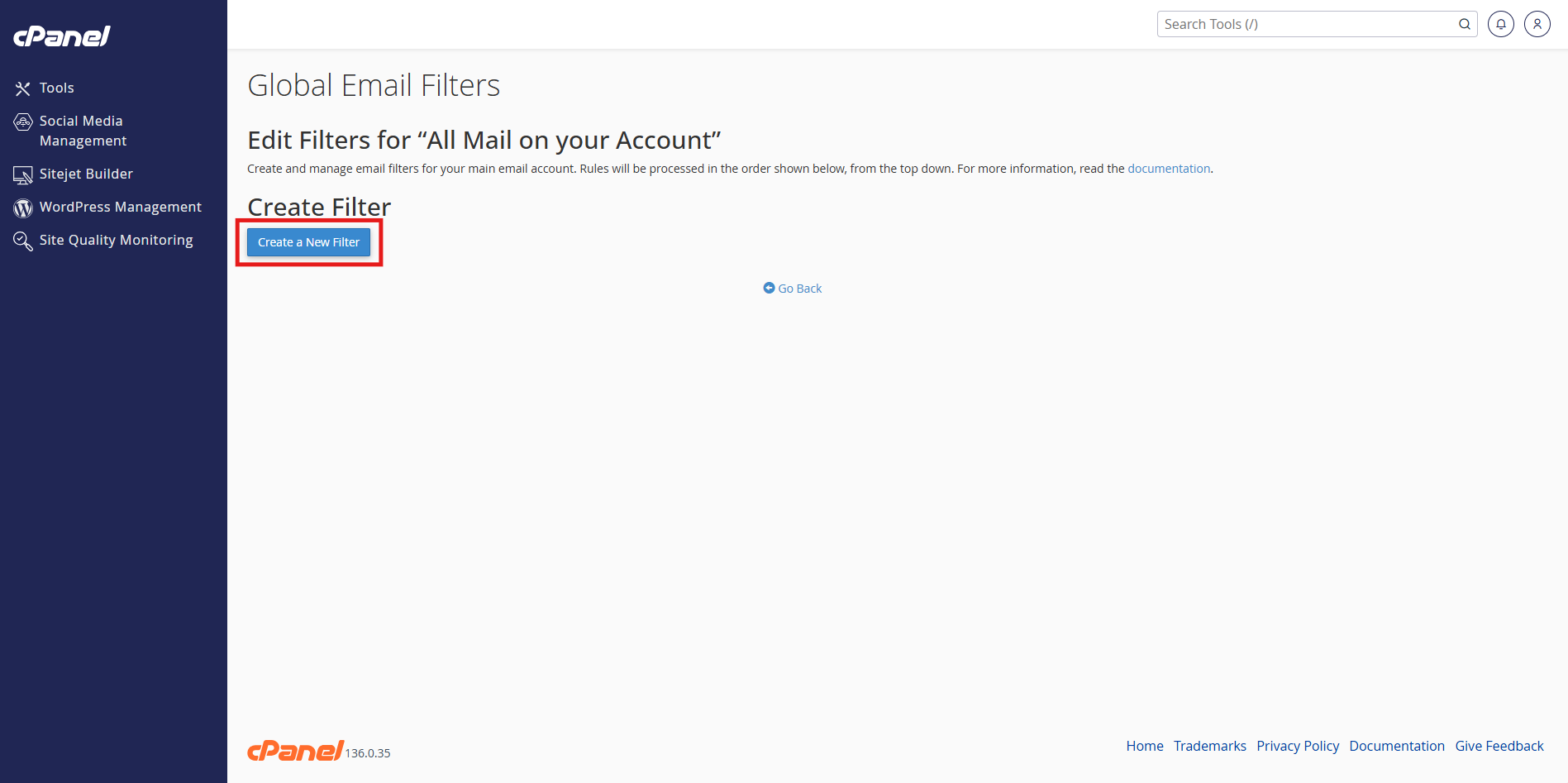
- Click Create a New Filter.
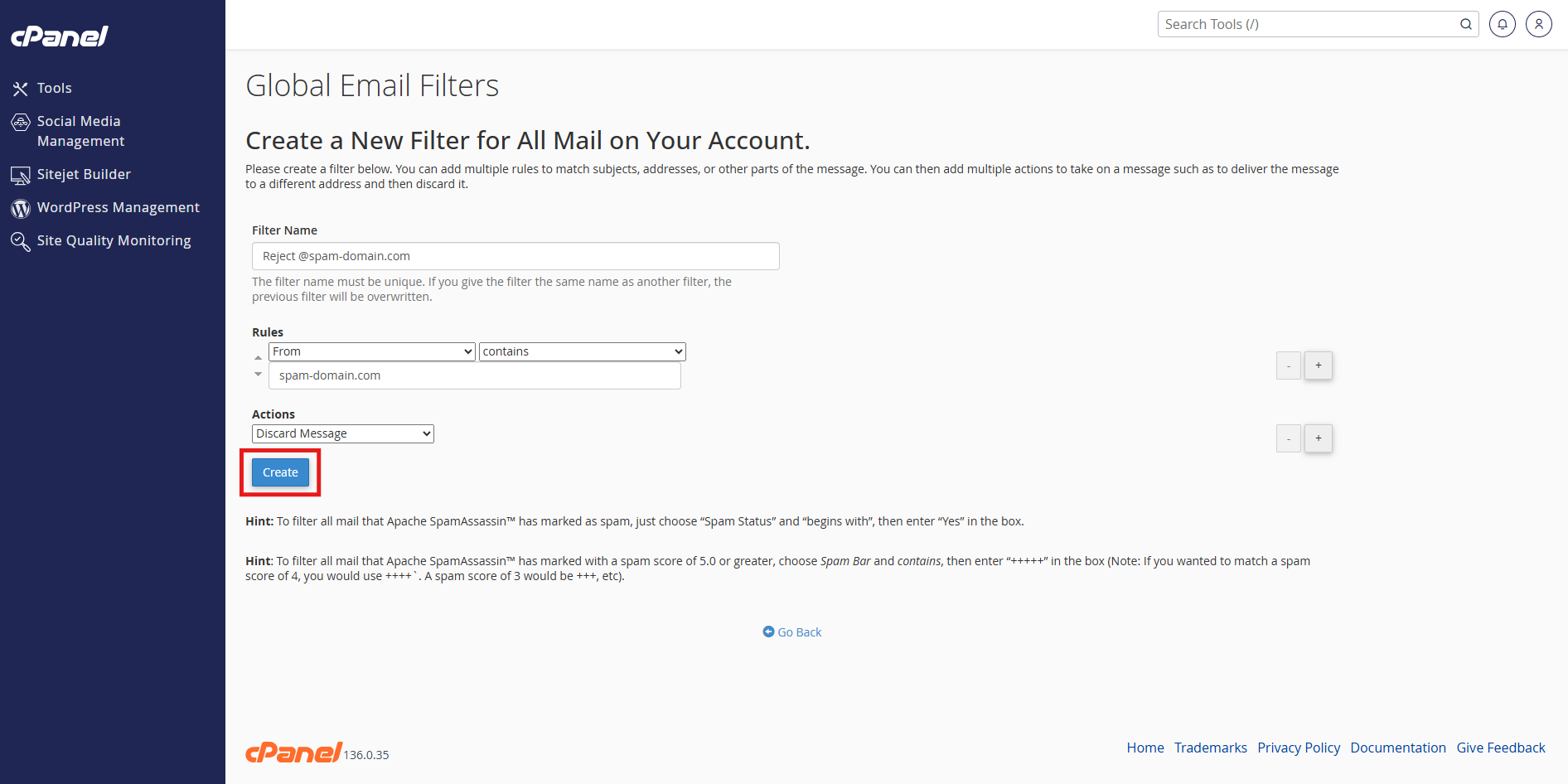
- Enter a filter name, set the desired rules or conditions, select an action, and click Create.
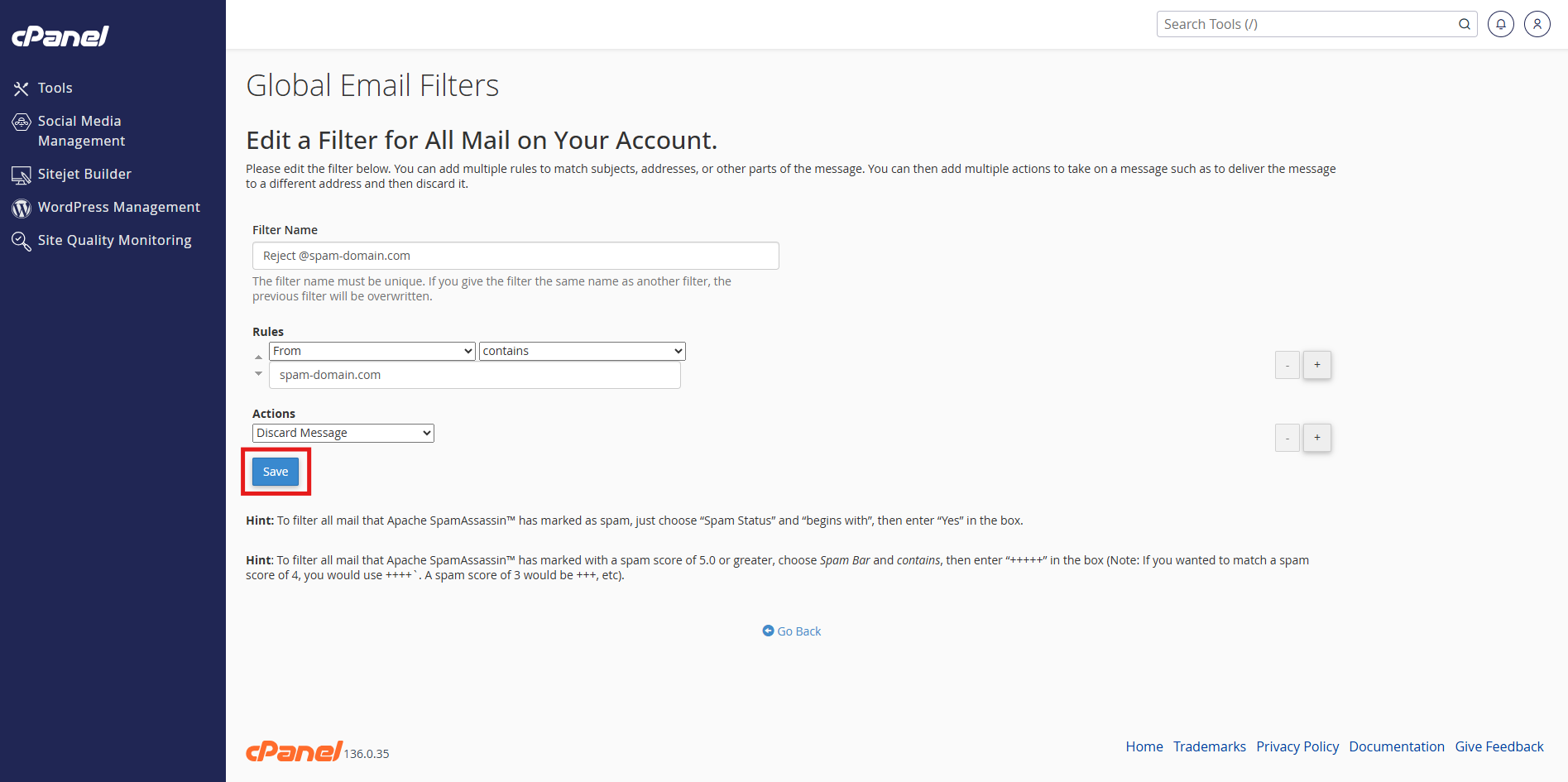
- Locate the target filter under Current Filters, click Edit.
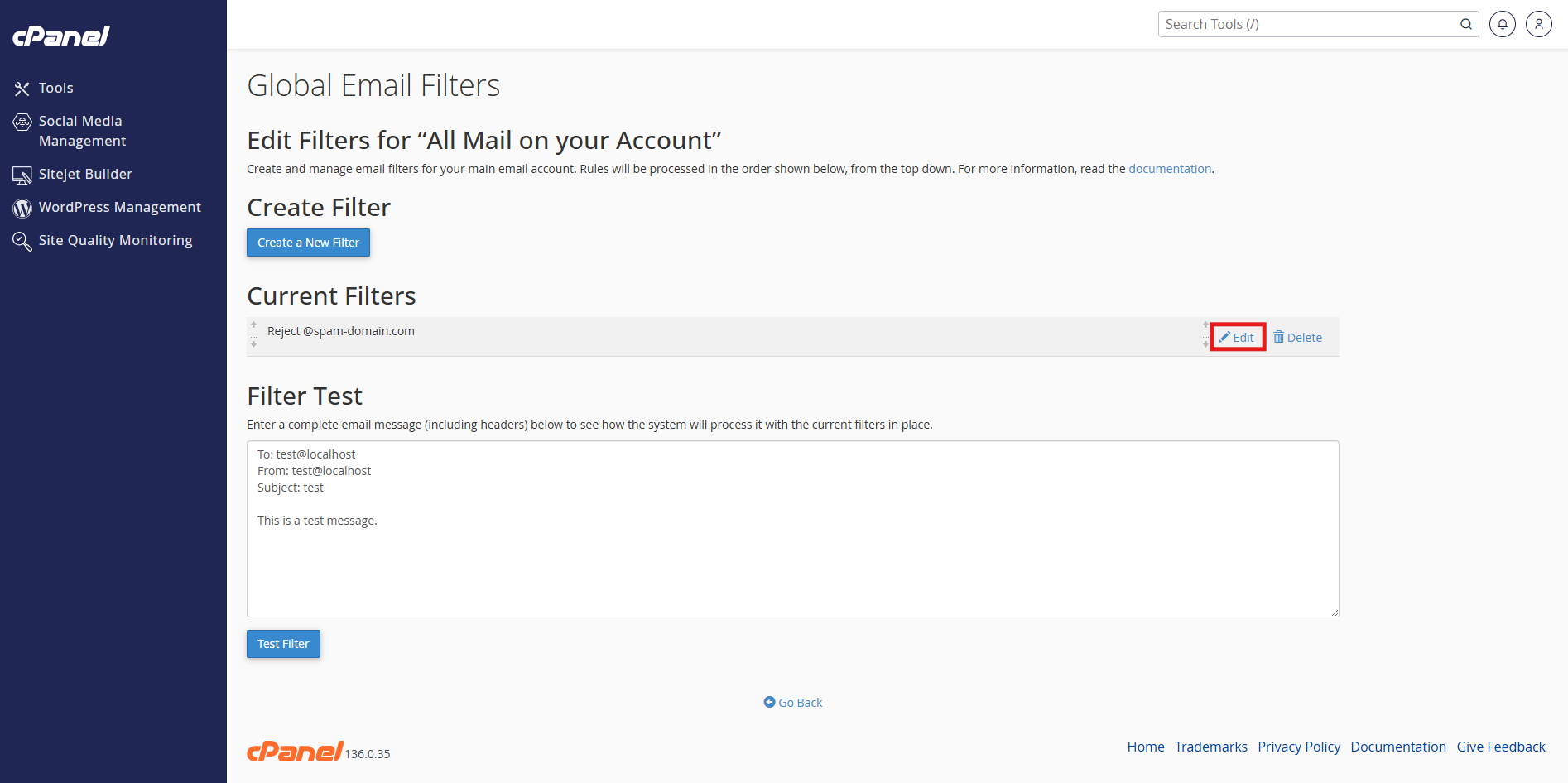
- Update the rules or actions as needed, and click Save.
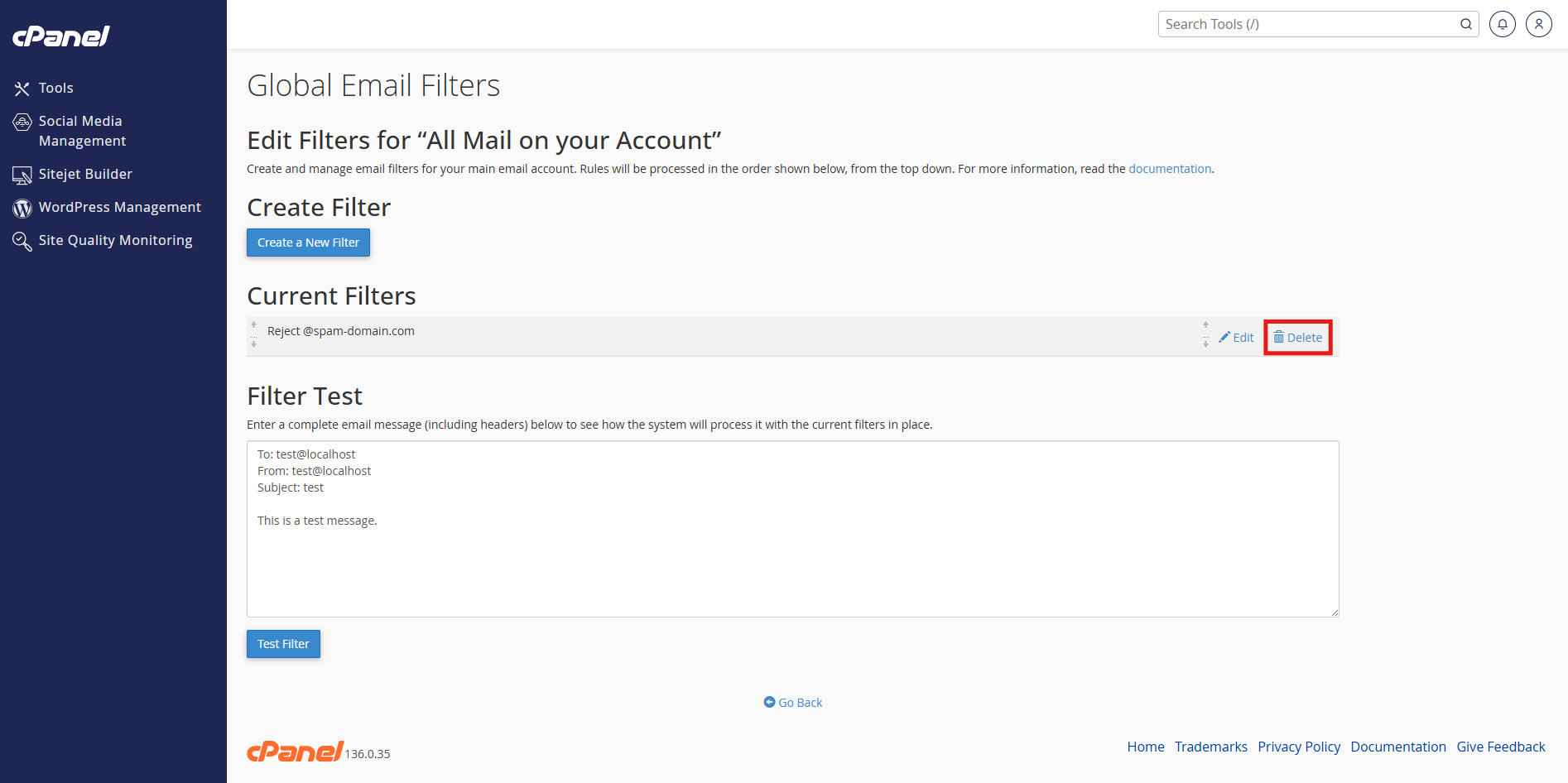
- Locate the target filter under Current Filters, click Delete.
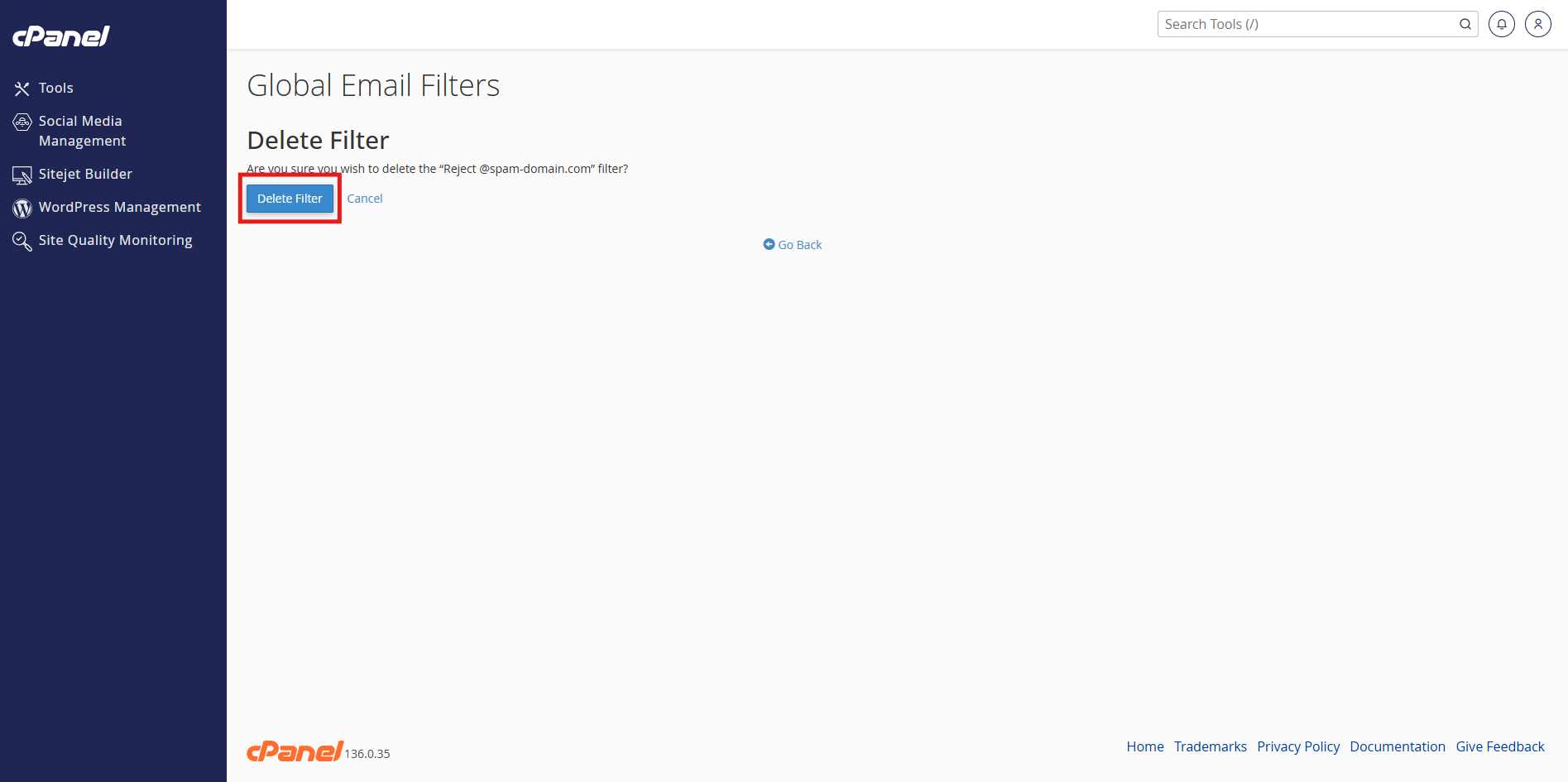
- Confirm by clicking Delete Filter.
Automatically moving emails to System or Default Folders
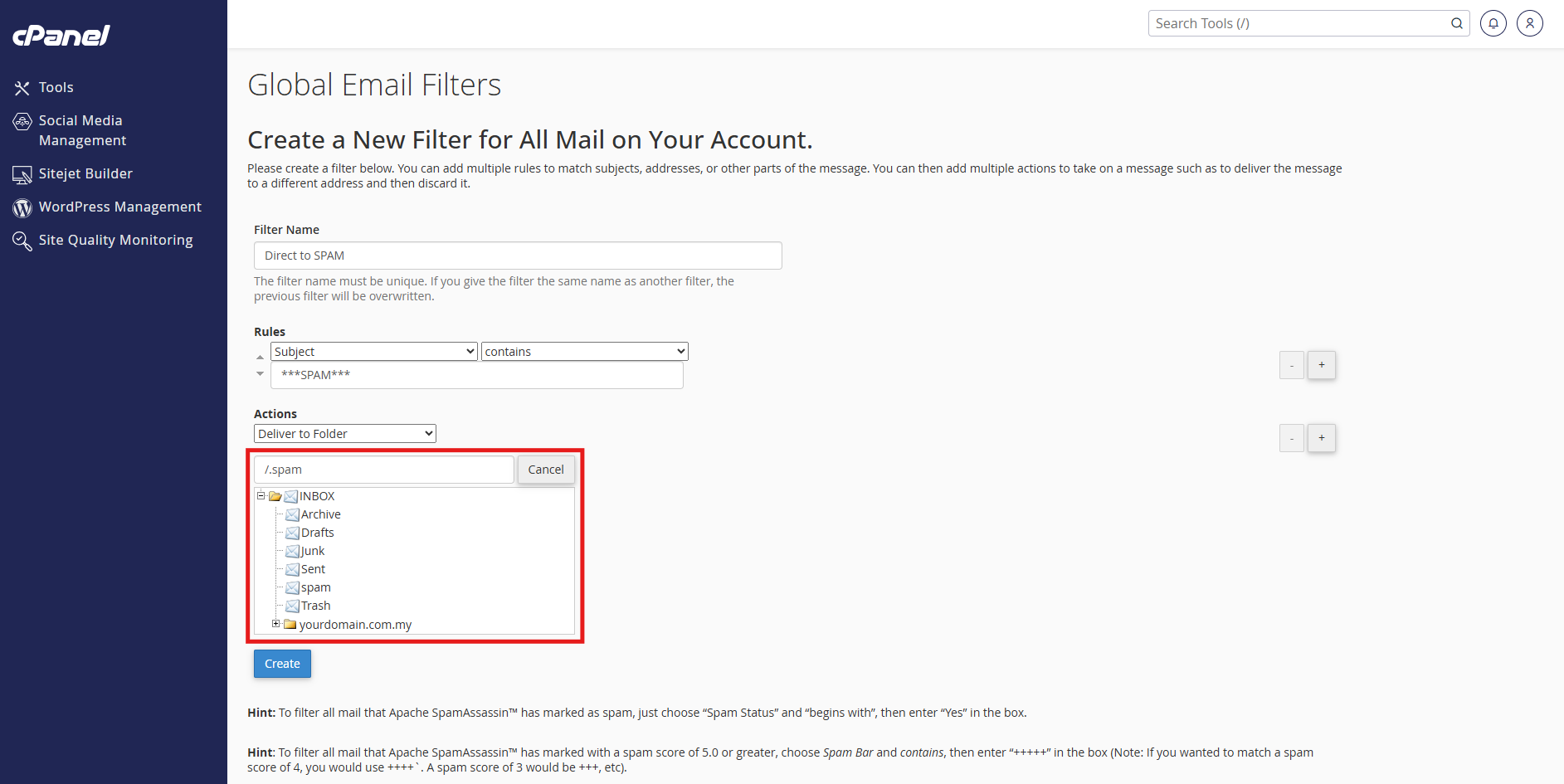
Automate routing incoming emails directly to default system folders like Inbox, Archive, Drafts, Junk, Sent, Spam, or Trash.
- Under Actions, select Deliver to Folder.
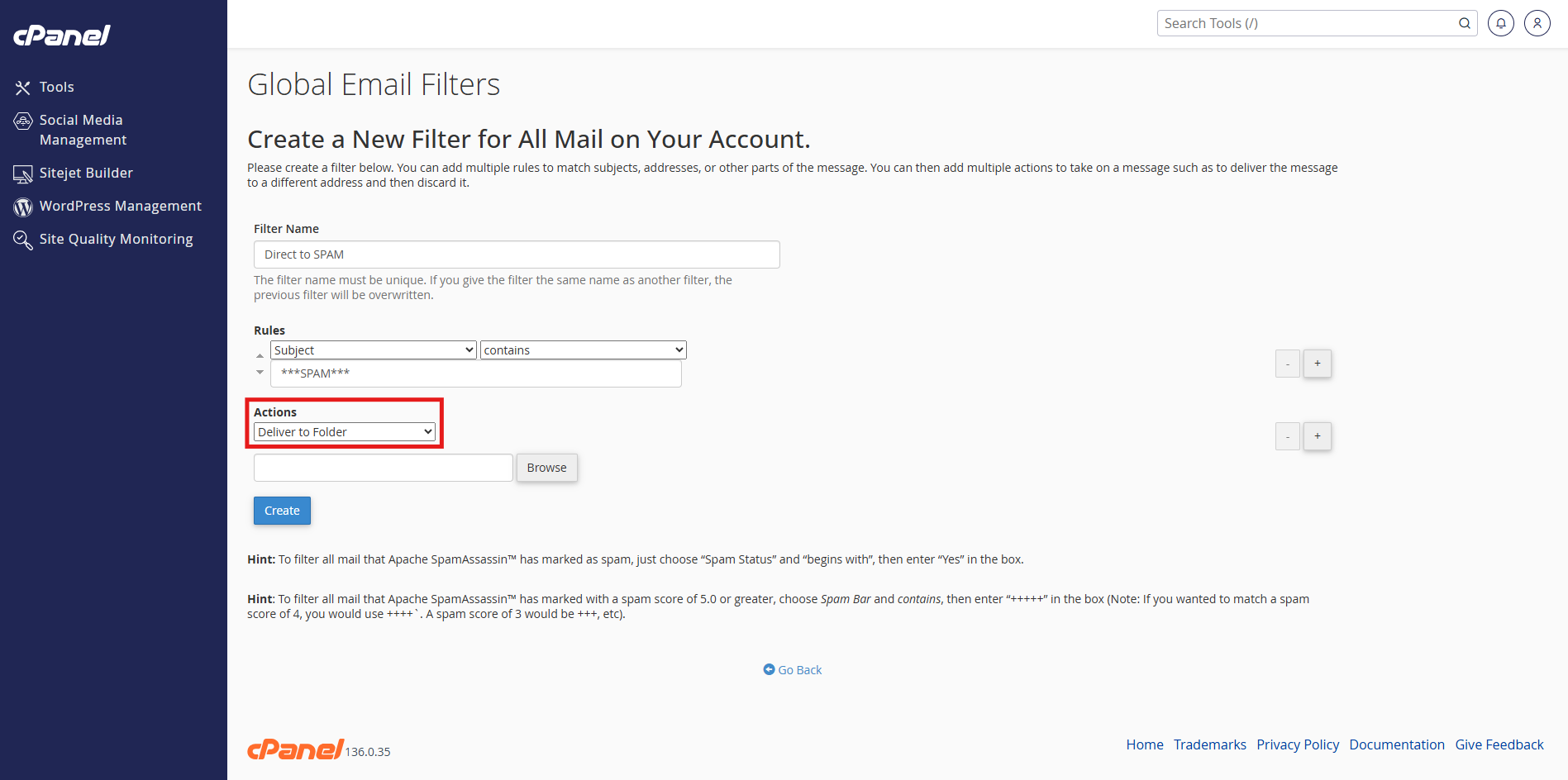
- Click Browse and select the target default system folder (such as Inbox, Archive, Drafts, Junk, Sent, Spam, or Trash).
Advanced filter actions
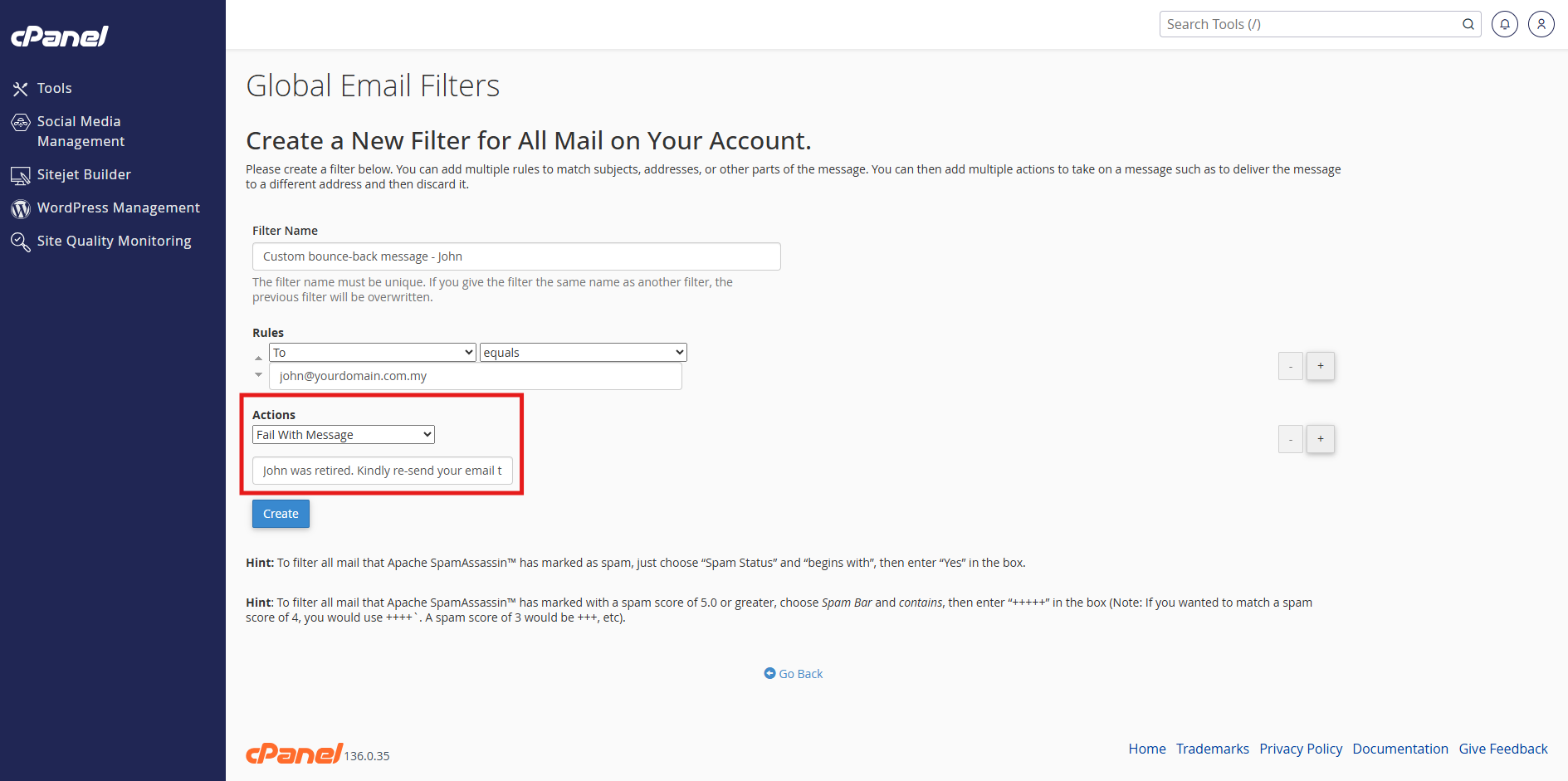
Configure custom automated error or bounce-back messages to reject incoming emails matching specific criteria.
- Under Actions, select Fail With Message.
Conclusion
By following this guidance, you can successfully manage and configure global email filters in cPanel to automate your domain’s email management and routing.
For additional assistance or if you encounter any issues, please contact our support team at support@ipserverone.com.
Article updated on 21 August 2026 by Johnny