
Search Our Database
How to Disable Directory Listing in cPanel
Introduction
Directory listing allows visitors to view the files and subdirectories within a website directory when the directory does not contain a recognized index file, such as index.html or index.php.
Exposing a directory’s contents may reveal file names, backup files, configuration archives, or other information that should not be publicly accessible. Disabling directory listing prevents visitors from browsing the directory while allowing the website and its files to continue functioning normally.
This guide explains how to disable directory listing using the Indexes interface in cPanel.
Prerequisites
- Access to your cPanel login page.
- A valid cPanel username and password.
Step-by-Step Guide
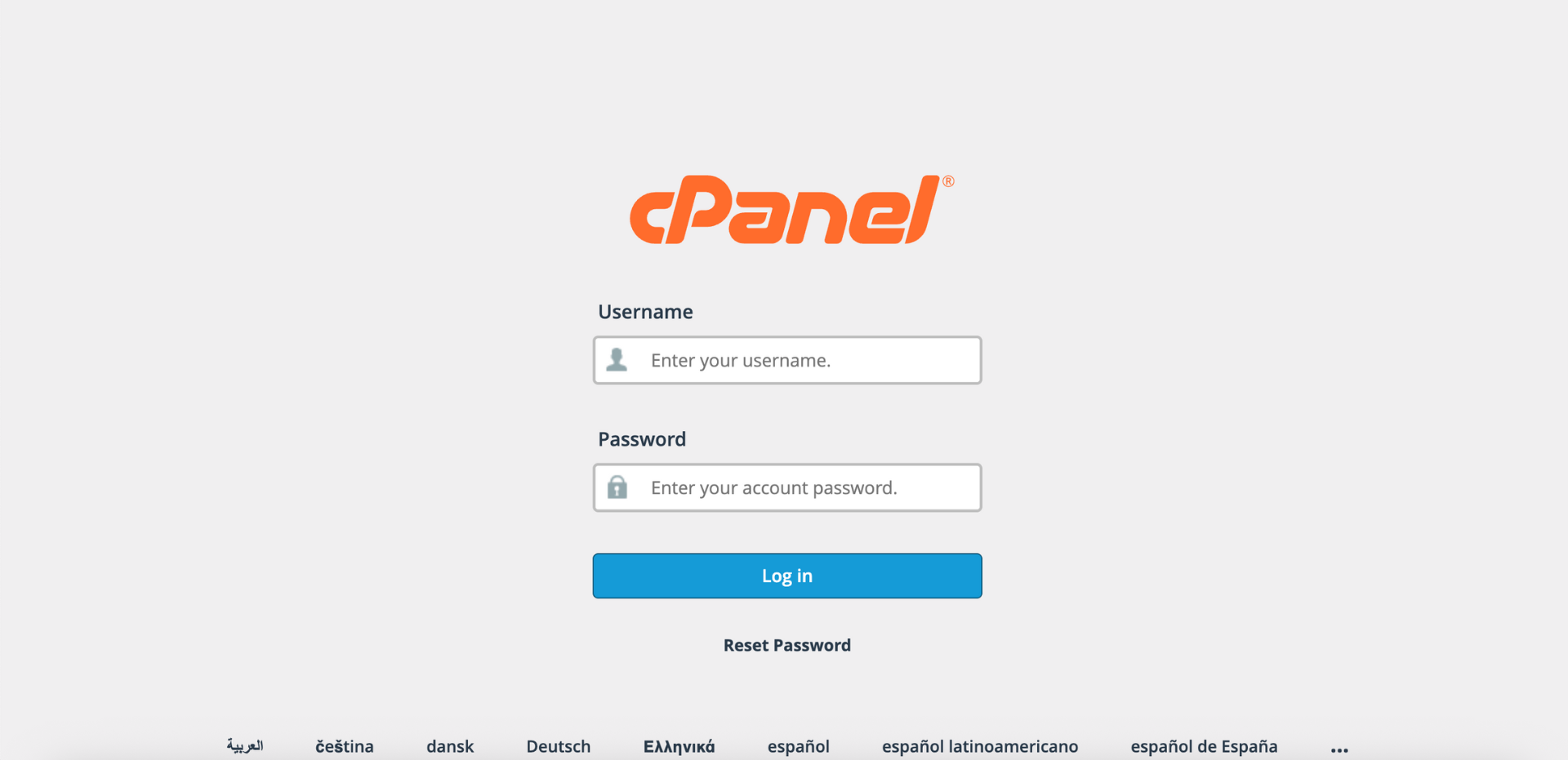
Step 1: Log in to cPanel
- Access and log in to your cPanel account using your username and password.
Step 2: Open the Indexes Interface
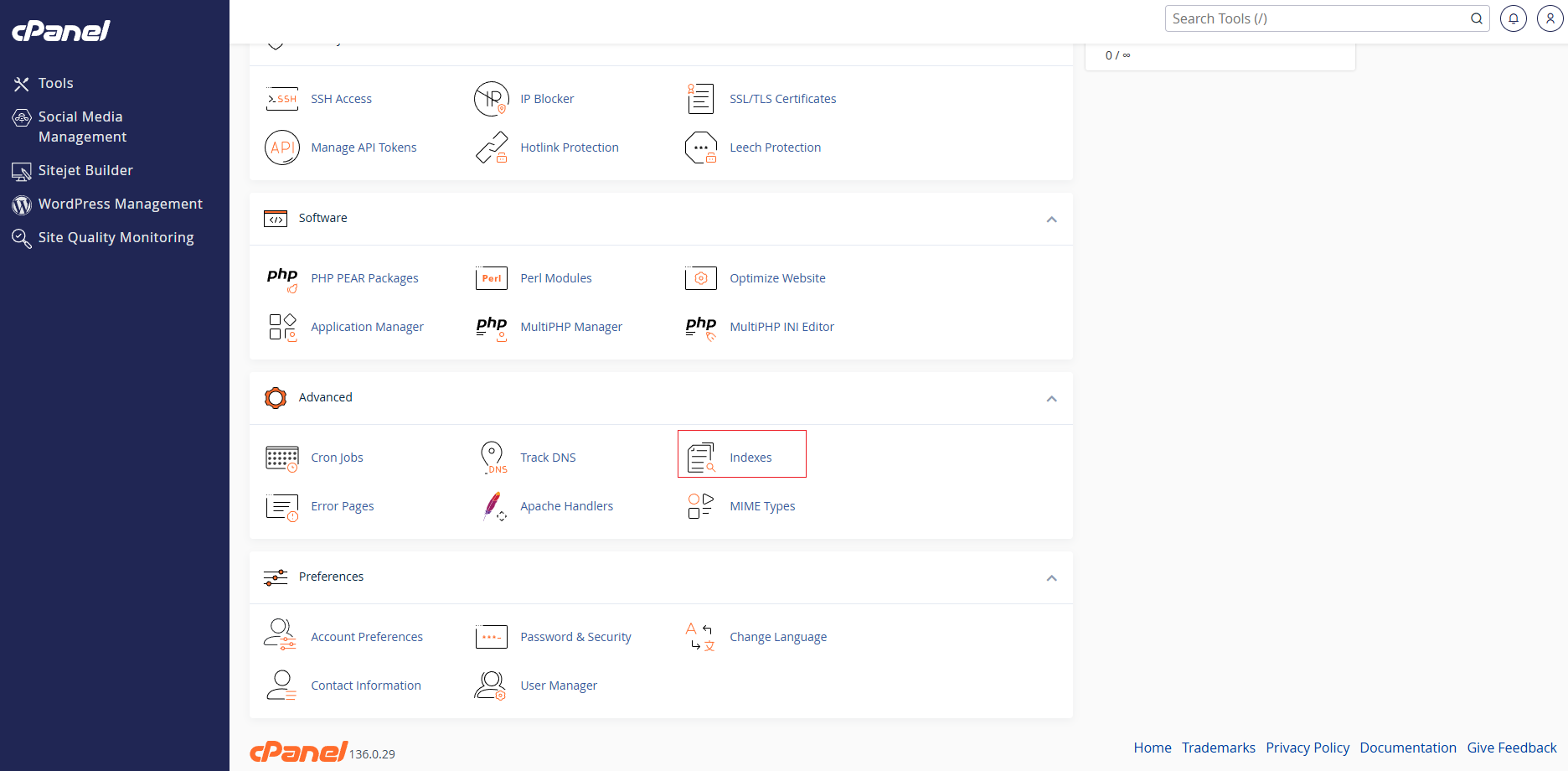
- On the cPanel dashboard, scroll to the Advanced section.
- Click Indexes.
Step 3: Select the Directory
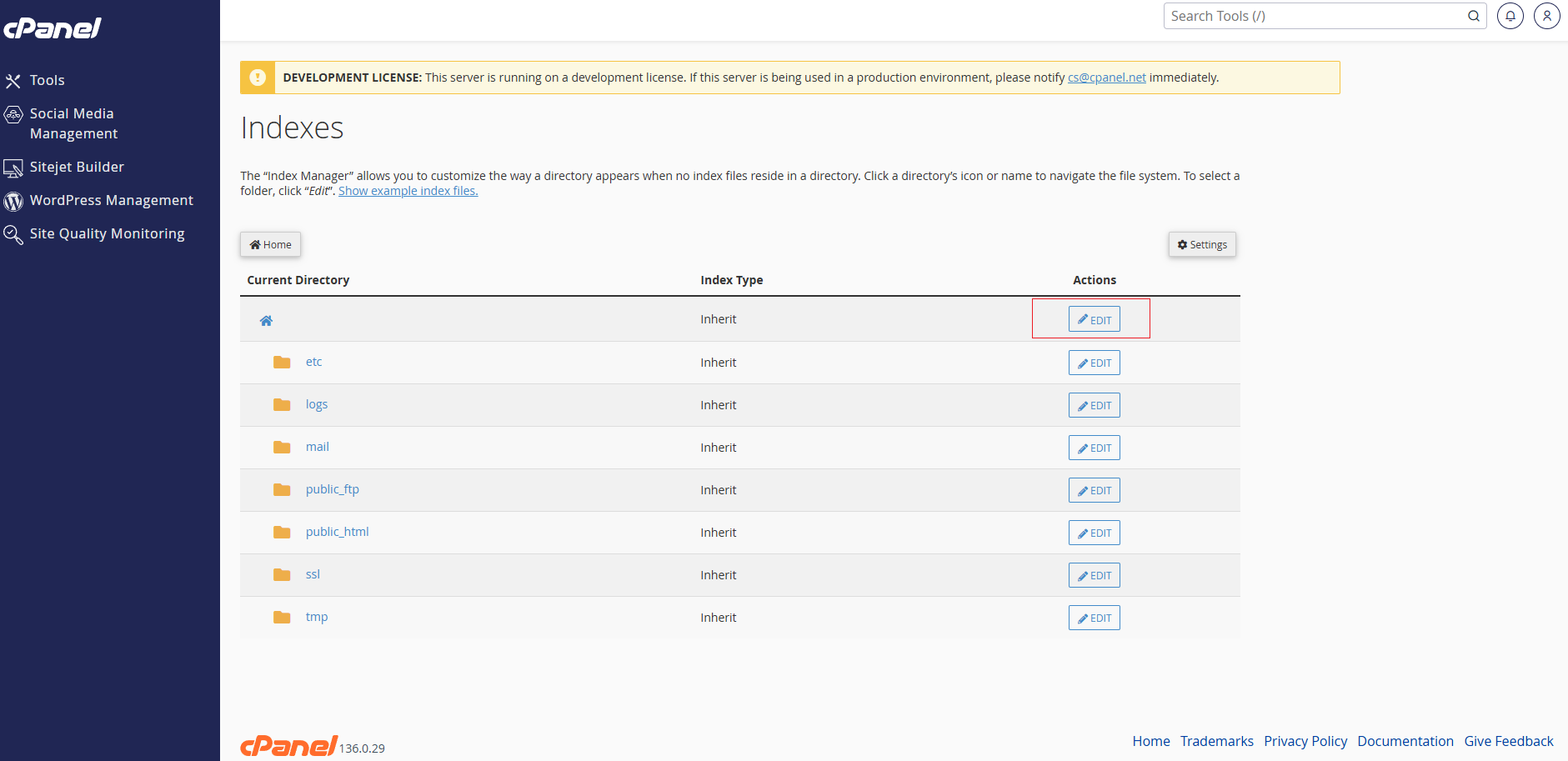
The Indexes interface displays the directories available within your cPanel account.
- Locate the directory for which you want to change the indexing settings.
- Click Edit beside the required directory.
Step 4: Disable Directory Listing
The indexing settings for the selected directory will be displayed.
- Select No Indexing.
- Click Save to apply the setting.
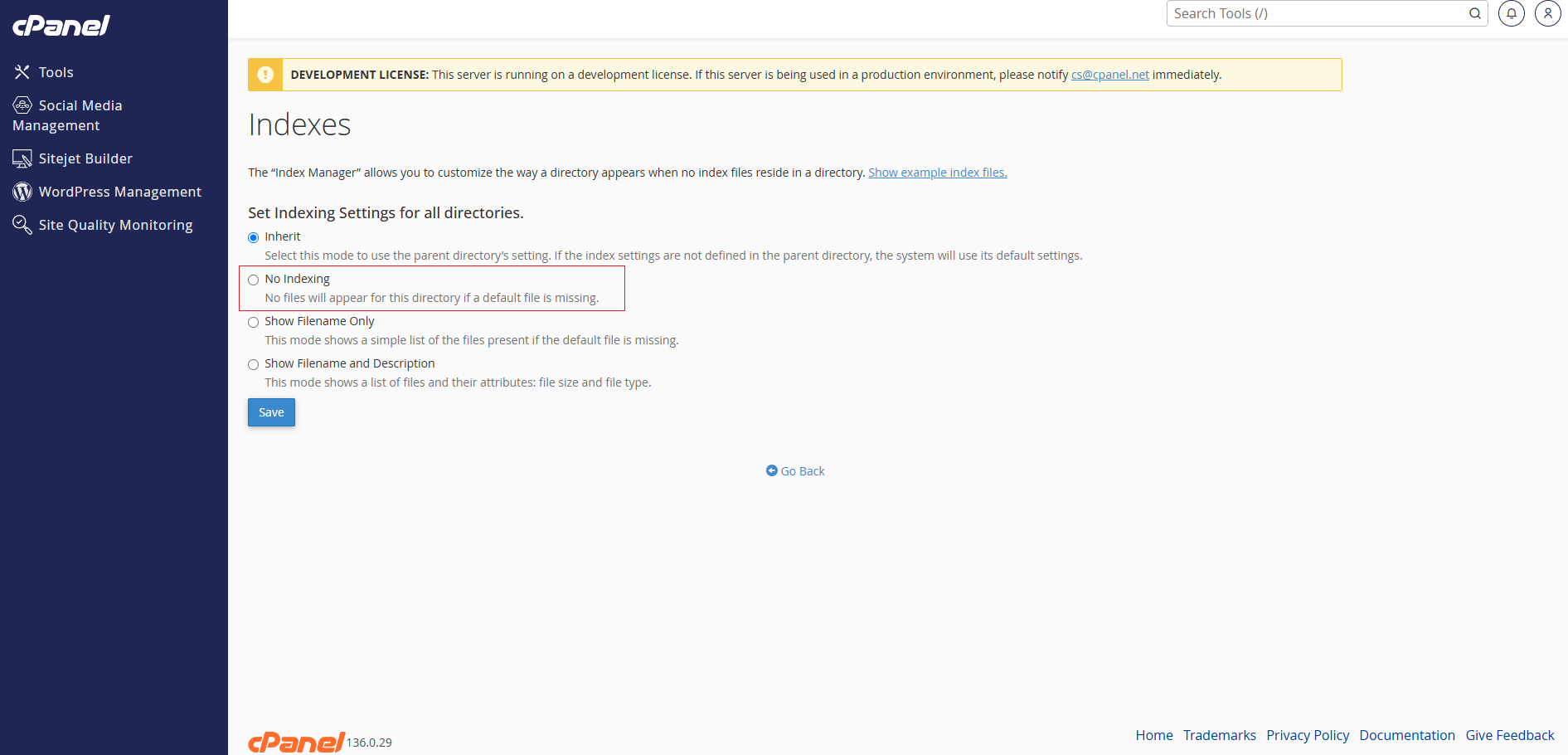
After the setting is saved, directory listing will be disabled for the selected directory.
Step 5: Verify the Configuration
- Open a private or incognito browser window.
- Browse to the affected directory.
- Confirm that the directory’s files and subdirectories are no longer displayed.
Depending on the server configuration, the directory may display a 403 Forbidden message or a customized error page.
Conclusion
Directory listing has been disabled for the selected directory using the cPanel Indexes interface. Visitors will no longer be able to view an automatically generated list of files when the directory does not contain a recognized index file.
For further assistance, contact our support team at [support@ipserverone.com](mailto:support@ipserverone.com).