
Search Our Database
How to copy emails to different folders in Roundcube Webmail
Introduction
Managing your email interface effectively requires a clean directory structure to organize correspondence, prevent clutter, and duplicate critical records for tracking purposes. This guide demonstrates how non-technical users can seamlessly manage their digital correspondence by copying emails to various default directories like Inbox, Drafts, Sent, Spam, Deleted Items, Archive, and Junk within the Roundcube Webmail interface. Whether you need to retain a duplicate communication log today, preserve message templates next week, or back up important transaction notices from your web browser view, this walkthrough provides the necessary steps to organize your mailbox layout. By utilizing these native webmail folder management features, you can optimize your daily workflow and maintain a highly organized inbox.
Prerequisite
- Access to Roundcube Webmail account with valid login credentials
- Basic knowledge of navigating webmail interfaces
Step-by-step guide
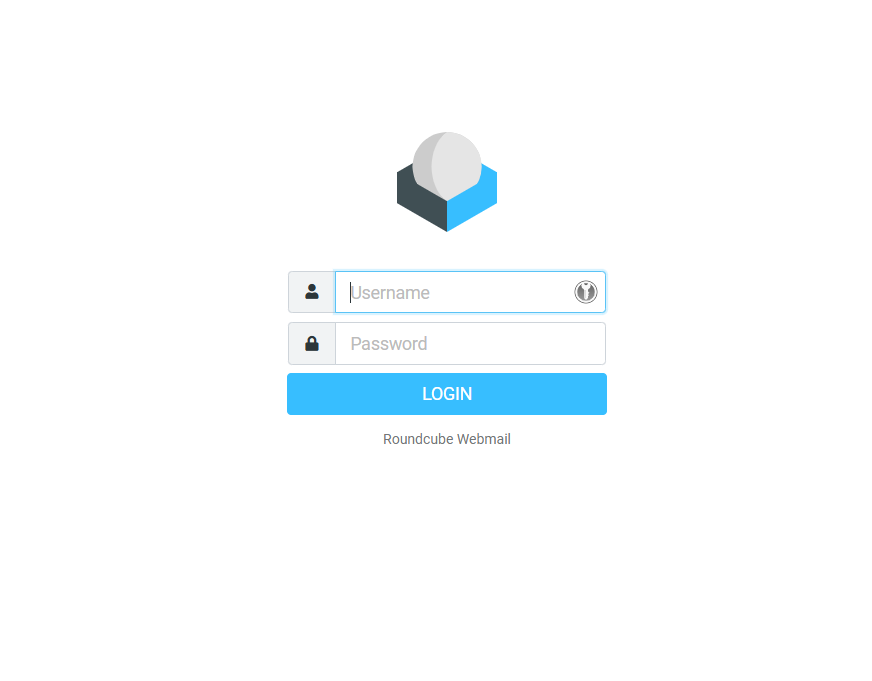
Step 1: Log in to Roundcube Webmail
- Visit the webmail login page (e.g., https://webmail.yourdomain.com).
- Enter your email address and password, then click Login.
Step 2: Copying emails to different folders
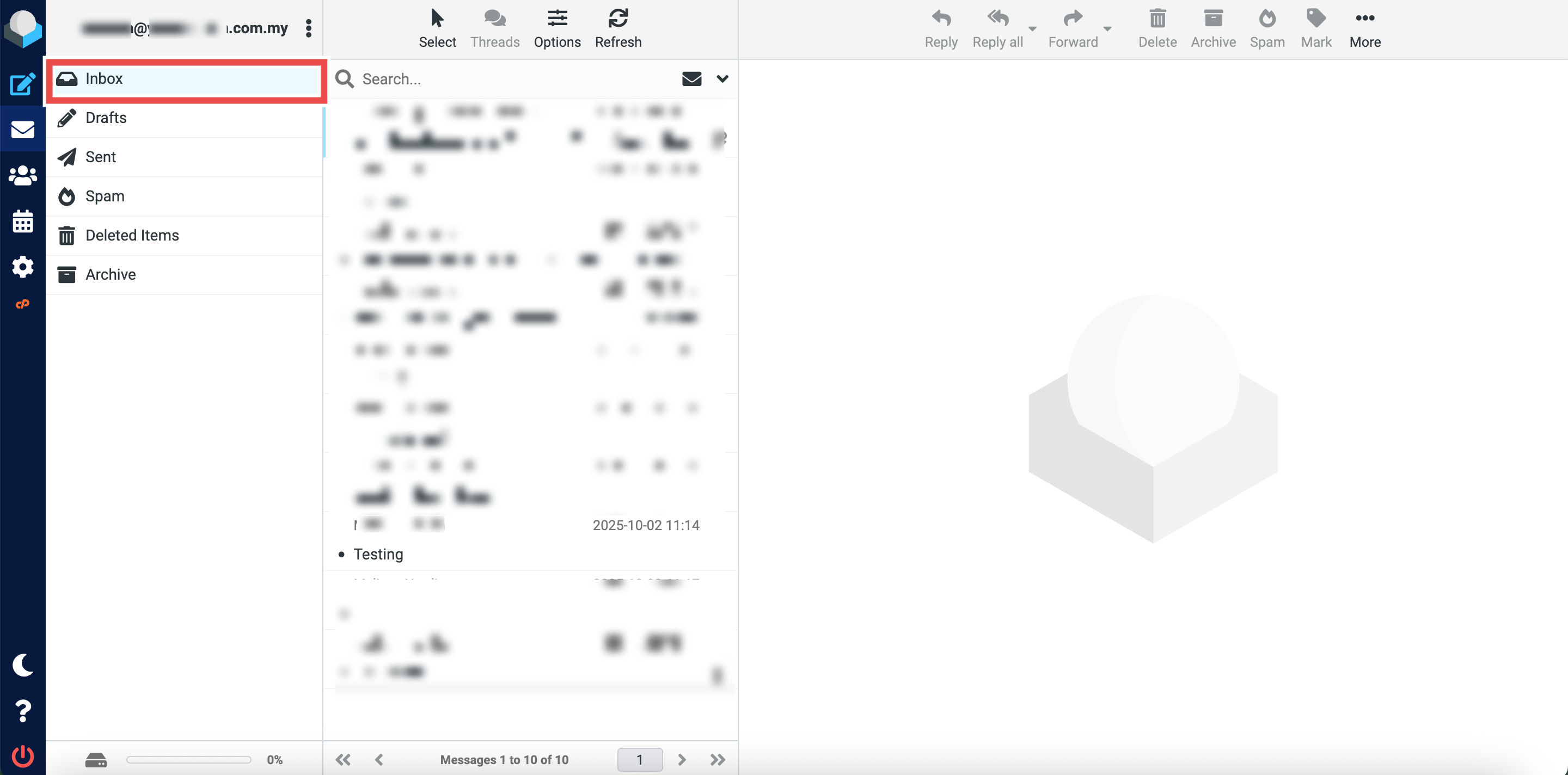
- Navigate to the folder containing the email you want to copy (e.g., Inbox).
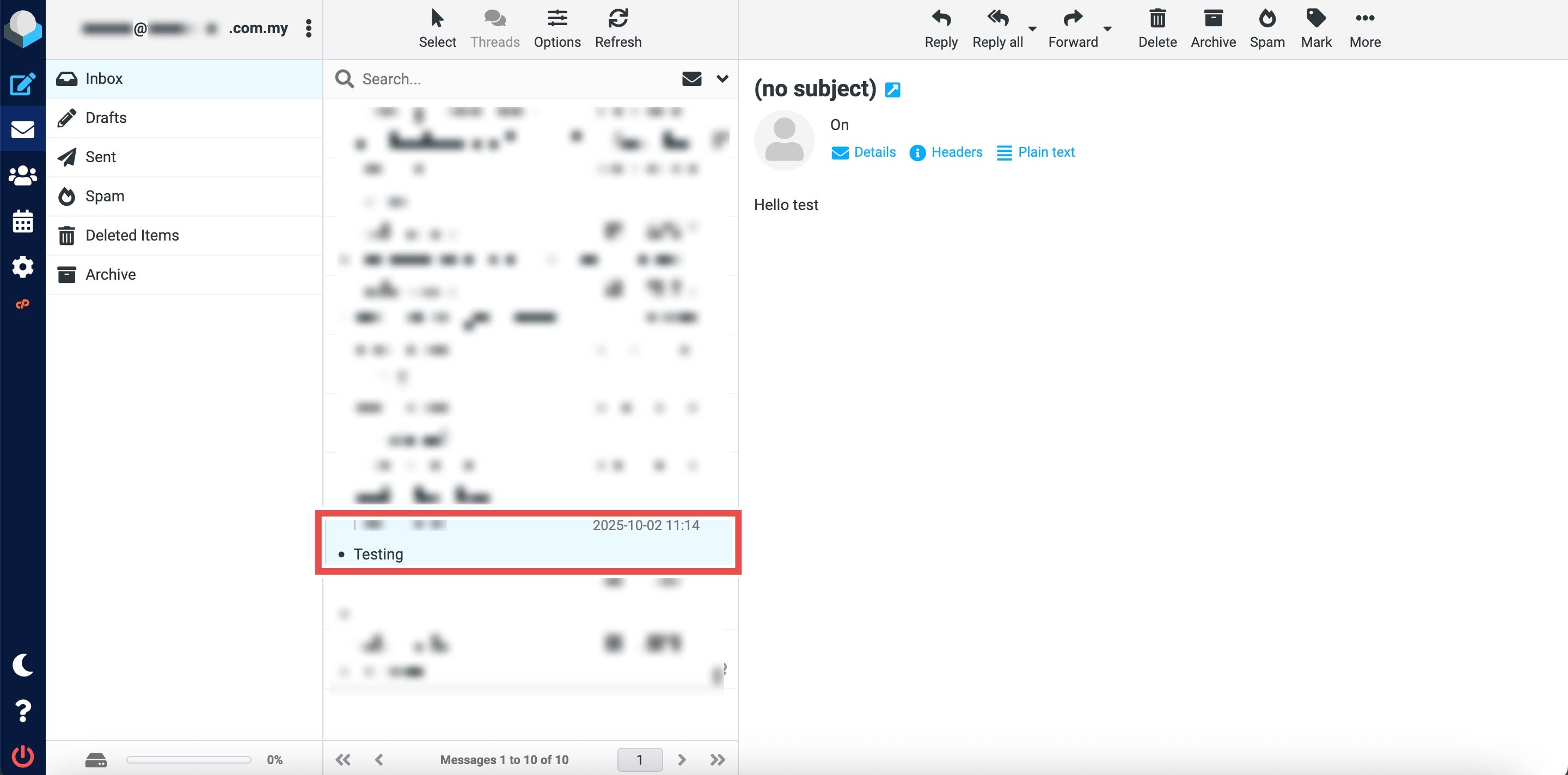
- Locate the email message you wish to copy to the Spam folder.
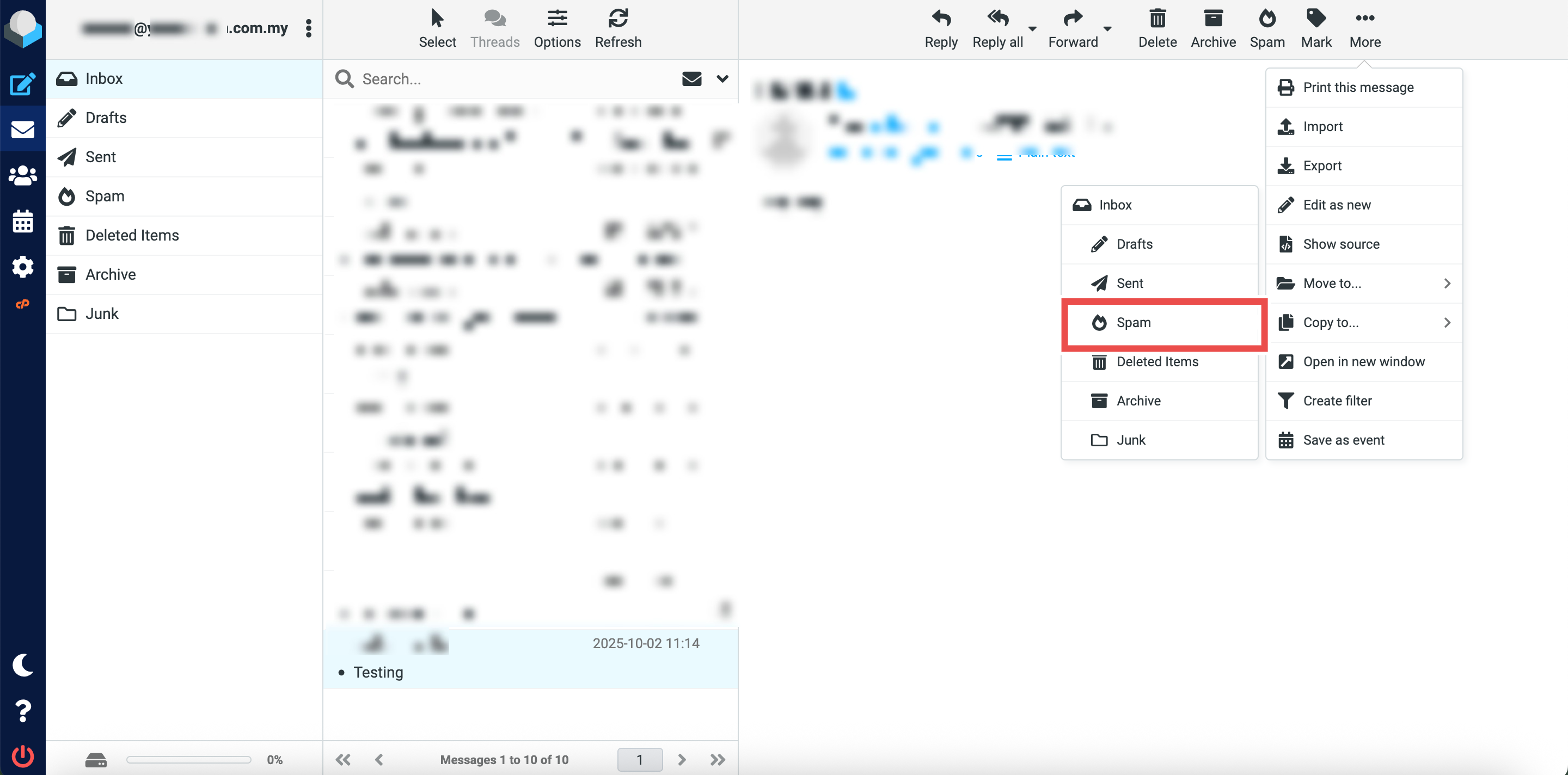
- Click More button at the top right of the page. Then, click Copy to button from the dropdown options.
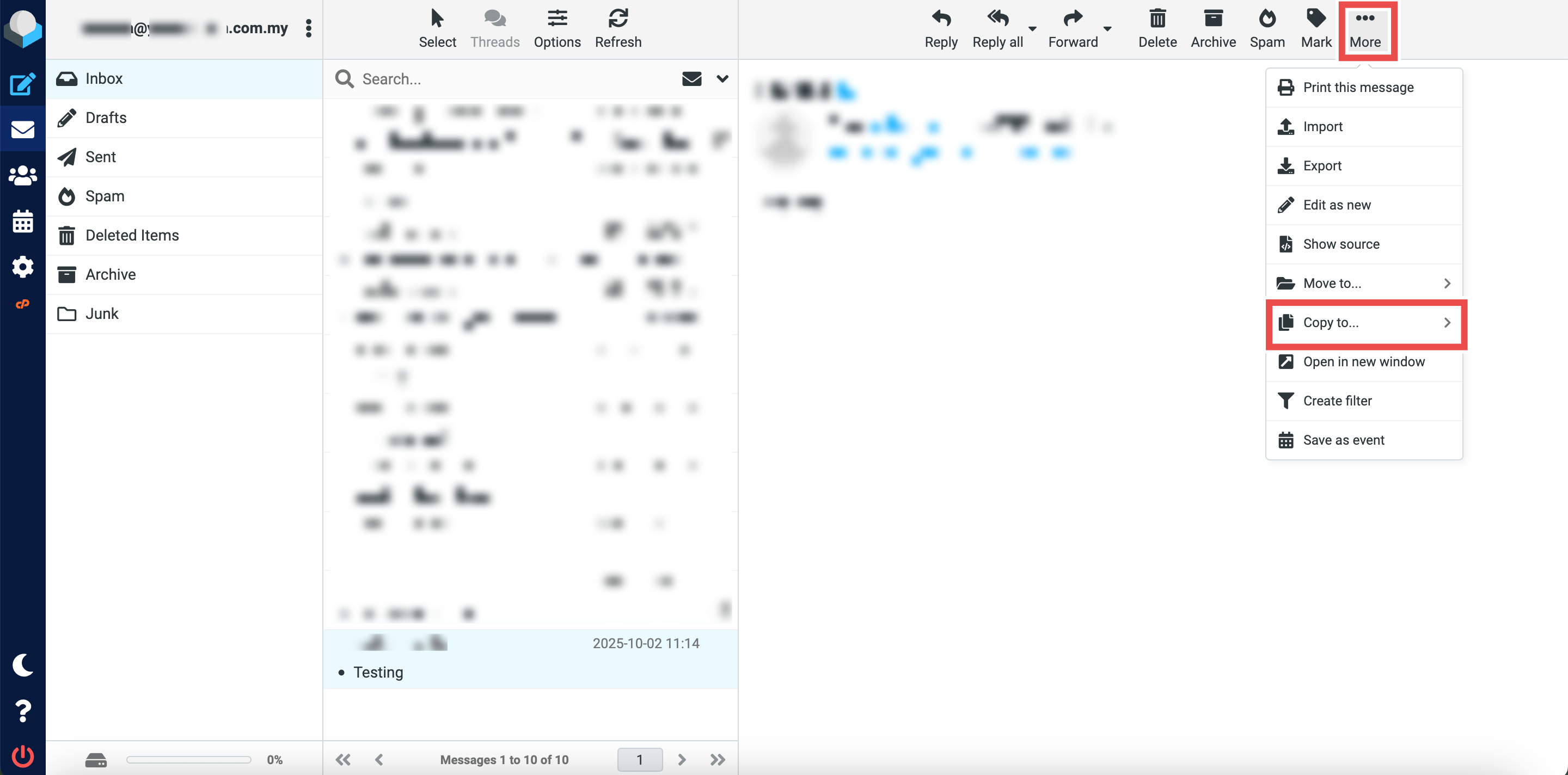
- Click Spam to copy the selected email(s) to the Spam folder.
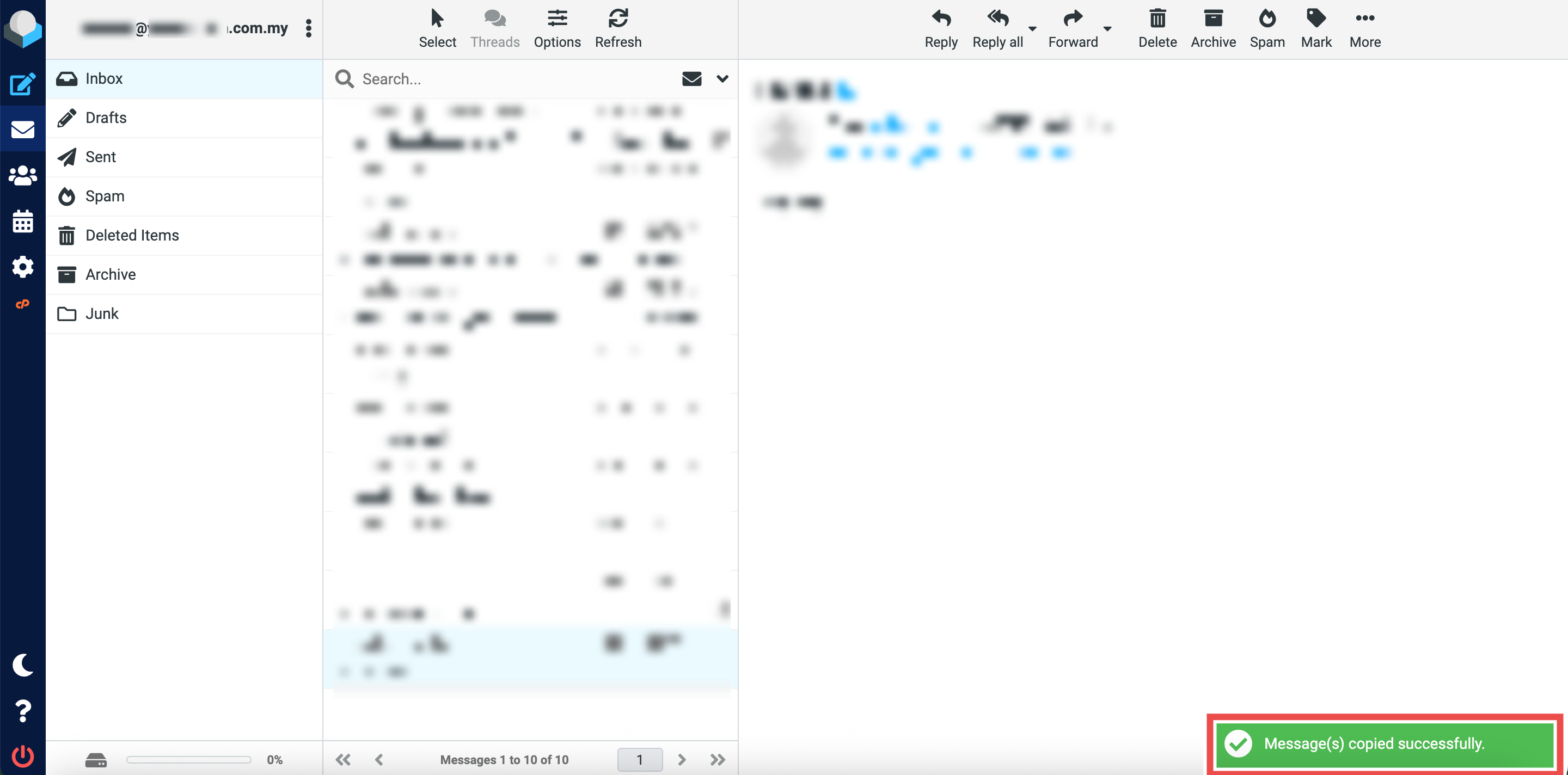
- Successful message will appear confirming the email has been copied to the Spam folder.
- Additionally, you may click on the Spam folder in the left sidebar and locate the email you just copied in the folder, the email should now appear both in the Spam folder and its original folder.
Conclusion
By following this guidance, you can successfully copy emails to different folders in Roundcube Webmail to keep your inbox organized and structured.
For additional assistance or if you encounter any issues, please contact our support team at support@ipserverone.com.