
Search Our Database
How to use Email Domain Forwarders in cPanel
Introduction
If you own multiple domains, an email domain forwarder allows you to redirect all undeliverable emails sent to one domain (emails addressed to accounts that do not exist) to another domain, without setting up separate email accounts for each address. This guide walks you through how to create and delete an email domain forwarder in cPanel, so you can manage email delivery across your domains efficiently.
Prerequisite
- Access to your cPanel login page.
- Basic knowledge on email forwarding rules.
Step-by-Step Guide
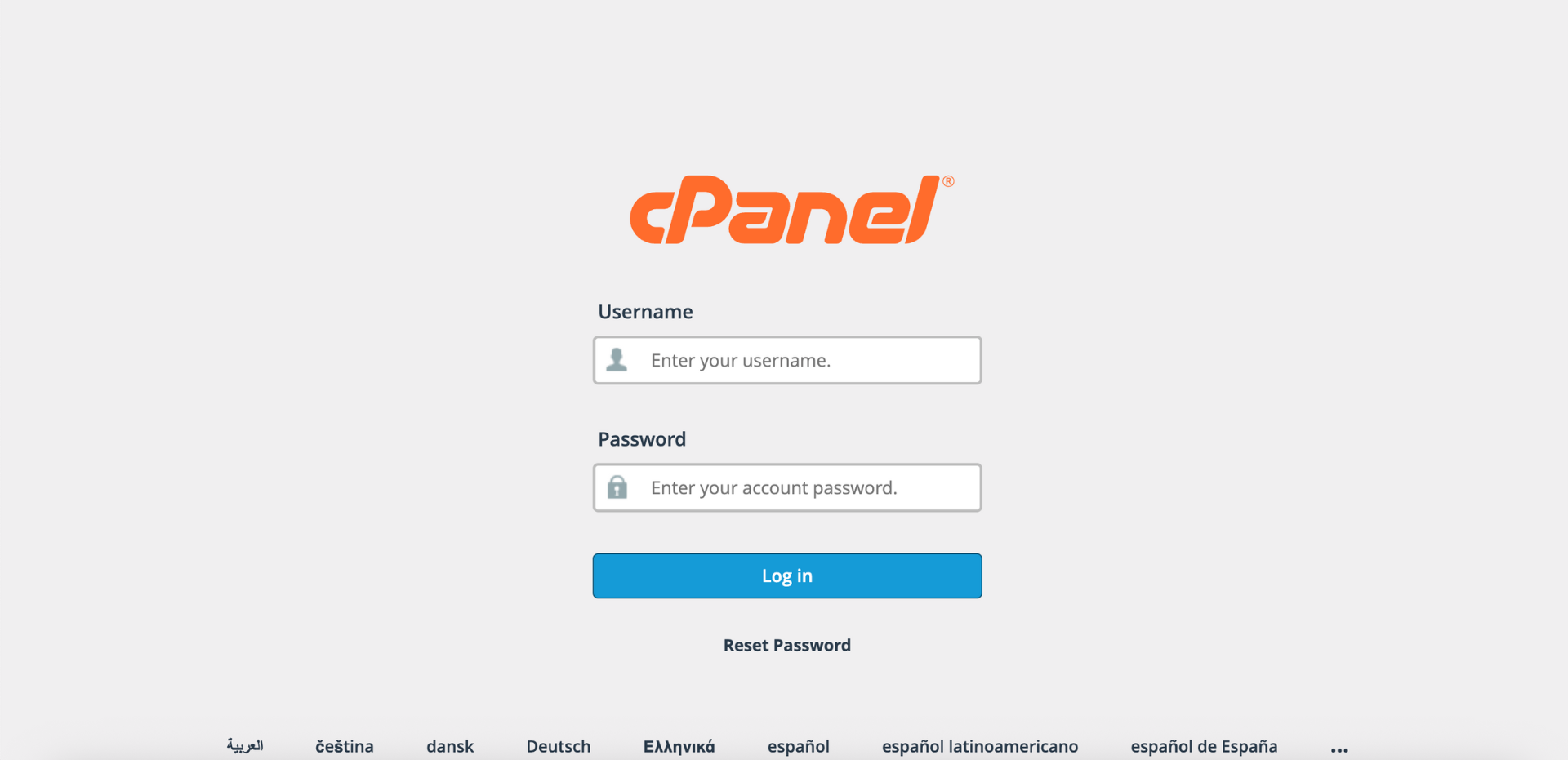
Step 1: Log in to cPanel
- Access and log in to your cPanel account using your username and password.
Step 2: Open Forwarders
- On the cPanel Home page, under Email, click Forwarders.

Step 3: Add Domain Forwarder
- In the Create an Email Account Forwarder section, click Add Domain Forwarder.

Step 4: Select the Domain
- In the Domain drop-down menu, choose the domain from which you want to forward emails (source domain).

Step 5: Enter Destination Domain
Important Note:
- Domain forwarders only forward undeliverable emails (emails sent to addresses that do not exist on the source domain). For the forwarder to work correctly:
- A Default Address (catch-all) must be configured on the destination domain to ensure that forwarded emails are accepted, even if the specific user does not exist.
- The destination domain must not block or filter emails from the source domain.
- In the text box, type the domain to which you want to forward all undeliverable emails.
- Click Add Domain Forwarder to save the changes.

Step 6: Verify the Forwarder
- A success message will appear.
- Click Go Back to confirm that the new domain forwarder is listed in the Forward All Email for a Domain table.
- Optionally, send a test email to a non-existent email address under the source domain (e.g. test123@yourdomain.com.my) and check the destination domain email to confirm it was received.

Deleting a Domain Forwarder
- In the Forwarders page, locate the domain forwarder in the Forward All Email for a Domain table.
- Click Delete next to the forwarder, then confirm by clicking Delete Domain Forwarder. Once deleted, undeliverable emails from the source domain will no longer be redirected to the destination domain.

Conclusion
By following this guidance, you can create and delete email domain forwarders in cPanel. This ensures that undeliverable emails sent to one domain are automatically redirected to another, giving you full control over email delivery across your domains.
For additional assistance or if you encounter any issues, please contact our support team at support@ipserverone.com.
Article updated on 11 November 2026 by Johnny