
Search Our Database
How to shelve and unshelve Cloud Instance(s) in Customer Portal
Introduction
Cloud server users managing virtual infrastructure in the IPServerOne Customer Portal may need to temporarily pause operations without deleting their instances. Shelving allows you to power off a Cloud Instance and release compute resources such as CPU and RAM, helping optimize cloud resource usage when instances are idle during non-operational periods. When you are ready to resume operations, unshelving restores the instance back to an active running state. This guide provides step-by-step instructions on how to shelve and unshelve Cloud Instances directly through the Customer Portal dashboard.
Prerequisite
- Access to IPServerOne Customer Portal
- An active Cloud Instance created under NovaCloud
Step-by-step guide
Step 1: Access to Cloud Instance(s)
- Log in to the [IPServerOne Customer Portal].
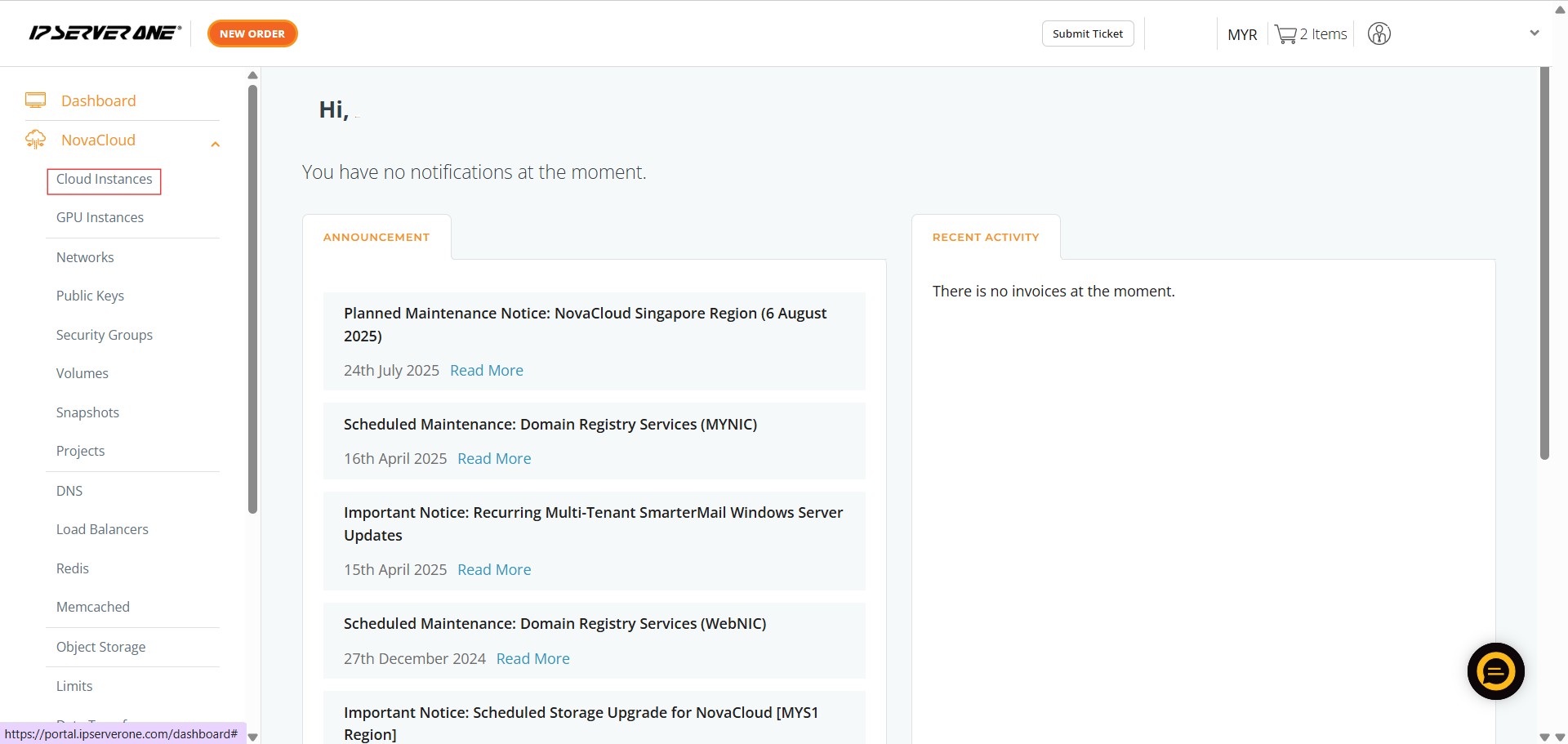
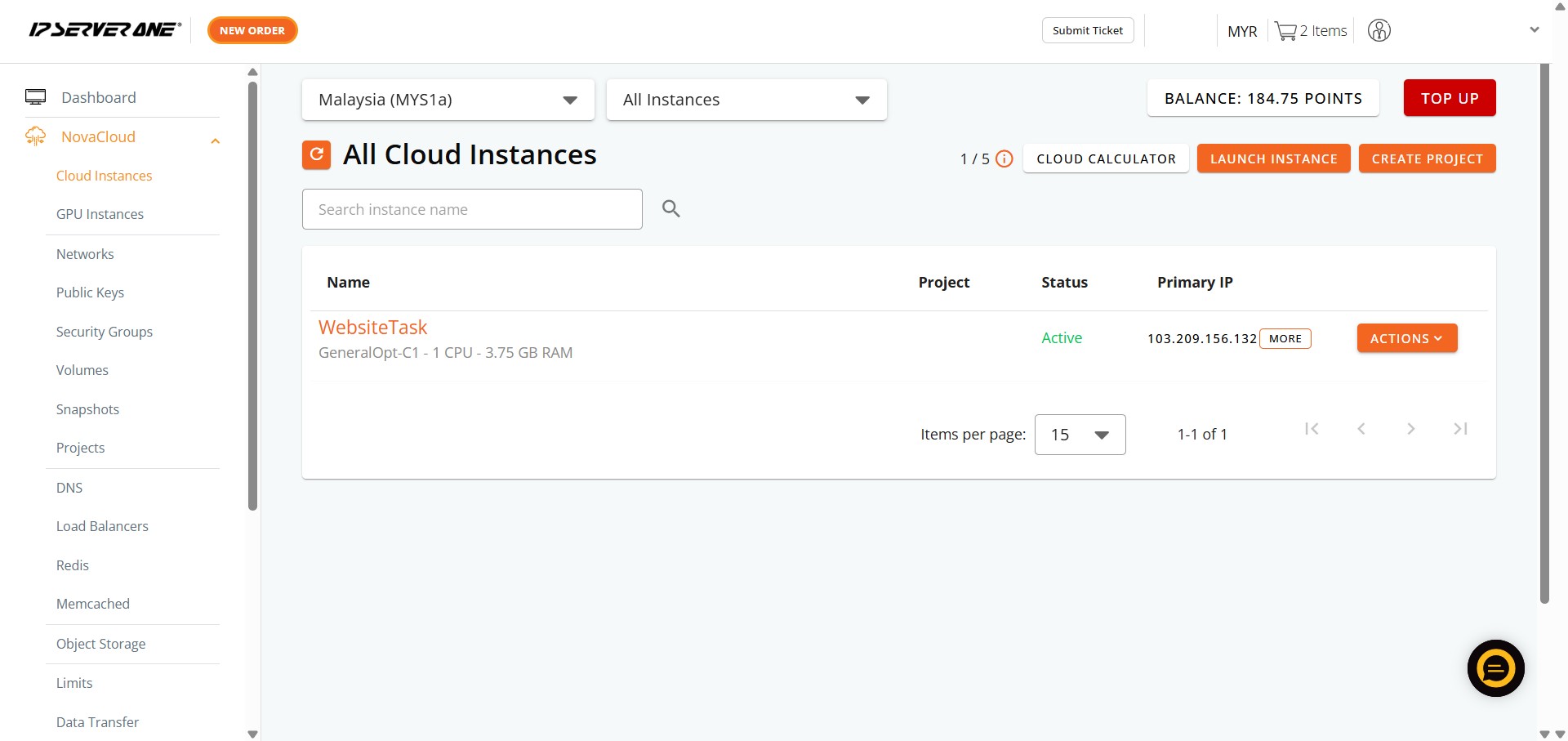
- Navigate to NovaCloud from the left-hand navigation menu and select Cloud Instances.
Step 2: Shelving or unshelving Cloud Instance(s)
Shelving a Cloud Instance power off the server and releases resources while preserving disk state and settings.
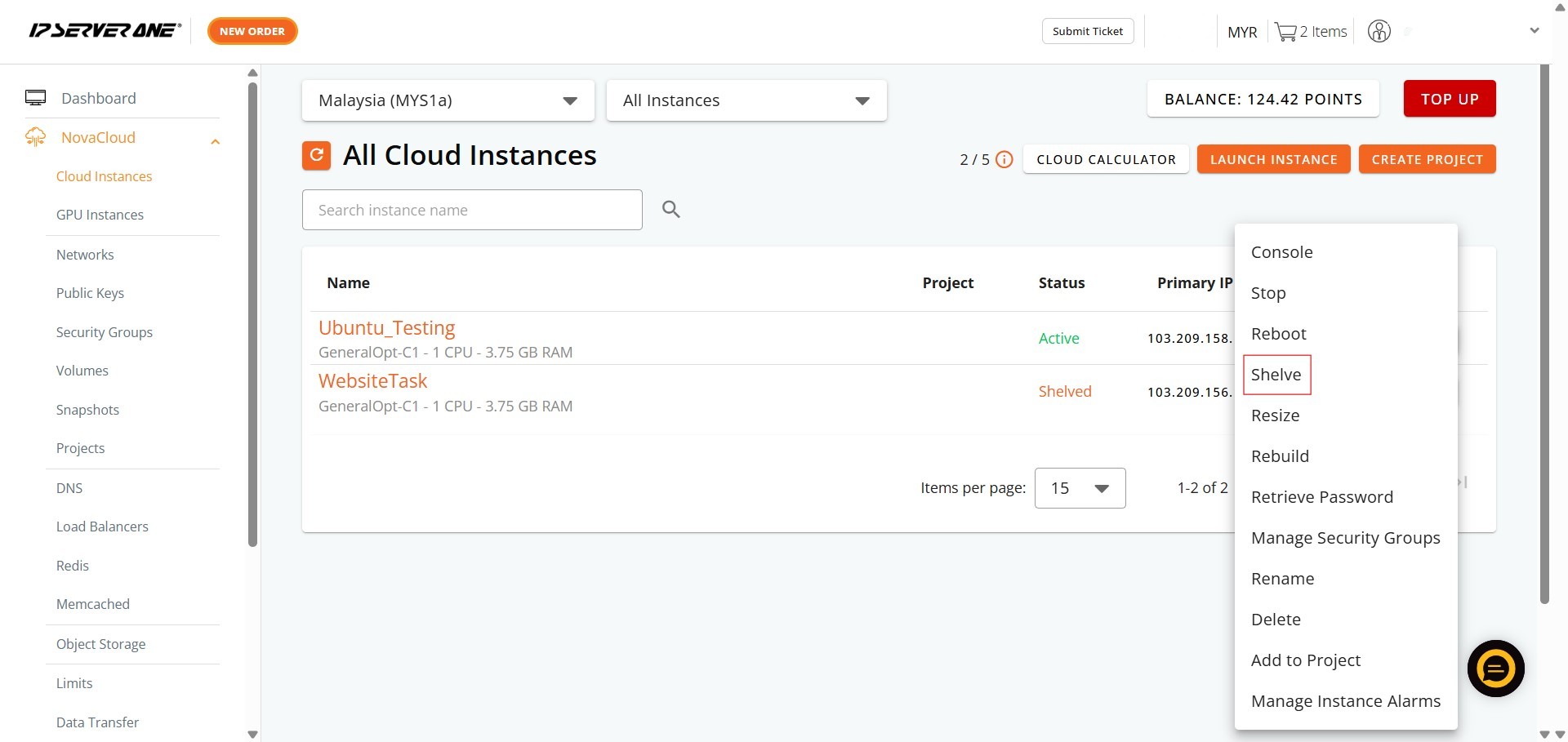
- Locate the target Cloud Instance, click Action on the corresponding row, and select Shelve from the dropdown menu.
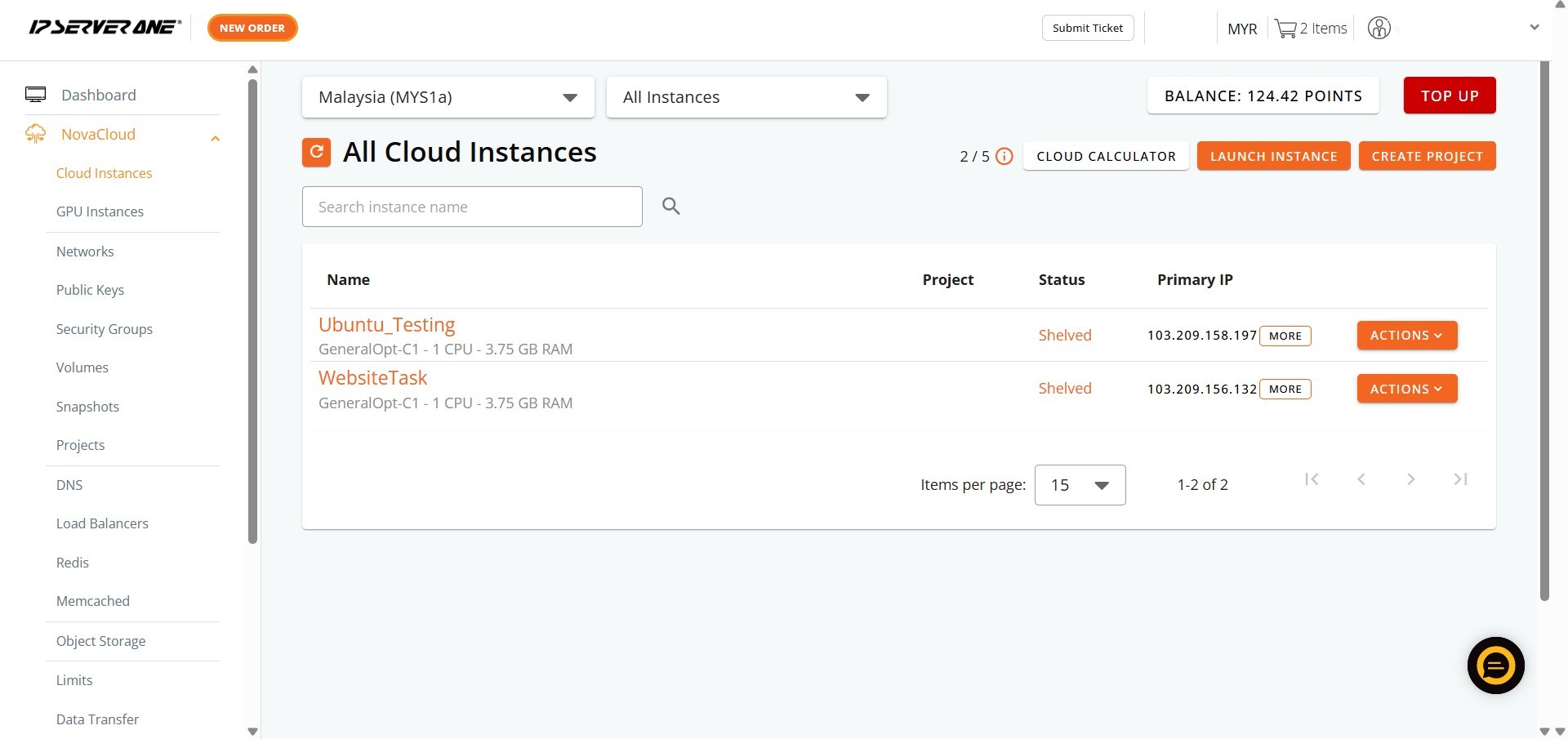
- Verify that the instance status changes to Shelved in the instance list.
Unshelving reactivates a previously shelved Cloud Instance, allocating resources back to the server to make it fully operational.
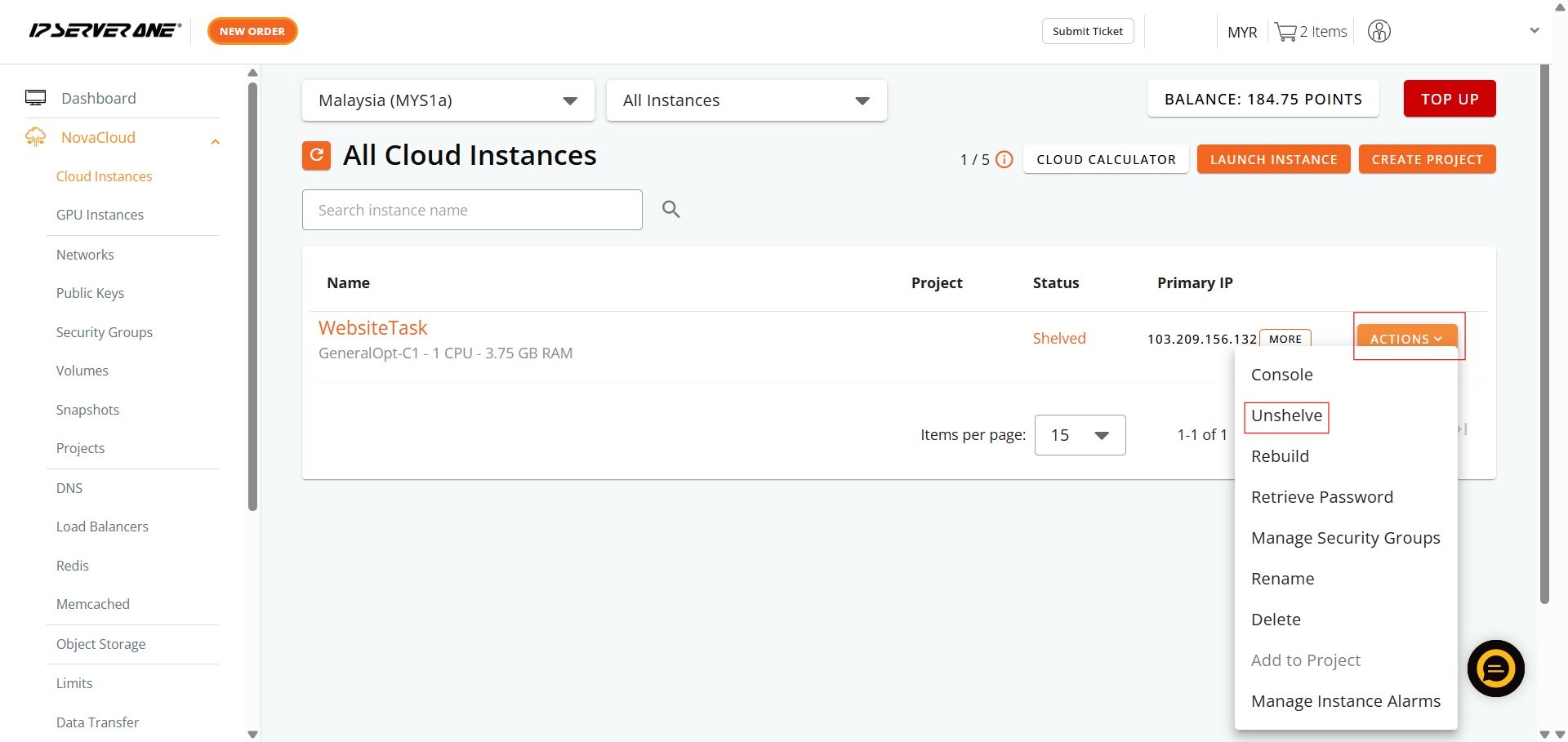
- Find the shelved instance, click Action, and select Unshelve from the dropdown menu.
- Check the instance list to confirm that the status updates back to Active.
Conclusion
By following this guidance, you can efficiently manage the lifecycle of your Cloud Instances in the IPServerOne Customer Portal by shelving idle servers to optimize resources and unshelving them whenever they are needed.
For additional assistance or if you encounter any issues, please contact our support team at support@ipserverone.com.
Article updated on 14 August 2026 by Johnny