
Search Our Database
How to create an Email Account in cPanel
Introduction
Setting up an email account in cPanel is essential for managing business or personal communications directly from your domain. This guide provides a step-by-step approach to creating a new email account within your cPanel, allowing you to send, receive, and organize emails under your custom domain in just a few simple steps.
Prerequisite
- Access to your cPanel account.
- Your cPanel login credentials.
Step-by-step guide
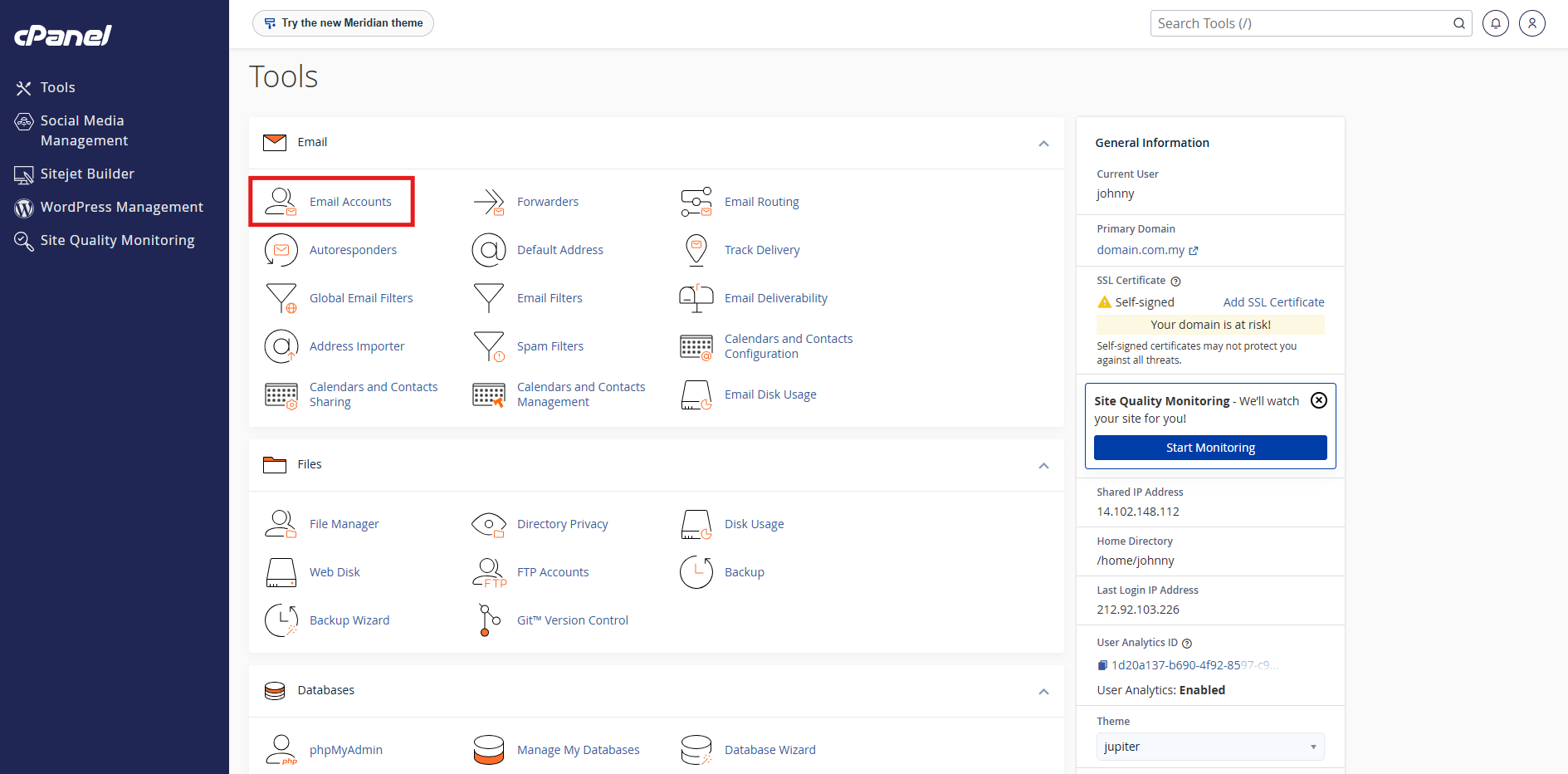
Step 1: Navigate to the Email Accounts icon
- Login to cPanel and select the Email Accounts icon located in the Email section.
Step 2: Provide the desired Email Address
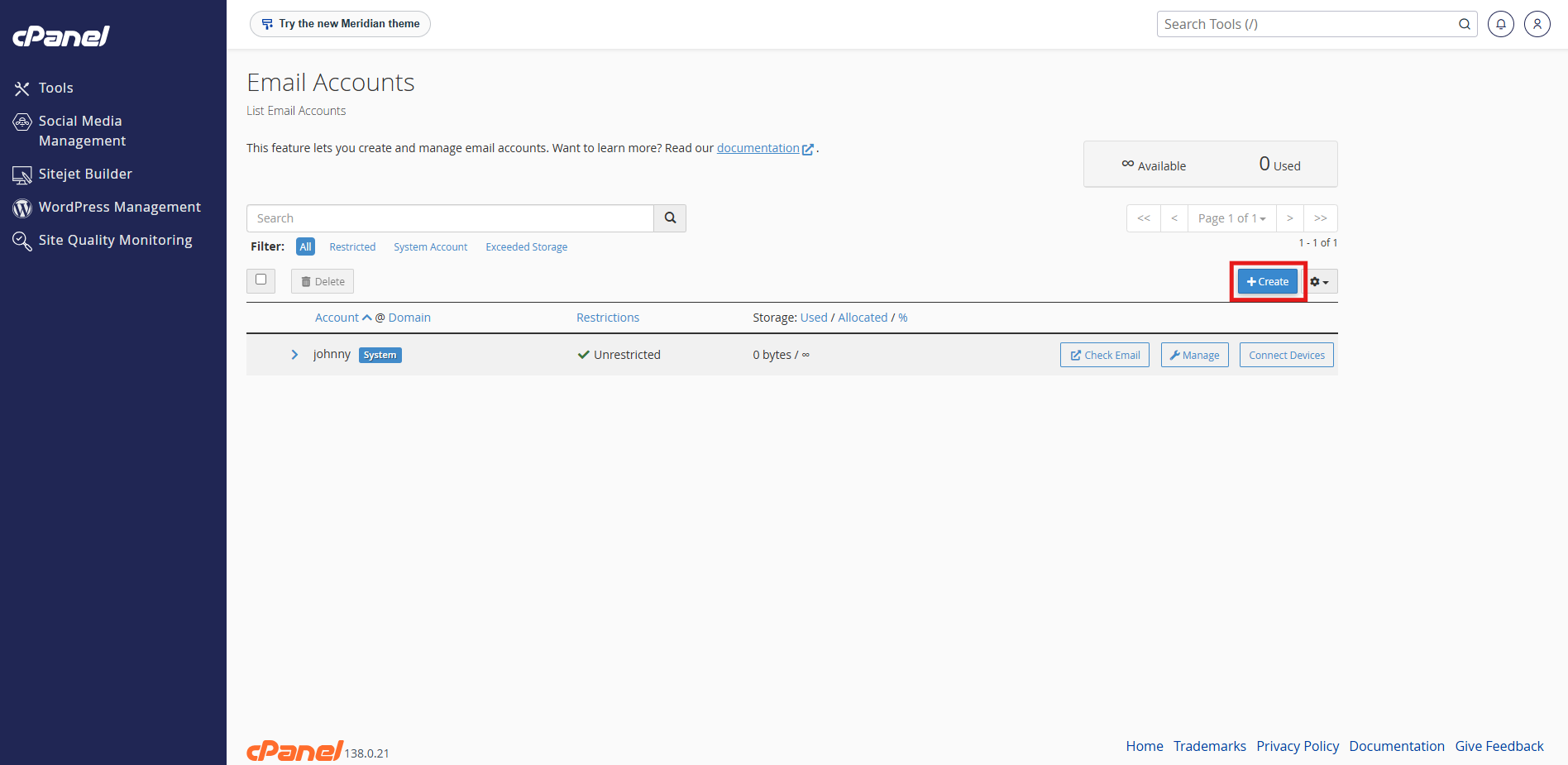
- First, click on + Create.
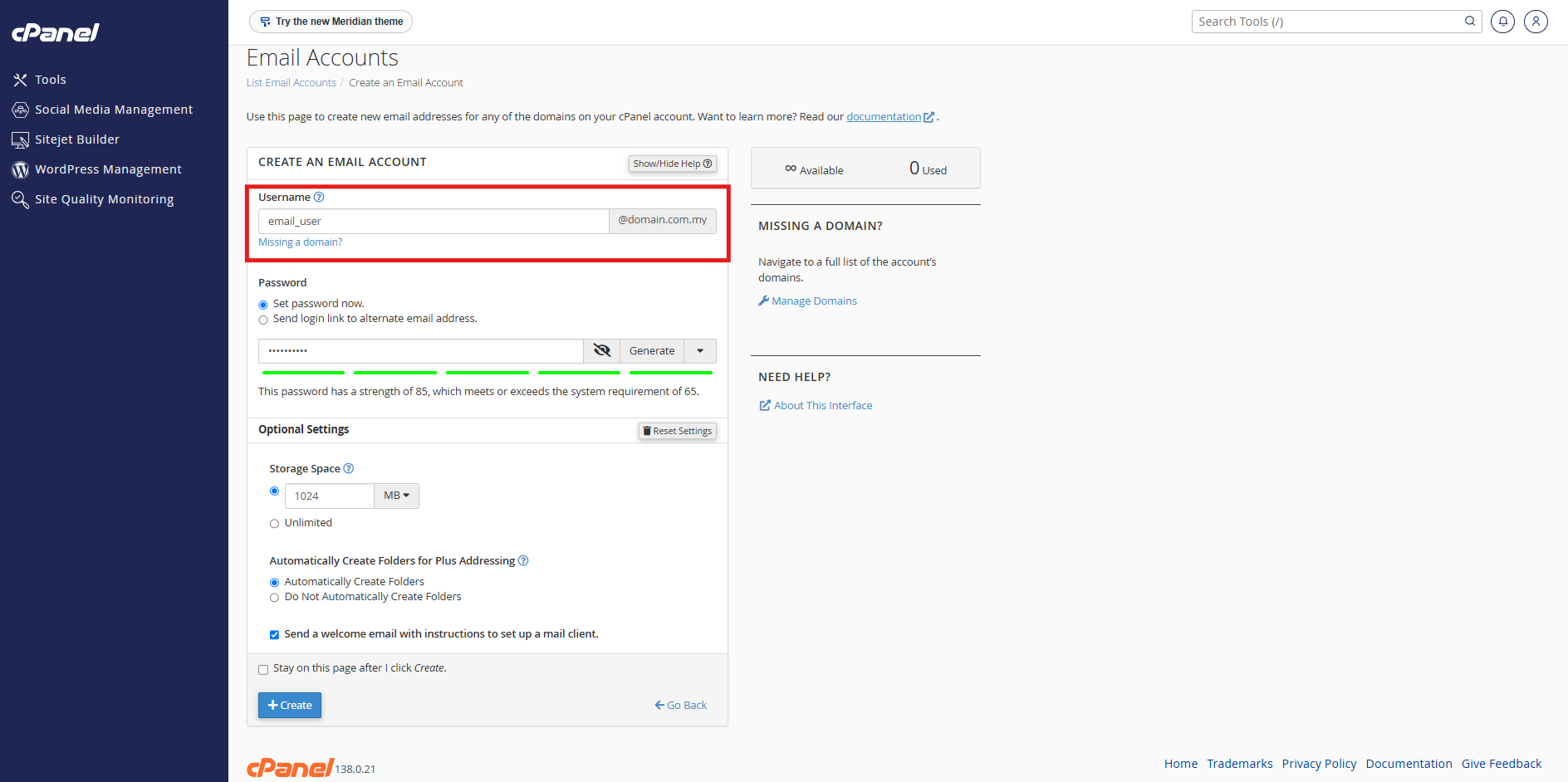
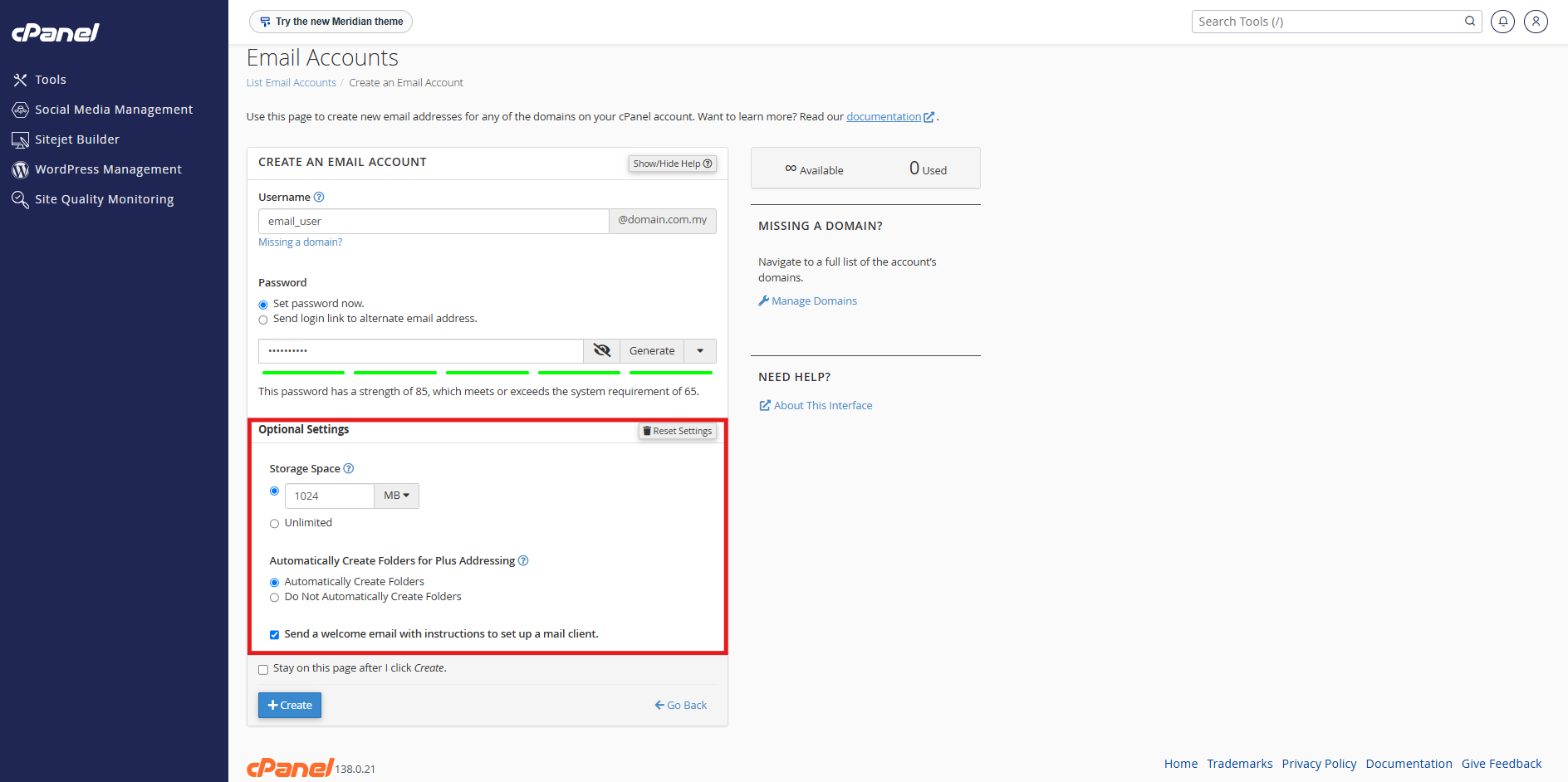
- Username: Enter the username that you want to use before the “@” symbol. Your email address will start with this username (username@domain.com).
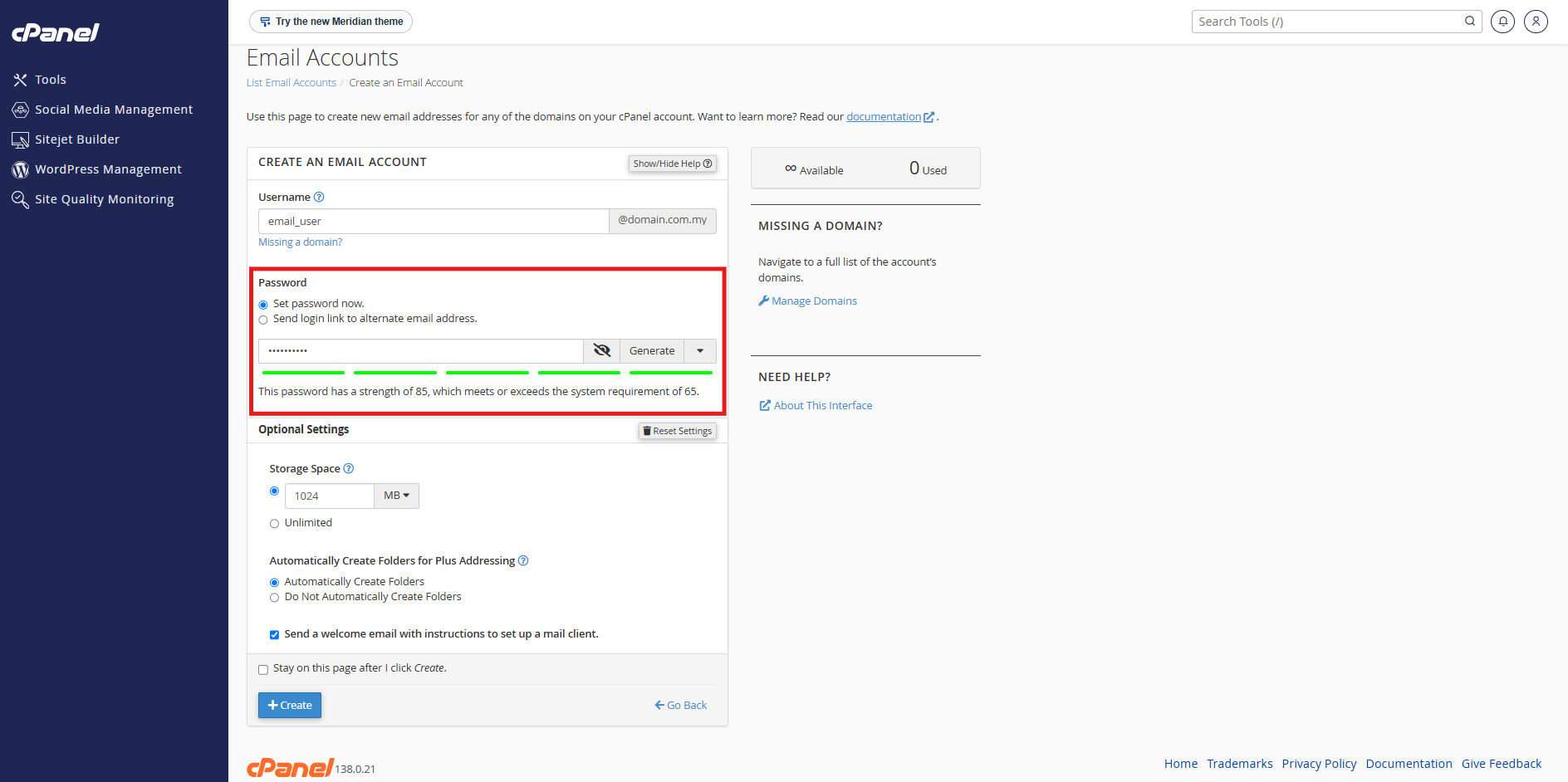
- Password: Choose a strong password for your email. The Strength Bar will display the quality of your password. Alternatively, you may click on Generate to let cPanel generate a secure password for you.
Step 3: Select your Mailbox Quota
- Optional Settings: Click on Edit Settings. If you often send large files via email, you may want to increase the Storage Space or even choose “Unlimited” if your hosting plan permits.
Step 4: Confirmation of Email Account Creation
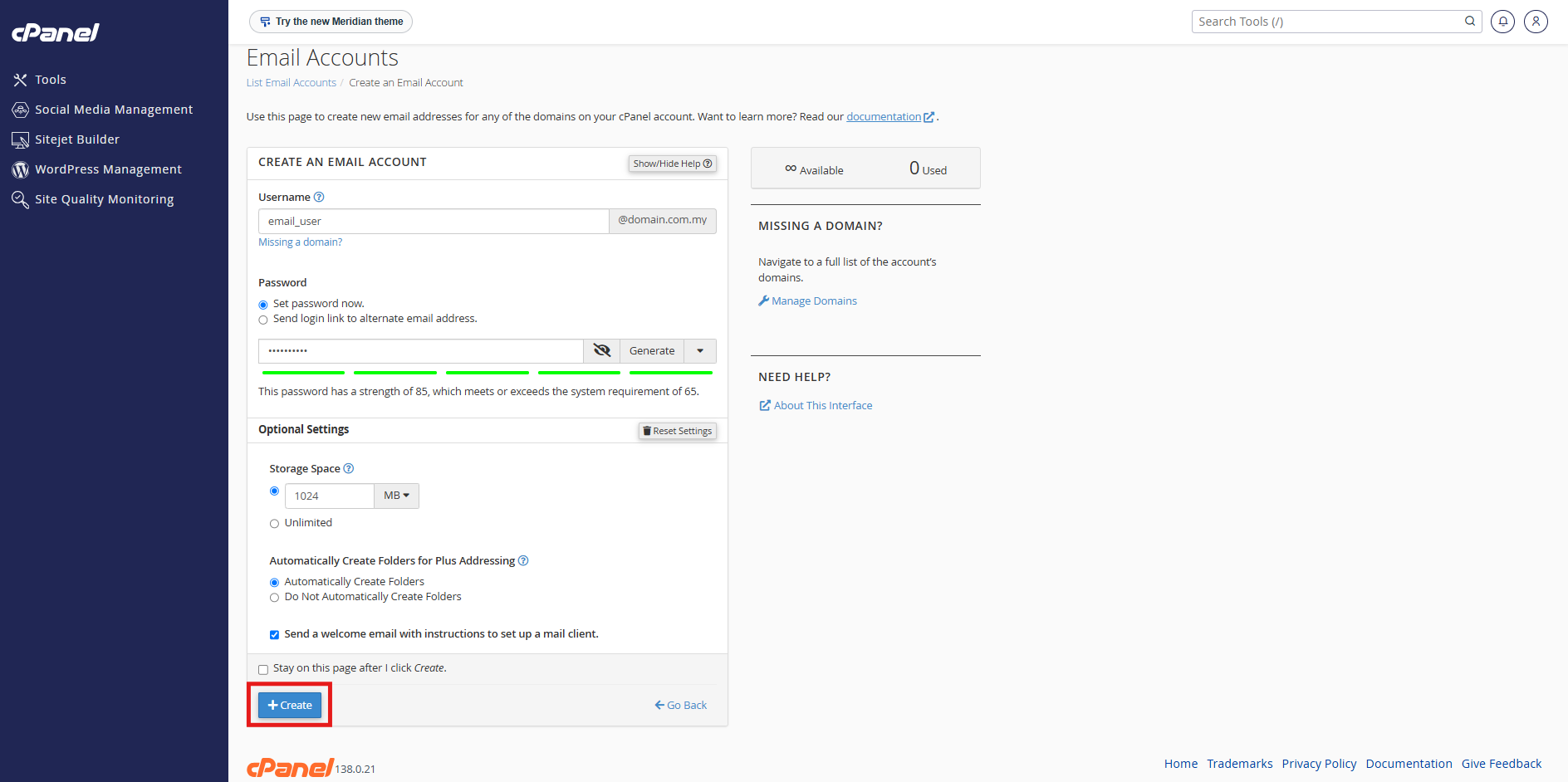
- After configuring your mailbox quota in cPanel, proceed to click on + Create.
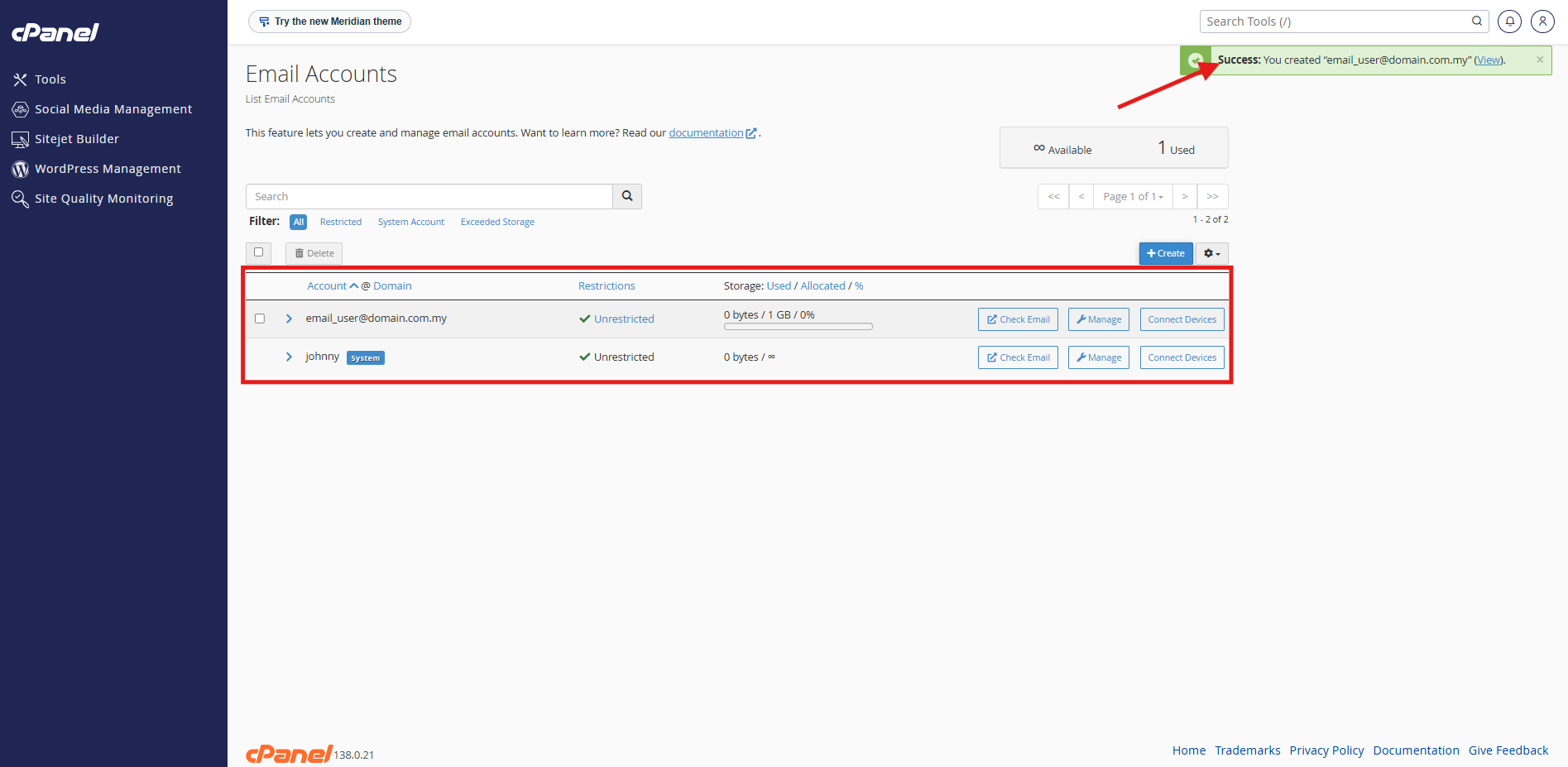
- Upon clicking + Create, a confirmation message will appear indicating the successful creation of the account.
- Once the email account is set up, you have the option to check email, manage email and connect devices for the email account.
Conclusion
By following this guidance, you can create a new email account in cPanel and configure its mailbox quota to suit your needs. Remember to maintain regular password updates and monitor your account for optimal security and efficiency.
For additional assistance or if you encounter any issues, please contact our support team at support@ipserverone.com.
Article updated on 11 November 2026 by Johnny