
Search Our Database
How to resize Cloud Instance in Customer Portal
Introduction
Rescaling your cloud instance is essential for ensuring your applications have the necessary power and capacity to run smoothly and efficiently. This guide provides step-by-step instructions for users of all experience levels to easily adjust their virtual server’s resources within NovaCloud via the IP ServerOne Customer Portal.
Prerequisite
- Register and log in to your Customer Portal account.
- Active cloud instances deployed within your account.
- Back up critical data before performing server operations involving a restart.
Step-by-step Guide
Step 1: Navigate to Instances
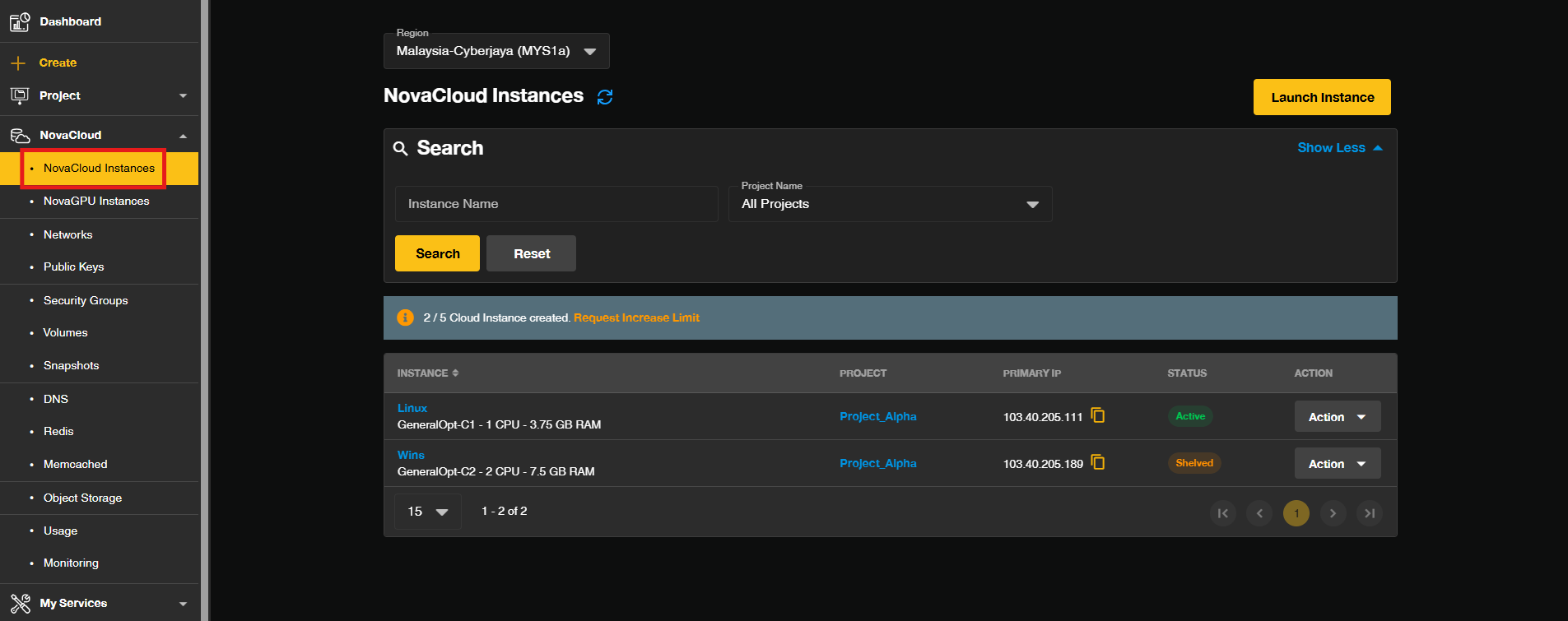
- Once logged in to [IPServerOne Customer Portal], select NovaCloud from the main menu and open the NovaCloud Instances section.
Step 2: Select the Resize Option
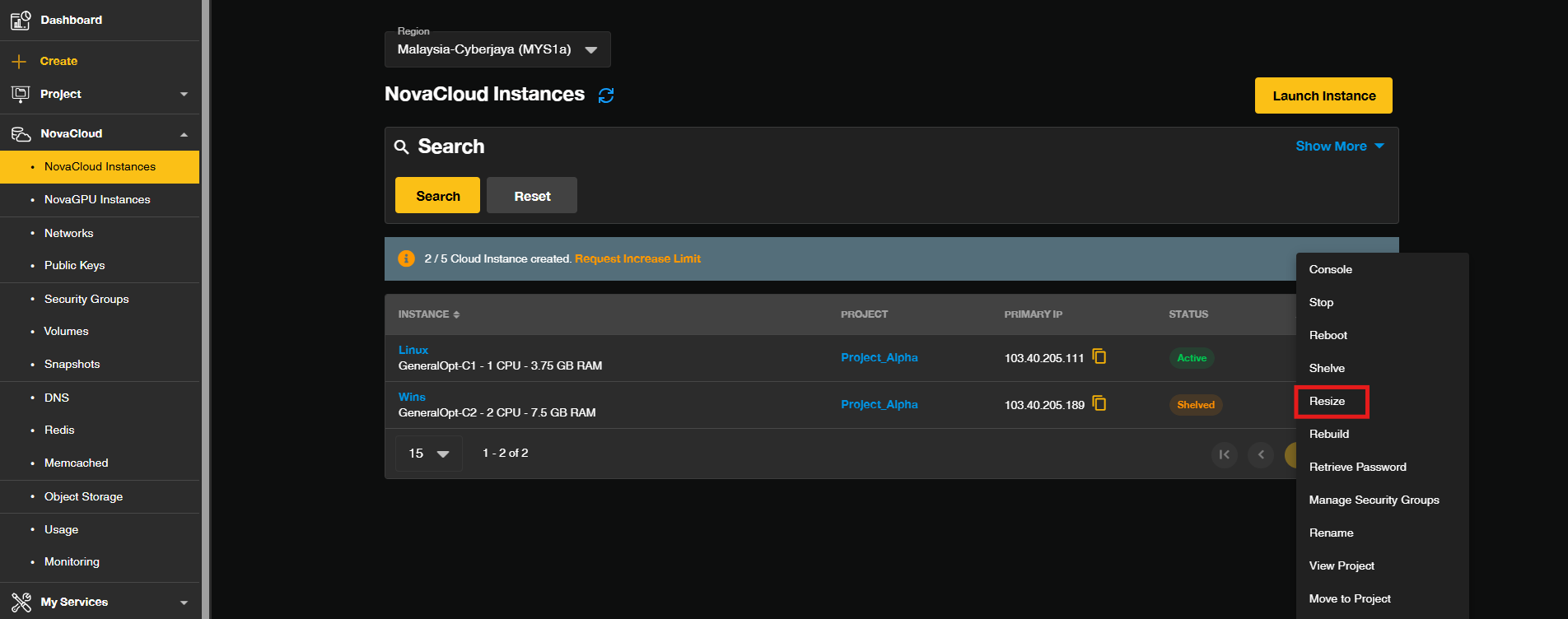
- Click the Action dropdown on the instance you want to resize and select Resize.
Step 3: Choose Target Flavor
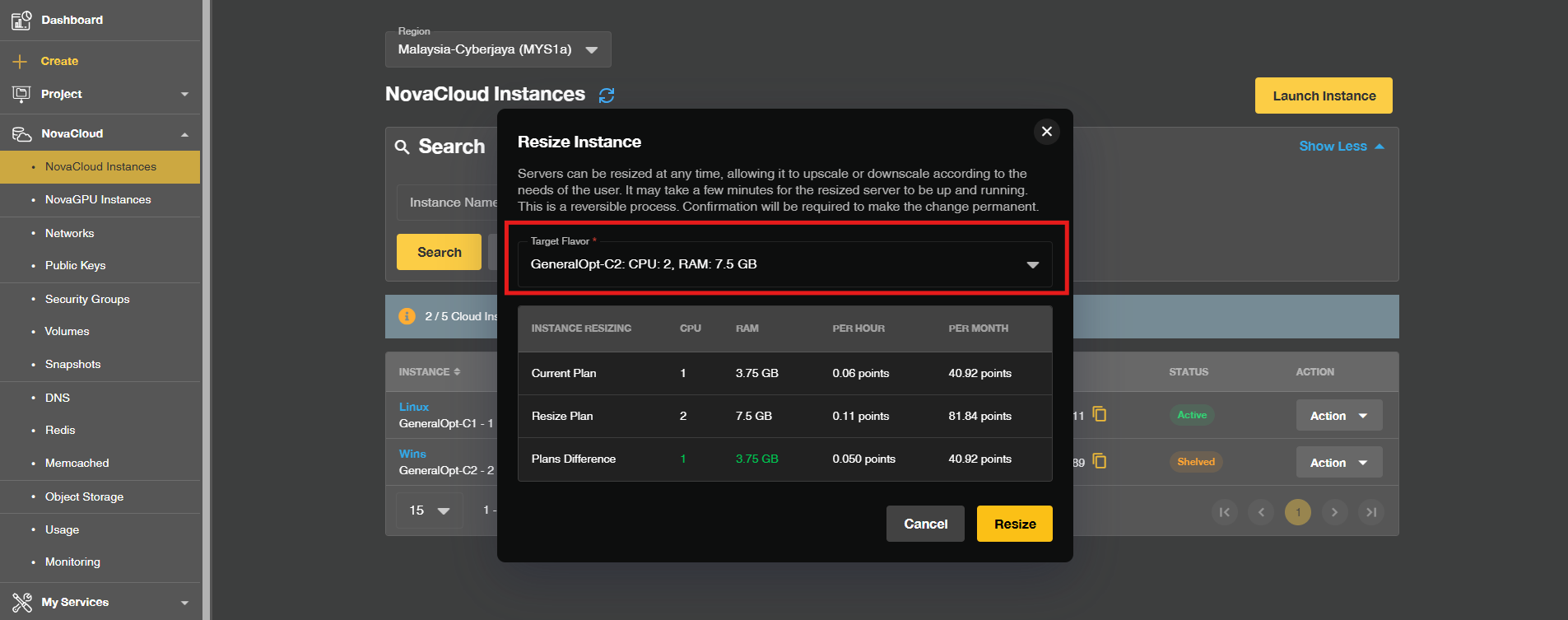
- A pop-up window will appear showing your current plan. Click on the Target Flavor box to choose your new preferred plan from the dropdown menu.
Step 4: Review and Resize
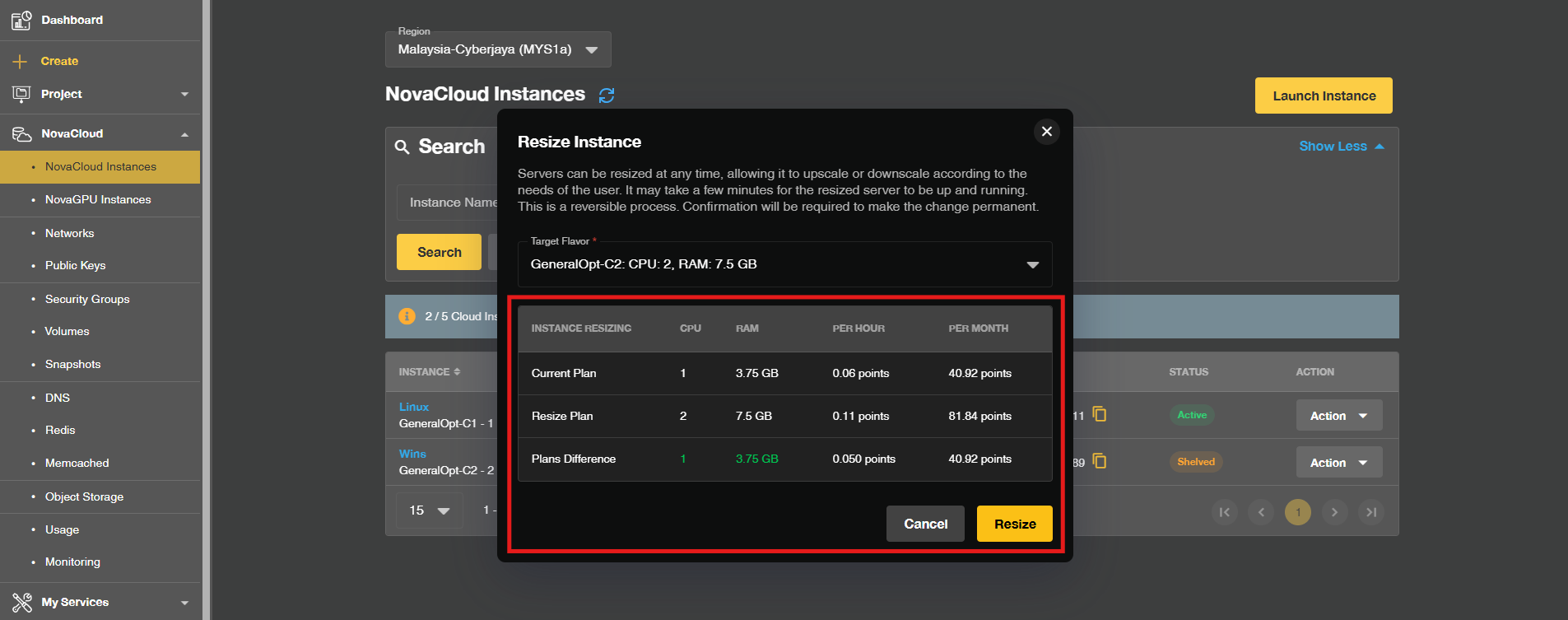
- The updated charges per hour and per month will be displayed. If you are satisfied with your selection, click Resize to proceed.
Step 5: Confirm the New Plan
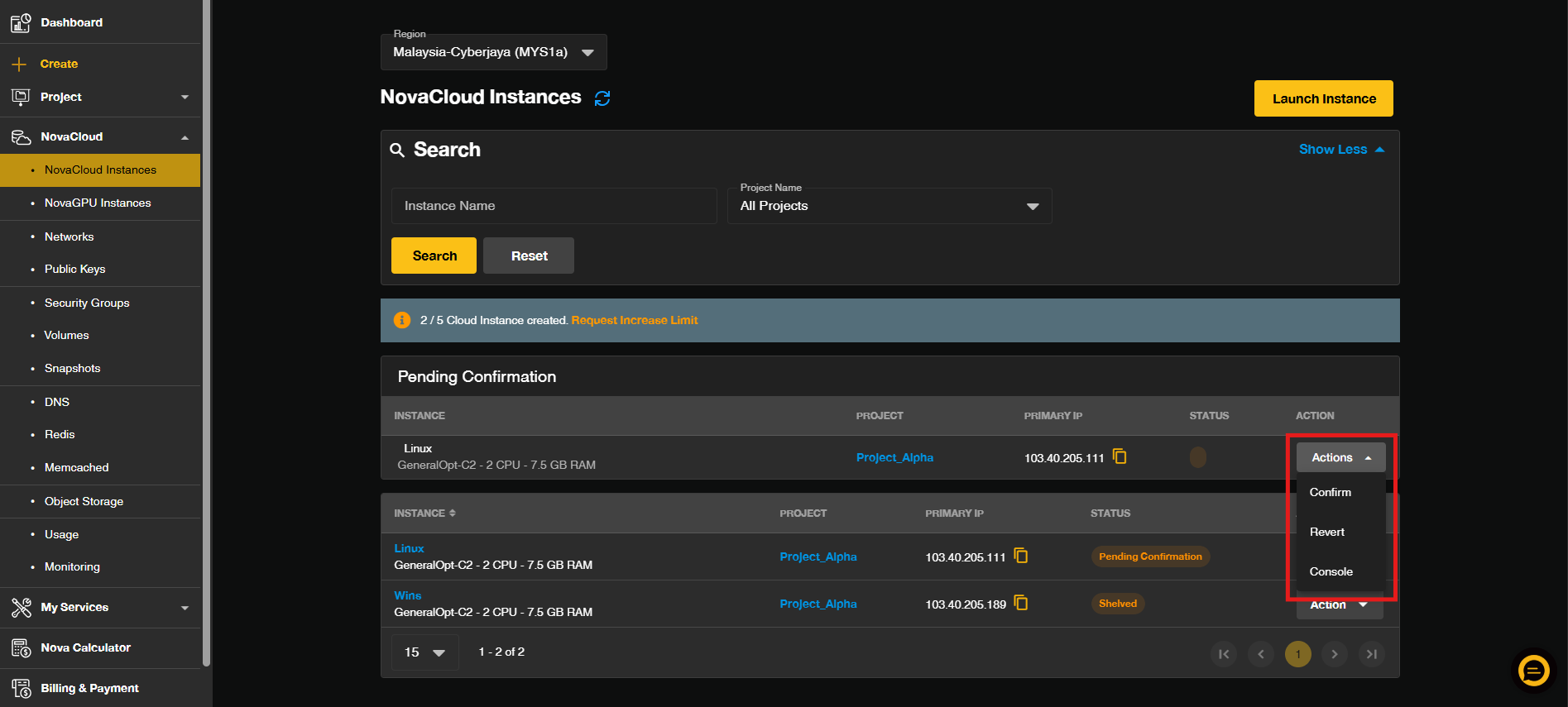
- Your instance will enter a queue for pending confirmation.
- To finalize the new plan, click Confirm (or click Revert if you decide not to proceed). Once confirmed, a success message will appear and your updated plan will be displayed accordingly.
Conclusion
By following this guidance, you can successfully rescale your cloud instance resources to match changing performance demands efficiently.
If you have any questions or encounter any issues, please feel free to reach out to our support team at support@ipserverone.com.
Article updated on 28 October 2026 by Johnny