
Search Our Database
NovaCloud | Restrict Access to NovaCloud using Security Group in Customer Portal
Introduction
Restricting access to your NovaCloud instance is a fundamental step in securing your cloud infrastructure, and the IP ServerOne Customer Portal makes this straightforward through Security Groups. This guide explains who should apply IP restrictions (anyone administering a NovaCloud instance), what to configure (security group rules limited to trusted IPs), when to do it (before or after exposing services), where (entirely within the Customer Portal), why (to prevent unauthorized access to administrative and application ports), and how (by creating a security group, adding inbound rules scoped to your trusted IPs, and assigning it to your instance).

Prerequisite
- Access to the IP ServerOne Customer Portal where your NovaCloud instance is hosted
- Appropriate permissions to manage NovaCloud networking and security configurations
- Basic knowledge of server ports, protocols, and network traffic requirements
Important Note⚠️: Ensure that any modifications to inbound and outbound rules do not inadvertently block administrative access ports such as SSH (Port 22) or RDP (Port 3389).
Impact / Considerations:
- Risk of Lockout: If the rule is misconfigured or your IP changes unexpectedly, you may lose access.
- Dynamic IP Users: If your IP changes often (like with home internet, dynamic IP), consider using VPN to maintain consistent access with fixed egress IP.
- Security: Open necessary ports only and setup the security group securely
What is Trusted IP?
A trusted IP refers to an IP (IP address or CIDR block) that has been explicitly identified as safe, permitted and authorized to access a resource.
Trusted IP configurations are relevant in scenarios, such as:
- Restricting administrative access to corporate infrastructure (e.g., SSH, RDP)
- Controlling access to APIs or web applications backend
- Enforcing compliance policies that require network-level restrictions
What is Security Group?
If an IP address is not explicitly allowed in a security group rule, traffic from that IP is denied by default.
Security group is a set of rules attached to NovaCloud instance that defines:
- Inbound rules
- Outbound rules
Each rule based on:
- Protocol (e.g., TCP, UDP)
- Port range (e.g., 22 for SSH, 443 for HTTPS)
- Source IP or CIDR block (the trusted IPs)
Best Practices
- 0.0.0.0/0 allows access from any IP address on the internet, it’s acceptable for public web traffic (e.g., ports 80 and 443)
- Avoid opening access to 0.0.0.0/0, it should NEVER be used for administrative ports like:
- SSH (22)
- RDP (3389)
- Database ports (e.g., 5432 for PostgreSQL)
- Use Private IP Ranges for Internal Services such as databases or internal APIs, limit access to private subnets only (e.g., 10.0.0.0/16)
- Use narrow CIDR blocks (/32) for single IPs, when possible
- Review and Audit Regularly – whether unused rules can be removed, update trusted IP lists
- Pair with other security measures such as MFA, VPNs and role-based authentication for added security
Step-by-step guide
Step 1: Identify your Public IP Address
- Before creating rules, identify the public IP address you will trust. In this example, my Public IP Address is 212.92.103.198.
- Browser: Visit [My Public IP Address]
- Terminal:
curl https://ipinfo.io/ip
Step 2: Navigate to Security Group
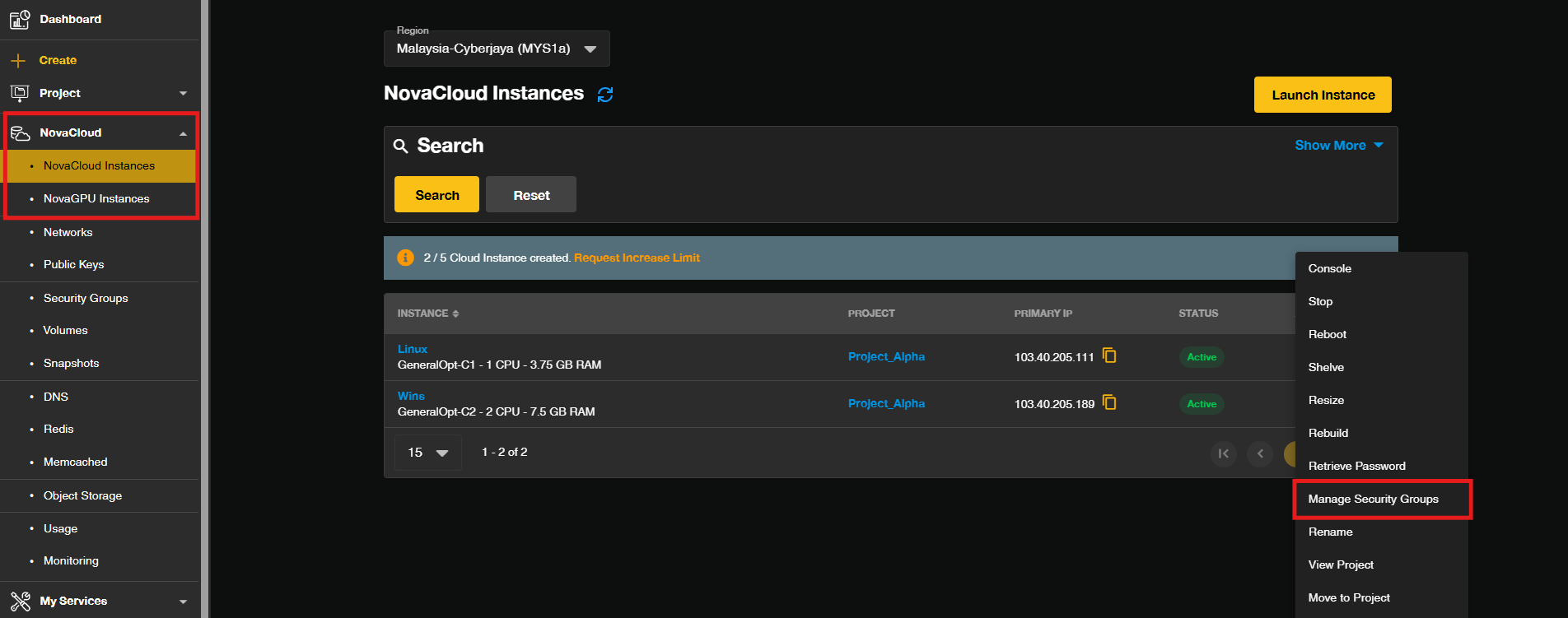
- Locate your cloud instance from the dashboard by navigating to NovaCloud > Instances. Select your target instance name, or click on the actions menu and select Manage Security Groups.
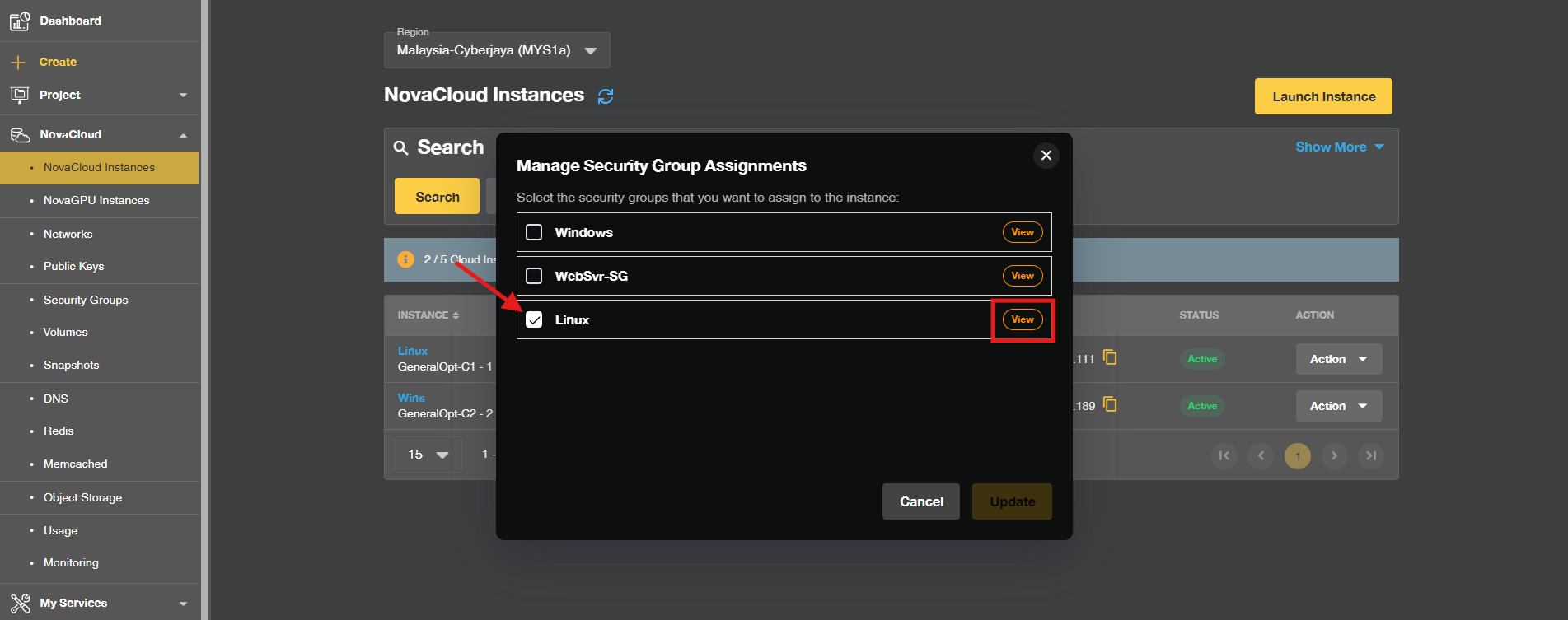
- Click View to access the assigned Security Group of your instance.
- If there is no Security Group assigned to the instance or you wish to create a new Security Group for the running instance.
To create new Security GroupClick on Create Security Group. Enter a descriptive name for your security group in the name field and click Create.Tips🖊️: Check the box to copy rules from an existing security group if needed.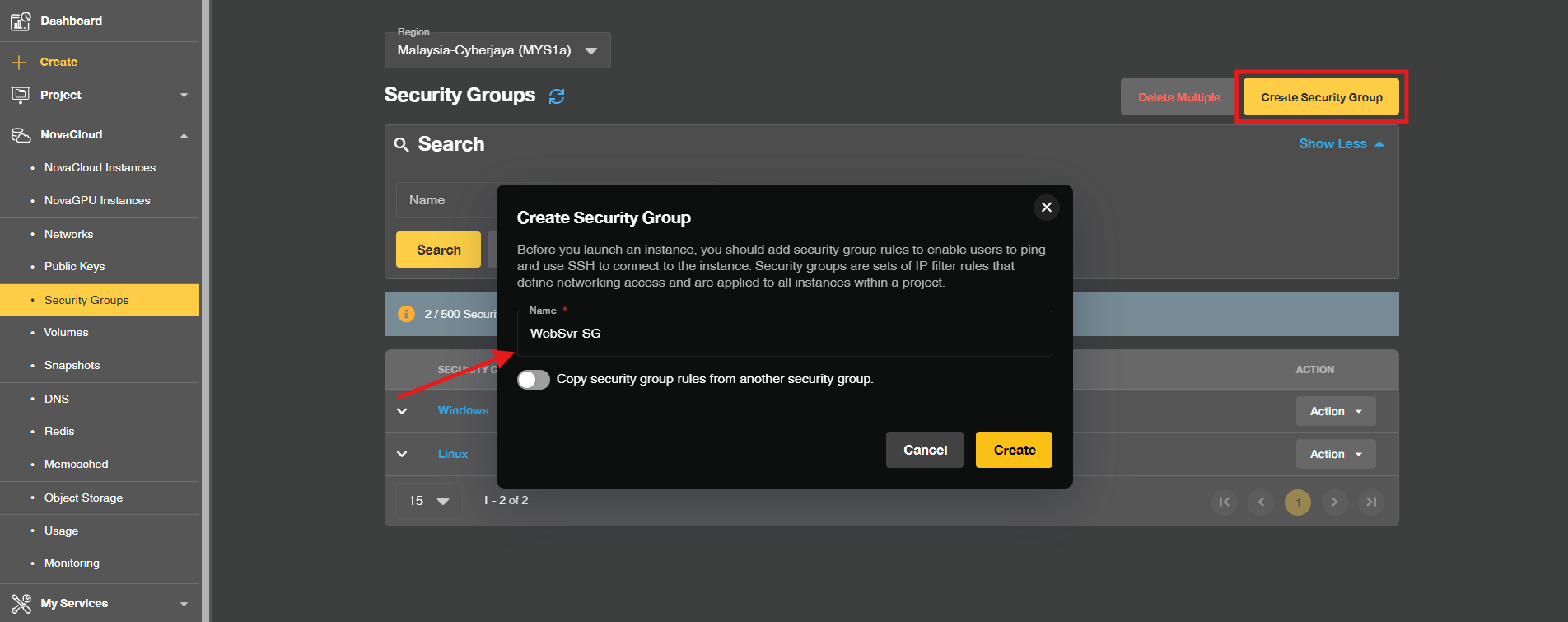
Click Skip for now to skip the assigning the Security Group to any instance.
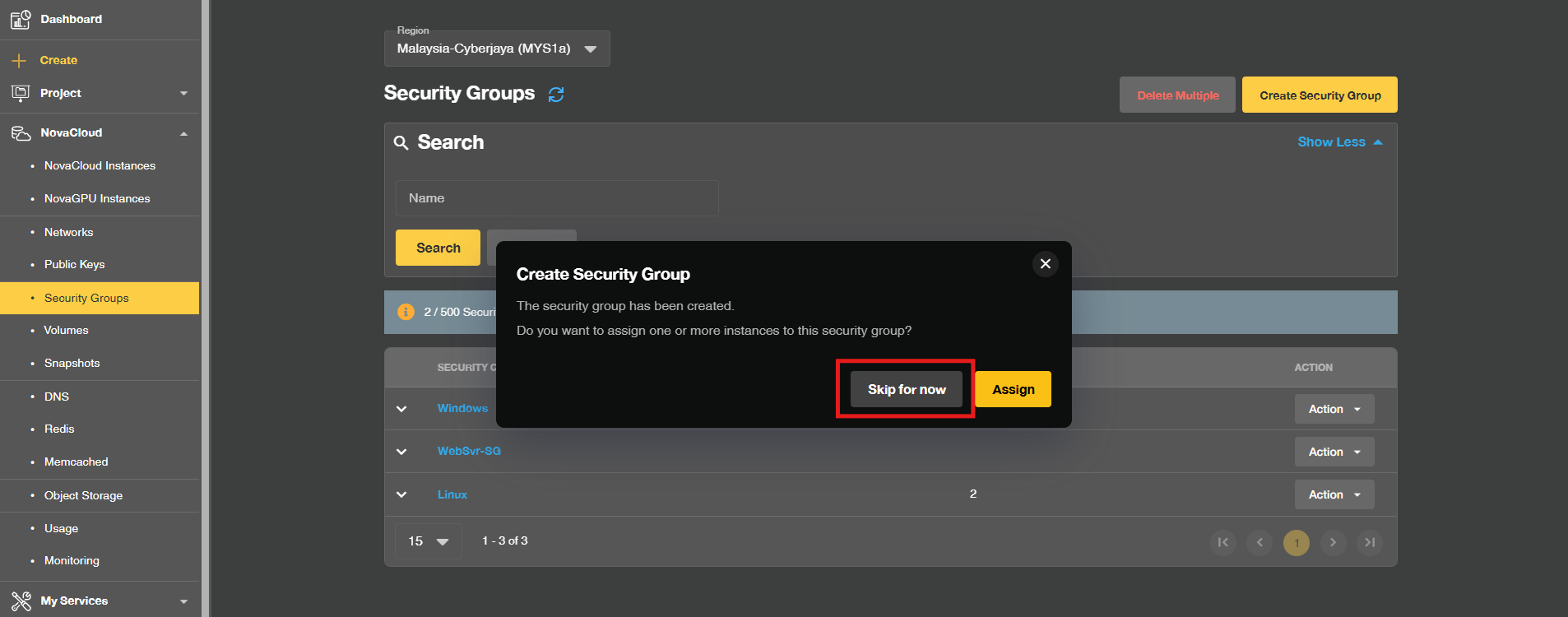
- If there is no Security Group assigned to the instance or you wish to create a new Security Group for the running instance.
Step 3: Adding Inbound Rules to allow trusted IPs only
- Click on Create Rule to create new rules.
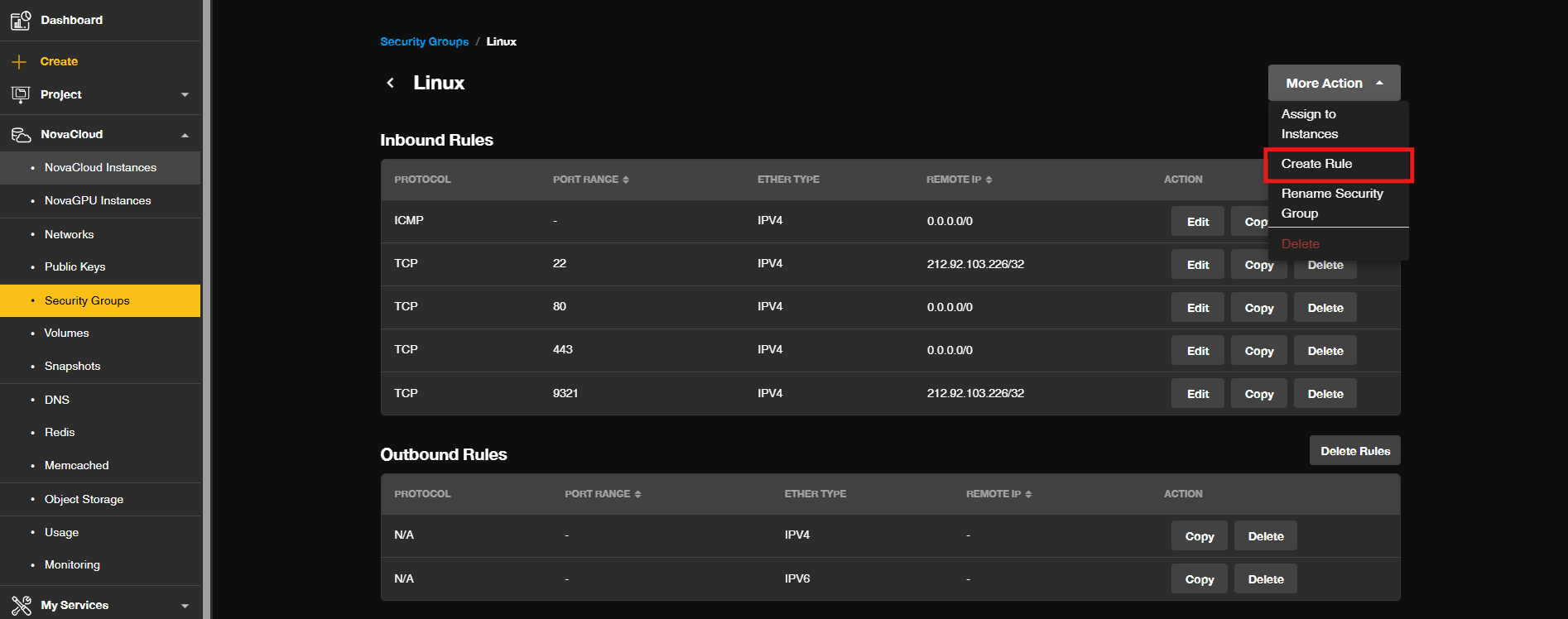
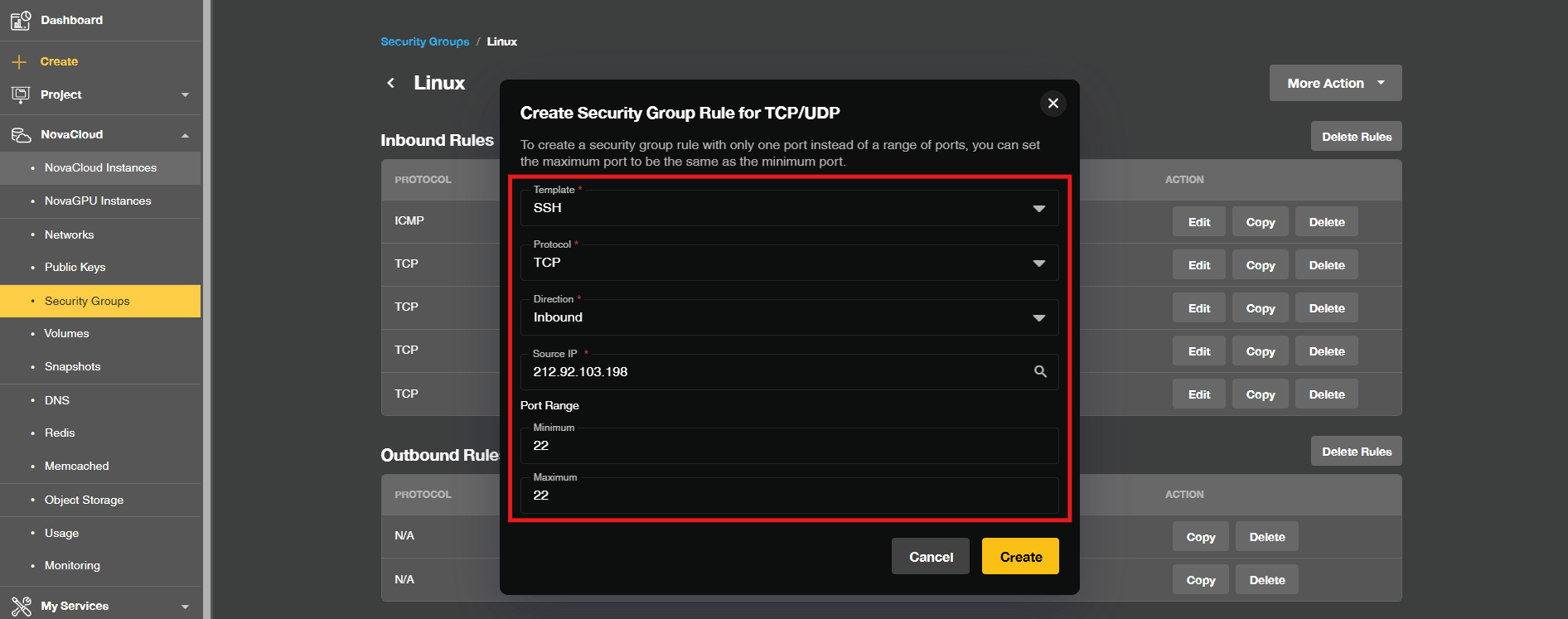
- Define traffic permissions then fill in the following:
- Template: Select a common template (such as HTTP, HTTPS, SSH, RDP) or choose Custom for custom ports
- Protocol: Choose the network protocol, typically TCP
- Direction: Set the direction to Incoming
- Source IP: Enter your trusted IP or CIDR block (e.g., 212.92.103.198)
- Port Range: Enter the minimum and maximum port numbers for your service
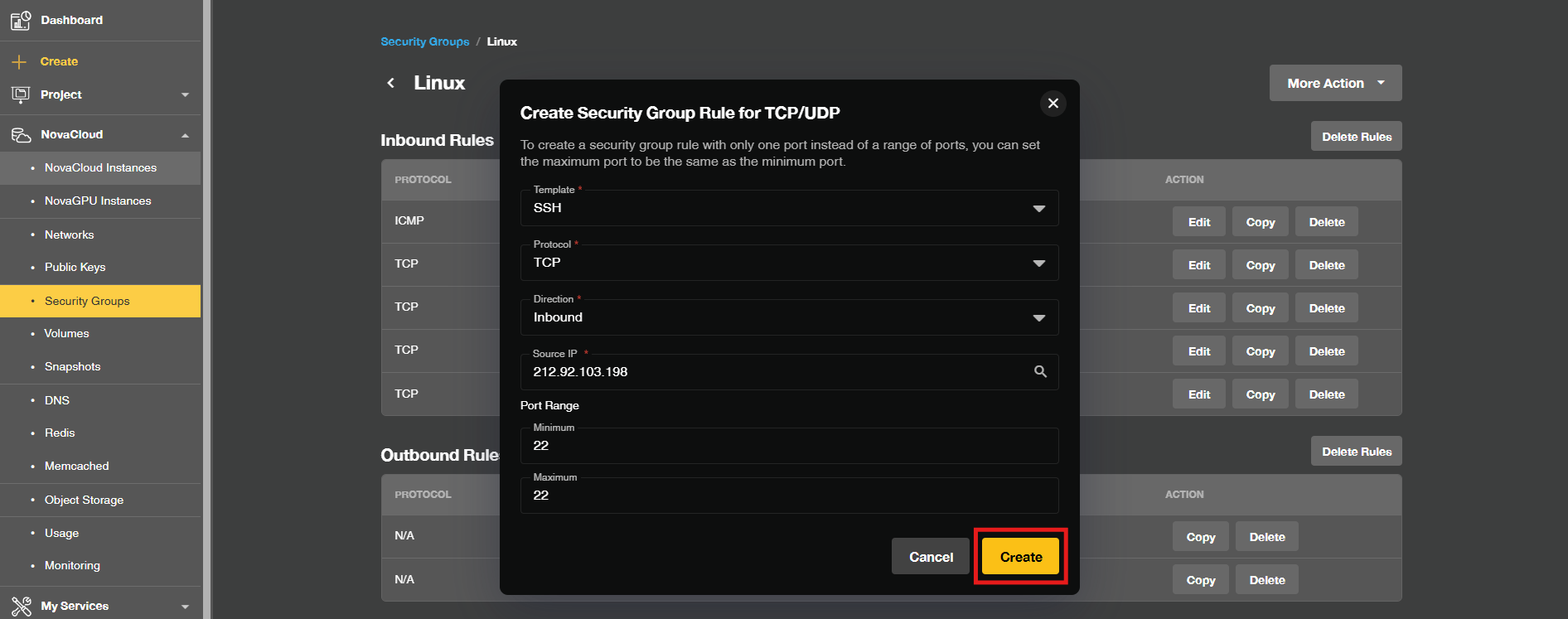
- Click Create to save the rule. You will see the newly created inbound rule.
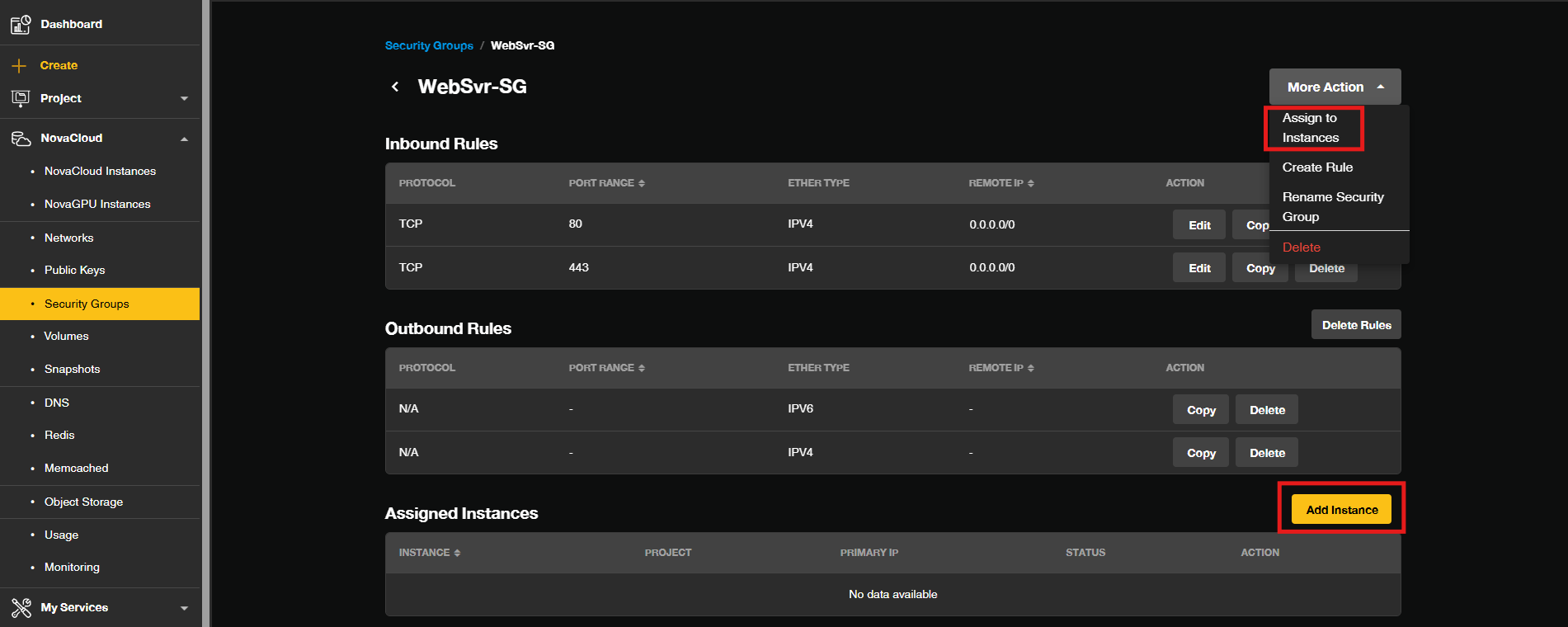
- If the Security Group was newly created, you will need to assign it to the running instance, then unassign the Security Group that no longer needed.
To assign new Security Group to running instanceThere are 2 ways to assign the Security Group to running instances in Customer Portal: in the security group managing site and the instance managing site.
-> Security Group managing site: Click Assign to Instances or Add Instance, then select the instance(s) you wish to apply the security group to.
-> Instance managing site: Navigate to your instance management page, locate the security group settings, and add the newly created security group.
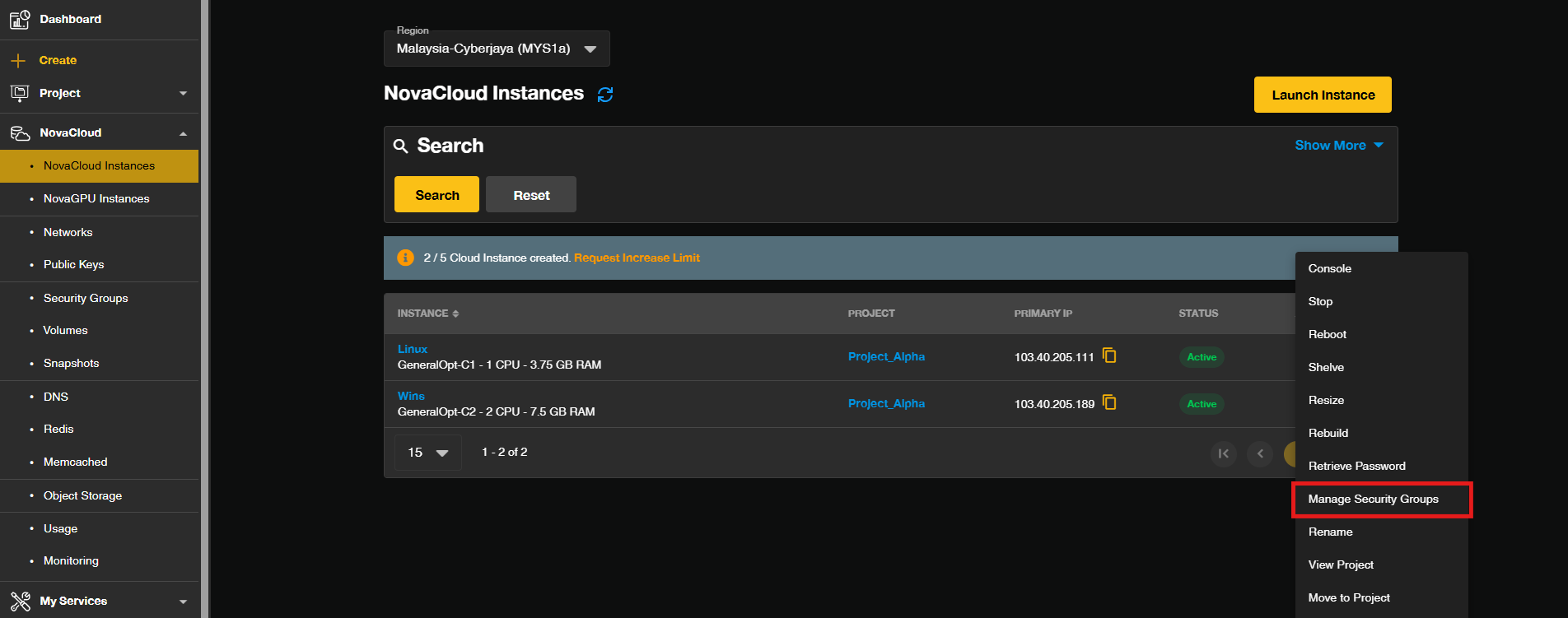 Then, unassign the Security Group that no longer needed on the running instance.
-> Security Group managing site: Click on Detach to unassign the security group from instances.
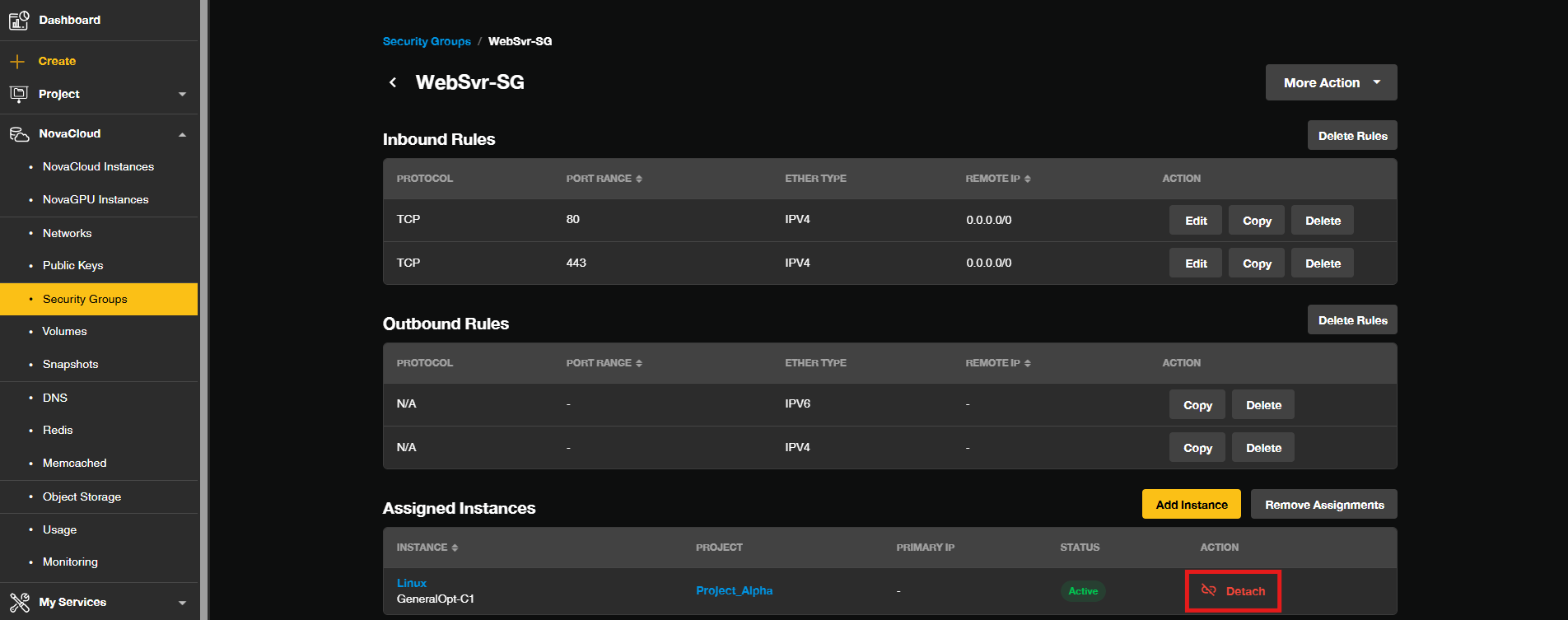
-> Instance managing site: Uncheck the instances to unassign the security group then select Update.
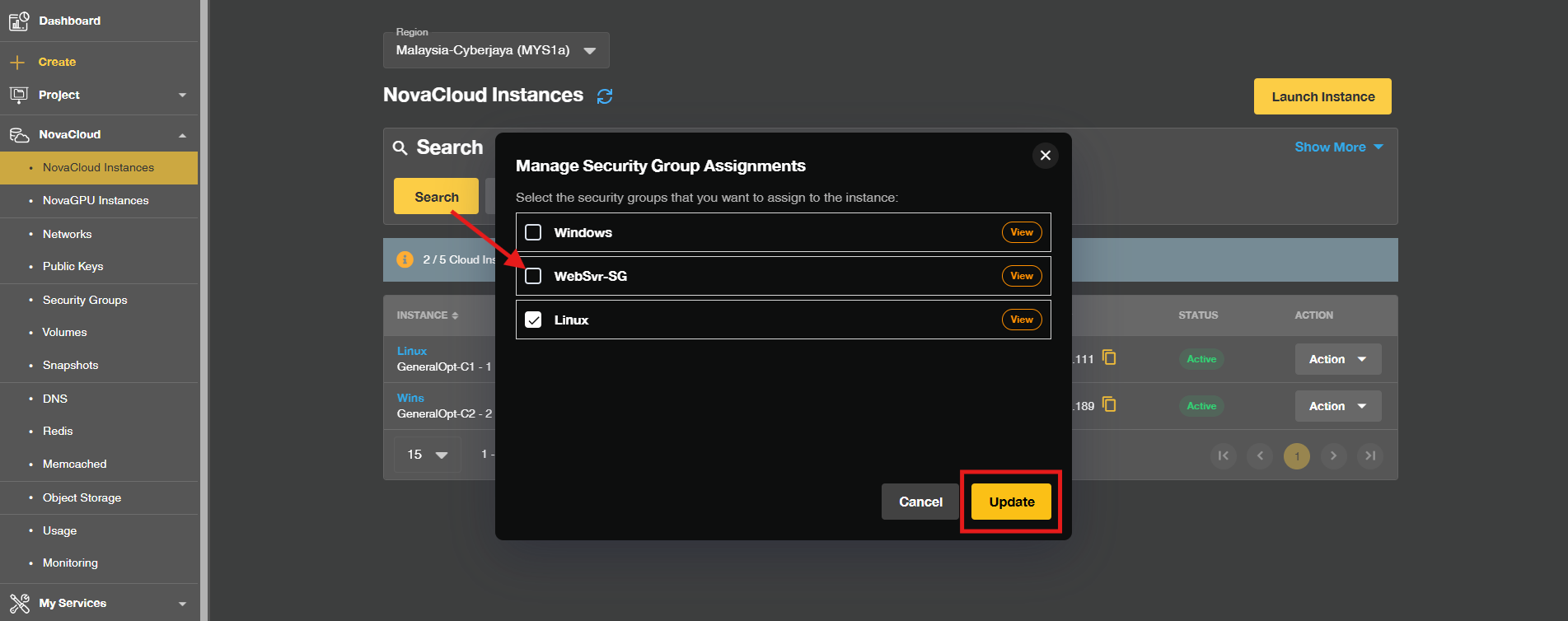
- If the Security Group was newly created, you will need to assign it to the running instance, then unassign the Security Group that no longer needed.
- Once assigned, only traffic from the trusted IPs defined in your rules will be able to reach the instance on the specified ports.
Conclusion
By following this guidance, you can restrict access to your NovaCloud instance in the Customer Portal by creating a security group, adding inbound rules scoped to trusted IPs only, and assigning it to your instance, ensuring that administrative and application ports are never exposed to untrusted sources.
Through technology, we learn. Through sharing, we connect.
Explore more guides at https://kb.ipserverone.com/
For technical support / service enquiries, please reach out to support@ipserverone.com for assistance.
Article updated on 02 November 2026 by Johnny