
Search Our Database
How to set up Default Address (Unrouted Email) in cPanel
Introduction
A default address (also known as a catch-all address) receives emails sent to invalid or nonexistent email addresses on your domain, ensuring no messages are lost due to typos or incorrect addresses. This guide walks you through how to set up a default address in cPanel, choose how unrouted emails are handled (discard with or without sender notification, forward to another account, or forward to your system account), and modify the configuration later.
Prerequisite
- Access to your cPanel login page.
- Basic understand on the email routing process.
- Set up a default address for each of your domains to ensure you receive all email for your domain.
- The default address may receive messages for your existing email addresses if they contain typos.
- Check your default address regularly to avoid missing important messages.
- If spammers target your domain and you forward mail to a default address, that address may receive a large amount of spam.
- Domain forwarders override the domain’s default address.
- Default addresses are not the same as the system default email account. The system default email account is used as the sender of system or script-generated messages.
Step-by-Step Guide
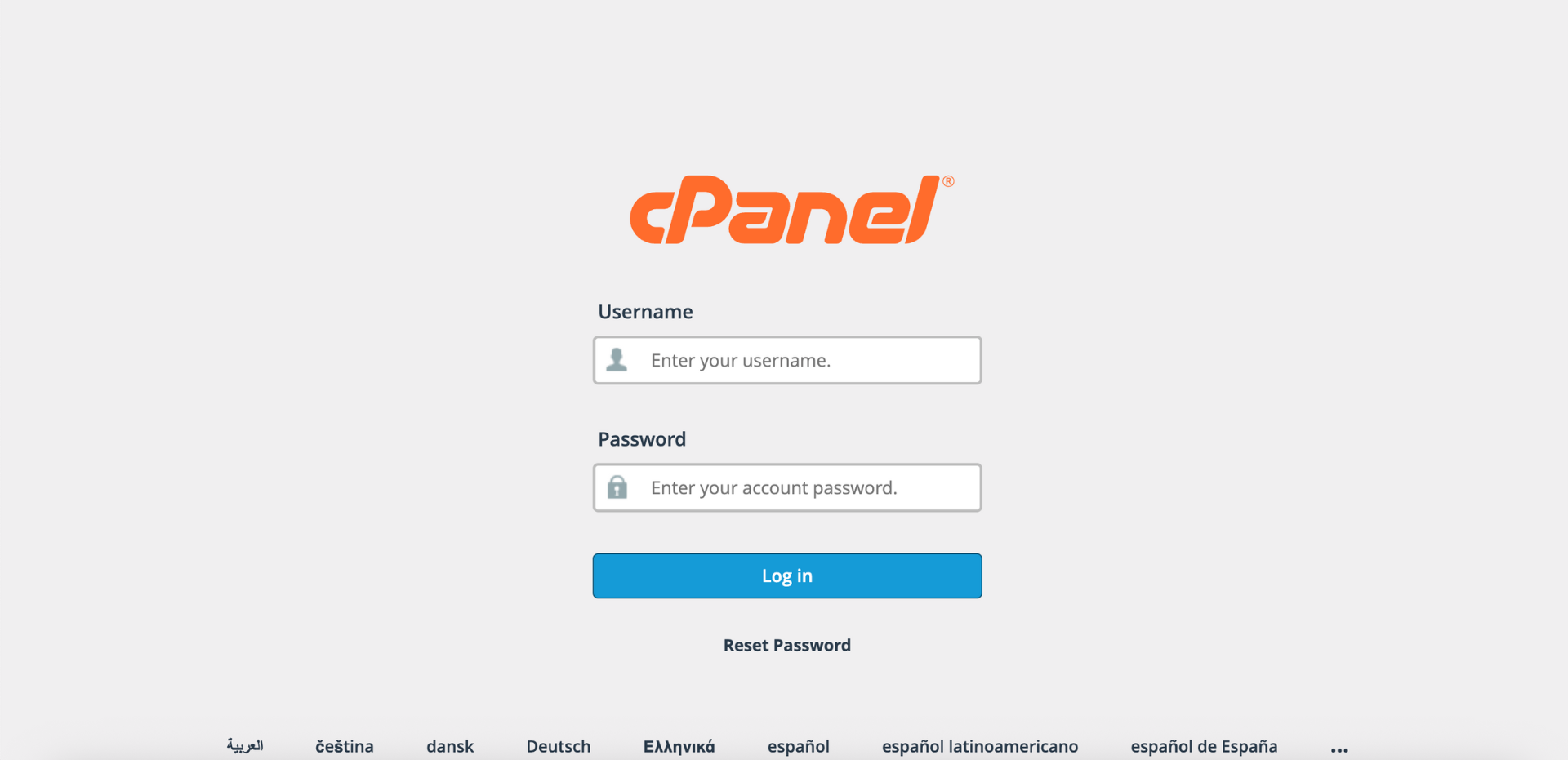
Step 1: Log in to cPanel
- Access your cPanel account using your username and password.
Step 2: Open Default Address
- In the Home page, under the Email section, click Default Address.

Step 3: Select Your Domain
- Under the Send all unrouted email for the following domain dropdown menu, select the domain for which you wish to set up the default address.

Step 4: Choose Your Default Address Configuration
- Select one of the following options based on your needs. Click Advanced Options to reveal Forward to your system account, Pipe to a Program, and Discard (Not Recommended).
Tips🖊️: To modify an existing default address, simply repeat these steps — select the domain, choose a different option or update the settings. Your new configuration takes effect immediately.

- Select the Discard the email while your server processes it by SMTP time with an error message option.
- In the Failure Message (seen by sender) text box, enter a custom error message that the sender will receive. For example: “The email address you are trying to reach does not exist. Please verify the address and try again.”

- This is the recommended method when you don’t need to review catch-all messages: emails are rejected before being stored, and legitimate senders get an immediate bounce-back that helps them correct addressing errors.

- Select the Forward to Email Address option.
- In the Forward to Email Address text box, enter the email address where you want to receive unrouted emails.

- This ensures emails sent to invalid or nonexistent addresses on your domain are captured and forwarded to a monitored email account, preventing message loss due to addressing errors.

- Select the Forward to your system account option. This will automatically forward all unrouted emails to your cPanel system account.

- The system account is your main cPanel email account associated with your username. If spammers target your domain, your system account may receive a large amount of spam.

- Select the Discard (Not Recommended) option.

- This will delete all incoming messages to invalid addresses without sending any failure notice to the sender. Senders who mistype an email address will not know their message was not delivered, and no record of the discarded emails is kept. This setting is only advisable if you are receiving excessive spam and have exhausted other spam prevention methods.

Step 5: Save Changes
- Review your settings, then click Change to apply the configuration.

Step 6: Verify Changes
- A confirmation message will appear indicating the default address has been updated.
- Additionally, you may send a test email to an invalid address on your domain to verify that the default address is working as configured.
Conclusion
By following this guidance, you can set up, configure, and modify a default address (unrouted email) in cPanel. Configuring a default address ensures that emails sent to invalid or nonexistent addresses on your domain are properly handled, whether by forwarding them for review or rejecting them with appropriate notifications. This helps prevent message loss and improves email communication reliability.
If you encounter any issues or require further assistance, please reach out to our support team at support@ipserverone.com.
Article updated on 16 November 2026 by Johnny