
Search Our Database
How to login to your Windows Server via RDP
Introduction
For server administrators and authorized users needing to manage their remote environment, learning how to connect to a Windows Server via Remote Desktop Protocol (RDP) is an essential task. This method allows you to access and control your remote server’s desktop interface securely from your local computer at any time using a dedicated RDP client application. This guidance details the straightforward process of establishing a remote desktop session so you can easily manage applications, files, and server configurations as if you were physically sitting in front of the machine.
Prerequisite
- The public IP address or hostname of your Windows Server
- The server user login credentials and RDP port (Port 3389 as default RDP port)
- The RDP Port is allowed on server’s firewall or network security groups
Step-by-step guide
Connect Using Windows OS
Use the built-in Remote Desktop Connection utility on your local Windows computer to establish a secure graphic connection.
- Search RDP in Windows search menu and click on Remote Desktop Connection to launch the utility.

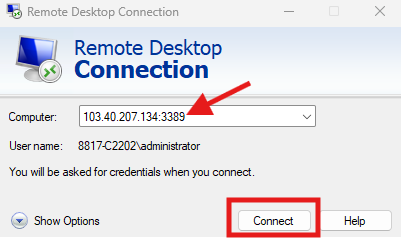
- In the Remote Desktop Connection utility, enter your remote Windows Server IP address in the Computer field, then click the Connect button.
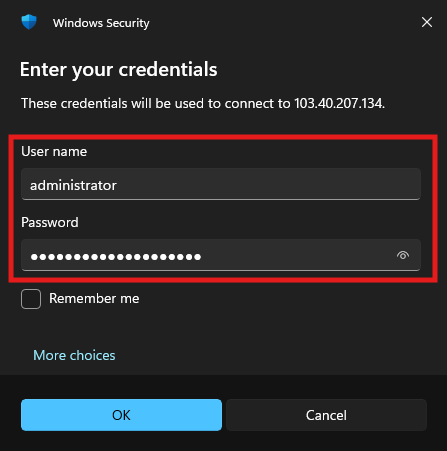
- When prompted for credentials, enter your server’s username (typically Administrator) and the server password, then click OK.
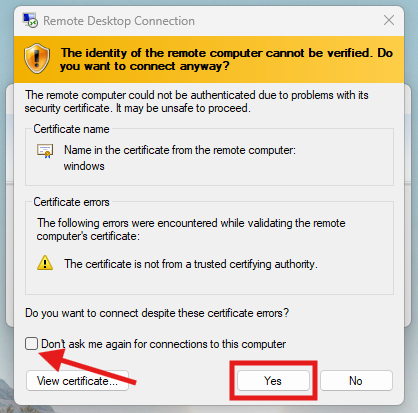
- If you encounter a security certificate warning window, click Yes to complete the connection process.
Tips 🖊️: You may TICK the Don’t ask me again for connections to this computer to stop the message showing on the next or future access.
Connect Using macOS
Use the official Microsoft Remote Desktop application from the Mac App Store to connect to your server from a macOS environment.
- Launch the Microsoft App application on your Mac computer.
- Click on the Add PC option located in the top menu bar.
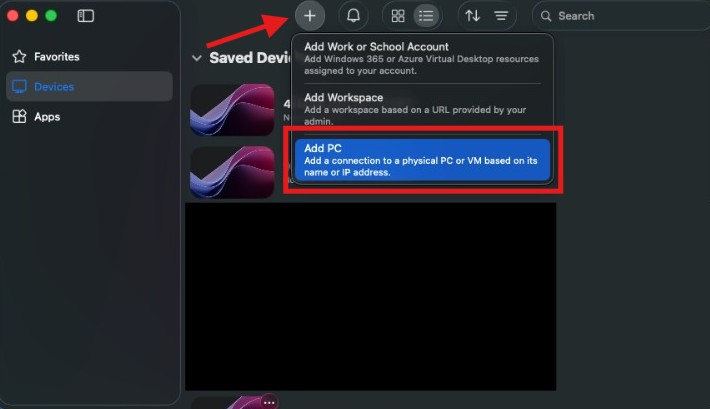
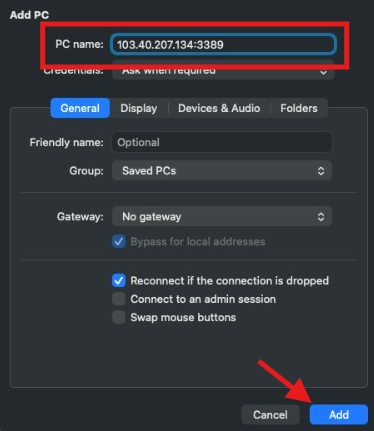
- Enter your server’s IP address in the PC Name field and then click Add.
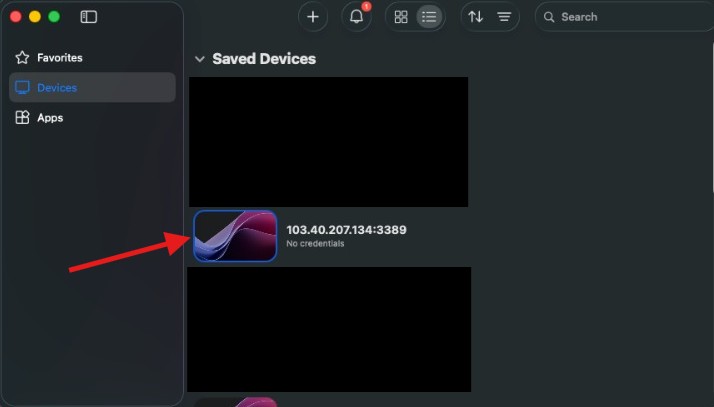
- Double-click the connection card you just created.
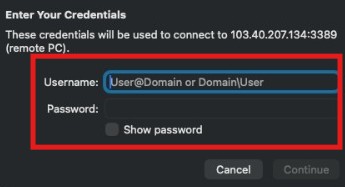
- Input your administrator credentials, and choose Continue to bypass the certificate prompt and start the session.
Conclusion
By following this guidance, you can securely access, manage, and configure your Windows Server using RDP from either a Windows or macOS local machine.
For additional assistance or if you encounter any issues, please contact our support team at support@ipserverone.com.