
Search Our Database
How to automatically sort Emails by using Email Filters in cPanel
Introduction
Email filters in cPanel can automatically sort, delete, redirect, or reject incoming messages for an individual email account based on rules you define — such as sender, subject line, or keywords. This is useful for keeping promotional mail out of your Inbox, routing messages from specific senders into dedicated folders, forwarding inquiries to another address, or bouncing unwanted mail back to its sender. This guide shows cPanel users how to set up each of these automatic actions from the Email Filters interface.
Prerequisite
- Access to your cPanel login page.
- An active email account in your cPanel.
Step-by-Step Guide
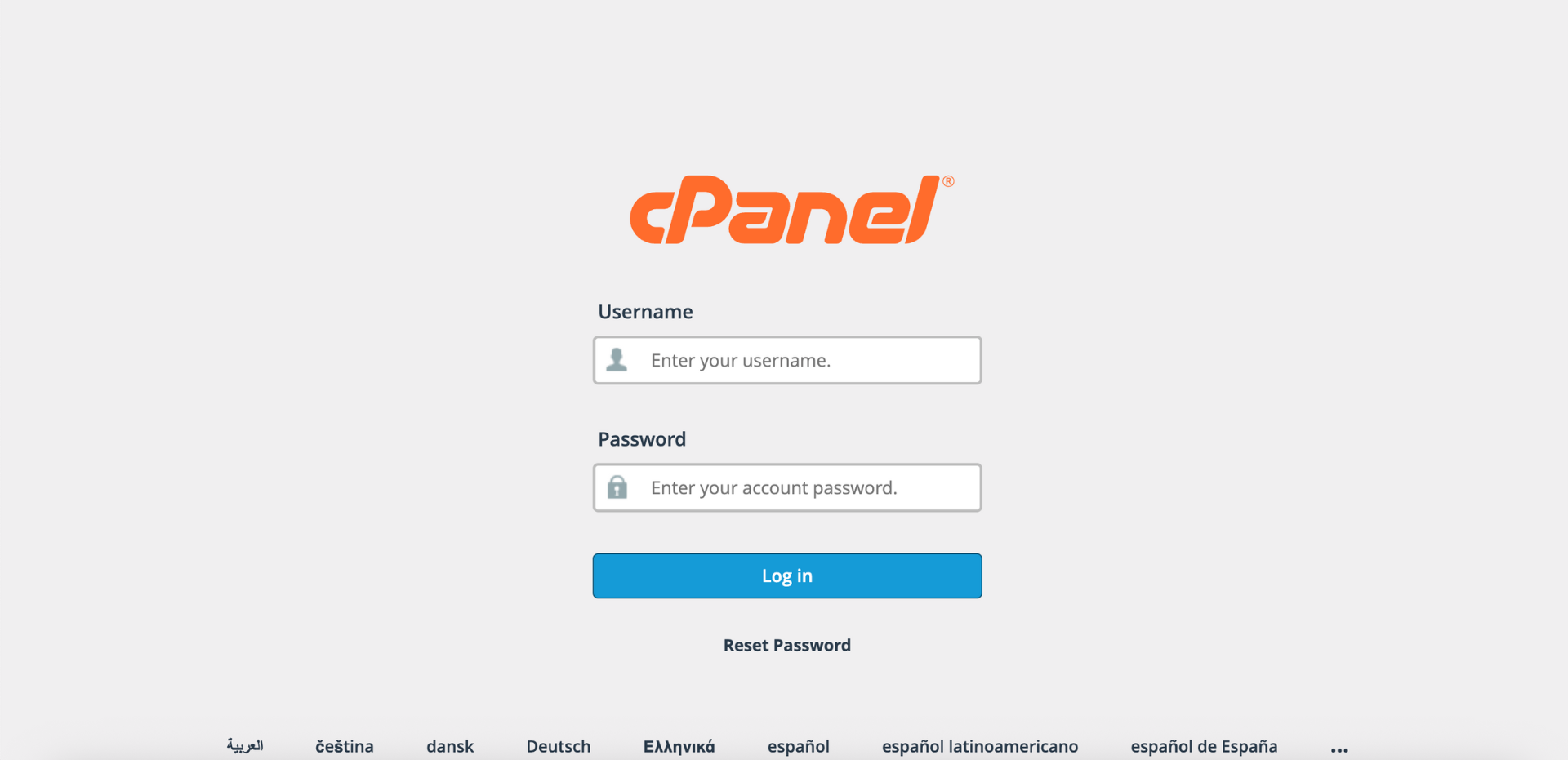
Step 1: Log in to cPanel
- Access and log in to your cPanel account using your username and password.
Step 2: Open Email Filters
- In the Home page, under Email, click Email Filters.

Step 3: Select the Email Account
- In the Filters by Users table, locate the email account for which you want to create the filter. Click Manage Filters next to that email account.

Step 4: Create a New Filter
- Click Create a New Filter.

- Configure the filter:
-> Filter’s Name: The label for your filter (e.g., Block Promo Emails).
-> Rules: Conditions that trigger the filter (like sender, subject, or keywords).
-> Actions: What happens when the rules match (like discard, redirect, or move email). - Each Rules and Actions field includes a dropdown menu. Click the + or – icon to add or remove rules and actions; use AND or OR to decide how multiple rules apply together. Click Create.

- The final step is to choose the Action the filter performs. Expand a section below for the action you want.
- Under Actions, select Deliver to Folder from the dropdown menu.

- Click Browse and select the destination folder: INBOX, Archive, Drafts, Junk, Sent, Spam, or Trash.

- Under Actions, select Discard Message from the dropdown menu.

- Under Actions, select Redirect to Email from the dropdown menu.

- Enter the destination email address in the text field. For example: “abc@gmail.com.”

- Under Actions, select Fail with message from the dropdown menu.
- In the text field that appears, enter your custom error message that will be sent back to the sender. For example: “This email address does not accept unsolicited messages.”

Conclusion
By following this guidance, you can automatically sort, delete, redirect, or reject emails using Email Filters in cPanel, keeping your inbox organized and ensuring messages are handled according to your preferences. Always test your filters to ensure they work as expected and do not accidentally affect legitimate emails.
If you encounter any issues or require further assistance, please reach out to our support team at support@ipserverone.com.
Article updated on 18 November 2026 by Johnny