
Search Our Database
How to Resolve Thunderbird Email Security Pop-up Warnings
Introduction
Mozilla Thunderbird users may occasionally encounter a potential security threat or untrusted connection pop-up warning when launching the application or checking emails. This error typically occurs when the email server’s SSL certificate has expired, the domain name does not match, or the local certificate cache is corrupted. By renewing the expired SSL certificate on the server or clearing the local certificate cache, you can quickly restore your connection. This guide explains how to bypass or permanently resolve these security warnings safely so you can resume sending and receiving emails without interruption.

Prerequisite
- Access to the local computer with Mozilla Thunderbird installed.
- Access to the server or control panel with Admin privilege (if renewing the server SSL).
- Basic knowledge of navigating email client settings.
Step-by-step guide
There are two primary ways to resolve this security error. The first method requires renewing the actual SSL certificate on the server if it has expired and the second method clears the local certificate cache.
Method 1: Renew Expired SSL Certificate
If the SSL certificate on the email server has actually expired, it must be renewed and reinstalled on the server to resolve the security error permanently for all users.
Method 2: Clear Corrupted Old Certificates
Old or expired certificates stored in Thunderbird can cause repeated warnings. Removing them allows the application to fetch fresh certificates.
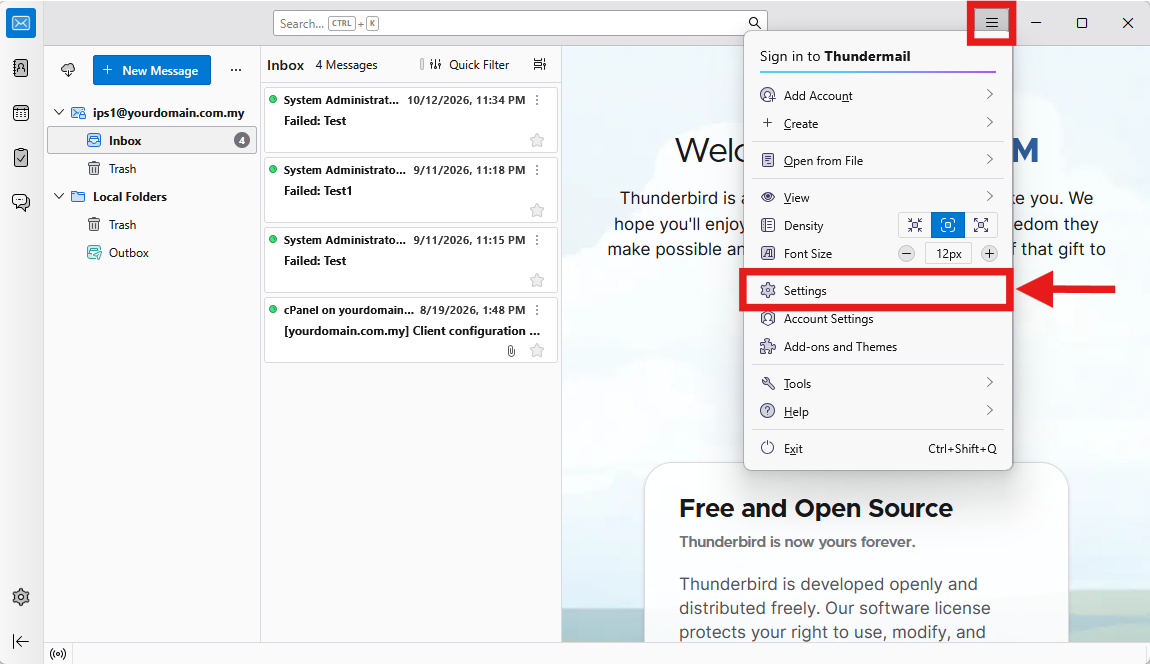
- Open Mozilla Thunderbird and click on the Menu (three horizontal lines) in the top right corner.
- Select Settings from the dropdown list.
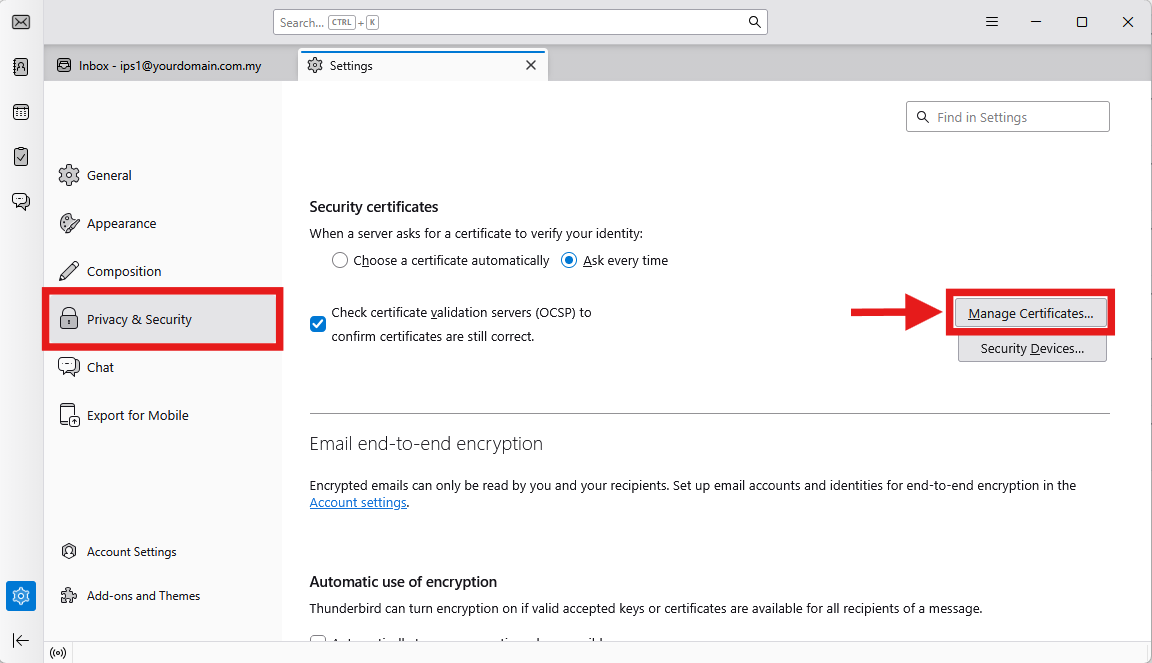
- Navigate to the Privacy & Security tab on the left panel.
- Scroll down to the Security certificates section and click on Manage Certificates….
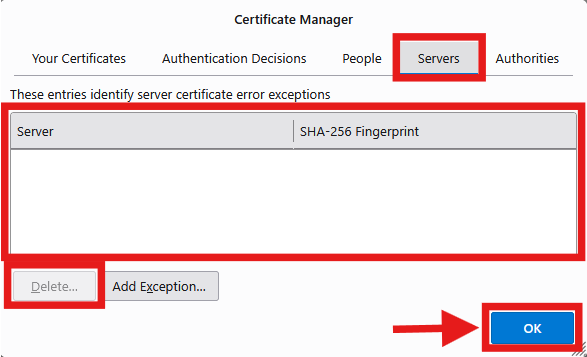
- Go to the Servers tab and locate any old or expired certificates related to your email domain.
- Select the target certificate, click Delete…, and confirm your action by clicking OK.
- Restart Thunderbird to let the system fetch the newly issued SSL certificate from the server automatically.
Conclusion
By following this guidance, you can effectively resolve Thunderbird email security pop-up warnings caused by expired or corrupted local certificate caches.
If you require further assistance, please contact our support team at support@ipserverone.com.