
Search Our Database
How to Setup Tasks in Thunderbird
Introduction
Mozilla Thunderbird includes a built-in task management feature that allows users to create, organize, and track tasks within the application. Users can set deadlines, configure reminders, assign priorities, and monitor task progress to manage their activities efficiently. This guide provides step-by-step instructions on how to create and manage tasks using Mozilla Thunderbird.
Prerequisite
Before proceeding, ensure you have the following:
- Mozilla Thunderbird installed on your computer.
- An email account configured in Thunderbird.
-
An enabled calendar that supports task management.
Step-by-Step Guide
Step 1: Access the Tasks Tab
- Launch Mozilla Thunderbird on your computer.
-
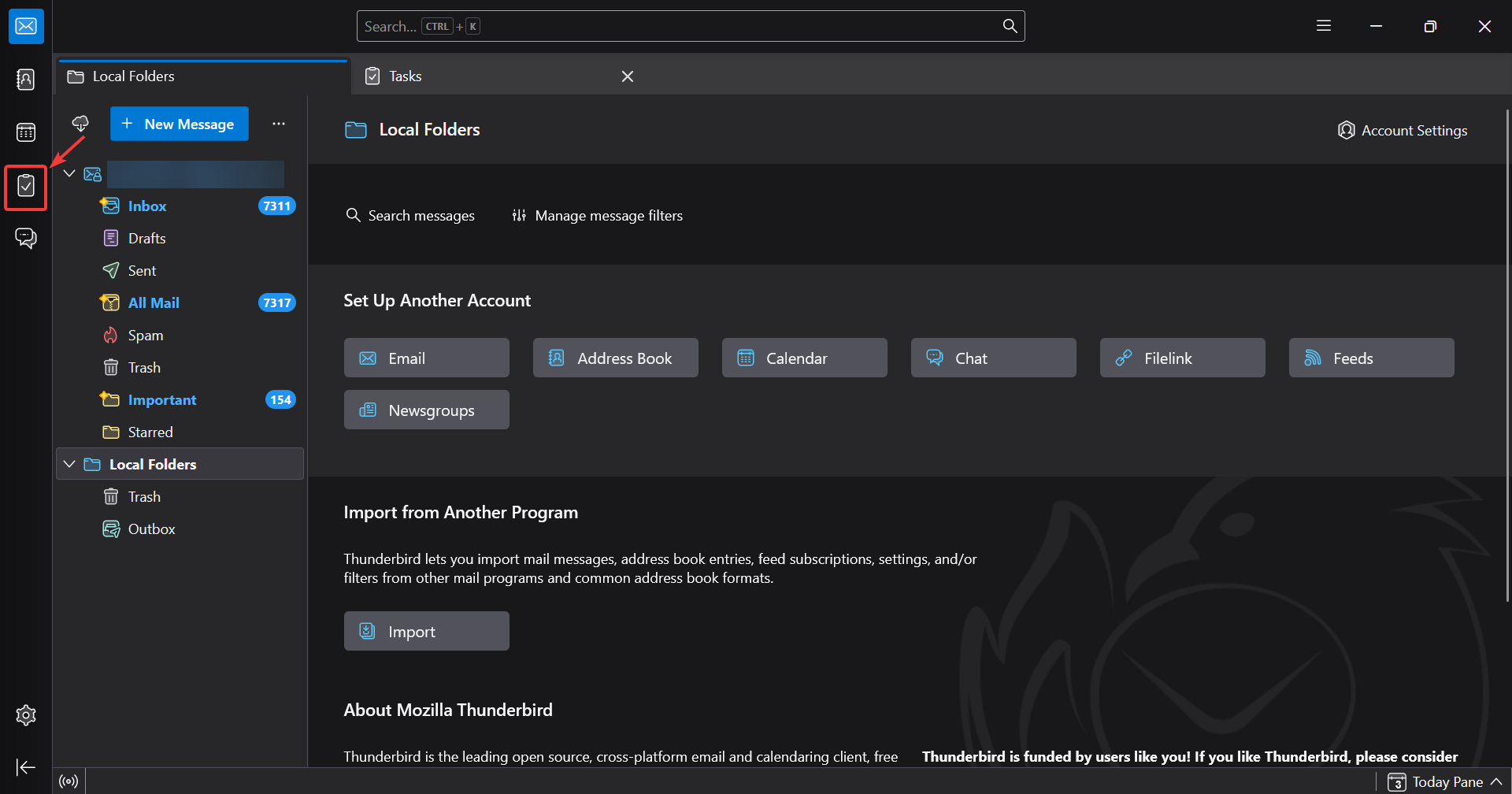
On the left-hand Spaces Toolbar, click the Tasks icon to open the Tasks tab.
Step 2: Create a New Task
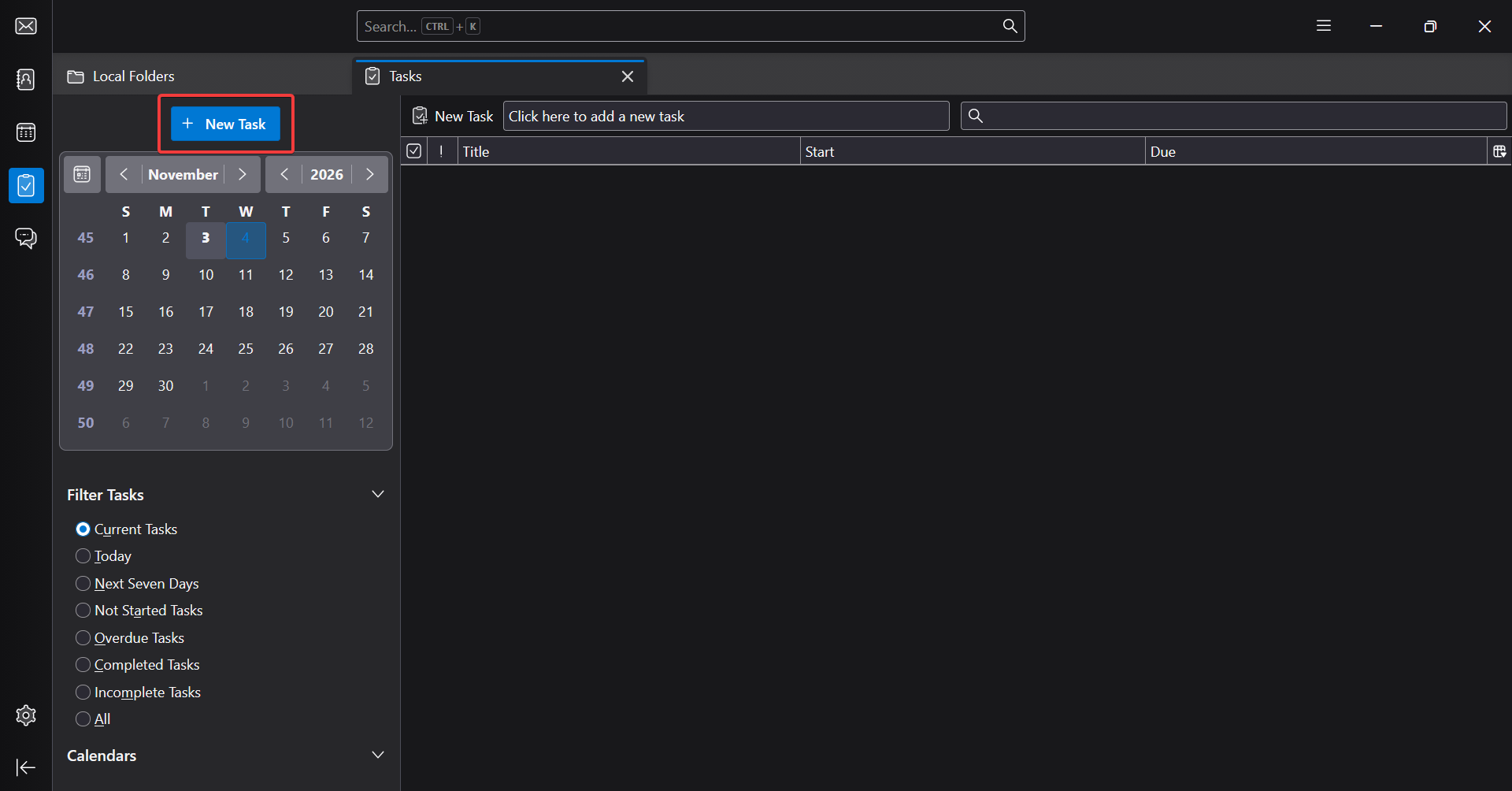
- In the Tasks tab, click New Task at the top-left corner.
-
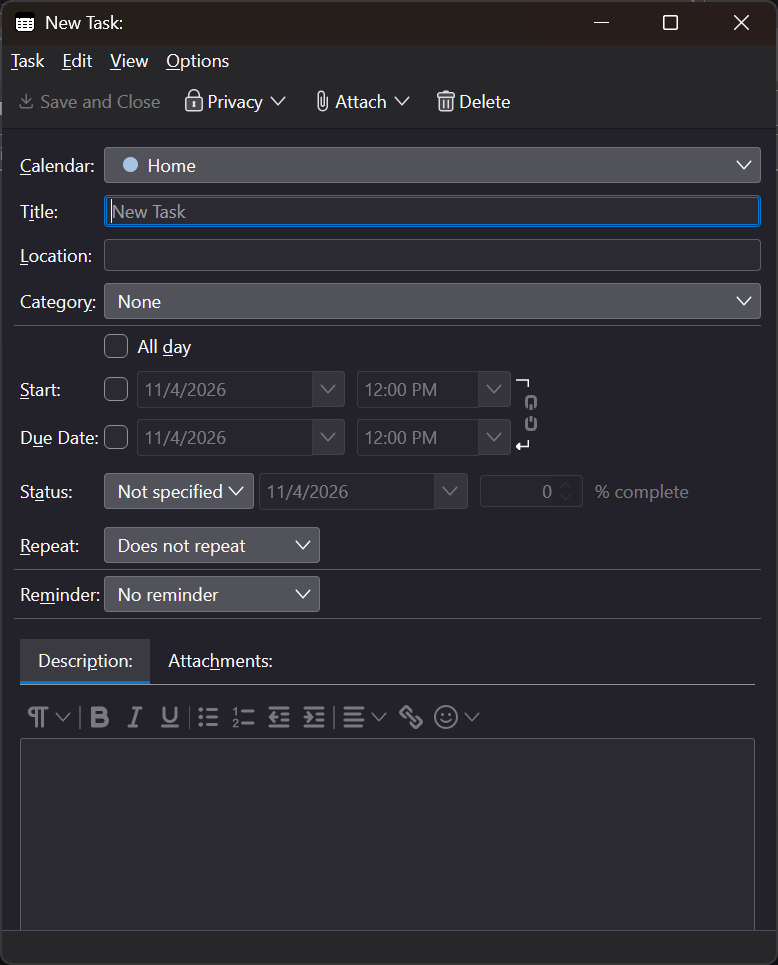
The New Task window will appear, allowing you to enter the task information.
Step 3: Configure Task Details
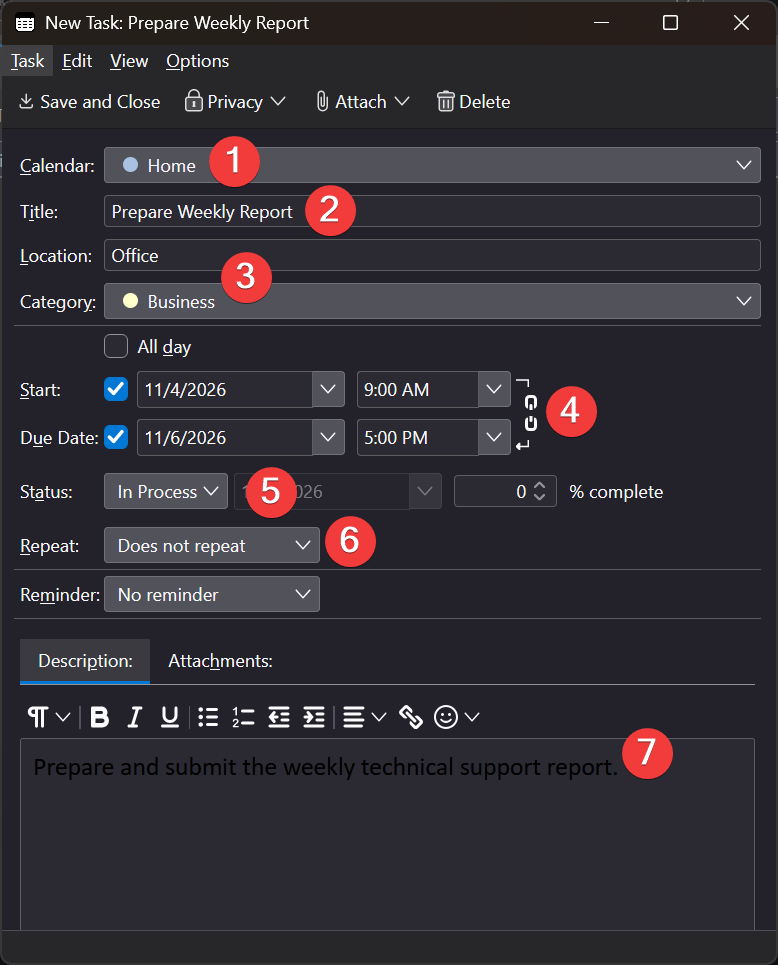
- Under Calendar, select the calendar where the task will be saved.
- Enter a descriptive task name in the Title field.
- Specify the Location and Category, if applicable.
- Enable Start and Due Date, then select the preferred dates and times.
- Select the appropriate Status to indicate the task’s progress.
- Configure Repeat if the task needs to recur.
-
Enter additional task information in the Description field, if required.
Step 4: Configure a Task Reminder
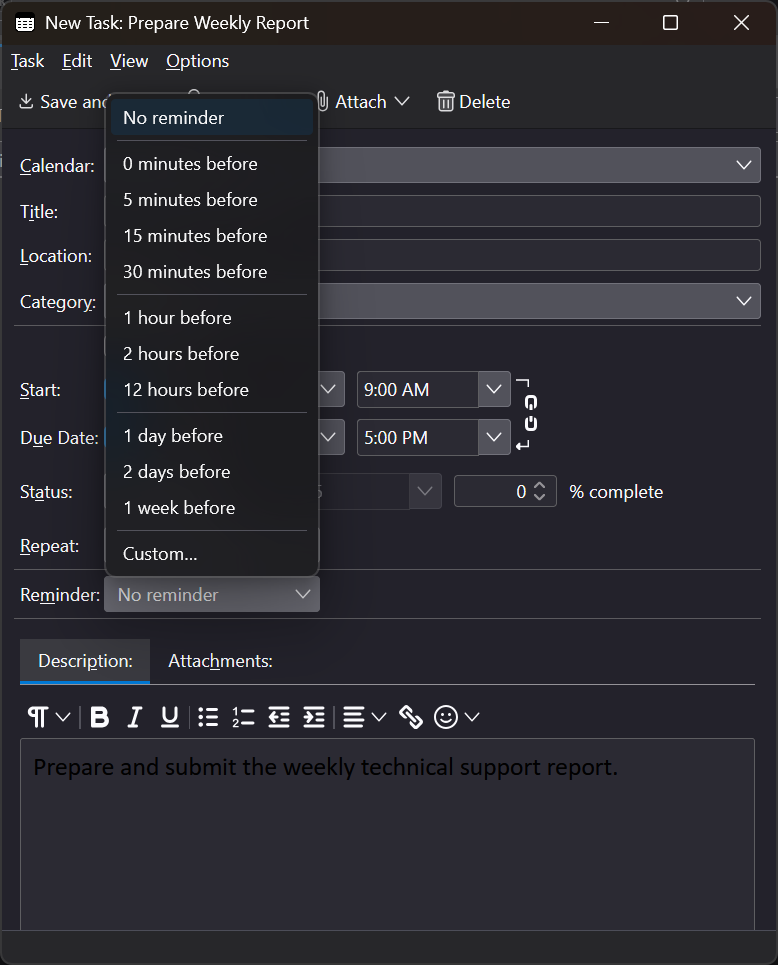
- In the New Task window, locate the Reminder dropdown menu.
- Click the dropdown menu and select the preferred reminder time before the task is due.
-
Verify that the selected reminder is displayed in the Reminder field.
Step 5: Save and Verify the Task
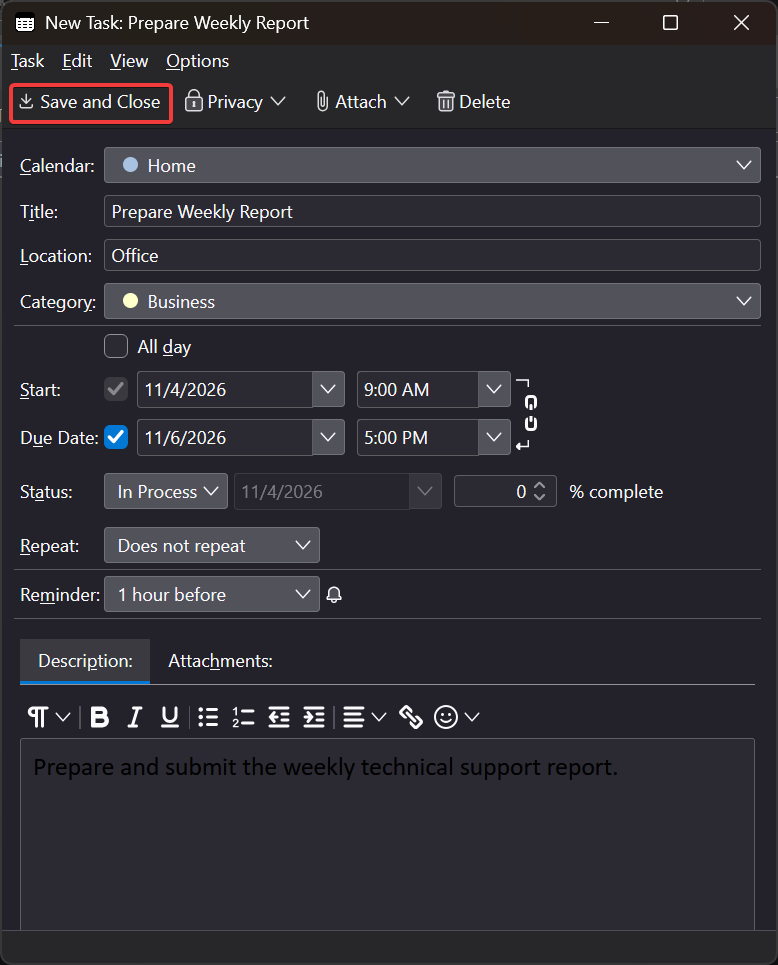
- Review the task details, including the title, start date, due date, status, and reminder settings.
- Click Save and Close at the top-left corner of the New Task window.
-
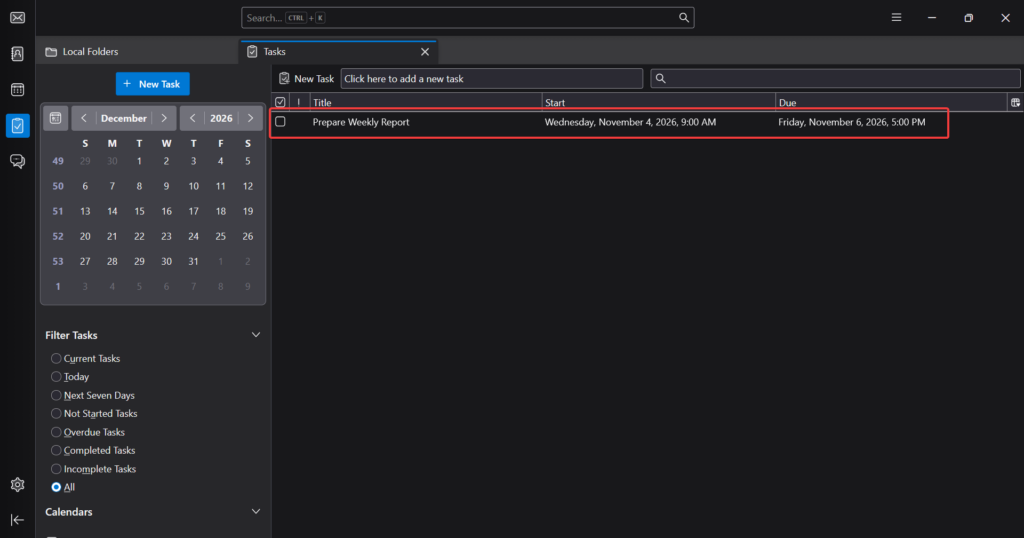
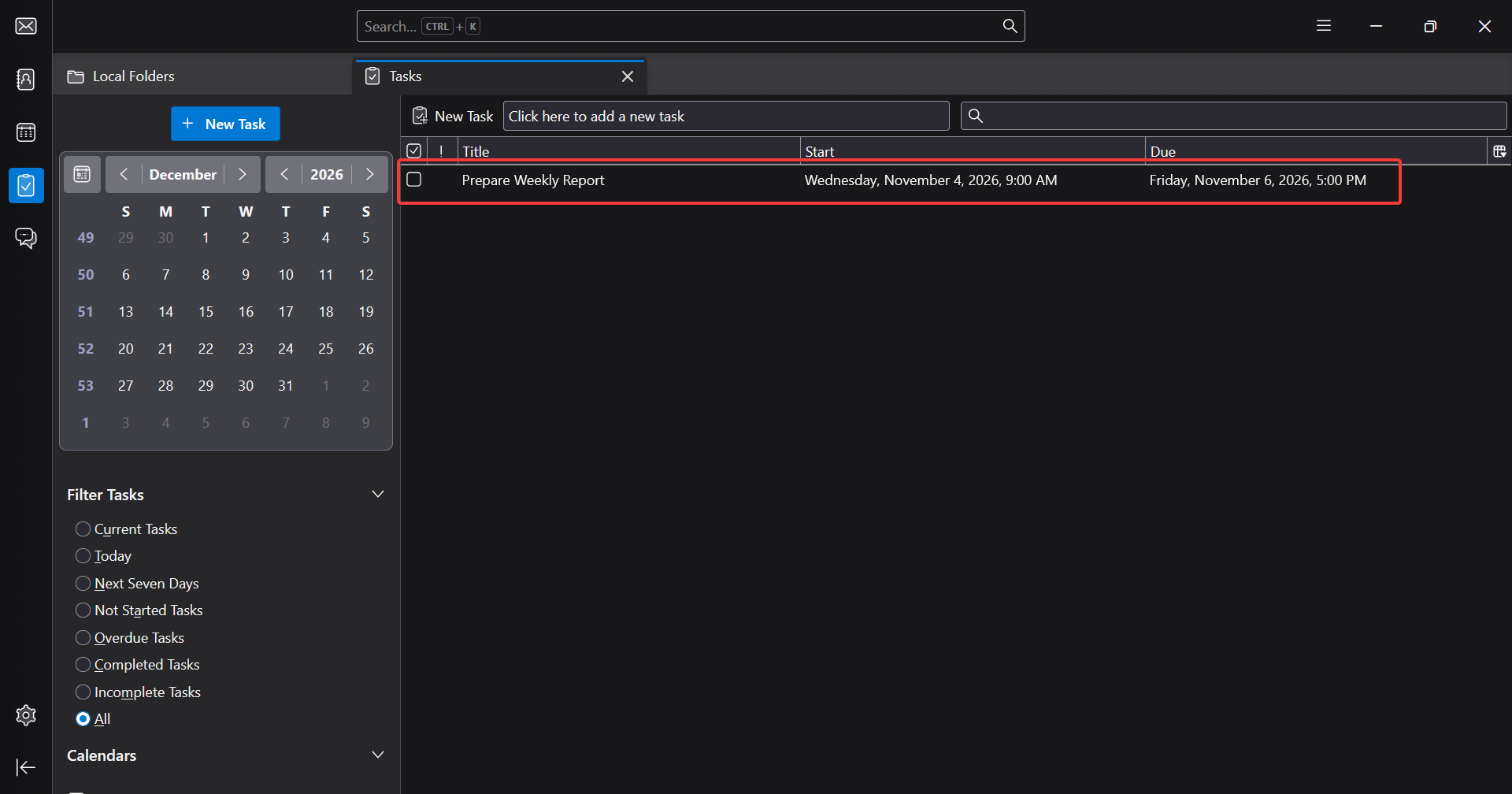
The saved task will appear in the Tasks tab, where you can view and manage its details.
Step 6: Edit an Existing Task
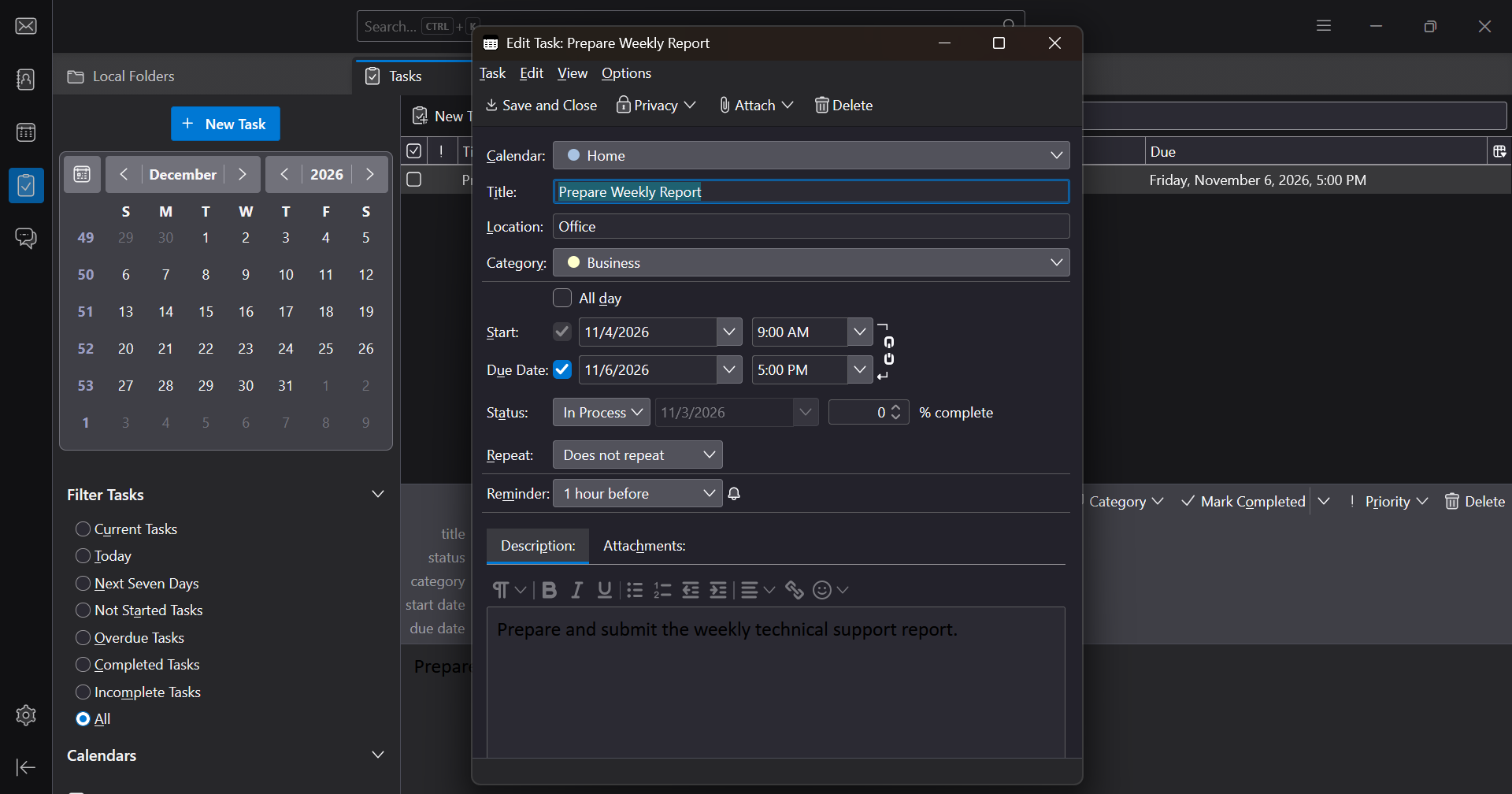
- In the Tasks tab, locate the task you want to modify.
- Double-click the task title to open its details.
- Modify the required information, such as the title, due date, status, or reminder.
-
Click Save and Close to apply the changes.
Step 7: Mark a Task as Completed
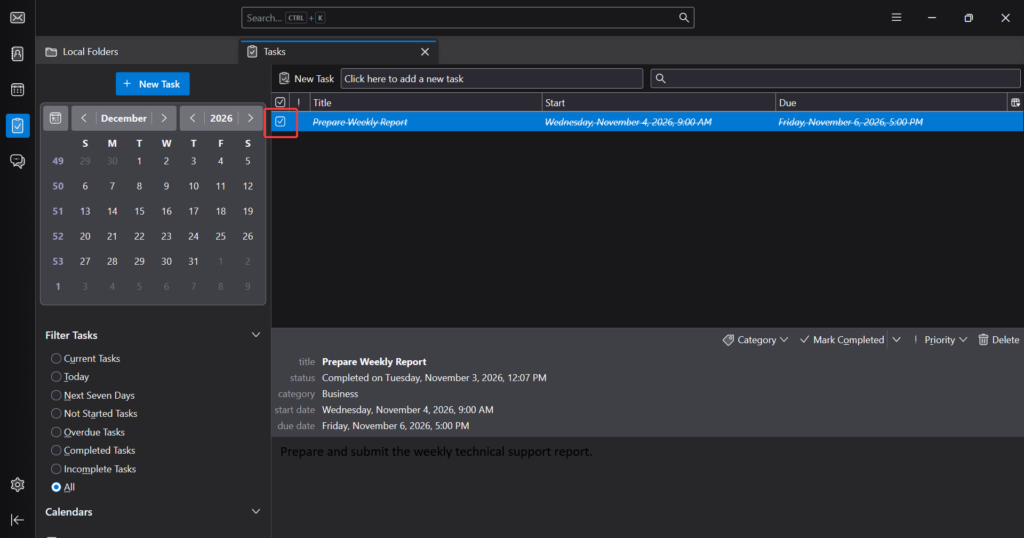
- In the Tasks tab, locate the task you want to mark as completed.
- Click the checkbox next to the task title to mark it as completed.
-
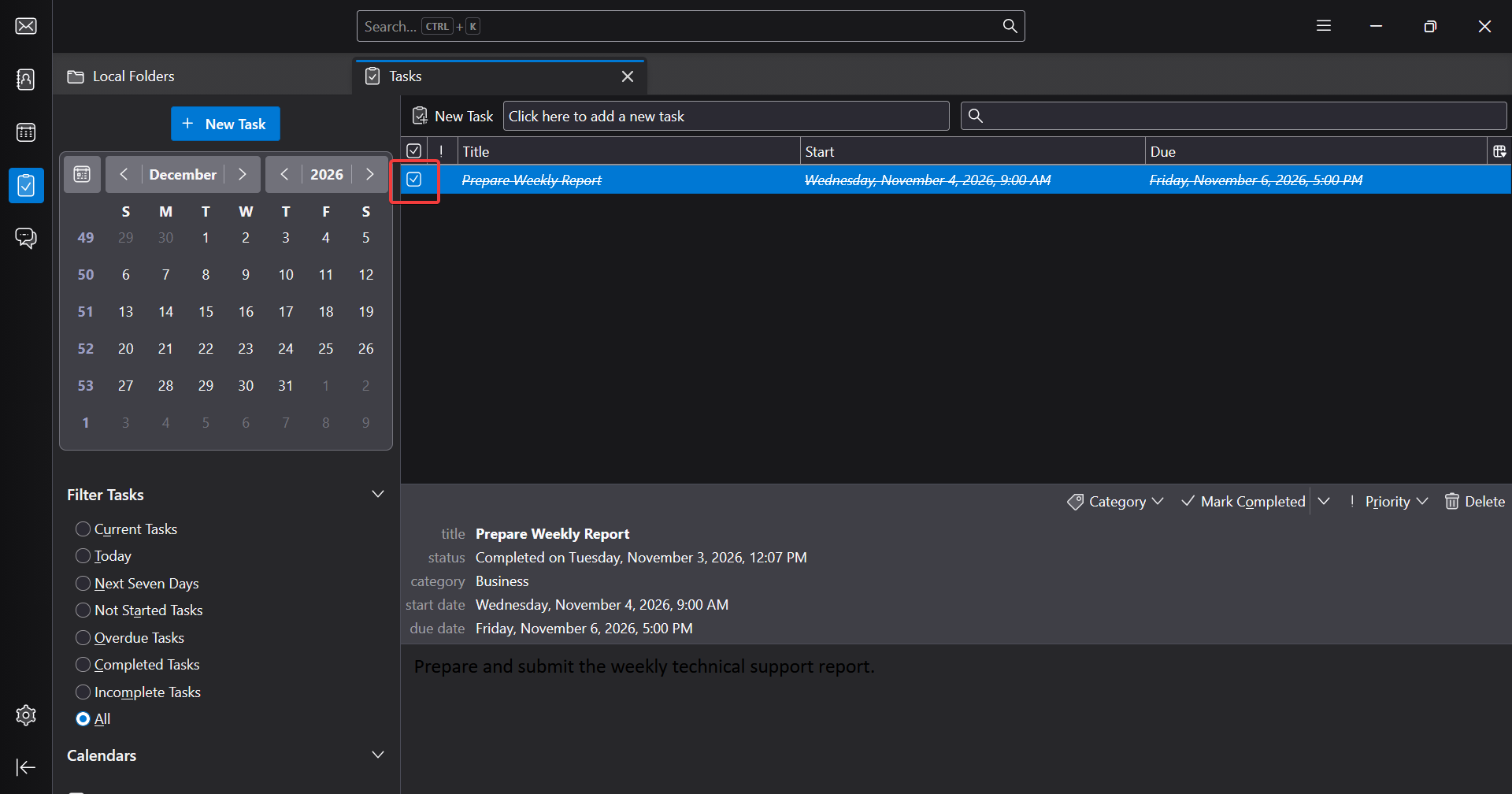
Under Filter Tasks, select Completed Tasks to view the completed task.
Step 8: Delete an Existing Task
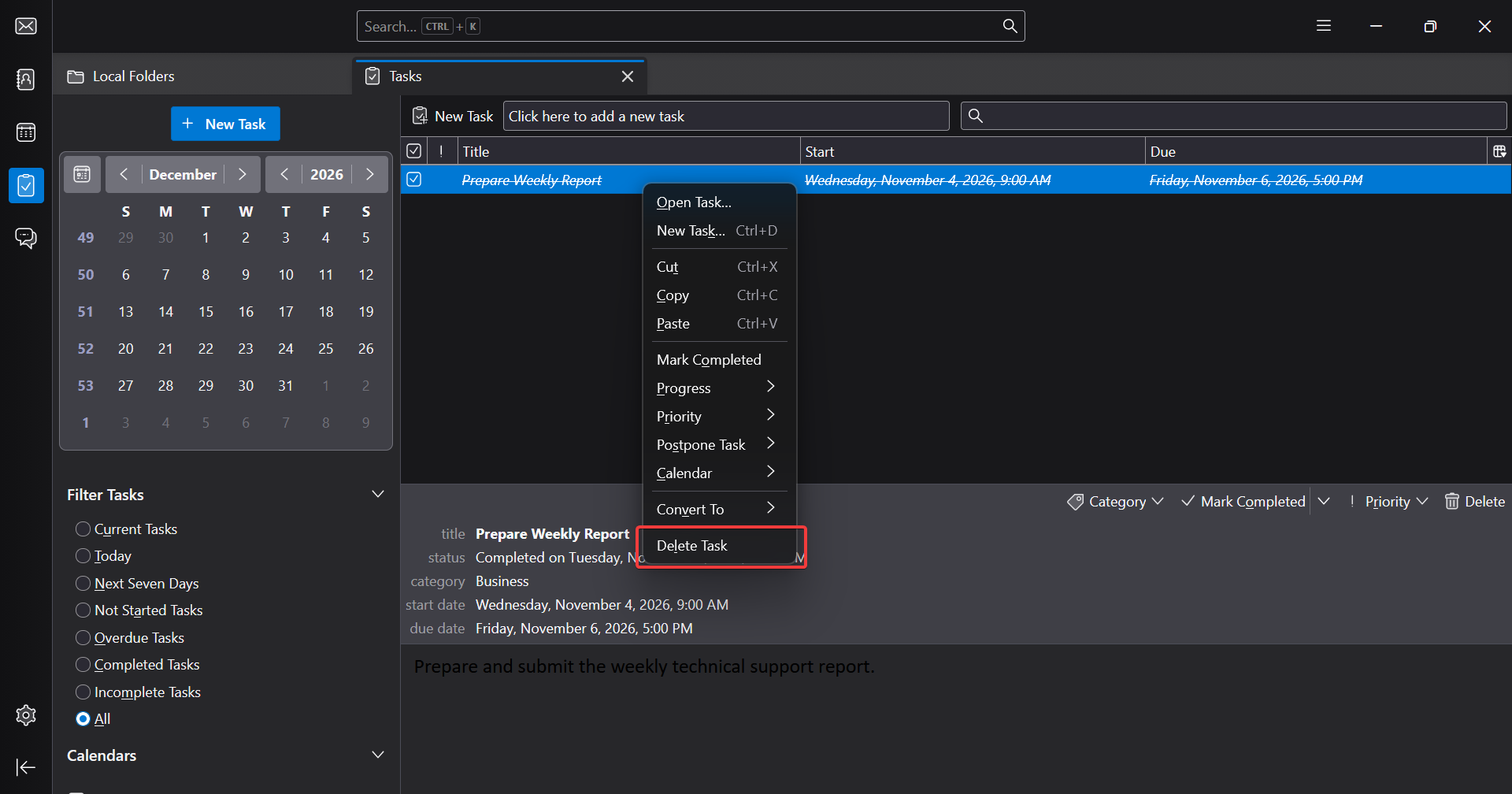
- In the Tasks tab, locate the task you want to delete.
- Right-click the task and select Delete Task from the context menu.
-
Confirm the deletion if prompted.
Conclusion
By following this guide, users can efficiently create and manage tasks in Mozilla Thunderbird, configure deadlines and reminders, update task progress, and organize their daily activities.
For additional assistance or if you encounter any issues, please contact our support team at support@ipserverone.com.