Introduction
For system administrators, configuring default settings for users and domains in SmarterMail is a crucial step when managing a mail server. By establishing these standard baselines directly within the webmail interface, you can enforce organizational policies automatically. This ensures that every time a new domain or user is created, specific limits, security rules, and feature toggles are pre-configured. Utilizing these defaults saves administrative time and guarantees a consistent, secure email environment for all accounts.
Prerequisite
- Access to SmarterMail with System Administrator privileges.
- Basic knowledge of email features and storage limits.
Step-by-step Guide
Step 1: Configure domain defaults
Navigate to the Manage menu and click on Domain Defaults. Here you can set the standard limits and features for all newly created domains. After reviewing and adjusting the elements below, click the Save button to apply the changes.
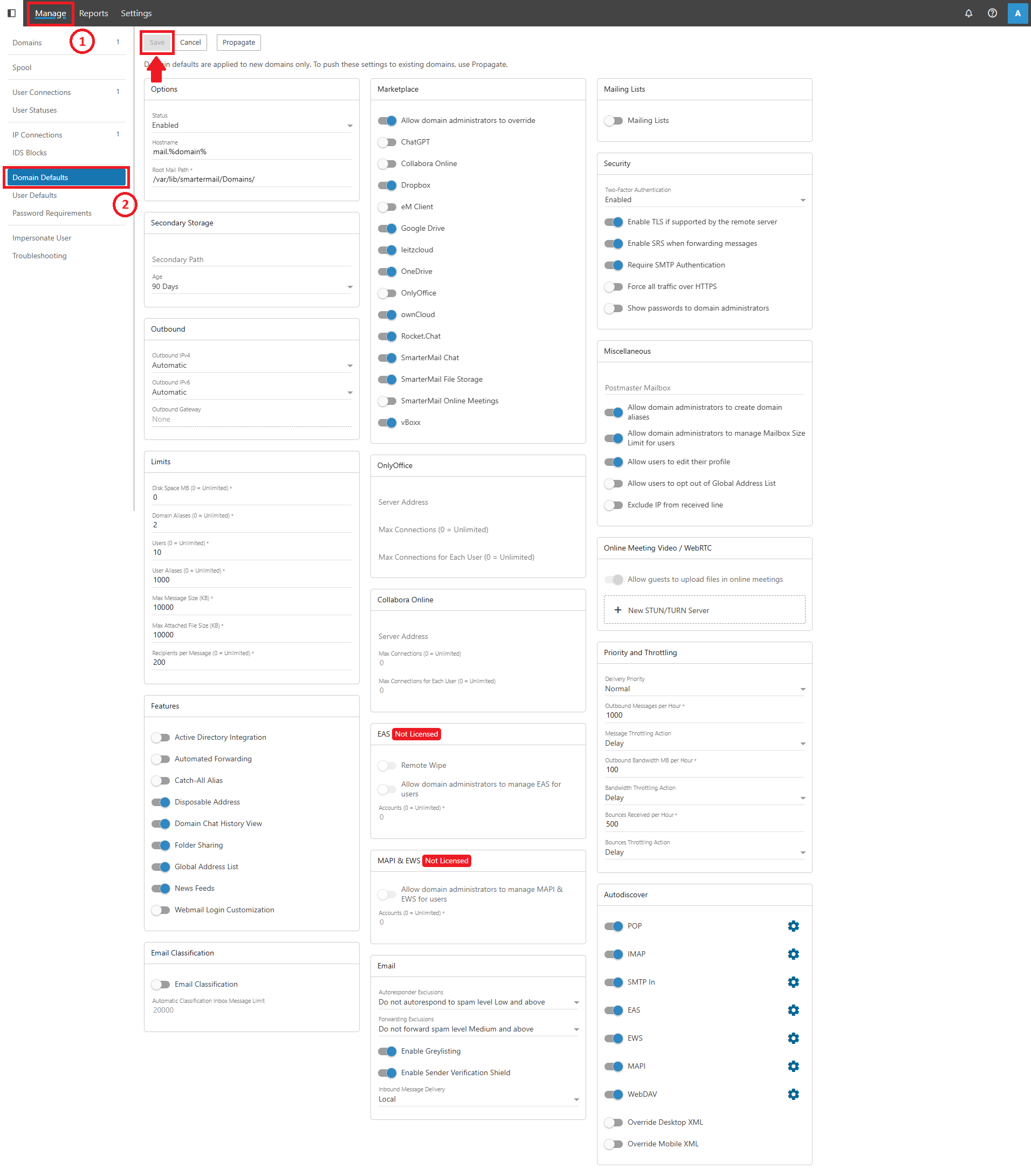
Domain Defaults Settings Explanation
- Options
- Status: The current status of the domain (Enabled or Disabled). Disabled domains cannot receive emails and users cannot log in.
- Hostname: The URL of the mail server (e.g., mail.domain.com) returned for Autodiscover queries.
- Root Mail Path *: The primary directory path where all domain information, JSON files, and mail are saved.
- Secondary Storage
- Secondary Path: The directory location designated for secondary storage, which archive older emails and files.
- Age: The threshold (in days, ranging from 90 to 365) at which files are automatically moved to the Secondary Path.
- Outbound
- Outbound IPv4: The specific IPv4 address used to connect to external SMTP servers when sending messages.
- Outbound IPv6: The specific IPv6 address used to connect to external SMTP servers when sending messages.
- Outbound Gateway: Specifies a secondary external server used to process outgoing mail to reduce local server load.
- Limits
- Disk Space MB (0 = Unlimited) *: The maximum megabytes allocated for the entire domain (includes email, file storage, and meetings).
- Domain Aliases (0 = Unlimited) *: The maximum number of alternate domain names that deliver to this primary domain.
- Users (0 = Unlimited) *: The maximum number of email accounts allowed to be created within the domain.
- User Aliases (0 = Unlimited) *: The limit on how many alternate email addresses (aliases) can be set up.
- Max Message Size (KB) *: The largest allowable size for a single incoming or outgoing email, including attachments.
- Max Attached File Size (KB) *: The maximum size of attachments added to non-email areas such as calendars, tasks, or notes.
- Recipients per Message (0 = Unlimited) *: The maximum number of recipients a single message can have.
- Features
- Active Directory Integration: Allows domains to sync and authenticate users using LDAP/Active Directory.
- Automated Forwarding: Allows users to configure rules that automatically forward incoming emails to another address.
- Catch-All Alias: A designated address that catches emails sent to non-existent users at the domain.
- Disposable Address: Enables the creation of temporary email addresses for short-term use.
- Domain Chat History View: Permits domain administrators to view and search chat histories for users in their domain.
- Folder Sharing: Allows users to share their email folders with other users within the domain.
- Global Address List: Enables a shared directory of all users, aliases, and groups within the domain.
- News Feeds: Allows users to subscribe to RSS feeds directly within webmail.
- Webmail Login Customization: Permits domain administrators to brand and customize the webmail login portal.
- Email Classification
- Email Classification: Enables the system to automatically sort incoming mail into categories like Primary, Transactions, Updates, and Promotions.
- Automatic Classification Inbox Message Limit: The maximum number of messages the system will actively scan and classify in the inbox.
- Marketplace
- Allow domain administrators to override: Grants domain admins the permission to toggle marketplace integrations on or off.
- ChatGPT/Collabora Online/Dropbox/eM Client/Google Drive/leitzcloud/OneDrive/OnlyOffice/ownCloud/Rocket.Chat/SmarterMail Chat/SmarterMail File /Storage/SmarterMail Online Meetings/vBoxx: Individual toggles to enable or disable access to these specific third-party integrations and native add-ons.
- OnlyOffice & Collabora Online
- Server Address: The URL pointing to the OnlyOffice or Collabora server used for document collaboration.
- Max Connections (0 = Unlimited) *: The total maximum concurrent connections allowed to the document server for the domain.
- Max Connections for Each User (0 = Unlimited) *: The maximum concurrent document connections allowed per individual user.
- EAS
- Remote Wipe: Allows domain admins or users to remotely wipe mobile devices connected via EAS if lost or stolen.
- Allow domain administrators to manage EAS for users: Gives domain admins the right to enable or disable EAS on a per-user basis.
- Accounts (0 = Unlimited) *: The maximum number of users in the domain allowed to use Exchange ActiveSync.
- MAPI & EWS
- Allow domain administrators to manage MAPI & EWS for users: Gives domain admins the right to enable or disable MAPI/EWS on a per-user basis.
- Accounts (0 = Unlimited) *: The maximum number of users allowed to connect via MAPI or Exchange Web Services (typically for Outlook/Apple Mail).
- Email
- Autoresponder Exclusions: Prevents autoresponders (Out of Office) from firing for specific types of incoming mail, like automated system messages.
- Forwarding Exclusions: Determines if specific types of mail (like messages marked as spam) should be excluded from auto-forwarding rules.
- Enable Greylisting: Temporarily rejects mail from unknown senders to reduce spam, requiring their server to try again.
- Enable Sender Verification Shield: Displays a shield icon in webmail for messages that pass SPF/DKIM verification.
- Inbound Message Delivery: Dictates whether mail is delivered locally or routed externally if the domain is split across multiple servers.
- Mailing Lists
- Mailing Lists: Toggles the ability to create and manage mailing lists for the domain.
- Mailing List Command Address *: The specific address (e.g., listserv@domain.com) used to process subscribe/unsubscribe commands.
- Mailing Lists (0 = Unlimited) *: The maximum number of mailing lists the domain is allowed to host.
- Max Message Size (KB) *: The maximum size of an email that can be distributed through a mailing list.
- Security
- Two-Factor Authentication: Enables 2FA requirements for users logging into webmail.
- Enable TLS if supported by the remote server: Enforces opportunistic TLS encryption when transmitting emails externally.
- Enable SRS when forwarding messages: Uses Sender Rewriting Scheme to prevent forwarded emails from failing SPF checks.
- Require SMTP Authentication: Mandates that users must provide a valid username and password before sending outgoing mail.
- Force all traffic over HTTPS: Redirects all standard HTTP webmail traffic to a secure HTTPS connection.
- Show passwords to domain administrators: If enabled, domain admins can view user passwords in plain text. (Usually disabled for security).
- Miscellaneous
- Postmaster Mailbox: Specifies which user account receives emails sent to postmaster@domain.com.
- Allow domain administrators to create domain aliases: Permits domain admins to map secondary domain names to the primary domain.
- Allow domain administrators to manage Mailbox Size Limits for users: Grants admins the ability to set custom storage quotas per user.
- Allow users to edit their profile: Allows users to change personal information like their display name or phone number.
- Allow users to opt out of Global Address List: Permits individuals to hide their contact details from the domain directory.
- Exclude IP from received line: Removes the sender’s local IP address from the email header for enhanced privacy.
- Online Meeting Video / WebRTC
- Allow guests to upload files in online meetings: Permits external, non-authenticated meeting participants to share files.
- + New STUN/TURN Server: Allows administrators to specify custom servers to handle WebRTC media routing for online meetings.
- Priority and Throttling
- Delivery Priority: Determines the priority level of the domain’s outgoing mail in the server spool (e.g., Normal, High, Low).
- Outbound Messages per Hour: The limit on the number of emails the domain can send per hour.
- Message Throttling Action: The action taken (Do Nothing, Delay, or Reject) when the domain reaches its message limit.
- Outbound Bandwidth MB per Hour: The total megabytes of email data the domain can send per hour.
- Bandwidth Throttling Action: The action taken (Do Nothing, Delay, or Reject) when the domain reaches its bandwidth limit.
- Bounces Received per Hour: The limit on bounce messages received before the domain is flagged for potentially sending spam.
- Bounces Throttling Action: The action taken when the bounce limit is exceeded.
- Autodiscover
- POP/IMAP/SMTP In/EAS/EWS/MAPI/WebDAV: Specifies the server hostname and port configuration returned to clients for each protocol during the autodiscover process.
- Override Desktop XML: Allows administrators to provide custom XML configuration specifically for desktop client autodiscovery.
- Override Mobile XML: Allows administrators to provide custom XML configuration specifically for mobile client autodiscovery.
Step 2: Configure user defaults
From the Settings menu and click on User Defaults. This section allows you to dictate the standard setup for every new individual mailbox created on the server. After reviewing the elements below, click Save.
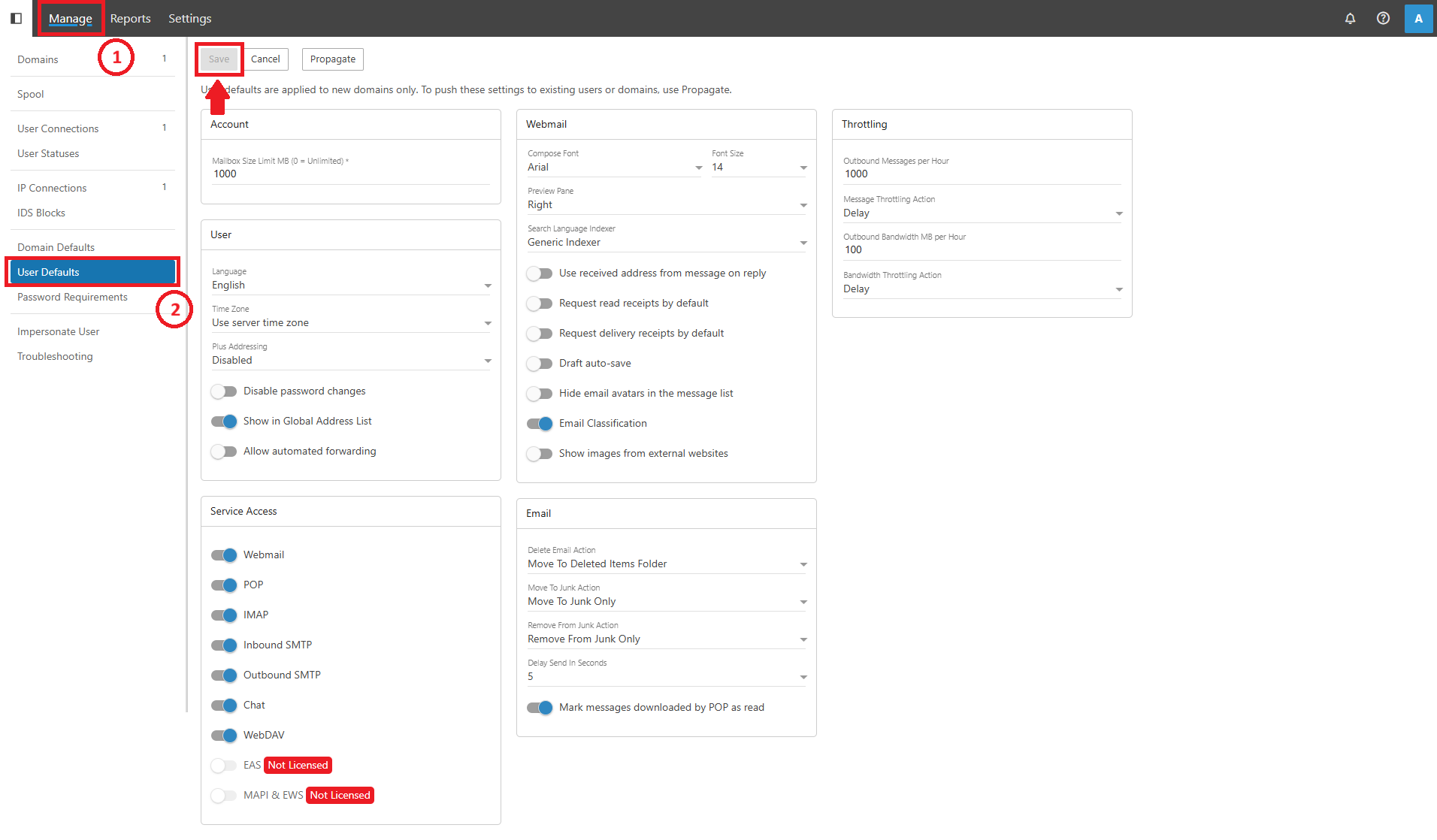
User Defaults Settings Explanation
- Account
- Mailbox Size Limit MB (0 = Unlimited) *: The default individual storage limit, in megabytes, assigned to new user accounts.
- User
- Language: The default language used for webmail labels, folders, calendars, and system messages.
- Time Zone: The default time zone applied for timestamps and calendar events.
- Plus Addressing: Controls how variant email addresses (e.g., user+newsletter@domain.com) are handled (Disabled, Move to Folder, or Leave in Inbox).
- Disable password changes: When enabled, restricts new users from changing their own webmail login password.
- Show in Global Address List: Determines whether the new user account appears in the domain’s shared directory by default.
- Allow automated forwarding: Grants or denies a new user the ability to configure automatic forwarding rules for incoming mail.
- Service Access
- Webmail: Allows the user to log into SmarterMail through the web browser interface.
- POP: Allows the user to download mail to an external client using POP3.
- IMAP: Allows the user to maintain a two-way sync with an external client using IMAP.
- Inbound SMTP: Allows the user to receive mail from outside senders.
- Outbound SMTP: Allows the user to send mail to outside recipients.
- Chat: Activates SmarterMail’s built-in Chat feature for the user.
- WebDAV: Allows the user to sync calendars (CalDAV) and contacts (CardDAV) to devices.
- EAS: Allows the user to use Exchange ActiveSync for mobile email, contacts, and calendar syncing.
- MAPI & EWS: Allows the user to configure the account in Outlook or Apple Mail using MAPI/EWS.
- Webmail
- Compose Font: The default font style applied to newly composed messages.
- Font Size: The default text size applied to newly composed messages.
- Review Pane: Determines if users see a reading pane beside their inbox or if messages must be opened individually.
- Search Language Indexer: Selects the indexing profile (like English/Generic or Asian languages) used to optimize full-text search.
- Use received address from message on reply: When replying to an email sent to an alias, the reply comes from that alias rather than the primary address.
- Request read receipts by default: Automatically requests a read receipt for every outgoing message.
- Request delivery receipts by default: Automatically requests a delivery confirmation for every outgoing message.
- Draft auto-save: Automatically saves drafts composed in webmail every two minutes.
- Hide email avatars in the message list: Hides profile images or monograms from the message list for a cleaner view.
- Email Classification: Enables auto-sorting of the inbox into categories (Primary, Transactions, Updates, Promotions).
- Show images from external websites: Automatically loads remote content (images, trackers) in emails. Usually disabled by default for privacy/security.
- Email
- Delete Email Action: Controls default behavior when a message is deleted (Move to Deleted Items, Permanently Delete, or Mark as Deleted).
- Move To Junk Action: Dictates what happens when a user marks a message as junk (Move to Junk Only, Block Sender, or Block Domain).
- Remove From Junk Action: Dictates what happens when a user restores a message from junk (Remove Only, Add to Trusted Senders, or Remove from Block).
- Delay Send In Seconds: Adds a brief built-in delay (e.g., 5-60 seconds) before sending, giving users a window to cancel a sent message.
- Mark messages downloaded by POP as read: When a user downloads mail via POP3, it automatically marks the server copy as read.
- Throttling
- Outbound Messages per Hour: The default cap on the number of messages a new user may send per hour.
- Message Throttling Action: The action taken (Do Nothing, Delay, Reject) once the user reaches their outbound message limit.
- Outbound Bandwidth MB per Hour: The default cap on total megabytes a user may send out per hour.
- Bandwidth Throttling Action: The action taken (Do Nothing, Delay, Reject) once the user reaches their outbound bandwidth limit.
Step 3: Propagate changes to existing accounts
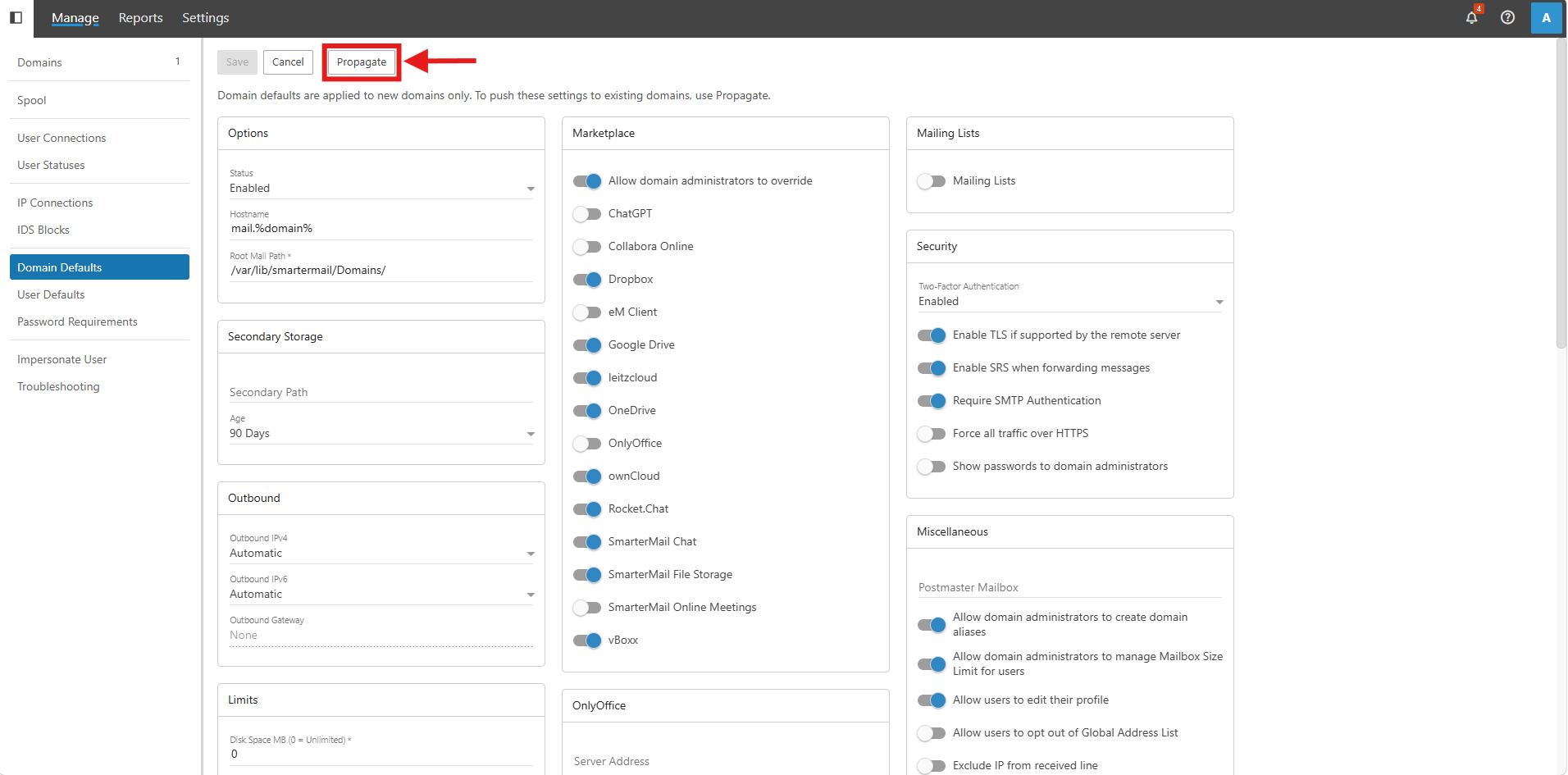
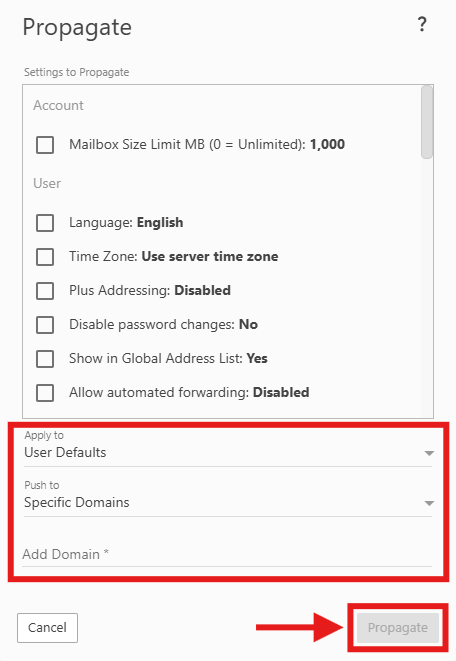
Saving changes to Domain or User Defaults only affects newly created accounts. To apply these updates to existing domains or users, you must explicitly propagate them:
- Click the Propagate button at the top of the defaults page.
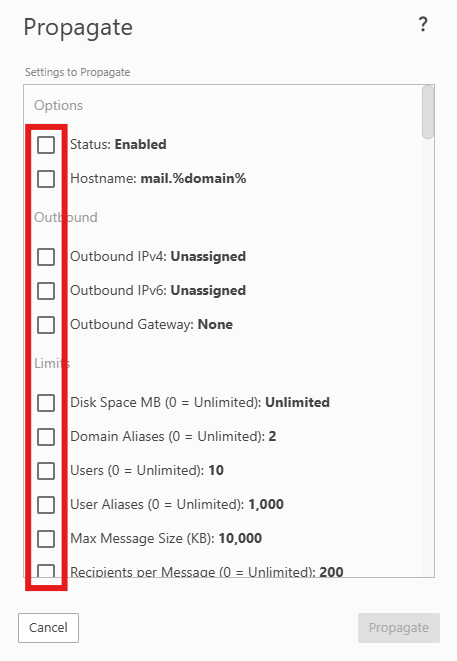
- Select the checkbox for each specific setting you want to update. (Unchecked settings remain unchanged).
- For User Defaults,
- Choose your Apply to target:
- User Defaults: Updates the domain’s template for future users.
- Users: Updates existing user accounts directly.
- Both: Updates both the domain template and existing users.
- Under Push to, select All Domains or Specific Domains to target your updates.
- Click Propagate. The process will run as a background task, allowing you to close the window and continue working.
Conclusion
By following this guidance, you can successfully configure the default settings for both users and domains in SmarterMail. Utilizing accordions to organize these extensive configuration elements ensures a cleaner knowledge base experience while helping you maintain a standardized environment for all newly created accounts.
For additional assistance or if you encounter any issues, please contact our support team at support@ipserverone.com.
