
Search Our Database
How to configure Email Autoresponder Options in cPanel
Introduction
Beyond the basic message, cPanel autoresponders offer several configuration options that control how and when automatic replies are sent. The response interval determines how long the autoresponder waits before replying again to the same sender, the duration settings schedule when it starts and stops, and sender information tags personalize each reply with the original sender’s details. This guide explains how cPanel users can configure these options when creating or editing an autoresponder, helping you fine-tune automatic replies for scenarios such as vacations, business trips, and out-of-office notices.
Prerequisite
- Access to your cPanel login page.
- An existing autoresponder, or familiarity with creating one.
Step-by-Step Guide
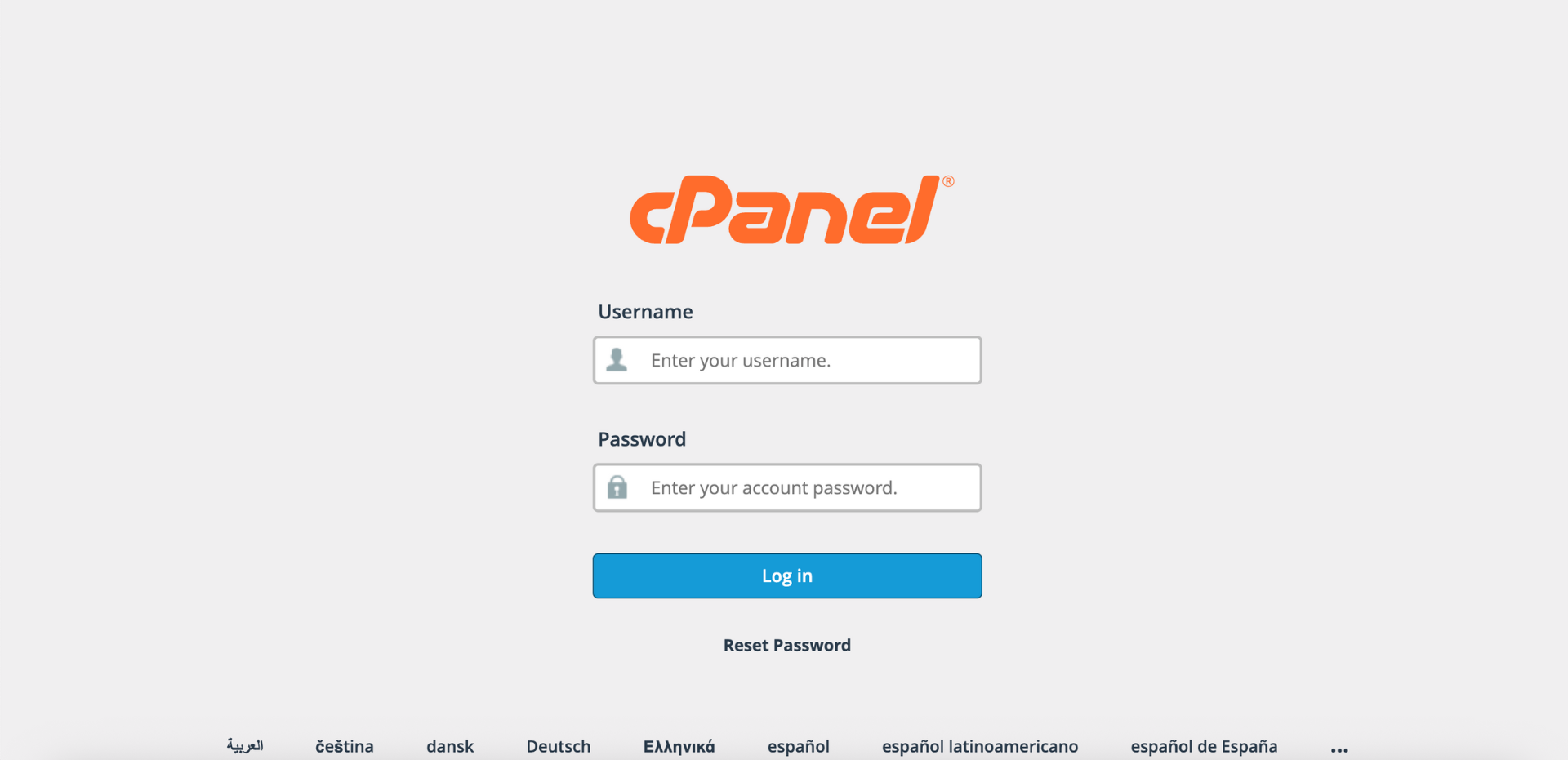
Step 1: Log in to cPanel
- Access your cPanel account using your username and password.
Step 2: Open Autoresponders
- In the Home page, under the Email section, click Autoresponders.

Step 3: Select Your Domain
- From the Managing menu on the top left side of the interface, select the domain for which you want to configure an autoresponder.

- Select All Domains if you want the autoresponders to be applied to all of your domains.

Step 4: Open the Autoresponder Configuration
- Click Add Autoresponder to create a new one, or click Edit next to an existing autoresponder. The autoresponder configuration interface will appear.

Step 5: Configure Autoresponder Options
Choose the option you want to configure:
- In the Interval field, enter the number of hours the autoresponder should wait between responses to the same email address.
- Enter 24 to respond only once every 24 hours to the same sender.
- Enter 0 to send an autoresponse to every email without any interval restriction. Use this cautiously as it may result in excessive autoresponses.
Tips🖊️: An autoresponder with a 24-hour interval that receives an email at 8:00 AM on Monday immediately responds, and will not respond again to emails from the same address until 8:00 AM on Tuesday.
Recommended intervals: 24 hours for out-of-office messages, 48-72 hours for vacation notices.
- In the Start section, select Immediately to activate the autoresponder as soon as you save it, or Custom to select a specific date and time for it to start.

- In the Stop section, select Never to continue indefinitely until manually disabled or deleted, or Custom to select a specific date and time for it to stop.

- Ensure the stop time is later than the start time.

- Include sender information tags as needed:
- %from%: Display the sender’s name
- %email%: Display the sender’s email addres
- %subject%: Display the subject line from the sender’s email
- In the Body text box, compose your autoresponse message.

Step 6: Save and Verify
- Click Create (for new) or Modify (for existing) to save the autoresponder. A confirmation message will appear indicating that the autoresponder has been updated.
- Send a test email to the autoresponder address to verify the configuration is working correctly.

Conclusion
By following this guidance, you can configure autoresponder options in cPanel, including response intervals, start and stop durations, and sender information tags. These settings ensure your automatic replies are sent at the right frequency, only during the appropriate period, and with personalized details that keep your responses professional.
If you encounter any issues or require further assistance, please reach out to our support team at support@ipserverone.com.
Article updated on 13 November 2026 by Johnny