
Search Our Database
Managing Email Account Restrictions in cPanel
Introduction
Suspending an email account in cPanel temporarily disables it — blocking incoming mail, outgoing mail, or login access — without deleting the account or its data. This is useful for managing inactive accounts, containing a compromised mailbox, or stopping an account that is sending spam. This guide shows cPanel users how to suspend an email account, unsuspend it when ready, and change its password, which is commonly done together with unsuspending after a security incident.
Prerequisite
- Access to your cPanel login page.
- An existing email account created in cPanel.
Step-by-Step Guide
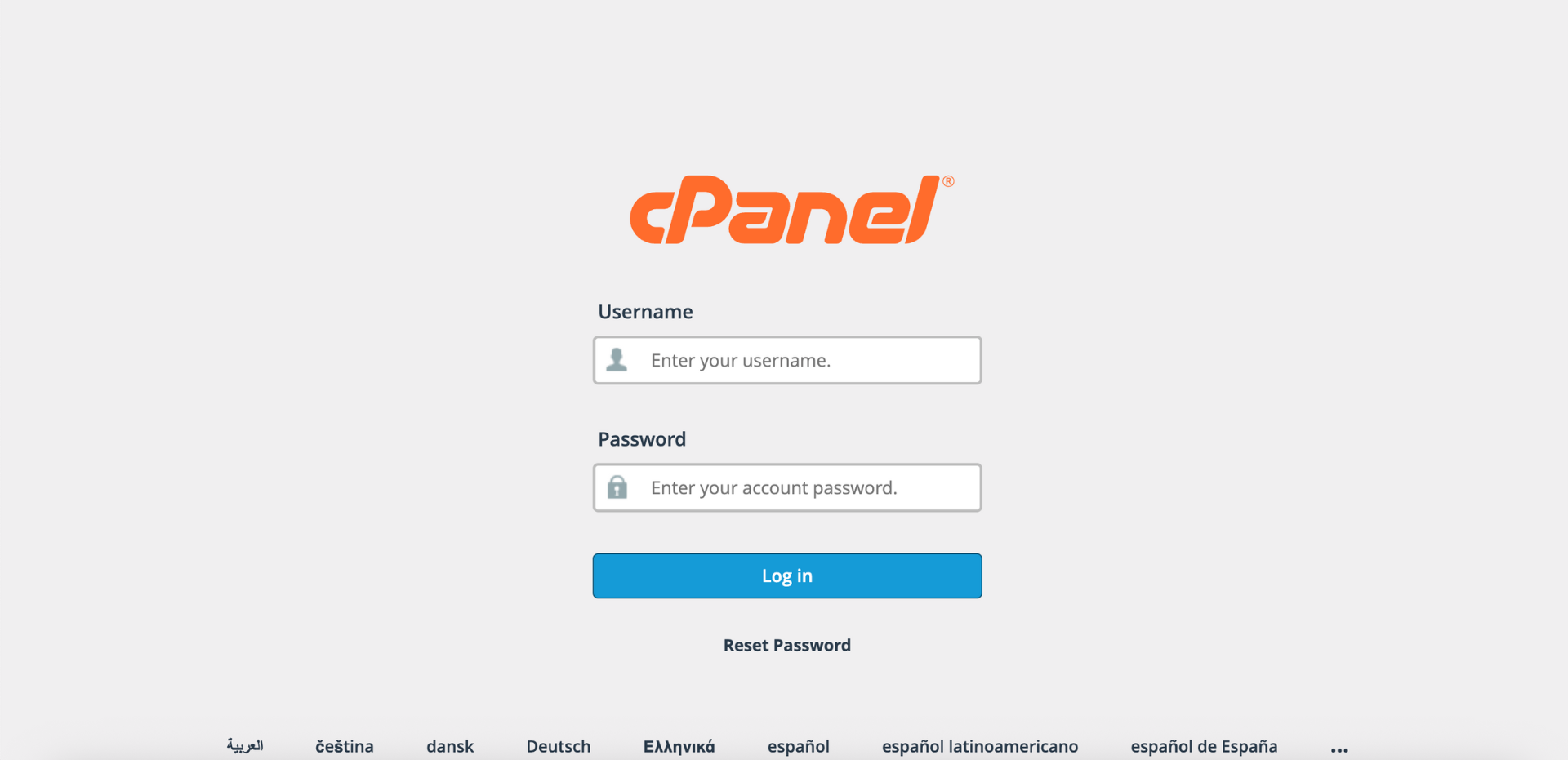
Step 1: Log in to cPanel
- Access and log in to your cPanel account using your username and password.
Step 2: Open Email Accounts
- In the Home page, under Email, click Email Accounts.

Step 3: Locate the Email Account
- In the Email Accounts table, locate the email account you want to suspend. You can use the search bar to find a specific email account by entering the account name or domain.

- Click Manage in the Actions column for the email account. The Manage Email Account interface will appear.

Step 4: Suspend the Email Account
- In the account settings, scroll down to the Restrictions section. Configure the options based on what you want to suspend:
- Receiving Incoming Mail:
- Allow: Email account will continue receiving emails.
- Suspend: Blocks all incoming mail for this account.
- Sending Outgoing Email:
- Allow: Email account can send emails as usual.
- Suspend: Completely blocks sending from this account.
- Hold: Temporarily holds outgoing emails in the mail queue (useful for review).
- Logging In:
- Allow: User can log in to Webmail or email clients.
- Suspend: Login access is disabled (e.g., due to abuse or compromise).
- Receiving Incoming Mail:
- To completely suspend the account (both incoming and outgoing), set both mail options to Suspend.
Tips🖊️: If an account is suspected of sending spam, you can suspend outgoing mail while keeping login and incoming mail allowed, so the user can still clean up the mailbox.


Step 5: Save the Changes
- Click Update Email Settings to apply the changes.


Step 6: Verify Changes
- A pop-up window will appear indicating your changes were applied successfully.
- The Email Accounts table will display Restricted in the Restrictions column, meaning the email account is suspended.
- Additionally, you may send a test email to the suspended account to verify that incoming messages are being blocked.


Conclusion
By following this guidance, you can suspend and unsuspend an email account in cPanel, and change its password when needed. Restrictions provide a reversible way to temporarily disable email accounts while maintaining the account data and settings — useful for security management, temporary inactivation, or troubleshooting.
If you encounter any issues or require further assistance, please reach out to our support team at support@ipserverone.com.
Article updated on 17 November 2026 by Johnny